Mobile App SDK Integration helps you connect your iOS and Android apps to Insider One through a guided, step-by-step flow in the Insider Onboarding Center. Your developers install the Insider One mobile SDK, configure push certificates, test app push and in-app messages, integrate your user data, verify it in the Test Lab, and set up the advanced features you use, all in one place.
This enables accurate tracking of in-app user behavior and product interactions, which supports segmentation, personalization, analytics, and cross-channel engagement across mobile platforms.
This guide walks you through every screen of Mobile App SDK Integration, explains what each choice means, and links to the detailed SDK documentation for each task. If this is your first mobile SDK integration, read it from top to bottom before you start.
This guide covers the following topics:
Before you start
Make sure you have the following before you open the flow:
The Insider One user who will complete Mobile App SDK Integration has the Administrator role.
You have planned your user data in User Data Planning in the Insider Onboarding Center.
You know your partner name, which you can find at the top right of the InOne panel, next to your username. You use it in lowercase in your app code.
For iOS: a Mac with Xcode, access to your Apple Developer team with the App Manager role, a Debug or TestFlight build of your app, a real iPhone (push notifications are not delivered to the iOS Simulator), and a password manager to store your push key safely.
For Android: Android Studio, a Google account with access to Firebase, and a real Android device running Android 7.0 (API 24) or later. If you distribute your app on Huawei devices, you also need an AppGallery Connect account.
Make sure you complete Mobile App SDK Integration in your production account, not in your UAT account.
How the flow works
Go to Insider One > Insider Onboarding Center > User Data Integration > Mobile App SDK Integration.
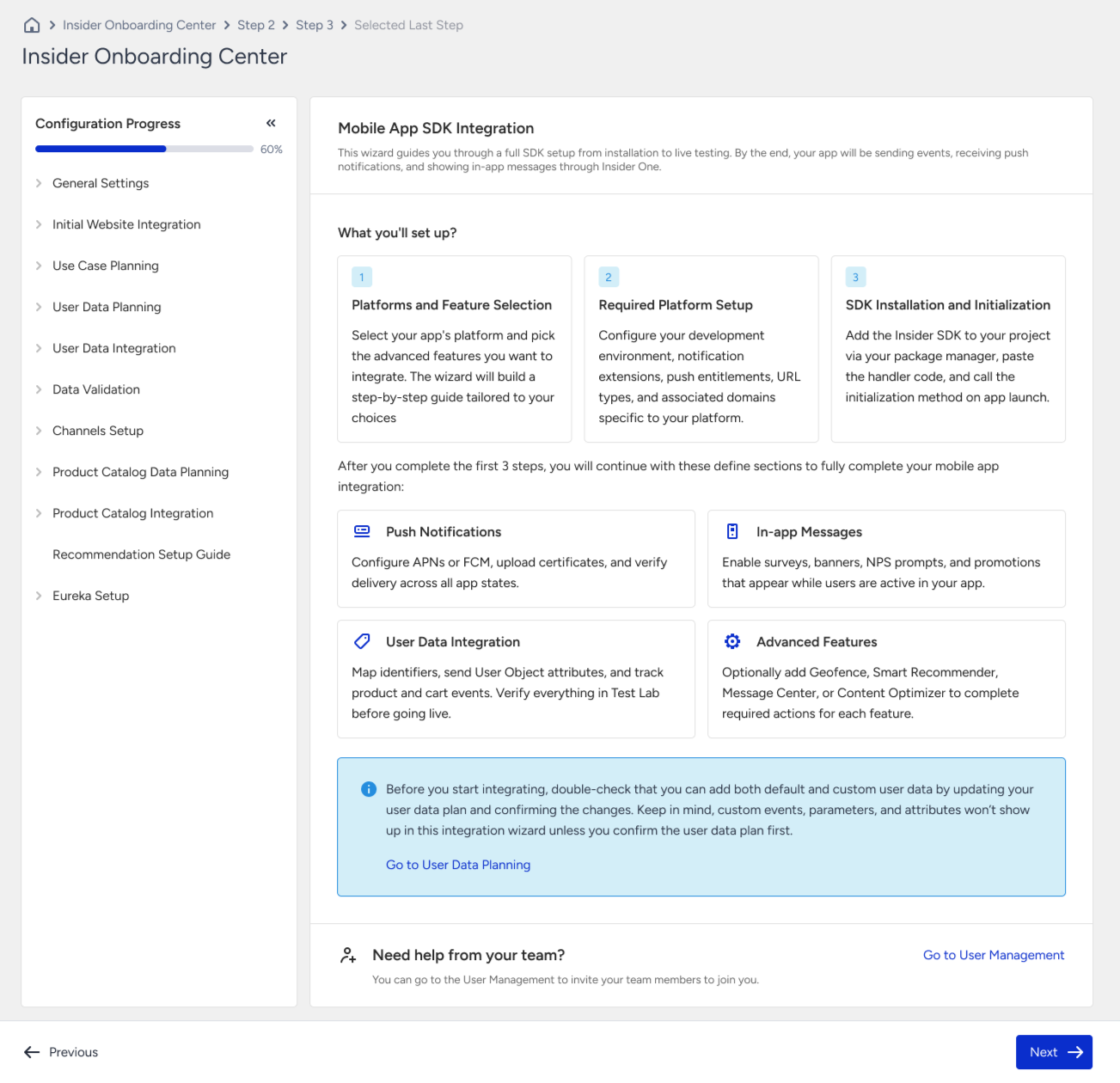
Read the overview page. It lists everything you will set up: platform and feature selection, required platform setup, SDK installation and initialization, push notifications, in-app messages, user data integration, and advanced features.
Click Next to start with Step 1.
Step 1. Platform and feature selection
In this step, you tell the flow which platforms your app runs on and which Insider One features you want to use. The rest of the flow, including code samples, configuration, and tests, adapts to your choices.
Select your platforms
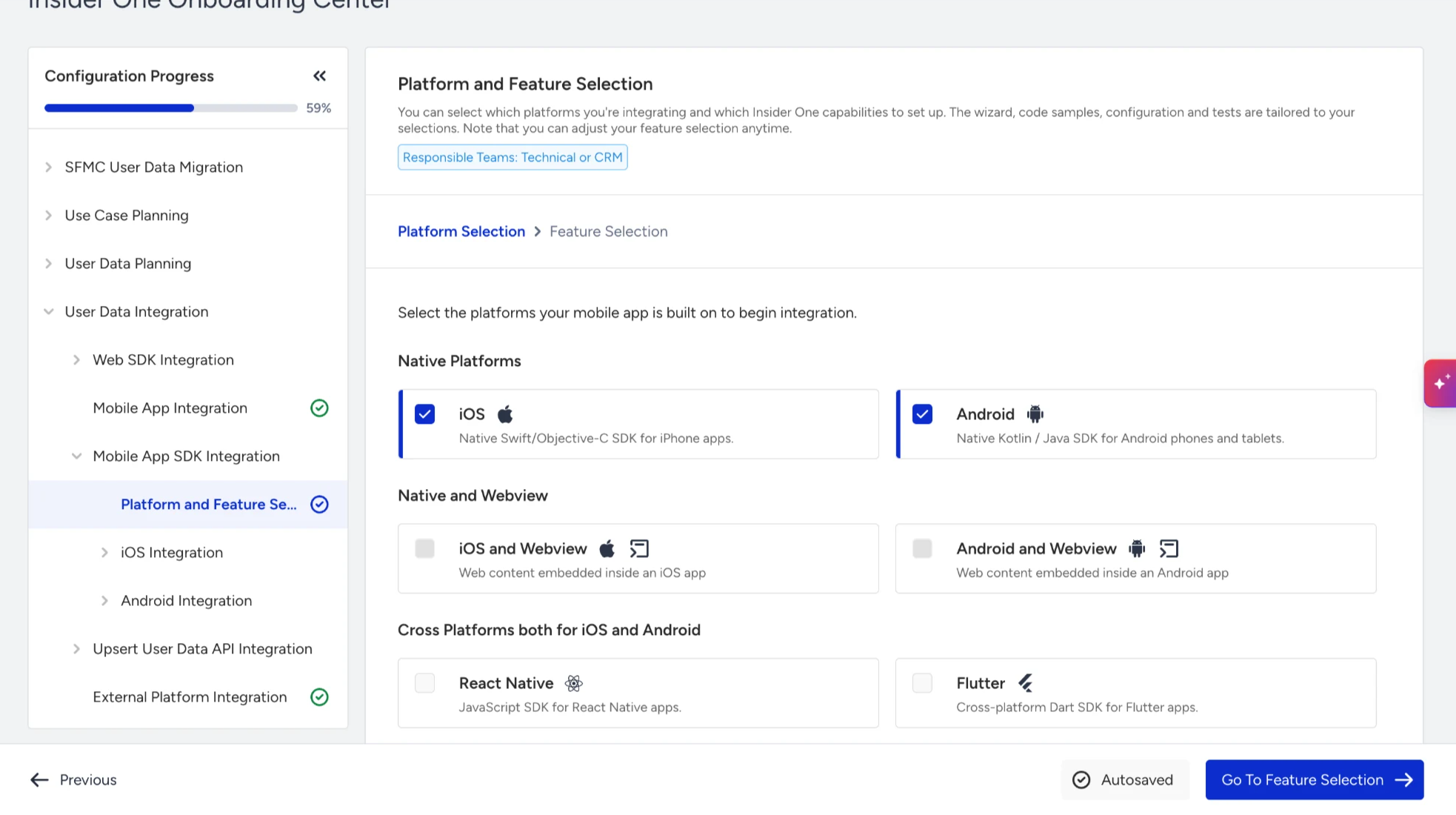
On the Platform Selection tab, select iOS, Android, or both under Native Platforms.
If your app also shows web pages inside a WebView and you want Insider One to work there too, select iOS and Webview or Android and Webview instead. You can't select iOS and iOS and Webview at the same time (the same applies to Android).
Click Go To Feature Selection.
Note: The step-by-step flow supports native iOS and Android apps. Support for React Native and Flutter is coming soon. If you select React Native, Flutter, or Cordova/Ionic, the flow shows a link to the Academy guide for that framework.
Select your features
On the Feature Selection tab, review the list of features. Click a feature to see what it is, when to use it, how it works, and common technical pitfalls.
Keep the features you plan to use selected and uncheck the rest. Each selected feature adds a short setup and test to Step 8. Advanced Feature Setup.
Click Next.
The first time you continue, a Feature Selection confirmation appears. Check your selection, because it affects the next steps, and click Continue.
Feature | What it does | Developer guide |
|---|---|---|
Geofence | Sends push and in-app messages when a user enters, leaves, or stays in an area you define. | |
Smart Recommender | Shows personalized product recommendations in your app. | |
App Cards | Shows a persistent, swipeable feed of cards inside your app. | |
Social Proof | Shows real-time signals, such as how many people viewed or bought a product. | Set up in the flow |
Cart Reminder | Sends push notifications about abandoned carts. | |
Content Optimizer | Lets you A/B test content in your app without releasing a new version. |
Select Geofence only if your app genuinely uses location. Otherwise, your app might be rejected by the App Store, or Google Play might ask you to justify background location access.
A feature that is not included in your plan appears locked and can't be selected. To add it, contact your Account Director.
If you deselect a platform after you have started its setup, all integration progress for that platform is removed, including your answers, checklists, and test results. Uploaded certificates and test devices are kept. Deselecting a feature works the same way. In both cases, the flow asks you to confirm first.
Step 2. Required setup
Before you install the SDK, you prepare your project so that your app can receive push notifications, rich push notifications with images and carousels, and links that open your app. Follow the part for your platform.
Tell the flow about your push providers
Before Required Setup, the flow asks a few questions about your app. Your answers change the instructions and code samples you see later.
For Do you already have a push provider in your app?, select No, we only use Insider One if Insider One is the only service that sends push notifications to your app. Select Yes, we have one or more provider if another service also sends push notifications to your app.
Android only: select Google Play only, or select Huawei support needed if you also distribute your app to Huawei devices that don't have Google Play Services.
Click Next.
If you change these answers later, the steps that depend on them (Required Setup and Initialize SDK, and Certificate Configuration for the Huawei answer) are reset and you need to complete them again.
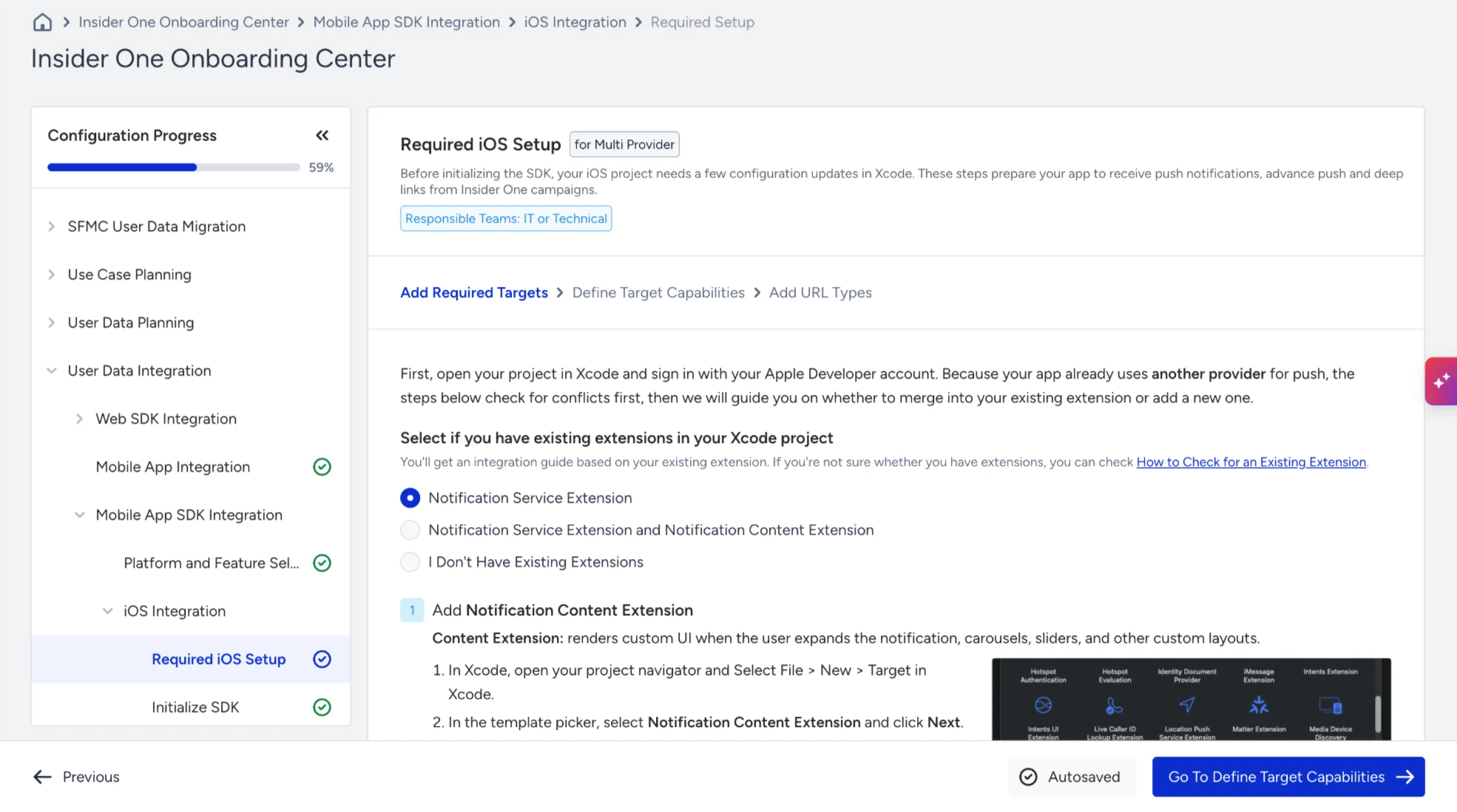
iOS: Required iOS setup
This step prepares your Xcode project so that your app can receive push notifications, rich push notifications with images and carousels, and links that open your app. In Xcode, you add the two notification extensions Insider One needs (InsiderNotificationService and InsiderNotificationContent), turn on the required capabilities (Push Notifications, Background Modes, and App Groups), and add the Insider One URL scheme. The flow shows the instructions for each task. For details, see iOS: Adding Required Targets and iOS: Capabilities and URL Types.
Android: Required Android setup
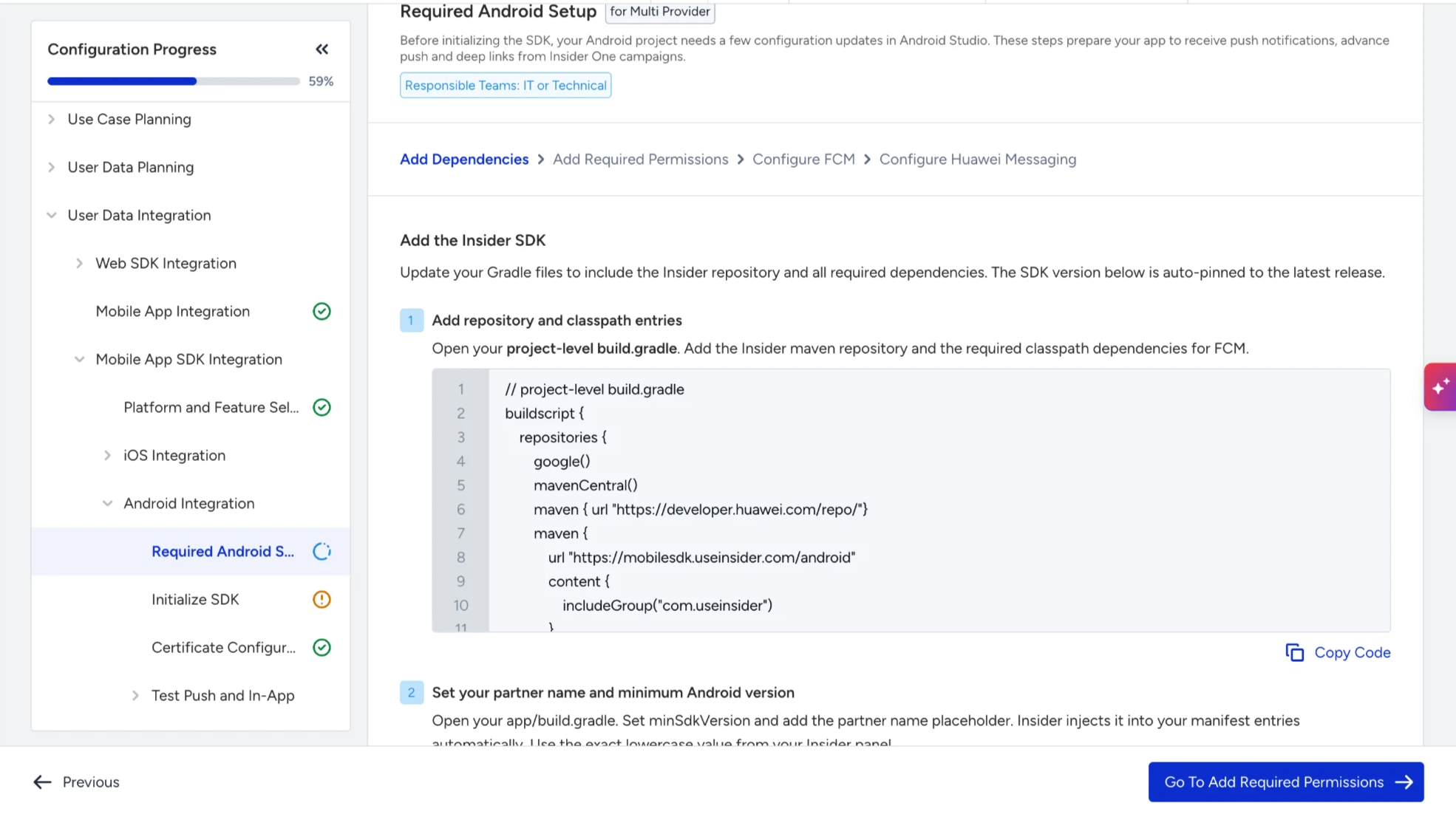
This step prepares your Android Studio project so that your app can receive push notifications. You add the Insider One SDK dependencies and your partner name to your Gradle files, add the required permissions to your manifest, and connect your app to Firebase Cloud Messaging (FCM), the Google service that delivers push notifications to Android devices. If you selected Huawei support, you also connect your app to Huawei Push Kit. The flow shows the instructions for each task. For details, see Android: Required Dependencies and Permissions, Android: Set Firebase Messaging Service, and Huawei Messaging Service.
Step 3. Initialize SDK
In this step, add the Insider One SDK to your app and start it when your app launches so the SDK can collect data and receive messages.
iOS
You install the SDK with CocoaPods, Swift Package Manager, or Carthage, add the code shown in the flow to your two notification extensions, and add the initialization code to your AppDelegate with your partner name and App Group. The flow asks a few questions, for example, whether your app uses a SceneDelegate, and shows the code that matches your answers. For details, see CocoaPods installation, SPM installation, Carthage installation, and iOS: Initialize SDK.
Android
You add the initialization code shown in the flow to the onCreate method of your Application class, with your partner name in lowercase. If your app doesn't have an Application class yet, the flow shows you how to create one. For details, see Android: Landing Class and Android: Initialize SDK.
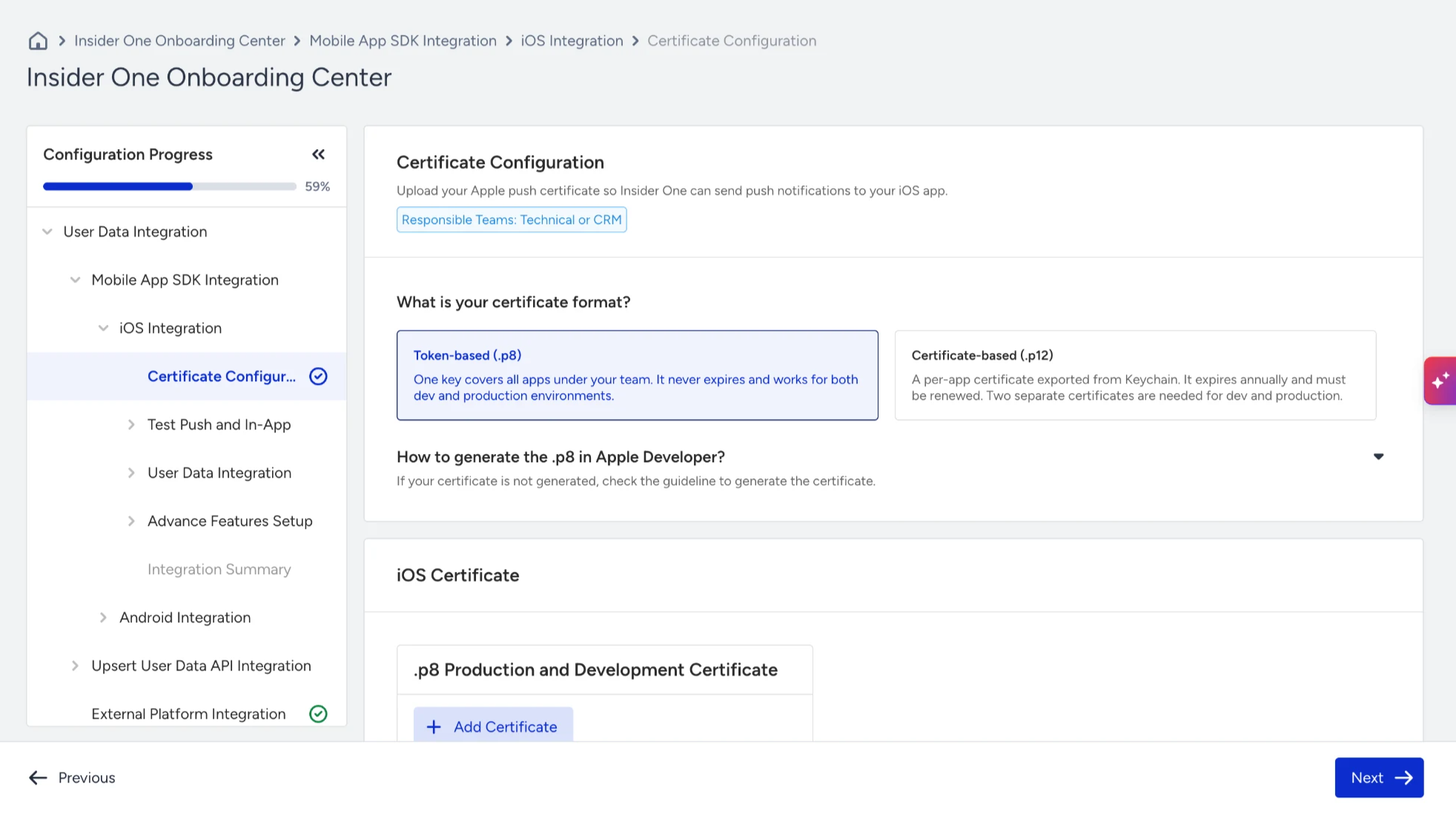
Step 4. Certificate configuration
To send push notifications to your app, Insider One needs permission from Apple (iOS) and Google (Android). In this step, you create these credentials and upload them to Insider One.
iOS
You create a push key (.p8) or a push certificate (.p12) on the Apple Developer website and upload it in the flow. A .p8 key never expires and works for all apps in your Apple Developer team. A .p12 certificate is created per app and expires every year. For a .p8 key, you also enter your Bundle ID, Key ID, and Team ID. For details, see Apple Push Certificate (.p8) and Apple Push Certificate (.p12).
Android
You create a Firebase service account key (a JSON file) in the Firebase console or the Google Cloud console and upload it in the flow. If you selected Huawei support, you also enter your Huawei Messaging Service App ID and App Secret. For details, see Firebase Cloud Messaging API and Huawei Messaging Service.
Step 5. Test push in the app
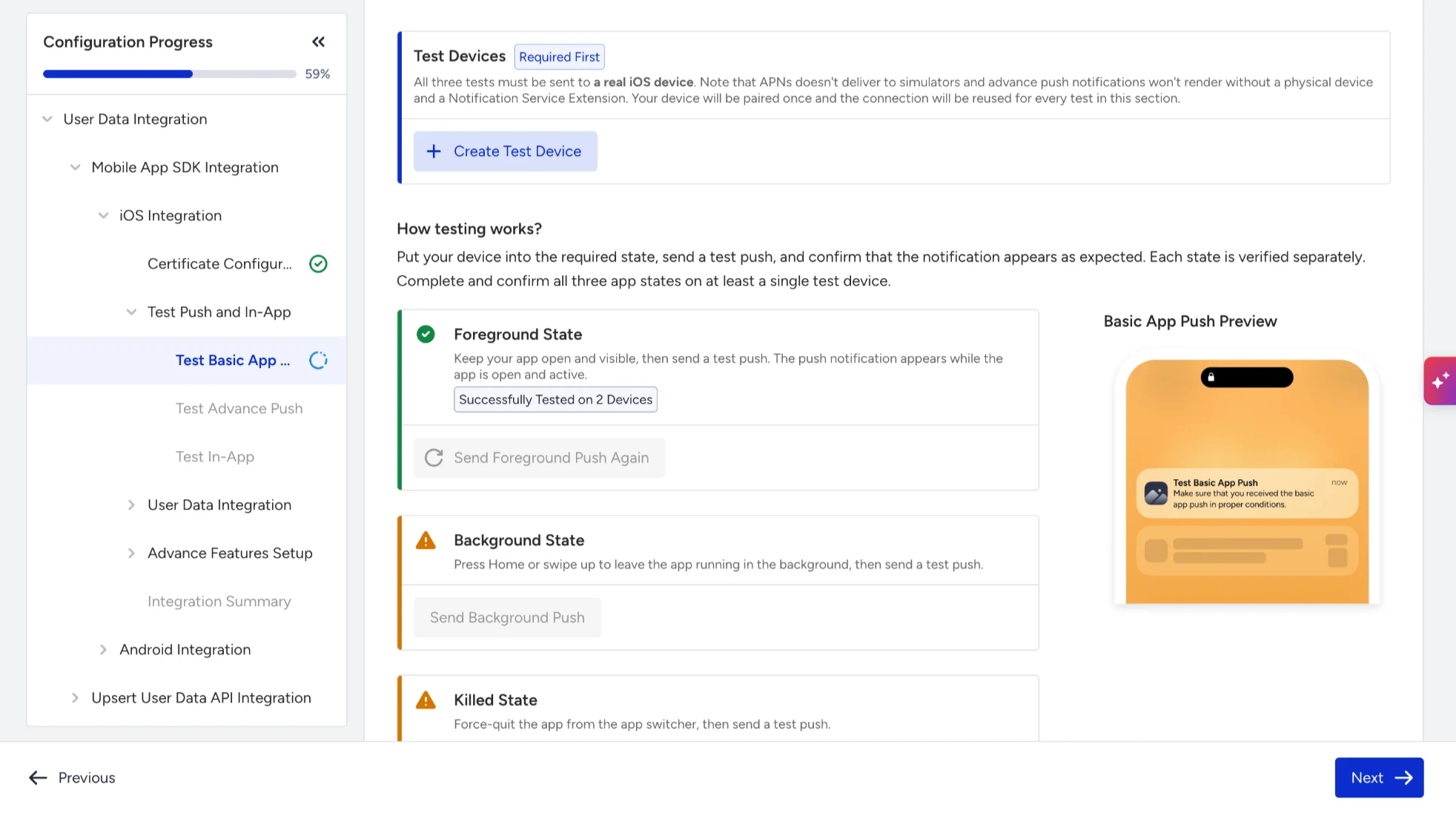
In this step, you check on a real device that your app receives push notifications and in-app messages. You run three tests: basic app push, advanced push, and in-app message.
Before you test, make sure you have:
A real device: iOS 13 or later, or Android 7.0 or later. Push notifications are not delivered to the iOS Simulator.
A debug build of your app that includes everything from Steps 2 to 4.
Notifications allowed for your app on the device.
An internet connection on the device.
Add a test device
For details, see Adding a Test Device on Mobile App.
Click + Create Test Device.
Choose how to identify the device. With Dynamic Link (default), enter an email address you can open on the device and click Send Email. On the device, open the email from noreply@useinsider.com and tap the link to open your app. If the email doesn't arrive within 60 seconds, check your spam folder.
Alternatively, with a QR Code, run the debug build on the device, open the Insider One debugger in your app, tap Pair Device, and scan the QR code.
Go to the Approve tab, enter a name for the device (up to 60 characters), and click Approve.
If you can't add your device, open your app and complete one session, then close the app and try again. On iOS, check the URL scheme from Step 2. On Android, check the partner name in your Gradle file. For details, see Why can't I add my device as a test device?.
Test basic app push
You test push notifications in three app states. The same device must receive all three.
Keep your app open on the device, click Send Foreground Push, select your test device, and send. Test URL and Test Groups are optional.
Put your app in the background (go to the home screen) and click Send Background Push.
Close your app completely (swipe it away) and click Send Killed Push.
Check the results table. The status must be Delivered for all three states on the same device.
Status | What it means | What to do |
|---|---|---|
Delivered | The push notification reached the device. | Continue with the next state. |
Failed: Bad Device Token | The app build and the certificate environment don't match. | Check that your certificate matches your build (development or production). |
Failed: Device Token Not For Topic | Your app's Bundle ID doesn't match the certificate. | Check the Bundle ID you entered in Step 4. |
Failed: Unregistered | The app was reinstalled or the device token is no longer valid. | Open the app again and add the device again if needed. |
No device token | Notifications aren't allowed for your app on the device. | Allow notifications in the device settings. |
Mismatch Sender ID (Android) | The service account key is from a different Firebase project. | Upload a key from the same project as your google-services.json file. |
Test advanced push
Advanced push opens after the basic push test is complete.
Send the advanced push in each app state.
Check that the images and carousel appear and that you can swipe through the cards.
Test in-app message
Keep your app open on the device and click Send In-App Message.
Check that the message appears. The test is complete when the message is delivered to at least one device.
Step 6. User data integration
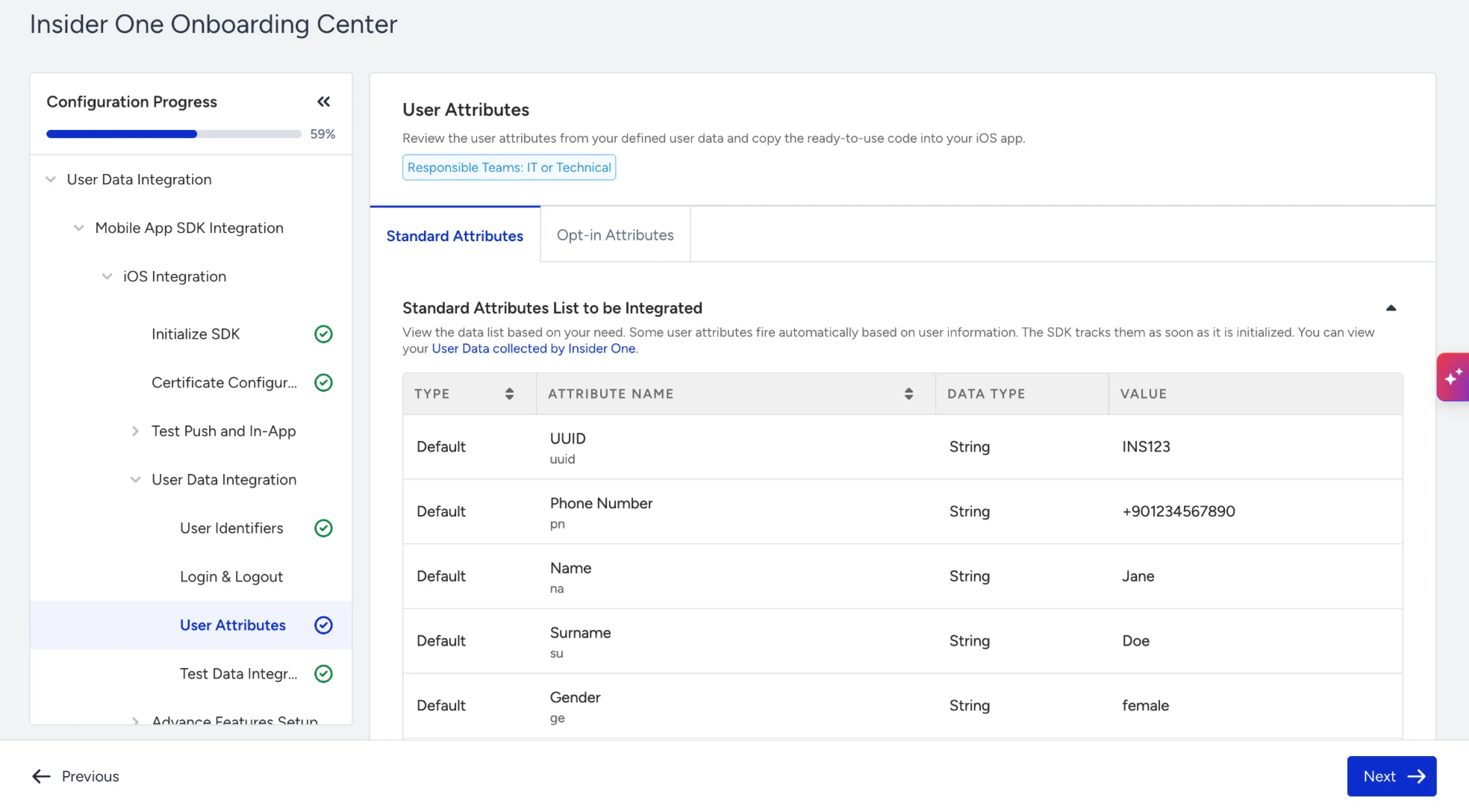
In this step, you send information about who your users are and what they do in your app, so you can segment, personalize, and analyze. The flow shows the data you planned in User Data Planning, with ready-to-use code for each item.
On the overview page, review your user data. If your data plan is approved, you see a read-only list. If it isn't, select the data you want to integrate. Required items are selected for you and locked.
Open each page in the menu (identifiers, login and logout, attributes, and each event) and copy the code into the right place in your app, as described in the table below.
Open User Data collected by Insider One to see the data the SDK collects automatically. You don't need any code for this data.
Page | What it does | When to call it | Guide |
|---|---|---|---|
User Identifiers | Tells Insider One who the user is, for example by email, phone number, or user ID. | When the user logs in, and every time a logged-in user opens the app. | |
Login & Logout | Links the user's activity to their profile, or stops linking it. | Login: at sign-in and when a session is restored. Logout: only when the user signs out. | |
User Attributes | Saves profile information such as name, language, opt-ins, and your custom attributes. | When the information becomes known or changes. | |
Events | Records what the user does: home page, product page, listing page, cart, wishlist, purchase, sign-up confirmation, and your custom events. | At the moment, the action happens in your app. |
Step 7. Test lab
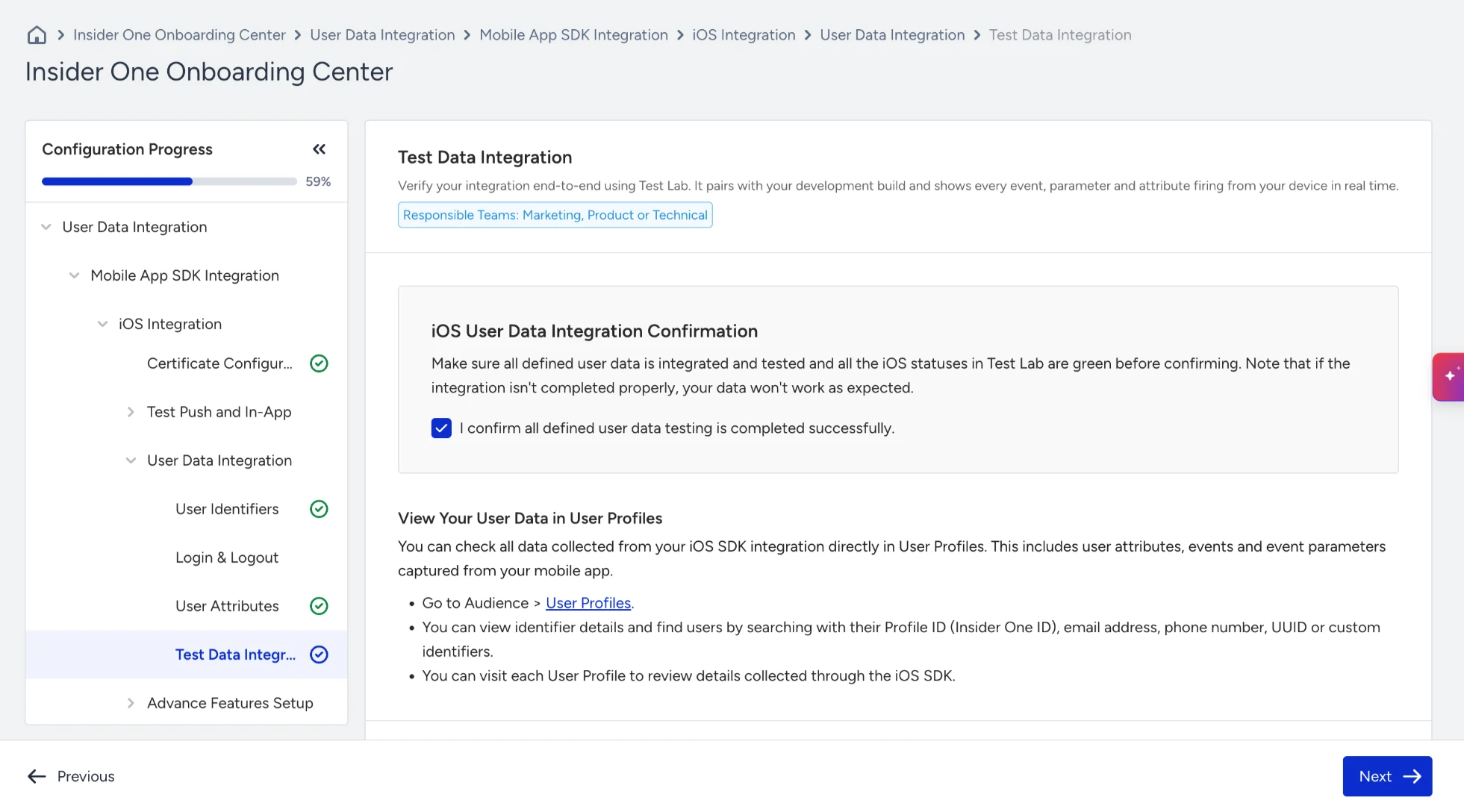
In this step, you go to the Test Lab to check that every event and attribute from Step 6 reaches Insider One correctly. For details, see Mobile App: Test Lab.
Step 8. Advanced feature setup
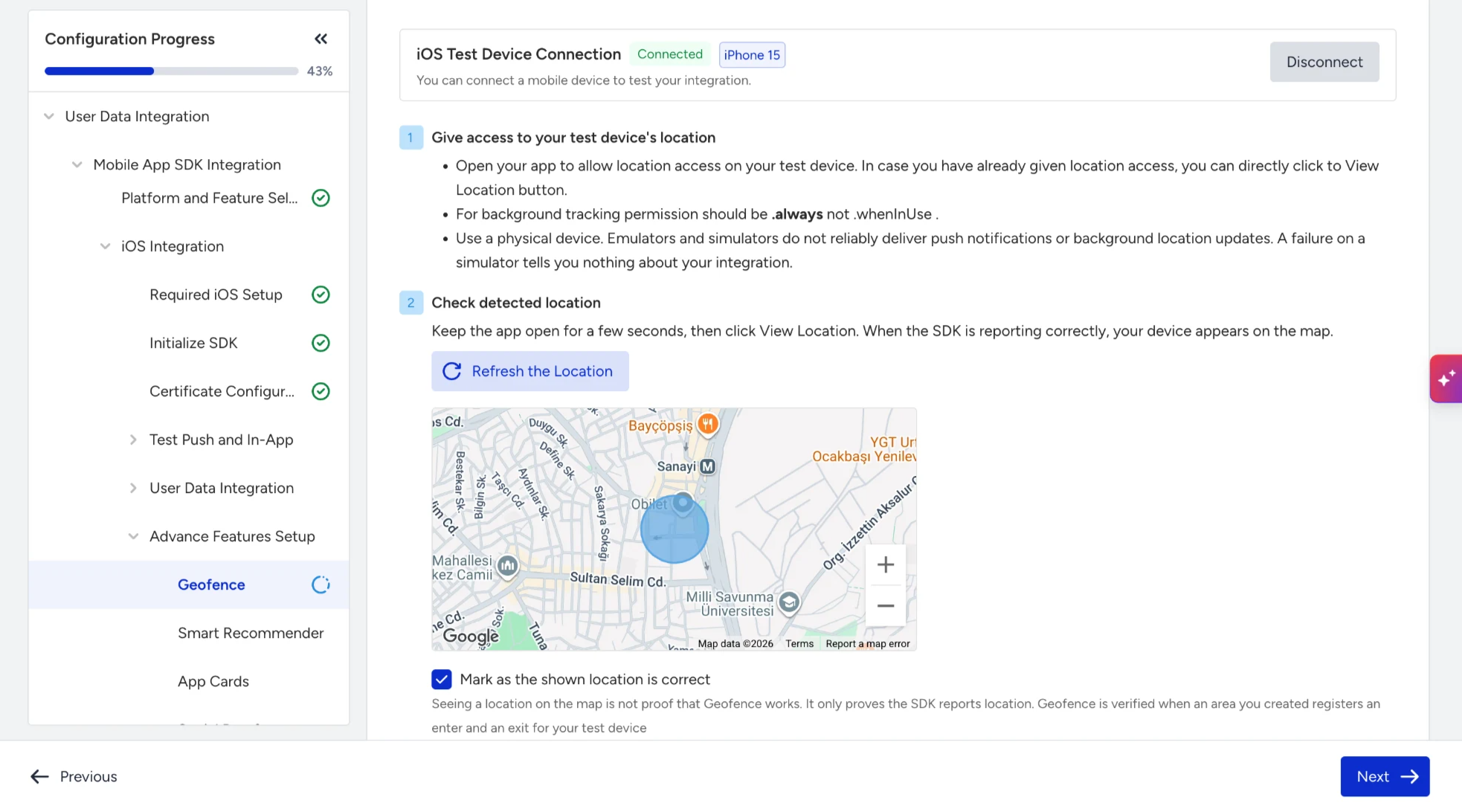
In this step, you set up each feature you selected in Step 1. Before you start, make sure the SDK is initialized, your certificates are uploaded, and a real test device is available.
Each feature has its own page. On each page:
On the Configure tab, follow the instructions and copy the code into your app. Click Learn More to read about the feature again.
On the Test & Validate tab, click Connect Device to connect your test device by dynamic link or QR code, and then follow the test.
When the test passes, the feature card changes from Not Ready to Ready, and you can create your first campaign for that feature.
Feature | What you set up | How you test it |
|---|---|---|
Geofence | Location permission and tracking after the SDK starts; optionally, background location. | Create a geofence in the panel, enter and leave the area with the app in the background, and check the location on the test device's user profile. |
Smart Recommender | User locale and product stock, where recommendations appear in your app, and click tracking. | Open product pages and confirm the data arrives. |
App Cards | Display cards, mark them as read, and handle their links. | Create an App Cards campaign and check that the cards appear in your app. |
Social Proof | The product page, home page, and listing page view events, or confirm they are already integrated. | Open product pages and confirm the views arrive. |
Cart Reminder | The item added to cart, item removed from cart, cart cleared, and purchase events. Push notifications must be allowed, and product images must use public HTTPS links. | Add an item to the cart and remove one, and check that both tests succeed. |
Content Optimizer | The content variables your app reads, and marking content as seen. | Check that the variables are registered, then create a Content Optimizer campaign. |
For Geofence, explain in your App Store review notes why your app needs location. On Google Play, you might need to declare background location access.
If you selected both iOS and Android, the flow continues with Android after the last iOS step.
Good to know
Mobile App SDK Integration supports iOS and Android. For other frameworks, follow the developer guide for mobile SDKs.
Your progress is saved per step and shown in the side menu, so you can leave and continue later.
If you deselect a platform in Step 1, the progress for that platform is reset.
After you complete the setup, your app is ready for app push and in-app campaigns in Insider One.