This method allows you to start tracking the geofence of your users.
Install the InsiderGeofence module via your dependency manager (Swift Package Manager, CocoaPods, or Carthage). See iOS Basic SDK Setup for installation steps and the corresponding capabilities the main app target needs.
Configure Info.plist
Add the following keys to your main app target's Info.plist so iOS can prompt the user for foreground location access.
| Key | Description |
|---|---|
| NSLocationUsageDescription | Legacy description shown when the app requests location access. Required for older iOS versions. |
| NSLocationWhenInUseUsageDescription | Shown when the app requests permission to access location while it is in use (foreground) |
| NSLocationAlwaysAndWhenInUseUsageDescription | Shown when the app requests permission to access location in both foreground and background contexts |
Sample Info.plist snippet:
<key>NSLocationUsageDescription</key>
<string>We use your location to send you nearby offers and notifications.</string>
<key>NSLocationWhenInUseUsageDescription</key>
<string>We use your location to send you nearby offers and notifications.</string>
<key>NSLocationAlwaysAndWhenInUseUsageDescription</key>
<string>We use your location to send you nearby offers and notifications.</string>
Track geofence
Call InsiderGeofence.startTracking() after the SDK has been initialized. The first call triggers the system location permission prompt if access has not already been granted.
Geofence campaigns target the device only after the user grants the required system location permission. The user's locationOptin attribute on the InsiderUser object must also be true. See iOS User Object > Location Opt-in.
[InsiderGeofence startTracking];InsiderGeofence.startTracking()Background tracking
To receive geofence updates while the app is in the background, complete the three steps below in addition to the foreground setup above.
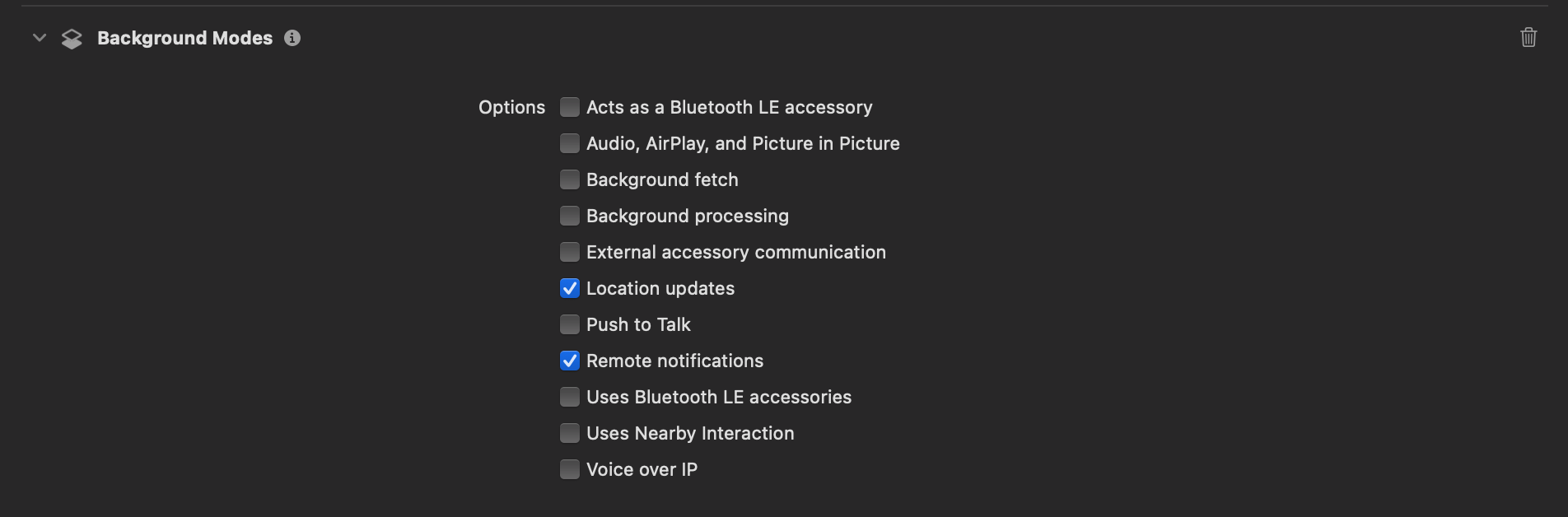
Background Modes capability
In Xcode, select your main app target > Signing & Capabilities > Capability and add Background Modes. Enable Location updates.
Tracking in the background
Add the following key to your Info.plist in addition to the foreground keys.
| Key | Description |
|---|---|
| NSLocationAlwaysUsageDescription | Shown when the app requests permission to access location at all times, including when the app is not running. |
<key>NSLocationAlwaysUsageDescription</key>
<string>We use your location in the background to deliver geofence-triggered notifications.</string>
Allow Background Updates
Call setAllowsBackgroundLocationUpdates(true) before startTracking() so the SDK keeps receiving location updates while the app is in the background.
[InsiderGeofence setAllowsBackgroundLocationUpdates:YES];
[InsiderGeofence startTracking];
InsiderGeofence.setAllowsBackgroundLocationUpdates(true)
InsiderGeofence.startTracking()