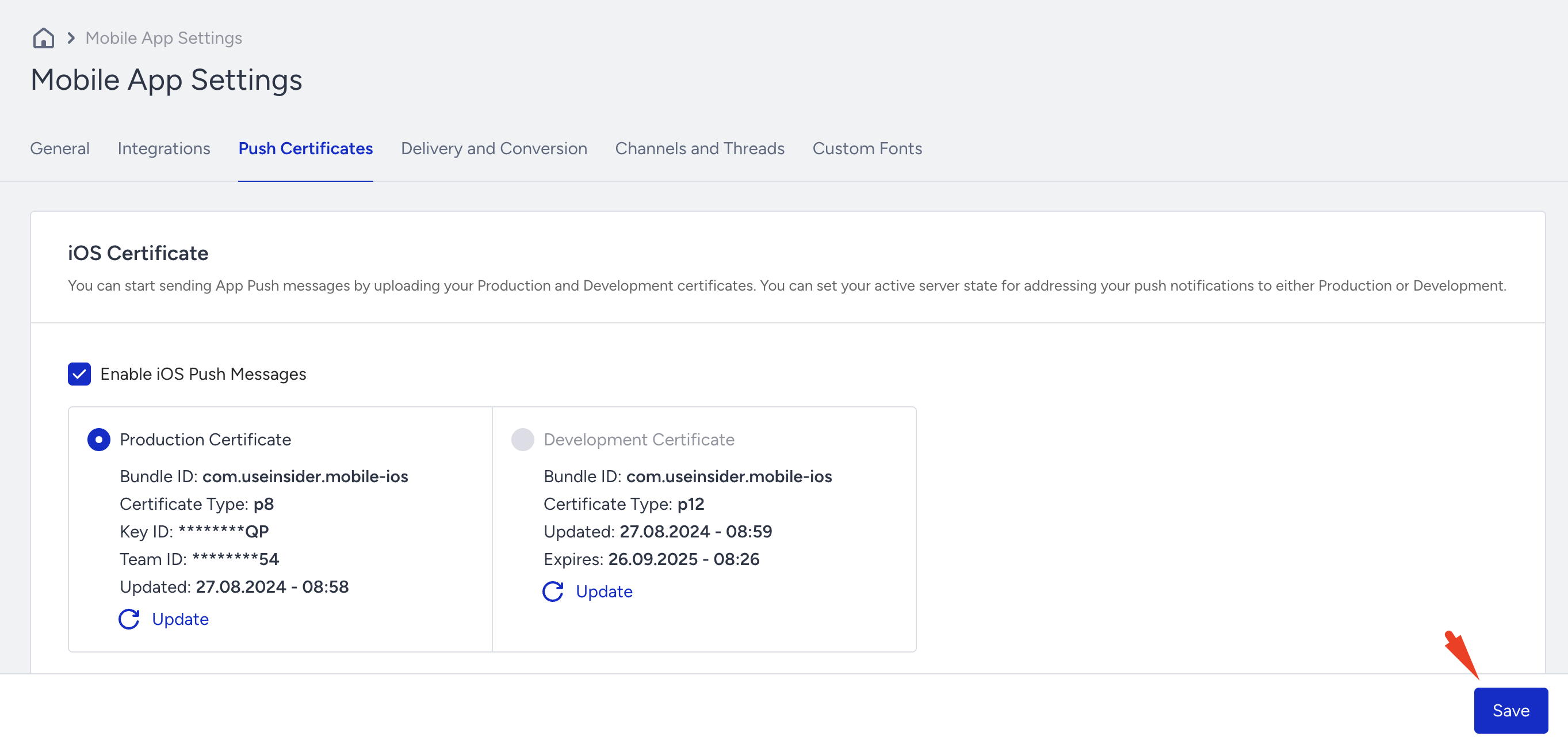
Follow these steps to get your Apple push certificate (also known as the Apple Push (.p8) key or APNs key) needed for iOS push notifications, and upload it to your mobile dashboard.
Sign in to your Apple Developer Account.
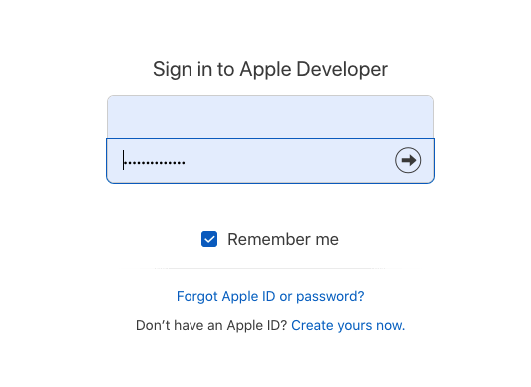
Navigate to Certificates, Identifiers & Profiles > Keys > Your Key.
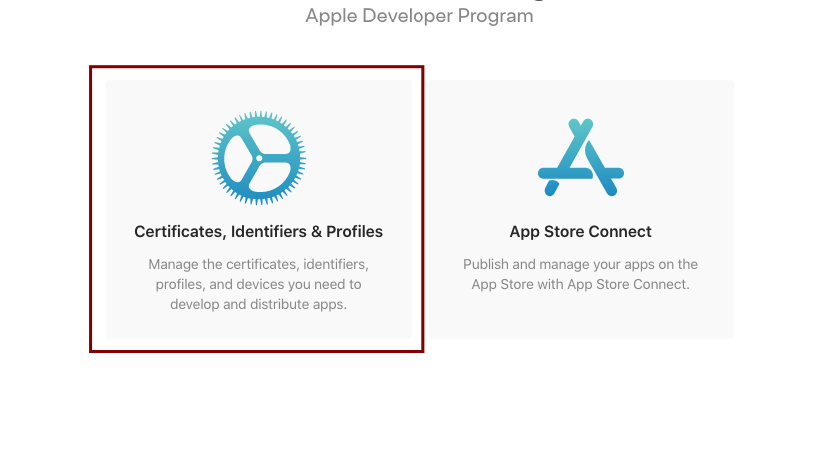
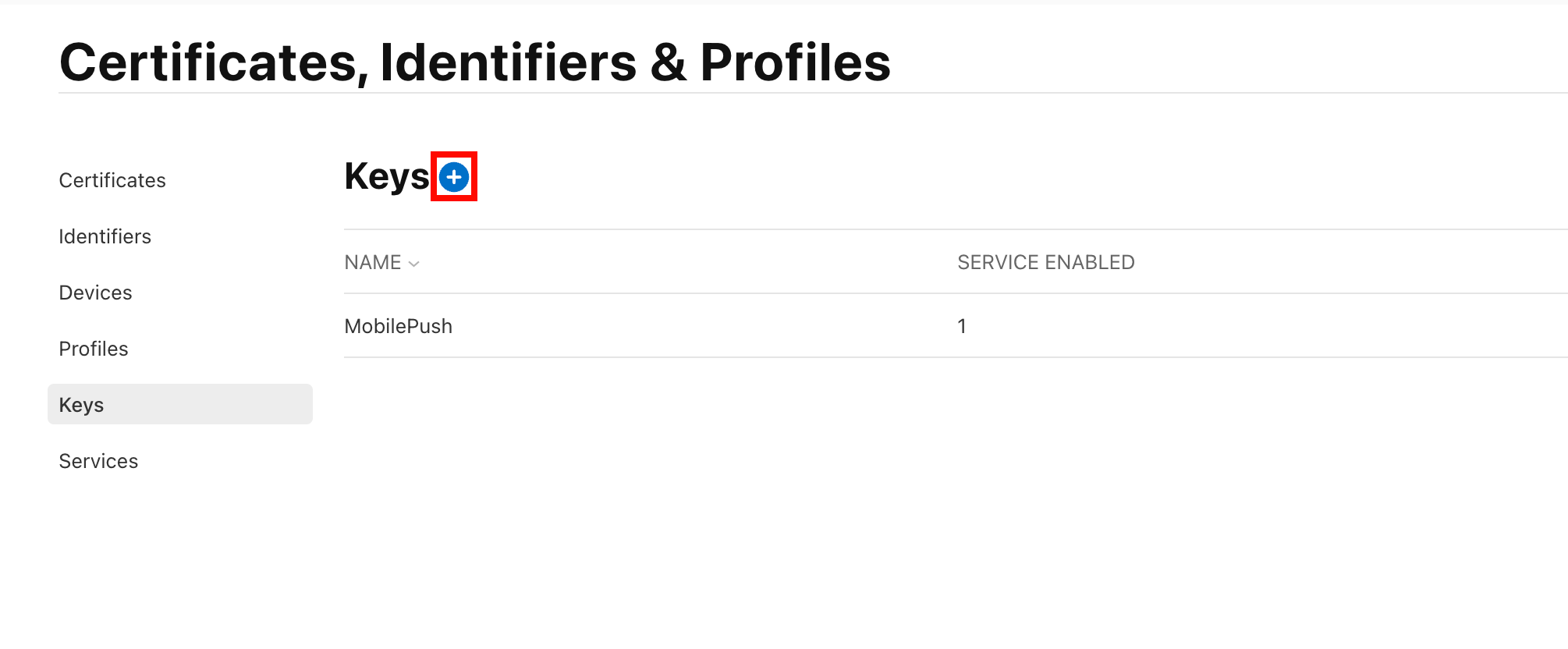
Navigate to Certificates, Identifiers & Profiles > Keys.
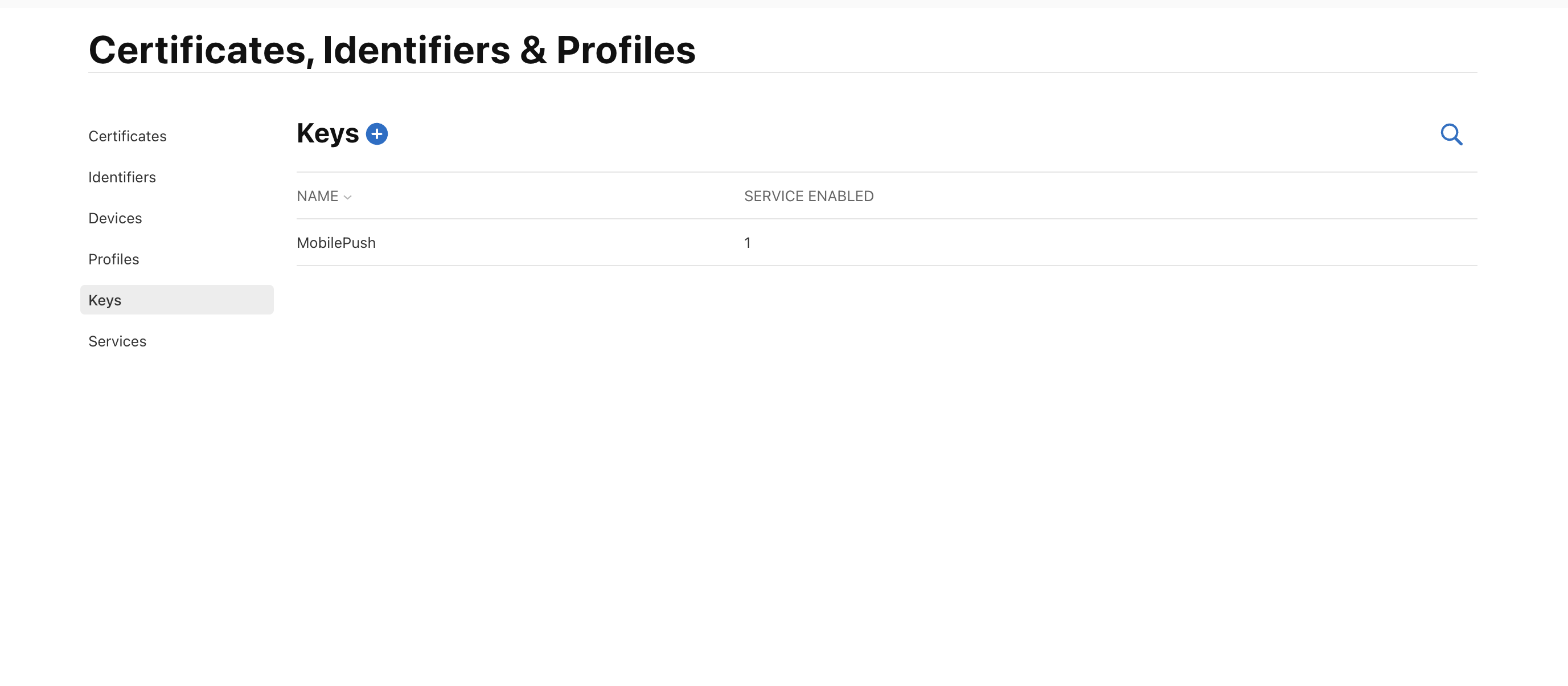
Click the + (add) button.
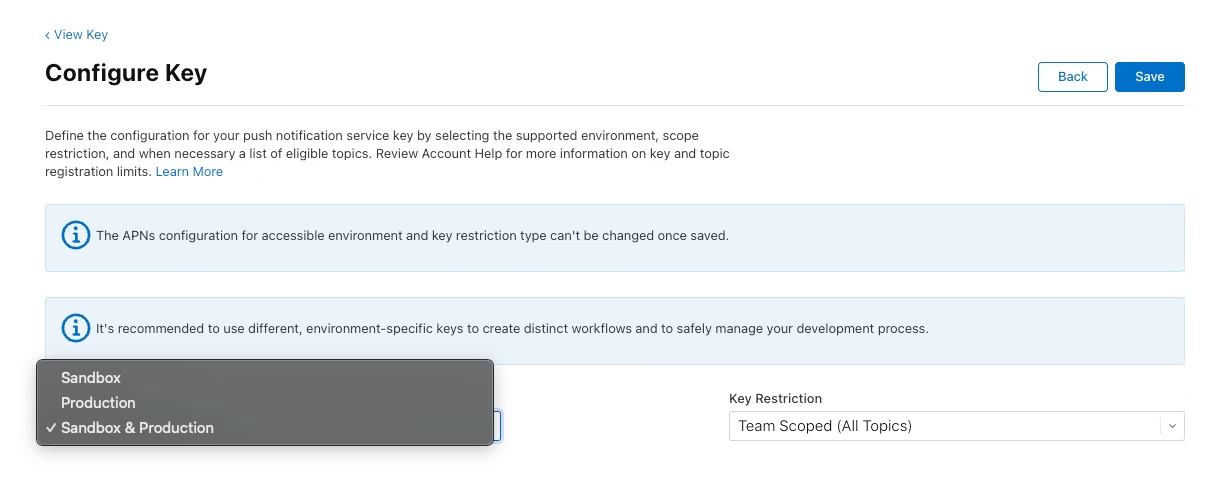
When configuring the key, ensure that the Sandbox & Production option is selected.
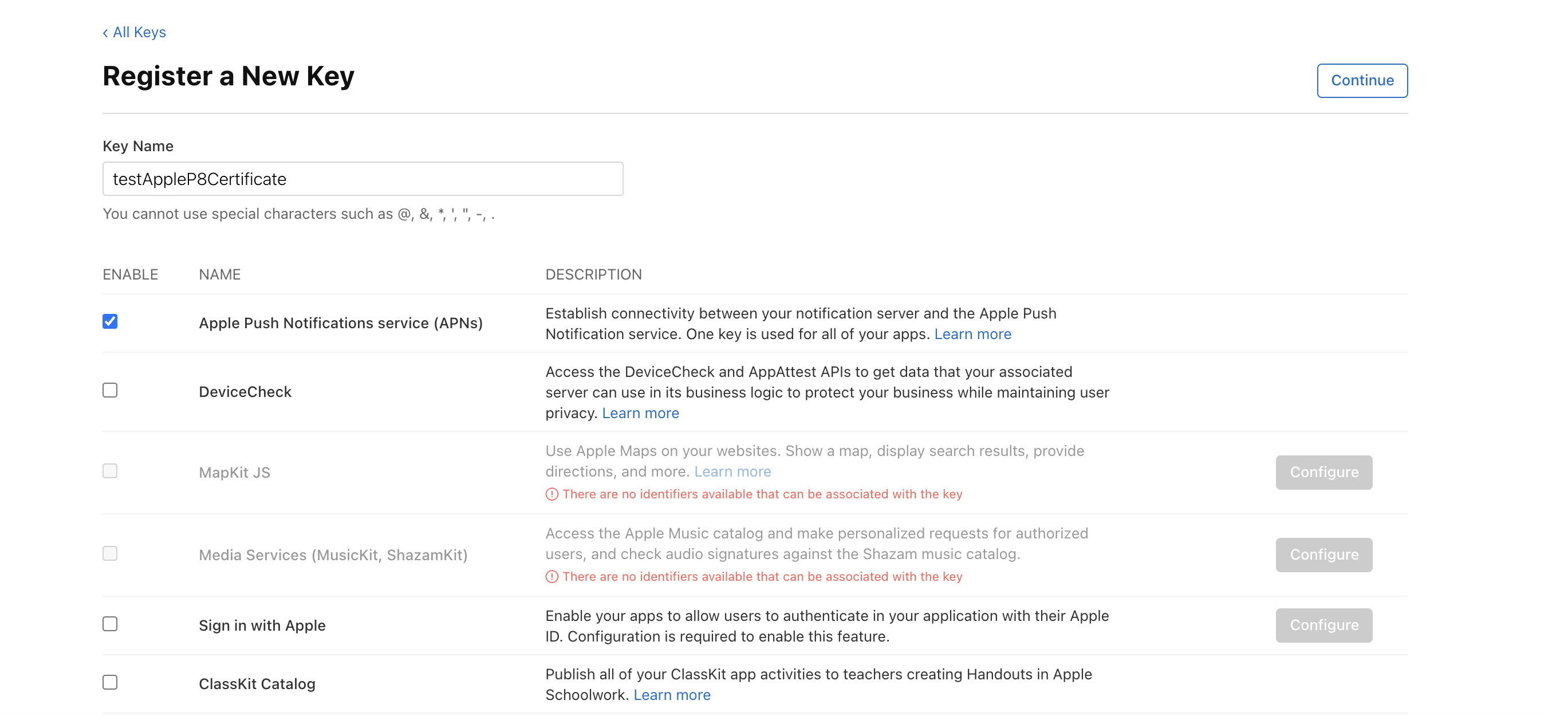
Create a New Key and select Apple Push Notification service (APNs). Click the Continue button.
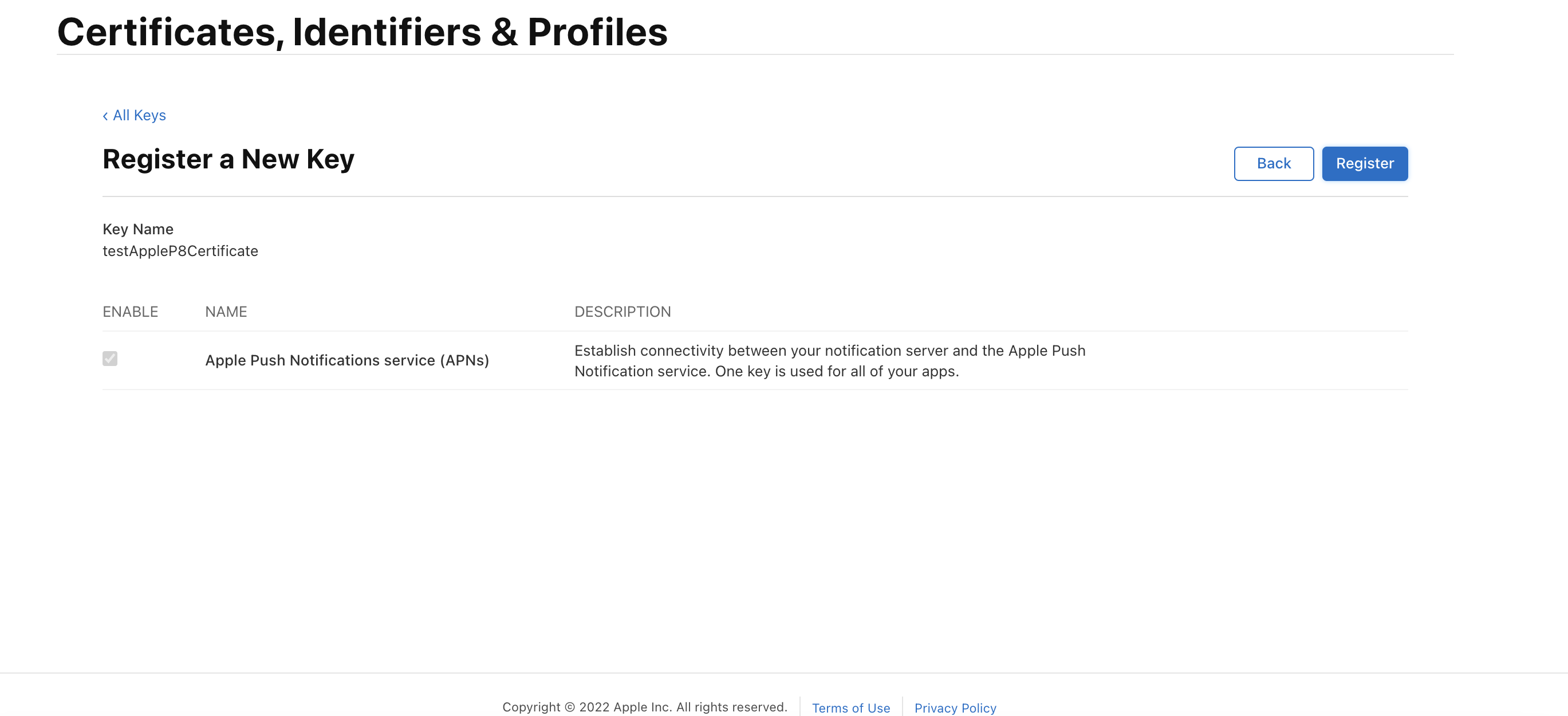
Control the key name and description, and click the Register button.
Copy and keep the Key ID for further use. After that, click the Download button.
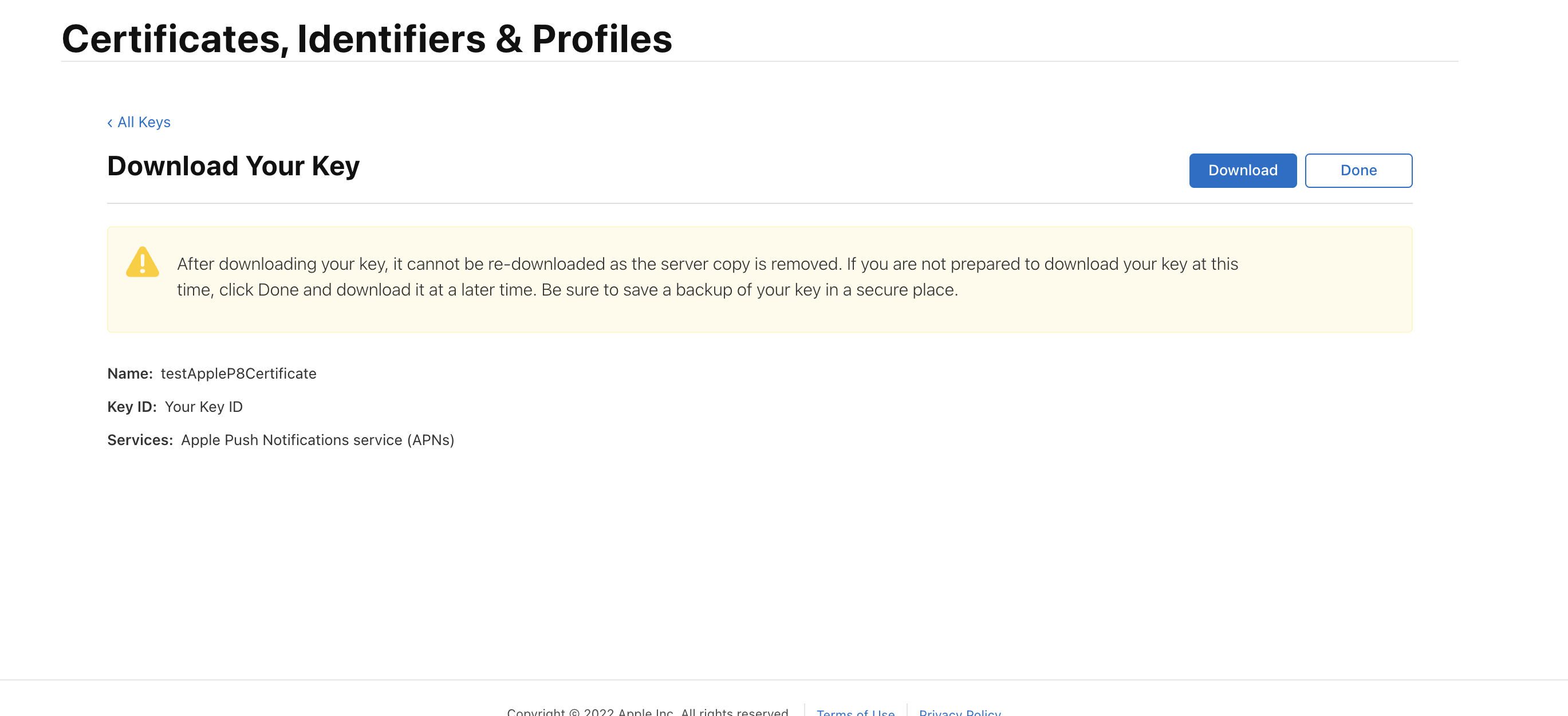
Download your key certificate to your Mac.
Go to the InOne Mobile Dashboard and navigate to Settings > Mobile App Settings > Push Notification.
Enable iOS Push Notifications via the checkbox.
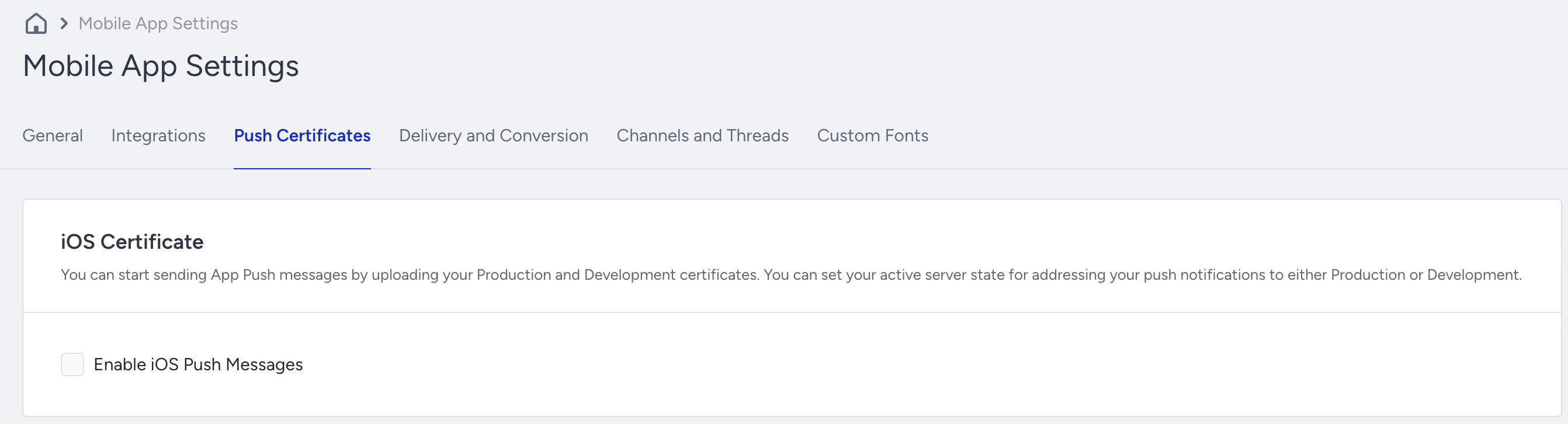
Upload your certificate for production and development environments. Please enter the same certificate key in both environments.
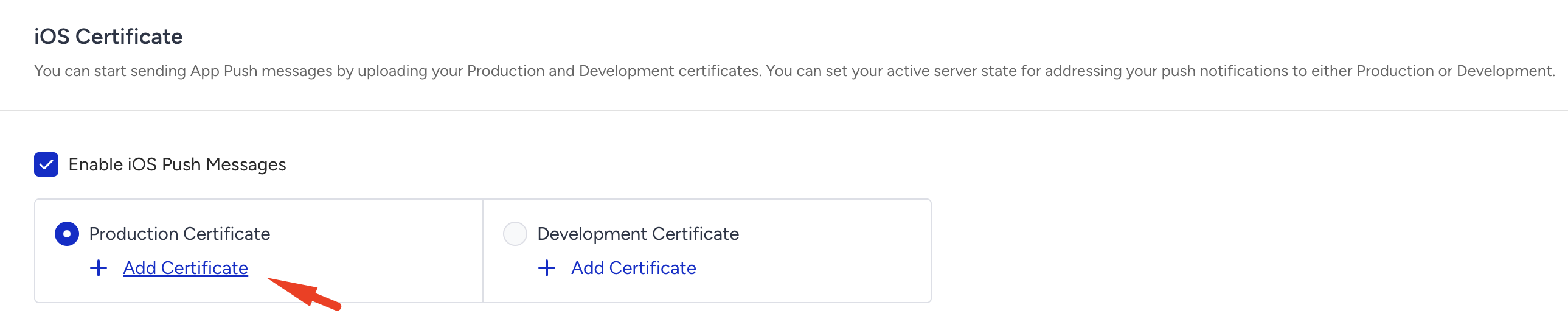
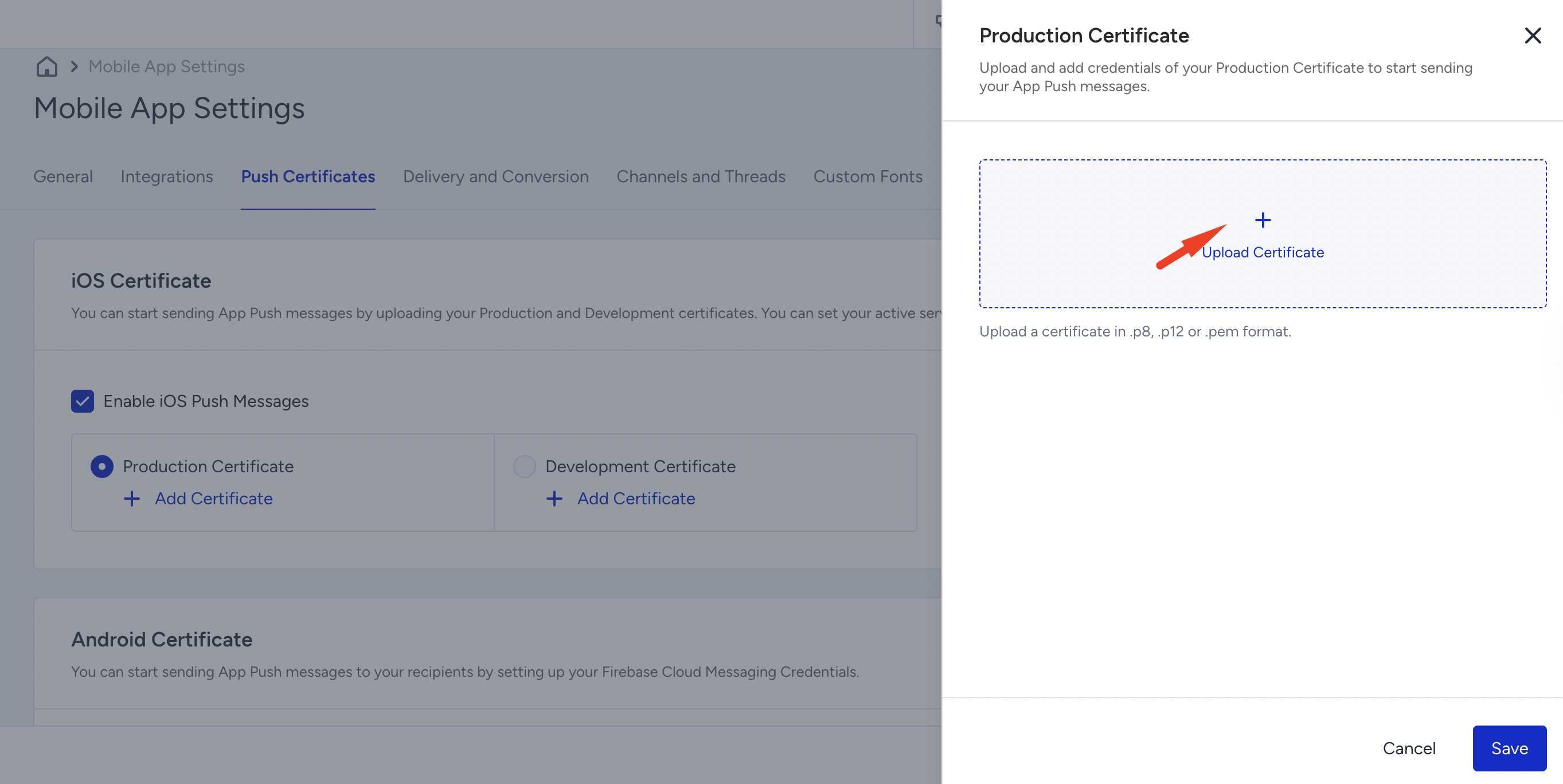
Enter the requested inputs.
You can get the Bundle ID and Team ID from your Apple Developer account. Bundle ID is the unique ID of the app in the Apple ecosystem. E.g., com.company.appname. You can get it through Apple Developer > Certificates, Identifiers & Profiles > Identifiers > App IDs. Team ID is the 10-character team/account ID that represents the Apple Developer. E.g., A1B2C3D4E5. You can get it through Apple Developer > Account > Membership (or Account Details).
The Bundle ID must be correct for the push to be sent. The Team ID must be from the same team as the APNs key.
After you upload your certificate, it should look as follows:
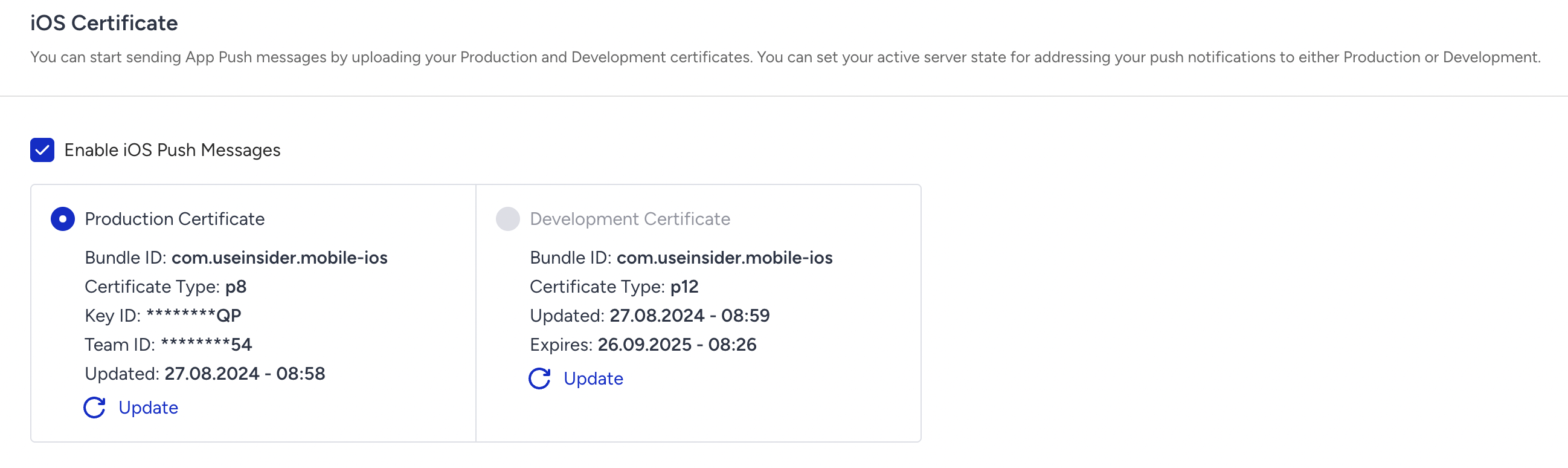
Choose your current server state.
Do not forget to click the Save button. Otherwise, all progress will be lost.