Suggested readings: Add a test device on mobile app, FAQ about test devices
Several reasons might cause issues with adding your device as a test device:
Existing Device
If you have already added your device as a test device, you cannot re-add it before removing it from the existing test devices list. To eliminate the issue, remove the device from the list before re-adding it.
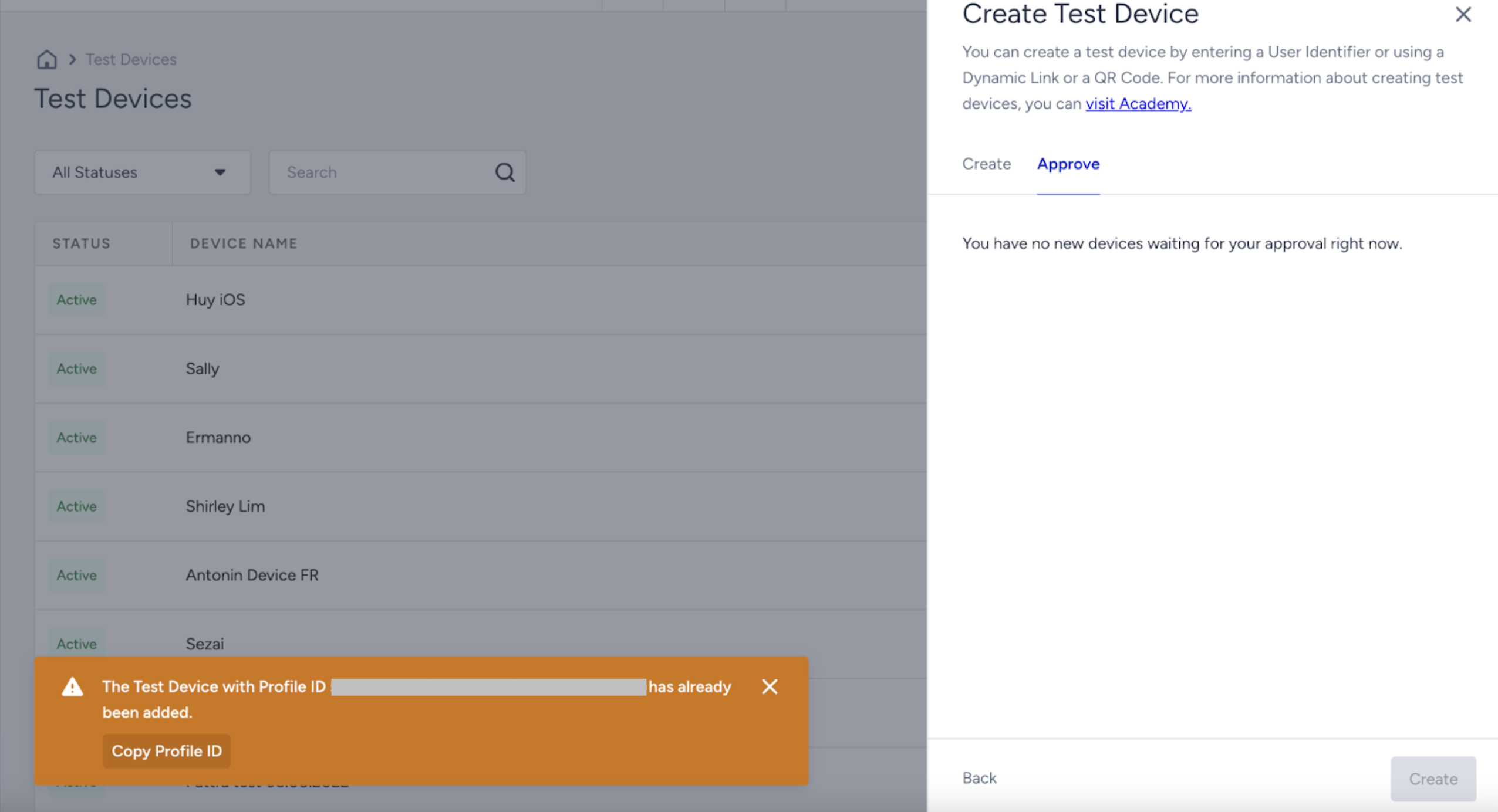
QR Scanned, but Device Not Listed On Test Device List
Once a device is scanned but not confirmed on the candidate device list, the system will not add it to the test list.
QR Scanned, but Device Not Listed on the Candidate Device List
Potentially, an integration might be missing. If you have completed all steps listed above, you can proceed with the following:
General
The user profile may not be created under User Profiles. In this case, the data transition will not work properly, and you should fix this issue.
Make sure that you have started and finished at least one session.
If you downloaded the app recently, close it after opening it, as a user profile is created and updated when the app is closed.
iOS
Check the URL Types and ensure that the “insider” prefix is added before the partner name variable.
Check your push handling method if you have more than one vendor integrated (e.g., Firebase or any other vendor).
If your iOS device is not recognized and you cannot connect to the test wizard, refer to the I can't connect to the test wizard page.
Android
Check the Android native step 5 and declare manifestPlaceholders inside android > defaultConfig with your Insider partner name.
Check the Required Dependencies and Permissions step 2.
Refer to I can't connect to the panel with a QR code scan with an Android device page for further details.