With Insider One's Carthage installation, you can:
Pull every Insider One iOS SDK into your app as a prebuilt .xcframework binary, with no source compilation on your machine or in CI.
Pin each module (core, rich push, geofence, WebView, Live Activities) to its own version and upgrade them independently.
Ship rich push notifications with images, carousels, and interactive buttons through the two notification extension targets.
This guide covers the requirements for a Carthage integration, how to declare and build the Insider binaries, how to link them to your app and extension targets, and how to configure the notification extensions afterward in the following sections:
1. Prerequisites
Before you start, make sure you have:
A Mac with Xcode installed
A physical iOS device. The Xcode simulator cannot receive push notifications, so rich push has to be verified on real hardware.
An Apple Push Services certificate for iOS, uploaded to your Insider One panel
Carthage installed (See the next section)
An app whose deployment target is at least the minimum declared in each module's podspec. Check the .podspec file in the module's repository rather than relying on the number quoted here, as it can change between releases.
Extension Targets
Rich push needs two extension targets (a Notification Service extension and a Notification Content extension) plus an App Group shared by the app and both extensions. Create them first, following Add Required Targets, then come back to this guide.
2. Install Carthage
2.1. Follow the Carthage quick start guide to install the tool. Homebrew is the usual route.
Xcode's Carthage build phases invoke the binary through the absolute path /usr/local/bin/carthage. On Apple Silicon, Homebrew installs to /opt/homebrew/bin instead, so that path does not exist and the build phase fails.
2.2. Check where your installation landed:
which carthage2.3. If the answer is /opt/homebrew/bin/carthage, add a symlink so the expected path resolves:
sudo mkdir -p /usr/local/bin
sudo ln -s /opt/homebrew/bin/carthage /usr/local/bin/carthage
2.4. Run which -a carthage afterward to confirm that /usr/local/bin/carthage is now listed.
3. Create the Cartfile
Insider distributes every module as a prebuilt binary, so each entry uses Carthage's binary keyword pointing at a JSON version manifest rather than a Git repository.
Create a file named Cartfile in your project root next to the .xcodeproj, or add these lines to your existing one. Include only the modules you actually use:
binary "https://mobilesdk.useinsider.com/carthage/InsiderMobile/15.1.3/InsiderMobile.json"
binary "https://mobilesdk.useinsider.com/carthage/InsiderMobileAdvancedNotification/2.4.0/InsiderMobileAdvancedNotification.json"
binary "https://mobilesdk.useinsider.com/carthage/InsiderGeofence/1.2.4/InsiderGeofence.json"
binary "https://mobilesdk.useinsider.com/carthage/InsiderWebView/1.0.0/InsiderWebView.json"
binary "https://mobilesdk.useinsider.com/carthage/InsiderLiveActivities/1.0.0/InsiderLiveActivities.json"
Each module version is independent, and the numbers above are the ones the SwiftDemo reference app is pinned to. Check the iOS SDK changelog for the latest release of each module before you copy them.
Module | Description | Required |
|---|---|---|
InsiderMobile | Core SDK. Initialization, identity, events, in-app messages, push. | Yes |
InsiderMobileAdvancedNotification | Rich push: media attachments, carousel and interactive notifications. Linked by the two extension targets. | For rich push |
InsiderGeofence | Geofence entry and exit tracking. | Optional |
InsiderWebView | WKWebView wrapper with the Insider JavaScript bridge. | Optional |
InsiderLiveActivities | Lock Screen and Dynamic Island Live Activities. | Optional |
Rich push used to ship as two separate frameworks named InsiderNotificationService and InsiderNotificationContent. Both were merged into the single InsiderMobileAdvancedNotification module. If your Cartfile still references the old names, replace them with the single entry above.
4. Build the frameworks
Carthage aggressively caches downloaded binaries, and a stale cache is the most common cause of an upgrade appearing to do nothing.
4.1. Clear it before the first build and before every version bump:
rm -rf ~/Library/Caches/org.carthage.CarthageKit4.2. Then, from the directory containing the Cartfile, resolve and download the binaries:
carthage update --use-xcframeworks --platform iOSThe --use-xcframeworks flag is required. Insider ships .xcframework bundles only; without the flag Carthage looks for the legacy fat-framework layout and the build fails.
When the command finishes, a Carthage directory appears in your project root:
Carthage/
├── Build/
│   ├── InsiderMobile.xcframework
│   ├── InsiderMobileAdvancedNotification.xcframework
│   ├── InsiderGeofence.xcframework
│   ├── InsiderWebView.xcframework
│   └── InsiderLiveActivities.xcframework
└── Checkouts/
The rich push module also carries the three template files you will need later, at the root of its bundle:
Carthage/Build/InsiderMobileAdvancedNotification.xcframework/
├── InsiderInterface.storyboard
├── NotificationService.m
└── NotificationViewController.m
5. Link the frameworks to your targets
Carthage downloads the binaries but does not touch your Xcode project; linking is manual. Each target links only to the modules its own code imports, so the rich push module belongs to the two notification extensions, not to the app.
Target | Frameworks to link | Embed |
|---|---|---|
App | InsiderMobile, plus InsiderGeofence, InsiderWebView, and InsiderLiveActivities if you use them | Embed & Sign |
Notification Service extension | InsiderMobileAdvancedNotification | Embed & Sign |
Notification Content extension | InsiderMobileAdvancedNotification | Embed & Sign |
Main app target
1. Select your project in the navigator and choose your app target.
2. Open the General tab, and drag the frameworks from the table above out of Carthage/Build into Frameworks, Libraries, and Embedded Content.
3. Set each one to Embed & Sign.
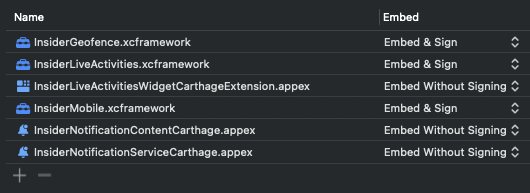
The app target's General tab. The .appex entries are the extension bundles that Xcode automatically adds and embeds when you create the extension targets; you do not add them manually.
Extension targets
1. Select each notification extension target and open its General tab.
2. Add InsiderMobileAdvancedNotification.xcframework under Frameworks and Libraries with Embed & Sign.
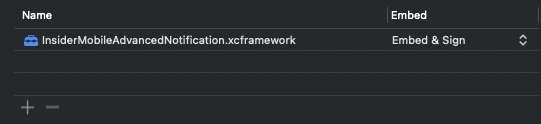
The Notification Service extension's Frameworks and Libraries section. The Notification Content extension looks the same; one entry, set to Embed & Sign.
Do not add InsiderMobileAdvancedNotification.xcframework to the app target. Only the extensions link it, and each embeds its own copy. Adding it to the app as well produces a duplicate-bundle validation error at submission.
6. Configure the notification extensions
With the frameworks linked, replace the boilerplate Xcode generated for each extension with the Insider implementation. Both extensions read the App Group you configured for the app, so the identifier must be identical across all three targets.
Notification Service extension
This extension intercepts the incoming payload and downloads the rich media before the notification is shown. Replace the contents of NotificationService in your extension target:
import InsiderMobileAdvancedNotification
import UIKit
import UserNotifications
import UserNotificationsUI

public final class NotificationService: UNNotificationServiceExtension {

    private var contentHandler: ((UNNotificationContent) -> Void)?
    private var bestAttemptContent: UNMutableNotificationContent?

    /// The App Group identifier used for sharing data between the main app and this extension.
    private let appGroup = "group.com.company.app"

    public override func didReceive(
        _ request: UNNotificationRequest,
        withContentHandler contentHandler: @escaping @Sendable (UNNotificationContent) -> Void
    ) {
        guard
            let bestAttemptContent = request.content.mutableCopy() as? UNMutableNotificationContent
        else { return }
        defer {
            self.contentHandler = contentHandler
            self.bestAttemptContent = bestAttemptContent
        }
        if let source = bestAttemptContent.userInfo["source"] as? String,
           source == "Insider" {
            InsiderPushNotification.showInsiderRichPush(
                bestAttemptContent,
                appGroup: appGroup,
                nextButtonText: "Next",
                goToAppText: "Go to App",
                success: { attachment in
                    if let attachment {
                        bestAttemptContent.attachments = [attachment]
                    }
                    contentHandler(bestAttemptContent)
                }
            )
        } else {
            // Handle other rich push providers in here.
        }
    }

    public override func serviceExtensionTimeWillExpire() {
        if let contentHandler, let bestAttemptContent {
            contentHandler(bestAttemptContent)
        }
    }
}
#import "NotificationService.h"
#import <InsiderMobileAdvancedNotification/InsiderPushNotification.h>
static NSString * const kInsiderAppGroup = @"group.com.example.app";
@interface NotificationService ()
@property (nonatomic, copy, nullable) void (^contentHandler)(UNNotificationContent *);
@property (nonatomic, strong, nullable) UNMutableNotificationContent *bestAttemptContent;
@end
@implementation NotificationService
- (void)didReceiveNotificationRequest:(UNNotificationRequest *)request
withContentHandler:(void (^)(UNNotificationContent *))contentHandler {
UNMutableNotificationContent *bestAttemptContent = [request.content mutableCopy];
if (bestAttemptContent == nil) {
contentHandler(request.content);
return;
}
self.contentHandler = contentHandler;
self.bestAttemptContent = bestAttemptContent;
id source = bestAttemptContent.userInfo[@"source"];
if ([source isKindOfClass:[NSString class]] && [source isEqualToString:@"Insider"]) {
[InsiderPushNotification showInsiderRichPush:bestAttemptContent
appGroup:kInsiderAppGroup
nextButtonText:@"Next"
goToAppText:@"Go to App"
success:^(UNNotificationAttachment *attachment) {
if (attachment) {
bestAttemptContent.attachments = @[attachment];
}
contentHandler(bestAttemptContent);
}];
} else {
// Handle other rich push providers in here.
contentHandler(bestAttemptContent);
}
}
- (void)serviceExtensionTimeWillExpire {
if (self.contentHandler && self.bestAttemptContent) {
self.contentHandler(self.bestAttemptContent);
}
}
@endNotification Content extension
This extension renders the expanded notification: the carousel of slides and the action buttons. Replace the contents of NotificationViewController:
import InsiderMobileAdvancedNotification
import UIKit
import UserNotifications
import UserNotificationsUI

public final class NotificationViewController: UIViewController, UNNotificationContentExtension, iCarouselDelegate, iCarouselDataSource {

    @IBOutlet public weak var carousel: iCarousel!

    private let appGroup = "group.com.example.app"

    deinit {
        carousel?.delegate = nil
        carousel?.dataSource = nil
    }

    public override func viewWillDisappear(_ animated: Bool) {
        super.viewWillDisappear(animated)
        InsiderPushNotification.setTimeAttribution()
    }

    public func carousel(_ carousel: iCarousel, viewForItemAt index: Int, reusing view: UIView?) -> UIView {
        return InsiderPushNotification.getSlide(index, reusing: view, superView: self.view)
    }

    public func numberOfItems(in carousel: iCarousel) -> Int {
        return InsiderPushNotification.getNumberOfSlide()
    }

    public func carouselItemWidth(_ carousel: iCarousel) -> CGFloat {
        return InsiderPushNotification.getItemWidth()
    }

    public override func viewDidLoad() {
        super.viewDidLoad()
        carousel?.delegate = self
        carousel?.dataSource = self
    }

    public func didReceive(_ notification: UNNotification) {
        InsiderPushNotification.interactivePushLoad(appGroup, superView: view, notification: notification)

        carousel?.type = .rotary
        carousel?.reloadData()

        InsiderPushNotification.interactivePushDidReceive()
    }

    public func didReceive(
        _ response: UNNotificationResponse,
        completionHandler completion: @escaping (UNNotificationContentExtensionResponseOption) -> Void
    ) {
        if response.actionIdentifier == "insider_int_push_next" {
            carousel.scrollToItem(
                at: InsiderPushNotification.didReceiveResponse(carousel.currentItemIndex),
                animated: true
            )
            completion(.doNotDismiss)
        }
        else {
            InsiderPushNotification.logPlaceholderClick(response)
            completion(.dismissAndForwardAction)
        }
    }
}
#import "NotificationViewController.h"
#import <UserNotificationsUI/UserNotificationsUI.h>
#import <InsiderMobileAdvancedNotification/iCarousel.h>
#import <InsiderMobileAdvancedNotification/InsiderPushNotification.h>
@interface NotificationViewController () <UNNotificationContentExtension, iCarouselDelegate, iCarouselDataSource>
@property (nonatomic, weak) IBOutlet iCarousel *carousel;
@end
static NSString * const kInsiderAppGroup = @"group.com.example.app";
@implementation NotificationViewController
@synthesize carousel;
- (void)viewWillDisappear:(BOOL)animated {
[super viewWillDisappear:animated];
[InsiderPushNotification setTimeAttribution];
}
- (void)didReceiveNotification:(UNNotification *)notification {
[InsiderPushNotification interactivePushLoad:kInsiderAppGroup superView:self.view notification:notification];
carousel.type = iCarouselTypeRotary;
[carousel reloadData];
[InsiderPushNotification interactivePushDidReceiveNotification];
}
- (NSInteger)numberOfItemsInCarousel:(iCarousel *)carousel {
return [InsiderPushNotification getNumberOfSlide];
}
- (UIView *)carousel:(iCarousel *)carousel viewForItemAtIndex:(NSInteger)index reusingView:(UIView *)view {
return [InsiderPushNotification getSlide:index reusingView:view superView:self.view];
}
- (CGFloat)carouselItemWidth:(iCarousel *)carousel {
return [InsiderPushNotification getItemWidth];
}
- (void)didReceiveNotificationResponse:(UNNotificationResponse *)response
completionHandler:(void (^)(UNNotificationContentExtensionResponseOption option))completion {
if ([response.actionIdentifier isEqualToString:@"insider_int_push_next"]) {
[carousel scrollToItemAtIndex:[InsiderPushNotification didReceiveNotificationResponse:[carousel currentItemIndex]]
animated:YES];
completion(UNNotificationContentExtensionResponseOptionDoNotDismiss);
} else {
[InsiderPushNotification logPlaceholderClick:response];
completion(UNNotificationContentExtensionResponseOptionDismissAndForwardAction);
}
}
- (void)dealloc {
carousel.delegate = nil;
carousel.dataSource = nil;
}
@endOlder versions of this guide referenced classes named InsiderPushService and InsiderPushContent. Both were replaced by the single InsiderPushNotification class; the method names are unchanged.
Add the Insider storyboard
The content extension's UI is drawn from a storyboard shipped with the framework. Drag InsiderInterface.storyboard from Carthage/Build/InsiderMobileAdvancedNotification.xcframework into your Notification Content extension folder inside Xcode, and tick your content extension in the target-membership dialog.
Copy the storyboard through Xcode, not through Finder. A Finder copy lands in the folder without being added to the target, and carousel, slider, and discovery pushes then silently fail to render.
A notification content extension has no Main Interface setting in its General tab; that field exists only for app targets. You point the extension at the storyboard with the NSExtensionMainStoryboard key covered in the next section.
Configure the content extension Info.plist
Open the content extension's Info.plist as source code and make its NSExtension dictionary match the following. The category string is what routes an Insider interactive push to your extension, so it has to be exact:
<dict>
    <key>NSExtensionAttributes</key>
    <dict>
        <key>UNNotificationExtensionCategory</key>
        <string>insider_int_push</string>

        <key>UNNotificationExtensionDefaultContentHidden</key>
        <false/>

        <key>UNNotificationExtensionInitialContentSizeRatio</key>
        <real>0.5</real>
    </dict>

    <key>NSExtensionMainStoryboard</key>
    <string>InsiderInterface</string>

    <key>NSExtensionPointIdentifier</key>
    <string>com.apple.usernotifications.content-extension</string>
</dict>
UNNotificationExtensionDefaultContentHidden is a Boolean, not a string. Set it to <true/> to hide the system's default title and body so only the Insider carousel shows, or <false/> to keep them above it.
Troubleshooting
"/usr/local/bin/carthage: No such file or directory"
The build phase reported Command PhaseScriptExecution failed because the Carthage binary is not at the path Xcode expects. Create the symlink described in Install Carthage.
Permission errors on .bcsymbolmap files
If the build fails while reading .bcsymbolmap files under Debug-iphoneos, the Carthage directory was created with restrictive permissions. Fix them from Finder:
Right-click the Carthage folder in your project root and choose Get Info.
Expand Sharing & Permissions and click the lock icon to unlock it.
Enter an administrator name and password.
Select your user in the Name column and set its privilege to Read & Write.
"Failed to write to Carthage/Build/…: No such file or directory"
On the very first resolve after the cache is empty, Carthage downloads the binaries in parallel and can race itself while creating Carthage/Build, aborting partway with this error. Some frameworks land, others do not. Simply run the same command again — the second pass completes with the cache already warm:
carthage update --use-xcframeworks --platform iOSConfirm that Carthage/Build now holds one .xcframework for every line in your Cartfile before you move on.
Rich push renders as a plain notification
Work through these in order:
Confirm the App Group identifier is byte-identical in the app target and both extensions, and that the capability is enabled on all three.
Confirm UNNotificationExtensionCategory is exactly insider_int_push.
Confirm InsiderInterface.storyboard is a member of the content extension target and that Main Interface points at it.
Send a new push to test. iOS caches notification content, so resending an already-delivered notification can reproduce the old rendering even after the fix.
An upgrade appears to do nothing
Clear the Carthage cache and re-resolve. Version manifests are cached, so a bumped version in the Cartfile can otherwise resolve to the previously downloaded binary:
rm -rf ~/Library/Caches/org.carthage.CarthageKit Carthage/
carthage update --use-xcframeworks --platform iOS
Reference app
A working Carthage integration is available at Insider One’s Swift Demo on GitHub. Its Cartfile and target configuration are the same as the ones described here.
Scheme | What it demonstrates |
|---|---|
ExampleCarthage | Native app with the core SDK and geofence |
ExampleWebViewCarthage | WebView app with the JavaScript bridge |
InsiderNotificationServiceCarthage | Notification Service extension |
InsiderNotificationContentCarthage | Notification Content extension |
Clone it, run carthage update --use-xcframeworks --platform iOS, then set your own partner name, App Group, and signing team before building.