Suggested reading: New FCM Quota System and Its Impact on Message Delivery
If this is your first time integration to Insider One, get started with Android Integration, Firebase Messaging Service, and Firebase Cloud Messaging pages.
To integrate Firebase Cloud Messaging API, you should:
1. Get Firebase Cloud Messaging API Key
2. Control on Firebase Console
3. Create Service Account
4. Generate JSON Credentials
5. Upload JSON Credentials to Insider One
Get Firebase Cloud Messaging API Key
1. Navigate to Inone > Settings > Mobile App Settings > Push Certificates.
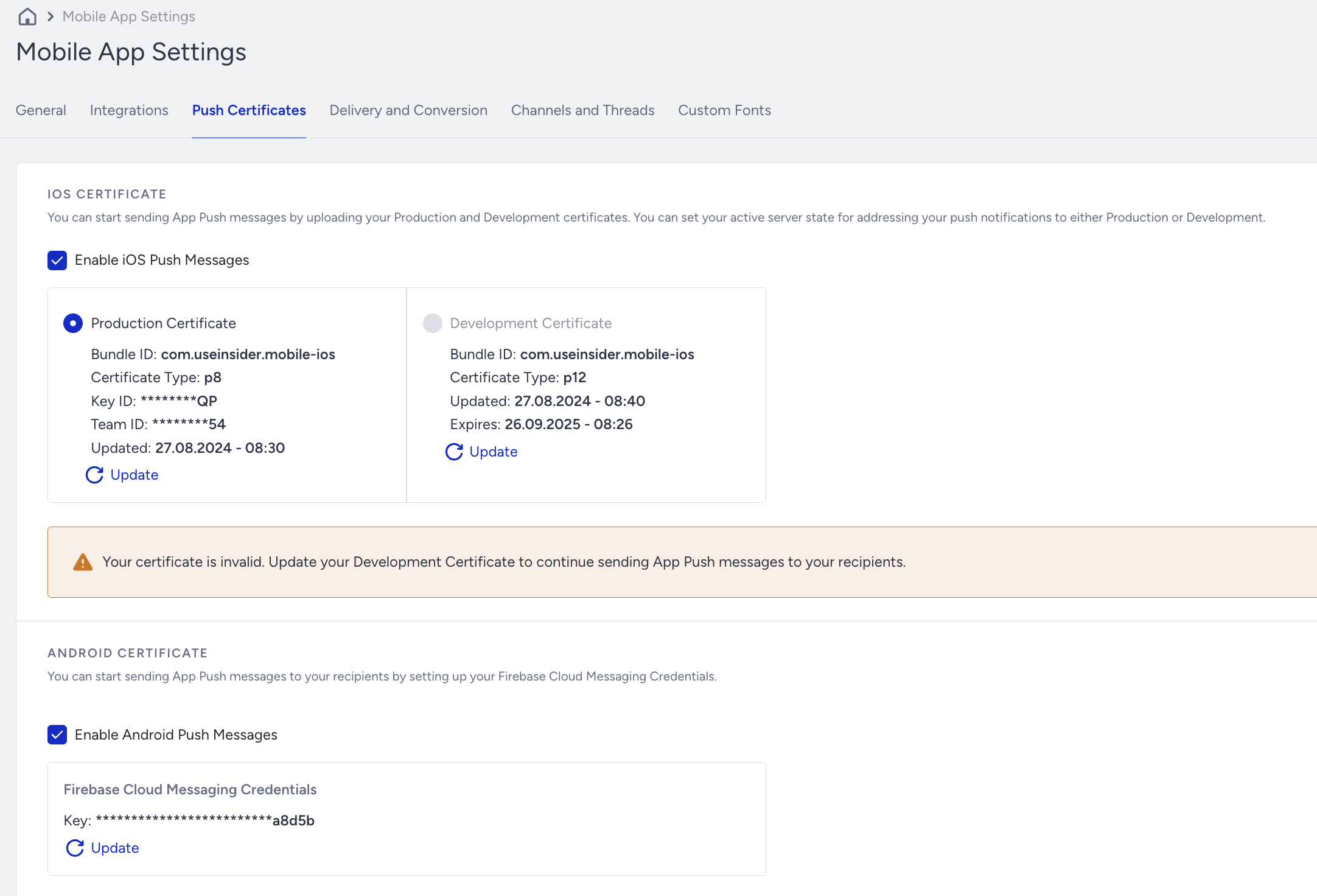
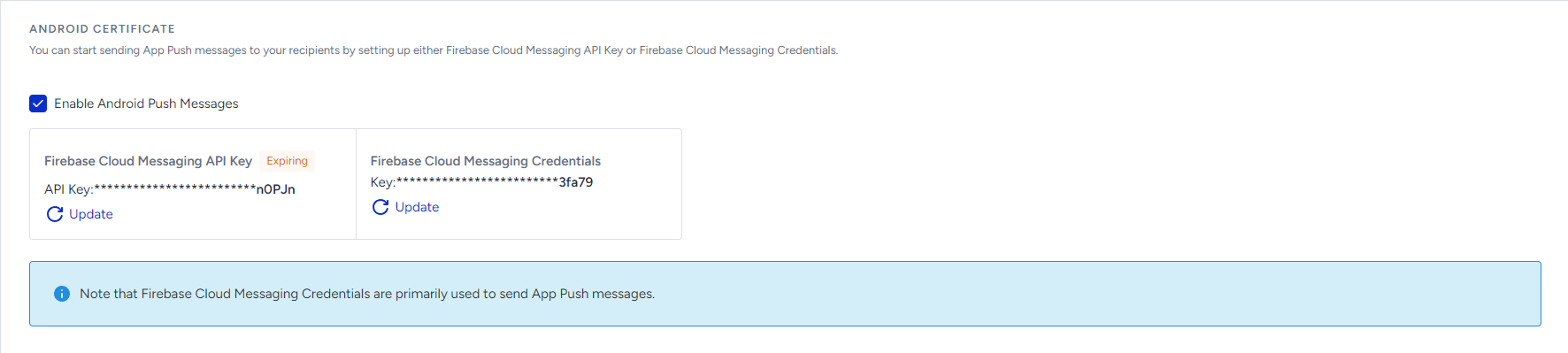
2. Go to the Android Certificate section where you can see your current credentials. Save the Firebase Cloud Messaging API Key to use it later.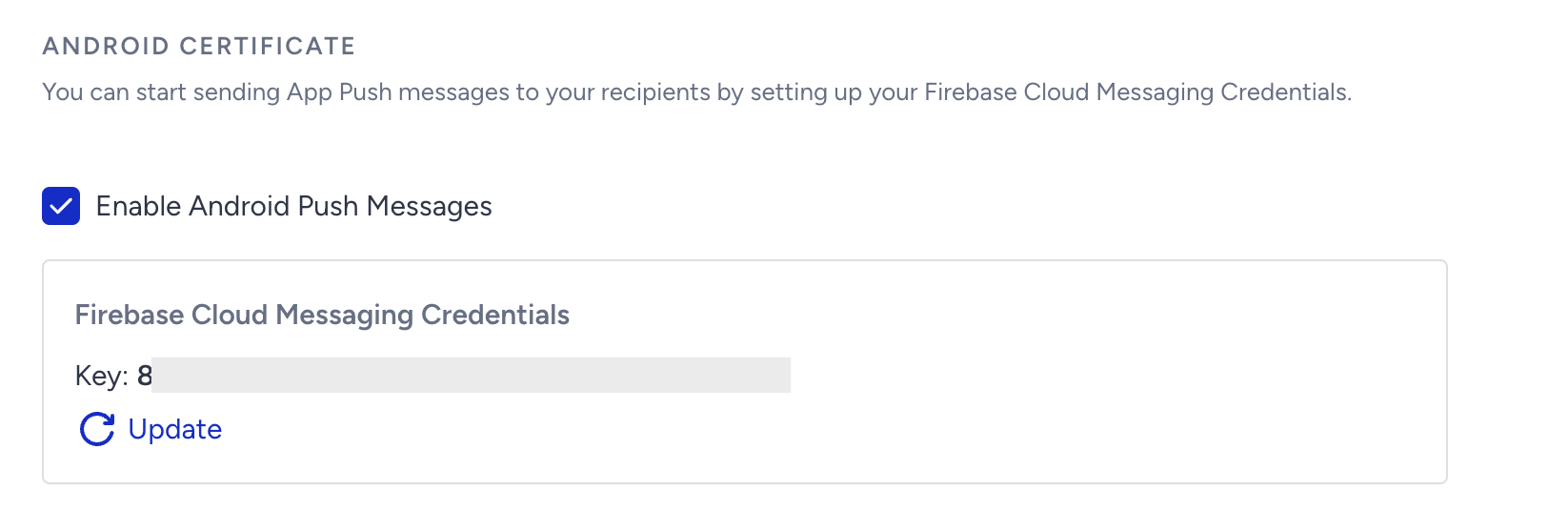
Control On Firebase Console
1. Go to Firebase Console to navigate to Project Overview > Project Settings > Cloud Messaging.(1).png)
2. Go to the Cloud Messaging API (Legacy) section. Make sure that the used Server Key on Insider One matches the one you have in your Firebase project.(1).png)
Create Service Account
You will need a new service account so that Insider One does not have any issue when registering FCM tokens.
1. Go to Google Cloud > Service Accounts, and choose your project to click the +Create Service Account button.(1).png)
2. Fill in the required fields in Service account details, and click the Create and Continue button to save your changes.(1).png)
3. In Grant this service account access to project section, choose Firebase Cloud Messaging API Admin from the Select a role list, and click the Done button.
If you need different types of roles, you can create custom roles.
(1).png)
Generate JSON Credentials
You should generate JSON credentials through FCM service accounts to upload to Insider One later. You can generate your credentials using two methods: Google Cloud Console or Firebase Console.
Google Cloud Console
1. Go to Google Cloud IAM & Admin > Service accounts, and select your project.
2. Find the FCM service account you created earlier, and click the menu against your account to go to Manage keys.(1).png)
3. Click the Add Key > Create New Key button.(1).png)
4. Choose JSON on the pop-up, and click the Create button.(1).png)
Firebase Console
You should generate JSON credentials through FCM service accounts to upload to Insider One later.
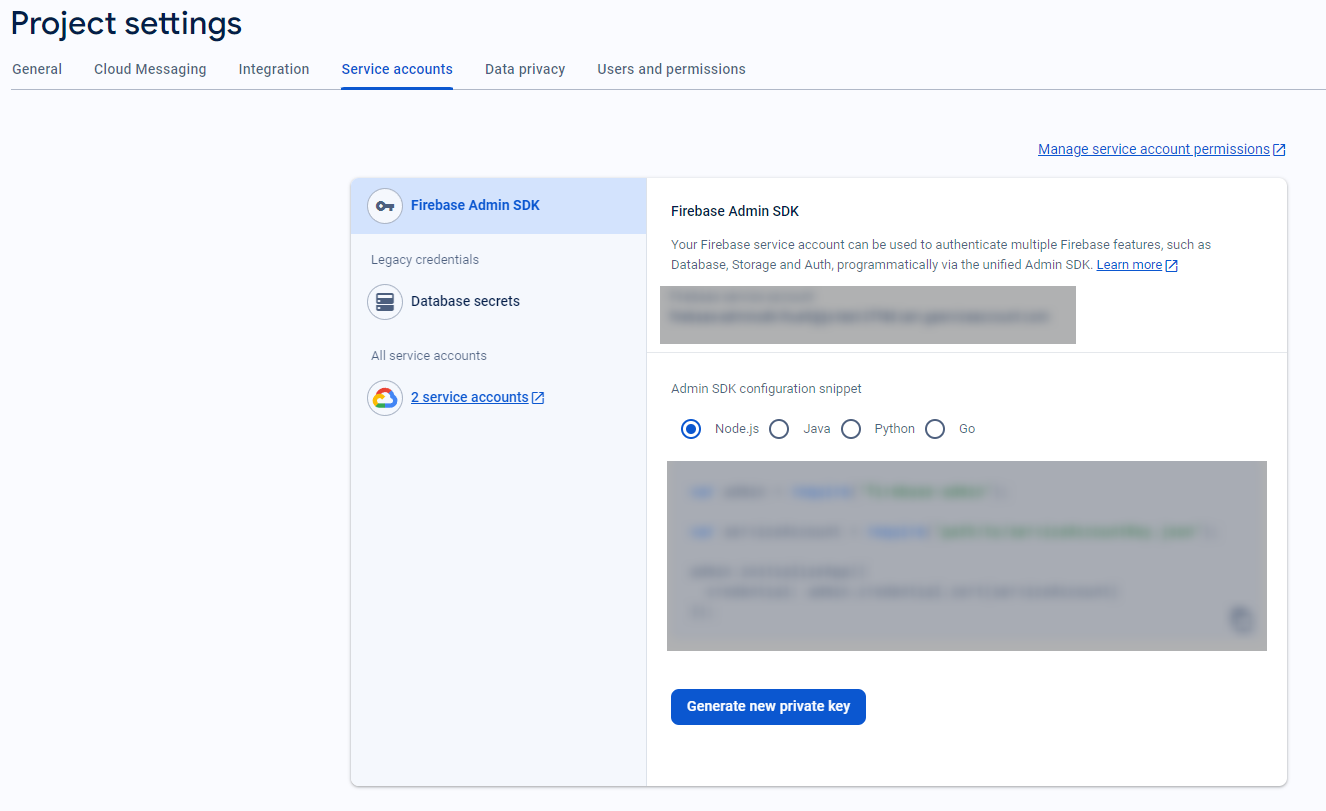
1. Go to Firebase Console to navigate to Project Overview > Project Settings > Service Accounts.
2. Make sure the "node.js" option is selected and click the Generate New Private Key button to download the needed JSON credentials.
Upload JSON Credentials to Insider One
1. Navigate to Inone > Settings > Mobile App Settings > Push Notification.
2. Go to the Android Certificate section, choose Firebase Cloud Messaging Credentials option, and click the Add Credentials button.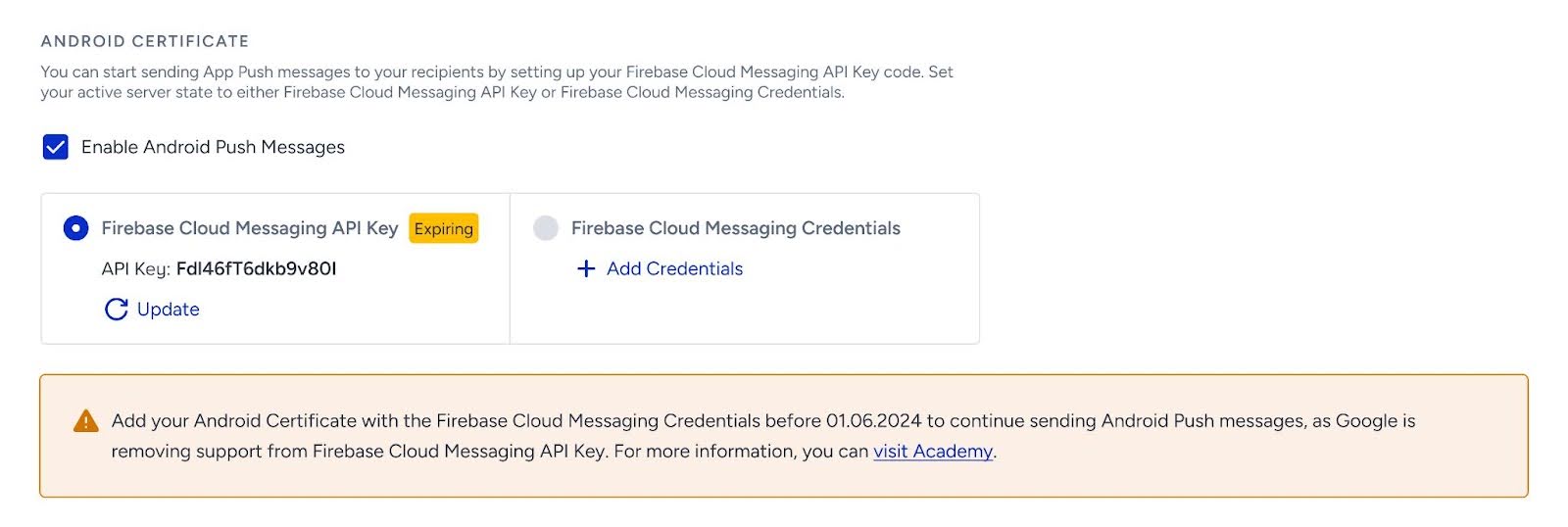
3. Once the upload is completed, this means that you have saved it to the Insider One panel.(1).png)
Now your messages will be completed through the new Firebase.
Caution List
- Remember that your credentials and JSON file should match your project correctly. You can re-check it and re-upload it any time.
- Keep in mind that you can switch to the legacy system anytime you face issues with your JSON credentials or file until Google deprecates the Legacy API.
- Remember that Google deprecated and sunsetted the Legacy API in June 2024. That's why we recommend starting to use the new API after uploading the correct JSON credentials.
- As Google will wipe out legacy endpoints, Insider One will not support the Legacy system anymore either. Your selection will be automatically converted to the new API even if you do not select it by then.
- After uploading and saving the JSON file to Insider One, you do not need to keep it in your downloaded folder. You can delete it once the upload is completed.