Add Capabilities
You can follow these steps to add capabilities to your project.
1. Go to Project Settings > Targets > Your Project > Signing & Capabilities.
2. Click the + Capability button to add capabilities to your project.
Main Target (Your Project) Capabilities
1. Add Background Modes.
(1).png)
If you want to use the Geofence feature, check the location updates.
2. Add Push Notifications.
.png)
If you want to use the Time Sensitive option for your app, you should enable the Time Sensitive capability both in Apple developer and app capability.
.png)
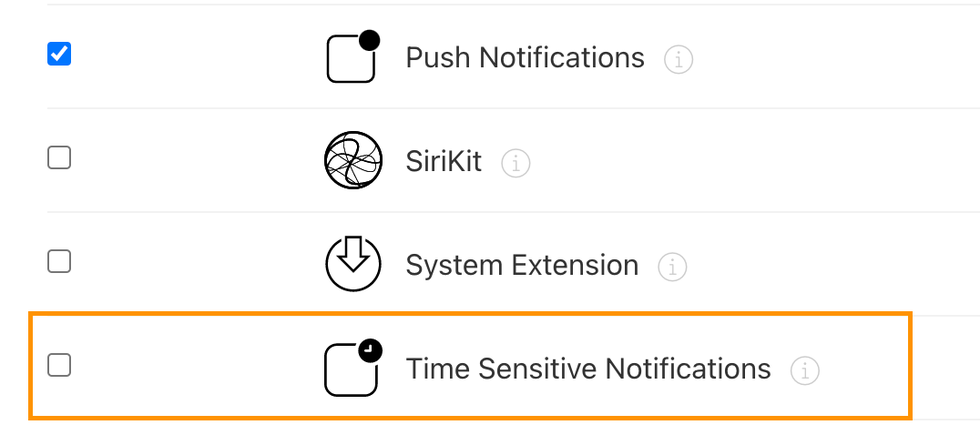 Apple Developer
3. Add App Groups and enable your app group.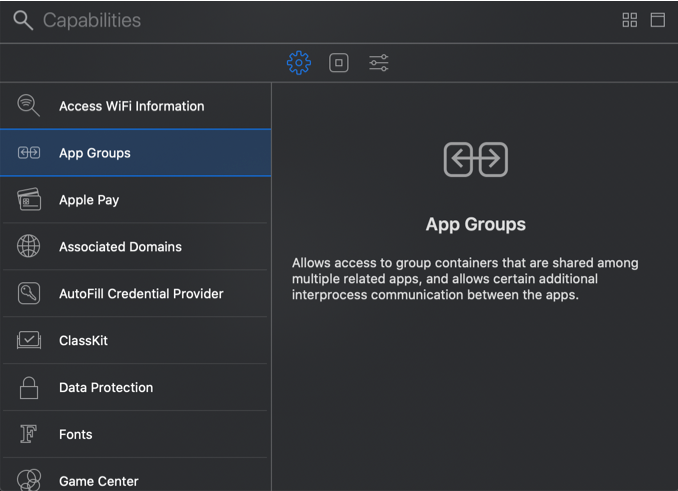
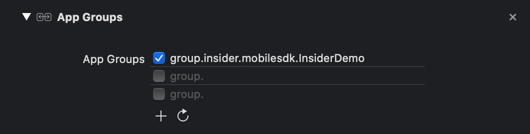
InsiderNotificationService Capabilities
Change your target to InsiderNotificationService and add App Groups. Then, enable your app group.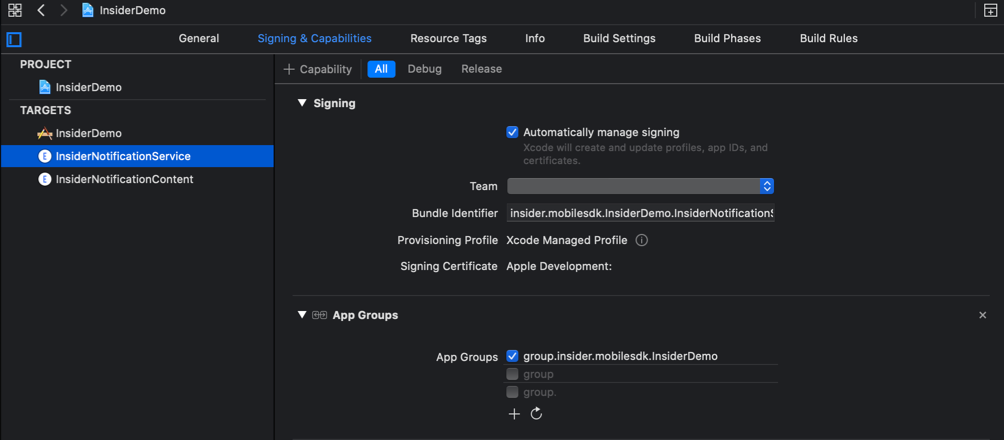
InsiderNotificationContent Capabilities
Change your target to InsiderNotificationContent and add App Groups. Then, enable your app group.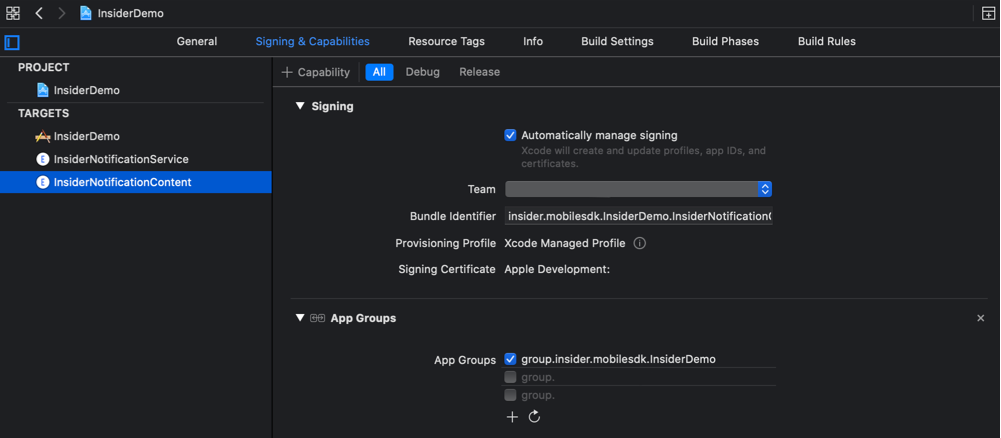
Make sure to set the app groups for the targets EXACTLY THE SAME as listed below.
Your Main Target
InsiderNotificationService
InsiderNotificationContent
Checklist
Before proceeding to the next step, ensure you have covered all these items.
- Did you set the deployment target to iOS 13.0 for Notification Service Extension?
- Did you set the deployment target to iOS 13.0 for Notification Content Extension?
- Did you add Background Modes Capability and enable Background Fetch and Remote Notifications for your main target?
- Did you add Push Notification capability to your main target?
- Did you add App Groups capability and set it for your main target?
- Did you add App Groups capability and set for the InsiderNotificationService target?
- Did you add App Groups capability and set for the InsiderNotificationContent target?
- Did you set App Groups for the targets in the same way as suggested?
URL Types
1. Go to Project Settings > Select Your Main Target > Info > URL Types.
2. Click the + (add) button and add a URL Type of which identifier is insider. Set the URL Schemes to your Insider partner name with the insider prefix.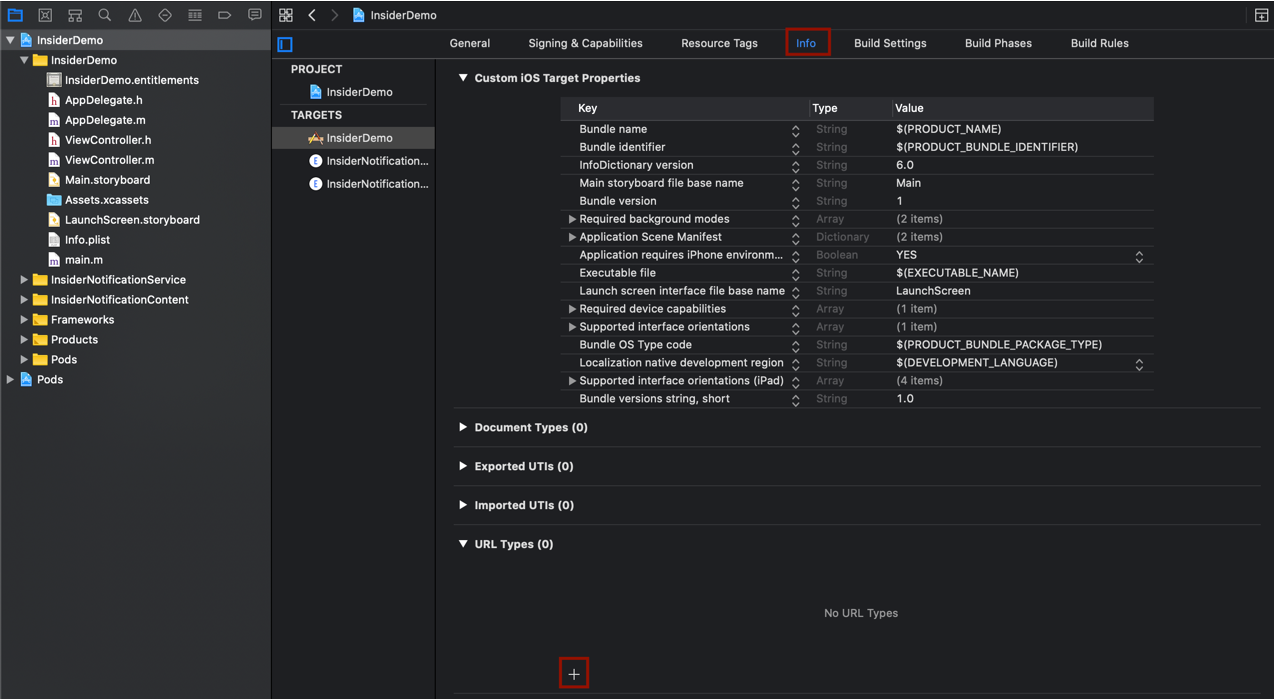
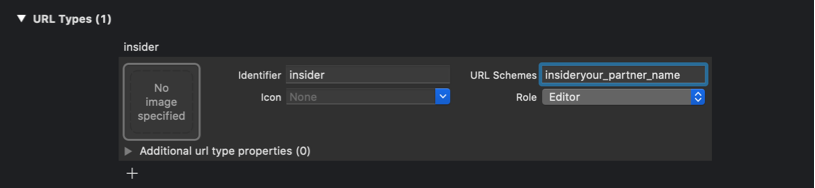
Make sure that you set the URL Schemes with the insider prefix. For instance, insiderdemo, where "demo" is your partner name. During your Integration, if you're using your UAT panel, update the "your partner name" value to migrate integration to the live panel.