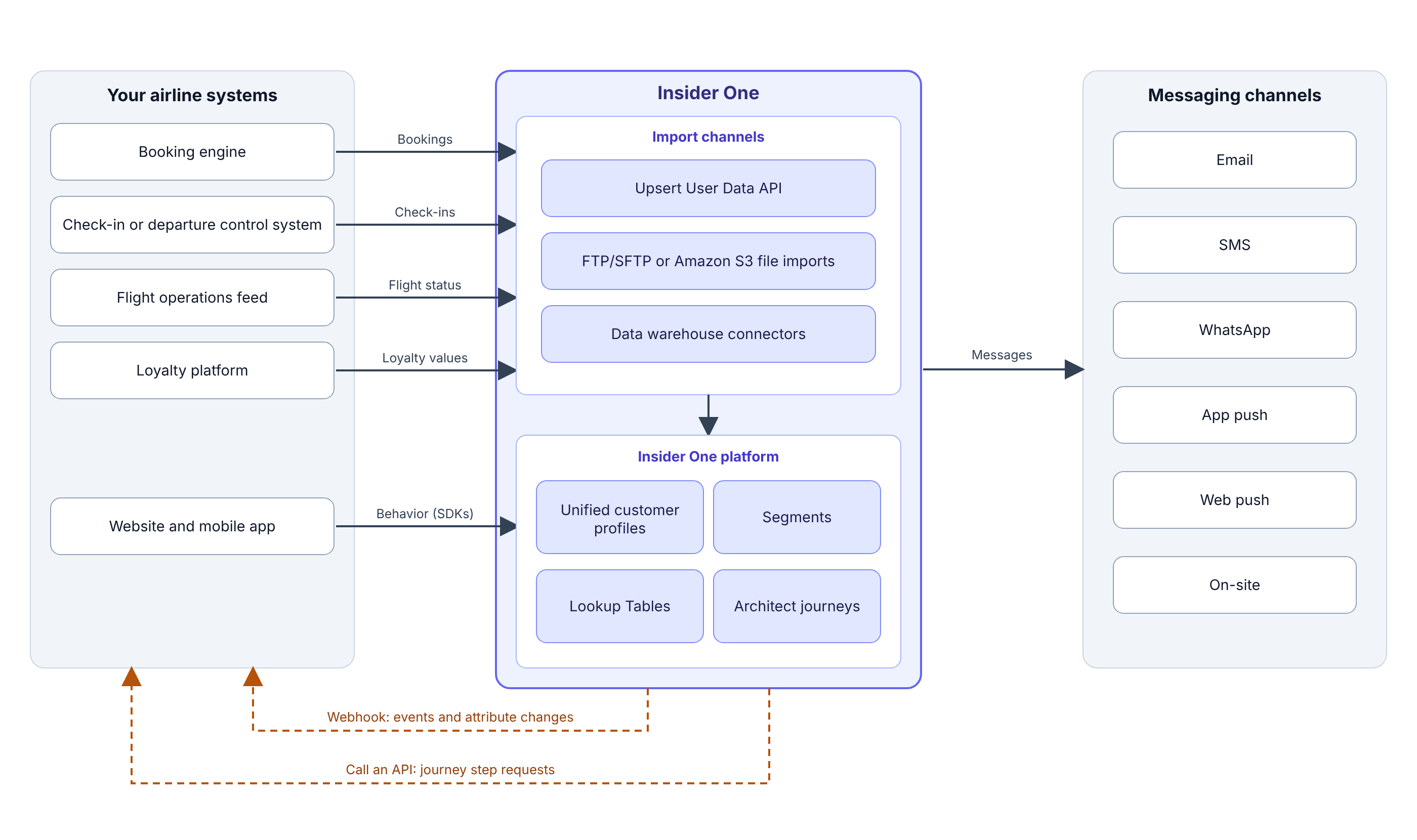
You can import booking, check-in, flight status, and loyalty data from your airline systems into Insider One through standard import channels. Use the Upsert User Data application programming interface (API) for ongoing updates, FTP (File Transfer Protocol) or SFTP (Secure File Transfer Protocol) for scheduled file imports, Amazon S3 (Simple Storage Service) for file imports through Amazon Web Services (AWS), or a data warehouse connector.
This guide explains which data to send from your booking engine, check-in or departure control system, flight operations feed, and loyalty platform. It also covers how to choose an import channel and how to use the data in journeys. Your team or integration provider builds the process that extracts the data, maps it to the required format, and delivers it to the selected channel.
Behavior on your website and mobile app, such as visits and online bookings, reaches Insider One through its software development kits (SDKs). For setup, see Web SDK Integration Guide and Mobile App Integration Guide.
Essentials before integration
Before you begin, make sure the following prerequisites are met:
You can retrieve or export the required data from your airline systems.
Your team or integration provider can prepare API payloads or publish export files.
You have mapped your source fields to user identifiers, attributes, events, and event parameters, and created the custom ones on the Attributes and Events Page. Array of Objects event parameters must exist in the panel before you send data that uses them.
To configure FTP/SFTP or Amazon S3 source integrations in InOne, you have an Administrator role or an Editor with PII access role (PII stands for personally identifiable information). To generate an API key for the Upsert User Data API, you have an Administrator role.
Plan the data you send
The table below shows a typical mapping. Use your own event and attribute names.
Data | Source system | Send it as | Use it for |
|---|---|---|---|
Booking | Booking engine | A custom event, such as Flight Booking, with the flight number, departure date and time, and departure and arrival airports, plus an Array of Objects parameter with one object per ticket (passenger, route, and fare) | Check-in reminders, return flight and ancillary offers, and segments based on booking composition |
Check-in | Check-in or departure control system | A custom event, such as Flight Check-in, with the same flight and airport parameters | Ending check-in reminders |
Flight status | Flight operations feed | A custom event for each affected passenger, such as a flight delay event with the new departure time and gate, or a Lookup Table row per flight, joined by flight number | Delay and gate change messages, and segments by flight status |
Loyalty | Loyalty platform | Attributes for tier, points balance, and points expiry date, plus custom events for points earned and redemptions | Tier and points segments, and expiry reminders |
Include the departure date as a date parameter, for example
2026-03-10T10:00:00Z, so journeys can wait until a time relative to the flight.To keep the current booking on the profile as one record, use an Object Type attribute. For details, see Object Type Attributes.
For multi-passenger examples and the payload structure, see Use Cases for the Array of Objects for Event Parameters and Send Event Data with an Array of Objects Parameter.
Choose your import channel
Channel | When to use it | How it works |
|---|---|---|
Upsert User Data API | Ongoing updates as bookings, check-ins, flight status changes, and loyalty changes happen | Your integration job sends API payloads. The API updates existing profiles and creates new ones. |
FTP/SFTP | Scheduled bulk files, such as a daily booking or loyalty extract, with no cloud infrastructure required | Your job publishes CSV (comma-separated values) or TSV (tab-separated values) files to your file server, and InOne reads them on a schedule. |
Amazon S3 | Batch files when your data pipeline already runs on AWS | Your job uploads CSV or JSONL (JSON Lines) files to an S3 bucket you own, and Insider One imports new files through the configured notification flow. |
Import channel 1: Upsert User Data API
The Upsert User Data API sends user attributes and events to Insider One. It updates the profile that matches the identifier you send, or creates a profile when none matches.
Set it up
Plan the user data you will send and get the plan approved by the Insider One team. Use the Upsert User Data API Integration Wizard to generate an API key, configure headers, and prepare payloads.
Build an integration job that reads the required records from your airline systems.
Transform each record into the API payload. Place user identifiers under the
identifiersobject, and send the tickets of a booking in an Array of Objects parameter underobject_event_params.custom.Test the mapping with a small sample and review the API responses.
Run the job as often as your use case requires, for example each time a booking, check-in, or flight status change occurs.
When you import past bookings, set
skip_hooktotrueto keep historical events from triggering active journeys and data streams. Event timestamps must fall within the retention period of the event. For retention periods, see Data Retention. For payload parameters, limits, and error handling, see Upsert User Data.
Import channel 2: FTP/SFTP
The FTP/SFTP integration lets InOne read CSV or TSV files from your file server on a schedule and import the data into user profiles and events. FTP, FTPS (FTP Secure), and SFTP are supported.
Set it up
Publish scheduled exports of your booking, check-in, or loyalty data as CSV or TSV files to your FTP, FTPS, or SFTP server.
In InOne, navigate to Components > Integrations > External Integrations, select FTP/SFTP, and enter your server connection details.
Map your identifiers, attributes, and events, and set the import schedule to match when your files are available.
For protocols, credentials, file requirements, and data mapping, see Import Data from FTP/SFTP to InOne.
Import channel 3: Amazon S3
If your data pipeline already runs on AWS, you can publish your airline data to an Amazon S3 bucket you own. The integration imports CSV and JSONL files with user attributes and events, including purchase data.
Set it up
Export your data as CSV or JSONL files and upload them to an S3 bucket you own.
In InOne, navigate to Components > Integrations > External Integrations, create an Amazon S3 source integration, and authorize Insider One to read from your bucket.
Set up an Amazon Simple Queue Service (SQS) queue for new-file notifications so that new exports in the bucket are imported.
For authorization, notifications, file requirements, and data mapping, see Import Data from Amazon S3.
Alternative: import through your data warehouse
If your booking and loyalty data already flows into a cloud data warehouse, you can connect the warehouse to Insider One and import from it on a schedule:
For rows per sync and sync frequencies, see Data Ingestion Limits and Performance.
Use airline data in journeys
Once the data reaches Insider One, you can act on it in Architect journeys:
Check-in reminders: a journey starts from the Flight Booking event, waits until 24 hours before departure, and checks for a Flight Check-in event for the same flight before it sends a reminder. For the setup, see Architect Use Case: Check-in Reminder. Return flight and ancillary offers use the same booking data, as described in Architect Use Case: Return Flight and Architect Use Case: Ancillary Upsell.
Date-based reminders: the On Dynamic Date starter can start a journey a set number of days before the departure date. For details, see Architect Journey Starter: On Dynamic Date.
Flight status: start a journey from each passenger's flight status event with the On Event starter, and personalize the message with its parameters, such as the new departure time and gate. For an example built on a flight delay event, see Call an API Use Case Library.
Flight-level details: store gate, terminal, boarding time, and status in a Lookup Table joined by flight number, then segment passengers and personalize emails with these columns. Updated values are typically available within 15 minutes, so plan time-sensitive updates accordingly. For details, see How Lookup Tables Work and FAQ about Lookup Tables.
Route-level advisories: the On Business Event starter starts a journey from an event your system sends, such as a weather advisory for a route, and accepts up to 5 requests per panel per hour. For details, see Architect Journey Starter: On Business Event.
Send data back to your systems
Insider One can send data to your booking, customer relationship management (CRM), or loyalty systems in two ways:
Webhook: a webhook sends selected events and attribute changes to your endpoint as soon as Insider One collects them, for example to notify your loyalty platform when a member's attribute changes. For details, see Insider One Webhook.
Call an API: the Call an API element sends a request to your endpoint at a journey step, for example to add credit or a promotion to a member's account. With the response enabled, you can retrieve values, such as fare options, and use them in message content, save them with the Update User Attribute element, or branch the journey with the Check API Response element. Response variables are deleted when the user leaves the journey. For details, see Architect Channel: Call an API, Architect Channel: Fetch Data through Call an API, and Call an API Throttling.