Air travelers often forget to complete their online check-in before their flight departure. Missing the check-in window can create unnecessary stress for travelers and increase the likelihood of delays at the airport.
The Check-in Reminder use case helps airlines and travel platforms proactively remind users to complete their flight check-in before departure. By using dynamic journey timing based on the flight date, you can ensure that reminders are sent at the most relevant moment for each traveler.
With this approach, users enter the journey when they book a flight. The system then waits until 24 hours before the scheduled departure time, when online check-in typically becomes available. If the user has not yet completed their check-in by then, they receive a reminder to check in.
By combining dynamic wait timing with contextual event checks, this use case enables businesses to deliver highly relevant, timely reminders that enhance the travel experience.
Dynamic timing ensures that reminders are sent exactly when the check-in window opens for each flight, rather than relying on fixed time intervals.
How can Check-in Reminder help?
Implementing a check-in reminder journey offers several advantages for airlines and travel platforms.
Travelers may forget to check in
Even though online check-in is widely available, many users forget to complete the process before arriving at the airport. A timely reminder helps prevent this common issue.
Improved customer experience
Sending reminders when the check-in window opens helps travelers prepare for their journey smoothly, reducing stress and uncertainty.
Operational efficiency
Encouraging users to check in online reduces congestion at airport counters and improves overall operational efficiency.
Timely and personalized communication
Dynamic timing ensures reminders are sent based on each user’s individual flight schedule, making the communication more relevant and useful.
What goals can you achieve via the Check-in Reminder use case?
Improved customer experience: Helping travelers complete check-in on time provides a smoother, more convenient travel experience.
Increased online check-in rate: Timely reminders encourage users to complete online check-in rather than waiting until they arrive at the airport.
Reduced airport counter traffic: More passengers checking in online leads to fewer queues and faster airport operations.
Strengthened customer engagement: Sending relevant, helpful reminders builds trust and increases engagement with your travel platform.
Technical requirements
Your website or app must have a payment structure where users can perform purchases.
Purchase information must be collected. Once your website is mapped by Insider One during onboarding, It starts collecting this information by default. This does not require any additional integration.
Web SDK Integration must be implemented to track purchased items.
Before using any channel in your journeys, the respective channel integrations should be completed. Depending on the channels you want to use in your journeys, additional integrations might be required.
If you need custom events, create them and send them to Insider One.
If you have a mobile app, SDK Integration must be implemented.
For further integration details, refer to Architect Integration Guide.
Create a Check-in Reminder journey
You can create a Check-in Reminder journey to prompt your users to check in for their upcoming flights. You can create this journey for specific flights, as well as for some departure airports or some users, according to their different attributes like being a VIP/CIP customer.
Below you may find an example use case scenario:
Sarah books a flight from London to Rome through your airline’s website. Her flight is scheduled to depart in two days. After completing the booking, Sarah focuses on preparing for her trip and may not immediately remember to check in when the check-in window opens. To help Sarah complete the process smoothly, she is automatically entered into a Check-in Reminder journey after booking her flight.
Starter event: The journey begins when a user performs the Flight Booking event. This event should include important parameters such as flight date / departure time, departure airport, arrival airport, and flight number.
These parameters will later be used to determine the correct reminder timing and to verify whether the user has checked in for the same flight. However, you do not need to specify the event parameters when you create the journey with that starter.
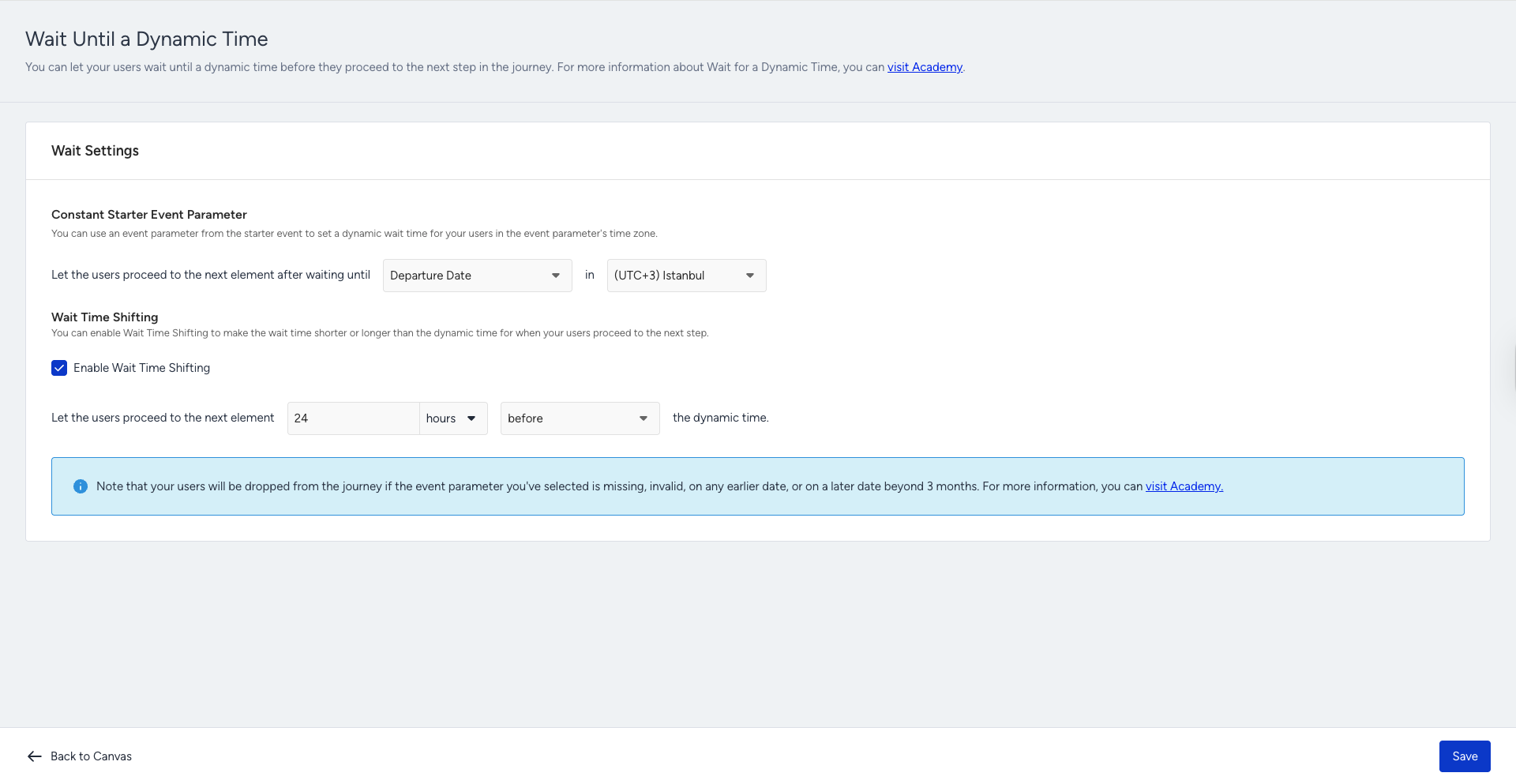
Wait until Dynamic Time: After the booking event, add a Wait Until Dynamic Time element. The waiting time should be configured to trigger 24 hours before the flight departure time. For example, if the flight departs on June 10 at 14:00, the reminder step will be triggered on June 9 at 14:00.
Using dynamic timing ensures that each traveler receives the reminder exactly when the check-in window opens for their specific flight schedule.
Check whether the user has checked in: After the dynamic waiting period, add a Check Conditions element to determine whether the user has completed check-in. The event to check can be Flight Check-in. To ensure the system checks the correct flight, use Constant Starter Event Parameters so the check-in event matches the original booking event.
Add the following Constant Starter Event Parameters:
Flight Number is exactly Starter Event’s Flight Number
Departure Airport is exactly Starter Event’s Departure Airport
Arrival Airport is exactly Starter Event’s Arrival Airport
This ensures the journey verifies that the user checked in for the same flight that triggered it.
If the user has already completed the check-in for that flight, they automatically exit the journey and will be included in Ancillary Upsell or Return Flight journeys.
If the user has not checked in yet, the journey continues to the reminder step.
Send a check-in reminder message: If the user has not completed their check-in, send a reminder message encouraging them to do so.
You can use multiple communication channels such as email, web push, app push, or SMS.
Personalized content can include flight route details, departure time, a direct link to the check-in page, and boarding preparation tips.
Below is an example message:
Title: ✈️ Your Check-in Is Now Open
Description: "Your flight from London to Rome is coming up soon. Complete your online check-in now to save time at the airport."
Optional follow-up: You may add additional steps to increase completion rates:
Wait a few hours after the first reminder
Check again whether the user has completed the check-in
Send a follow-up reminder if necessary
These additional reminders should be used carefully to avoid overwhelming users while still ensuring they complete the check-in before departure.
Step 1: Select the starter
Check-in Reminder Flight is a real-time scenario that requires immediate user interaction.
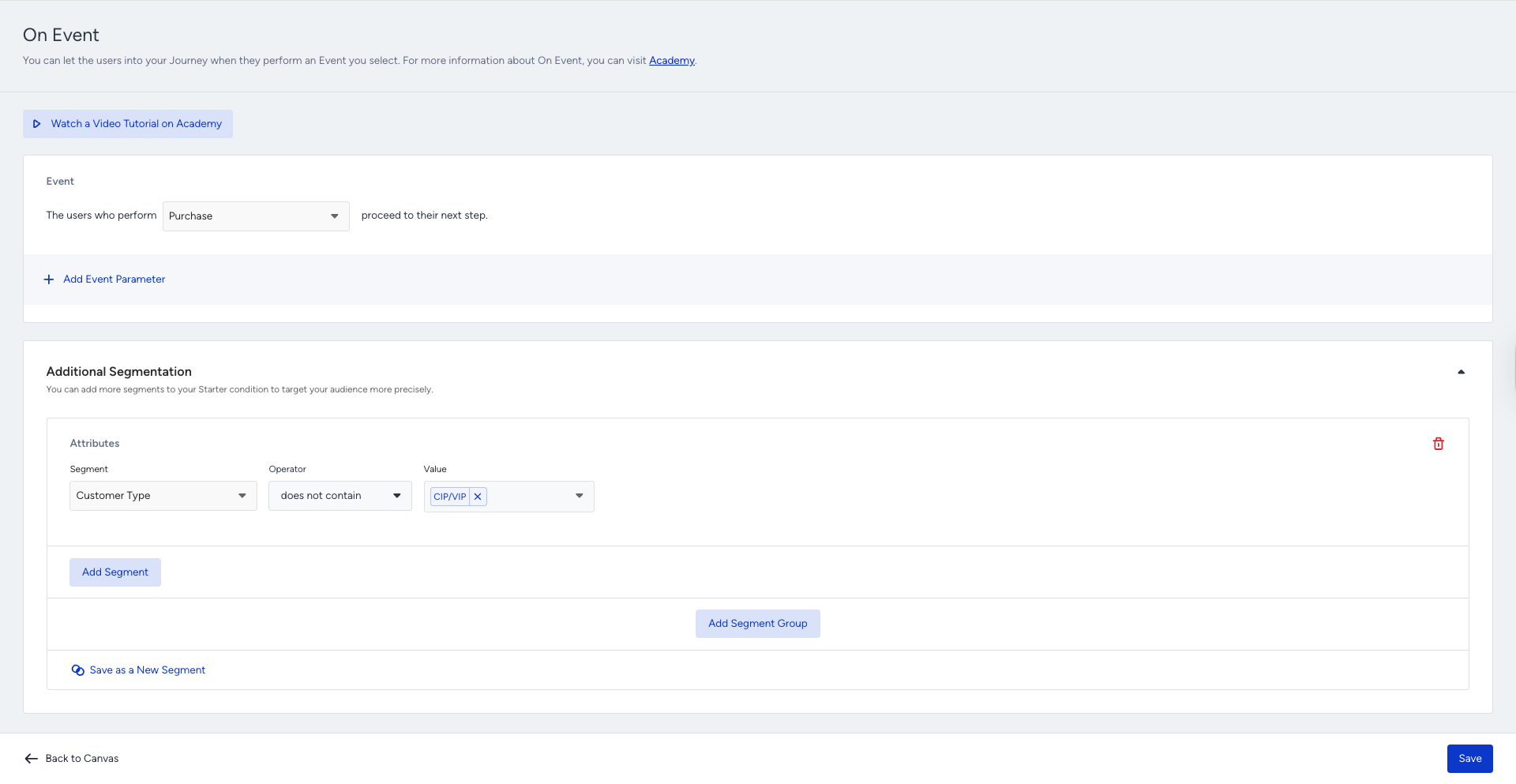
On Event starter tracks user events and immediately takes users on the journey when they perform the specified event. You can select the flight booking or purchase event to take users on a journey during purchase.
You can either select the Purchase option or find the same event in the Default & Custom Events box.
.png)
The starter considers every platform to take users, such as a website, a mobile app, and offline data. You can have custom events for different scenarios, such as booking, watching series, etc.
Step 2: Target the correct segment
If you have any additional conditions or segments to guide users on the journey, you can add an optional segment filter to control whether they meet your condition. E.g., targeting users who are not VIP/CIP customers.
Step 3: Build your journey
3.1.1. Wait before sending a message
After you decide on the segmentation, add a Wait for Some Time element, using the average time between purchases of the same product/category.
To evaluate check-in behavior after users book flights, you can add a wait element with the preferred duration.
[ADVANCED] 3.1.2. Dynamic wait & duration support for replenishment journeys
To make check-in reminder journeys more personalized and accurate, use the Wait Until Dynamic Time element in the journey flow. These elements allow you to control the waiting time dynamically; instead of using a fixed duration, you can base the timing on real data parameters collected from events or user attributes.
To use these elements effectively in your replenishment setup, make sure your events include a Date parameter for Wait Until Dynamic Time. E.g., departure_date, or any ISO 8601 formatted date (e.g., 2025-03-10T10:00:00Z).
If a date parameter (e.g., departure_date) is provided, the system will automatically wait until that specific date before triggering the next step in the journey.
This means each user’s timing is unique, ensuring that reminders, emails, or push notifications are sent exactly when the check-in option is opened for that flight, rather than at irrelevant times.
This advanced addition:
Makes check-in journeys personalized and accurate
Avoids the frustration of sending an irrelevant reminder to the user
Works seamlessly with all supported channels (Email, Push, SMS, WhatsApp)
Enhances automation precision while reducing manual maintenance
.png)
3.2. Filter your users
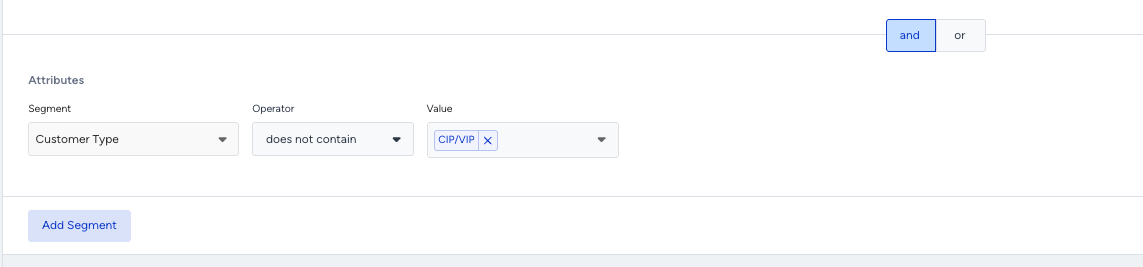
You can add Check Conditions element to filter users for different paths on the journey flow:
Segment users based on their loyalty or type attributes.
Segment users based on whether they have returned their flight ticket.
Segment users based on their previous purchase history, including frequency, value, and product categories.
Segment users based on their language.
Segment users based on any attribute or event parameters you want.
[ADVANCED] 3.2.1. Filter your users with Constant Starter Event Parameters
You can advance your replenishment use case via Constant Starter Event Parameters when filtering your users.
While the standard Check-in Journey re-engages users who do not check in to their flights within the defined wait duration, Constant Starter Event Parameters allow you to add deeper intelligence and precision through event-parameter-specific checks.
This feature ensures that your follow-up messaging is always relevant to the exact flight ticket, arrival and departure airport, or any other event parameter the user made, improving accuracy and conversion rates. It automatically and dynamically compares all event parameters from the starter event (purchase/flight booking) with those in the Check Conditions event.
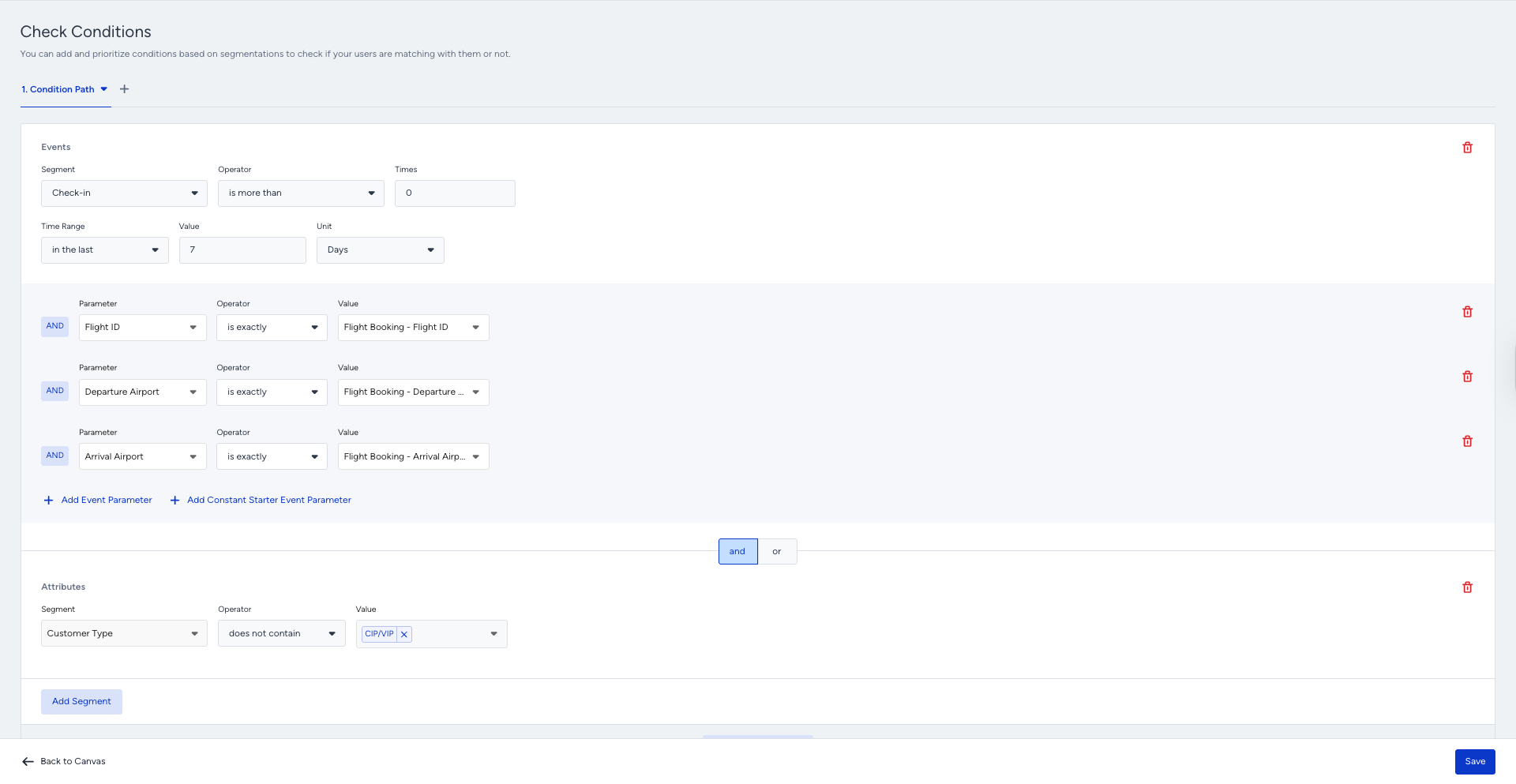
Constant Starter Event Parameters help ensure the starter event’s parameters match the event parameters selected in the Check Conditions.
Step 3.3. Check your users' reachability before sending a message
Before sending the initial message, you can check if users are reachable on that channel. If not, you can try another channel on another path of the Check Reachability element.
Adding Check Reachability is valuable as:
You can assess users' reachability on selected channels, and they receive your messages from the prioritized channels if they are reachable.
You can prevent users from dropping out of the journey by ensuring that they are directed to the appropriate path based on their reachability.
You can optimize your budget and resources to the correct channels.
.png)
Step 3.4.: Reach your users via the Best Channel
You can add Next Best Channel element for the following goals:
Maximize conversion
Ultimately, the reminder journey aims to re-engage users and encourage them to check in. By using the NBC element to deliver targeted messages through the most effective channels, you can optimize their re-engagement efforts.
Personalized communication
Effective re-engagement requires personalized communication that resonates with individual users. You can deliver highly targeted messages via the most appropriate channels, increasing the likelihood of capturing users' interest and prompting them to return to complete their purchase.
Optimize for reachability
Next Best Channel takes into account users' reachability on different channels as an additional parameter in its decision-making process. This ensures that messages are delivered via channels where users are most likely to be reachable, increasing the chances of successful delivery and engagement.
Step 3.5. Select your channels
Channel selection is a crucial decision in your journey to reach your targets.
User preferences
Different users have varying preferences when it comes to communication channels. Some users may prefer email for receiving promotional messages, while others may prefer push notifications or text messages. This is where Architect steps in to help with the Next Best Channel element.
Channel effectiveness
Each communication channel has its own strengths and limitations in terms of reach, engagement, and conversion rates. For example, email may be effective for delivering detailed and personalized messages, while push notifications may be more suitable for time-sensitive reminders.
Audience segmentation
Different user segments may respond differently to messages delivered via various channels.
Reachability
Review your User Reachability data on the Overall Analytics Page. Assess the number of reachable users across individual channels or combinations of channels. You can design journeys that capitalize on the best-performing channels, ensuring optimal engagement and outcomes.
.png)
Step 3.6. Create your content and send the initial message
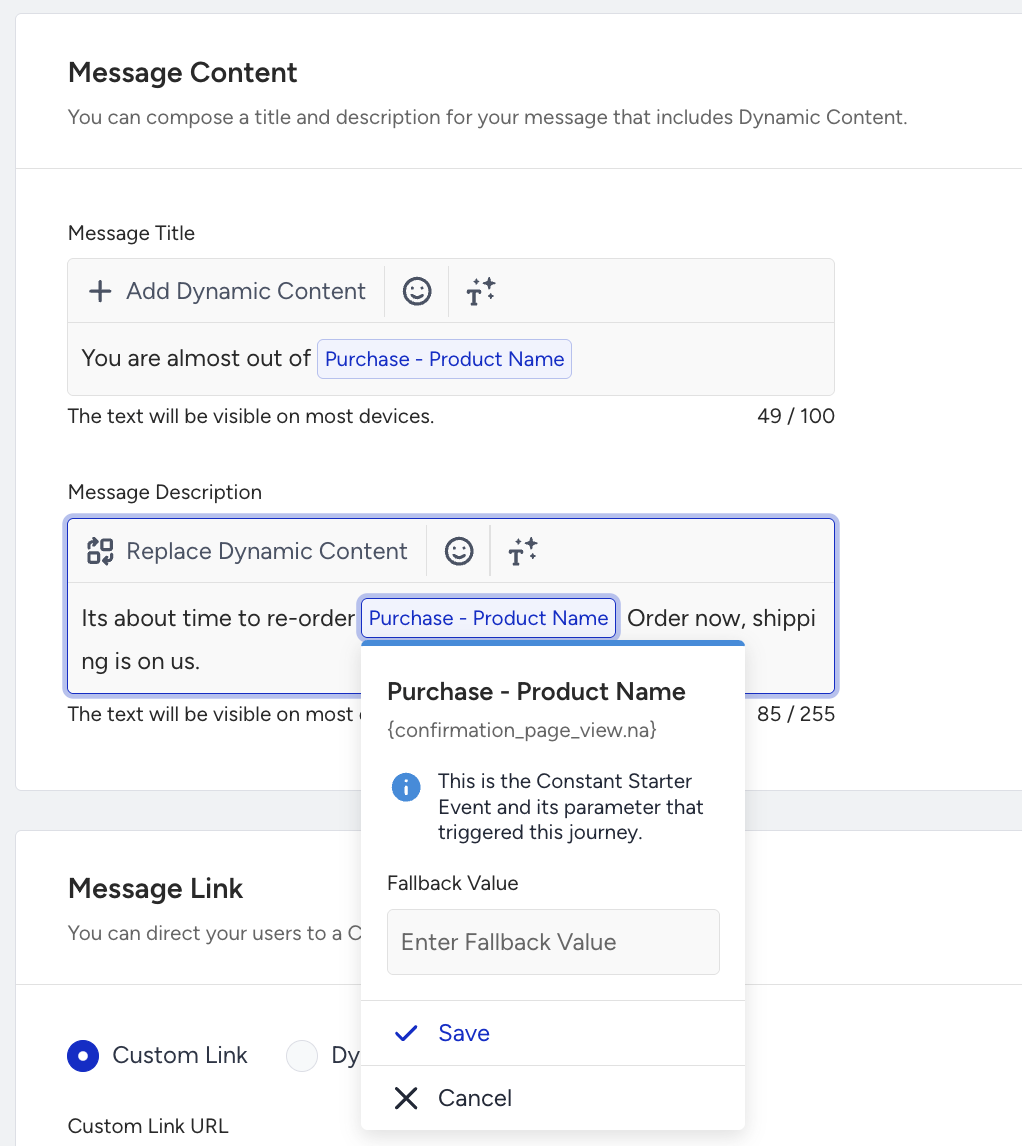
You may add different messages to the journey flow, including App or Web Push Notification, Email, SMS, and WhatsApp. You can customize the message content to include products that would interest users. You may also want to show a banner in the On-Site or In-App channel or use the remarketing opportunity on Facebook.
After deciding how you want to continue with the communication, you can design your content.
1. Select Event Parameter on the Add Dynamic Content menu.
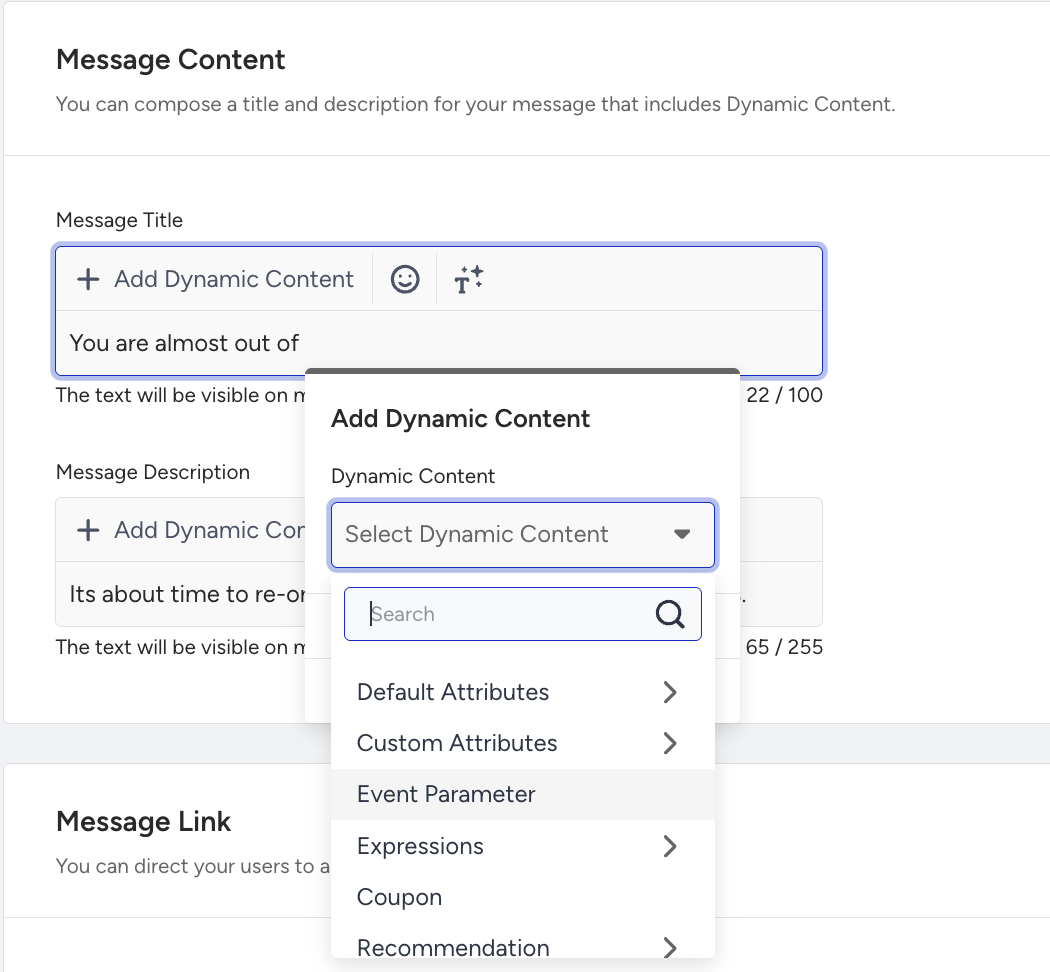
2. Find the Constant Event Parameter option in the dropdown, choose the necessary parameter, and the users will have the message with the parameter of the starter event.
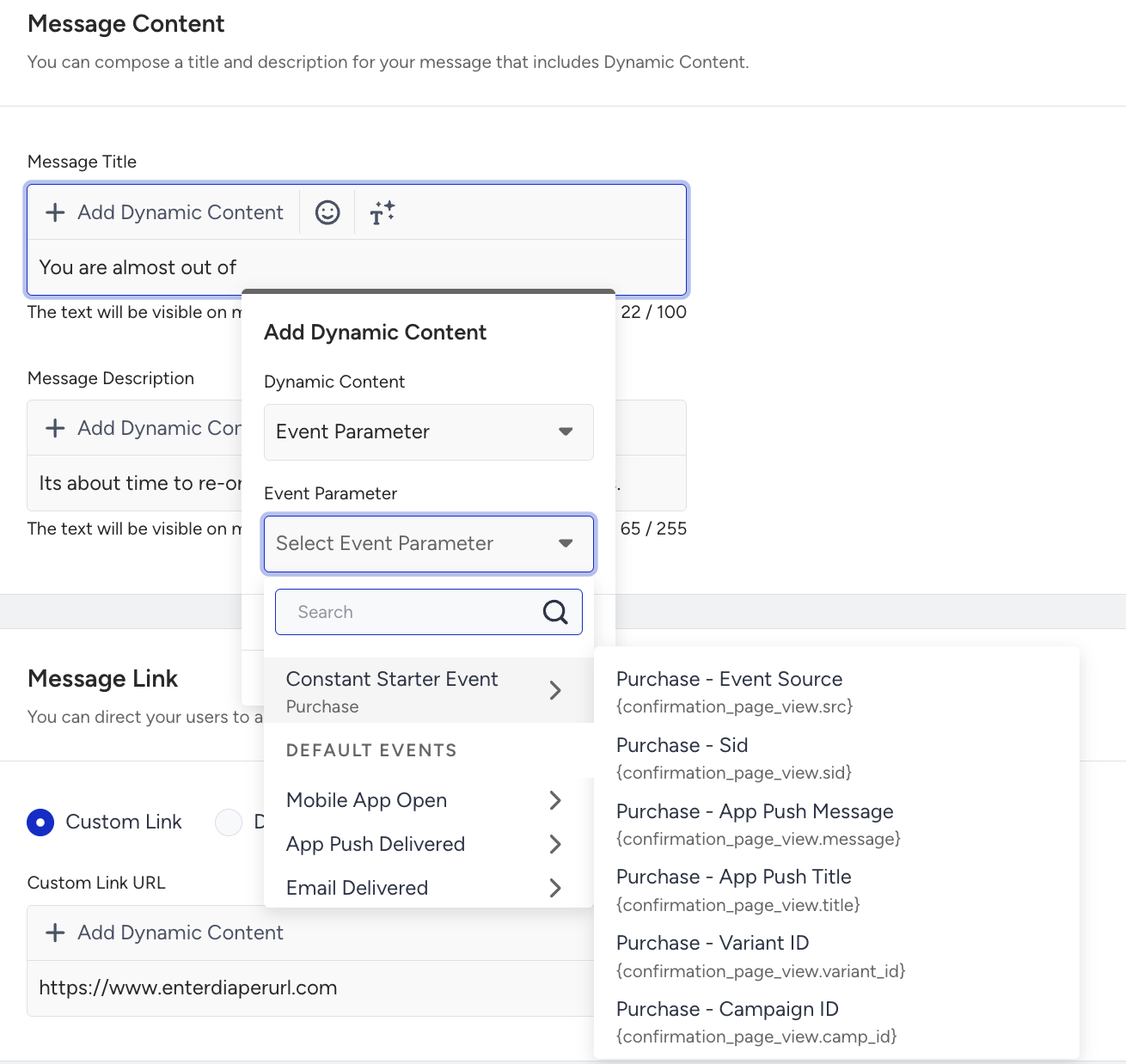
You will be prompted with the respective information at the top of the page. Accordingly, the event parameter(s) you choose will be inserted in the content.
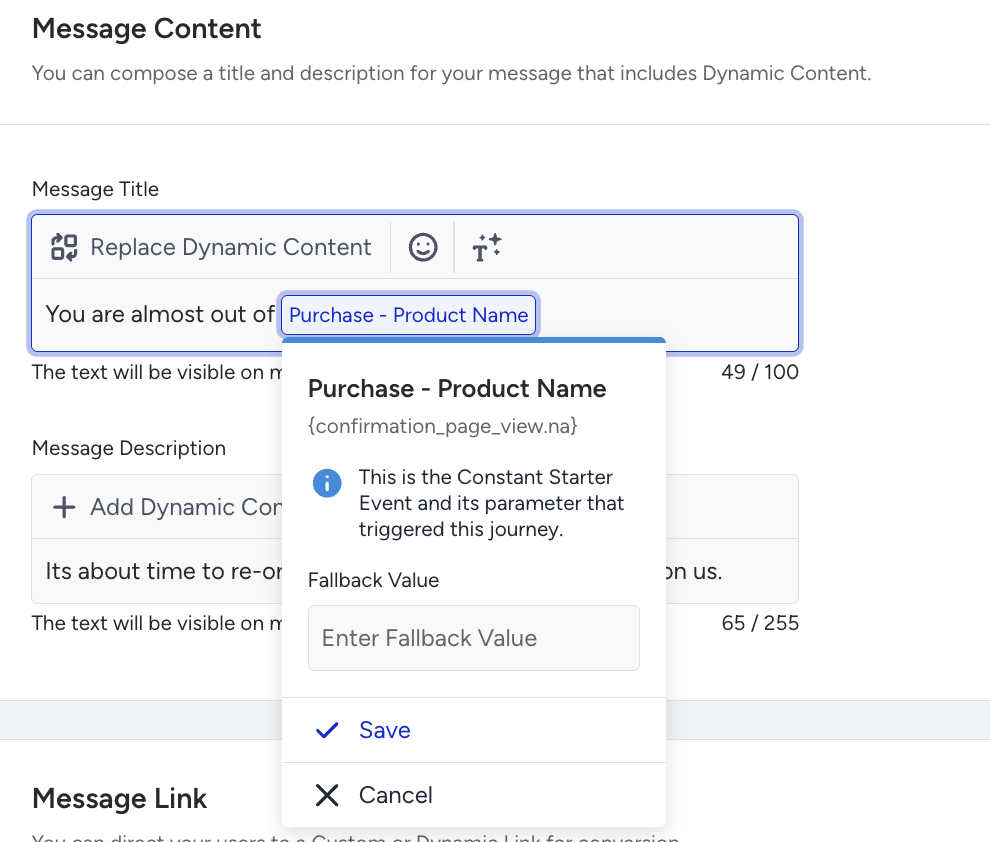
3. Define a fallback value for your dynamic content.
If you want to use an event parameter again, you can use only the starter's event.
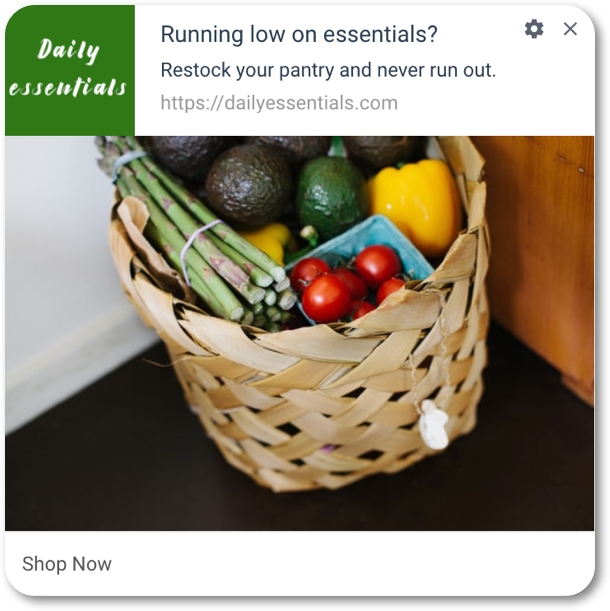
Web Push
You can add the event parameters to show what users can replenish based on their previous purchases.
You can utilize and customize premade email templates placed in Select Templates.
.png)
Follow-up messages, tips, and best practices
You can deeply analyze user behavior and interactions to advance your journey. For example, you can check whether the user’s discount affinity is high, and then include promo codes in the content accordingly.
Send a timely follow-up reminder: If the user does not make the check-in after the first reminder, you can add another Wait Until Dynamic Time element (for example, 24 hours) before sending a second message.
This additional reminder helps capture users who have the flight ticket but have not checked in yet. However, avoid sending too many reminders within a short time period, as this may cause message fatigue
Personalize the message: Personalization significantly improves engagement in travel-related messaging. Since the journey starts with a Flight Booking event, you can use the starter event parameters to personalize your messages. Examples of personalization include displaying the original route (e.g., Paris → Istanbul) in the flight that needs the check-in. This makes the reminder feel relevant.
You can also ask users to join your loyalty program or subscribe to your newsletter. You can check if they join after a while, you sent the check-in reminder message, and they made the check-in.
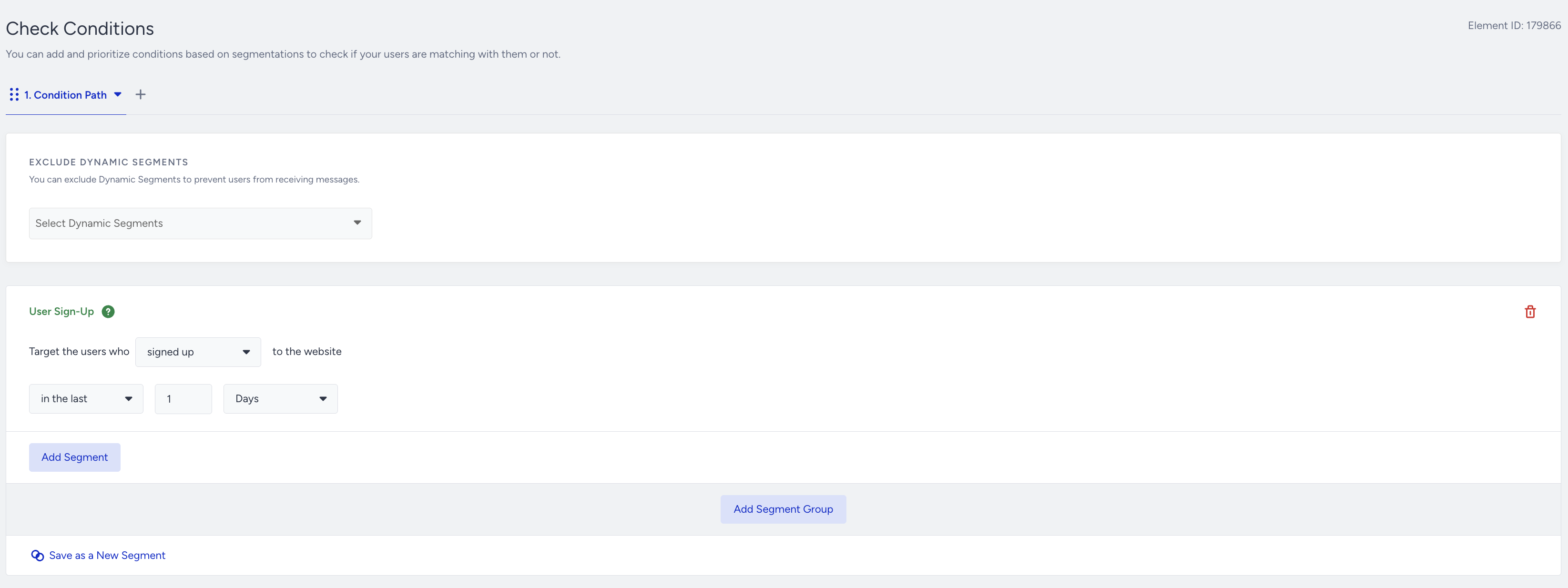
You can tag users based on their feedback responses after they make a purchase. You can add the Update User Attribute element to the journey flow and update their “purchase experience” attribute value as “good” or “bad”.

You can pass this valuable information to your CRM with the users' email addresses or phone numbers through the Call an API channel.
You can send users to a contact list to know their email addresses and retarget them via email.
.png)
You may have an Ancillary Upsell journey besides the Check-in Reminder journey. Sending separate recommendation content and promotions to users can be overcommunication and may disturb them. You can check Journey Prioritization to avoid those kinds of frustrations.
Your message should focus on a single, clear objective: encouraging the user to complete their check-in.
Best practices for message content include:
Using concise and engaging titles.
Including a clear call-to-action such as “Complete your check-in”.
Adding a direct link to the return flight search or booking page.
Clear and action-oriented messaging reduces friction and makes it easier for users to take the next step.
You can check multiple reachabilities on channels for users at the same time, and you can lead them to the corresponding path.
.png)
Step 4: Launch your journey
Before launching your journey, complete your launch settings. You can set journey entry capping to not send too many messages to the same users. In this way, you can optimize your messaging frequency.
You can also use the User Eligibility setting to prevent users from entering the journey too frequently and receiving the same type of messages.
You can set special Goals besides purchase for the users who enter the check-in reminder journey. For example, return flight ticket purchases, ancillary purchases, coupon redemptions, destination page visits, etc. You can create a custom event to set goals, or use default events and their parameters.
If you don’t want to send any check-in reminder when the users return or cancel their flight tickets, you can easily set the Exit Criteria for users. E.g., “Make users exit who canceled a flight ticket”.. Exit criteria dismiss users from the journey immediately whenever the user performs that action or if their attribute value changes to the desired value.
.png)
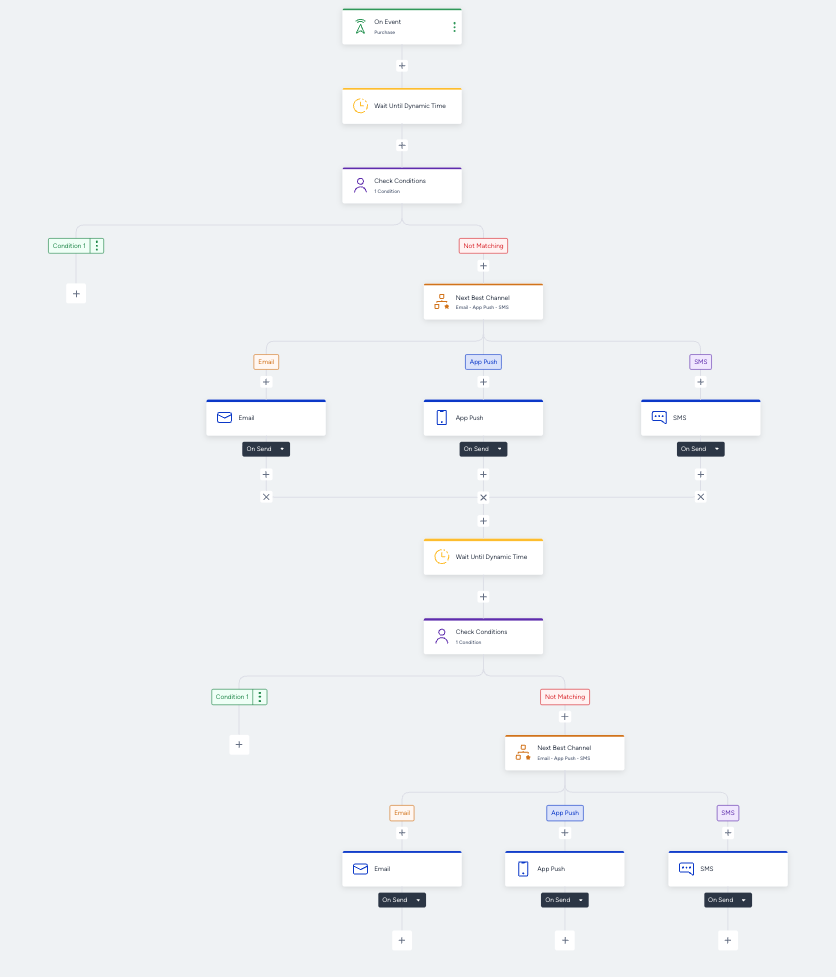
Example Flow
Below is an example flow for a check-in reminder journey.