Marketplaces are highly dynamic and multi-category environments where customer needs range from fashion to electronics, home goods, and baby products. Shoppers often compare multiple sellers, search for the best deals, and expect a fast, relevant discovery experience.
Effective recommendations in marketplaces should:
Guide users quickly to the most relevant options.
Build trust by consistently surfacing accurate and personalized results.
Maximize cross-sell and upsell opportunities across diverse product types.
What you can achieve with Smart Recommender
Route-specific inspiration on the homepage
Showcase popular or trending destinations from the user’s departure city, or highlight timely deals such as Summer Escapes or Winter Getaways.
Upsell with add-ons after flight selection
Increase booking value by recommending seat upgrades, meals, extra baggage, or airport transfers once a flight has been chosen.
Cross-sell travel essentials
Maximize revenue per traveler by suggesting hotels, car rentals, or insurance products linked to the selected destination.
Personalized promotions for repeat flyers
Display frequent routes, preferred travel times, or loyalty-tier-specific offers to engage returning customers.
Last-minute add-ons at checkout
Remind travelers of must-have extras, such as baggage or insurance, during the checkout stage.
Localized travel suggestions
Personalize recommendations for destinations, ancillaries, and content based on the user’s location, language, and travel history.
A/B testing for revenue optimization
Test bundles, headlines, product card designs, and add-on placements to identify the highest-converting strategies.
Walkthrough: Testing Discounted vs. Popular Routes to Boost Conversions
When users are browsing a specific flight—especially in the early planning stage—it’s an ideal moment to surface alternative options that may offer better value or reflect what’s trending among other travelers. By comparing discounted routes with best-selling routes departing from the same city, you can identify which type of content is more effective in nudging undecided customers toward conversion.
In this example, we’ll walk through how to set up an A/B test on the flight detail page, comparing two recommendation strategies:
Highlighting the highest discounted flights
Showcasing the top-selling routes
Both strategies will target departures from the same city as the flight currently being viewed.
1. Create your Recommendation Strategy
It's time to create your first recommendation strategy. Navigate to the Recommendation Strategies and click Create.
Select your page type as Product Detail Page.
Select your algorithm as Highest Discounted.
Enter the number of products you want to recommend.
Add filters:
Add a dynamic filter for departure_city that matches the departure city of the currently viewed flight.
Add another dynamic filter to match the flight type (e.g., international or domestic).
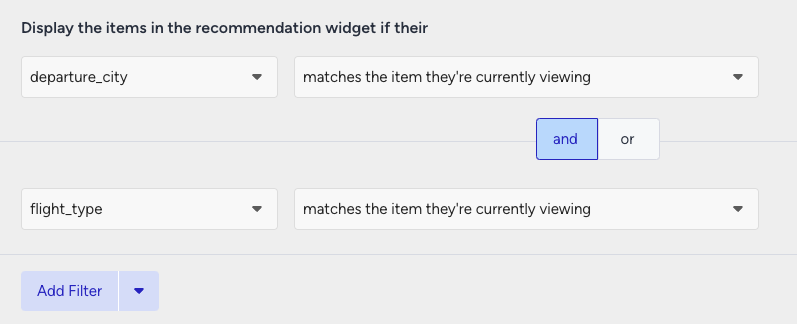
To filter your recommendations based on the departure city or flight types, create new custom attributes from the Product Attributes page and enable the Filterable toggle.
Then, create the second strategy that you want to test against.
Select your page type as Product Detail Page.
Select your algorithm as Top Sellers.
Enter the number of products you want to recommend.
Filters:
Add a dynamic filter for departure_city that matches the departure city of the currently viewed flight
Add another dynamic filter to match the flight type (e.g., international or domestic).
Both strategies will surface relevant outbound flights from the user’s selected location, but each takes a different approach—value-driven vs. popularity-driven.
2. Launch your campaign
Now, launch your first campaign using your strategies.
Go to the Web Smart Recommender page and click Create.
Select your integration method for the widget.
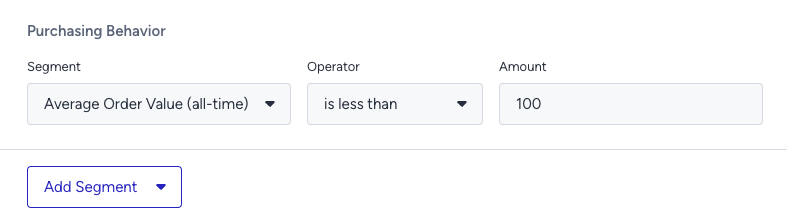
On the Segments step, pick the audience.
For this example, you can select customers with a low AOV under Purchasing Behavior and set your threshold.
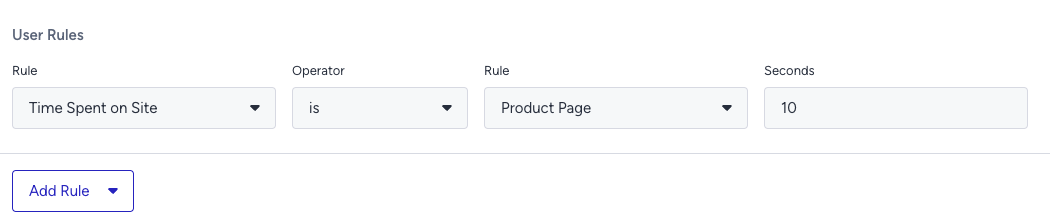
On the Rules step, decide where and when to show your campaign.
Use User Rules to target the users who spent at least 10 seconds on a flight detail page.
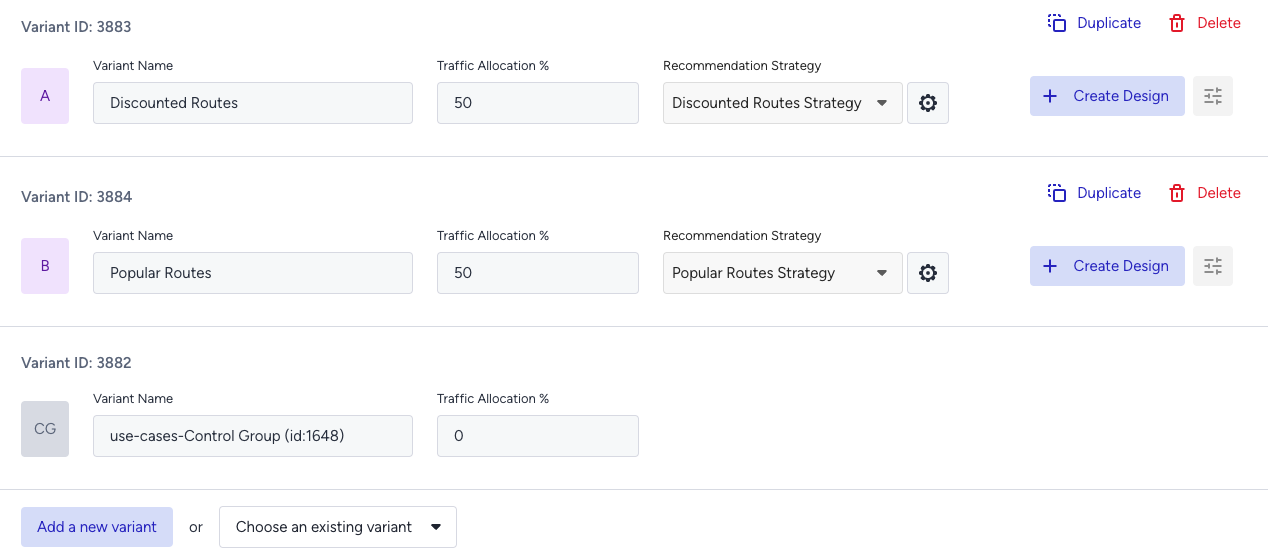
On the Design step:
Assign your two strategies to the variants.
Assign traffic allocation for each variant.
Now you’re ready to design your widget. Click Edit Design to open the Advanced Product Card Designer. Here, you can customize your product cards however you like.
Make sure all the attributes you want to display are included in your product catalog. If you need to show more information on your product cards, you can create custom attributes from Product Attributes page.
After finalizing your campaign design, the next step is to select the locales and stores where you want the campaign to appear.
Once your targeting is set:
Review the campaign details.
Confirm that all settings match your objectives.
Click Launch to activate your first campaign.
3. Track your campaign metrics
You’ve launched your campaign—great work! Now it’s time to track its performance.
Go to the Smart Recommender Analytics page.
Locate your campaign under the Campaign and Variant Metrics table. Once the experiment duration ends, click your campaign name.
Compare key metrics, including Direct Revenue, Average Order Value (AOV), and Conversion Rate.
You can see which algorithm—Highest Discounted or Top Sellers—led to higher AOV for low-spending customers.
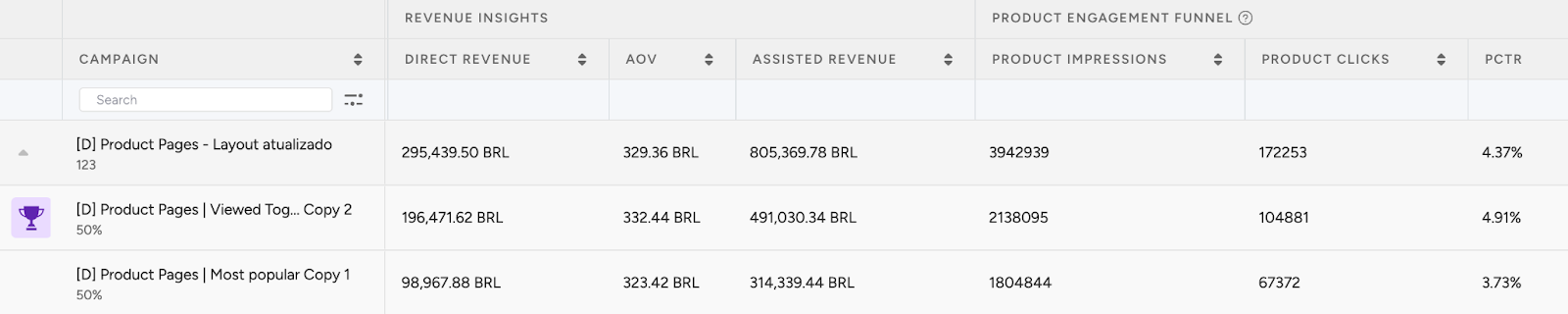
If one variant is clearly winning, adjust the traffic allocation to 100%. This ensures the best-performing strategy receives all traffic and maximizes impact.
4. Optimize your campaigns
Once your campaigns are live and running, it’s time to review results and apply data-driven improvements.
Go to the Smart Recommender Analytics page.
Evaluate campaign performance based on engagement metrics.
Track Engagement Funnel Metrics: Understand how users interact with your recommendations at every step. View product impressions, clickthrough rate, add-to-cart rate, and conversion rate for each campaign to pinpoint where you’re driving engagement and where there’s room to improve.

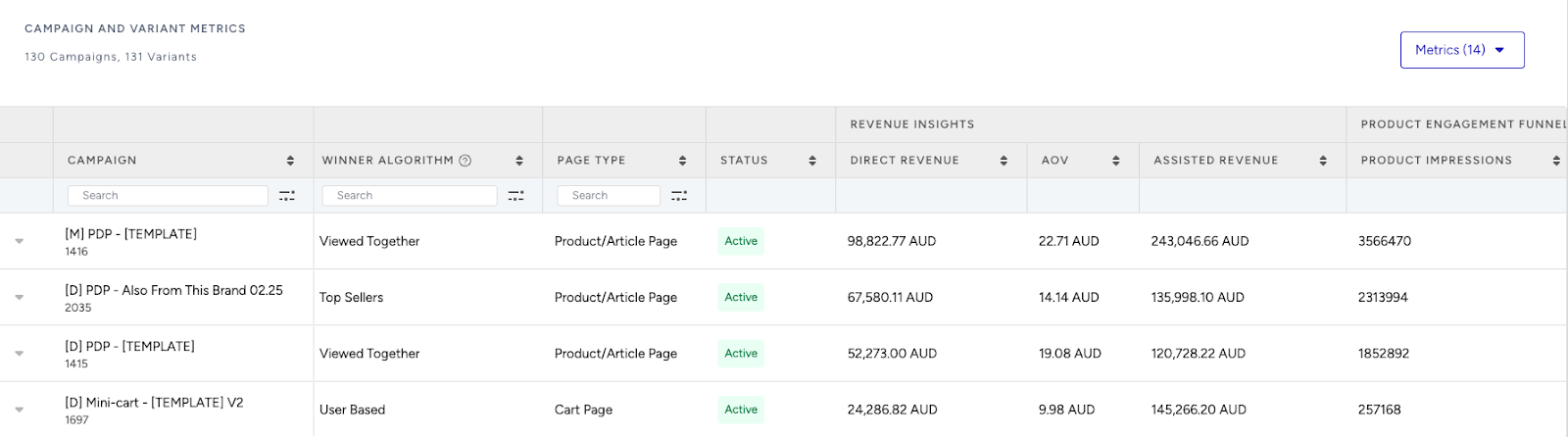
Compare Campaign and Variant Performance: Use the Campaign and Variant Metrics table to review key KPIs like AOV, Conversion Rate, and Direct Revenue. Identify which strategies are delivering the best results and refine or scale your winning variant accordingly.
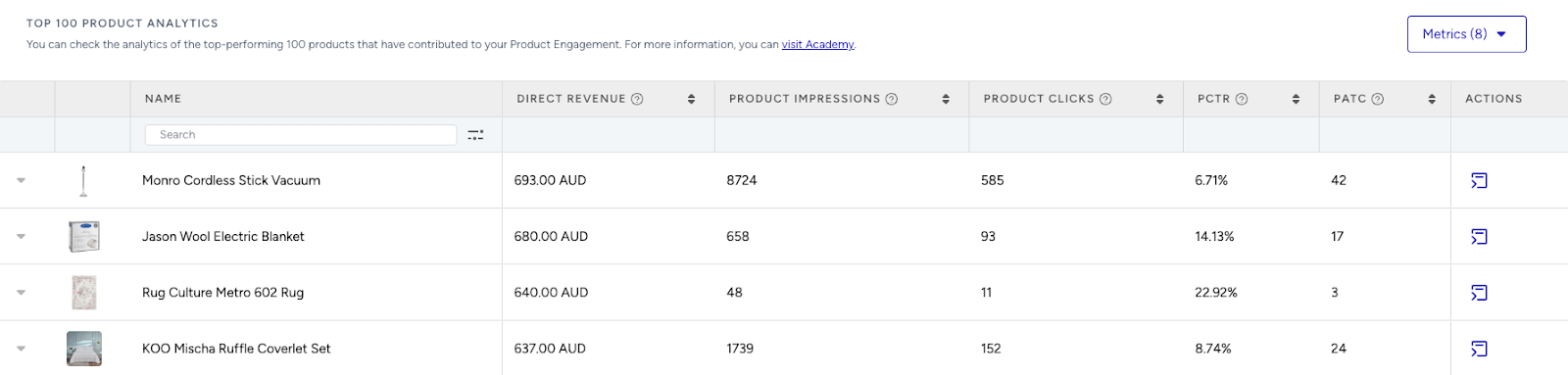
Analyze Product-Level Impact: Visit the Top 100 Product Analytics to see which products are performing well within your campaigns. Consider giving extra visibility to low-performing but strategic items by highlighting them in future recommendation widgets.
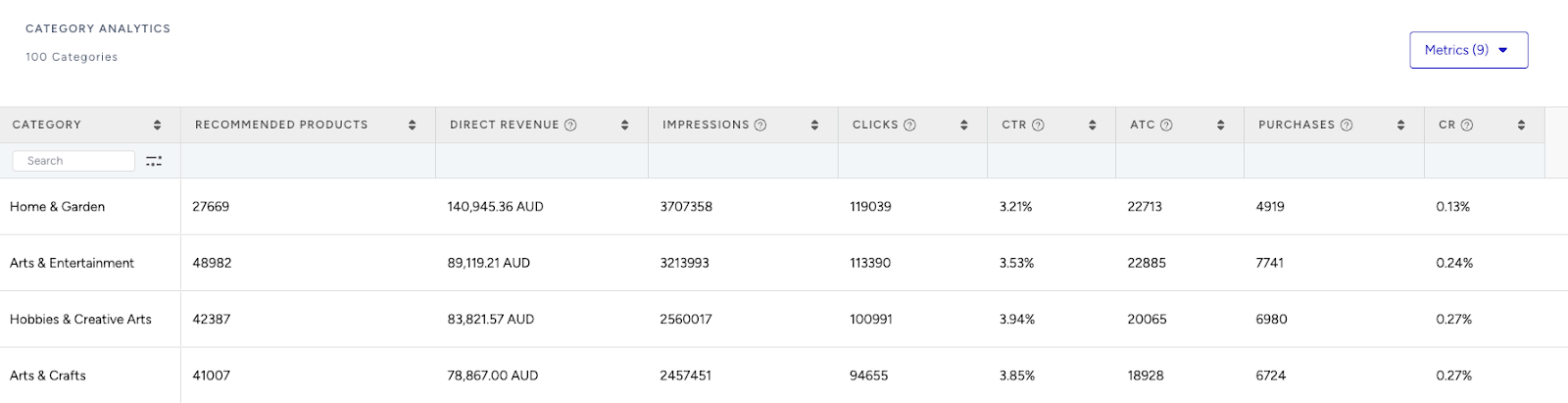
Review Category Trends: Use the Category Analytics view to assess which product categories drive the most conversions. You can prioritize high-performing categories to maximize conversions or spotlight underperforming categories to help boost their visibility and performance.
Use cases based on the page types
Home Page
Limited-time flight deals
Encourage quick decisions by highlighting discounted fares available for a short time.
Create a strategy with the Highest Discount algorithm to surface routes with active markdowns or flash sales.
Add a filter such as is_promoted + is present to limit the recommendations to live deals.
Enable the “Enhance recommendations based on Attribute Affinity” toggle to personalize recommendations based on your customer’s affinities.
You can set the Attribute Affinity to Departure City, Destination City, Flight Type and Class attributes to personalize recommendations based on these attributes from the Product Attributes page.
Pick up where you left off
Help returning users easily resume their travel planning by showing the flights they previously viewed.
Create a strategy with the Recently Viewed algorithm to display flights or routes the user explored in past sessions.
No filters are needed — the strategy automatically pulls from each user’s browsing history.
Apply a segment for returning users to ensure the campaign only appears when recent views are available.
Exclude recently purchased products in the last 30 days.
Recently Viewed and User-Based are personalized algorithms that rely on a user's past behavior. To use them effectively, ensure your segments are set to returning users.
Try placing this widget near the top of the homepage or just below the hero banner. You can also A/B test showing “Last Viewed Routes” vs. “Continue Planning Your Trip” to see which framing performs better.
Flight Detail Page (Product Page)
Explore more from your departure city
Encourage further browsing by suggesting additional destinations that depart from the same city.
Create a strategy with the Viewed Together algorithm to recommend similar flights based on the current route’s origin and distance.
Apply a filter like departure_city + matches the item they're currently viewing to anchor recommendations around where the user is flying from.
No need for segmentation — this works well for both new and returning users.
Enable the “Enhance recommendations based on Attribute Affinity” toggle to personalize recommendations based on your customer’s affinities.
Place this widget just below the calendar or seat selector to catch attention during flight evaluation. You can A/B test this layout against a static “Recommended Routes” section to measure bounce reduction.
Flight comparison assist
Help travelers evaluate their current options by surfacing alternatives with similar fares or travel times.
Create a strategy with the Substitute Products algorithm to find comparable routes that match on price range, distance, or region.
Apply filters to flight type, departure city, and destination city to keep comparisons relevant. Connect these filters with AND connector.
flight_type + matches the item they're currently viewing
departure_city + matches the item they're currently viewing
destination_city + matches the item they're currently viewing
Leave attribute affinity off to prioritize functional relevance.
A/B test comparing three vs. five recommendations to determine which layout drives deeper route exploration.
Cart / Booking Summary Page
Smart extras for your flight
Drive incremental revenue by offering relevant upsells like seats, meals, or baggage based on what’s in the cart.
Create a strategy with the Purchased Together algorithm to recommend extras most often added to the selected route and class.
Apply a filter such as product_type + is one of + Meal, Seat Upgrade, Baggage Upgrade to fine-tune what gets displayed.
Segment the users who have economy class tickets on their carts to focus on upsell opportunities where extras aren’t included.
Confirmation Page / Post-Booking
Complete your journey
Support customers after their booking with helpful travel add-ons, such as hotels or airport transfers.
Create a strategy with the Most Popular algorithm to surface services based on destination and travel dates, utilizing filters.
Add filters to make the offers destination-specific. Connect these filters with AND connector.
destination_city + matches the item they're currently viewing
product_type + is one of + Accomodation, Airport Transfer, Rental
This campaign works for all users, no segmentation needed.
Try showing this widget both immediately post-booking and again in a follow-up email to see where users are more likely to convert.