You cannot make any changes to External Platform Integrations without having either an Administrator or an Editor with PII access in InOne. Refer to User Roles for further information.
Snowflake integration, also known as syncing your Snowflake data warehouse data into Insider One, is the method for sharing user attribute and event data from your Snowflake account directly into Insider One.
It uses Snowflake's native data sharing capabilities to establish a secure pipeline between your warehouse and Insider One without requiring intermediate file exports or manual uploads.
Essentials before integration
Before you begin, ensure the following prerequisites are met to ensure a smooth, secure data import from Snowflake to Insider One.
A Snowflake Enterprise or Business Critical account.
Permission to create and manage shares in Snowflake. The user setting up the share must have ACCOUNTADMIN access.
Access to the schema and tables that include user and event data.
Set up the Snowflake integration
If you want to integrate more than one Snowflake account into the same Insider One panel, please reach out to the Insider One team.
Follow the steps below to authenticate your Snowflake account and set up your data sync.
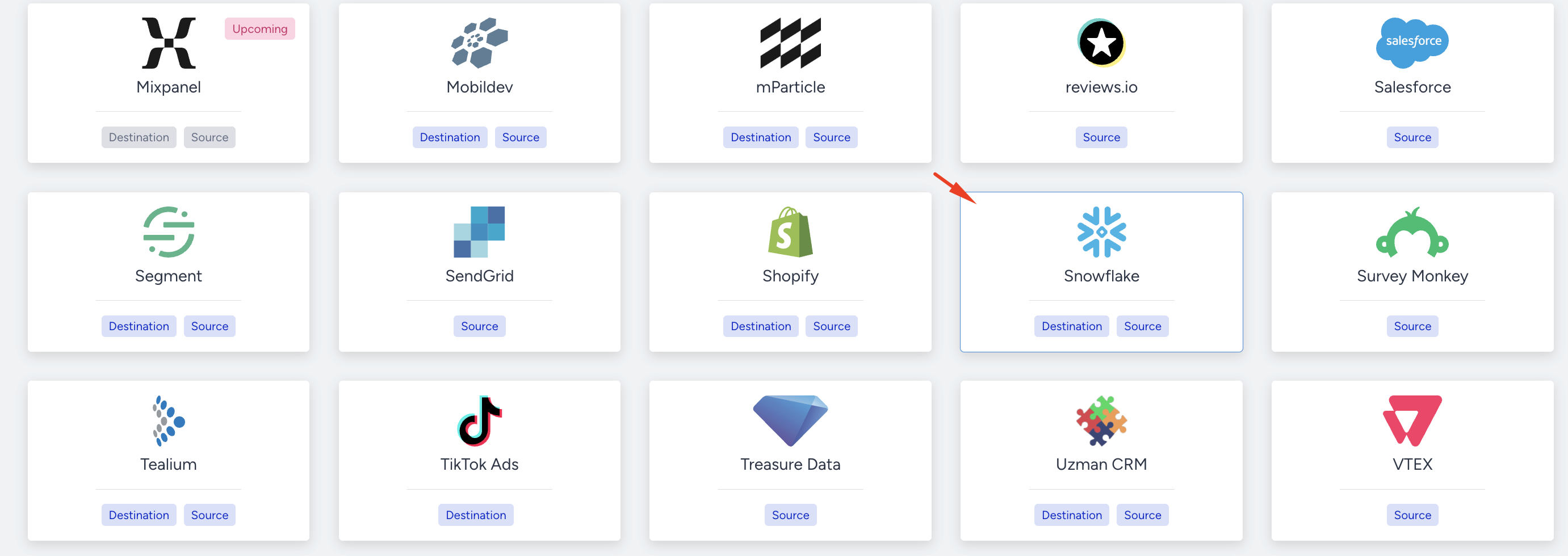
Navigate to InOne > Components > Integrations > External Integrations.
.png)
Click on the Snowflake integration.
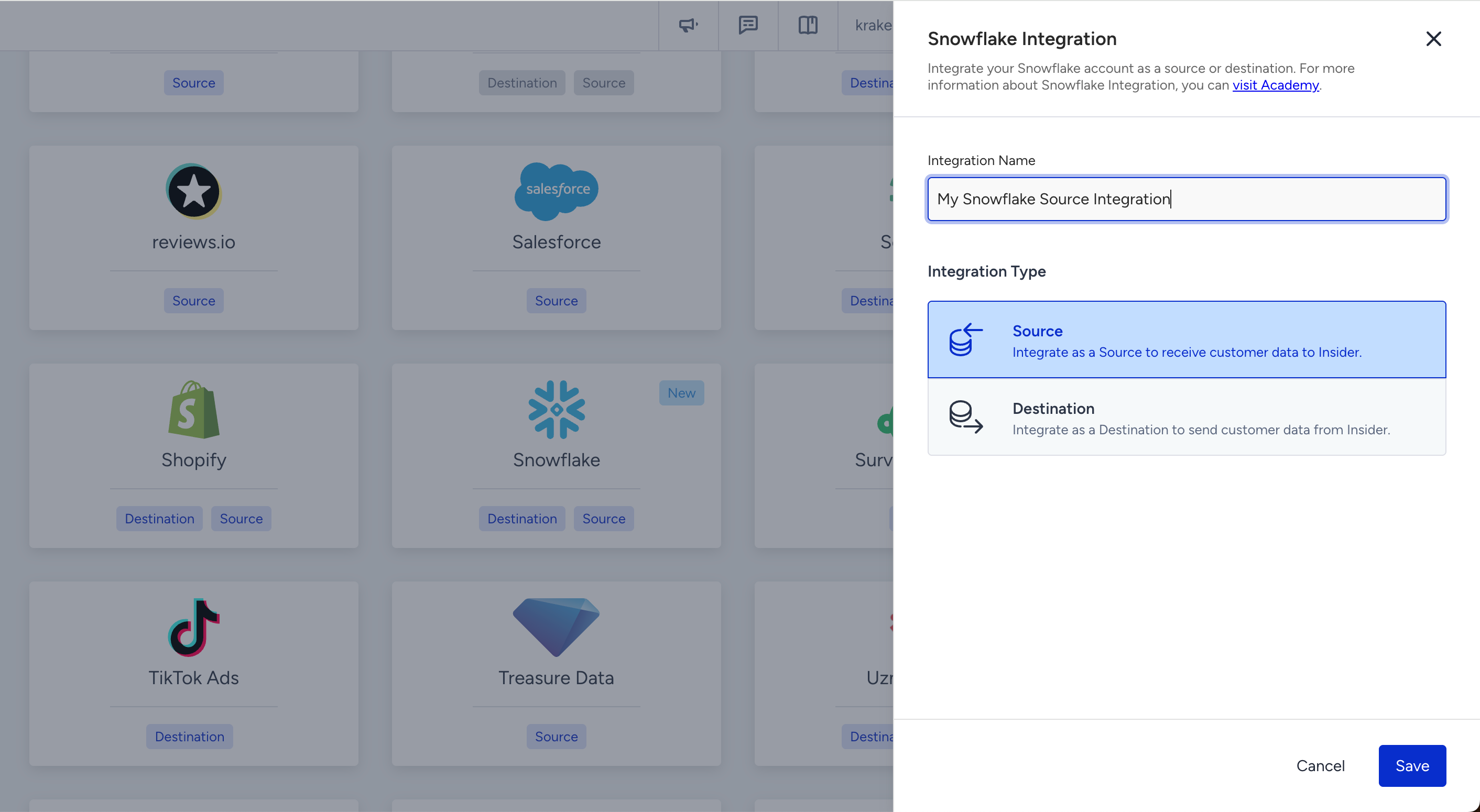
Enter a name for your Snowflake source integration and click Save.
Important:
The Stream you grant to Insider One must be dedicated exclusively to Insider One and must not be used by any other integration or system. If another system also uses this Stream, Insider One will not be able to retrieve the all changes from Snowflake.
You should create the Stream in DEFAULT mode. Creating the stream as
append_onlyrisks silent data corruption, asappend_onlystreams track only inserts.If you haven’t yet created a Stream for the table you are sharing with Insider One, refer to Snowflake documentation to create a dedicated Stream for Insider One.
Insider One automatically selects the Stream associated with a table. Therefore, the table you want to sync should only have one Stream, and that Stream must be the one created specifically for Insider One.
Important:
If you are using the same Snowflake account across multiple Insider One panels, ensure that the same table is not connected to more than one panel.
It is recommended to use separate warehouses for different tables. If both panels must use the same warehouse, ensure that the warehouse has sufficient capacity to handle the workload.
If you plan to use the same warehouse, as a best practice, schedule sync times at different times. This helps distribute the workload and prevents peak load caused by multiple integrations running simultaneously.
In the Authentication step, select an authentication with the Active status from the Authentication dropdown, or click Create New Authentication to create one. Then click Save and Continue.
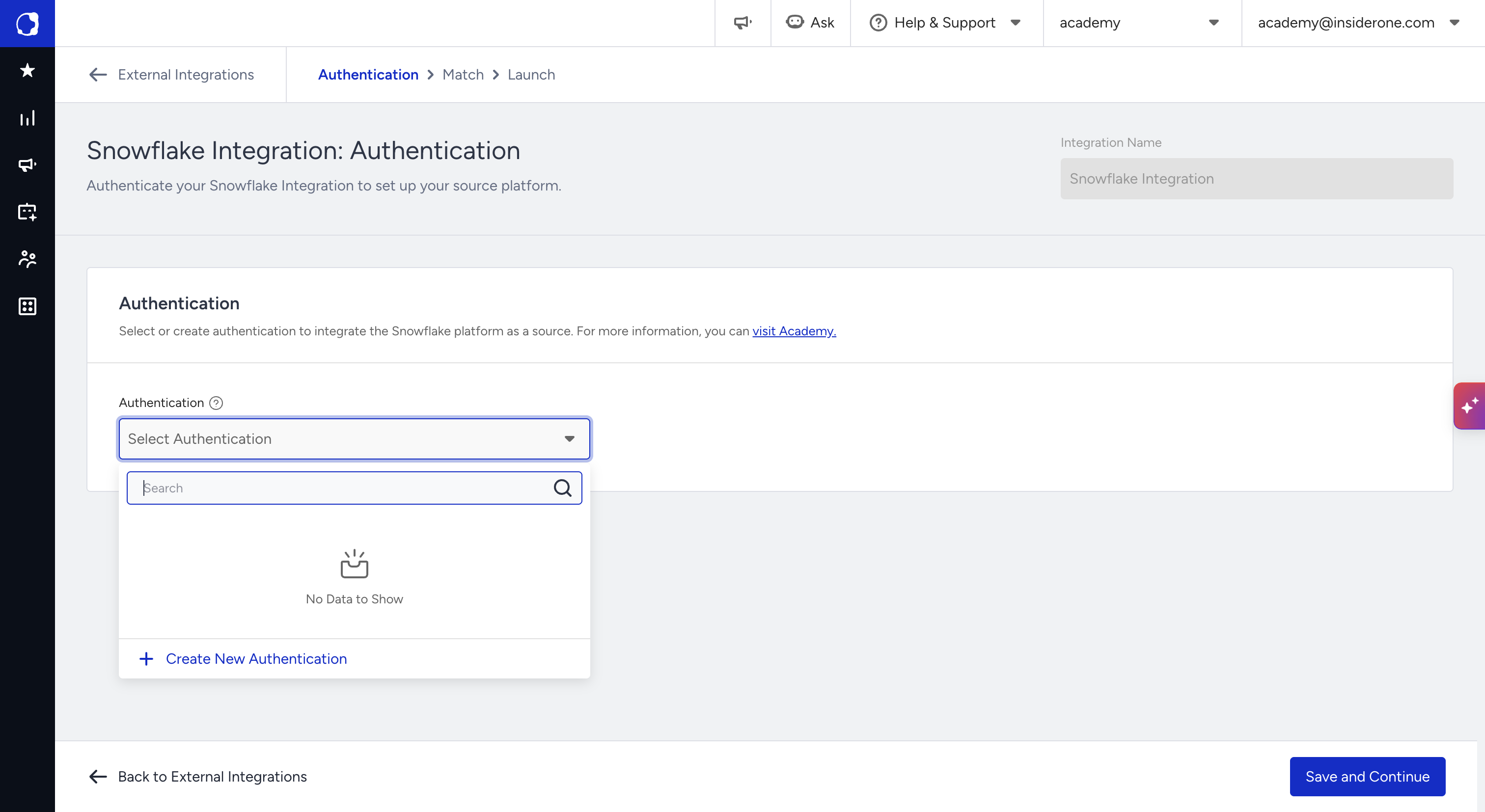
To learn how to create a Snowflake authentication, refer to Snowflake Authentication. To learn how to manage your authentications, refer to Authentications.
The setup script in the InOne panel includes values generated for your account: the AWS role ARN, the external ID, and the allowed location. Run the script exactly as shown, and do not replace these values. If you still see placeholders such as
<AWS_EXTERNAL_ID>, or Snowflake returns the errorError assuming AWS_ROLE, the external ID in your storage integration does not match the one in the panel. Copy the script from the panel again and recreate the storage integration with it.
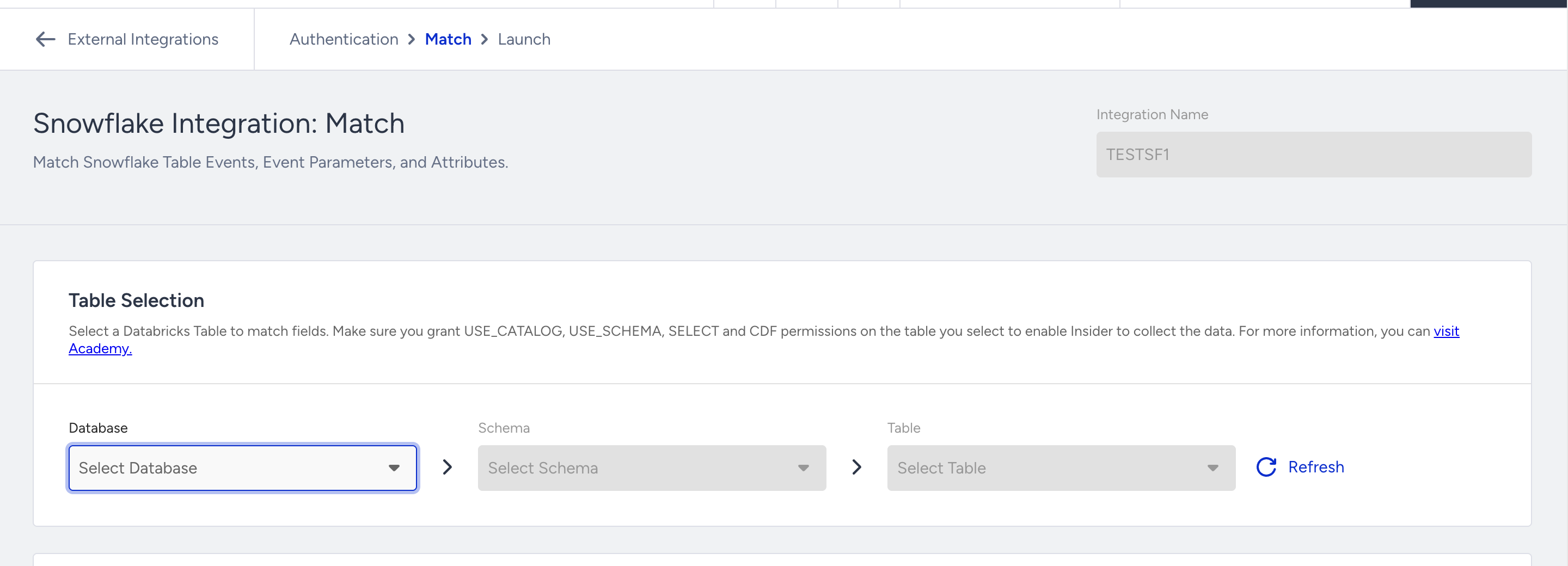
After you click Save and Continue, select the database, schema, and table you want to sync.
Insider One identifies and unifies incoming user records according to the identifiers, priority order, and value limits configured in Identity Resolution Management. Review these settings before your first import to understand how imported records will be matched and unified.
After selecting the table, you will be able to match the columns with Insider One’s attributes, events, and event parameters.
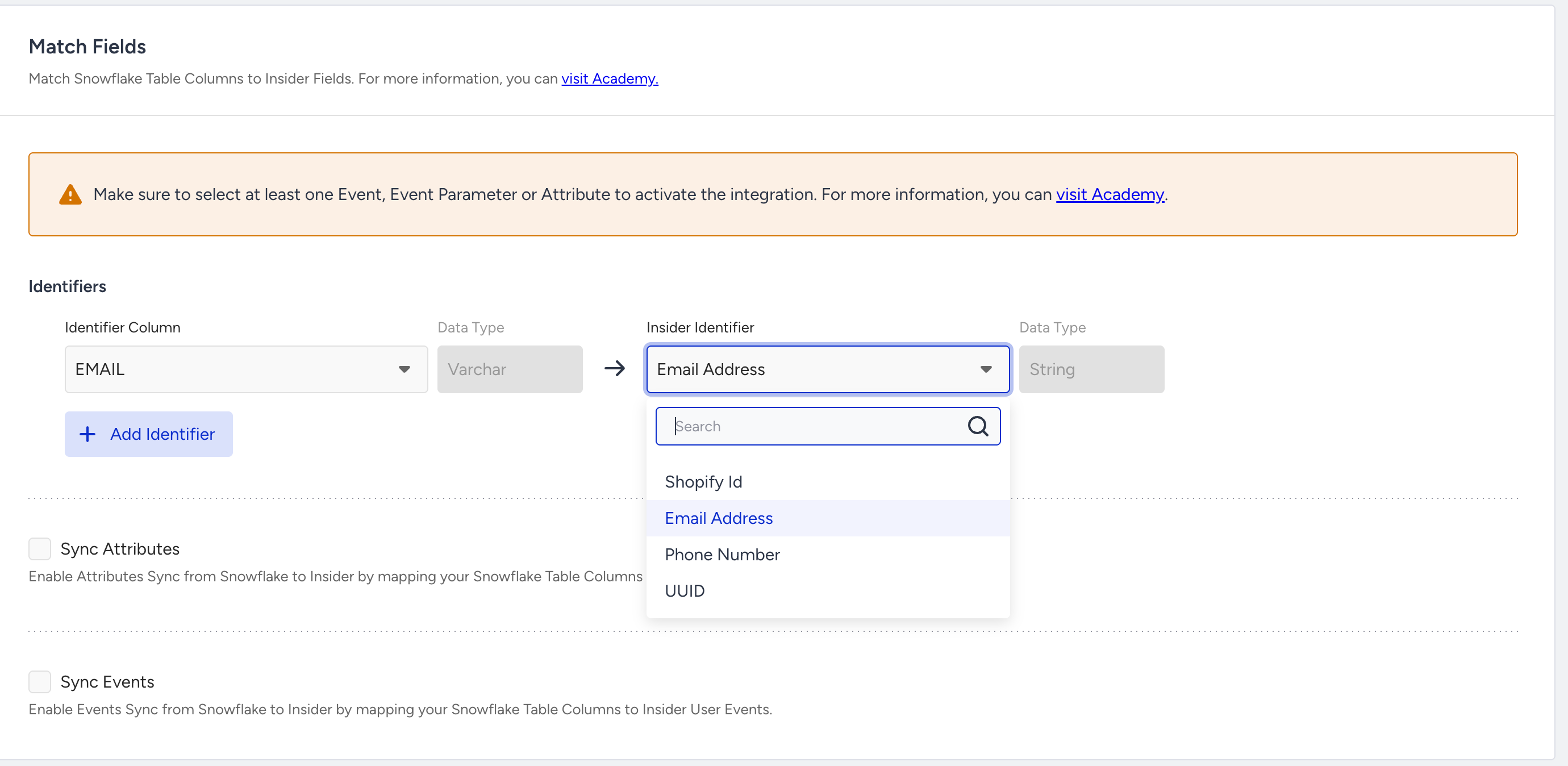
First, select the identifiers you want to send to Insider One. Data will be imported using the identifiers you choose. You may select more than one identifier. For example, if some of your users have only a phone number and others have only an email address, it is recommended to select both so that Insider One can match as many users as possible. However, it is essential to note that if the email or phone number for the same user in Insider One does not match the values you send from Snowflake, an identifier conflict will result.
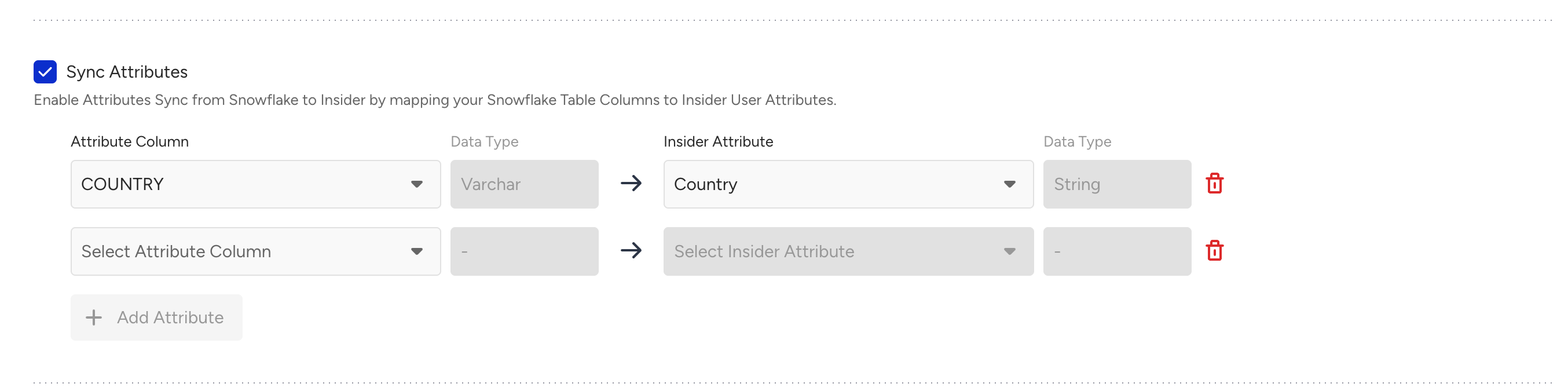
If you want to send attributes next to the identifier from Snowflake, you can open the Sync Attributes and map the columns in Snowflake to the Insider One Attributes.
To map the Events and Event parameters from Snowflake, you can open Sync Events.
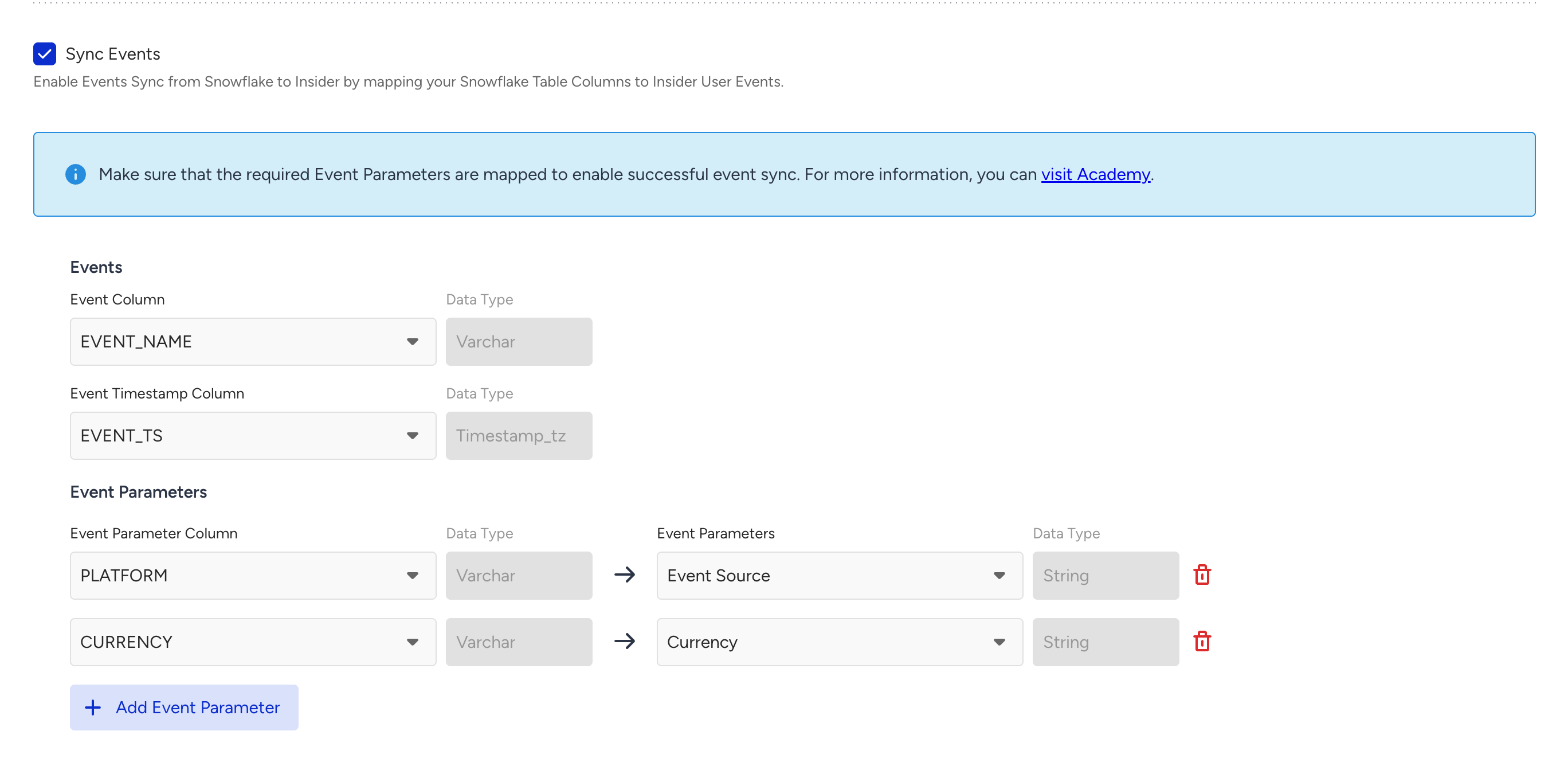
Refer to Default Attribute, Event & Parameter Data Mapping Table for required event parameters.
If you send events with the same name and timestamp, Insider One treats them as duplicates and ignores them. Therefore, avoid sending different events with identical names and timestamps.
Event names must follow the same naming convention as the Upsert User Data API. Event names that do not match this format will not be processed. Refer to Create a Custom Event for further information.
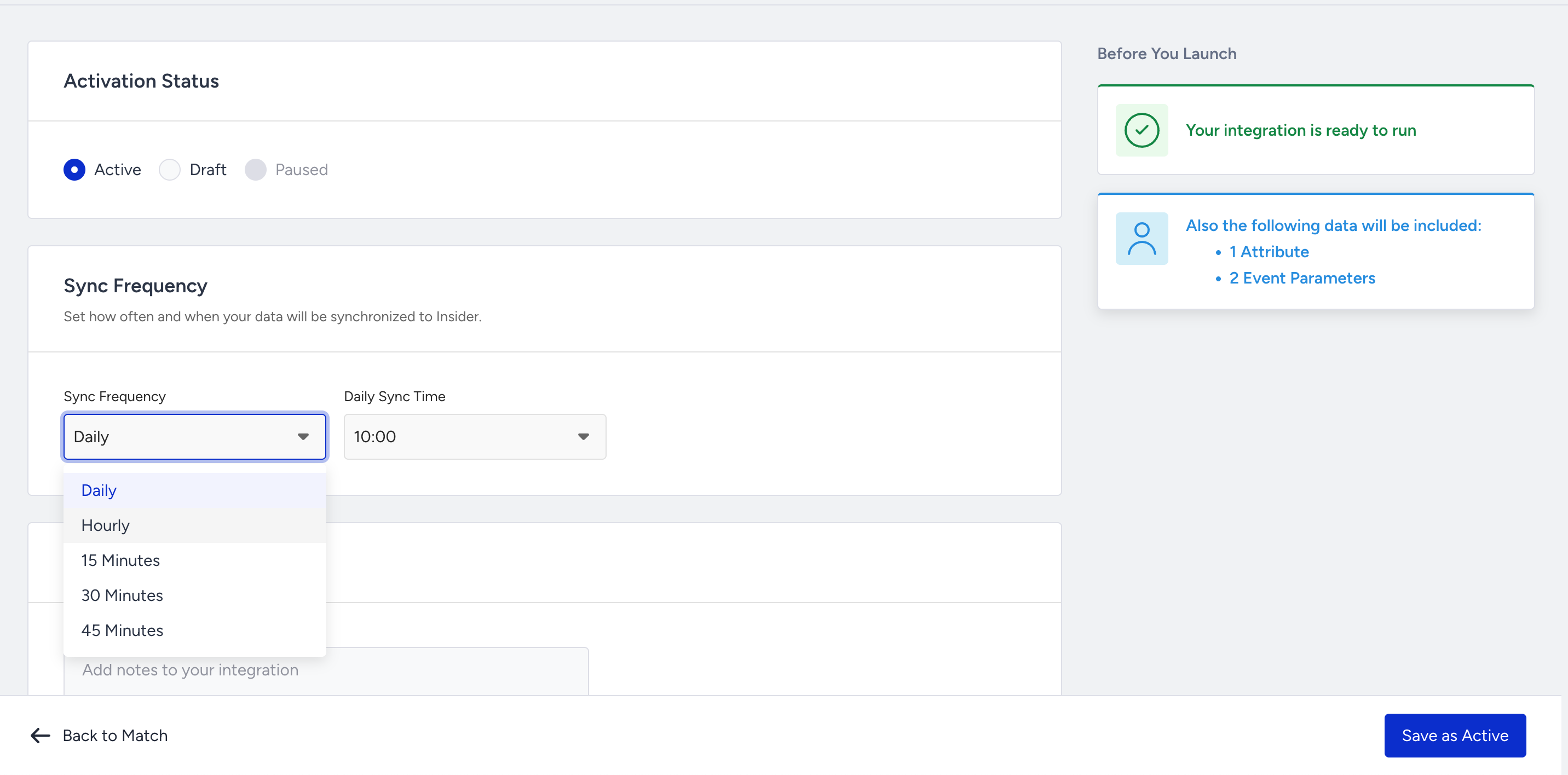
After completing the matching step, proceed to the Launch step. Choose how often you want the data to sync, every 15 minutes or up to once daily. Set the activation status to Active and click Save as Active.
Data Type Mapping
Ensure that the Insider One and Snowflake data types match. You can refer to the table below for data type matching:
Snowflake Data Type | Insider One Data Type | Notes |
|---|---|---|
VARCHAR, TEXT | String | Used for text attributes, identifiers, and event parameters. |
NUMBER, INTEGER, DECIMAL, FLOAT | Number | Used for numerical attributes (e.g., a_age, e_quantity, e_unit_price). |
BOOLEAN | Boolean | Used for opt-in attributes (e.g., a_email_optin). |
TIMESTAMP_TZ | DateTime | Recommended. The timezone offset is stored with the value and carried through the sync, so the exact instant is preserved. |
TIMESTAMP_LTZ | DateTime | Safe. TIMESTAMP_LTZ stores an absolute instant internally, and that instant is preserved through the sync. Snowflake displays TIMESTAMP_LTZ in the timezone of whoever is querying, so the wall-clock time in your Snowflake worksheet may not match the wall-clock time you see in Insider One, but both refer to the same moment. No action needed. |
TIMESTAMP_NTZ, TIMESTAMP | DateTime | Interpreted as UTC. TIMESTAMP_NTZ carries no timezone information, so Insider One reads the wall-clock value as if it were already UTC. If you store local time in a TIMESTAMP_NTZ column, every value will be off by your UTC offset once it reaches Insider One. Convert to UTC in Snowflake, or use TIMESTAMP_TZ instead, for any column mapped to a datetime attribute or to the event timestamp. |
ARRAY | Array Strings Array Numbers | Used for properties like e_taxonomy. Ensure mapping string arrays to string arrays and number arrays to number arrays. |
VARIANT, ARRAY, ARRAY(OBJECT(...)) | Array of Objects | Map nested data (order lines, subscriptions, preference objects) to a pre-defined Array of Objects attribute. See Mapping array-of-object (nested) columns below. |
For example, a contact in Istanbul (UTC+3) was last seen at 14:30 local time, which corresponds to 11:30 UTC. Depending on the column type you map, Insider One stores:
Snowflake column type | Value in Snowflake | Stored in Insider One (UTC) |
|---|---|---|
TIMESTAMP_TZ | 2026-03-15 14:30:00 +03:00 | 2026-03-15T11:30:00Z ✅ correct instant |
TIMESTAMP_NTZ | 2026-03-15 14:30:00 (no zone) | 2026-03-15T14:30:00Z ⚠️ 3 hours off |
Both columns read 14:30 in Snowflake, but only TIMESTAMP_TZ records the moment the customer actually intended. For a "last seen 14:30" value powering a send-time or time-window segment, the TIMESTAMP_NTZ version treats that contact as three hours later than reality.
Mapping array-of-object (nested) columns
You can map a nested column to an Array of Objects attribute, such as order lines, subscriptions, or preference objects.
Eligible Snowflake column types: VARIANT, bare ARRAY, and structured ARRAY(OBJECT(...)). Other structured types, including typed ARRAY(T) types such as ARRAY(VARCHAR), ARRAY(MAP(...)), OBJECT, and MAP, cannot be mapped to an Array of Objects attribute and do not appear as mapping options. Expose the data as VARIANT or ARRAY(OBJECT(...)) first.
Before you map the column:
Create the Array of Objects attribute first. Go to InOne > Components > Attributes and Events and define each object key and its data type. Refer to Create an Array of Objects Attribute.
Supported key types include String, Number, Date, Boolean, URL, String Array, Number Array, and nested Object with up to 2 nesting levels.
Match key names and types to your source exactly. Each object key is parsed independently. If a key name or data type does not match the registered schema, correctly mapped keys are still stored, while the mismatched key is skipped without an error or warning.
For example, if the attribute keys are sku, price and qty, the incoming object {"sku":"A","price":10,"qty":1,"color":"red"} is stored as {"sku":"A","price":10,"qty":1}.
If an array contains more than 50 objects, Insider One stores the first 50 objects and drops the rest. The cell is not counted as failed and no warning is shown.
Make sure each cell contains a JSON array of objects. Insider One rejects the cell, and counts it against the sync run's success rate, in these cases:
The value is not an array (for example a single object, a scalar value, or malformed JSON).
The array contains an element that is not an object, for example
[{"sku":"A"}, 7].The objects are nested deeper than 2 levels, or an object contains another array of objects.
A string value is longer than 500 characters.
The cell is larger than 1 MiB.
A rejected cell skips only that attribute. The rest of the row is still imported.
Before syncing, confirm that each key name and data type matches the source. After a test sync, review several user profiles to verify that all expected objects and keys were ingested. Because mismatched keys and objects exceeding the supported limit are skipped without an error or warning, a test sync helps you confirm the final result.
Each attribute supports up to 50 objects, 20 keys per object, 2 nesting levels, and 500 characters per string value.
Unsupported column types
The following Snowflake types cannot be mapped to an Insider One attribute, event, or event parameter. Columns with these types do not appear as mapping options in the Match step.
If you need to use this data in Insider One, first cast or flatten it into a supported type in Snowflake. For example, you can expose a GEOGRAPHY column as two FLOAT columns for latitude and longitude, or serialize a structured column to VARCHAR.
Snowflake data type | Category |
|---|---|
OBJECT (untyped) | Semi-structured |
OBJECT(a …, b …) (typed) | Structured |
MAP(K, V) | Structured |
ARRAY(T) (typed), except ARRAY(OBJECT(...)), which maps to Array of Objects | Structured |
GEOGRAPHY | Geospatial |
GEOMETRY | Geospatial |
VECTOR(FLOAT, n) | ML/embedding |
TIME | Temporal (time-of-day) |
BINARY, VARBINARY | Binary |
FILE | File reference |
VARIANT is supported. It maps to String (the JSON content is stored as a serialized string) or, when the cell contains an array of objects, to an Array of Objects attribute. Untyped ARRAY maps to Array Strings, Array Numbers, or Array of Objects.
Precision and special values
High-precision numbers: NUMBER values beyond roughly 17 significant digits lose precision when ingested. For example, a 38-digit NUMBER is stored in Insider One in floating-point form. Avoid mapping columns when preserving the full precision is important, such as large identifiers or exact financial ledgers. If you need to preserve the exact value, map the column as VARCHAR instead.
inf / NaN floats: These values cannot be represented as an Insider One Number. The affected cell is dropped, while the rest of the row is still ingested.
Default Attribute, Event & Parameter Data Mapping Table
Parameter | Type | Description | Data Type | Required |
|---|---|---|---|---|
Attribute | Attribute. The user’s email address can be used as an identifier. | String | No | |
phone_number | Attribute | Attribute. The user’s phone number in E.164 format (e.g., +6598765432) can be used as an identifier. | String | No |
email_optin | Attribute | Attribute. User’s permission for marketing emails: -True = emails allowed; -False = email not allowed | Boolean | No |
gdpr_optin | Attribute | Attribute. User’s permission for Insider One campaigns, data collection, and processing: -False = user will not see any Insider One campaign or receive any message from any channel; -True or empty = Insider One may interact with the user through personalization campaigns. | Boolean | No |
sms_optin | Attribute | Attribute. User’s permission for SMS: -True = SMS allowed; -False = SMS not allowed. | Boolean | No |
whatsapp_optin | Attribute | Attribute. User’s permission for WhatsApp Message: -True = WhatsApp Message allowed; -False = WhatsApp Message not allowed. | Boolean | No |
name | Attribute | Attribute. User’s name. | String | No |
surname | Attribute | Attribute. User’s surname. | String | No |
birthday | Attribute | Attribute. User’s birthday in RFC 3339 format (e.g. 1993-03-12T00:00:00Z). Note: Ensure the birthday ends with Z to indicate UTC time; no other time offset is included. Snowflake data type should be | Date/Time | No |
gender | Attribute | Attribute. Gender of the user. | String | No |
age | Attribute | Attribute. Age of the user. | Number | No |
language | Attribute | Language information of the user. | String | No |
country | Attribute | Attribute. The user’s country information in ISO 3166-1 alpha-2 format. | String | No |
city | Attribute | Attribute. City information of the user. | String | No |
uuid | Attribute | Attribute. The user’s UUID can be used as an identifier. | String | No |
event_name | Event | Name of the event. | String | Yes |
timestamp | Event Parameter | Event time. | Datetime | Yes |
event_group_id | Event Parameter | Event group ID. | String | No (Yes, only when the |
product_id | Event Parameter | Event parameter. Unique product ID. | String | No |
name | Event Parameter | Event parameter. Name of the product. | String | No |
taxonomy | Event Parameter | Event parameter. Category tree of the product. | Array | No |
currency | Event Parameter | Event parameter. Currency used for product pricing, in ISO 4217 format (e.g., USD). | String | No (Yes, only when the |
quantity | Event Parameter | Event parameter. Quantity of the product. | Integer | No (Yes, only when the |
unit_price | Event Parameter | Event parameter. Price of the product without any discount(s). | Float | No |
unit_sale_price | Event Parameter | Event parameter. Unit price of the product. | Float | No (Yes, only when the |
color | Event Parameter | Event parameter. Color of the product (selected by the user). | String | No |
size | Event Parameter | Event parameter. Size of the product (selected by the user). | String | No |
shipping_cost | Event Parameter | Event parameter. Shipping cost of the items in the basket. | String | No |
promotion_name | Event Parameter | Event parameter. Name of the promotion. | String | No |
promotion_discount | Event Parameter | Event parameter. Total amount of discount applied by promotions. | Float | No |
Purchase Event
If you have purchase event in your Snowflake table, please make sure to;
If in a basket, there are more than single item, make sure to add those as seperated rows into your Snowflake table.
Include
e_guid(event_group_id) parameter for each purchase event. This is needed to connect different products to single cart.
Refer to Events & Attributes for all default events and attributes.
If your data type in Snowflake is a TIMESTAMP format, the specific date format is not critical. Insider One automatically converts any datetime format that is accepted by Snowflake.
Limitations
Supported source table types
Insider One reads changes from your table through a DEFAULT-mode Stream. Only tables that support this Stream type can be used as a source. The table selection step lists only eligible tables.
Table type | Availability | Notes |
|---|---|---|
Standard table | ✅ Recommended | The safest source type. Use a standard table unless you have a specific reason to use another supported type. |
Snowflake-managed Iceberg table | ✅ Supported | This table type is not insert-only, so a DEFAULT-mode Stream works normally. |
Dynamic table | ⚠️ Not recommended | A Dynamic Table reflects new data only after its scheduled refresh based on TARGET_LAG, so updates can arrive with a short delay. If the table becomes suspended manually, during a cost review, or automatically after an error, it stops updating even if its upstream table continues receiving rows. From that point, syncs can complete successfully with zero records and no error, which can make the issue difficult to detect. If you use a Dynamic Table, make sure it remains ACTIVE and monitor its state. We recommend using a standard table instead. |
External table (S3 / GCS / Azure stage) | ❌ Not selectable | Streams on external tables are insert-only, which Insider One does not support. These tables do not appear in the table selection step. |
Iceberg table (externally managed) | ❌ Not selectable | This table type has the same insert-only Stream limitation as external tables. |
Hybrid / Unistore table | ❌ Not selectable | This table type does not appear in the table selection step. |
Materialized view | ❌ Not selectable | This table type does not appear in the table selection step. |
Temporary table | ❌ Not selectable | This table type does not appear in the table selection step. |
Already using one of the unsupported types? Integrations created before this restriction, or created through the API, can still point to an external or externally managed Iceberg table. If your integration uses one of these table types, move the source to a standard table. Data added to the stage after the last successful metadata refresh was not ingested.
If your data originates in a type that is not selectable, materialize it into a standard table that Insider One can read. For example, have your pipeline write the data to a dedicated standard table, then create the Insider One Stream on that table.
Incremental syncs above 400,000 rows are ingested with journey and data stream triggers suppressed. No data is lost and the sync still succeeds.
Column and row-level security policies
Insider One reads your table through the Insider_Role created by the setup SQL. Any Snowflake policy that changes what a role can see also changes what Insider One ingests.
Some policies cause an error and stop the integration. Others do not cause an error, so the sync can complete successfully even when the ingested data differs from what you see in your own Snowflake session.
Before mapping a column, check whether any of the following policies apply to it for Insider_Role:
Policy | Effect on your sync |
|---|---|
Dynamic Data Masking | Masked cells are ingested into Insider One as NULL or as the masked value. The sync reports success and no error occurs. |
Conditional or tag-based masking | The policy is evaluated for Insider_Role, not for your own role. Masked cells are ingested as NULL or as the masked value. The sync reports success and no error occurs. |
Row Access Policy | Rows hidden from Insider_Role are not ingested. The sync reports success with a smaller row count, and no error occurs. |
Role-conditional secure view | Insider One receives only the subset of data visible to Insider_Role. The sync reports success and no error occurs. |
Projection Policy | Projection policies apply per column. If you map a column protected by a projection policy, no data is ingested. Insider One reads all mapped columns in a single statement, so one blocked column stops the entire run. The integration moves to Action Required, and you are notified. A projection-policy column that you do not map has no effect. |
Aggregation Policy | Aggregation policies apply to the entire table. Insider One reads the table row by row, which an aggregation policy rejects. As a result, the table cannot be used as a source, regardless of which columns you map. The integration moves to Action Required. |
The first four policies are the ones to watch. Masking and row access policies do not produce an error. The integration remains Active, the sync reports success, and nothing on the Monitoring screen indicates that the ingested data is incomplete. Projection and aggregation policies produce an error and notify you.
Recommendation: If a column is protected by a masking or row access policy and you want Insider One to receive the original values, grant Insider_Role an exemption from that policy. If you do not want Insider One to receive the data, do not map the column. Relying on the policy to filter mapped data can cause the data in Insider One to differ from the data in Snowflake. To verify what Insider One can access, run your query while impersonating Insider_Role.
Warehouse requirements
The warehouse you grant to Insider One must be able to run a query when a sync starts. If it cannot, the sync does not ingest any data and the integration moves to Action Required so that you are notified.
AUTO_RESUME must be enabled. If the warehouse is suspended and AUTO_RESUME = FALSE, every sync fails to start. Keep the USAGE grant for Insider_Role on the warehouse as well. If this grant is revoked, the sync stops in the same way.
STATEMENT_TIMEOUT_IN_SECONDS must be long enough for your data volume. Exporting a large table can take several minutes. If the statement timeout configured for the warehouse or account is shorter than the export requires, Snowflake cancels the sync while it is running. As a reference point, exporting roughly 3 million rows takes several seconds of warehouse time, so a timeout of only a few seconds can cancel the sync.
Size the warehouse for the initial load. The first sync creates a full snapshot of the table. Temporarily scaling the warehouse up for this run and scaling it back down afterward can help the initial sync complete faster.
Changing the table after activation
Some schema changes on an active integration are detected and move the integration to Action Required. Other changes are not detected and can silently change the data Insider One receives.
Change on the source table | What happens |
|---|---|
Drop a mapped identifier column | The integration moves to Action Required, and you are notified. |
Drop all mapped data columns | The integration moves to Action Required, and you are notified. |
Drop the table, schema, or database | The integration moves to Action Required, and you are notified. |
Drop or rename one mapped attribute column while other mapped columns remain | Not detected. The sync continues, but the affected attribute stops updating in Insider One. |
Change the data type of a mapped column | Not detected. The column name still matches, so the sync continues using the new data type. |
Recommendation: Treat the source table as a contract. If you need to rename, change the data type of, or remove a mapped column, update the mapping in the integration's Match step within the same change window.
Avoid using CREATE OR REPLACE TABLE on the source table. This operation drops the change-tracking history and causes the Stream to become stale.
Each table must include an identifier.
Identifier columns must use a String type. Only VARCHAR or TEXT columns can be mapped to an identifier such as email, phone number, or UUID.
If your identifier is stored as a number or another data type, cast it to a String in Snowflake before mapping it. For example, if a phone number is stored as NUMBER, expose it as VARCHAR in E.164 format.
Custom attributes or event parameters must be predefined in Insider One (see the Events & Attributes page).
For purchase events:
Add one row per product in a basket.
Include e_guid (event_group_id) to link multiple rows to a single cart.
Each row (user) must be under 350KB; rows exceeding this size will not be upserted.
A single sync can process at most 1 billion rows. This limit applies to every sync; both the initial full sync and subsequent incremental syncs. If a sync exceeds 1 billion rows, the integration is moved to Archived and that sync is not processed. If you expect any sync to exceed this, contact your Insider representative before launching.
Data Import Logic
During the Snowflake → Insider synchronization:
If any identifier coming from Snowflake is invalid, the entire record is not sent.
If an attribute coming from Snowflake is invalid, only that specific attribute is skipped.
If an event parameter coming from Snowflake is invalid, the entire event is excluded from processing.
The first synchronization performs a full table sync and doesn’t trigger any webhooks, campaigns, or journeys.
If a single incremental sync exceeds the row limit configured for your account, Insider One still ingests all rows. However, those rows do not trigger webhooks, campaigns, or Architect journeys.
Important: Event Deduplication & Re-Ingestion Behavior
Duplicate Detection Rule: Insider One treats events with the same event name and timestamp as duplicates.
If multiple events with identical names and timestamps are sent within the same sync, only one will be processed and the others will be ignored.Avoid Updating Previously Synced Events: Do not update rows that were already consumed by Insider One in a previous sync.
Updating these rows triggers re-ingestion, which may create duplicate events in Insider.
Recommendation: Ensure each event has a unique timestamp and avoid modifying rows which include historical event records after they have been successfully synced.
Repeatedly re-sending unchanged rows moves your integration to Action required. Deduplication protects your data, but the duplicated rows are still transferred and processed. If more than 5% of the rows in your last two syncs were re-sent with identical content, the integration is moved to Action required until you fix the source query. See DWH_DUPLICATE_DATA_THRESHOLD_EXCEEDED in the Data Warehouse and Storage Import Monitoring and Error Guide.
You can track every sync on the integration's Monitoring screen. Each run displays its status, success rate, and any errors found. For the full list of import errors, their meanings, and how to resolve them, see the Error Guide.
Local Region Support
If your UCD uses a local region other than the default Ireland region, the integration will automatically use that region.
To change it later, contact the Insider One team.
FAQ
Q: Do I need to be on a specific Snowflake plan?
A: Yes, either Enterprise or Business Critical.
Q: What permissions are required in Snowflake?
A: You must have ACCOUNTADMIN privileges and access to relevant schemas and tables.
Q: Can Insider One access data in a different region?
A: Yes, but you need to enable cross-region replication.
Q: Can I share multiple tables with Insider One?
A: Yes, you can share multiple tables with Insider One.
Q: What happens if I include custom attributes or events?
A: They must be created first in Insider One’s Events & Attributes page and mapped in the Match page.
Q: Can I send purchase events with multiple products?
A: Yes. Add each product as a separate row and use the event_group_id (e_guid) to link them to the same cart.
Q: How should I format dates (like a_birthday and e_timestamp)?
A: The datetime format itself is not critical. Insider One converts any datetime format that Snowflake accepts. The time zone is what matters.
Use TIMESTAMP_TZ where possible because it preserves the offset and the exact instant. If you use TIMESTAMP_NTZ, Insider One interprets the value as UTC, so store UTC values in that column rather than local time.
See the Data Type Mapping table above for the behavior of each timestamp type.
Q: How can I delete a user attribute or an entire user profile?
A: The Snowflake integration performs data synchronization based on updates and additions. It does not support explicit "delete" operations for user attributes or entire user profiles within Insider One. If a record is deleted in your Snowflake table, it will not automatically trigger the removal of that data from Insider One during the next sync. To delete user data in Insider One, you can use Insider One's dedicated user deletion features or contact the Insider One team.
Q: Under what conditions does a Snowflake stream become “stale”?
A: A stream becomes stale when its “offset” falls outside the data-retention period of its source table (or underlying tables for a view). At that point, historical data, including any unconsumed change records, is no longer accessible, and you must recreate the stream to resume change capture. Refer to Snowflake’s documentation for more information.
Q: Can I use the same Snowflake warehouse across multiple Insider One panels?
A: Yes, you can use the same Snowflake account and warehouse across multiple Insider One panels. However, ensure the same table is not connected to more than one panel. While we recommend using separate warehouses for different tables, if you choose to use the same warehouse, make sure it has sufficient capacity.
As a best practice, schedule sync times at different times to avoid peak load caused by multiple integrations running simultaneously.