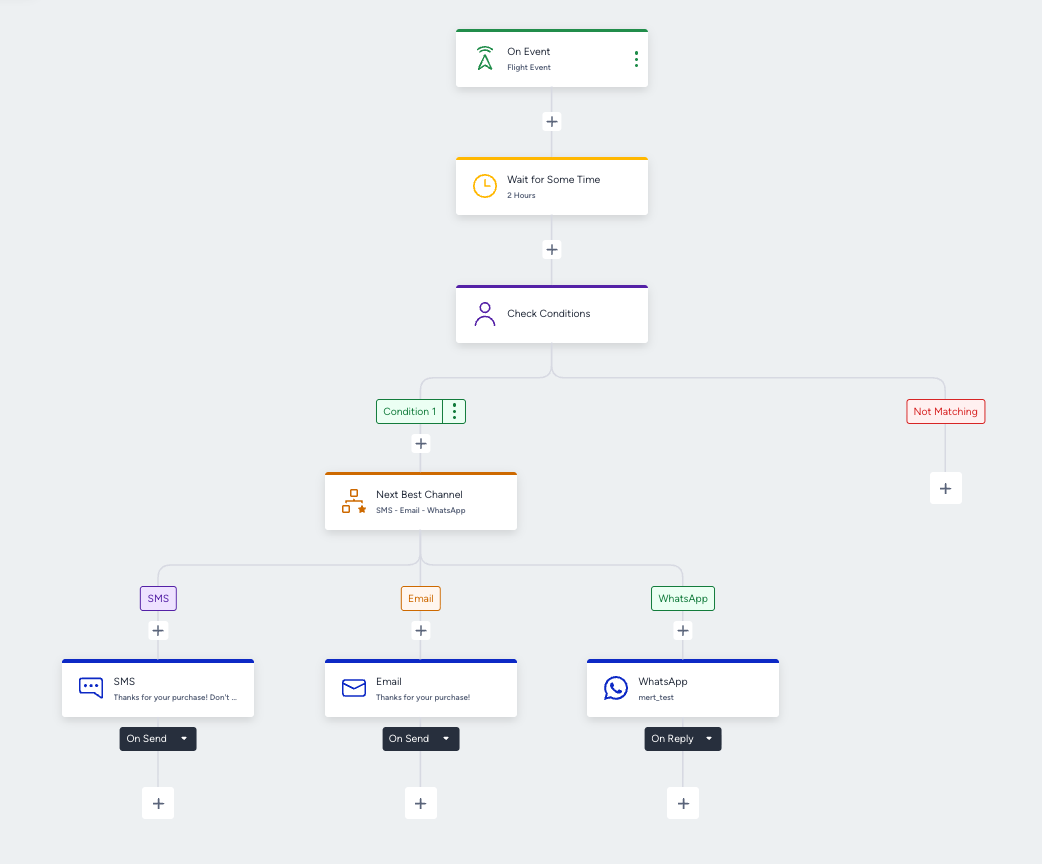
Ancillary upsell use case includes offering customers additional, complementary products or services after they have already committed to a primary purchase. The use case focuses on increasing total transaction value by offering relevant extras, such as travel insurance when booking a flight or extended warranties for electronics. The goal is to maximize immediate revenue per customer by leveraging the existing buying intent with low-friction, high-relevance add-ons.
What goals can you achieve with the Ancillary Upsell use case?
The use case focuses on converting purchasers into ancillary purchasers by delivering contextual, timely, and personalized upsell messages. It supports increasing conversions and revenue through the following strategies:
Increase average order value drive
Upsell purchase
Drive purchase frequency
Drive traffic
Increase customer lifetime value
Technical requirements
Page visits should be tracked. Once your website is mapped by Insider One during onboarding, It starts tracking user page visits. This does not require any additional integration.
Browsed items and purchase information must be collected. Once your website is mapped by Insider One during onboarding, It starts collecting this information by default. This does not require any additional integration.
The Web SDK Integration must be implemented so that browsed, cart, and purchased items are tracked.
Before using any channel in your journeys, the respective channel integrations should be completed. Depending on the channels you want to use in your journeys, additional integrations might be required.
If you need custom events, create them and pass them to Insider One.
If you have a mobile app, SDK Integration must be implemented.
Refer to the Advanced Integration Guide for the integration steps.
Create an Ancillary Upsell journey
You can create an Ancillary Upsell journey to re-engage users to buy the items in their carts.
Travel Industry: Ancillary Upsell after flight booking
Emily books a flight for her upcoming business trip to Berlin through your platform. While completing her reservation, she views several ancillary services such as extra baggage, priority boarding, and travel insurance. However, she finalizes her flight purchase without adding any of these services. Now, you can re-engage Emily and encourage her to enhance her trip with relevant ancillaries.
Wait for 3 hours: Allow Emily a few hours after her flight booking to see if she returns to purchase an add-on organically. Sometimes travelers revisit the confirmation page to upgrade their booking right away.
Check whether any ancillary service is purchased: Use the Check Conditions element to check whether Emily purchased an ancillary service. If she returns and purchases travel insurance, extra baggage, or any other add-on within this timeframe, she completes the journey.
Check reachability via Email: Check whether Emily is reachable via Email. You can also use Next Best Channel to communicate with your users from their most engaged channel.
Send personalized upsell email: Send Emily a tailored email highlighting add-ons that match her booking details.
Below are some examples:
“Add extra baggage for a smoother travel experience.”,
“Protect your trip with flexible travel insurance options.”
“Upgrade to priority boarding and save time at the airport.”
Wait for 1 day: Give Emily a day to engage with the email, revisit her booking, or complete an upgrade on her own.
Check whether an ancillary service is purchased: Use the Check Conditions element again to determine whether Emily purchased an add-on. If she completes an ancillary purchase, she completes or exits the journey.
Send follow-up communication: If Emily does not take action, send a follow-up reminder emphasizing the benefits of upgrading her travel experience, such as convenience, protection, and time savings, encouraging her to finalize her ancillary selection.
Accommodation: Upsell after hotel room booking
David books a three-night stay at one of your partner hotels for a weekend getaway. During the booking process, he browses add-on services such as room upgrades, breakfast packages, late check-out, and airport transfers. However, David completes his reservation without selecting any extras. This presents an ideal opportunity to re-engage him with appealing ancillary offers.
Wait for 2 hours: Give David a short waiting period after his booking to see if he returns to his confirmation page and adds an upgrade by himself.
Check whether any ancillary item is purchased: Use the Check Conditions element to verify whether David purchased any add-on. If he upgrades his room or adds a breakfast package during this time, he exits or completes the journey.
Check reachability via Email: Check if David is reachable via email. Most hotel bookings require an email address, making this the most effective channel to re-engage him.
Send personalized upsell email: Craft a personalized message based on the services David viewed or relevant upgrades for his stay.
Below are some examples:
“Upgrade your stay with a deluxe room offering skyline views.”
“Enjoy a relaxing morning with our freshly prepared breakfast package.”
“Extend your checkout time and make the most of your getaway.”
Use appealing images of the hotel, rooms, and amenities to increase interest.
Wait for 1 day: Give David a full day to consider the offer and interact with the message.
Check whether any ancillary item is purchased: Use the Check Conditions element again to confirm whether David purchased an add-on. If he does, he completes or exits the journey.
Send follow-up communication: If no action is taken, send a polite reminder email emphasizing comfort, convenience, and the enhanced experience he could enjoy during his stay. Mention value points such as premium amenities, relaxation benefits, or exclusive hotel perks.
Car rental: Upsell after vehicle registration
Laura visits your car rental platform to book a vehicle for an upcoming weekend trip. She selects a compact car, reviews the rental conditions, and completes her reservation. During the booking flow, she views several ancillary options, such as GPS navigation, child safety seats, full insurance coverage, and premium roadside assistance. However, Laura finalizes her booking without selecting any add-ons. This gives you the perfect opportunity to re-engage her and encourage her to enhance her rental experience with valuable extras.
Wait for 2 hours: Allow Laura a short period after her reservation to see if she revisits her confirmation page to add an upgrade or adjust her booking.
Check whether any ancillary item is purchased: Use the Check Conditions element to verify whether Laura purchased any ancillary service. If she returns and adds full insurance, GPS, or another add-on during this time, she exits or completes the journey.
Check reachability via Email: Confirm whether Laura is reachable via Email. Since car rental reservations require contact information, email is typically the most effective communication channel.
Send personalized upsell email: Craft an email that highlights relevant ancillary services based on her rental profile.
Below are some examples:
“Add full insurance for a worry-free drive.” “Make navigation easier with our GPS upgrade.”
“Travel safely — add a child seat to your booking.” “Upgrade to premium roadside assistance for extra peace of mind.”
Use visuals of the rental car, equipment, or service icons to make the offer more engaging.
Wait for 1 day: Give her additional time to consider the email, review her booking, or explore the add-on options again.
Check whether any ancillary item is purchased: Use the Check Conditions element again to determine if Laura purchased an add-on. If she has, she completes or exits the journey.
Send follow-up communication: If Laura still hasnʼt taken action, send a friendly reminder that highlights how ancillaries can improve her rental experience. Focus on benefits such as safety, convenience, comfort, and stress-free travel, encouraging her to complete her ancillary selection before pick-up.
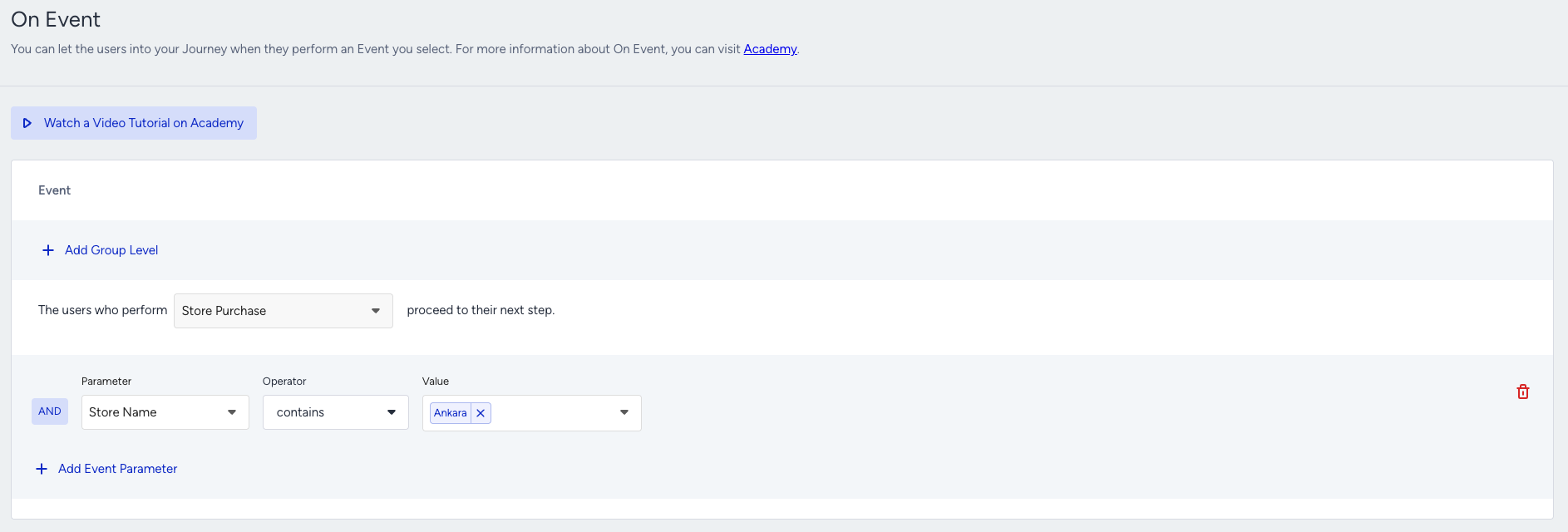
Step 1: Select the Starter
Select On Event starter and select the Purchase event, or the relevant event, like flight booking, room booking, etc., that you want your users to enter the journey when they make that action.
Step 2: Target the correct segment
Refine the target audience by applying additional segmentation:
Users who performed the primary purchase but did not purchase any ancillary product
(Optional) Users with relevant behavioral or attribute criteria
If you want to send upsell messages for different products from the same journey, do not add an event parameter in the starter. Take users based on the purchase event and in the Check Conditions element, you can filter users and you can direct them to different paths based on the product/category they bought before. So the message will be contextually personalized for each product and user.
Step 3: Build your journey
3.1. Wait before sending a message
After you decide on the segmentation, Add a Wait for Some Time element by considering the average duration between the primary purchase and the ancillary purchase related to that primary purchase. Adding a wait element in the journey flow is recommended, but optional.
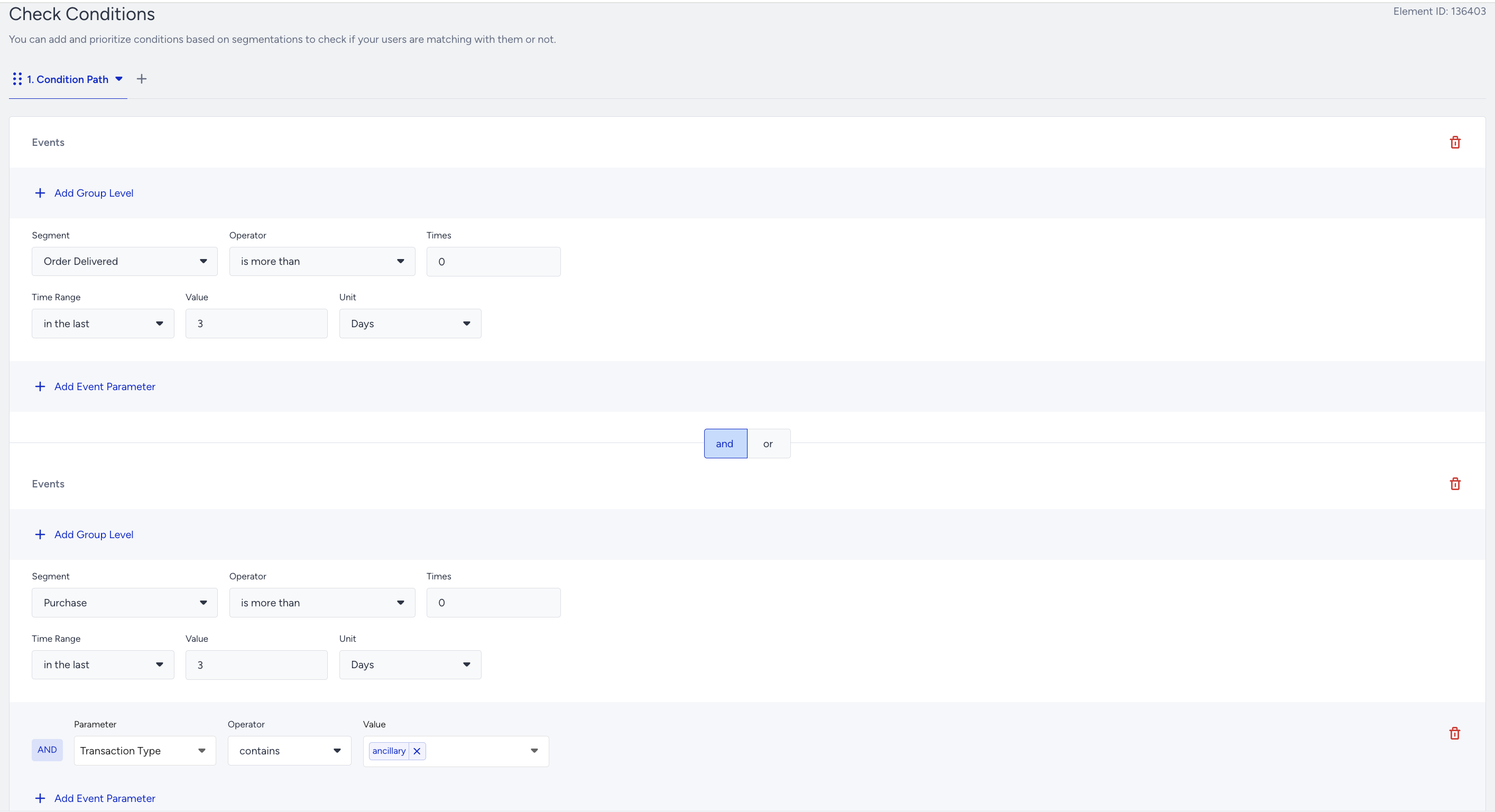
3.2. Filter your users
You can add Check Conditions element to filter users for different paths on the journey flow:
Segment users based on whether they have purchased an ancillary product or service
Segment users based on whether they have returned the primary product or not
Segment users based on their previous purchase history, including frequency, value, and product categories.
Segment users based on any attribute or event parameters you want.
3.2.1. Filter your users with constant starter event parameters
You can advance your post-purchase use case by using Constant Starter Event Parameters when filtering your users.
While the standard Ancillary Purchase Journey targets users who have made a certain action, like purchasing an ancillary product, or not within the selected duration, Constant Starter Event Parameters allows you to add deeper intelligence and precision by event parameter-specific checks.
This feature ensures that your follow-up messaging is always relevant to the users because it enables you to check whether the user has already purchased the ancillary combined with that primary product purchase, or the user has returned the primary purchase or not. You can check the exact product, variant, category, or taxonomy, or any other event parameter the user made, improving accuracy and conversion rates. It automatically and dynamically compares all event parameters from the starter event (purchase) with those in the Check Conditions event.
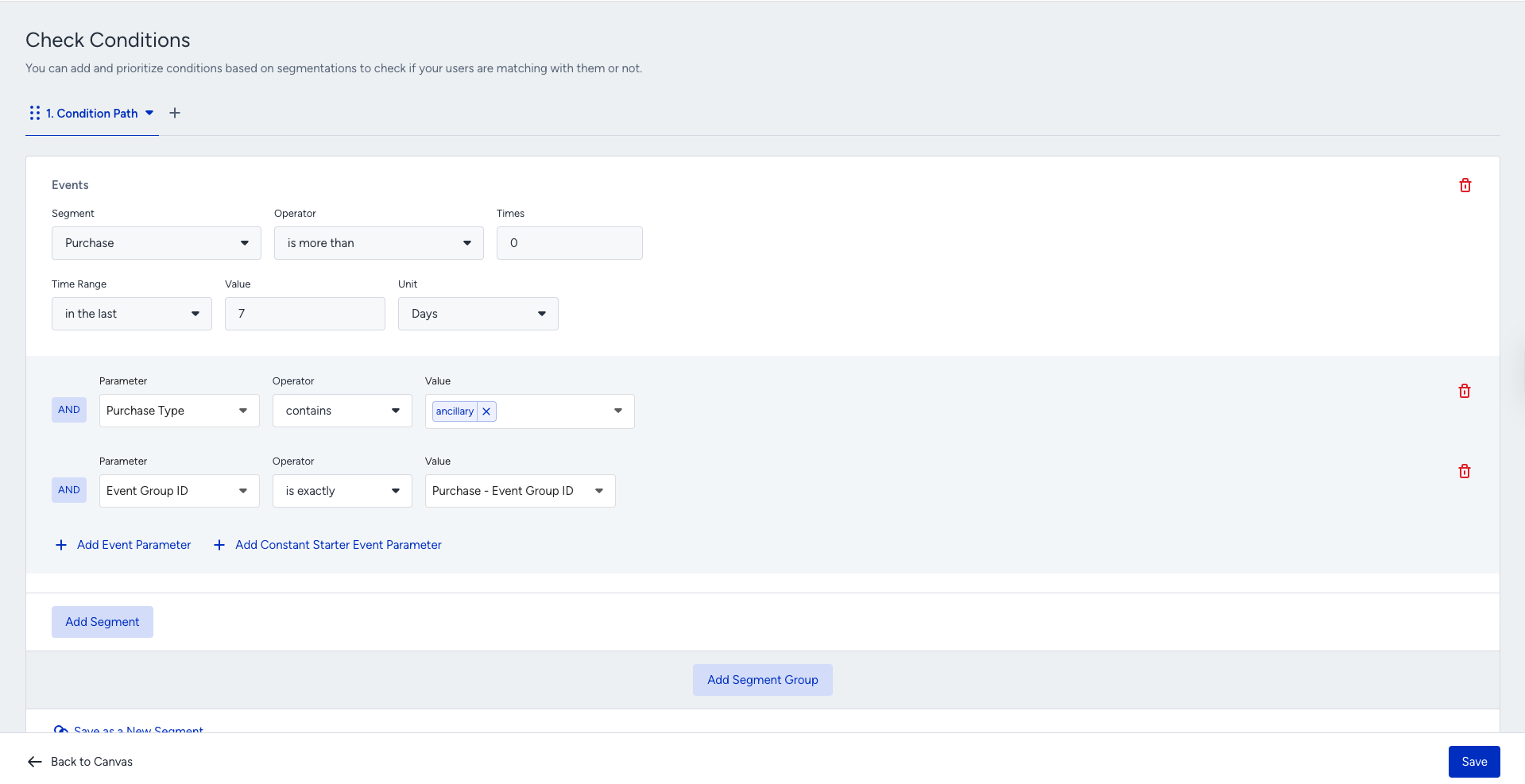
Selecting the Constant Starter Event Parameters can help ensure the starter eventʼs parameters' are matching with the event parameters selected in the Check Conditions.
3.3. Check your users' reachability before sending a message
Before sending a post-purchase message you can check if users are reachable on that channel. If not, you can try another channel on another path. Also, you can use Next Best Channel to increase the possibility of engagement.
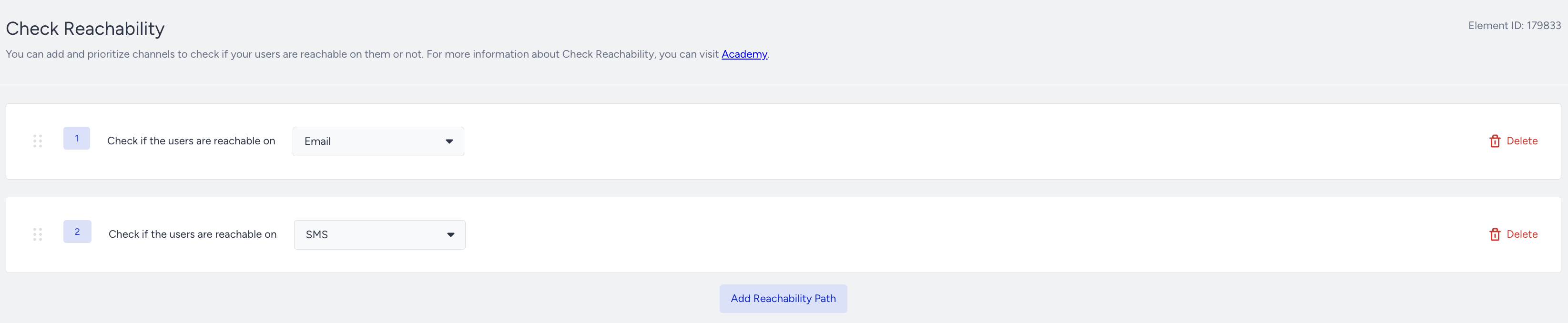
3.4. Create your content and send your messages
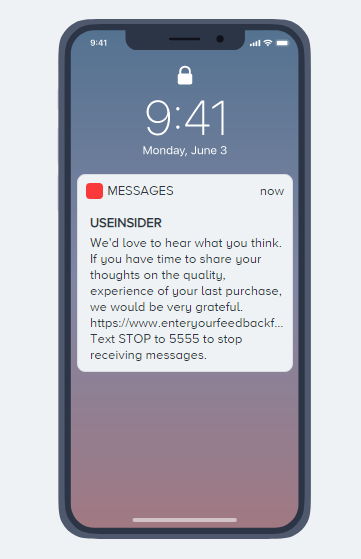
After deciding how you want to continue with the communication for ancillary upsell, you can design your content via the Email, SMS, App Push, Web Push, Facebook, On-Site, and In-App channels.
You may send a “thank you for purchase” message.
You may send a post-purchase email with a complementary or ancillaries product.
You may want to get feedback from users to know their shopping experience. You can add the last purchased item information into the content.
Personalization | Description |
|---|---|
last_purchase_date | Last Purchase Date |
last_purchase_amount | Last Purchase Amount |
last_purchased_product_name | Last Purchased Product Name |
last_purchased_product_url | Last Purchased Product URL |
In addition to that, you can use the last 8 purchased items' information in the Email and Call an API channels.
Personalization | Description |
Purchased Item Name (1,2,..,8) | The item name |
Purchased Item URL (1,2,..,8) | The itemʼs page (product page link) |
Purchased Item Image (1,2,..,8) | The itemʼs image link |
Purchased Item ID (1,2,..,8) | The ID of product |
Purchased Item Price (1,2,..,8) | Updated price according to your currency settings in the Inone (e.g. 19,9 or 19,99 dollars) |
Purchased Item Formatted Price (1,2,..,8) | Price according to Inone currency settings with 2 decimals (e.g. 19,90 or 19,99 dollars) |
Purchased Item Original Price (1,2,..,8) | Undiscounted price if there is a discount (e.g. 19,9 or 19,99 dollars) |
Purchased Item Original Formatted Price (1,2,..,8) | Undiscounted price if there is a discount with 2 decimals (e.g. 19,90 or 19,99 dollars) |
Purchased Item Quantity (1,2,..,8) | Quantity of the same purchased item |
Purchased Items' Currency | Item currency |
Total Purchased Item Count | Total purchased item count |
Total Purchased Amount | Total purchased item value |
Total Purchased Item Kind | Number of different purchased items It is also used for Display Conditions to show more or less rows in the email content. |
Refer to Personalized Content in Journeys for further details.
Purchased Items are automatically grouped based on the same last purchase transaction that the user has done.
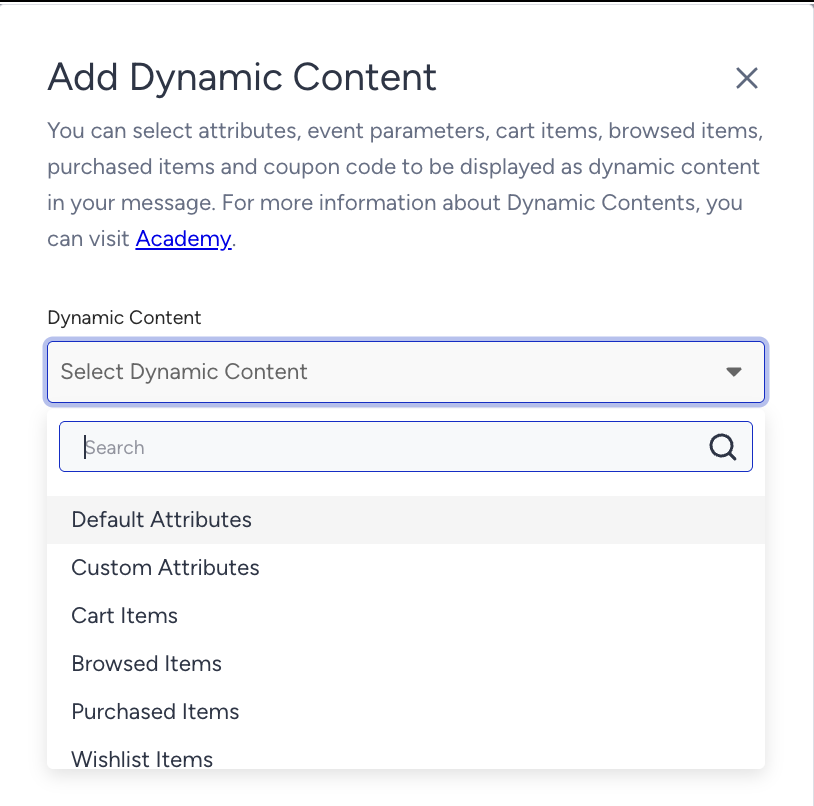
Alternatively, you can directly add the purchase eventʼs parameters into the content. Make sure you send events and their parameters from your platforms.
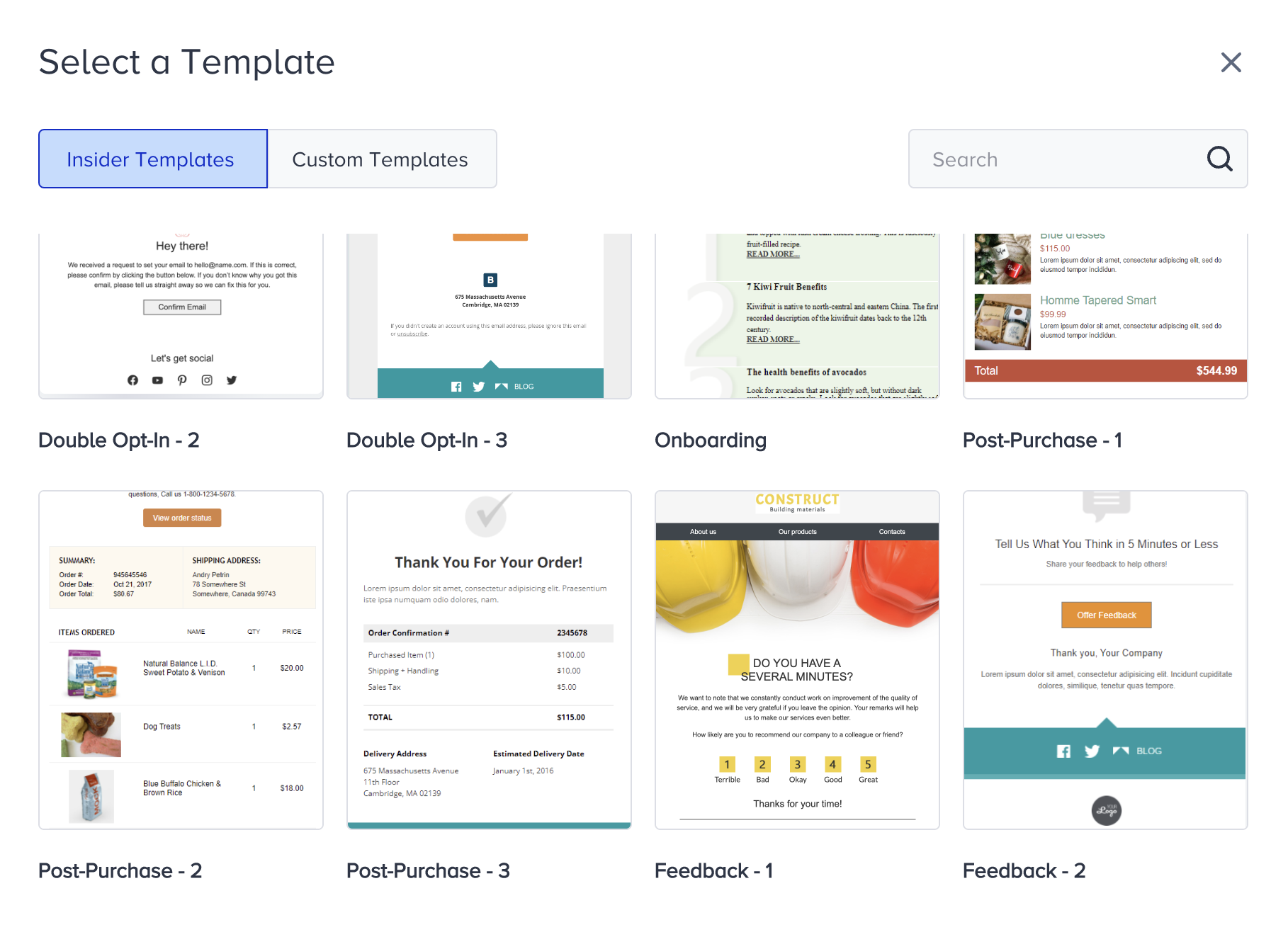
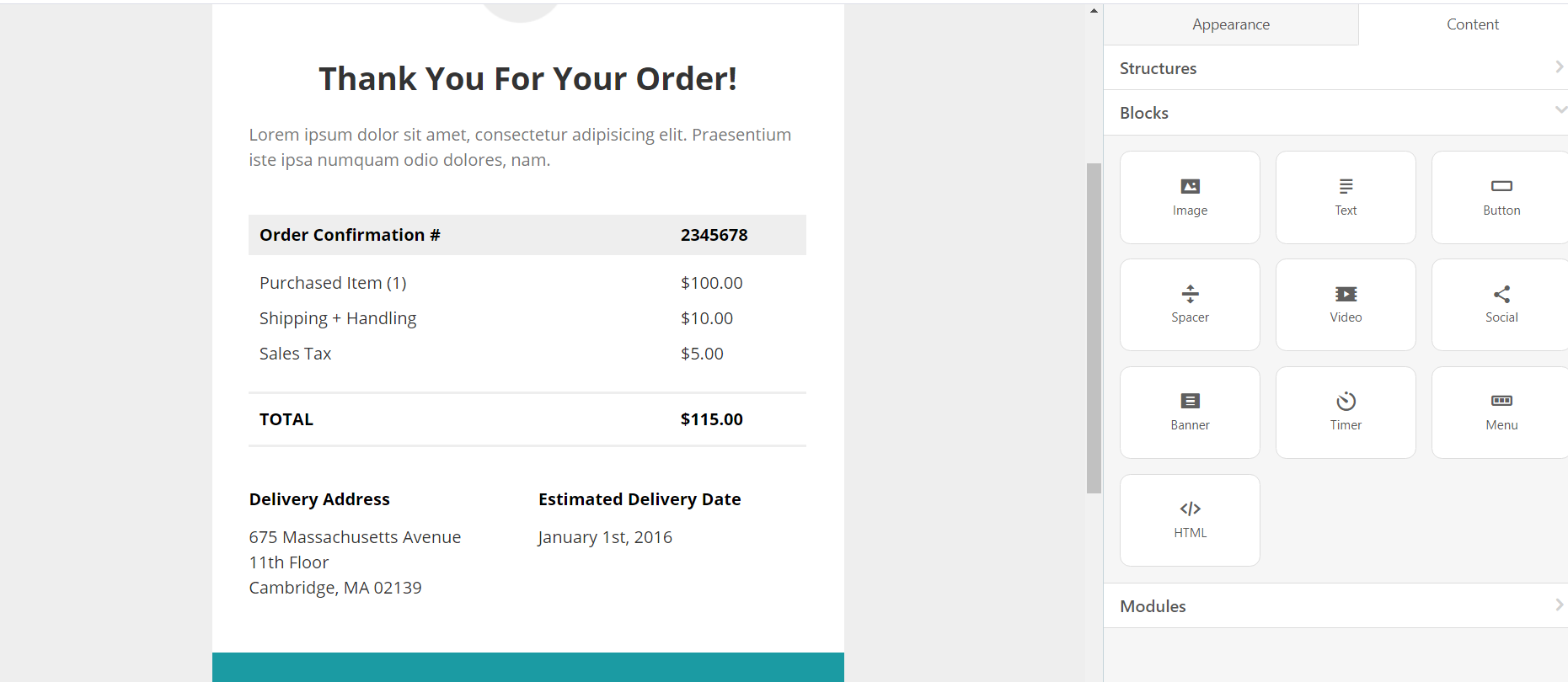
You can utilize and customize ready-to-use confirmation email templates placed in Select Templates.
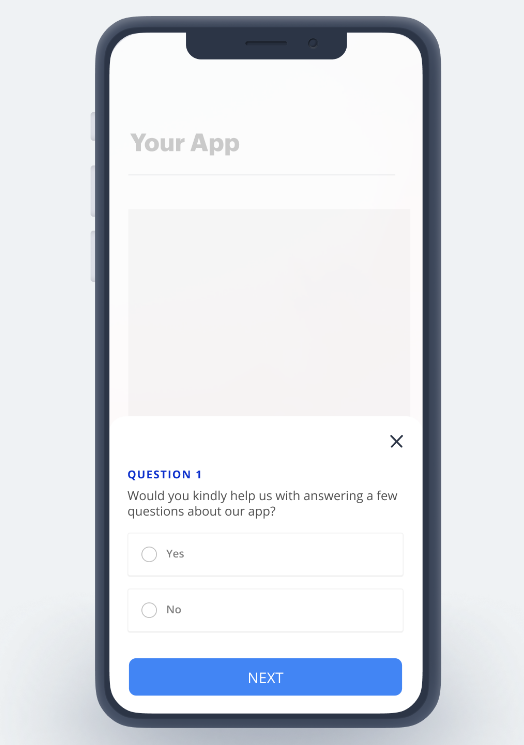
In-App
You can show the desired upsell products by the In-App channel.
Follow-up messages, tips, and best practices
You can move your journey to an advanced level by checking user behavior and interactions deeply.
After sending a post-purchase message you can control if the users complete your desired goal after a while. You can add a Wait element to give time to users and then you can add the Check Conditions element to check if the users perform the specified action. Thus, you can send more relevant, contextual messages by branching the journey flow to the different paths.
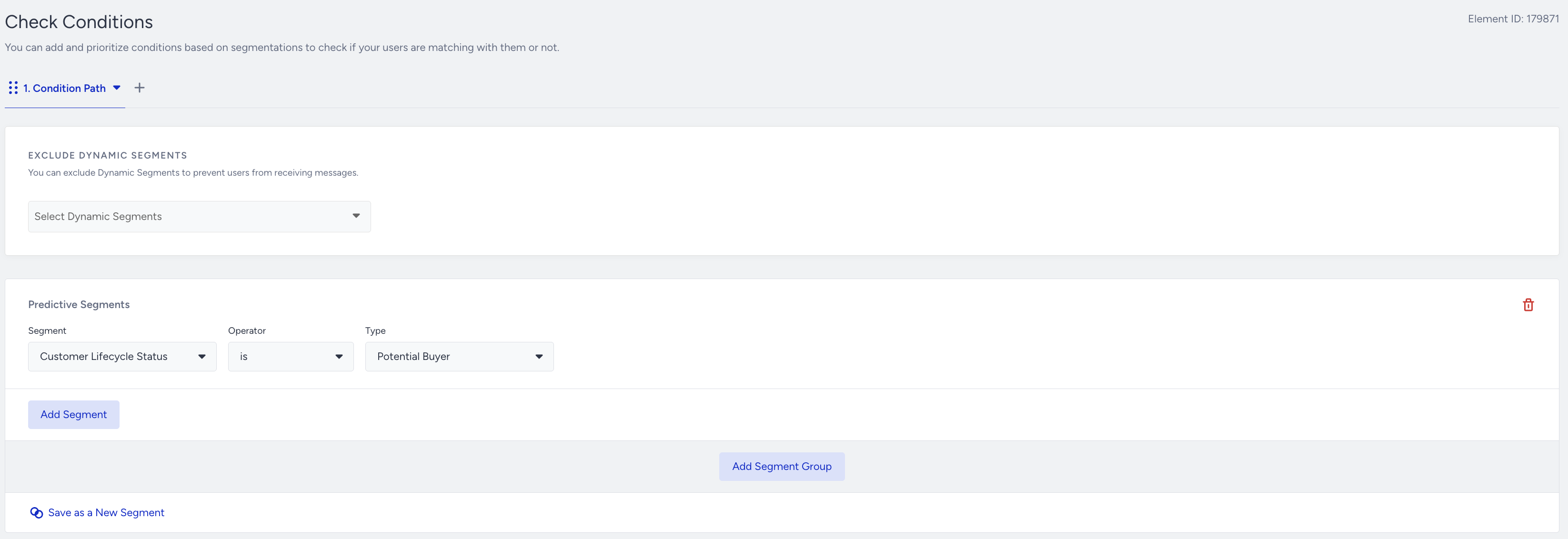
You can use predictive segments to filter Active Customer users by the Check Conditions element, so that you can show more exclusive offers with your post-purchase message.
You can send users to a contact list to know their email addresses and retarget them via email.

You may also consider not sending many messages to not bothering users. They could find constant messaging annoying. You can set Journey Entry Capping to prevent overcommunication by not taking users on journeys.
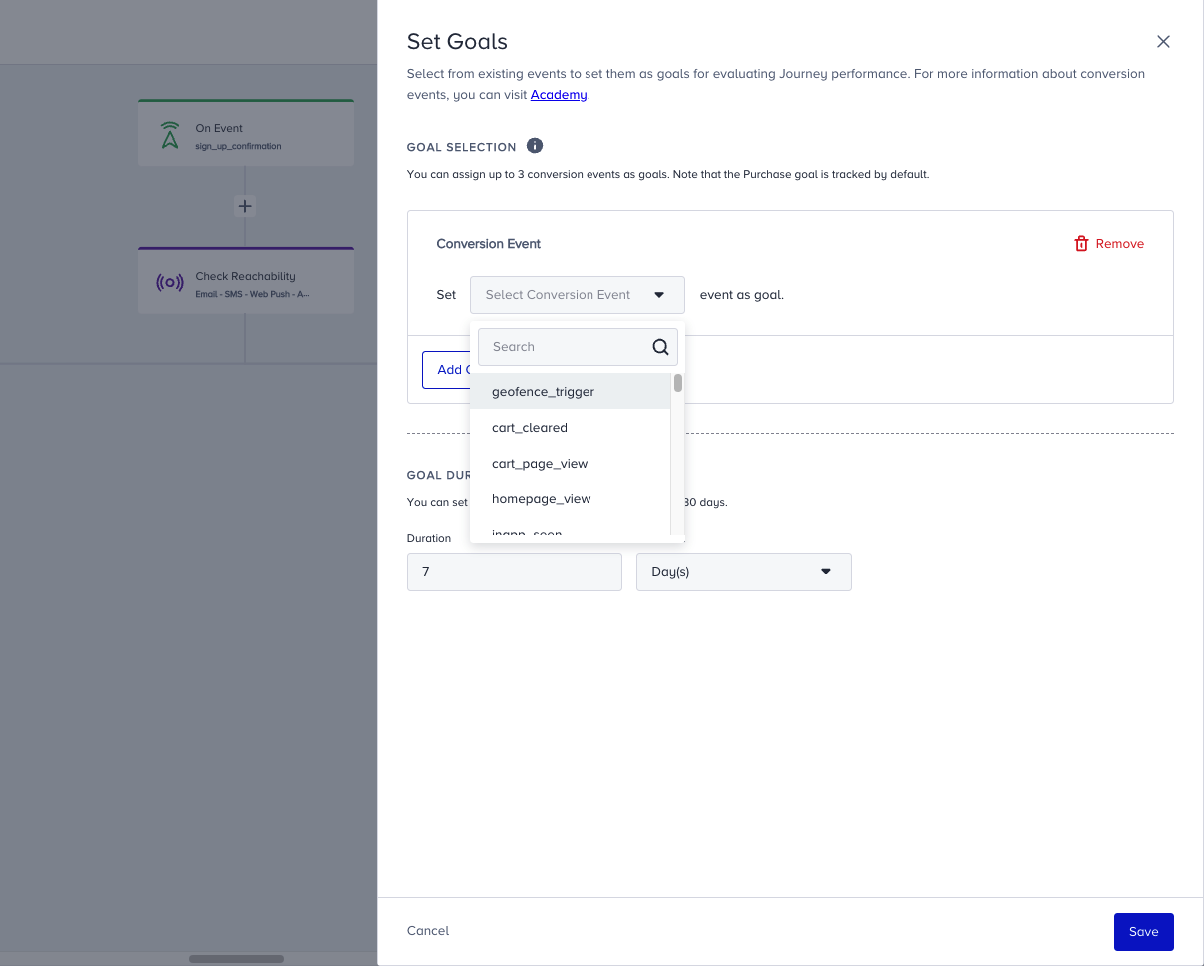
You can set special Goals besides purchase for the users who enter the ancillary upsell journey. E.g., redeeming coupons, adding items to cart, visiting ancillary product pages, etc. You can create a custom event to set goals, or use default events and their parameters.
You may have a Cross-Selling journey in addition to the Ancillary Upsell journey. Sending separate recommendation content and 'thank you' or feedback message to users can be overcommunication, and they may feel disturbed.
You can exit users from the ancillary upsell journey via Exit Criteria. The users who enter the cross-selling journey will be exited immediately from the ancillary upsell journey. Or you can do the same setting in the cross-selling journey to dismiss users who enter the ancillary upsell journey. So that the users will not receive different content in messages from two different journeys.
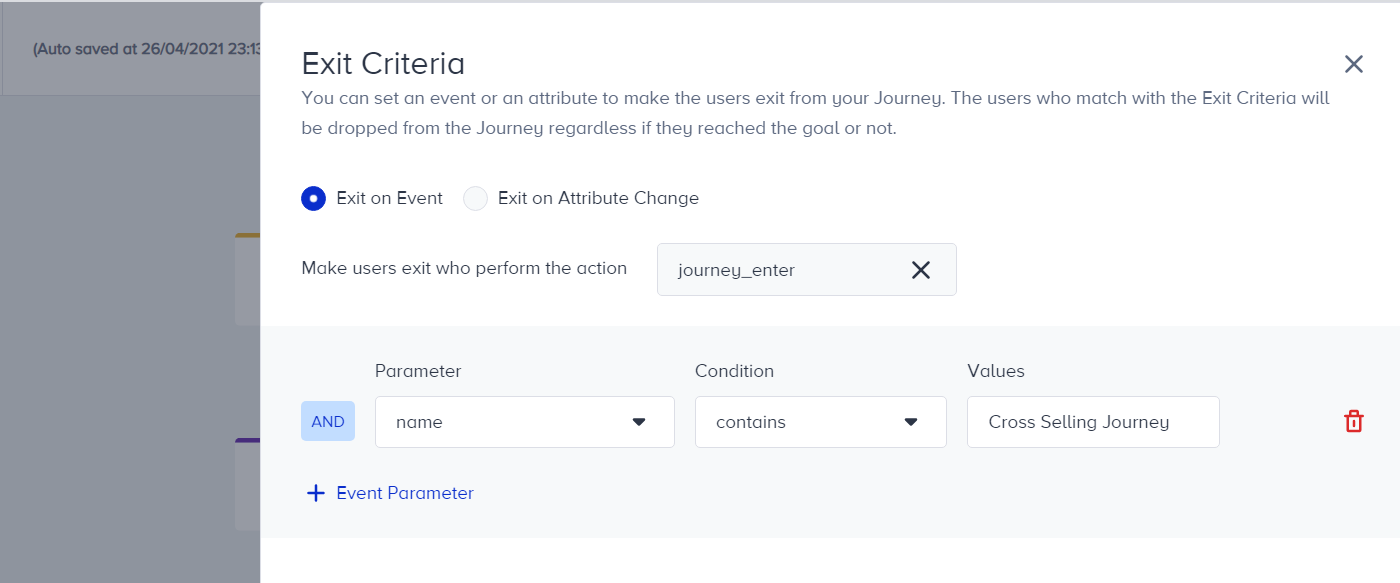
You can check multiple reachabilities across channels for users at the same time and guide them to the corresponding path.
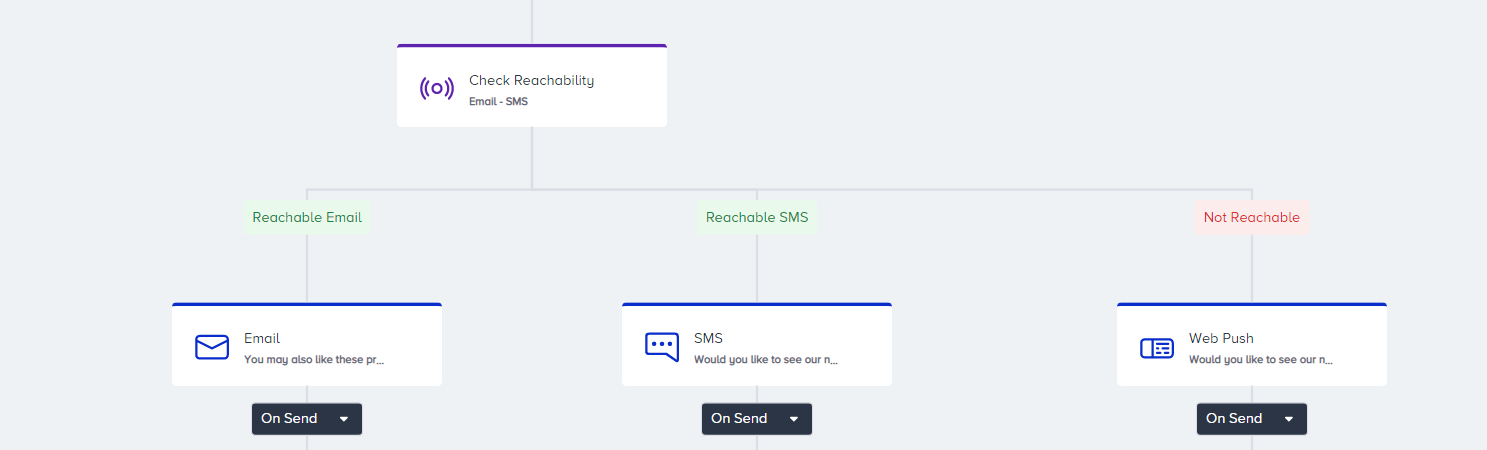
You can promote the most relevant ancillaries first by prioritizing:
High-value items (e.g., upgrades, protection packages)
Most frequently purchased ancillaries
Services that complement the userʼs primary purchase
A single channel may not always be enough. You can leverage the omni-channel capabilities of Architect and use:
Email for detailed messaging Web Push for quick reminders
WhatsApp for conversational upsells SMS/MMS for timely prompts
Cross-channel journeys increase the likelihood of engagement.
Example flow
Here you can take a look at some of the ancillary upsell journey flow example.