Web Suite is Insider One’s all-in-one platform for creating, launching, and analyzing web campaigns that drive user engagement, conversions, and measurable business impact, no coding required.
With Web Suite, you can:
Manage and optimize web campaigns across multiple pages and audience segments.
Send personalized browser-based notifications to increase engagement and retention.
Target the right users with relevant messages at the right time.
Track performance and gain actionable insights with built-in analytics and reporting tools.
Continuously improve your website with its integrated A/B testing capabilities, so you can measure what works best, all without needing a developer.
In this guide, you’ll learn how to turn Web Suite into a reliable driver of website growth, engagement, and long-term customer value.
What’s new (2024–2025 Highlights)
Let’s start with what’s changed recently, so you’re working with the latest capabilities and not old assumptions.
Visibility depends on the products enabled in your contract. In addition, some features may require activation.
Feature/Update | Why It Matters | When to Use | Business Impact |
|---|---|---|---|
Cross-Platform Templates | Build once, launch across desktop, mobile, and tablet | For multi-device audiences or limited design resources | Saves time, reduces errors, ensures consistency |
Smarter targeting based on behavior and predictions | For large user bases or low conversion rates | Higher conversion rates, improved ROI | |
Re-engagement Templates | Bring users back at critical drop-off points | For high bounce/exit rates or cart abandonment | Reduces churn, increases retention, recaptures revenue |
Collect structured user preferences for smarter targeting | For richer profiles and better segmentation | Higher personalization ROI | |
Default Lead Collection Goal for Web Push | Automates subscriber tracking in Web Push | For simplified analytics in Web Push campaigns | Saves setup time, improves reporting accuracy |
3-Page Lead Collection Templates | Multi-step lead collection for better UX and consent | For detailed user info without overwhelming users | Maximizes conversions, ensures compliant consent |
Enhanced Web Push Subscriber Analytics (Audience Growth & Health) | Detailed insights into subscriber behavior | For granular analytics in Web Push | Optimizes push strategies, improves effectiveness |
Unified segmentation across channels | For multi-channel customers | Improves personalization and data consistency |
These updates shape how you’ll use Web Suite today, especially when it comes to performance and reporting.
Some features may require activation. For the latest updates, see the Web Suite What's New.
Core Web Suite capabilities
Web Suite gives you everything you need to design, launch, and optimize web campaigns, no coding required.
It is built around a few essential building blocks. They help you apply every strategy in this guide more easily.
Key features
Action Builder: Your campaign workshop
Design and preview campaigns visually, no technical skills needed.
Modes to Know:
Canvas: Drag-and-drop workspace to arrange campaign elements.
Design Mode: Edit visuals and text directly.
Preview Mode: See exactly how your campaign will appear before it goes live.
Navigate Mode: Browse your site while campaigns remain visible.
Sync All Platforms: Apply design changes across desktop, tablet, and mobile at once.
Overlay & Layout Tools: Fine-tune spacing and stacking for a polished look.
Always check your campaign in mobile view to ensure a seamless experience for all users.
Cross-Platform Templates: Consistency across devices
Cross-Platform Templates are a core advantage of Web Suite. They allow unlimited design elements and interactive components, so your campaigns look great and perform well on any device.
How to apply
Connect Templates to the Customer Journey
Choose templates that match each stage of your user journey:
Lead Collection (Entry Point): Capture new users as soon as they land on your site. Data feeds directly into your customer database for better segmentation.
Discovery (Homepage): Use InStory or Social Proof to highlight trending products or categories.
Product Page (PDP): Add urgency and engagement with Badges, Countdown Bars, or Purchase Progress Bars.
Cart & Checkout: Use Cart Reminders and Exit-Intent pop-ups to recover from drop-offs and maximize revenue.
Re-engagement (Across Site): Activate Notification Center, Tab Talk, or Wheel of Fortune to bring users back after inactivity.
Template types
Cross-Platform Templates: Automatically adjust across devices for maximum flexibility.
Inline Templates: Embedded directly into your page content.
On-Page Templates: Floating or pop-up designs.
Use the Cross-Platform Template filter to ensure your campaigns look consistent everywhere.
With these core concepts in mind, you’re ready to put Web Suite to work.
Quick wins
If you want to see impact fast, start here. These quick wins take 10–30 minutes to implement and are designed to deliver visible results without heavy setup or cross-team dependencies.
Run a Tag Health Check to ensure your Insider Tag is working.
Apply predictive, RFM, and custom segments for smarter targeting.
Treat every major campaign change as a test opportunity.
Explore the Use Case Library for campaign ideas by industry, channel, or goal.
Once you’ve tested one or two of these wins, you’ll have a baseline for how the Web Suite performs in your environment.
To keep everyone aligned and move from “one-off experiments” to a shared plan, use the following prompts with your team.
Team conversation starters:
Use these conversation starters to help your team align on priorities, review performance, and identify the most impactful next steps with Web Suite.
Which templates are driving the strongest engagement right now?
Are we using segmentation effectively for each placement?
What’s the next A/B test we should run to improve conversion rate?
Are any high-traffic pages still without Web Suite coverage?
What is our #1 business priority for web campaigns this quarter, and how can Web Suite help achieve it?
Where are users dropping off in your conversion funnel, and which campaign strategies could address this?
Which products, categories, or offers do we want to promote this quarter, and how can Web Suite campaigns support that goal?
What benchmarks are we tracking against in your industry, and are performance goals aligned?
How do user behaviors differ across web and mobile, and which personalization strategies would best engage each segment?
Which areas of your current web or push campaigns, if optimized, would deliver the highest revenue or engagement impact?
These discussions will surface where you are today and what your team expects from Web Suite in the next 1–3 quarters.
Next, let’s connect Web Suite to the bigger picture: how it supports your growth, retention, and Ever Success goals.
Strategic guidance: Connect Web Suite to your goals
Strategically, Web Suite works best when it supports a clear set of business outcomes, rather than running as a standalone channel.
1. Validate your integration
Check your Insider Tag Integration and tracking elements across all domains and pages.
Test your campaigns to ensure data flows accurately into reporting.
Define measurable goals, such as conversion rates, revenue uplift, or lead capture.
Data integrity is key; accurate tracking ensures every win is measurable.
Allows basic campaign display to all visitors in compliance with “Essential Cookies”.
Full tracking and personalization are enabled only after users accept marketing cookies.
For more, see Cookie-Free Insider Tag Integration.
2. Map templates to the user journey
Strategically place templates across your funnel:
Entry Point (Awareness): Lead Collection templates to capture new users and feed your customer database.
Discovery (Homepage): InStory, Social Proof, or Notification Center to highlight top content or trending products.
Consideration (Product Page): Countdown Bars, Purchase Progress Bars, or Badges to increase urgency and engagement.
Conversion (Cart/Checkout): Cart Reminder and Exit Intent to recover drop-offs.
Re-engagement (Post-Visit): Predictive Segments and Notification Center to bring users back with personalized offers.
Design your campaigns to mirror your users’ journey, so every touchpoint adds measurable value.
3. Enrich targeting and personalization
Use Lead Collection Templates (Single/Multi-Choice, 3-Page) to collect user preferences.
Activate Predictive Segments and Notification Center for smarter re-engagement and cross-channel personalization.
4. Monitor, optimize, and troubleshoot
Regularly A/B test placement and creative, use sticky positions, Social Proof, and InStory.
Use Traffic Allocation and Control Groups to prove incremental lift.
Monitor impressions, click rate, conversion, and incremental revenue in InOne Analytics.
Check tag health, rules conflicts, and segment population.
5. Review and scale
Tie campaign outcomes to revenue uplift, average order value (AOV), and conversion rate (CR).
Identify unused templates or segments and propose expansion or Web Push add-ons.
Expand predictive targets, add multi-step lead capture, and refine re-eligibility settings for continuous growth.
Once you’re clear on the role of Web Push in your overall strategy, it’s time to tailor your approach to your current maturity level.
The playbook below helps you focus on the right actions based on where you are today, from early activation to advanced optimization.
Strategic playbook by stage
Use this table to choose your next steps by adoption stage. You don’t have to do everything at once; pick the row that matches your current reality and work from there.
Stage | Goal | Focus & Actions | What Success Looks Like |
|---|---|---|---|
New Customer | Launch high-impact experiences quickly. |
|
|
Level Up | Personalize onsite experiences at scale. |
|
|
Get Back on Track | Restore performance stability and simplify execution. |
|
|
Optimize & Orchestrate | Build cross-channel, revenue-focused experiences. |
|
|
As you move through these stages, your metrics will tell you whether your strategy is working or needs adjustment.
Now let’s look at the key metrics that matter for Web Suite, where to find them, and what to do when they’re off.
Web Suite Key Metrics: Diagnose & Take Action
This guide translates each metric into a simple diagnostic checklist, covering where to find it, why it matters, key red flags to watch for, and the actions to take within your InOne panel.
About Dashboard Names
In these guides, dashboard names appear with a short description in parentheses to clarify what insights each view provides.
Incremental Revenue
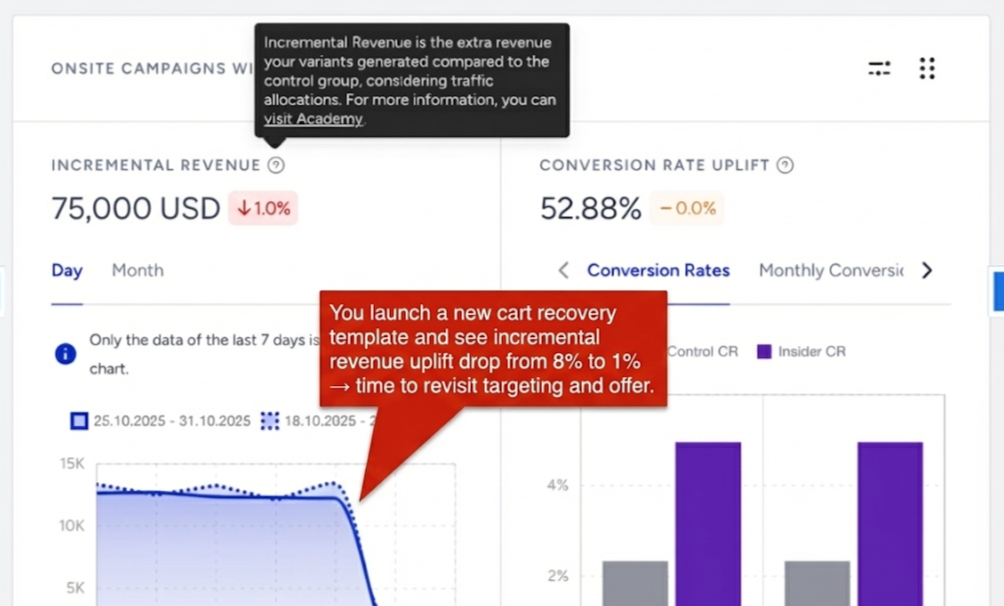
Where to find it: OnSite Analytics, Web Templates Campaign Analytics
Why it matters: Shows how much extra revenue your Web Suite campaigns generate compared to a control group. This is your clearest signal of real added value.
What to watch for (Decline / Below Benchmark): Incremental revenue close to 0 or negative; drop after recent template/targeting changes; high impressions but no uplift.
Actions to take / Features to use: Ensure the control group is configured correctly. Improve template design (stronger value prop, clearer CTA, better visuals). Target Predictive / RFM Segments instead of "all visitors." Verify purchase events are firing correctly.
Benchmarks / Watch For: Common healthy uplift: 5–10%+ (varies by industry and use case).
Frequency: Weekly
Example: You launch a new cart recovery template and see incremental revenue uplift drop from 8% to 1% → time to revisit targeting and offer.
Incremental Conversions
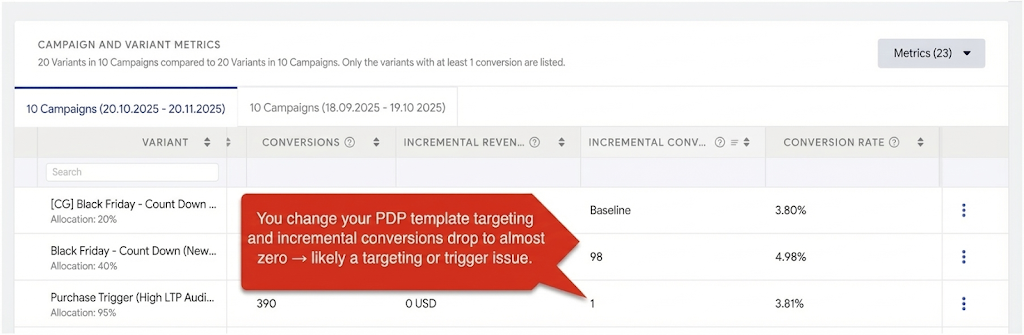
Where to find it: OnSite Analytics
Why it matters: Shows how many extra conversions were driven by the campaign vs. if users had not seen it.
What to watch for (Decline / Below Benchmark): Incremental conversions flat or declining; low uplift despite stable traffic and impressions.
Actions to take / Features to use: Revisit the conversion criteria setup to ensure it aligns with your business goal. Refine targeting and trigger rules (e.g., only high-intent visitors). Test different template formats or placements.
Benchmarks / Watch For: Positive uplift vs. control over time, not just absolute numbers.
Frequency: Weekly
Example: You change your PDP template targeting, and incremental conversions drop to almost zero → likely a targeting or trigger issue.
Conversion Rate (CR)
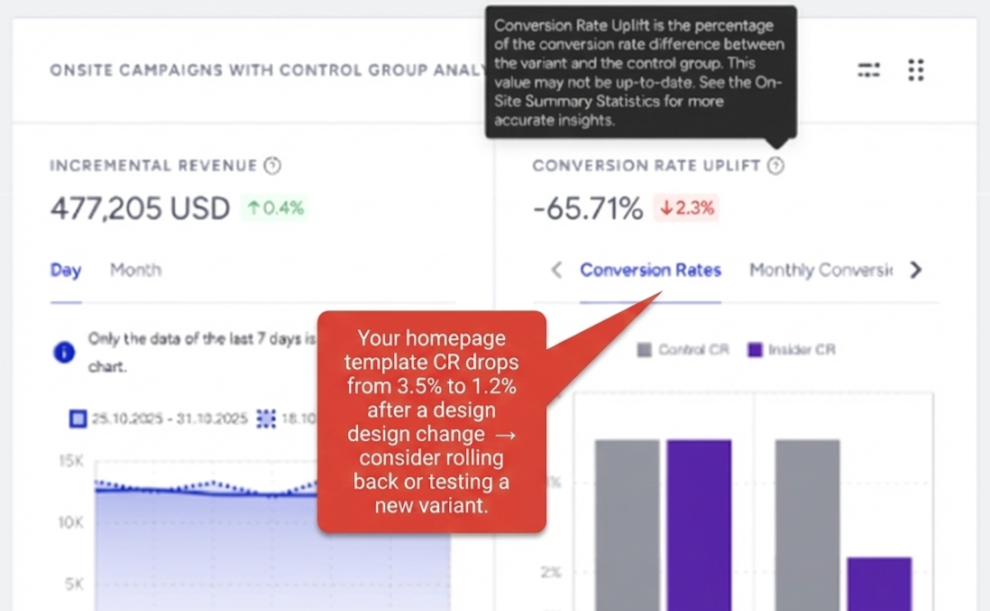
Where to find it: OnSite Analytics, Web Push Analytics (Delivery & Engagement Metrics)
Why it matters: Measures how effectively your template turns views into conversions. Core indicator of whether targeting + creative are working.
What to watch for (Decline / Below Benchmark): CR consistently below your sitewide baseline; CR uplift near 0 or negative vs. control; sudden drop after updating template or segment.
Actions to take / Features to use: A/B test layout, triggers, and placement. Refine segments so the message matches the audience's intent. Align copy and visuals with the landing page promise. Reduce friction in forms or steps.
Benchmarks / Watch For: Many teams aim for 2–5%+ CR depending on industry and funnel stage.
Frequency: Weekly
Example: Your homepage template CR drops from 3.5% to 1.2% after a design change → consider rolling back or testing a new variant.
Conversion Rate Uplift
.png)
Where to find it: Conversion Criteria Selection
Why it matters: Shows how much better (or worse) your variant performs compared to the control group.
What to watch for (Decline / Below Benchmark): Uplift close to 0 or negative; no improvement after major creative or targeting updates.
Actions to take / Features to use: Try alternative triggers (e.g., exit intent vs. time on page). Test different incentives or messages. Ensure the control group is sufficiently large and properly set up.
Benchmarks / Watch For: Look for consistently positive uplift over time, not just spikes.
Frequency: Weekly
Example: You test a new exit-intent template and see +4% CR uplift vs. control → good candidate to scale further.
Campaign Impressions
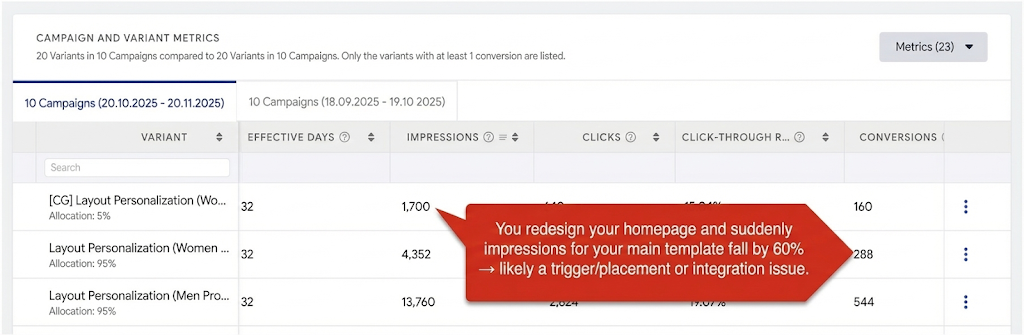
Where to find it: OnSite Analytics, Web Templates Campaign Analytics
Why it matters: Shows how many times your templates are actually displayed. If impressions are low, everything else (clicks, conversions, revenue) will be limited.
What to watch for (Decline / Below Benchmark): Sudden drop in impressions for key campaigns; very low impressions on high-traffic pages; impressions flat while site traffic grows.
Actions to take / Features to use: Confirm campaigns are Active and not expired. Loosen overly strict targeting or trigger rules. Check for priority conflicts with other templates. If all campaigns drop, double-check tracking/integration health.
Benchmarks / Watch For: No strict numeric benchmark; focus on trends vs. your normal traffic and campaign mix.
Frequency: Daily / Weekly
Example: You redesign your homepage and suddenly impressions for your main template fall by 60% → likely a trigger/placement or integration issue.
Click Rate
.png)
Where to find it: OnSite Analytics, Web Push Analytics (Delivery & Engagement Metrics)
Why it matters: Indicates how compelling your message and design are. Often, the first signal that creativity stops working.
What to watch for (Decline / Below Benchmark): CTR significantly below your usual range; CTR drops after changing creative, copy, or placement; high impressions but weak CTR.
Actions to take / Features to use: Refresh creative (visuals, copy, CTA). A/B test multiple variants. Use more precise segmentation for relevance. Adjust placement for visibility (above the fold and on key pages).
Benchmarks / Watch For: Many Web templates aim for 10–20% CTR, depending on format and intent.
Frequency: Weekly
Example: You see a template with strong impressions but 5% CTR, while others get 15%+ → this one needs creative or placement work.
Historical Data Comparison
Where to find it: Historical Data Comparison
Why it matters: Lets you compare campaign performance across different date ranges to spot trends and seasonality.
What to watch for (Decline / Below Benchmark): Current period performing significantly worse than a similar past period (e.g., last month, last season).
Actions to take / Features to use: Compare key metrics (CR, CTR, incremental revenue) across periods. Adjust timing, audience, and creatives based on what worked before. Use learnings for peak seasons or recurring campaigns.
Benchmarks / Watch For: Watch for patterns over time, not exact numbers (seasonality, promo cycles, etc.).
Frequency: Monthly
Example: Before a major sale, you compare this year's pre-campaign performance with last year's and see weaker engagement → adjust your plan based on historic winners.
If a number doesn’t change immediately, expand the date range or compare with the previous period to validate performance trends.
Troubleshooting Scenarios
Use this section when you notice a specific issue, such as drops in engagement, revenue, or reach, and want a focused path to investigate and fix it.
Symptom | Likely Cause | What to Do |
|---|---|---|
Campaign impressions drop suddenly | Campaign paused, targeting too narrow, or conflicts with other templates | Check Web Templates Analytics for impressions trend, confirm campaigns are active, and widen or adjust segment/trigger rules. |
High impressions, low clicks | Weak creative, irrelevant content, or poor placement | Review template design and copy, move placement to higher-visibility areas, and A/B test alternative versions. |
Clicks increase, but conversions do not | Post-click experience not aligned, or tracking issues | Check funnels in Web Suite + conversion tracking, ensure landing pages match the message, and review events firing correctly. |
Only a few templates get most traffic | Overlapping rules or priority issues | Review priority/order of templates, reduce overlap, and ensure high-value journeys have explicit rules. |
Users complain about "too many pop-ups" | Over-aggressive frequency or overlapping triggers | Review frequency caps, exclude already-engaged users, and consolidate multiple templates into fewer, more relevant ones. |
Best practices & pro tips
These best practices and tips are designed to help you get more value from Web Suite with the same or less effort.
Experimentation Drives Results: Don’t “set and forget.” Use built-in A/B Testing, Multivariate Testing, and Control Groups to compare versions and prove what works.
Set Re-eligibility Durations: Prevent overexposure and reduce opt-outs by controlling how often users see your campaigns.
Compliance as a Growth Enabler: Web Suite supports cookie consent, accessibility, and privacy best practices, helping you build trust and long-term engagement.
Use Cross-Platform responsive templates for consistency.
Get inspired in the Use Case Library for fast wins.
You don’t need to adopt every tip at once; treat this section as an idea bank and apply what matches your goals and capacity.
Additional Resources
Use the resources below to continue learning, test more advanced strategies, or get extra help when you need it.