Ever Success requires efficient growth. You can optimize platform use while staying within the plan to organize your capacity, maintain limits, and ensure smooth marketing operations.
The Usage Analytics Dashboard tracks the limits and consumption of your account, including monthly tracked users (MTUs), data points, and message sends.
This guide explains the following concepts:
Metrics in Usage Analytics
You can track the following metrics in the Usage Analytics.
Monthly tracked users (MTUs)
Monthly tracked users are unique users tracked across web, app, and first-party sources.

This metric impacts your MTU limit. High MTUs increase data volume and reachability.
Data points
This metric displays the total number of processed events and attributes.
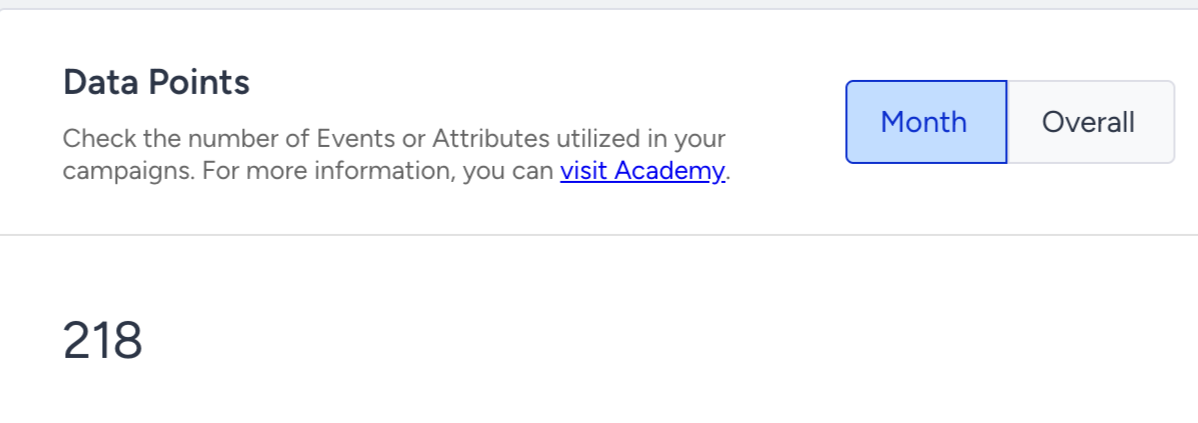
It helps you understand event volume and integration health.
Message volumes
This metric displays the total sends via Email, SMS, and WhatsApp.

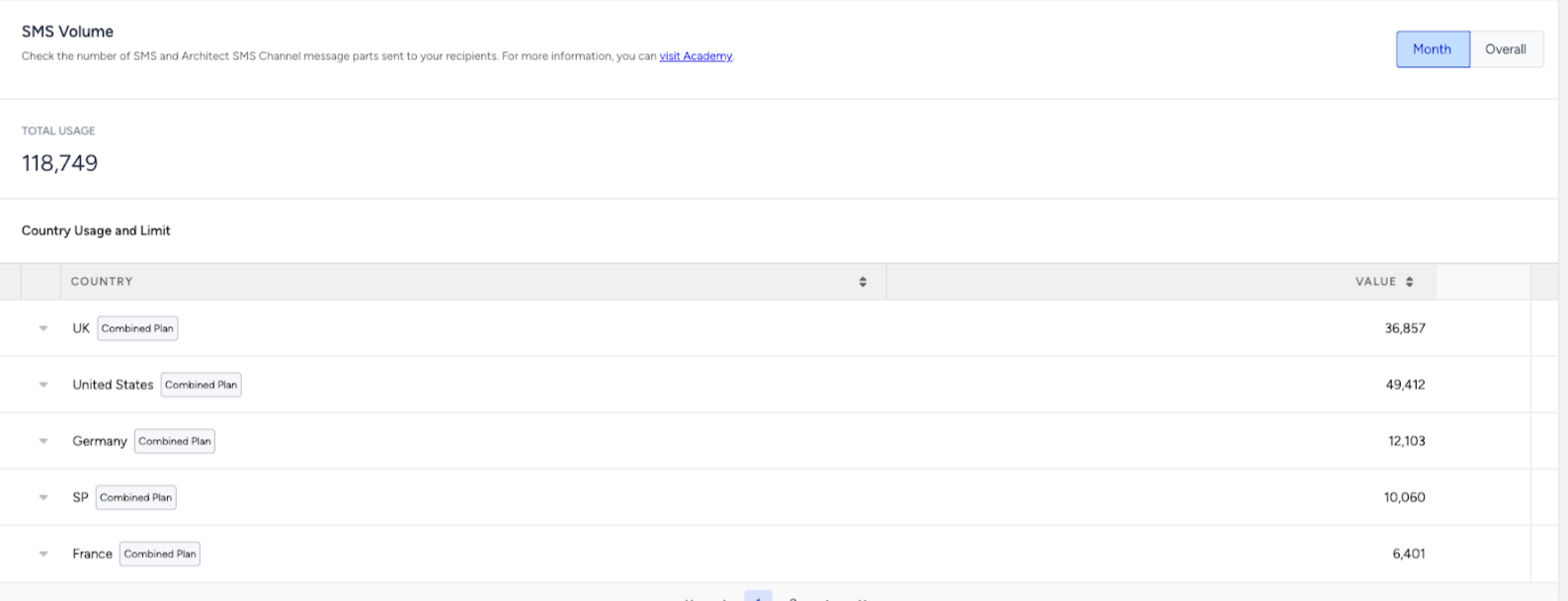
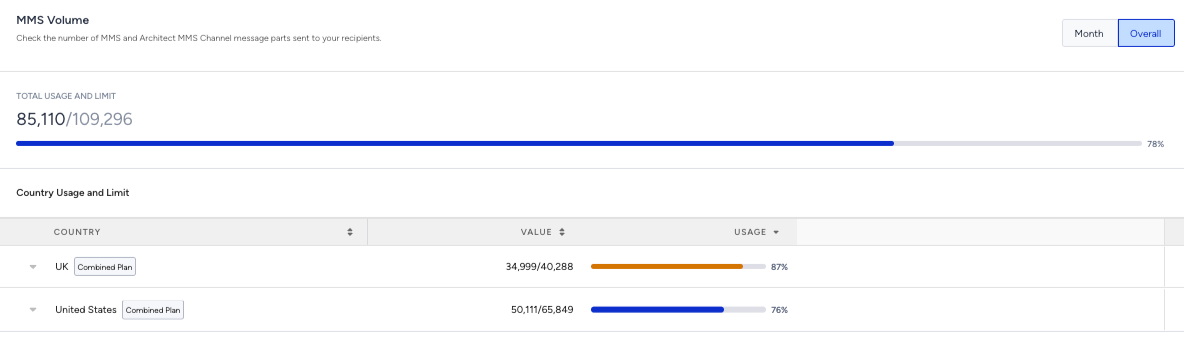
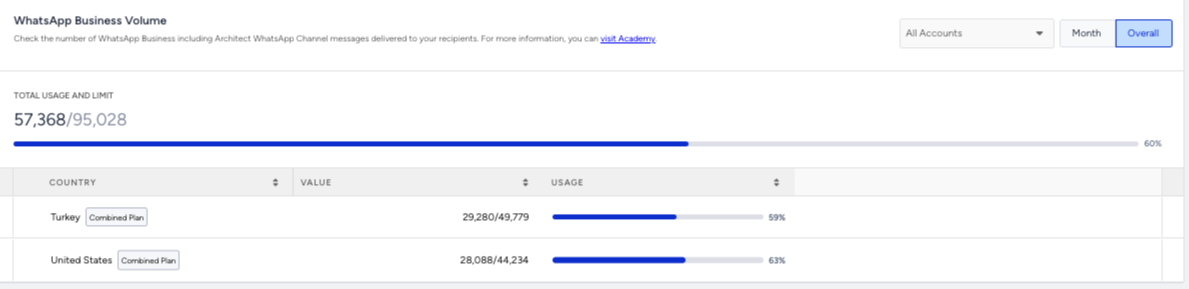
These metrics show if you’re approaching plan limits for messaging channels.
Journey entries
This metric shows the number of users who enter Architect journeys.

It indicates how active your automations are.
Eureka search usage
This metric displays the recommendations/search requests. It helps monitor product discovery usage.
.png)
Use the dashboard to plan ahead
1. Open Usage Analytics
Go to Reports > Usage Analytics to confirm date range and selected filters.
Avoid interruptions and prevent delivery pauses or data collection gaps.
2. Review usage
Check MTUs, data points, messages, journeys, and queries to look for spikes, declines, or unexpected patterns.
Plan growth and forecast when you’ll need to scale MTUs or messaging volume.
3. Compare with limits
Check usage vs. your contracted limits to look for warnings if you are approaching/exceeding limits.
Stay efficient, reduce unnecessary sends, and clean up inactive journeys.
4. Take action
Clean up campaigns, adjust targeting, or reduce automations to address sudden increases or unused journeys consuming volume.
Align with all stakeholders to have informed conversations about adoption, scaling, and priorities.
5. Plan ahead
If you are expecting growth, contact the Insider One team to discuss seasonal peaks, new integrations, and large campaigns.
If you’re approaching your limits or see rapid growth, schedule time with the Insider One team to plan next steps and ensure your initiatives continue running smoothly.
Best practices
Check usage monthly
This practice prevents surprises and keeps campaigns running smoothly.
Clean up old journeys
This practice reduces unnecessary triggers and MTU usage.
Segment smartly
This practice targets only engaged users for lower volume and higher performance.
Plan seasonal peaks
This practice ensures you don’t hit limits during high-traffic periods.
Collaborate with Insider One team
Discuss patterns or spikes to align on optimisation and future scaling. If you have questions about your limits or see unexpected usage, contact the Insider One team.
FAQs
Q: What happens if we exceed our usage limits?
A: You may experience service interruptions or additional charges. Review your dashboard and contact the Insider One team if you’re approaching your limits.
Q: How often is the dashboard updated?
A: Update timing depends on the type of metric and dashboard. Some usage-related metrics (such as limit consumption) are calculated and updated daily. Other performance metrics, such as revenue, conversions, and uplift, are updated periodically based on data processing cycles. For best results, review trends over time or use previous period comparison rather than expecting real-time updates.
Q: Where can we find definitions for each metric?
A: Update timing can vary by metric and dashboard. For example, usage limits are calculated and updated daily. If a specific update frequency isn’t listed, use trends over time rather than expecting real-time changes.
If a number doesn’t change immediately, expand the date range or compare with the previous period to validate performance trends.