Suggested Readings: Executive Summary Dashboard: Metric Definitions, Historical Data Comparison on ESD
Historical data comparison lets you compare data for a selected date range with the previous range of the same duration and provides insights into your on-site campaigns' historical performance.
Data comparison is off on your dashboard by default. To enable it, click the Compare button.

How does data comparison work?
The comparison mechanism considers the selected date range and the previous date range of the same duration. For example, if you select the 12 January 2023 - 20 January 2023 range (9 days), the system will compare the data against the 3 January 2023 - 11 January 2023 range (9 days).
You can interpret the data comparison as per the following indicators:
Green label: Represents the increase in the respective figure(s). E.g., ↑3.2%.
Red label: Represents the decrease in the respective figure(s). E.g., ↓1.6%.
-0.0%: Represents no significant change within the selected period.
N/A: Indicates that comparison for the selected date ranges is not applicable. This might happen when the data for one of the date ranges is 0.
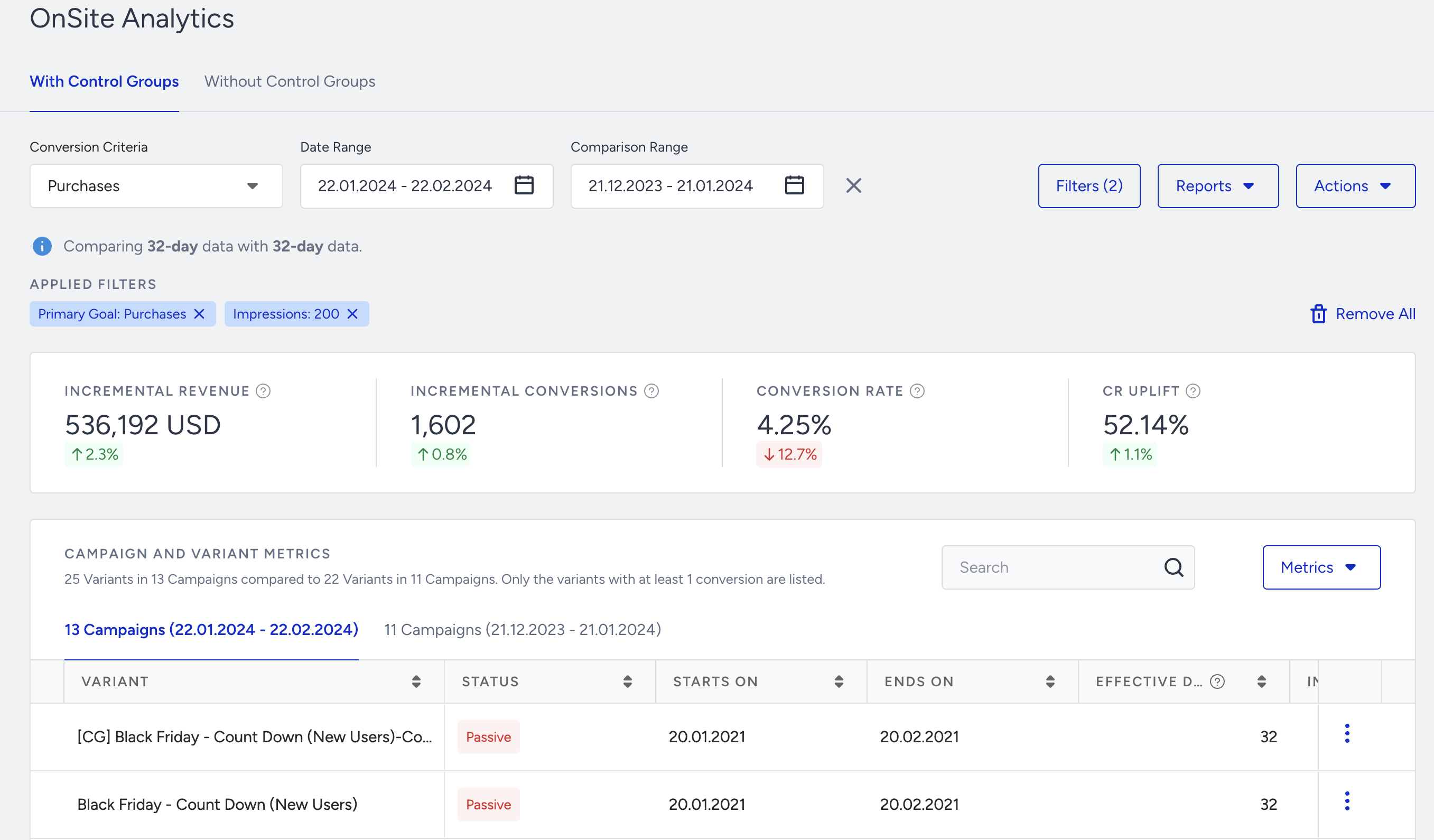
To turn it off, click the close button beside the Comparison Range picker.
What are the capabilities of data comparison?
The maximum date range for comparing data is 90 days. This means you can compare data from a 90-day range to that from the previous 90-day range. Any date range longer than 90 days will not display a comparison, and the Compare button will be disabled.
For both selected periods, the comparison of campaign counts is shown above the data table.
Exporting data is not supported in comparison mode. You can export your OnSite Campaign Analytics as usual.
While comparing your data, you can exclude variants and apply filters.