Cookieless World allows you to show campaigns to all visitors, regardless of whether they accept cookies. To support this flexibility, Insider One provides two different flows:
Cookie-Free Insider Tag
Standard Insider Tag (ins.js)
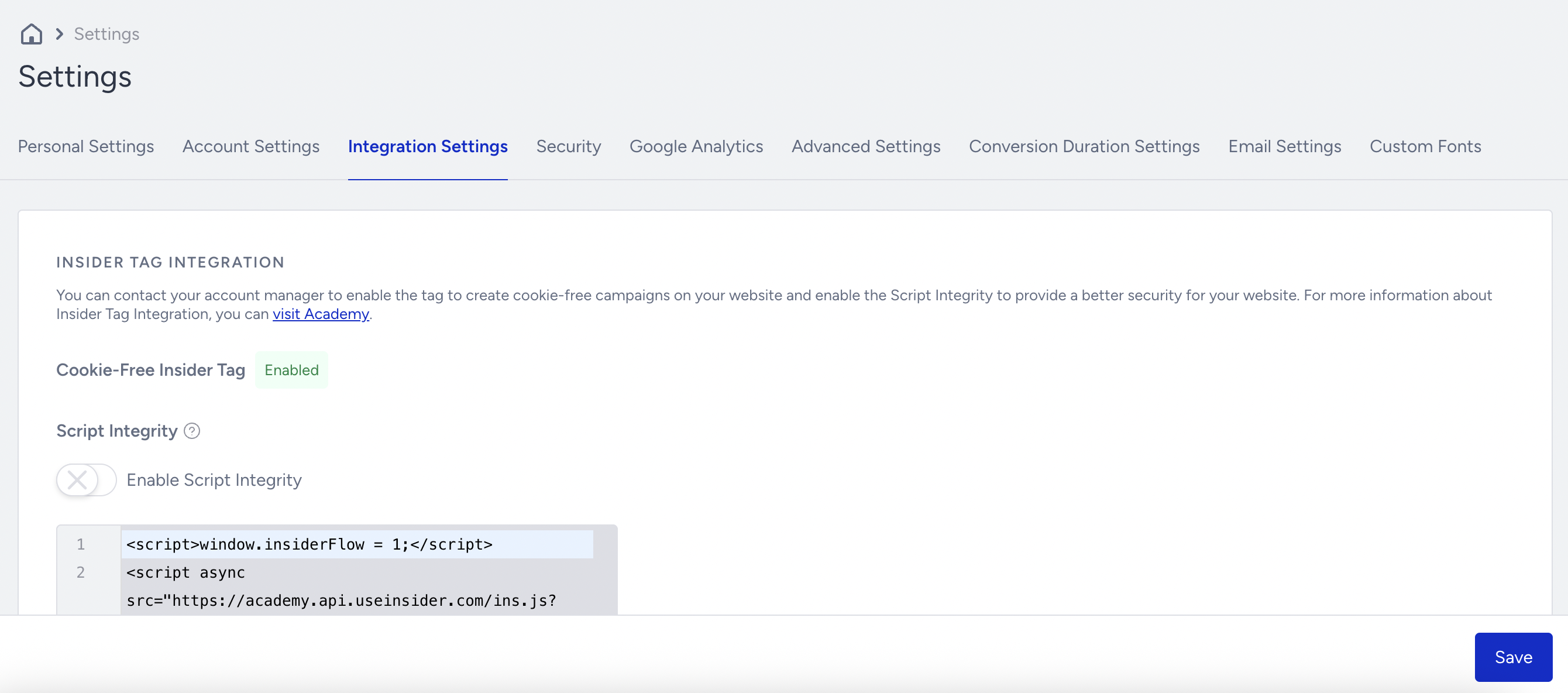
To integrate the Cookie-Free Insider Tag, also known as tracking website visitors without relying on cookies, contact the Insider One team. Once enabled, the status badge will display “Enabled.”
The Cookie-Free Insider Tag requires a separate integration. Existing customers must update their current integration to ensure seamless operation. New customers should follow the steps outlined here to use the Cookie-Free Insider Tag.
Load only one Insider Tag per page.
Do not run the Cookie-Free Insider Tag and the Standard Insider Tag at the same time. Load a single version based on the visitor’s cookie consent status. Running both flows together can cause conflicts in campaign behavior, including repeated reinitialization and incorrect display results.
Select the tag from the visitor’s consent status, and push the user' choice according to this integration article so that only one tag initializes per page:
When the visitor has not given consent, load the Cookie-Free Insider Tag.
When the visitor gives consent, load the Standard Insider Tag.
You can integrate the Insider Tag into your website in multiple ways. The main logic follows this algorithm:
if (cookies_accepted) {
    load Insider Tag
} else {
    load Cookie-Free Insider Tag
}
The condition inside "if" varies according to the partner.
Standard Insider Tag (ins.js)
1. Define insiderFlow variable globally and set it to 3:
window.insiderFlow = 3;2. Integrate the script from the following source:
YOURPARTNERNAME.api.useinsider.com/ins.js?id=YOURPARTNERIDIf you are using Cookie Bot (or a similar tool), declare this script under Marketing Cookies.
Cookie-Free Insider Tag
1. Define insiderFlow variable globally and set it to 1:
window.insiderFlow = 1;2. Integrate the script from the following source:
YOURPARTNERNAME.api.useinsider.com/ins.js?c=0If you are using Cookie Bot (or a similar tool), declare this script under Essential Cookies.
The integration can be done in either HTML or JavaScript. If you are using Google Tag Manager (GTM), you must use the HTML approach.
Custom Implementation
You can also apply the Cookie-Free Insider Tag using a custom integration. This can be set up either via Google Tag Manager (GTM) or by hard-coding values directly into your website code.
For example, if you are using Drupal Cookie Compliance, you can check the user’s cookie status with the following snippet:
Drupal.eu_cookie_compliance.getCurrentStatus()This function returns a value if cookies are accepted. It returns an empty string if cookies are not accepted.
For other custom setups, the condition may rely on:
A cookie value, or
A global variable provided by your cookie consent solution.
This flexibility lets you align Insider Tag logic with your existing consent management flow.
CookieBot and GTM Integration for Insider Tags
When using CookieBot with Google Tag Manager (GTM), several events are fired depending on the user’s consent selection.
If the marketing option (or all options) is selected, the cookie_consent_marketing event is triggered. The consent information is stored under the CookieConsent.consented variable.
Below are the steps for implementing Insider Tag and Cookie-Free Insider Tag using CookieBot and GTM.
Implement Insider Tag
1. On your GTM account, add the script as HTML and select the Once per event option in the firing options.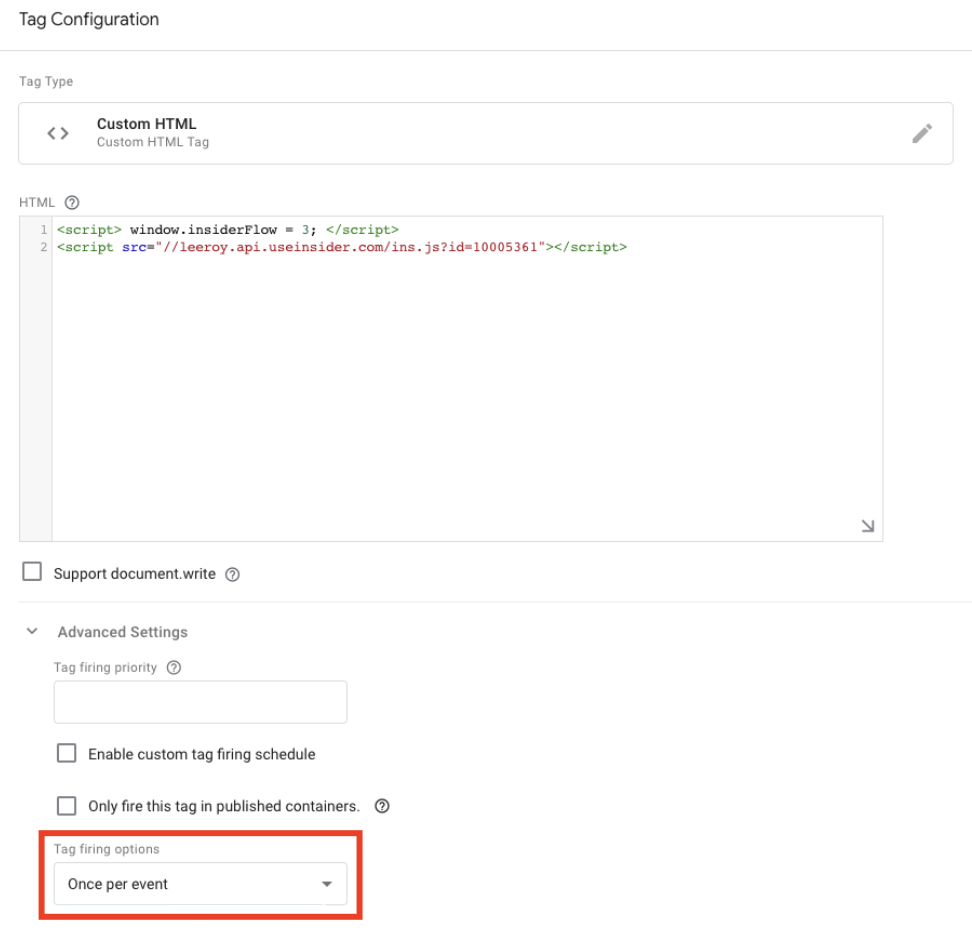
2. Choose Custom Event to trigger, type cookie_consent_marketing as a value, and save the configuration. 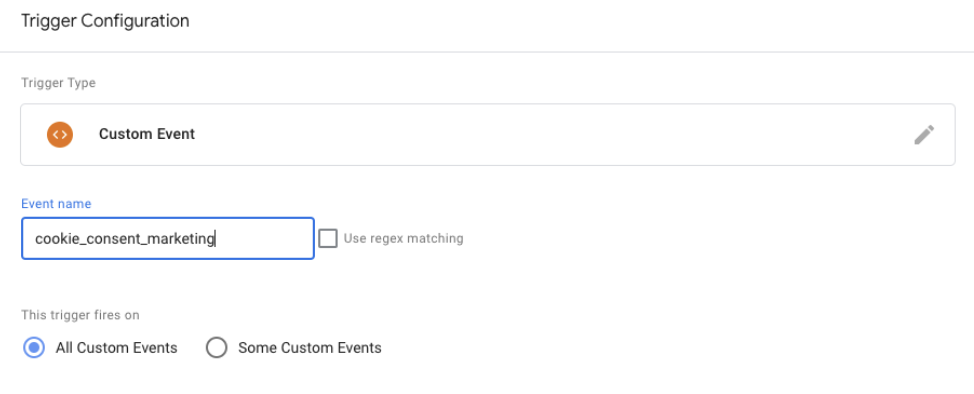
Implement Cookie-Free Insider Tag
1. Add the script as HTML and select the Once per page option in the firing options.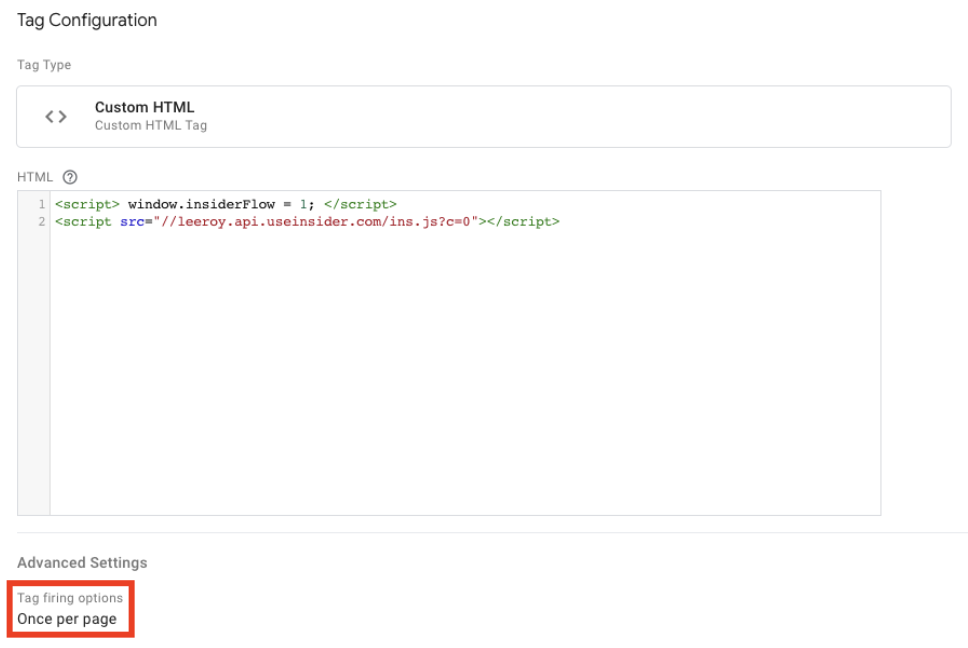
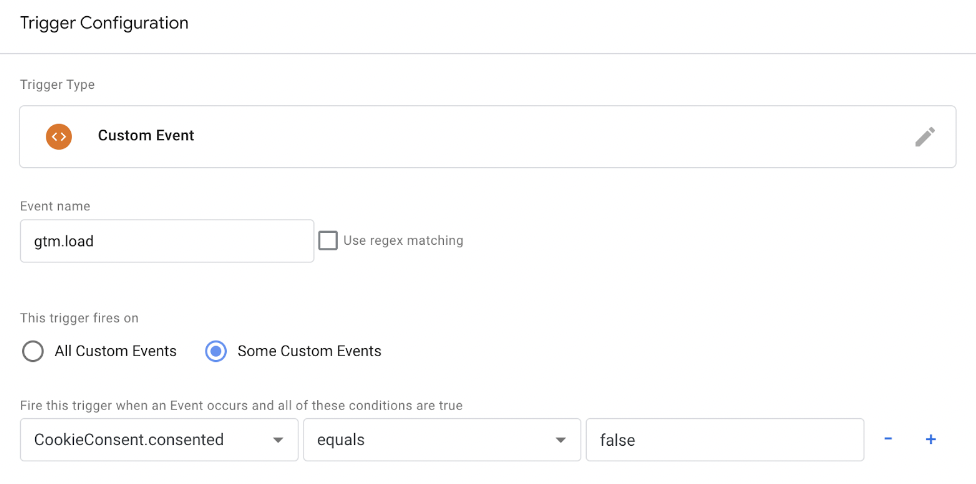
2. Select Custom Event for trigger and type gtm.load as the event name. Note that this event is triggered after the CookieBot banner, so it can safely be used here.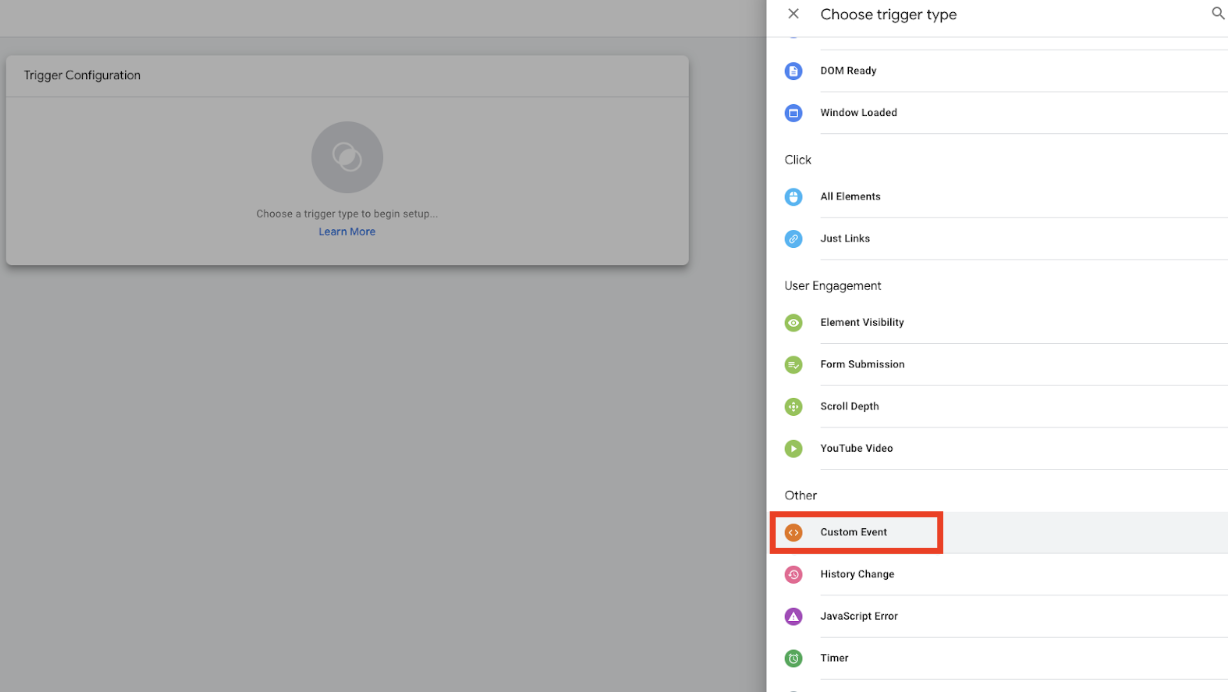
3. Select New Variable in the Event field. Then, select JavaScript Variable from Page Variables.

4. Type CookieConsent.consented as the variable name and save it. Then, select equals from the dropdown menu and type false as the condition.
5. Save and publish your setup.
When CookieBot is integrated via GTM and a user withdraws their consent, the update only takes effect after a page reload:
If a user initially accepts cookies → the Insider Tag loads.
If the same user then withdraws consent on the same page, the Cookie-Free Insider Tag will not load immediately.
It will load correctly on the next page reload.

OneTrust
OneTrust stores the groups of your cookies under the window.OnetrustActiveGroups variable and its outcome might vary. The implementation must be as follows:
Integration via JS code on your website
var source = 'partnerName.api.useinsider.com/ins.js?c=0'

window.insiderFlow = 1;

if (window.OnetrustActiveGroups.includes('YOUR_CONSENT_ID_HERE')) {
    window.insiderFlow = 3;
    source = 'partnerName.api.useinsider.com/ins.js;
}

var _s = document.createElement('script');

_s.setAttribute('src', source);

document.head.appendChild(_s); // head or body
Integration via GTM
Alternatively, if you integrate ins.js via Google Tag Manager (GTM), you can do it by triggering a tag on a custom event called OneTrustGroupsUpdated.
1. Add Insider code as a Tag via Custom HTML option.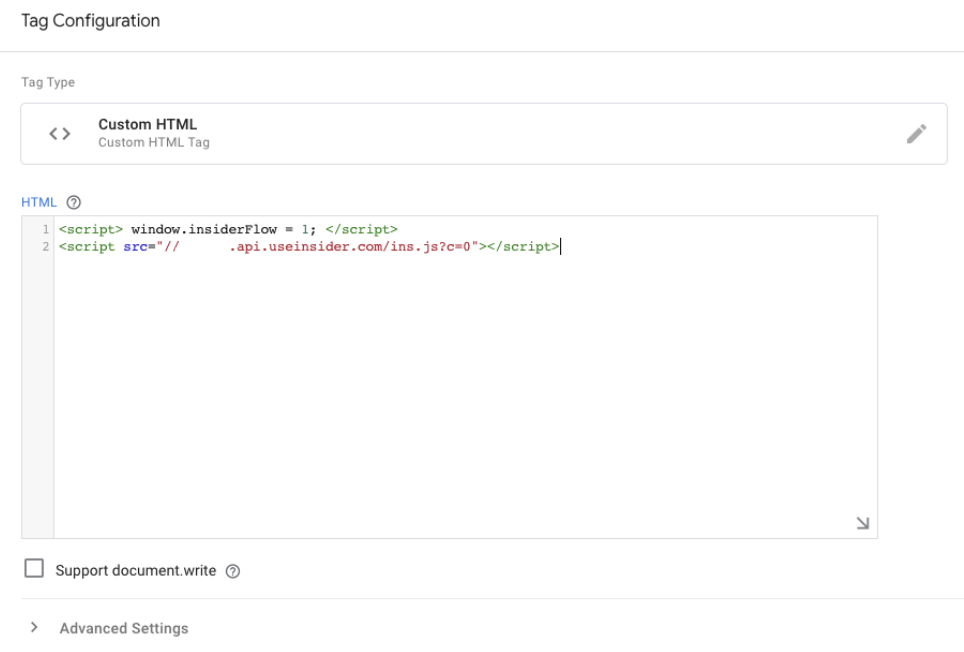
2. Select Custom Event for the Trigger type.
3. Type OneTrustGroupsUpdated as the event name, and select Some Custom Events for firing options.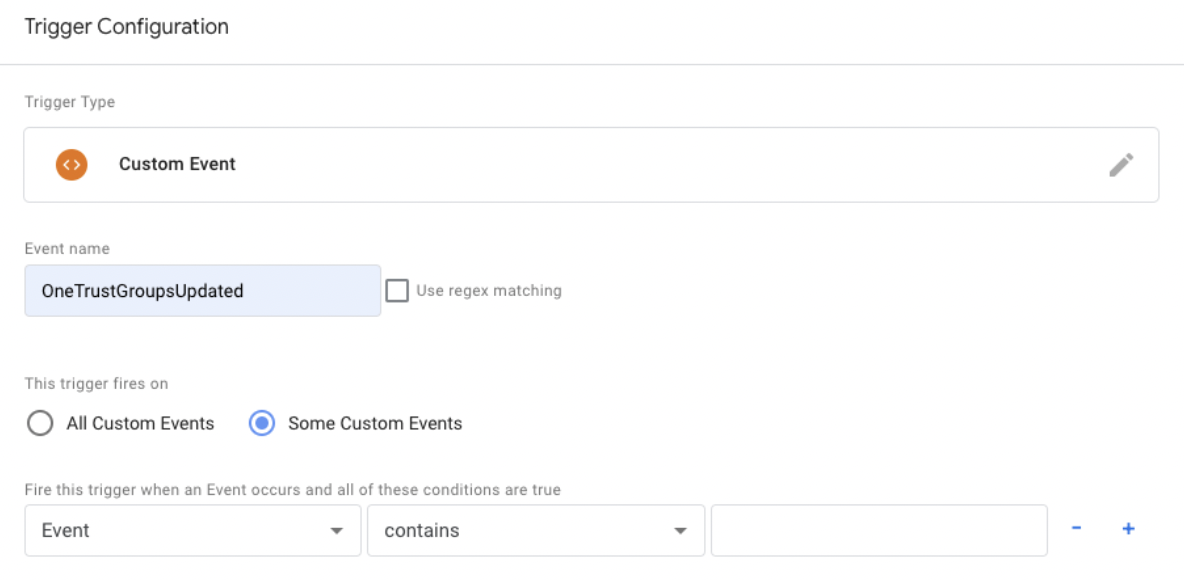
4. Select New Variable in the Event field.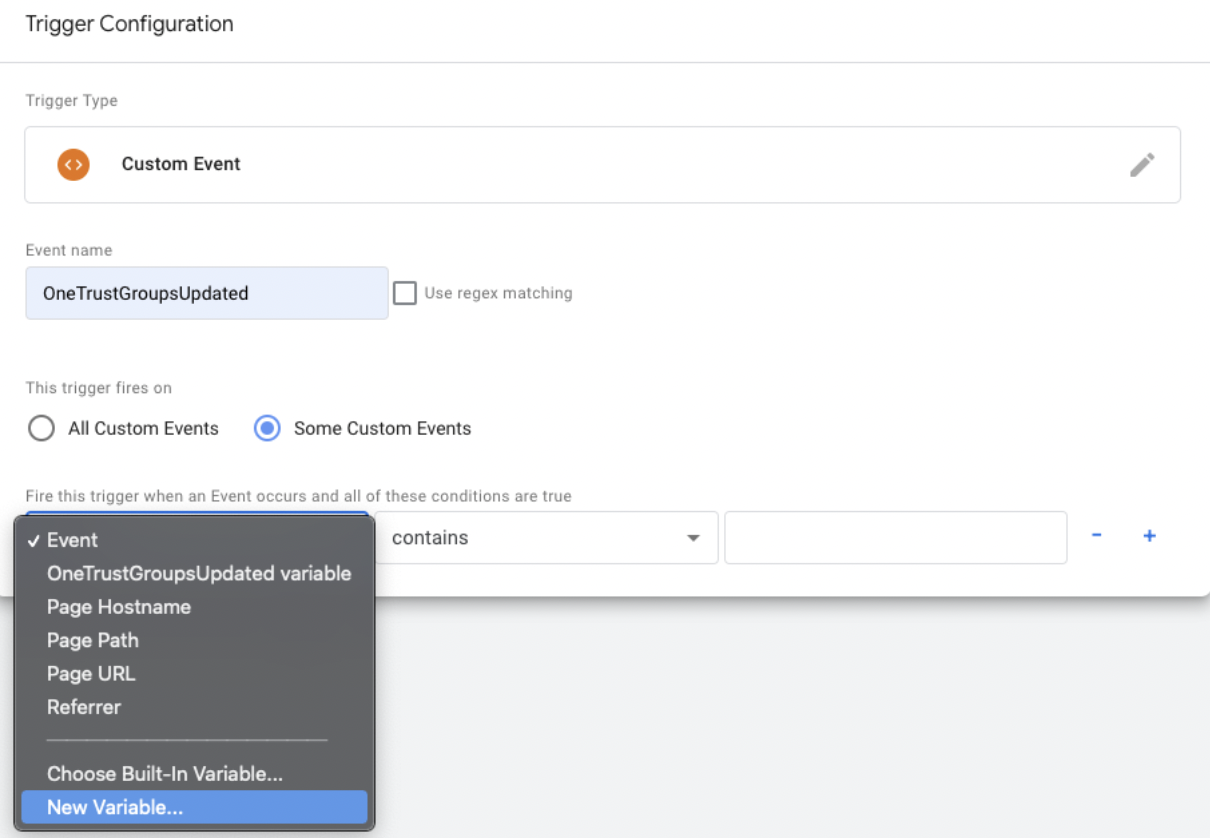
5. Select JavaScript Variable from Variable types. 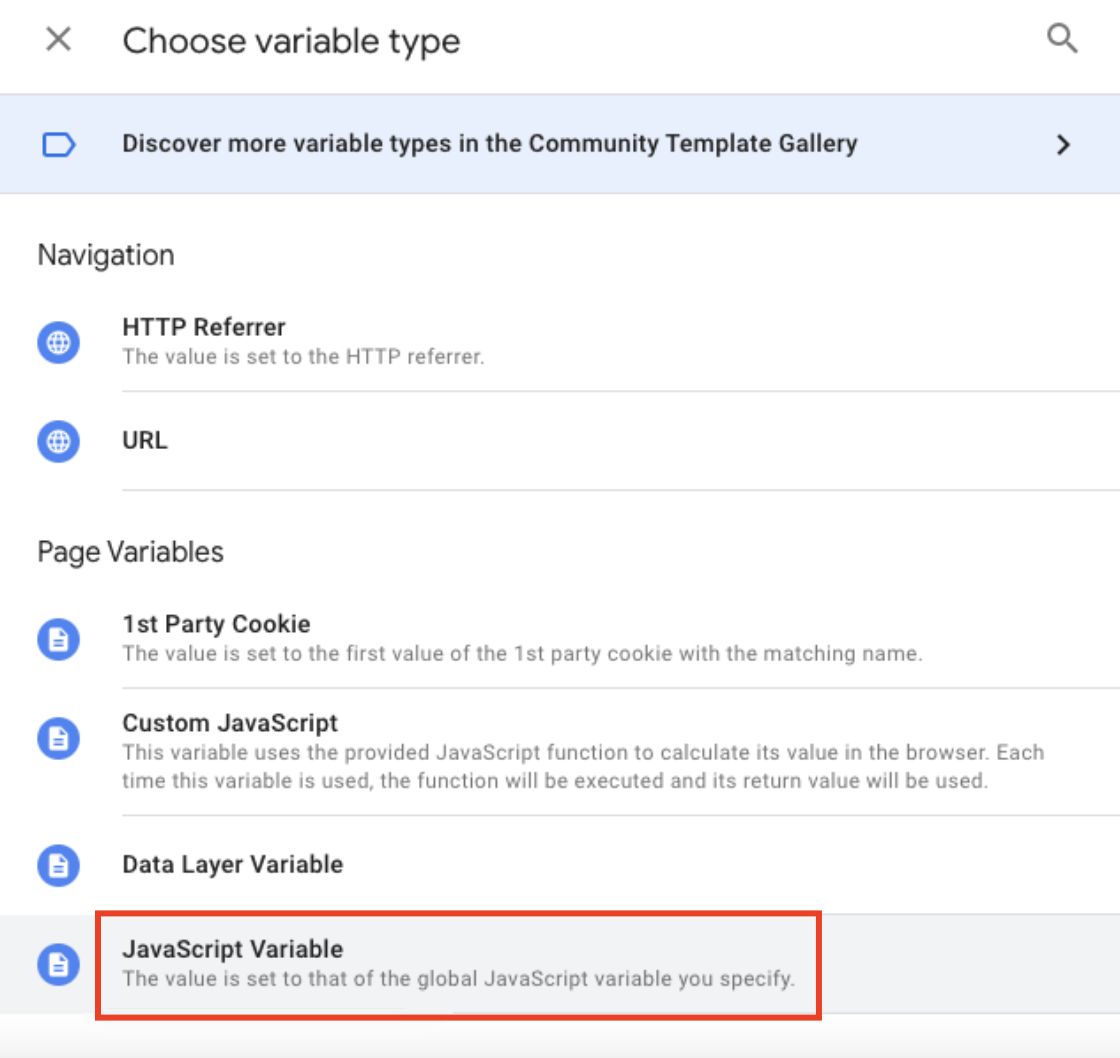
6. Type OnetrustActiveGroups as the variable name and save it.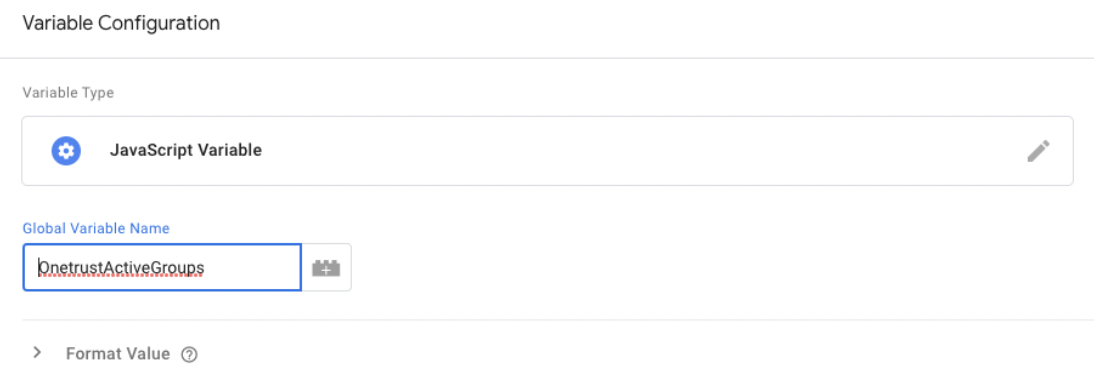 7. Choose the contains option from the dropdown and write your consent IDs.
8. Apply the same for Insider Tag with consent IDs for marketing or all cookies, save, and publish.
BayCloud
If you are using BayCloud, you can import ins.js with the following check:
Integration via JS Code on your website
var source = 'YourPartnerName.api.useinsider.com/ins.js?c=0'

window.insiderFlow = 1;

if (__cqheldcStatus.agreed === 'all') {
    window.insiderFlow = 3;
    source = 'YourPartnerName.api.useinsider.com/ins.js;
}

var _s = document.createElement('script');

_s.setAttribute('src', source);

document.body.appendChild(_s);
Wix
If you are using Wix to host your website, it’s best to check its cookie policy, as Wix’s cookie bar loads after the Essential codes.
Cookies are stored in the browser, so there’s no need to wait for any function, and the following code can be applied to load the Cookie-Free Tag:
<script>
(() => {
const getCookie = (e) => {
    let t, n, o = '[;\\s ]?' + e + '=([\\S]+(?:;?))';
    return (null === (n = null === (t = document.cookie.match(o)) || void 0 === t ? void 0 : t.pop()) || void 0 === n ? void 0 : n.replace(';', '')) || void 0;
}

const r = JSON.parse(decodeURIComponent(getCookie('consent-policy') || 'false'));

if (r || r.anl || r.adv) { return; }

window.insiderFlow = 1;

const s = document.createElement('script');
s.setAttribute('src', 'https://YourPartnerName.api.useinsider.com/ins.js?c=0');
document.head.appendChild(s);
})();
</script>
This code checks the existence of the cookie:
If the cookie is not present (i.e., no consent interaction was made), the code loads the Cookie-Free Tag.
The code loads the Cookie-Free Tag if the cookie is present, and the values do not include analytical or marketing ones.
The code does nothing in other cases, since those are covered by Marketing Code Types.
Check the Cookie-Free Insider Tag Integration
If Cookie-Free Insider Tag is integrated into your website, you can check the steps below to ensure the integration works properly:
Scenario 1
Visit the website in incognito mode and see the cookie bot.
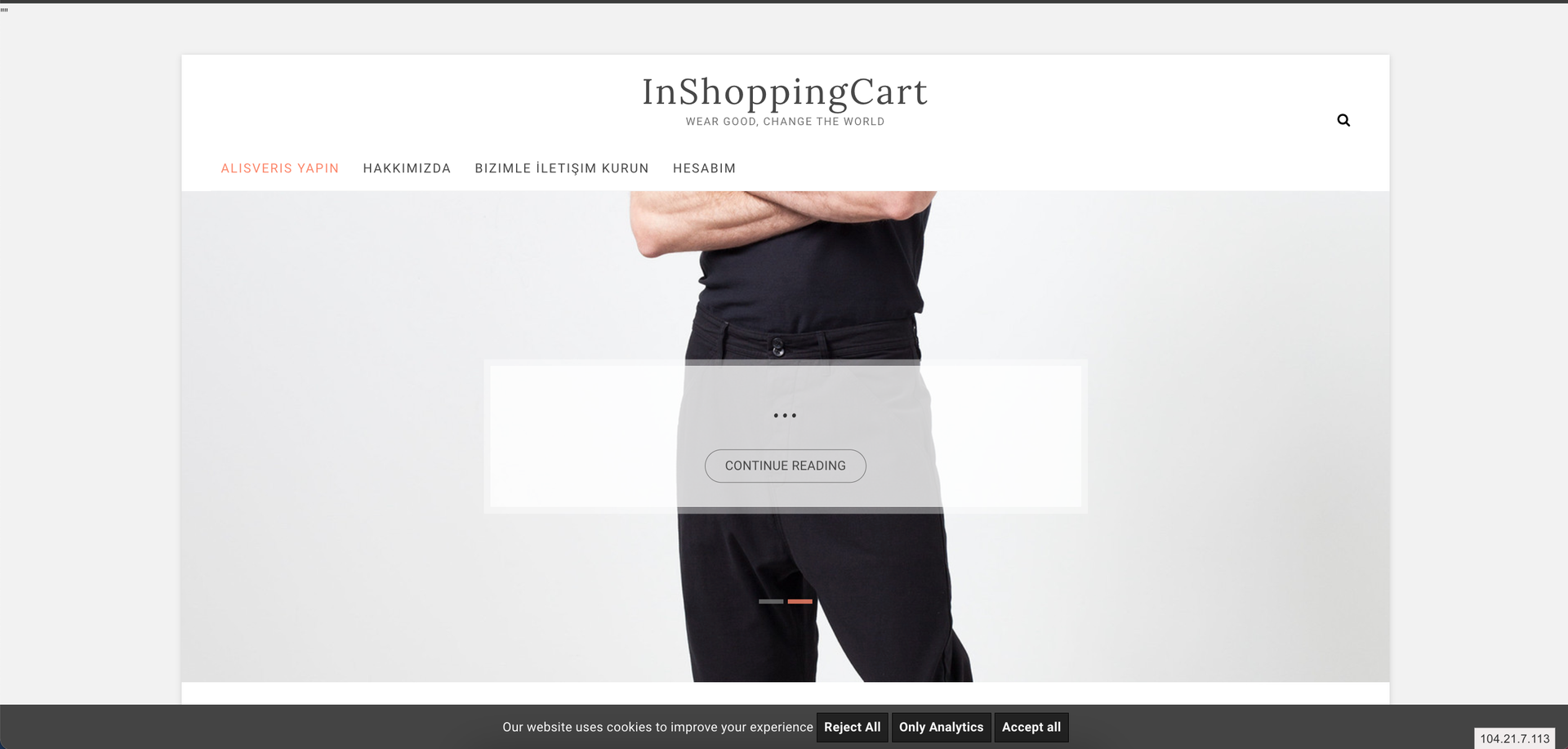
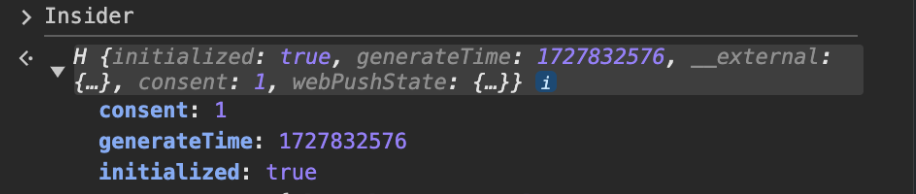
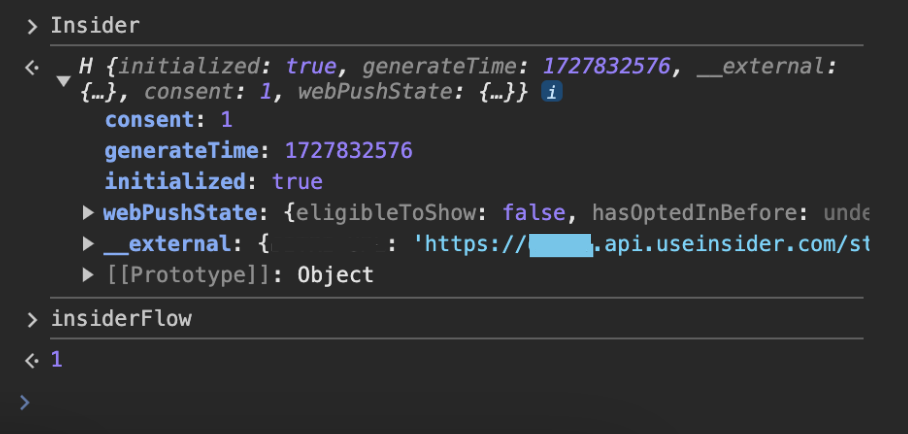
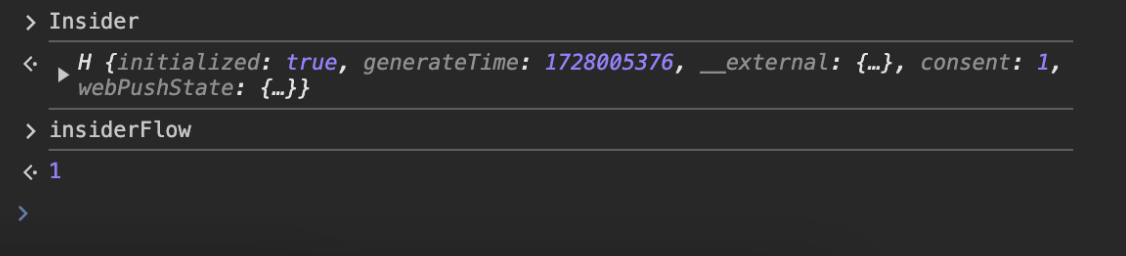
Inspect the page, open the console, and Run “Insider” in the console. It should be initialized with the consent variable as 1.
Run “insiderFlow” in the console. It should be “1”.
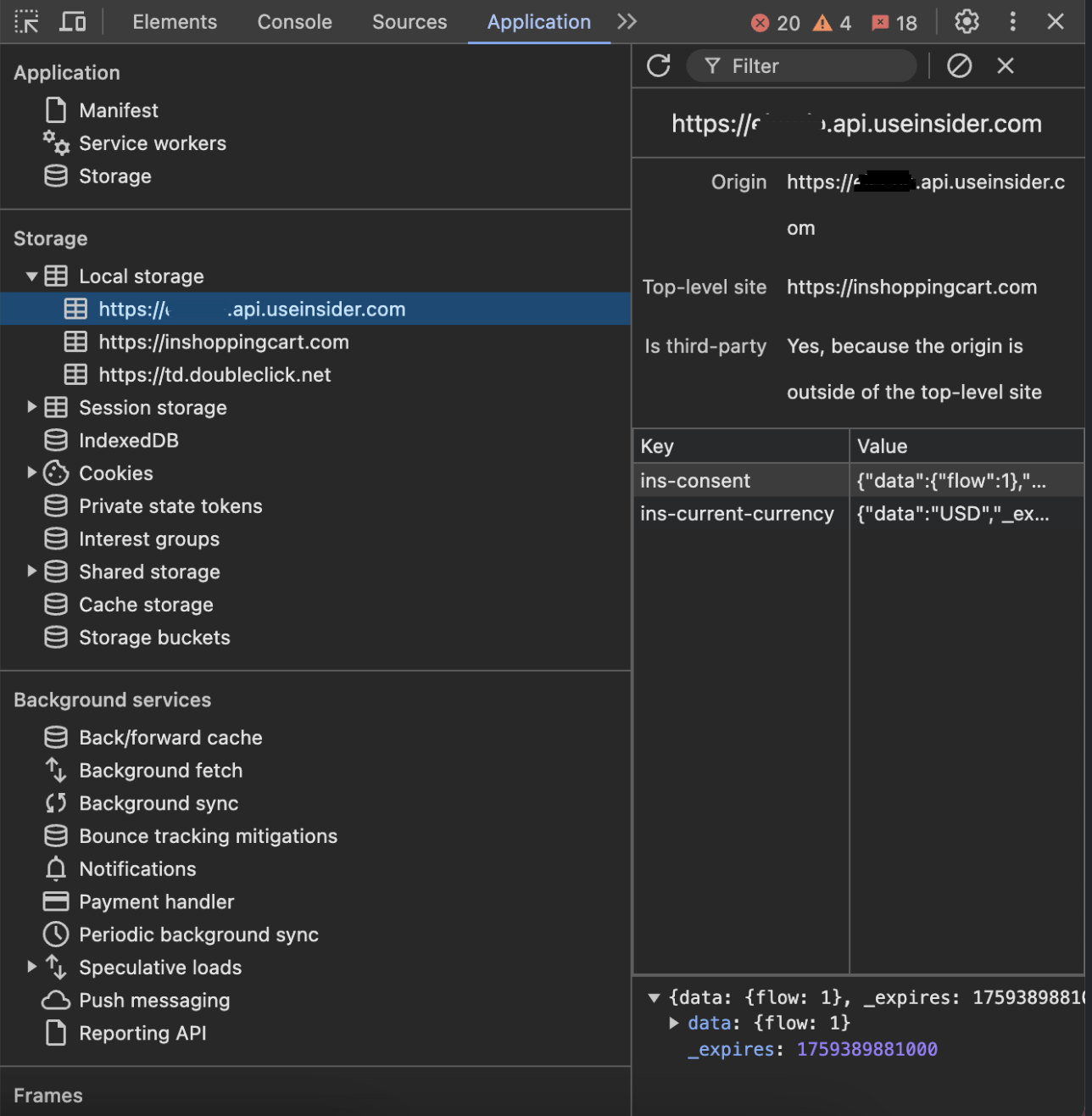
Go to the Application tab and open the partnerName.api.useinsider.com under the Local Storage. There should be a maximum of 8 storage locations, and the spUID should not be listed.
Scenario 2
Accept cookies on the website and then return to the console tab.
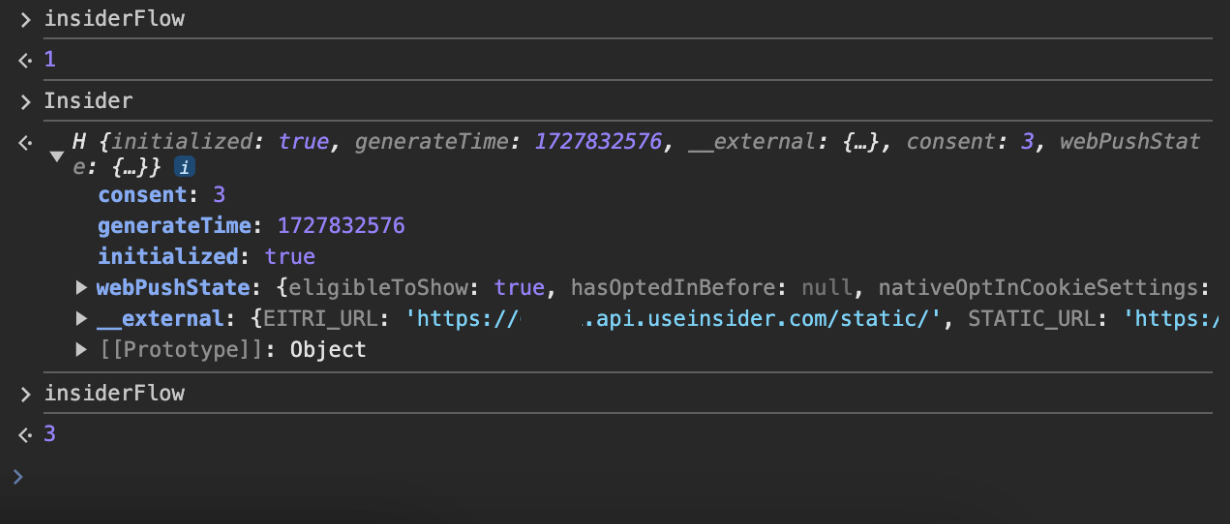
Run “Insider” in the console. It should be initialized with the consent variable as 3.

Run “insiderFlow” in the console. It should be “3.”
Go to the Application tab and open the partnerName.api.useinsider.com under the Local Storage. All the storages should be listed except for the spUID.
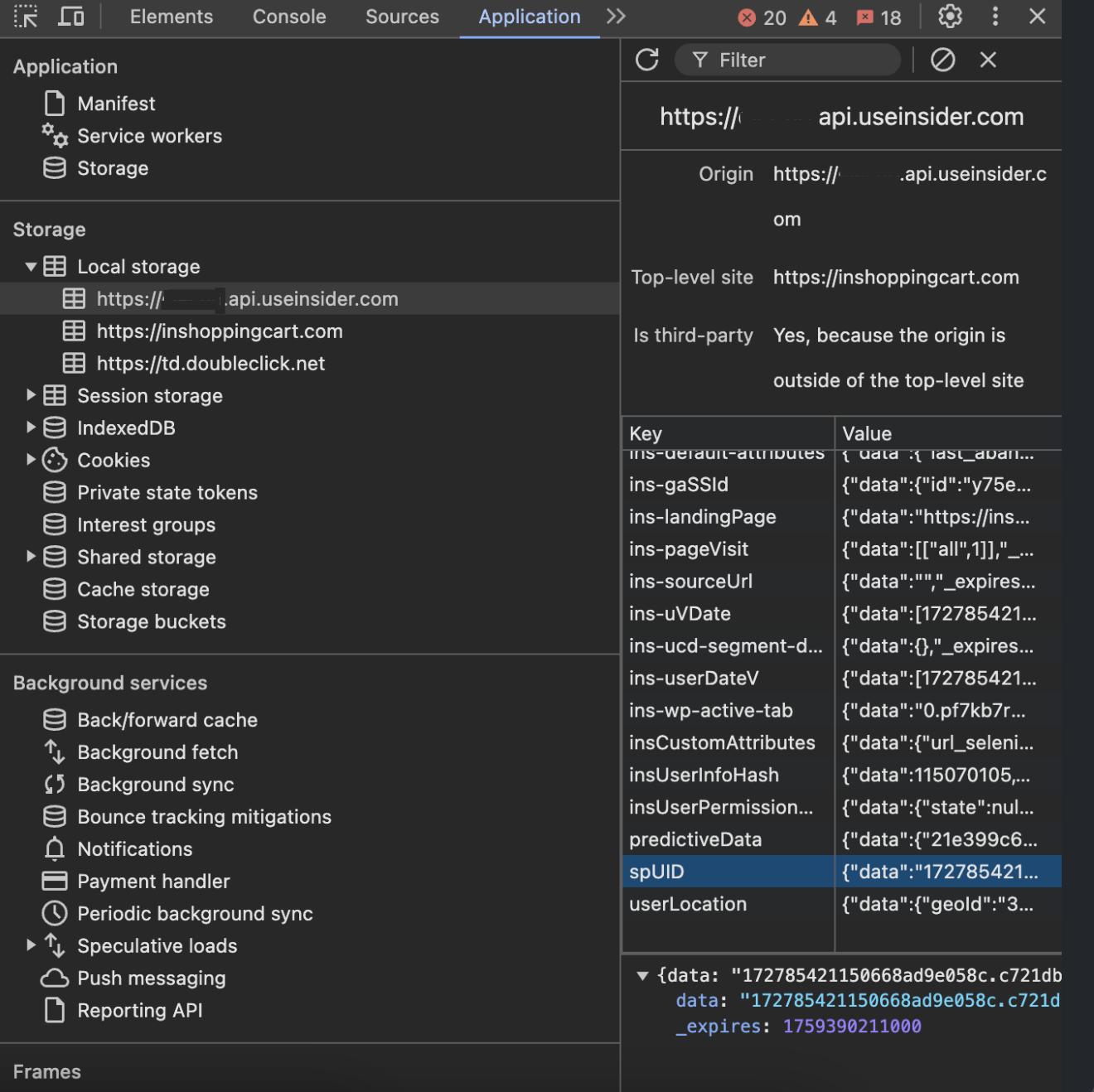
Scenario 3
Reject the cookies after Scenario 2.
Open the console and run “Insider”. It should be initialized with the consent variable as 1.
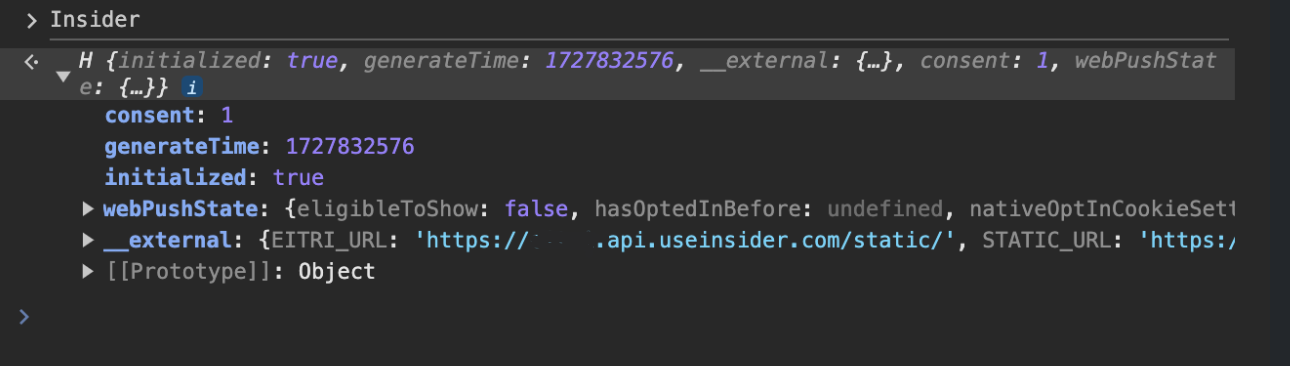
Run “insiderFlow” in the console. It should be “1”.
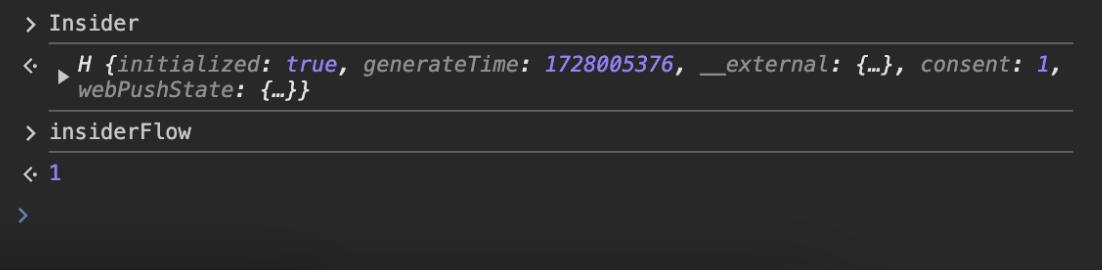
Go to the Application tab and open the partnerName.api.useinsider.com under the Local Storage. There should be a maximum of 8 storages, and spUID should not be listed.
Scenario 4
Close the window and open a new incognito window. Visit your website and reject the cookies.
Open the console and run “Insider”. It should be initialized with the consent variable as 1.
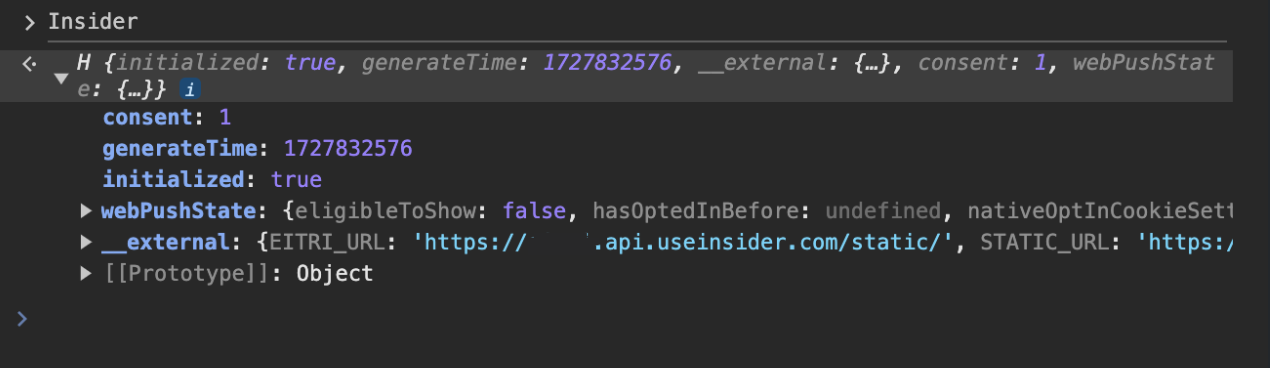
Run “insiderFlow” in the console. It should be “1”.
Go to the Application tab and open the partnerName.api.useinsider.com under the Local Storage. There should be a maximum of 8 storage and spUID should not be listed.
If you check all these steps and everything works as expected, the integration works correctly.