You can build your first Email template with the new Drag & Drop editor in two ways:
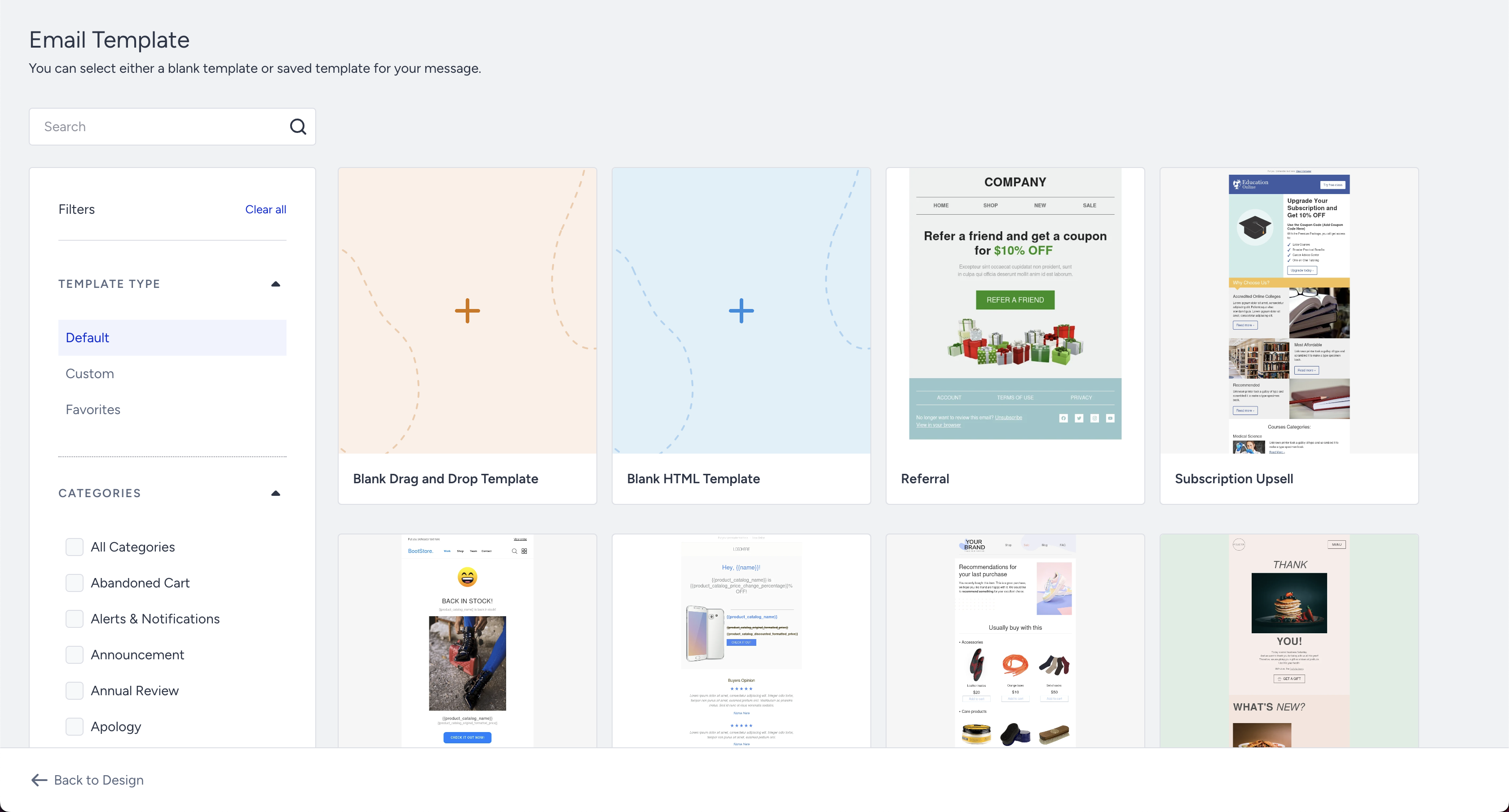
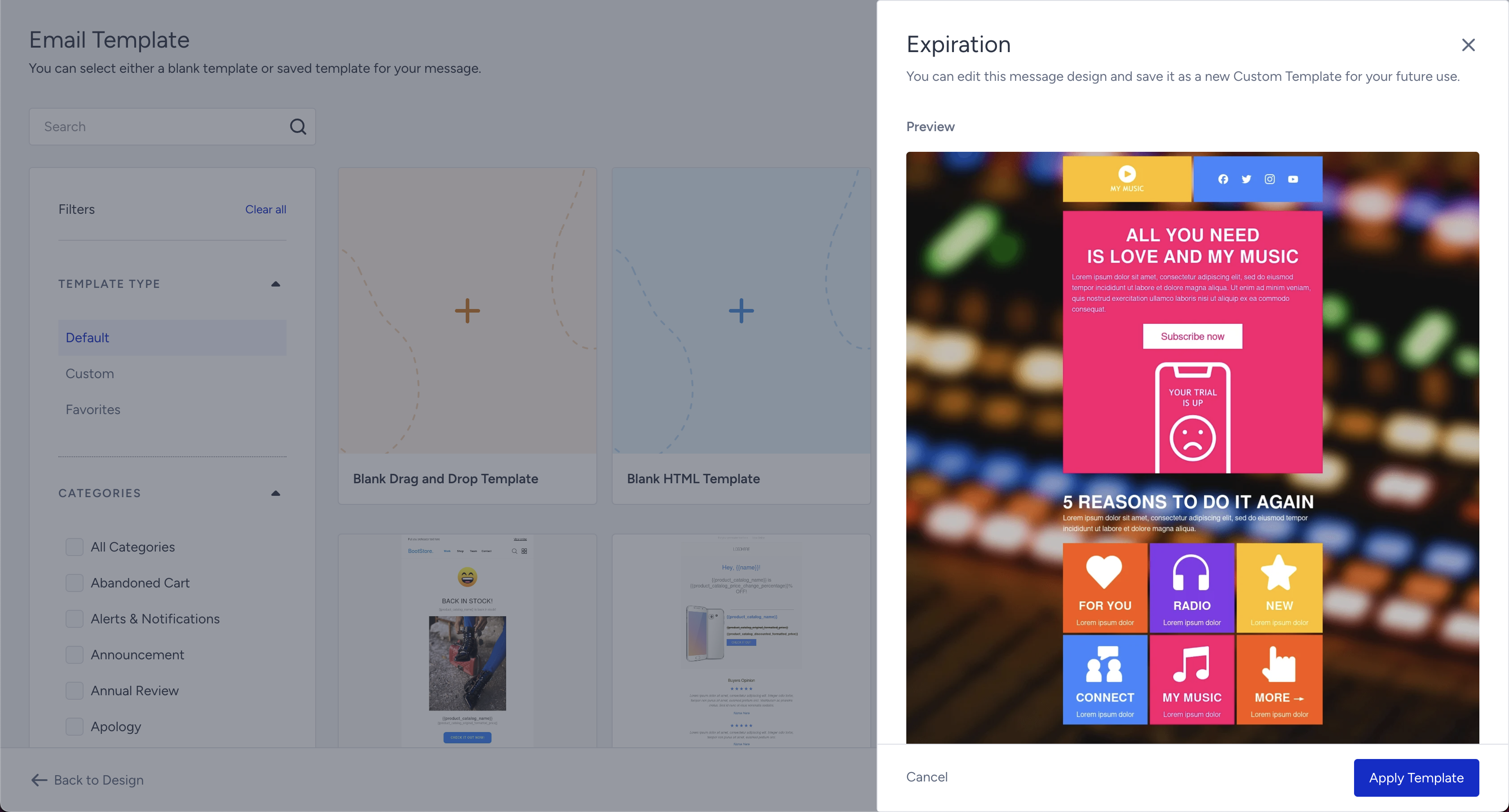
Edit one of the prepared email templates
To use the prepared email template option on the Design step, click the Select Template button.
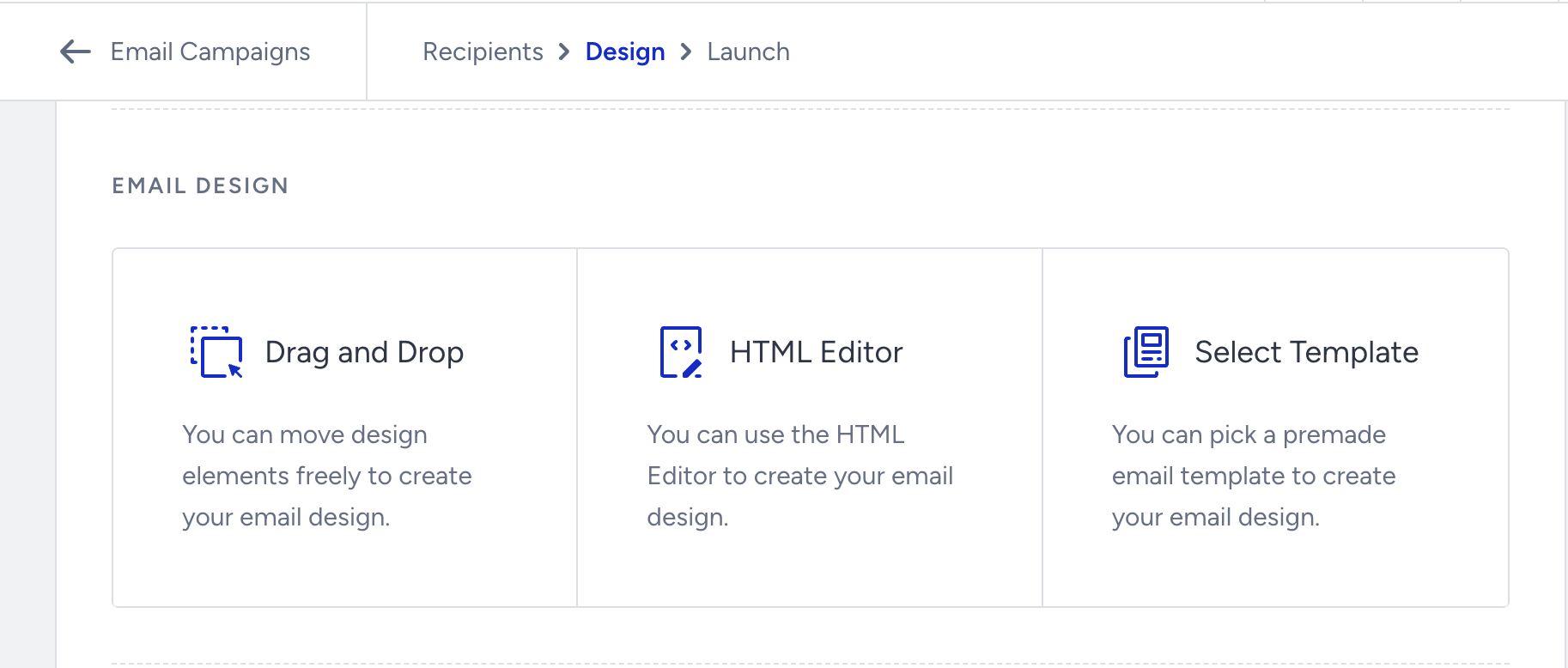
This is the easiest and probably the most convenient way of building emails. You only need to choose the template you like, customize it to best fit your brand design, insert your URLs, and replace our images with yours.
Start one from scratch using the default template
To use the prepared email template option, on the Design step, click the Drag and Drop button.
.png)
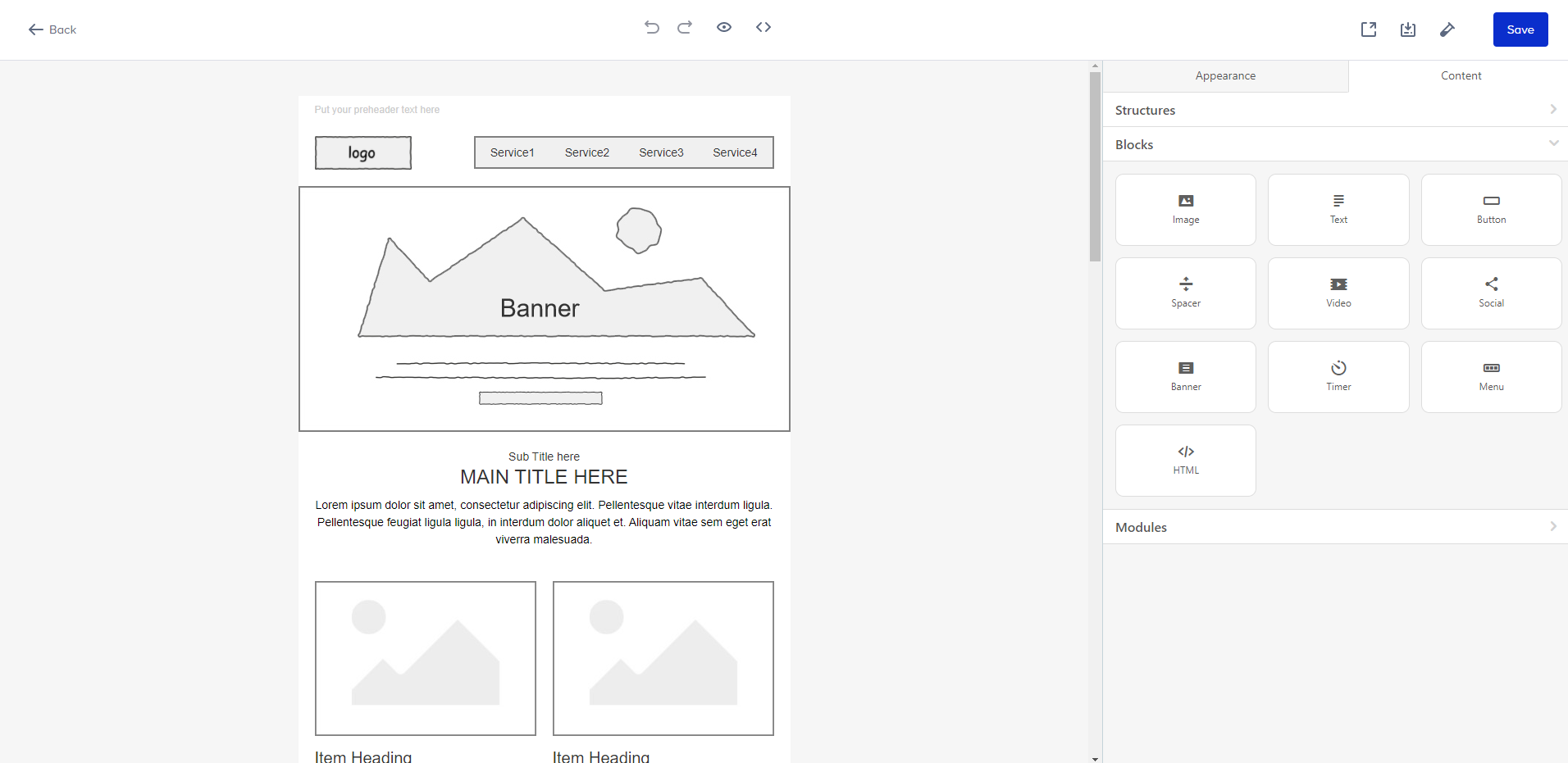
Create your email following these guides depending on your needs:
The video below briefly explains the fundamentals of the Drag and Drop Editor.
If this video does not load in your region, you can watch it on our YouTube Channel.