Image rollover effect helps you entertain and engage customers. Moreover, it saves you precious space in emails, as you can hide product details behind its photo. You can also play games with recipients by making them “search” for the coupon, etc. You need to add an image rollover effect to your emails for many reasons.
Build an image rollover effect
After uploading your image:
- In the settings panel, toggle the Rollover effect button.
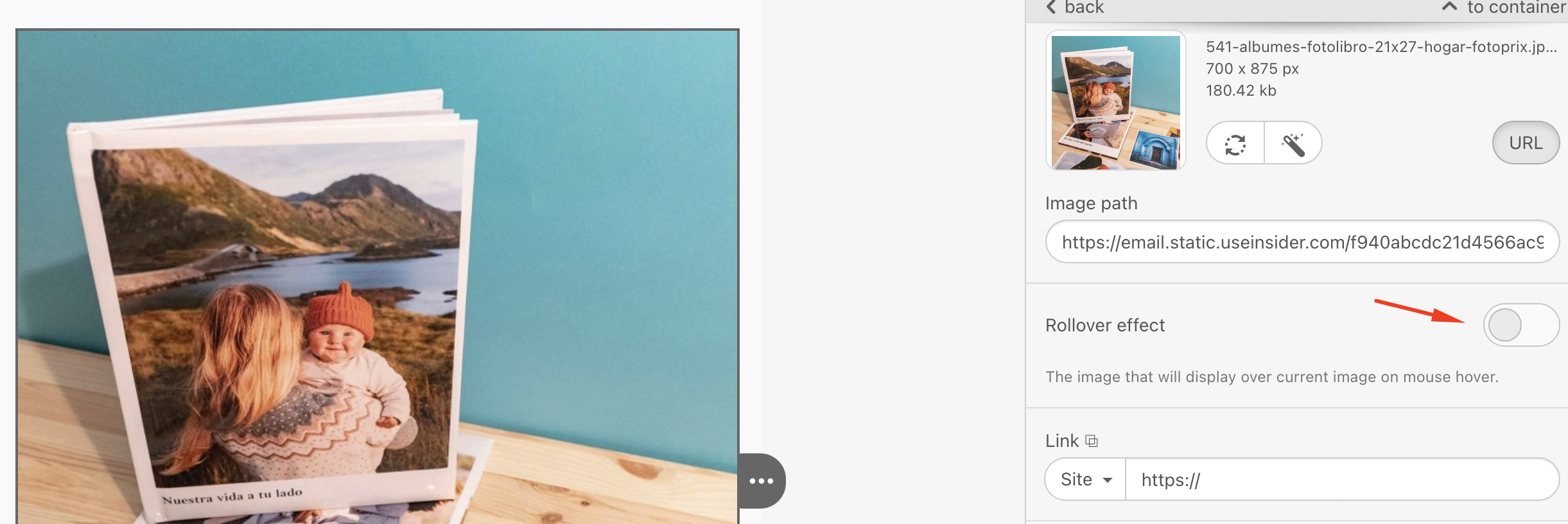
- Upload the second image and edit it if needed.
- Insert the URL link. It will be tied to both images.
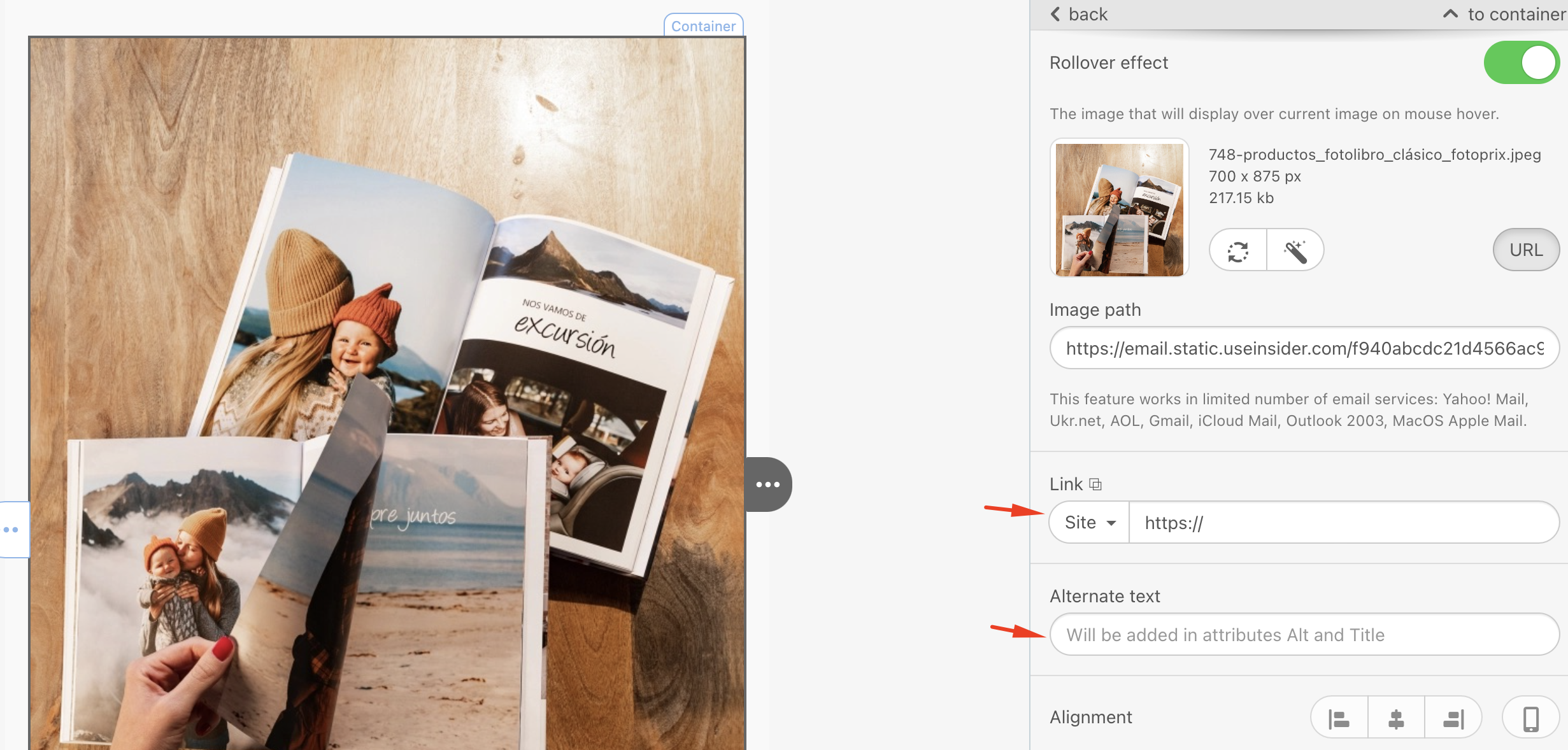
- Enter the Alternate text.
Use cases
Below are some example use cases.
- Show the backside of a product item
Make sure to use images of a similar size. If they do differ, you may crop or resize one of them in our photo editor to fit the smaller one.
- Show color variety
When you cannot demonstrate all product color options, you can apply an image rollover effect. For example, if you want to show the color options for a shirt, use the same image of the model in the same body position.
- Display ways to wear some clothing
For this purpose, use photos of a model in various positions to better introduce the clothing piece and create a sense of variety.
- Show a close-up or more details regarding the product items
You can show features that are difficult to describe. For example, with a close-up, you can show the fabric structure of a sofa.
- Demonstrate the price and brief description
To keep emails short and avoid overloading them, you can organize the lines into price, brief description, and product name, save this as an image, and upload it as the second image in the rollover.
- Hide CTA-button
You may want to hide CTA buttons for products that are not likely to be purchased often, like trips, cars, and apartments. For such cases, you can create the button image before hiding it behind the image. In the second photo, you can place the button over the image; in the third photo, the button can be independent.
- Draw attention to the CTA button
CTA buttons are a must for sales. Drawing attention to CTA buttons can entertain your customers and make them love your emails more. To create a rollover for a CTA button, the button images must have the same size and font.
- Draw attention to the value proposition
You can inform subscribers about upcoming sales to ensure your value proposition is noticed.
- Provide GIFs
GIFs are a great way to present your products better. You can put GIFs behind the images to draw users' attention.
- Play games
You can engage recipients with some games. For example, they can be offered free broadcasting of a super series match. To implement this, you need to slice your image into several pieces, each with a rollover effect. Make sure to remove all indents and padding between the images in a container. Don’t forget to insert a link to the proper image.
- Send out teasers
When preparing something huge for your customers, you certainly wish to let them know. Create teaser emails to remind users of who you are and to make them anticipate your next email.