A spacer makes emails look more structured and makes the email content easier to perceive.
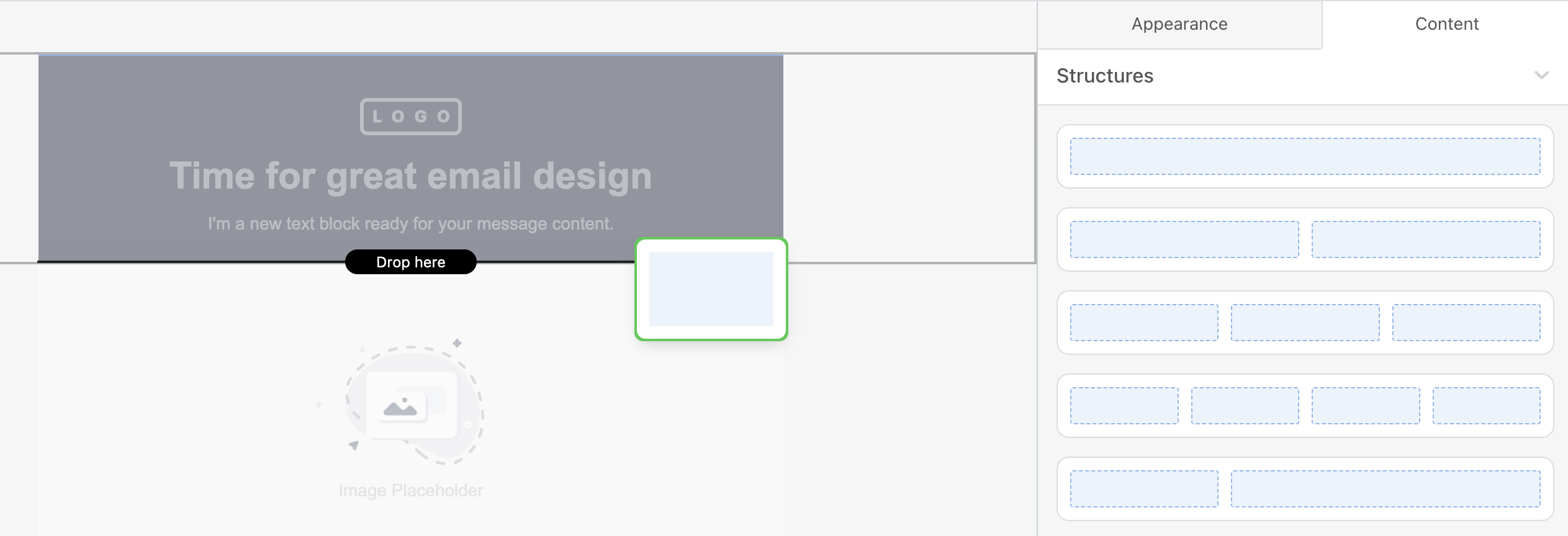
To set a spacer in emails, follow these steps:
1. Drag a 1-column structure into your HTML email template.
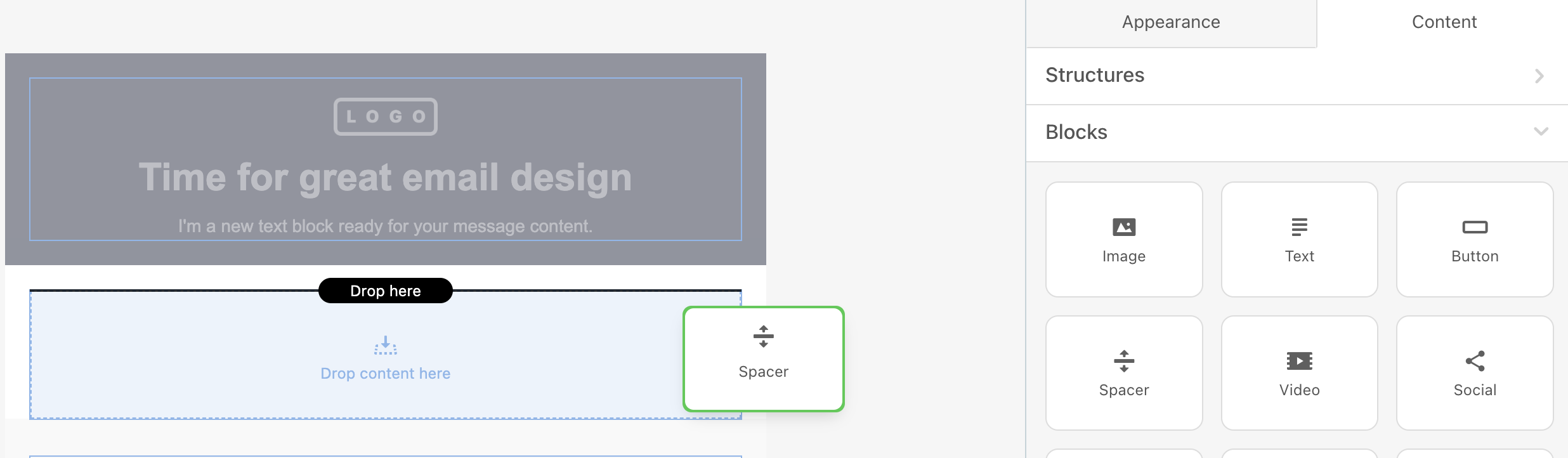
 2. Drop the Spacer block.
 3. Double-click to activate the settings panel.
4. Set its color.
5. To set the thickness of your space, set the number (increase/decrease) in the Line section.
 6. Choose the style of your line. It can be solid, dashed, or dotted.
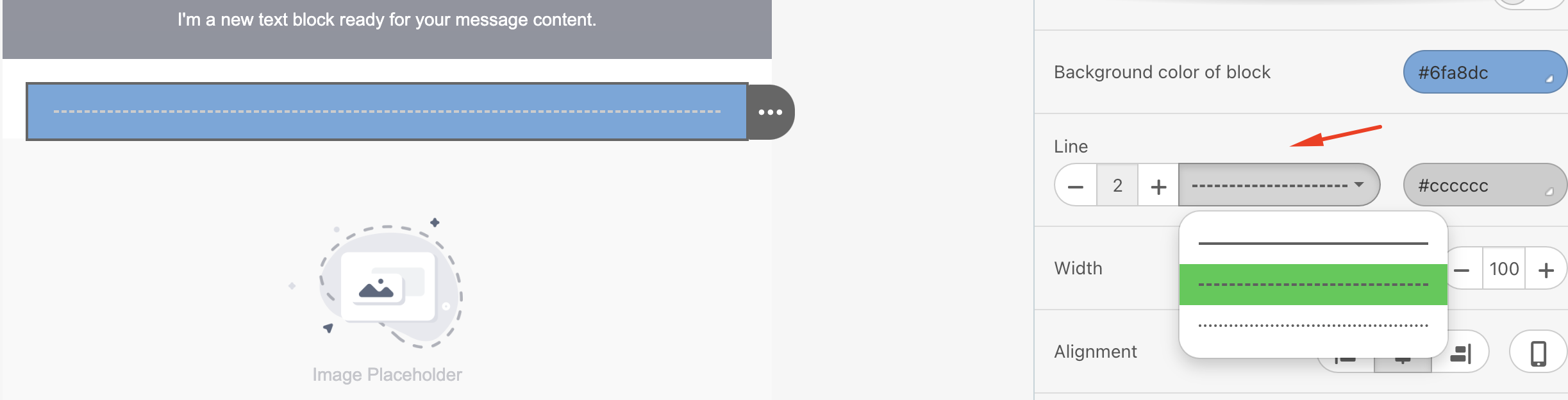
7. Set the spacer's width. The width is measured as a percentage, not pixels.
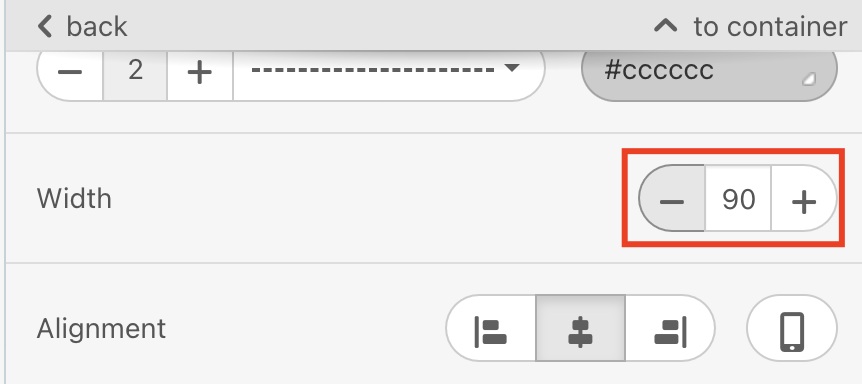
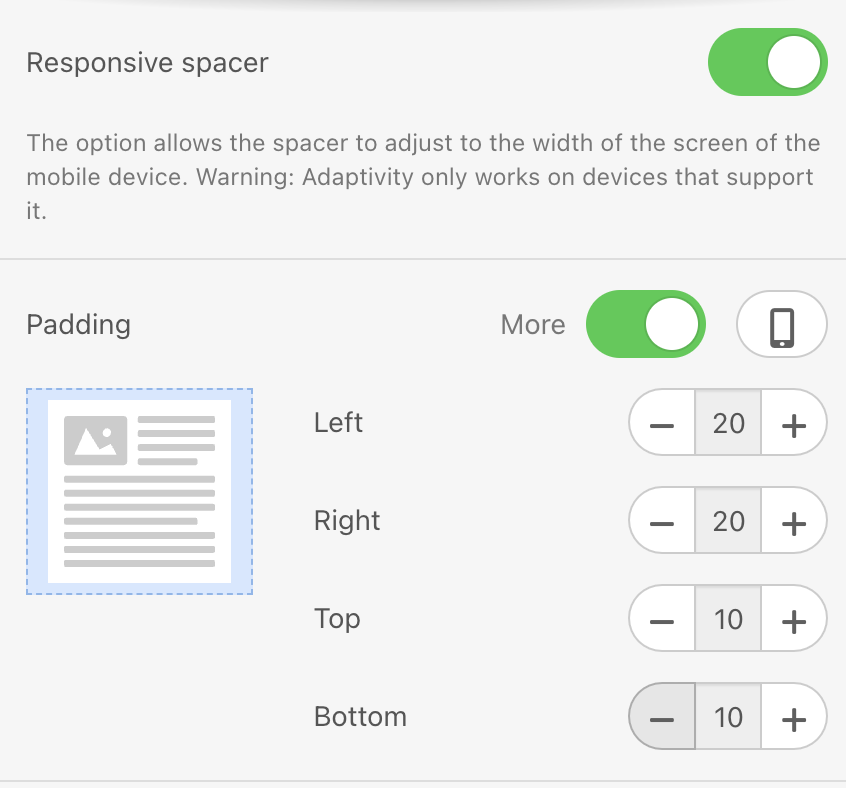
8. Specify spacer alignment. Center alignment is set by default. You can change it in the alignment section if you like.
9. Toggle the responsive spacer button for a spacer to render properly on mobile devices.
10. You can adjust the paddings for each side separately if necessary.