Fulfilling the prerequisites for SMS, now you can start your integration, and then create SMS messages.
Integrating SMS
You need to ensure that you have completed the SMS Integration as linked below before setting up your SMS in Architect.
In a brief, the following requirements should be completed:
Phone numbers and opt-in data should be passed to Insider.
‘Sender Name’ registration should be completed.
Opt-out needs must be met. The keyword, shortcode/long code must be registered.
You should configure and complete SMS Settings.
Creating SMS messages in journeys
When you complete the integration process, you can continue to create an SMS message in your journey flow.
1. Add SMS element on canvas
Click the Add button on the path you want to add email channel on your journey.
Click Channel > SMS.

2. Type SMS text
Type in the desired text that you wish to send out.
Note: SMS uses GSM 7-bit alphabet by default that is mandatory for GSM handsets and network elements. The character set is suitable only for English and a number of Western-European languages. Languages using alphabets other than this (e.g. Chinese, Korean, Japanese, etc.) must be transferred via 16-bit UCS-2 character coding. A limited number of languages (e.g. Portugese, Spanish, Turkish, and a number of languages of India written in Brahmic scripts) may use 7-bit encoding with the national language shift table defined in 3GPP 23.038. For binary messages, you can use 8-bit encoding. For further information, refer to SMS Smart Encoding.
If you want to be inspired or need assistance when creating your message content, you can always use the Generate Text option.

To use an AI-generated text:
1. Click the Generate Text button to see the side modal.
2. Enter a prompt you want to generate the text about.
3. The language option will be the default selected language of your panel.
4. Select your industry and use case to define the context for the text to be generated.
5. Click the Generate Copy button.

If you want to include emojis in your copy, you can check the "Include Emojis" box.
This option indicates that the AI can generate copies with emojis. However, not all options might include emojis.
.png)
The modal displays 5 suggestions. To see more, you can click the Generate More Suggestions button.
To use any suggestion, you can select it and click the Apply button, or copy it via the Copy button against the suggestion you want to use.
Once you click the Apply button, the copy will be added to the respective field.
You can use default and custom user attributes, event parameters, coupon code in the content to personalize it for your users. Read more on dynamic content.
For users who do not have a value for the dynamic content, you can add alternative text (fallback) by clicking on the content tag.
You can copy and paste emojis into your message if you want to add any.
Architect excludes dynamic content from the character limit calculation. When you add any dynamic content, it does not have an impact on the character count. When you assign a fallback value to the dynamic content, it will be displayed to the user if the dynamic content's value is empty for that user. In this case, the character count includes the fallback value.
The plus sign in the character count indicates that dynamic content will receive a value upon message delivery to the end user.
Add the specific link you want to direct your users to. Once you add the link, it will be automatically shortened by Architect. You can see it when you send a test SMS message. Also, once you add a link to your SMS text, the journey will track the click activity by default and will display click metrics on the SMS Analytics page.
You can either type your URL or add a dynamic URL from the dynamic content menu. 
You will see the GSM-7 warning and the character limit will change when you type a special character as seen in the below message. To avoid increase in message count, enable Switch to GSM-7 toggle.
You can enable the Short URLs option to shorten the long URL. If you disable the Short URLs option, you can also disable the Tracking Parameters used in the link. Note that if you disable the tracking parameters, you will not be able to track the analytics of your SMS.
You can click the See Message Details to see the character count details and number of SMS that will be charged per sending according to the text you type.
3. Set unsubscribe option
An unsubscribe sentence is included in SMS messages to allow users to opt out of receiving SMS communications. You can enable or disable the unsubscribe sentence based on your country’s regulations.
You can configure unsubscribe sentences in the SMS settings using either keywords or links, with support for multiple options. The default sentence selected in the SMS settings is automatically added to your SMS, but you can choose a different option from the dropdown if needed.
If a link is selected, the unsubscribe sentence and unsubscribe link are added to your message. If a keyword is selected, the unsubscribe sentence including the unsubscribe keyword and number is added to your message.
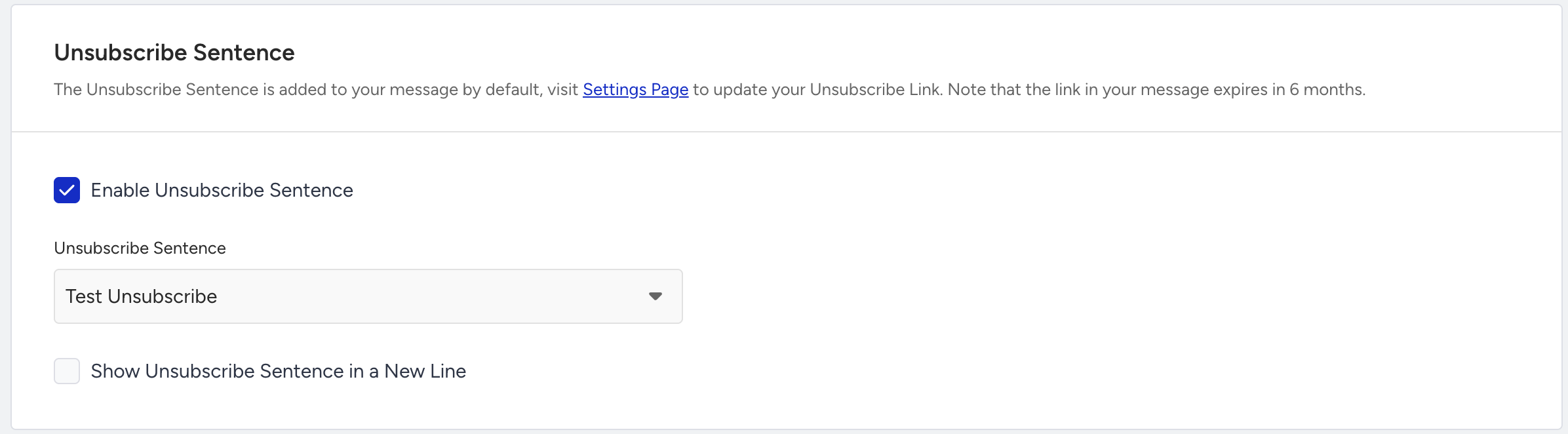
Do not forget to add the opt-out option to the SMS text. Please contact the Insider One team to receive your keyword and shortcode/long code (in some countries, the opt-out option is not compulsory). Refer to SMS Unsubscription with Keyword for further details
4. Enable UTM parameters
Enable UTM parameters if you would like to see results in Google Analytics or if you need to track links in an outsourced tool.
UTM parameters will be automatically added at the end of the URL link. You can see it in the SMS message preview. The URL link will be shortened so you don't need to worry about text being too long.

5. Configure coupon settings
You can enable the coupon settings when you add a coupon in your SMS. Before adding any dynamic content in your message, you will see the settings section as below.
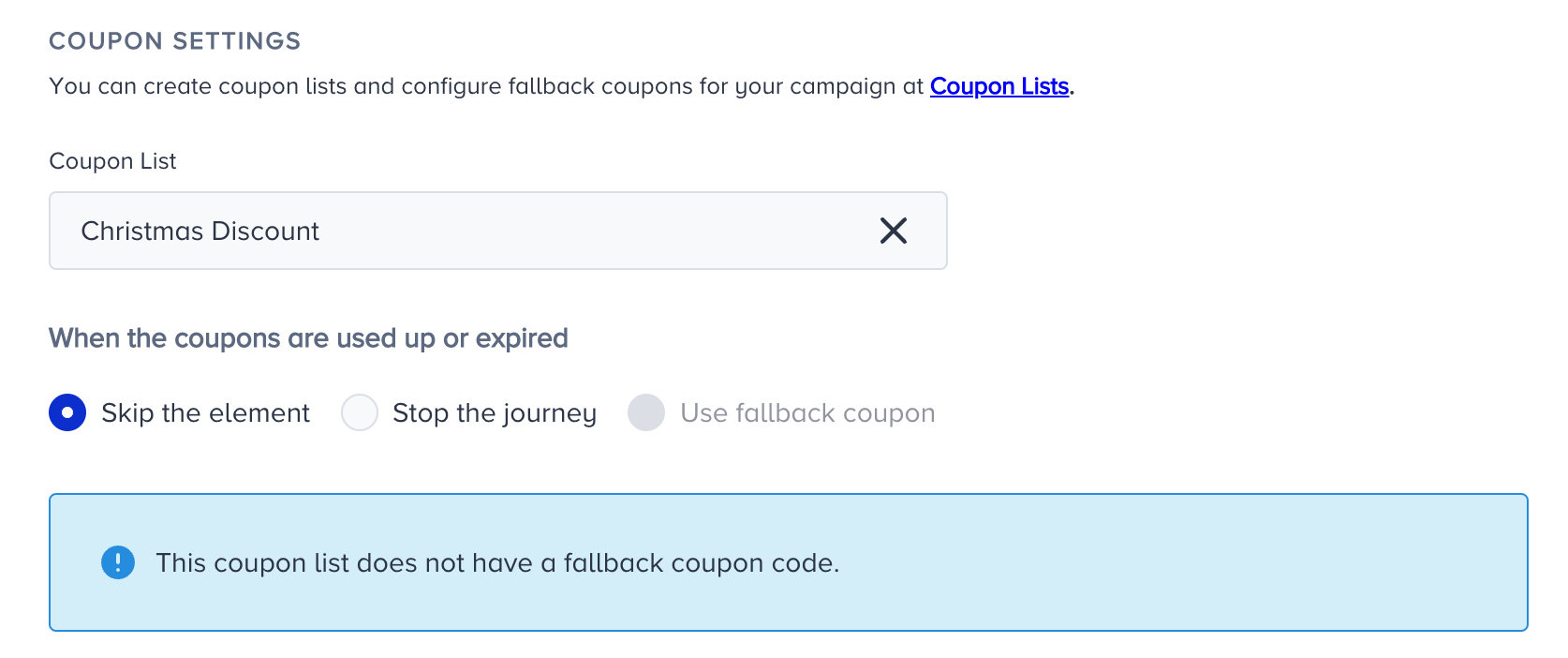
You can add a coupon code in your SMS by using the Coupon Code attribute.

You can send a new coupon or previously assigned one.
Select the action that you want your journey to take when the coupons are used up expire. You can skip the element, stop the journey or use a fallback coupon.
Read more on coupon lists.
You can also set coupon reminders for your coupon lists. Refer to Coupon Usage Reminder for further details.
.png)
6. Preview content
You can see the sender name/ID, texts, link, and UTM parameters on the preview section placed on the right side of the SMS page.
Check your sender name, message content, and unsubscription sentence in the preview.
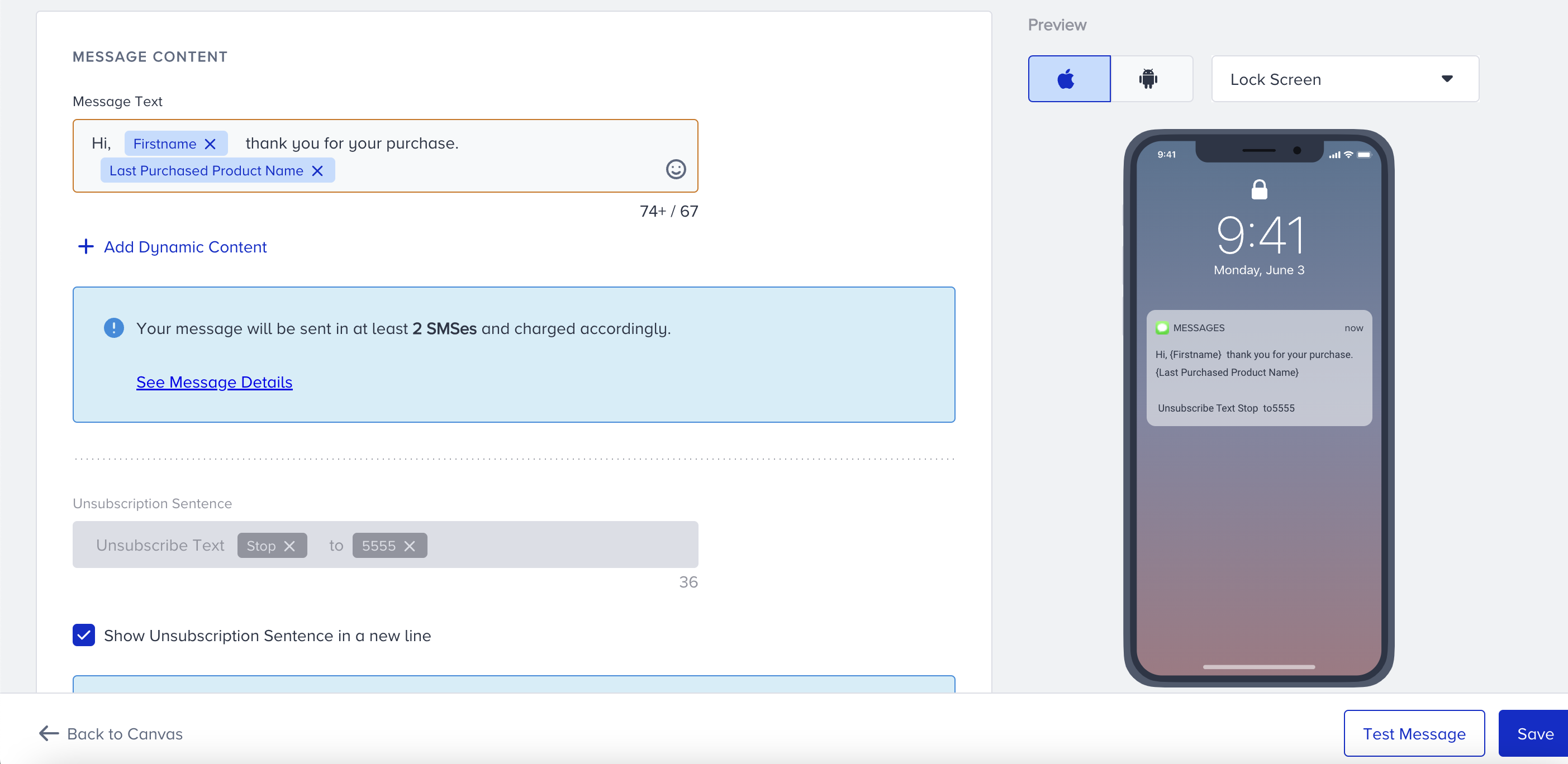
You can see iOS or Android and Message Screen or LockScreen options.
7. SMS Silent Hours
Silent Hours ensures that your SMS messages are sent at appropriate times of the day. If a user reaches an SMS element during the defined Silent Hours window, Architect follows the Silent Hours settings defined on the SMS Settings page.
When Silent Hours is enabled, you can choose what happens to SMS messages in journeys:
Send at a time you select based on the local time zones of your recipients: Architect will delay the SMS and send it once the Silent Hours end based on the local time zones of your recipients. Users arriving during silent hours will be placed "on hold" until the scheduled send time. In the live stats, these users will be recorded under the "on hold" metric.
Don’t send the message after the Silent Hours period: Architect will drop the message entirely if it falls within the Silent Hours window. The users will be recorded under "undelivered/drop reasons" on the channel analytics page and will not appear in the live stats.
Bypass Silent Hours: You can choose to ignore Silent Hours for specific journey use cases. Architect, then, will send SMS messages immediately as users reach the SMS element. If you check the "Bypass SMS Silent Hours" box, the "Send Time Optimization" checkbox will be available.
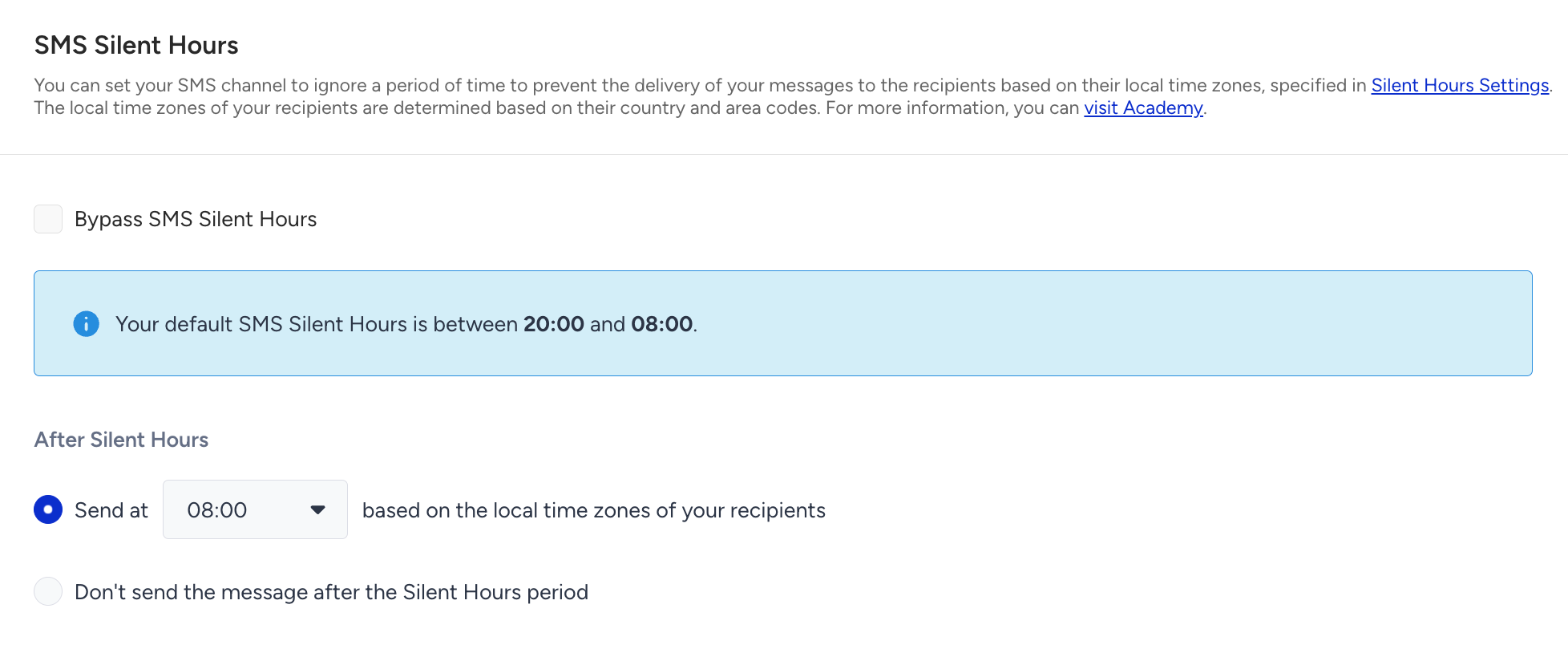
If you select the "After Silent Hours" for SMS delivery in a journey and later update the default silent hours in your account settings, a launch validation error will be triggered in the journey if the "Send At" time falls within the new silent hours.
For further details, refer to SMS Silent Hours.
8. Stock Control
You can add any event parameter from an event with a product_id parameter as dynamic content to perform stock control and confirm whether the product is still in stock immediately before the message is sent.
You can also choose whether the user proceeds to the next element or is dropped from the journey if the product(s) is out of stock.
.png)
9. Make your messages send time optimized
You can optimize the time to deliver your messages to the end-users. It helps you engage your users more effectively and draw their attention when they are most likely to interact with your messages.
You should enable send time optimization based on your use cases. For example, send time optimization might not be a good fit for cart or browse abandonment cases. Read more on send time optimization.

If you set Channel Frequency Capping before, when you enable Send Time Optimization, Bypass Channel Frequency Capping will be automatically enabled. 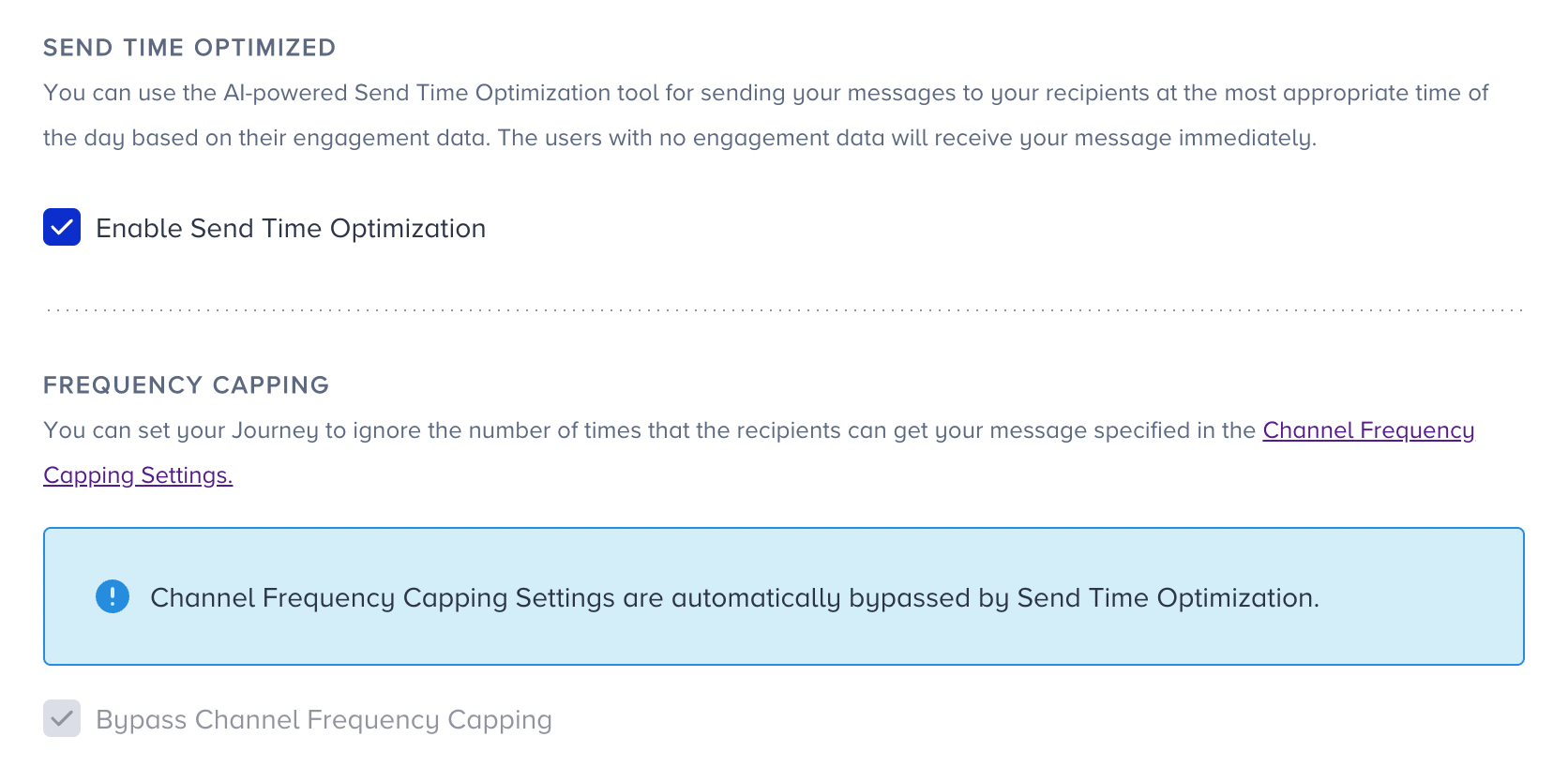
10. Bypass Channel Frequency Capping
Insider provides sending SMS messages from the single SMS campaigns as well as from Architect. Subscribers getting too many messages can be very disruptive and it might result in unsubscribing from SMS. With SMS Frequency Capping, you can limit the number of messages a user can receive in a specified period like sending a maximum of 5 notifications to a user in one day.
Architect enables you to bypass SMS frequency capping if you have configured any.
Journeys are for real-time cases and they require users to receive messages based on their actions. Therefore, you might want to override the global frequency capping you set for your SMS messages.
If a user reaches the limit of the SMS messages they can receive, they will proceed to the next step without receiving another one when they arrive at the SMS channel in the journey.

11. Preview as a user and test your SMS
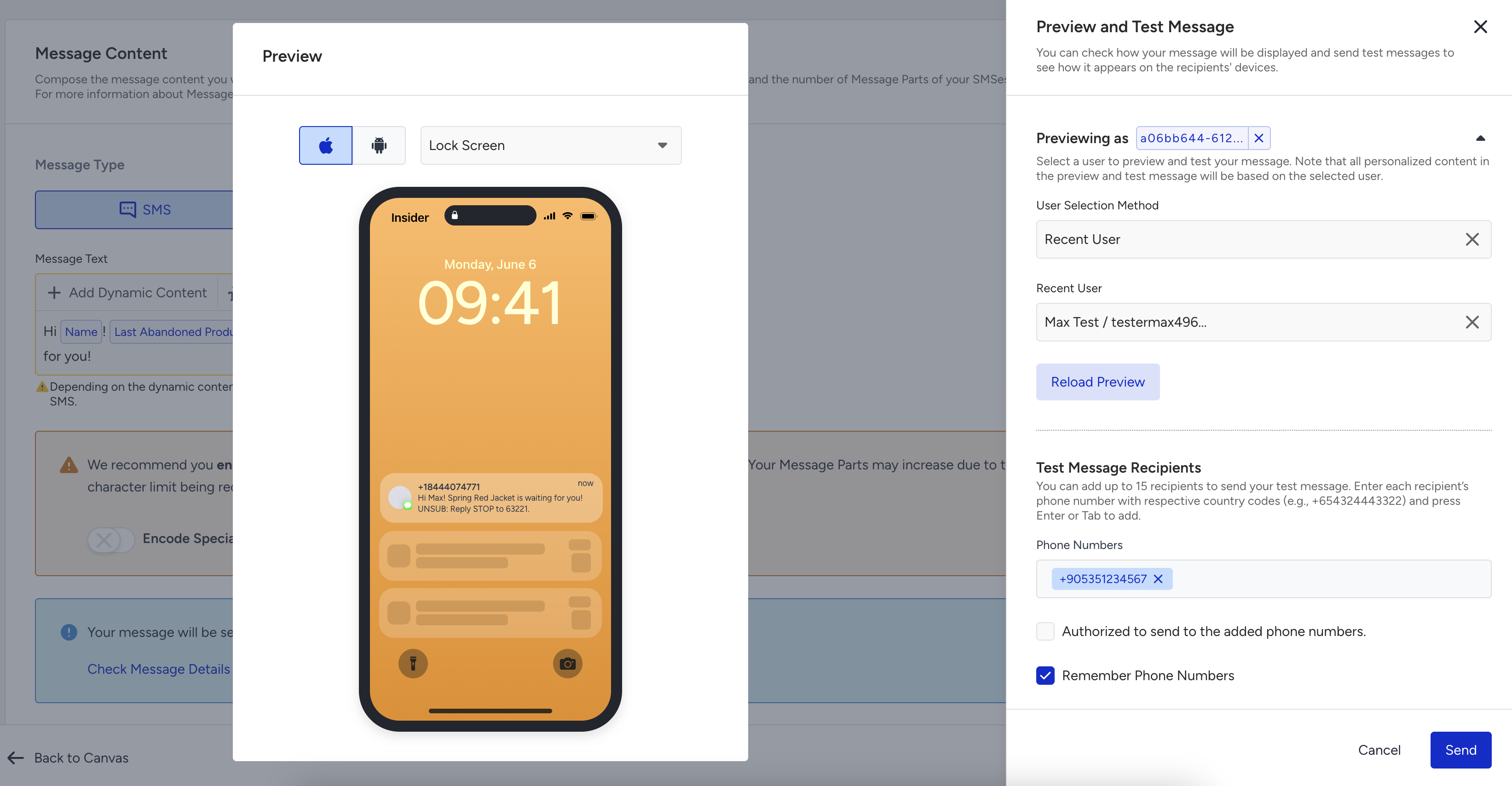
Before sending out an SMS to your users, you should always test it to see how your sender address, subject line, pre-header, and design look.
You can preview your email as a user and send it to your device by clicking the Preview and Test Message button at the bottom-right corner of the page. This allows you to see how your message will appear to end users while your journey is live.
When previewing your message as a user, clicking the Send button delivers the message exactly as the user would receive it, with dynamic content replaced by real values. If no specific user is selected for preview, dynamic content is populated using the test device owner’s values, provided they exist.
You won’t be able to receive SMS messages if you haven’t enabled all SMS Integrations.
12. Rename Channel Name
Channel Name is generated by default based on journey name and channel type. You can rename it at the top right corner if you want to give it a different name..png)
13. Save SMS Element
After configuring your SMS settings, save the SMS page.
Note: SMS settings and content cannot be saved unless you click the Save button. The auto-save function works only on canvas.
Live Actions & User Interactions
Live actions
You can keep users in the flow until they’ve clicked on the link in your SMS message. To use this click live action, select the ‘On Click’ action in the SMS element. It will be set to ‘On Send’ by default, so you don't need to set it unless you want to use this live action.
For 30 days, users will not proceed to the next element unless they receive or click the SMS, or you change the journey status to passive. However, after 30 days, users will proceed to the next element even if they haven’t performed these actions. These users will be displayed in the live stats as “Proceeded (Live Actions)".
In case you have more than one link in your message, the users proceed to the next step if they click any of them.
Checking user interactions
After the SMS element, you can take another action via branching your flow according to users' interactions on SMS after a while.

Read more on Check Interaction.
Note: Users do not take action right after you’ve sent them a message. You need to give them some time, which can be done by adding a Wait element before the Check Interaction element.
Use Cases
Using SMS channel in Architect enables you to:
send offers and deals (e.g. discount offers, limited-time promotions, etc.).
share helpful tips and information (e.g. appointment availability, service hours, etc.).
send welcome/onboarding messages.
collect customer feedback or information such as email addresses.
send cart reminders to convert customers.
launch competitions with rewards.
experiment with new promotion techniques (e.g. quiz with a coupon as a reward).