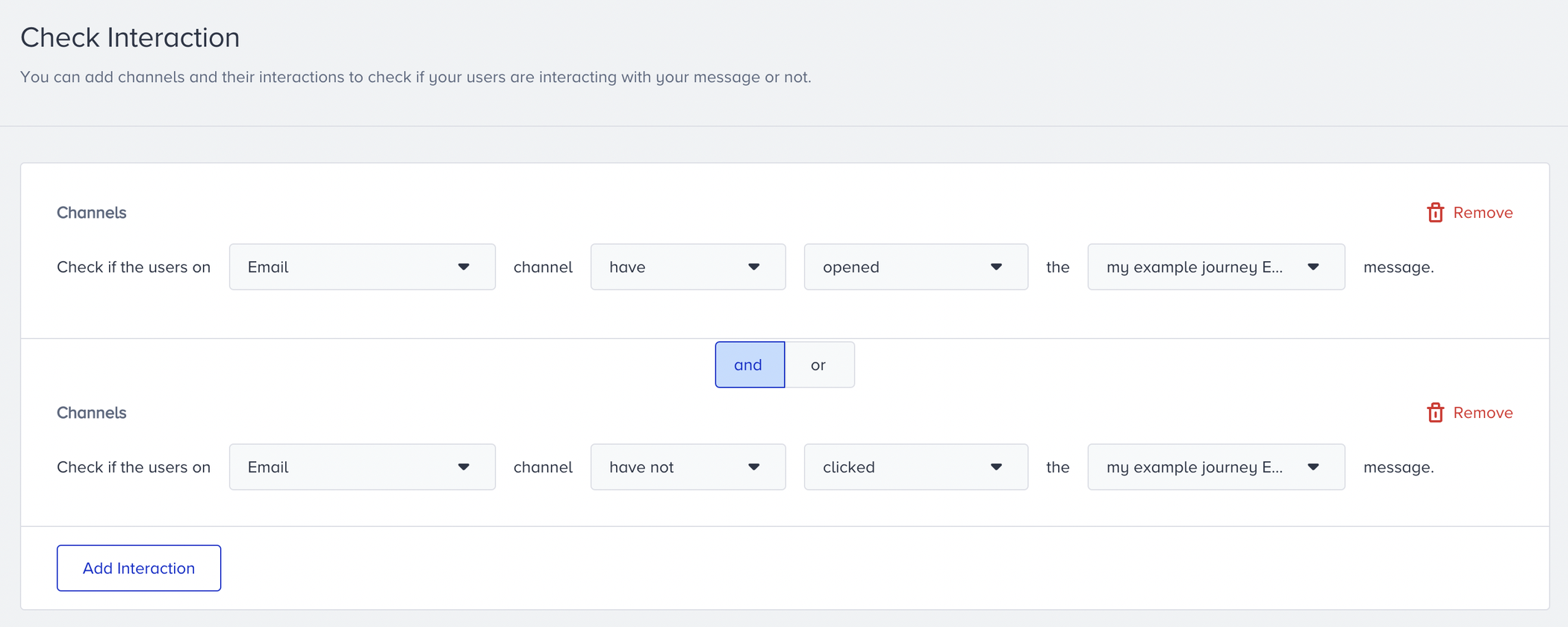
You can follow these steps to use Check Interaction after your Channel and Wait elements in your journey:
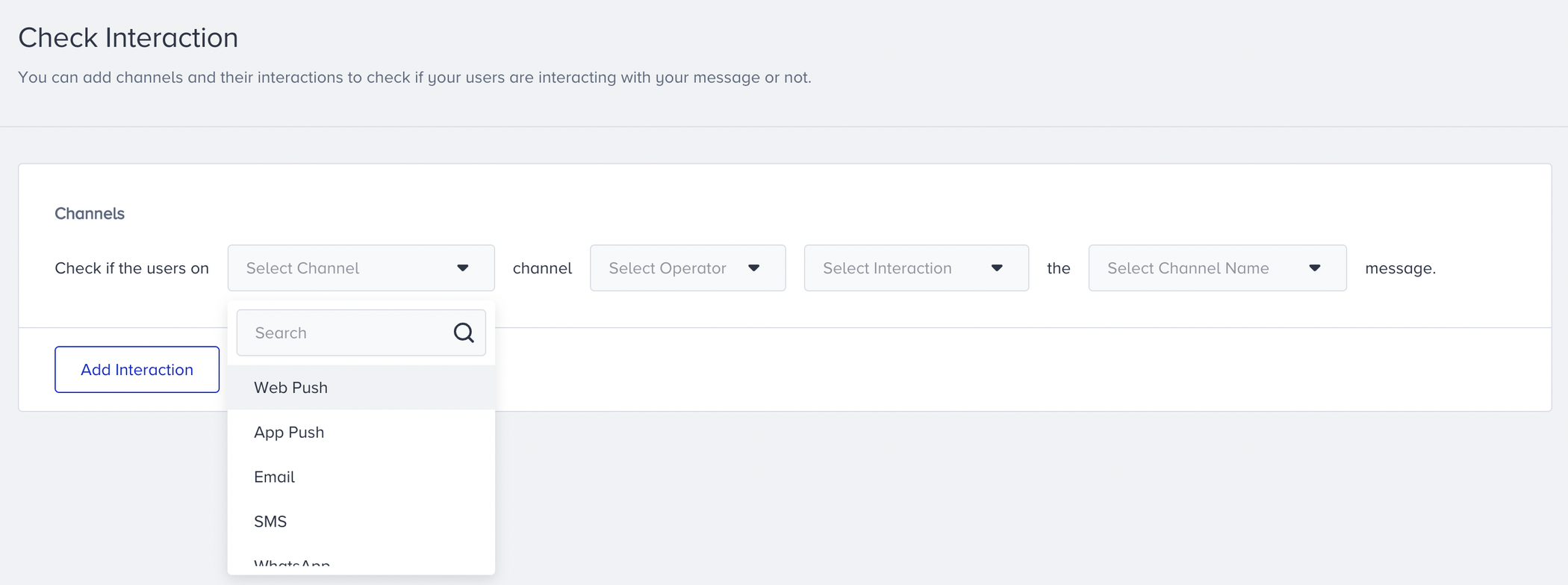
Select the channel you want to check the interactions on.
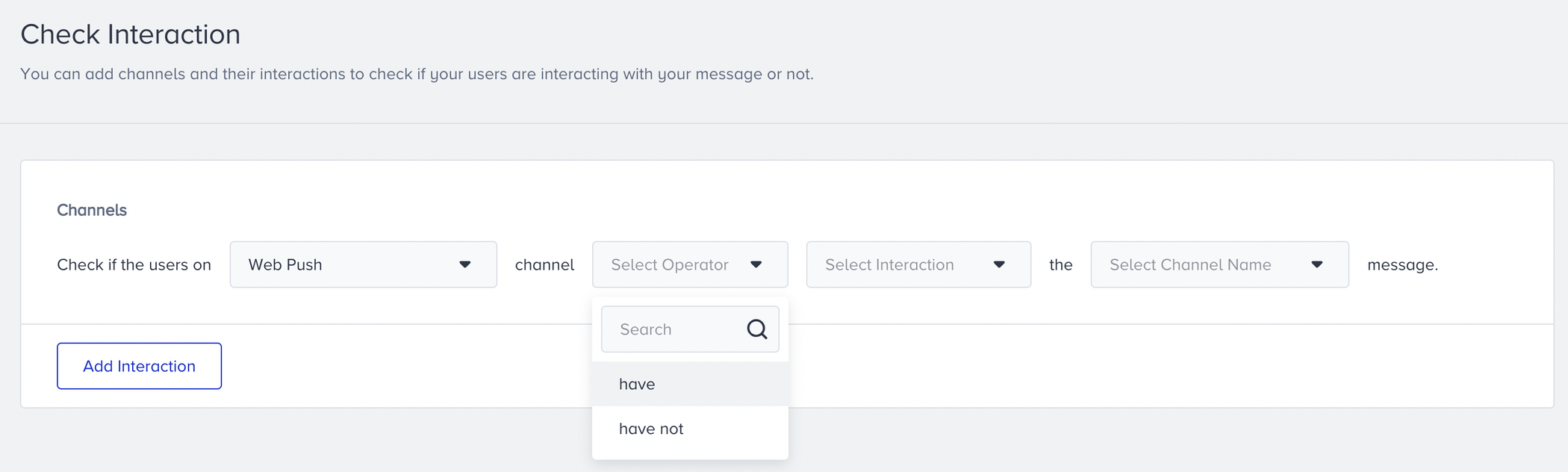
Select the “have” or “have not” operator according to your business case.
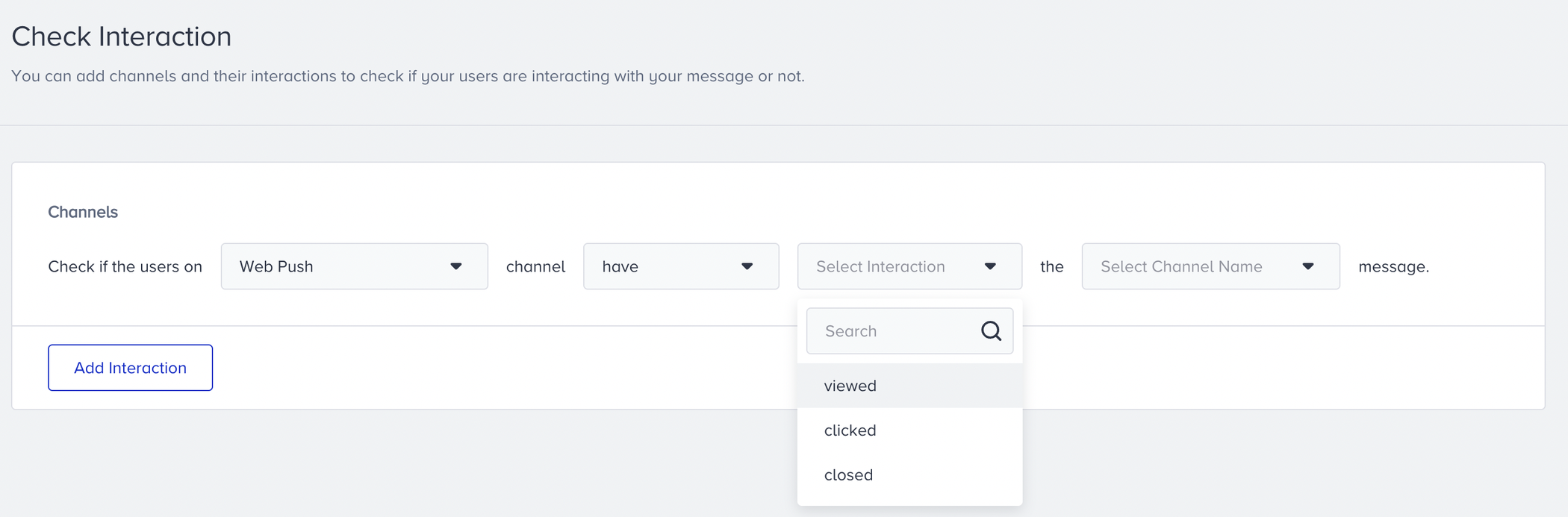
Select the interaction that you want to track.
Select the channel name that you added before to the canvas.
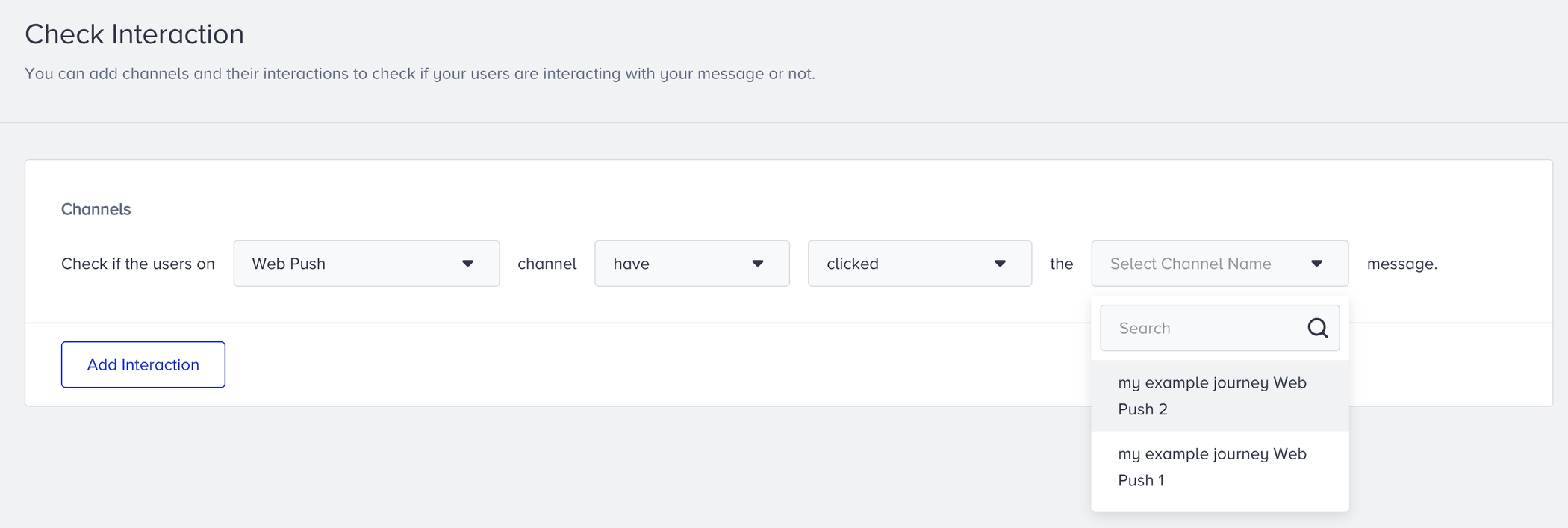
If you want to track multiple actions or channels, you can add multiple Check Interaction blocks. Save the element to continue designing your journey.
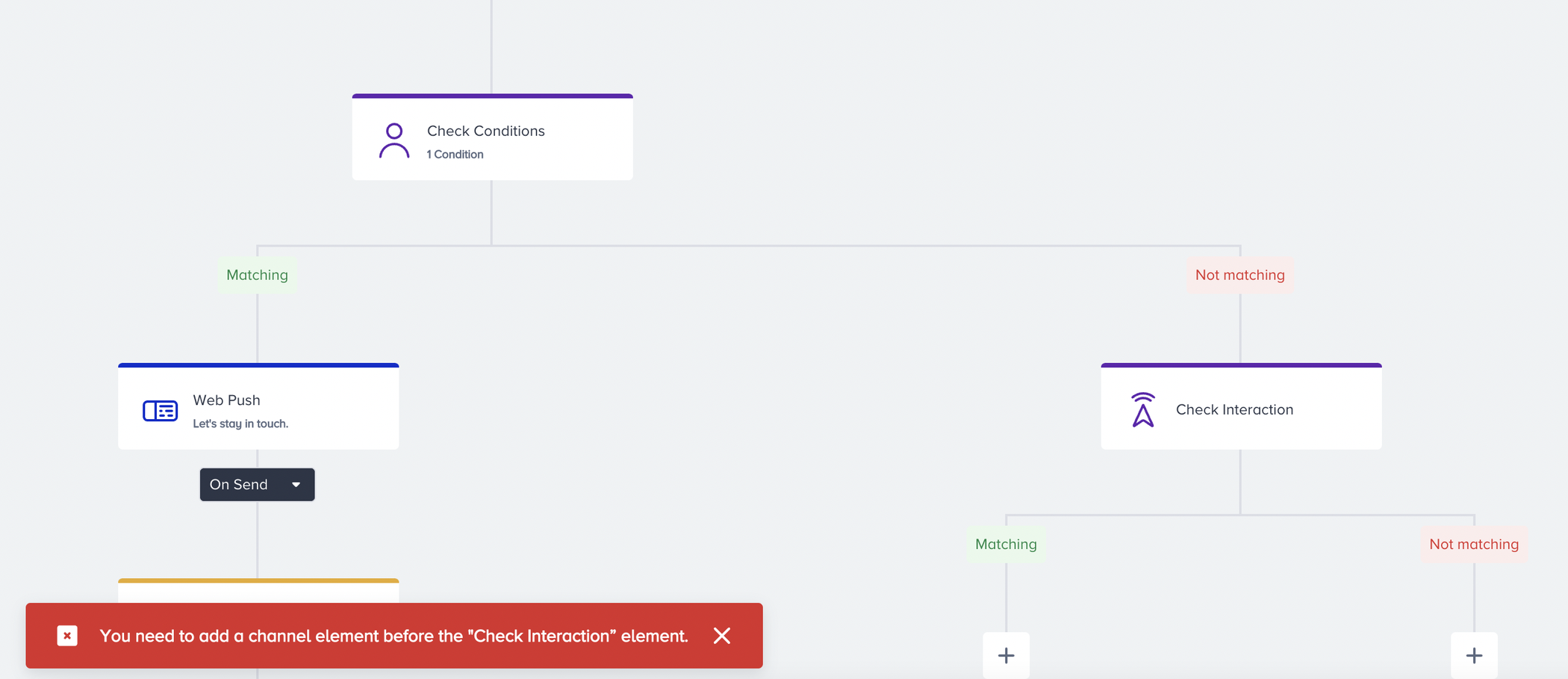
If there is no channel between the Starter and Check Interaction element, you cannot select the channel name inside this element.
You cannot select the channels on this element's parallel path.
Tips and tricks
Consider the following items when using the Check Interaction element in your journey.
You can add a Wait element before the Check Interaction element and set a minimum wait time of 1 hour for users to take the desired action.
You can check multiple users' interactions in a single Check Interaction element. For example, you can check whether the user has opened the email but not clicked on the URL in the email.