Insider One now offers a centralized and flexible way to manage multiple SMS unsubscription methods directly from your panel. You can customize opt-out settings per campaign and localize unsubscribe keywords. Refer to Centralized SMS Unsubscription Management for further information.
With the SMS Unsubscription with Keyword method, you can collect unsubscribe requests from your users via text messages that include a specific keyword.
To use this method, you need:
A phone number / Numeric Sender (Short Code, LN, VLN, or TFN)
Unsubscribe keywords to collect messages with opt-out keywords
It is not possible to collect unsubscribe requests using the Alphanumeric Sender ID.
After you decide on the Unsubscribe Keyword and Phone Number with the help of the Insider One team,
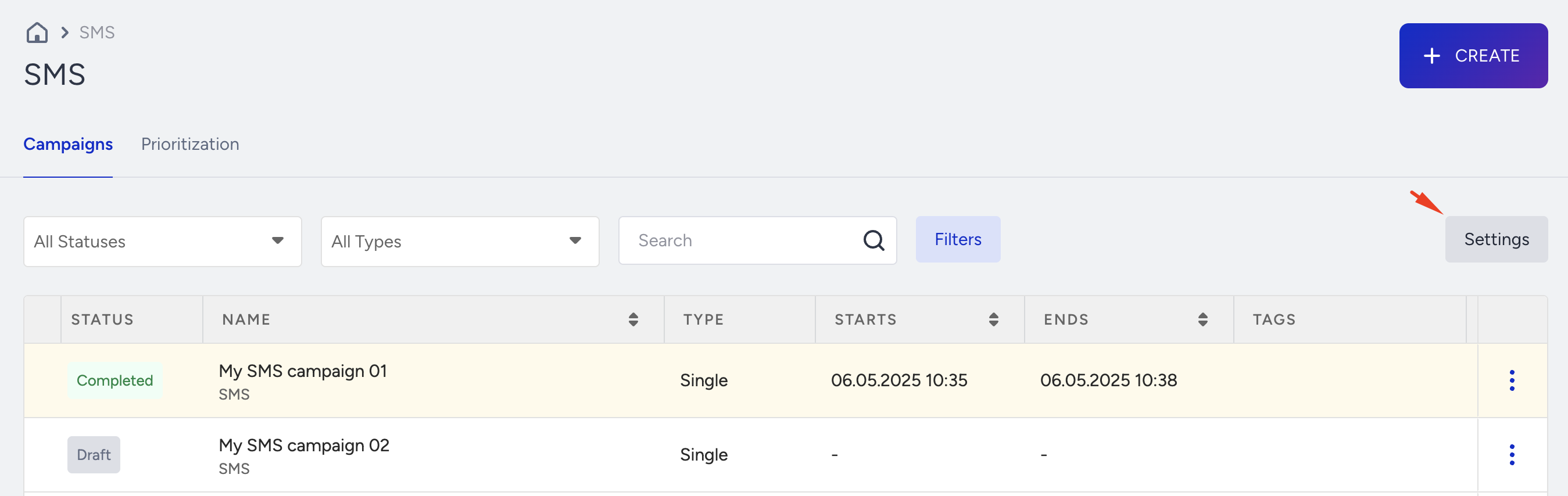
Navigate to the SMS campaign listing page and click Settings.
Click the Unsubscribe tab.
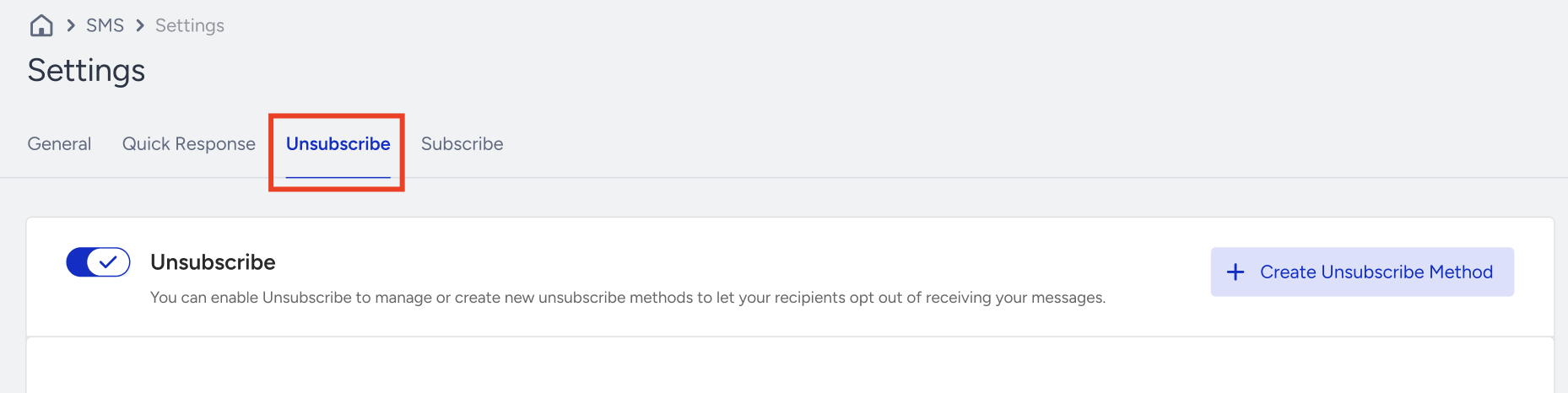
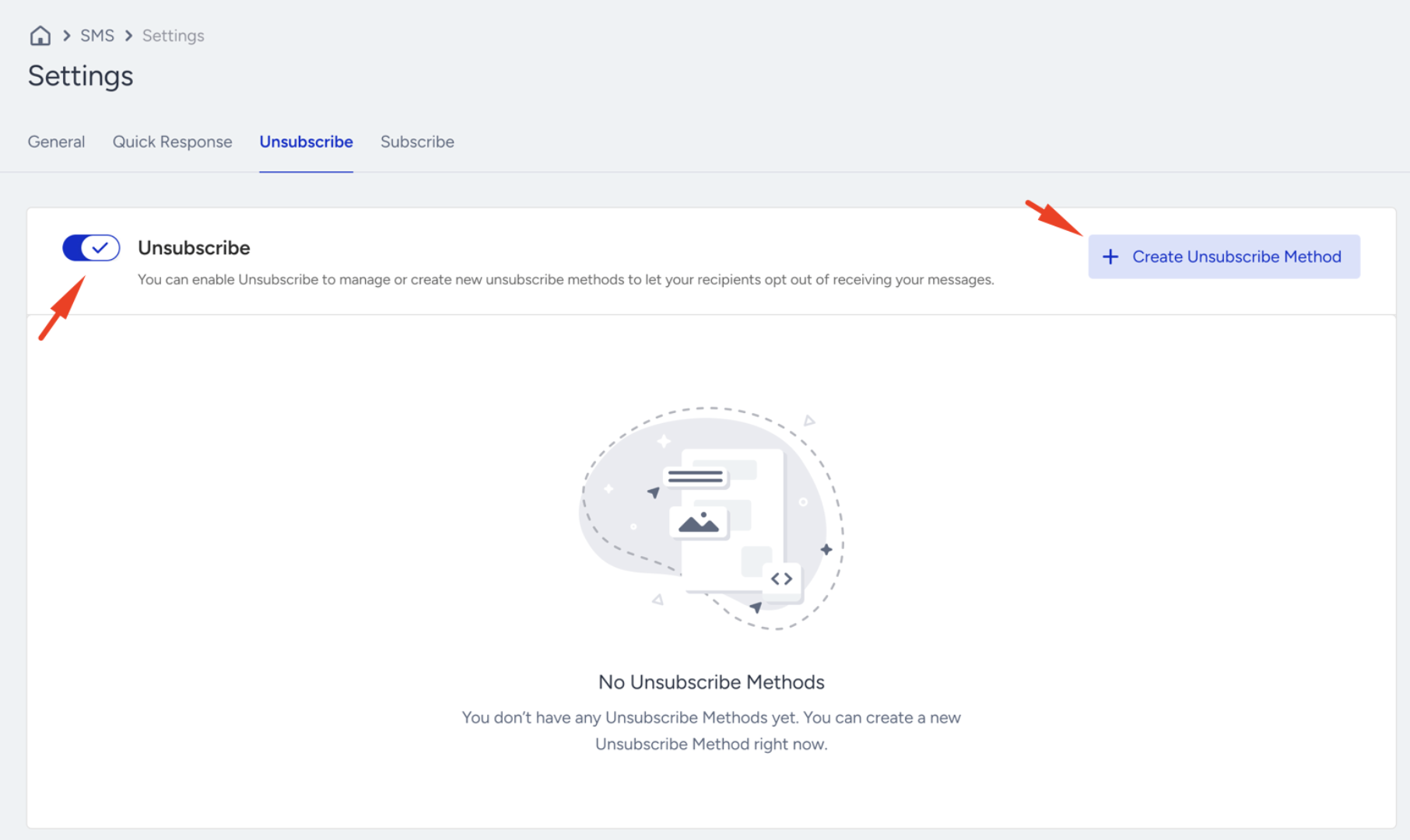
To create a new unsubscribe method, click the +Create Unsubscribe Method button.
Ensure the Unsubscribe toggle is enabled.
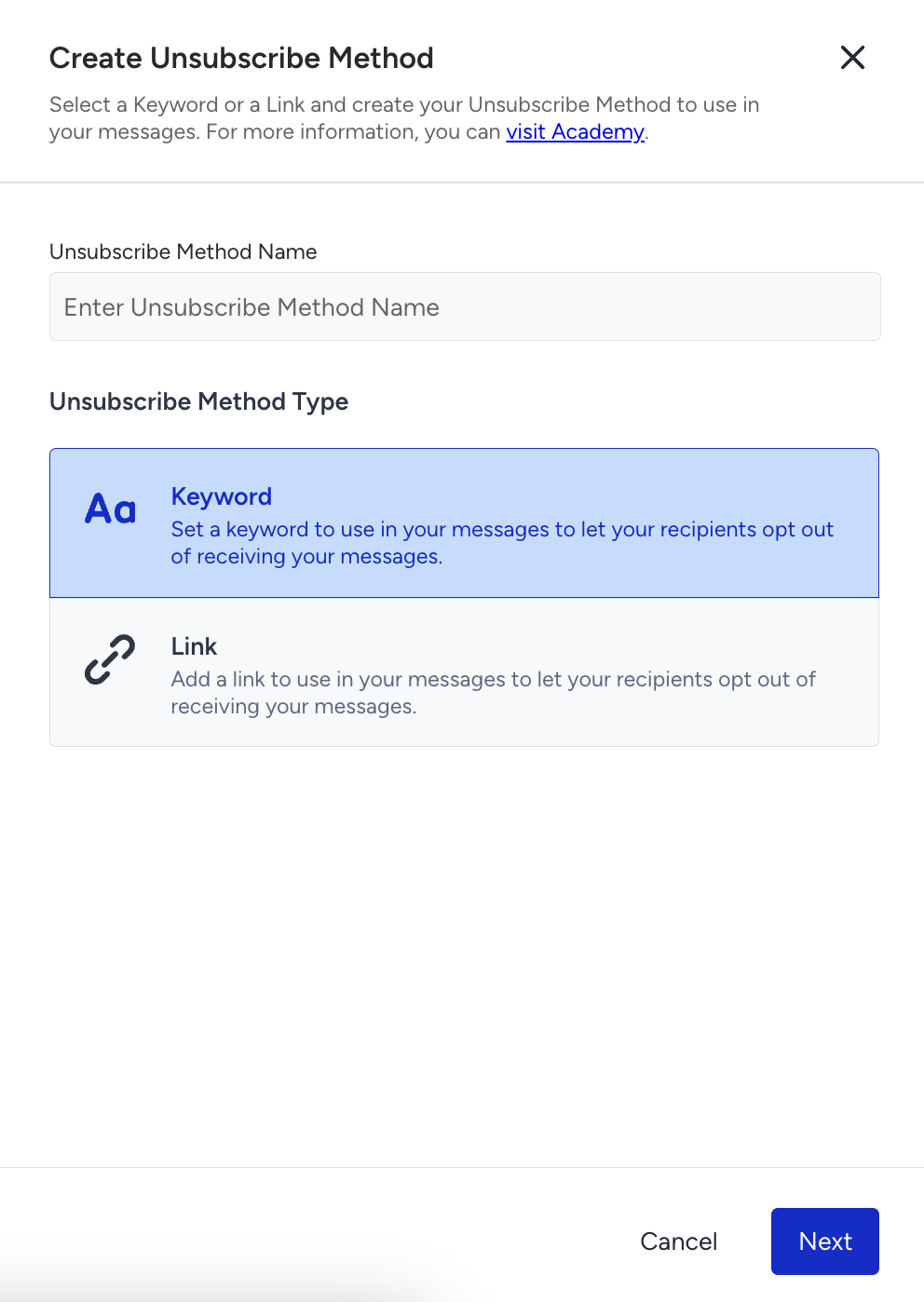
Type a name for the unsubscribe method and select "Keyword" as your Unsubscribe Method type. Click Next to continue.
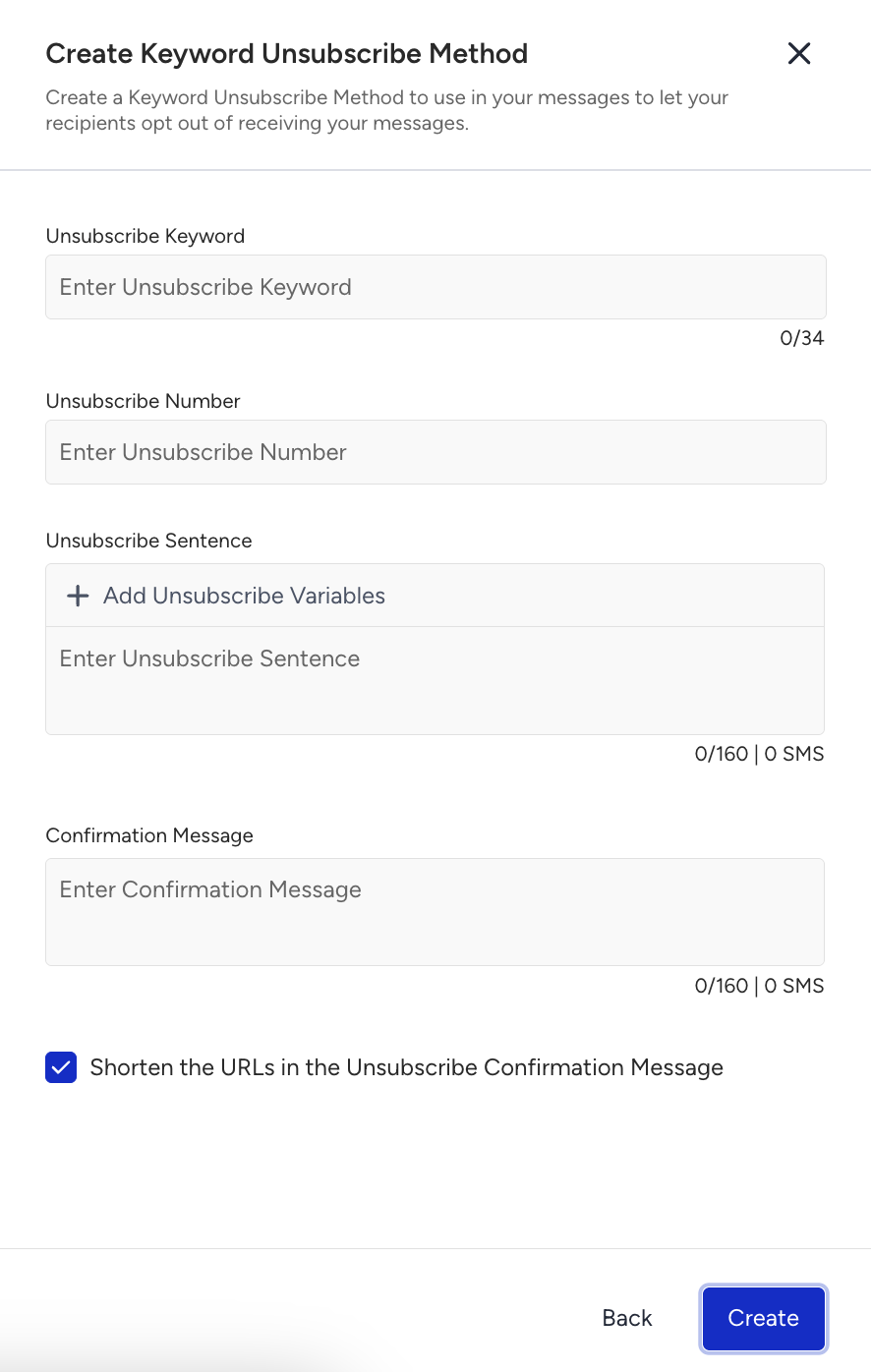
Enter the Unsubscribe Keyword and Unsubscribe Number.
Click the +Add Unsubscribe Variables button to customize your Unsubscribe Sentence.
Add a Confirmation Message to inform your users.
After filling in the details, click the Create button.
The Unsubscribe Sentence is added to your messages by default.
If you prefer not to include an unsubscribe sentence in your SMS campaigns, disable the “Enable Unsubscribe Sentence” toggle during the Design step of the SMS campaign creation process. 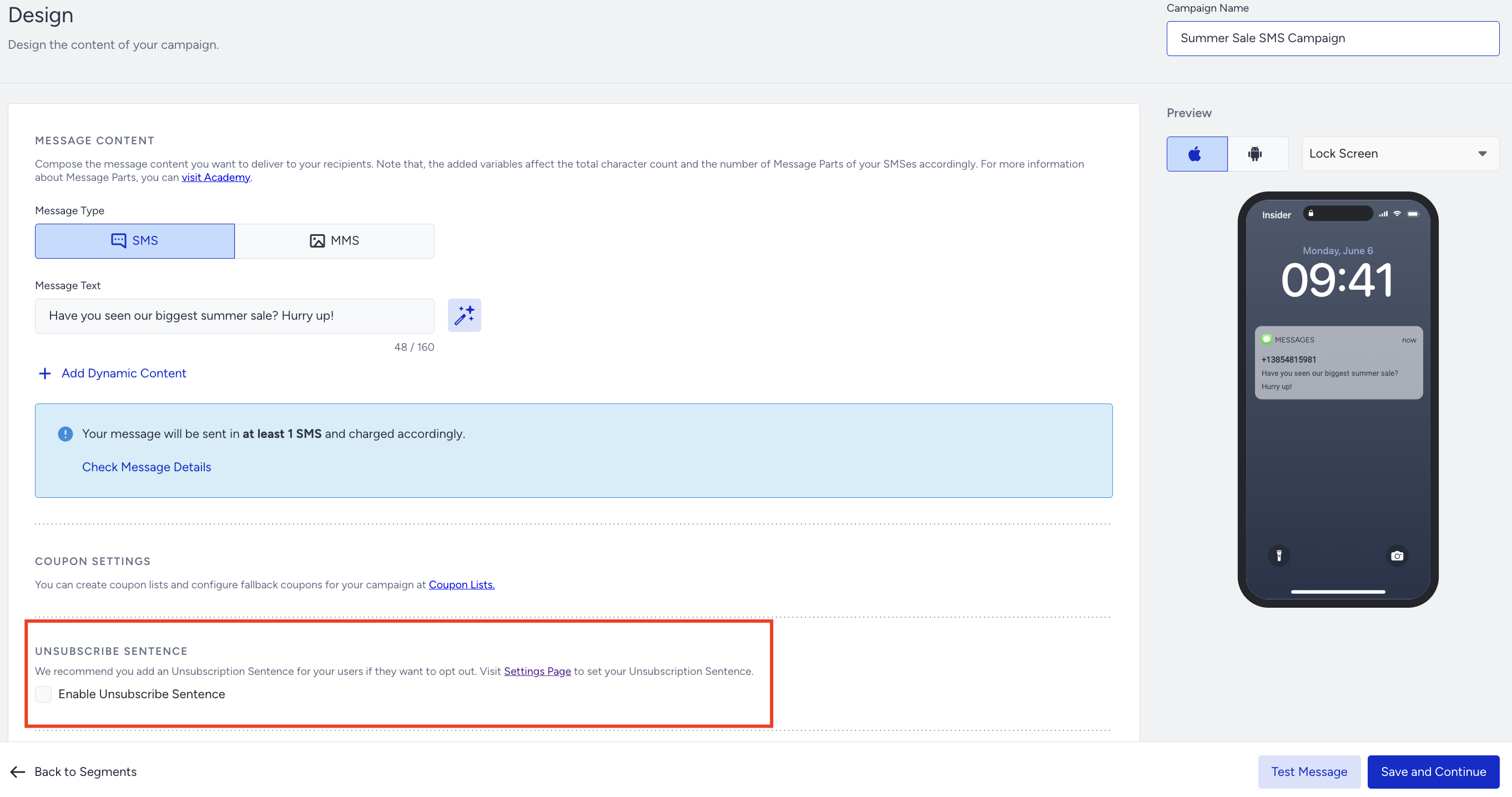
When you change the default unsubscribe method, it will automatically be updated across all existing journeys in Architect, regardless of their status. This means changing the default unsubscription method will also update all SMS elements using the current default across active journeys. Please proceed with caution, as this may affect ongoing communications.
A user can receive a maximum of five confirmation messages per day for the unsubscribe process.
Resubscription after a keyword opt-out
When a user unsubscribes by texting an opt-out keyword, they are added to a suppression list at both the Insider One and service provider levels. The steps required to resubscribe them; and who can initiate that process, depend on the region and the type of sender number used.
Important: There is currently no Insider One API or business-side action that can resubscribe a user on your behalf. In all regions, resubscription must be initiated either by the end user directly, or through a fresh consent process. Attempting to message a suppressed user before resubscription is completed will result in send failures.
Regional resubscription requirements
The table below outlines the resubscription method, whether an API can be used, and what action is required per region:
Country | Resubscribe method | Insider API works? | User action required? | How user gets resubscribed |
|---|---|---|---|---|
New Zealand | User text keyword. | No | Yes | End users must text START (or the configured resubscribe keyword) to the same shortcode they unsubscribed from. No business-side or API-based resubscribe flow is available. Confirmed by Tallbob in DEL-1725. |
United States (toll-free numbers (TFN)) | User text keyword. | No | Yes | End users must text START or UNSTOP to the same toll-free number. Twilio’s YES keyword does not work for TFN. Requests fail with Twilio error 21610 or Sinch error 257. Twilio has publicly stated that STOP/UNSTOP cannot be disabled for toll-free numbers. |
Canada (toll-free numbers) | User text keyword. | No | Yes | End users must text START, UNSTOP, or the French equivalents NONARRET or DEPART to the toll-free number. The same network-level suppression rules apply as in US TFN. |
France | Fresh consent (web form or other opt-in). | No | No (but a new opt-in is required) | Operator blocks are removed only after the user completes a new opt-in flow, such as a web form, and you have a new documented consent record. ARRET and NONARRET are managed at the operator level. No business-side or API-based resubscribe flow is available. |
India | Fresh DCA consent via DLT (OTP-verified by telco) after a 90-day cooldown. | No | Yes (OTP verification) | TRAI regulation requires a mandatory 90-day cooldown period after consent revocation. After the cooldown, you must collect fresh DCA (Digital Consent Acquisition) consent through the DLT Consent Register. The customer verifies the request through an OTP sent by the telecom operator. DCA consent remains valid for 12 months and must then be renewed. |
Turkey | User updates IYS directly or you uploading fresh consent to IYS. | No | Optional (user self-update or your upload) | Users can update their consent status directly through iys.org.tr or the e-Government portal. Alternatively, you can collect fresh explicit consent and upload it to IYS within 3 business days. Without an active IYS opt-in, the intermediary service provider must not deliver messages. |
For regions not listed above, contact Insider One team to confirm the applicable resubscription process before attempting to re-engage opted-out users.