Display Settings control which days of the week and which hours of the day your campaign is shown to users. This setting works alongside Activation Time, which defines when the campaign first goes live. Display Settings define the recurring window during which the campaign is visible after launch.
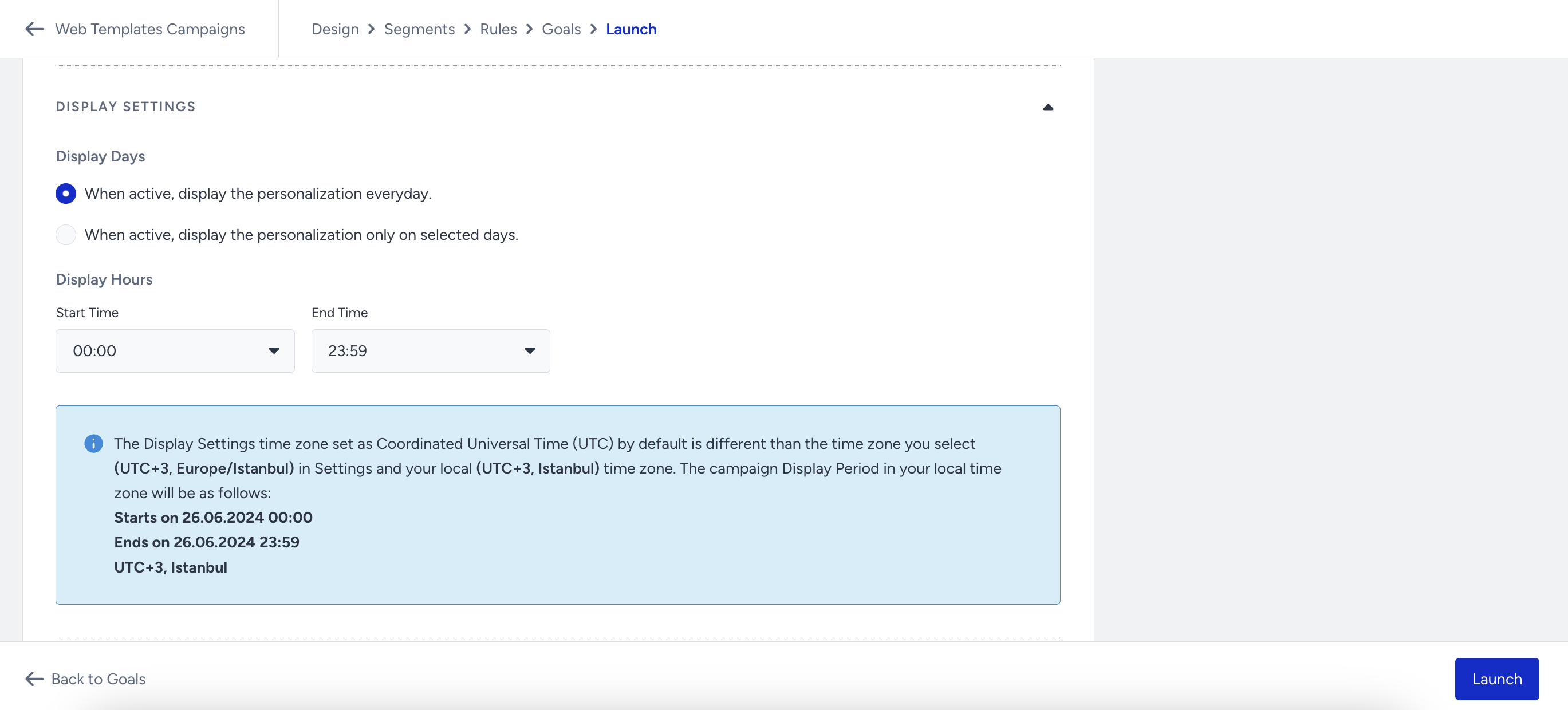
Display Days
Select how often the campaign is displayed while it is active:
When active, display the personalization every day: The campaign is shown on all days of the week. Use this for always-on campaigns such as welcome messages, onboarding flows, or persistent promotional banners.
When active, display the personalization only on selected days: The campaign is shown only on the days you select. Use this when your promotion is day-dependent, for example, a weekend sale or a weekday-only offer.
Display Hours
Set the Start Time and End Time to define the daily window during which your campaign is shown. By default, Start Time is set to 00:00 and End Time to 23:59, meaning the campaign runs all day.
To restrict delivery to specific hours, for example, a lunchtime offer or an evening flash sale, update the Start Time and End Time dropdowns to match your intended window.
Time zone behavior
Display Settings uses Coordinated Universal Time (UTC) as its default time zone. If your account time zone differs from UTC, the panel automatically detects the difference and displays your campaign's Display Period converted to your local time zone in an info banner below the Display Hours fields.
Example:
If your account time zone is UTC+3 (Europe/Istanbul) and your Display Hours are set to 00:00 to 23:59, the banner confirms:
Starts on 26.06.2024 00:00
Ends on 26.06.2024 23:59
UTC+3, Istanbul
Always review this banner before launching to confirm the campaign will display at the correct local time. If your account time zone is not configured correctly, update it under Account Settings before proceeding.