InStory attracts users' attention in a way that feels familiar from social media. InStory can also improve engagement metrics such as average time on page, average session duration, bounce rate, pages/session, and page views.
Requirements
Complete the Initial Website Integration before starting to use Insider One's InStory product.
To create a Mobile Web InStory campaign,
1. Navigate to Campaigns > Optimization > InStory.
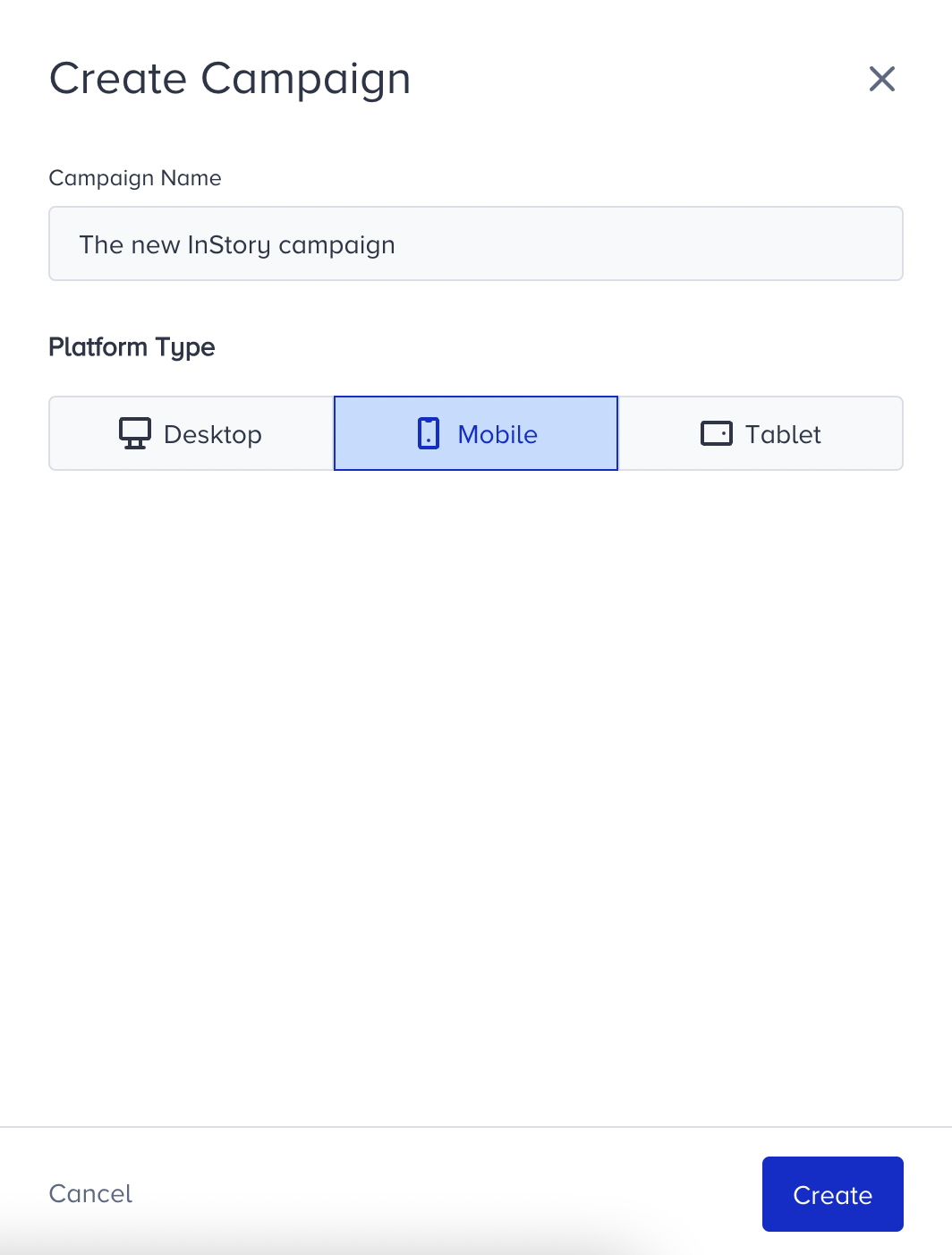
2. Click the Create button. Name your campaign, choose your platform type, and click the Create button.
3. Configure your segments to narrow down your target audience.
4. Select your rules to decide when to show your campaign to your target audience.
5. In the Design step, click Add a new variant to start designing your version of your campaign to display.
6. Choose your template to design your InStory campaign. Then, select your element to insert the template.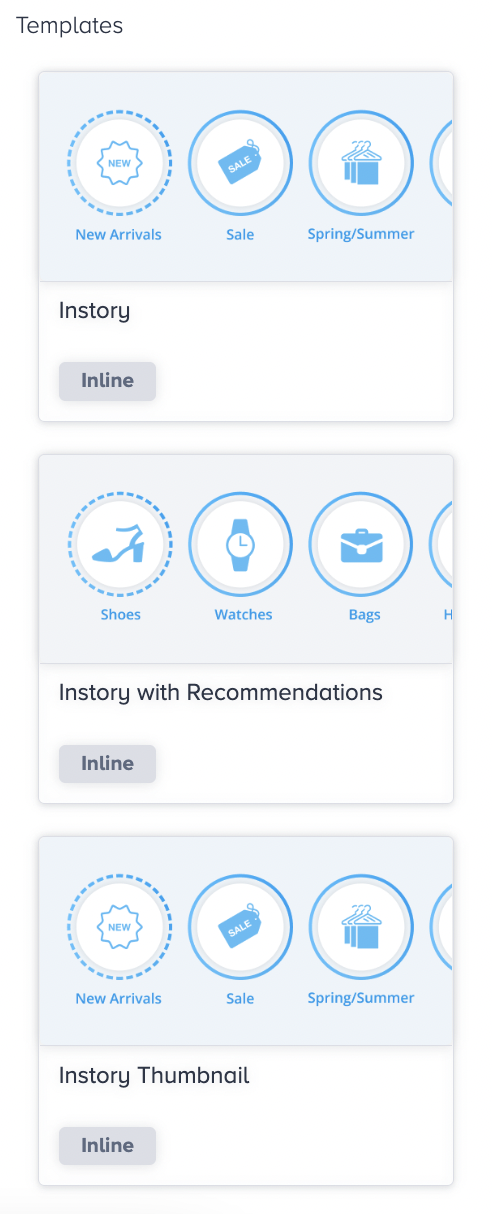
Single Story template is the only one-story template. You can select Single Story to show one story in each bubble.
Multi-Story template is a more advanced version of the Single-Story template, allowing you to add up to five stories in each bubble.
Recommendation Story template is a more interactive version of Smart Recommender products. It helps you recommend products in the story format based on the algorithms you select.
Thumbnail Story template is the no-full story format. You can customize the thumbnail images for bubbles and redirect users to specific URLs when they click them.
The user experience is similar to the Instagram shopping experience. Users can view a summary of the product's image, name, price, and discounted price, then access the details with a single click or by swiping up, similar to how they do on Instagram. It enables users to find and discover your latest products, popular products within a specific category, or trends with just one click, thanks to an engaging interface.
Product recommendations are based on product performance rather than individual consumer behavior or current context.
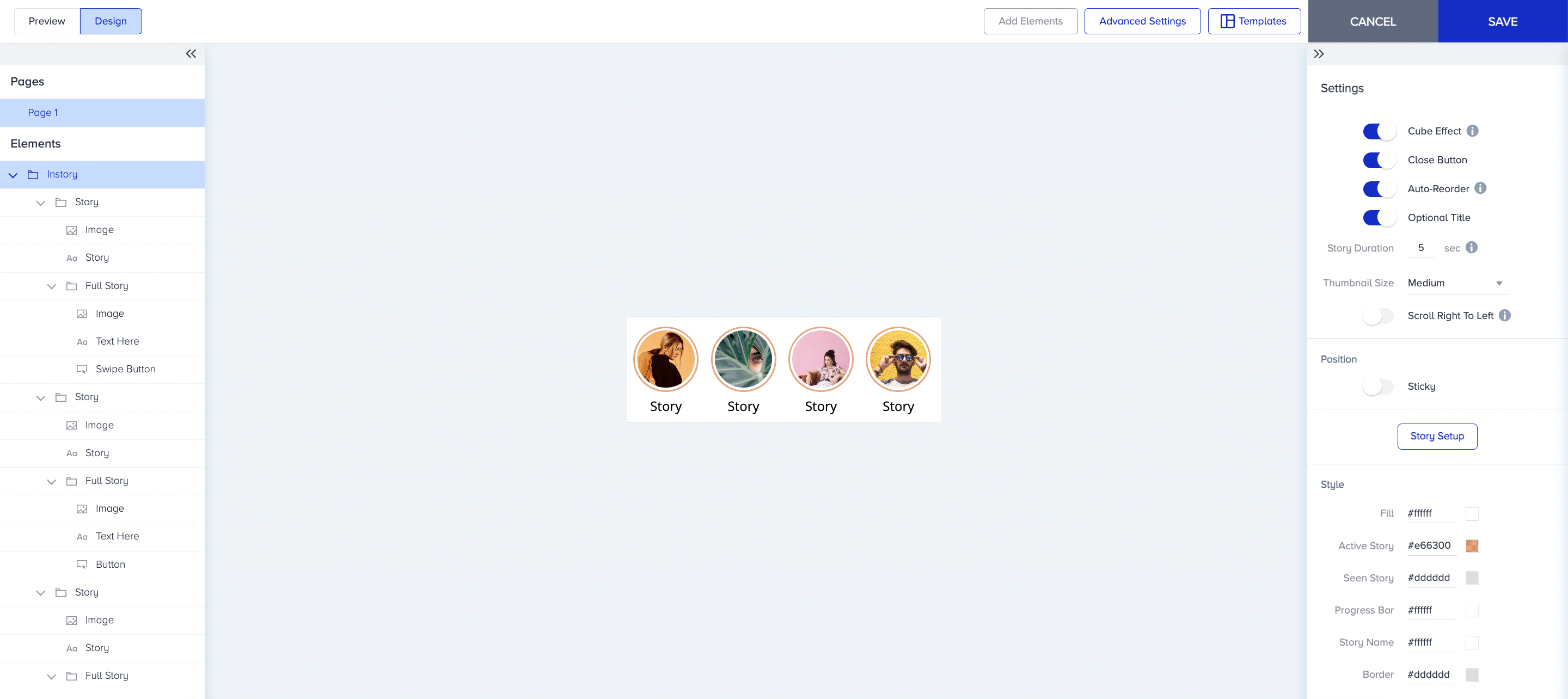
7. Customize the image and text settings and style. You can also add elements to your story and design a full version. You can configure Story Setup. Once you finalize your design, click Save. Allocate its traffic amount on the Design step.
8. Set your goals to track the performance of your campaign.
9. To launch your campaign, make the language selection, set activation time, display settings, and advanced settings to receive the results. You can activate or deactivate your campaign, or save it in Test mode to test it before launching.
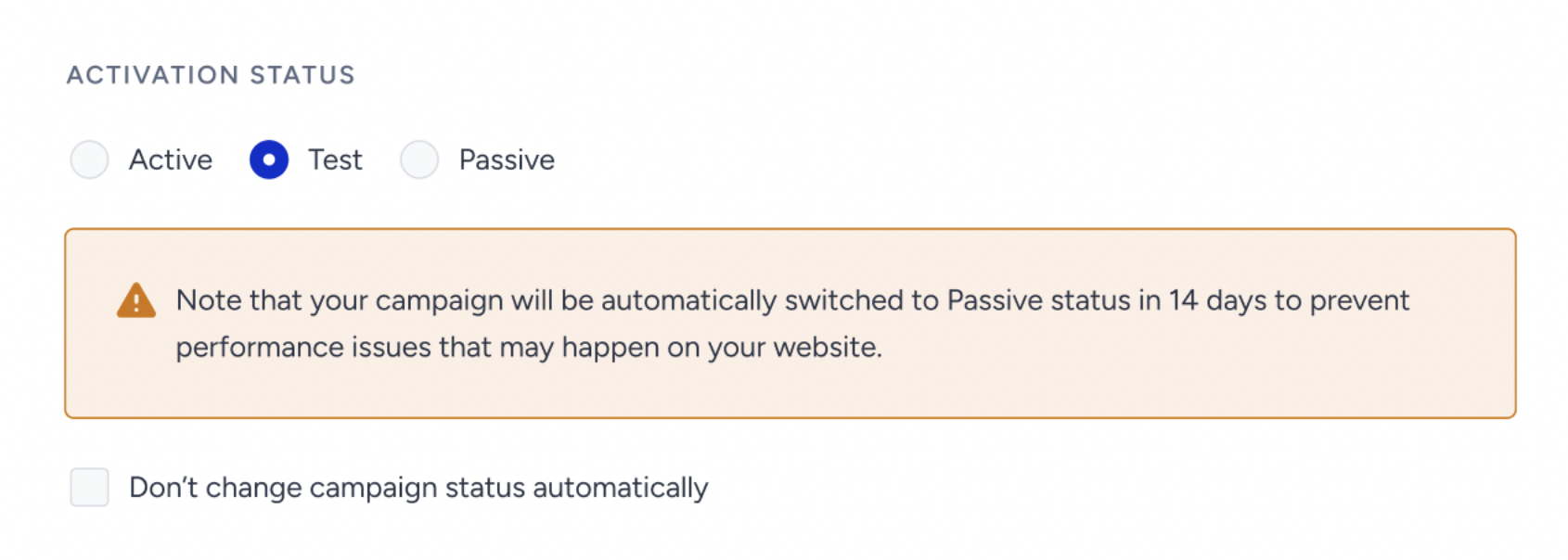
As of February 19th, 2025, Test campaigns will be automatically deactivated after 14 days if their status is not updated. To prevent this, you can select the appropriate option in the Launch step.
This change applies only to newly created campaigns. Existing campaigns will not be affected.
When selecting the Test status in the Launch step, a warning message will indicate that the campaign will be deactivated in 14 days.
To disable automatic deactivation, simply check the box below the warning.
For campaigns that remain in Test status beyond 14 days, an informational message will appear in the Details Modal on the listing page.