Postman is a powerful platform designed to simplify how you explore and test APIs. With its visual interface, you can send API requests, inspect responses, manage headers, and debug integrations, all without writing a single line of code.
To support faster testing and onboarding, we’ve created a Postman Collection that includes practical request examples for each of our REST API endpoints. You’ll also find a dedicated “Run in Postman” button next to each endpoint in our articles, so you can open individual requests directly in your Postman app; no manual copying needed.

Click the Run in Postman button in our Postman documentation to view or import our entire Postman Collection.

Use the Insider One Postman Collection
To use our collection, you’ll need a Postman account. You can download Postman for macOS, Windows, or Linux from postman.com.
Once installed:
Open the Insider One Postman documentation and click the Run in Postman button.
Import the full collection into your Postman workspace.
Set up a new environment, or use the provided Insider One API Environment template.
Customize the available GET, POST, PUT, and DELETE requests to suit your project's needs.
This setup makes it easier to authenticate requests, test different payloads, and explore all supported use cases without writing any code manually.
Categories in the Insider One API Postman Collection
The categories listed below provide only a high-level summary of available endpoints.
The official Postman collection (available at developers.insiderone.com) contains far more detailed request templates, examples, payload formats, and advanced use cases to help with real-world integrations and testing:
User Subscription APIs
Messaging APIs
Reports & Analysis APIs
Set Up Your Postman Environment
To help you test Insider One’s REST APIs more efficiently, we provide a Postman Collection and a templated environment that uses variables such as {{transactionalEmailApiKey}}. These variables eliminate the need to update each request manually.
You can either use the ready-made Insider One environment or create your own.
Use the Pre-Built Requests
Once your environment is ready:
Open any request from the Insider One API Collection.
The request opens in a new tab with variable-based values prefilled.
Edit the request in the Body section. We recommend you view the JSON format by selecting the raw option.
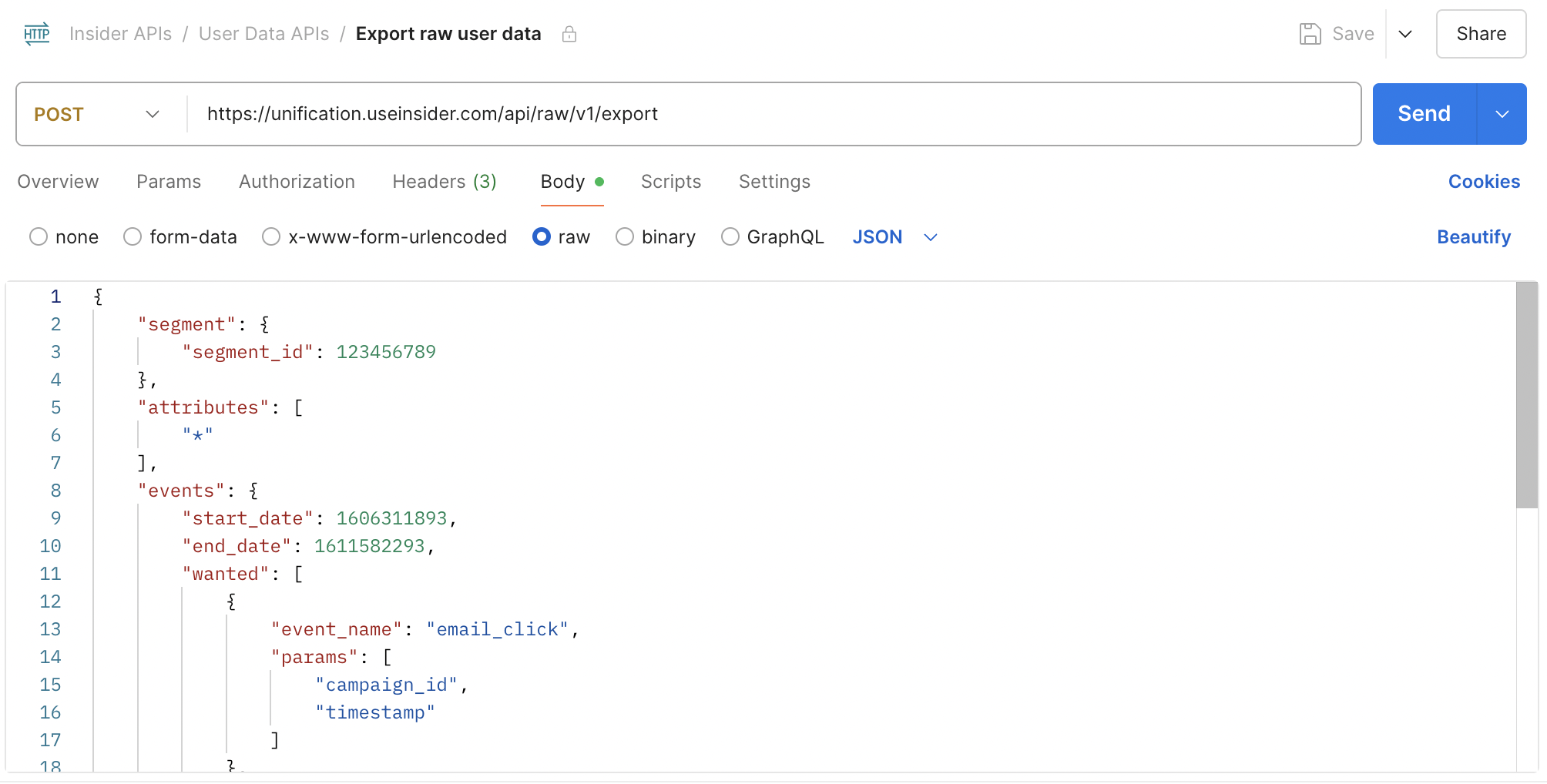
Click Send to execute the request. You’ll see:
API response body
HTTP status code
Response time
Header details
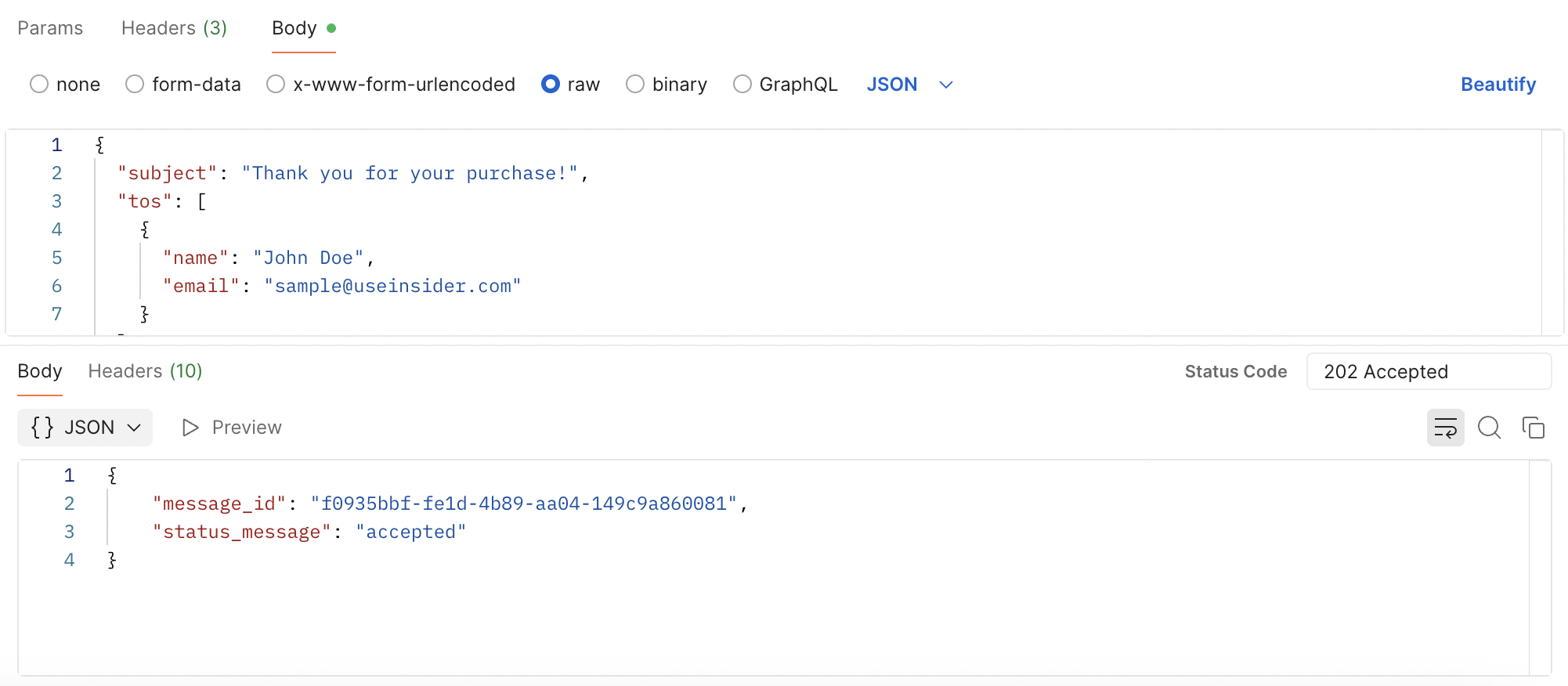
This makes it easier to debug and validate your integration in real time.