Requirements
Before creating a Single SMS campaign:
Complete the SMS Channel Setup before starting to use Insider One's SMS product.
Complete the SMS Opt-in Integration to collect SMS opt-ins and send messages to subscribers.
Single SMS lets you send customized content to your subscriber base or a segmented group within it. SMS solution engages subscribers on their mobile devices with personalized messages and drives growth.
You can create campaigns with promotional content and send your messages on a future date and time.
In this article, you can find answers to these questions:
Create a Single SMS Message
Navigate to InOne > Campaigns > Messaging > SMS/MMS/RCS.
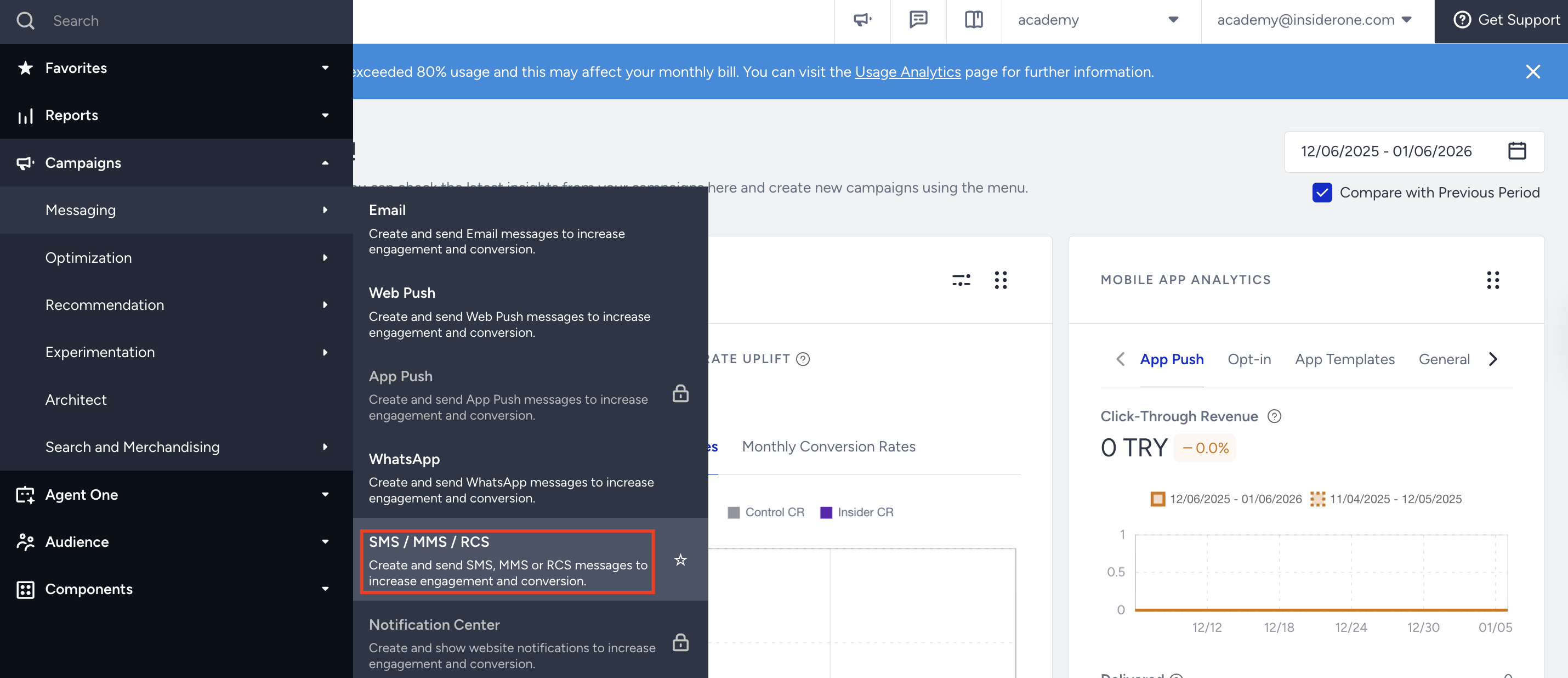
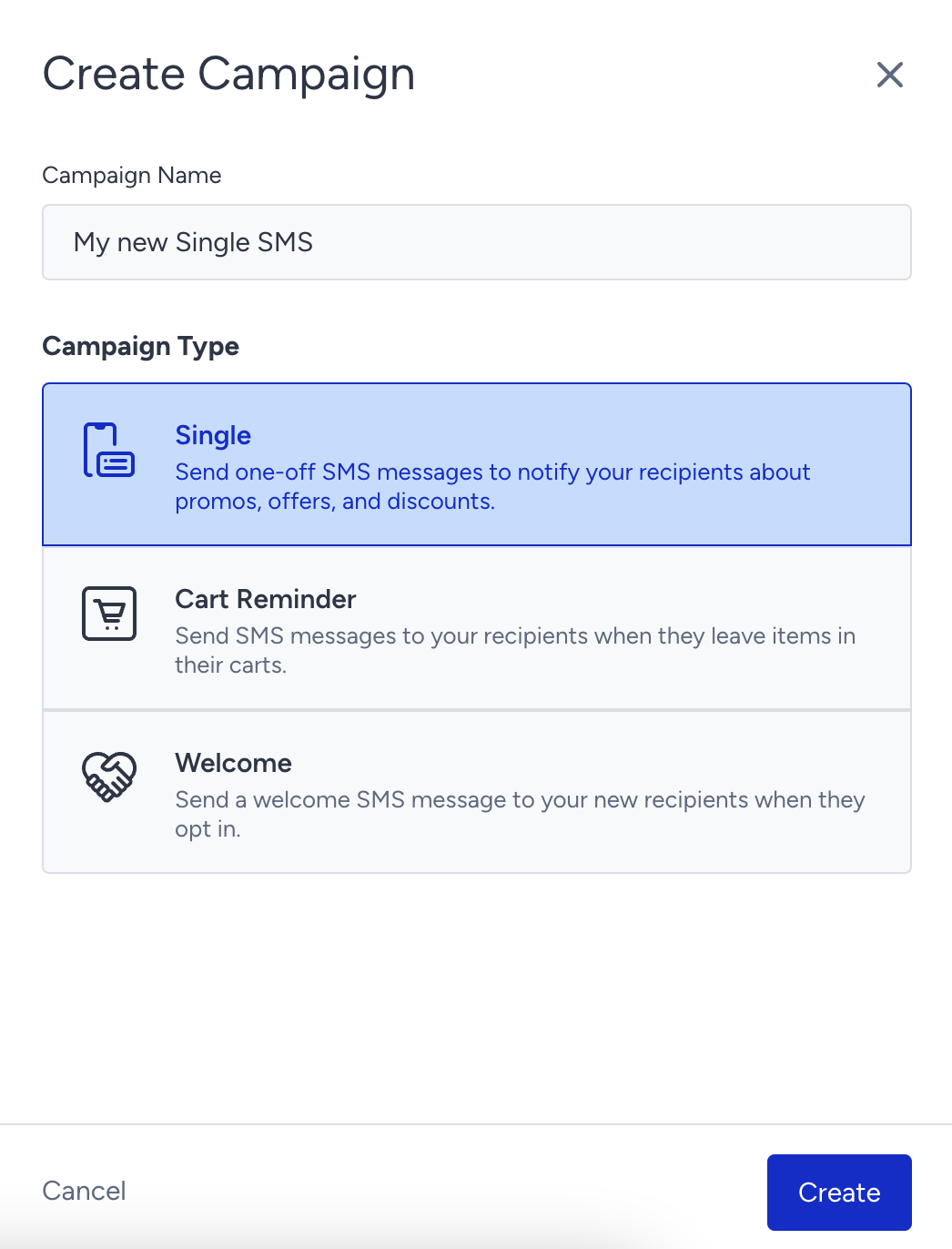
Click the Create button, select Single SMS Message, and name your campaign.
Segment your audience
1. Select your subscriber language to tailor the message to subscribers who use that language. Select “All Languages” if you want to use the same message for all subscriber languages.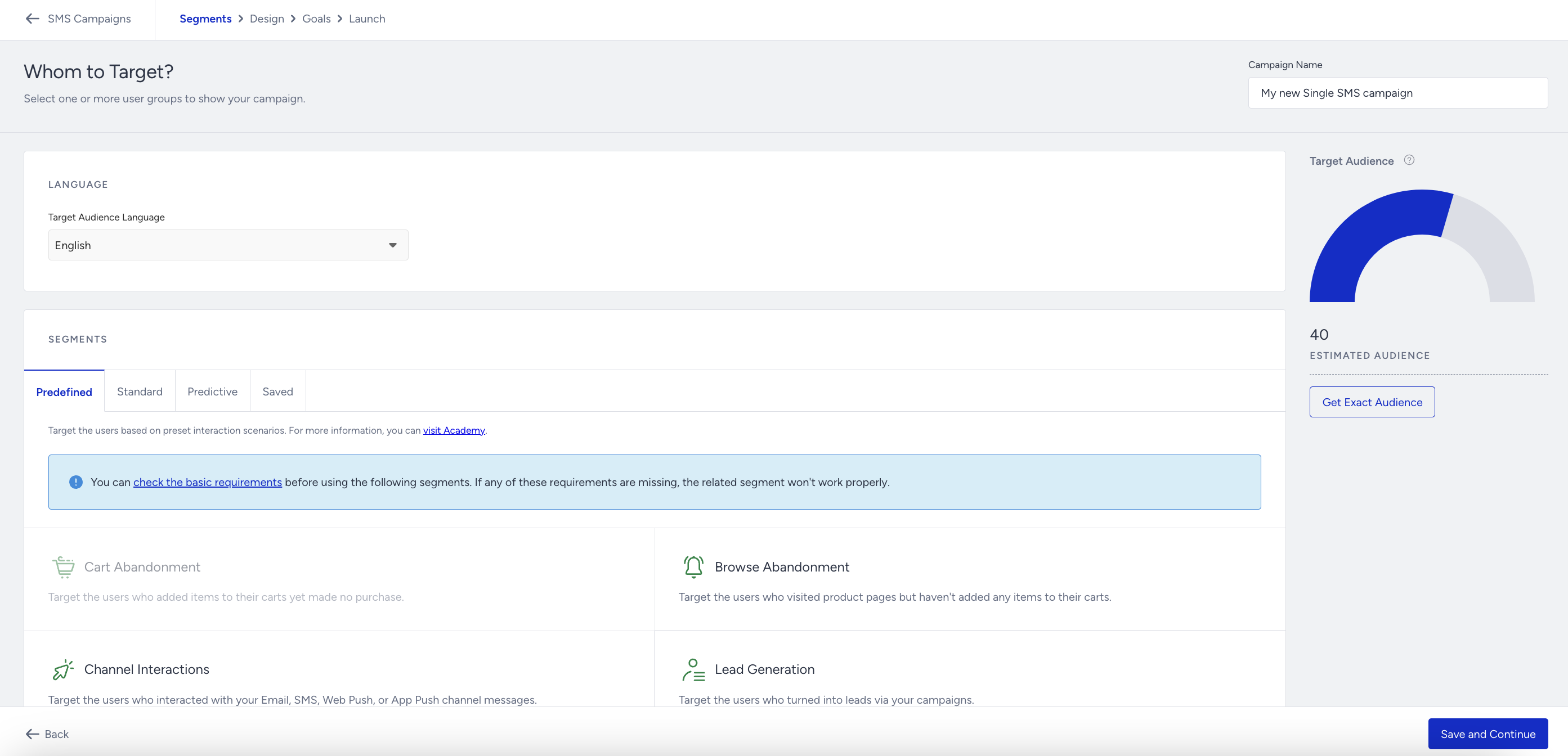
2. Create a segment group to target the relevant audience if needed. You can use the following segmentation options: Predefined Segments, Standard Segments, Predictive Segments, and your saved segments.
Design your Single SMS message
1. Use default attributes or custom attributes to personalize your message. Add a fallback value for cases where the selected attribute has no value.
Single SMS campaigns support text messages and do not support media content.
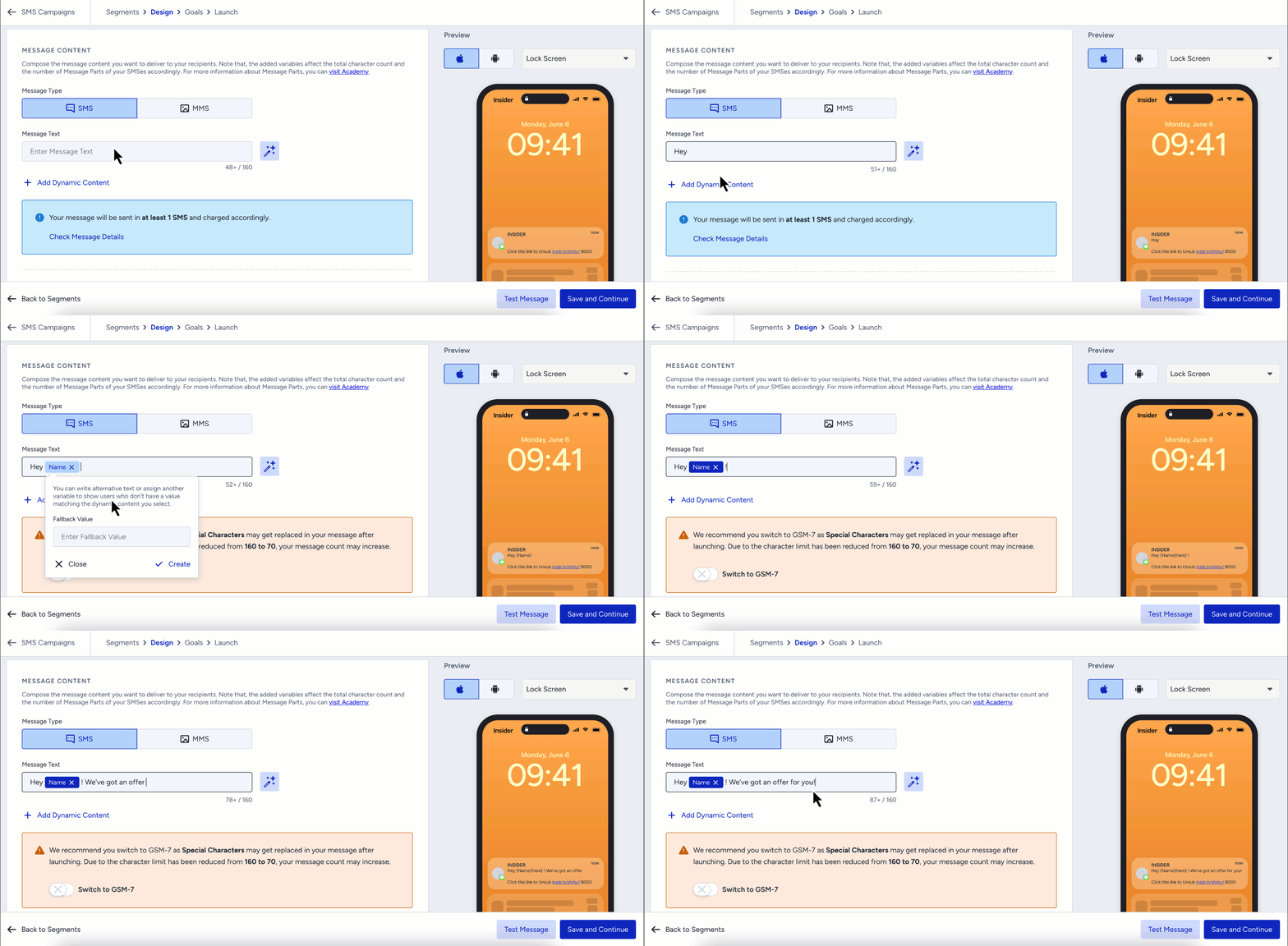
If the message contains characters that GSM-7 does not support, its character limit is reduced, and the message might be divided into more parts. Enable Switch to GSM-7 to convert supported characters and reduce the risk of increasing the part count. See SMS Smart Encoding for further information.
Regarding the regulations for sending SMS to subscribers, some countries may require you to add an opt-out option in your message.
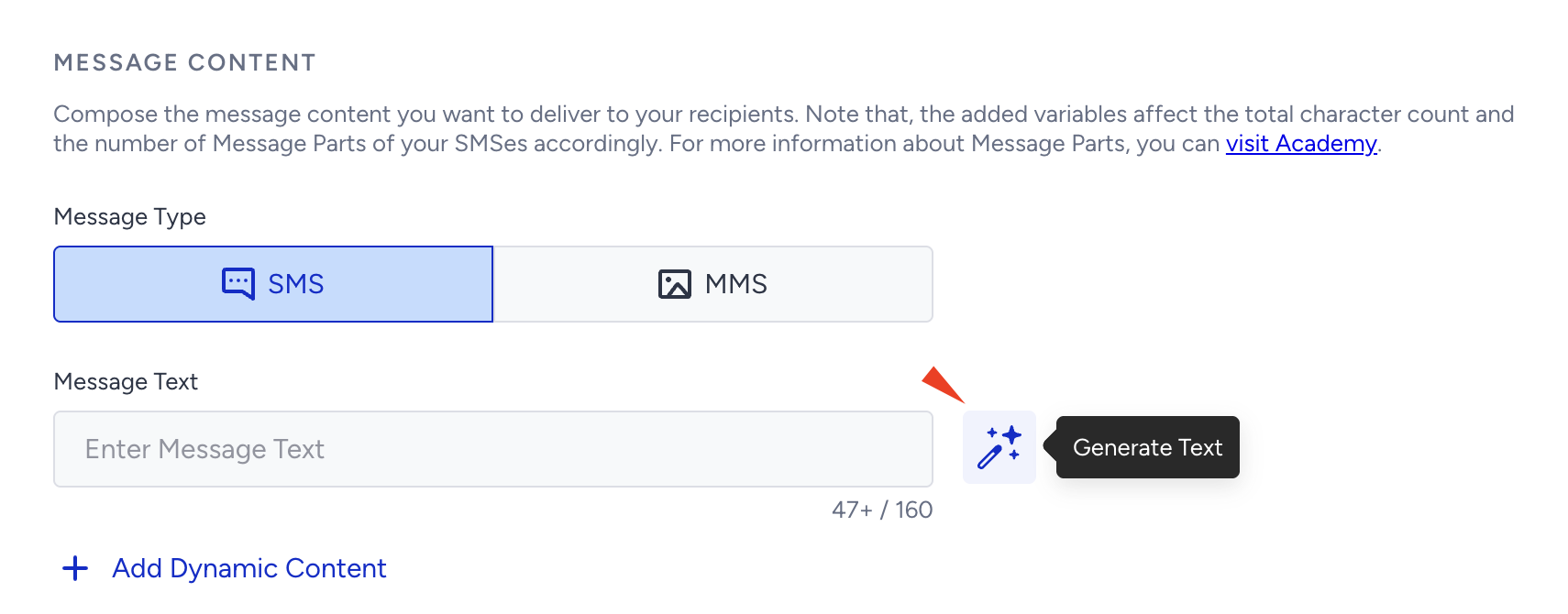
2. If you want to be inspired or need assistance when creating your message, you can always use the Generate Text option. Read SMS AI Text Generator for further information.
3. When you check the "Show Unsubscription Sentence in a new line" option, the unsubscription sentence you defined in SMS Settings will appear in a separate line at the end of your SMS.
Enable Show Unsubscription Sentence in a New Line to display the unsubscription sentence configured in SMS Settings on a separate line at the end of the message. Refer to Unsubscription Methods for SMS for further information.
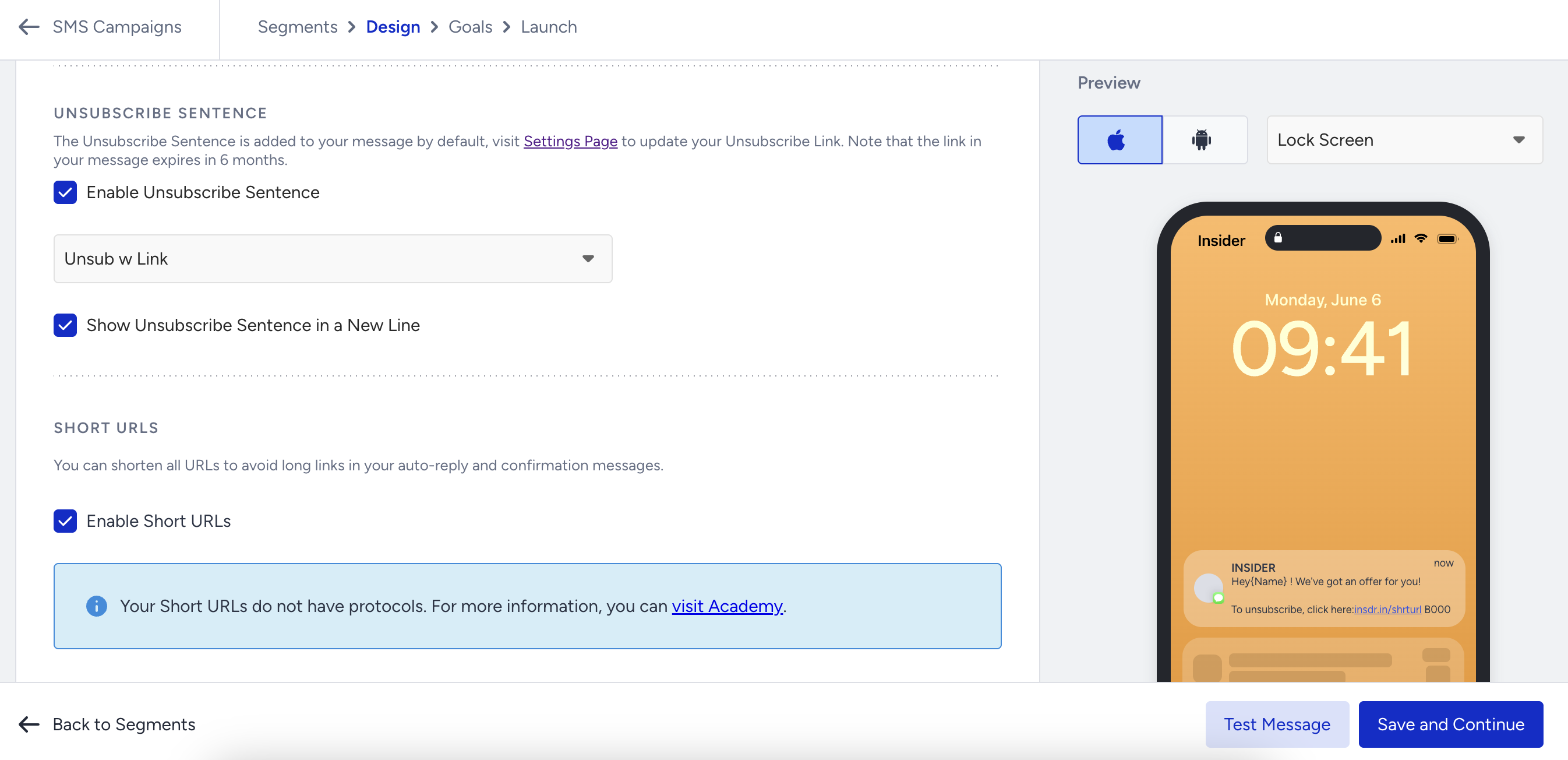
Note that the unsubscription sentence is included in the character limit, too.
4. You can also shorten your URL. This will help you reduce the character count and prevent your messages from being split into multiple parts. 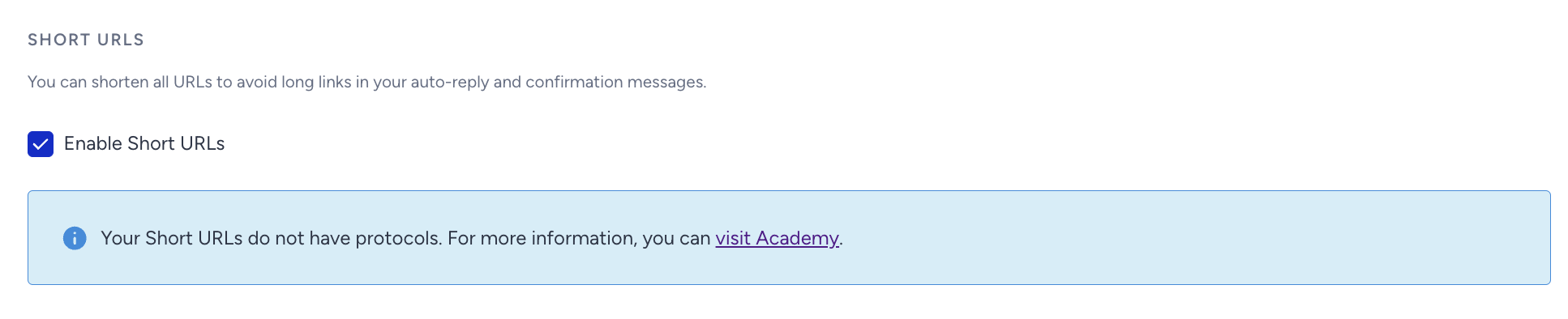
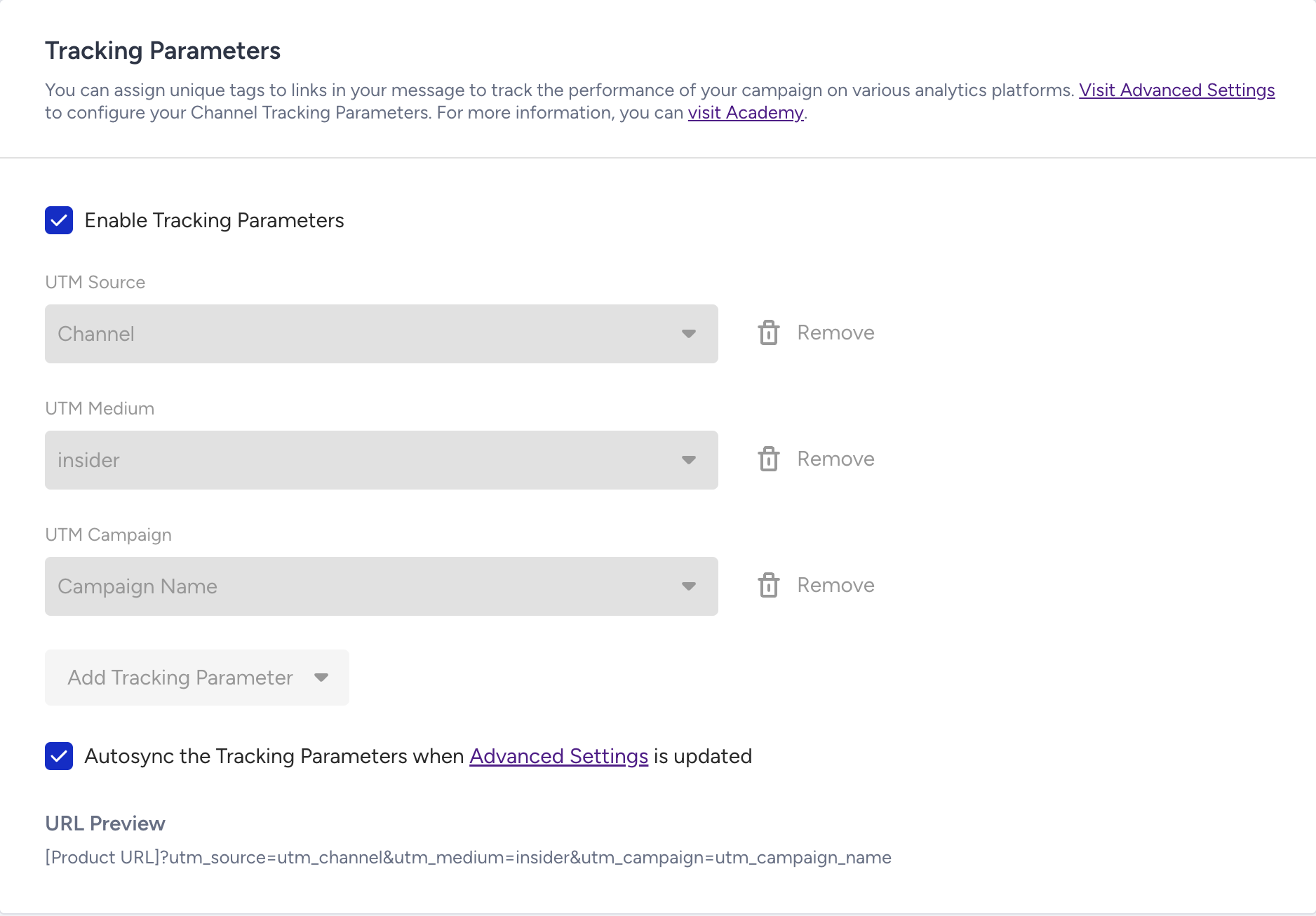
5. Configure the campaign’s UTM parameters manually or use the global UTM settings.
To add custom tracking parameters, click Add Tracking Parameter.
You can remove any parameters you don't need.
Global UTM parameters (default tracking parameters defined in your settings) are applied by default. You can update these parameters if needed.
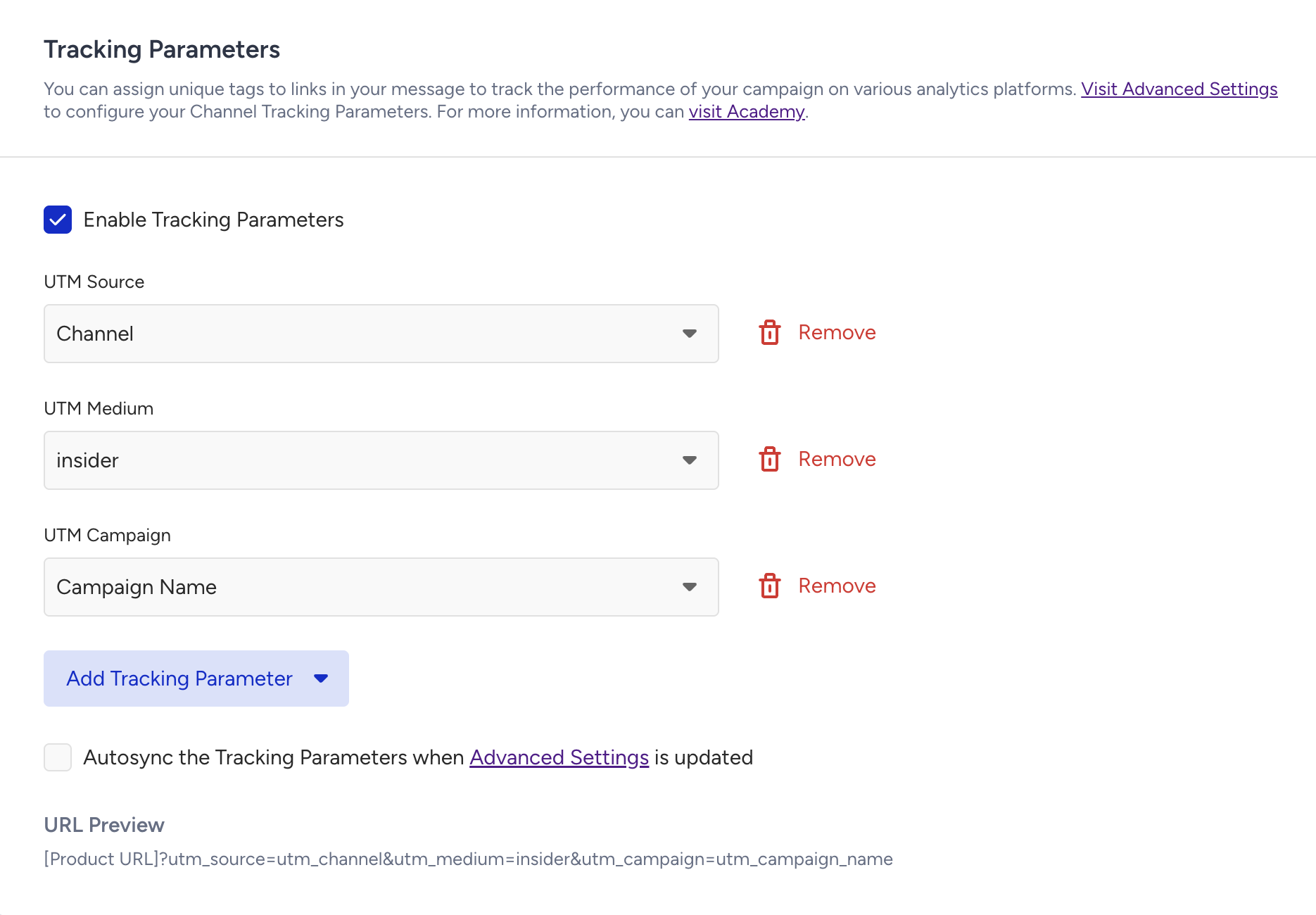
Enable Autosync Tracking Parameters to automatically sync tracking parameters when you update Advanced Settings.
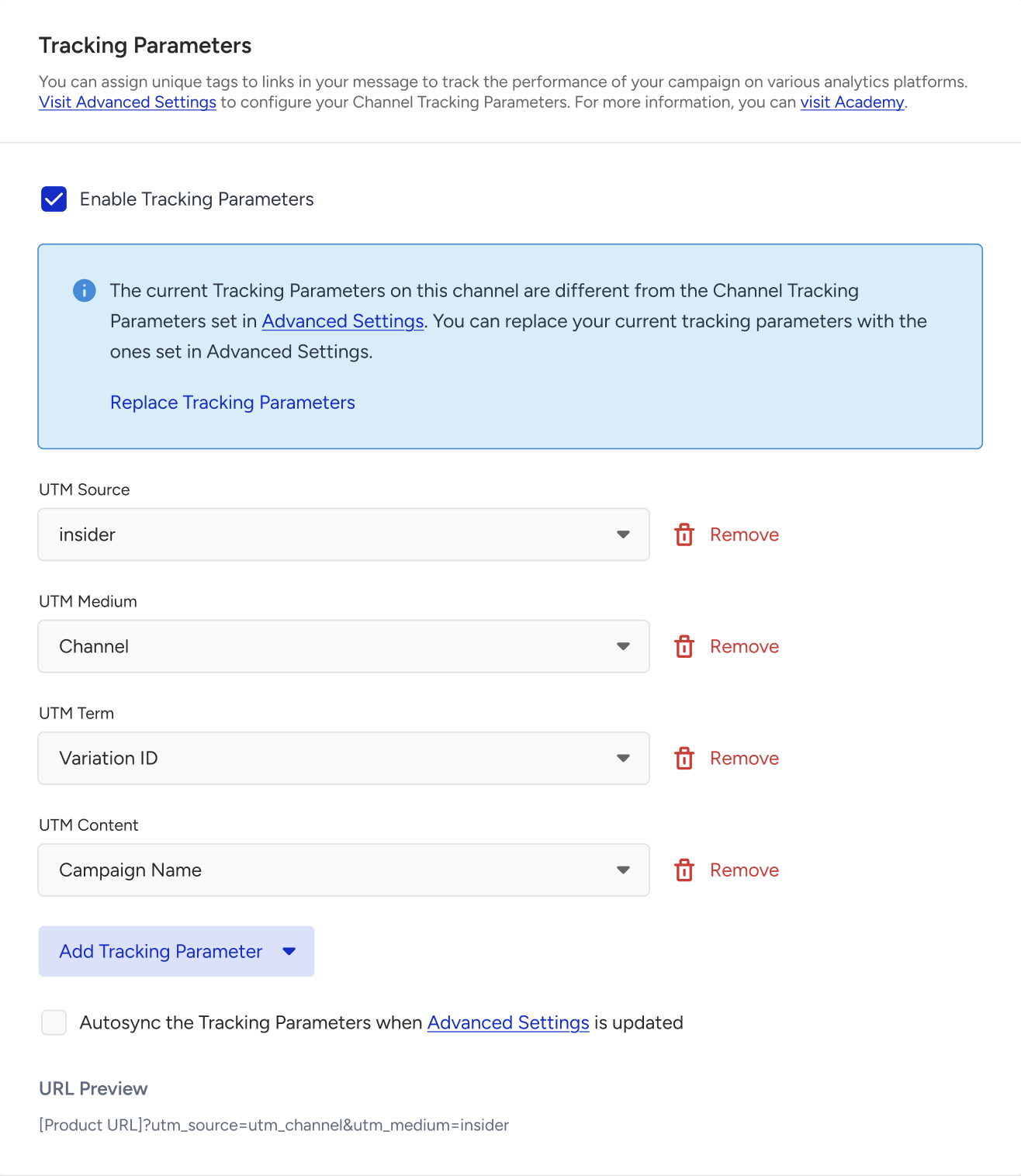
If the selected input parameters don't match your global settings, a warning appears in a blue info box. Click Replace Tracking Parameters to update the tracking parameters based on your global UTM settings.
Set your goals
Configure your goals to track campaign performance. The default selected goal is Purchases. 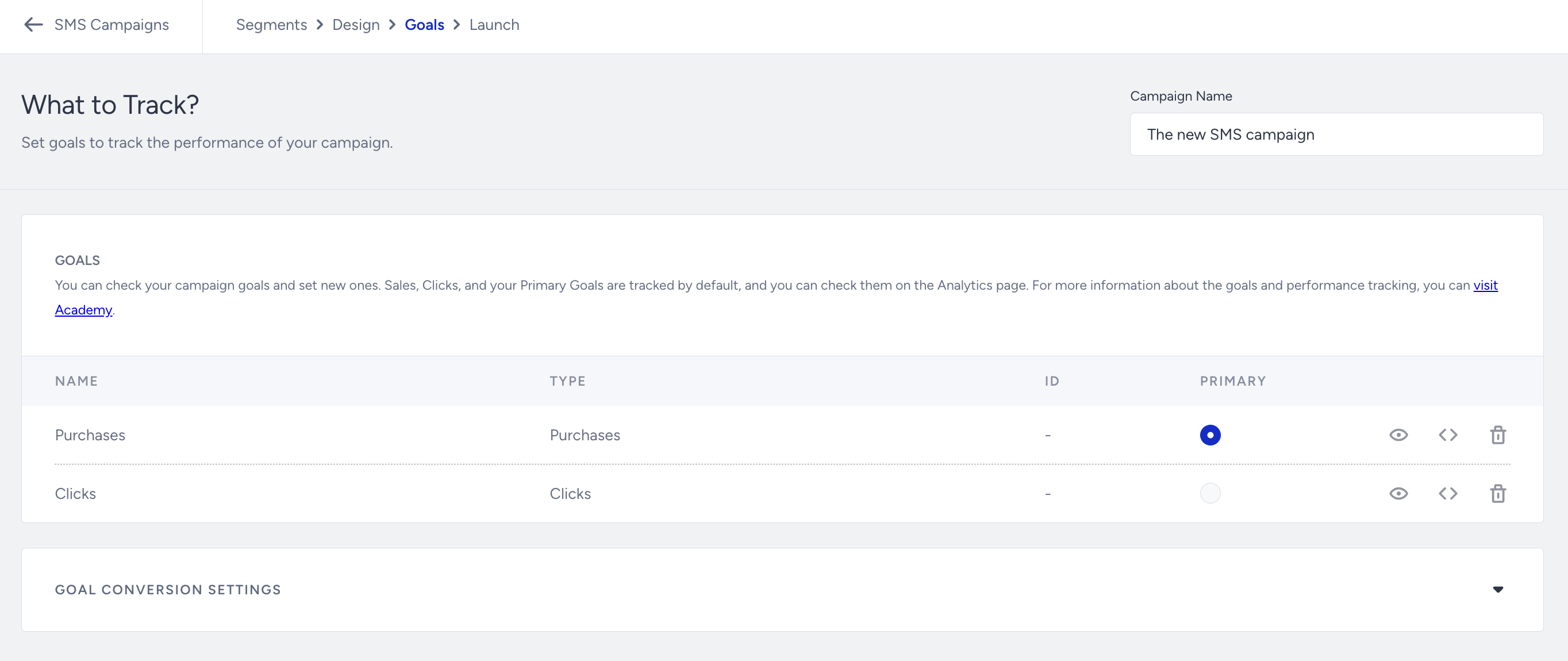
Goal Conversion Duration defines how long Insider One tracks goal completion after a subscriber first clicks the campaign. If the subscriber completes the selected goal within this period, Insider One records a conversion for the campaign.
Launch your Single SMS message
The information area on the right shows the estimated recipient count and indicates whether the campaign is ready to send.
Once you complete the rest of your campaign, you can launch it immediately, schedule it for a later date and time, or save it as a draft. To schedule your campaign for a specific date and time, see Schedule SMS Campaigns.
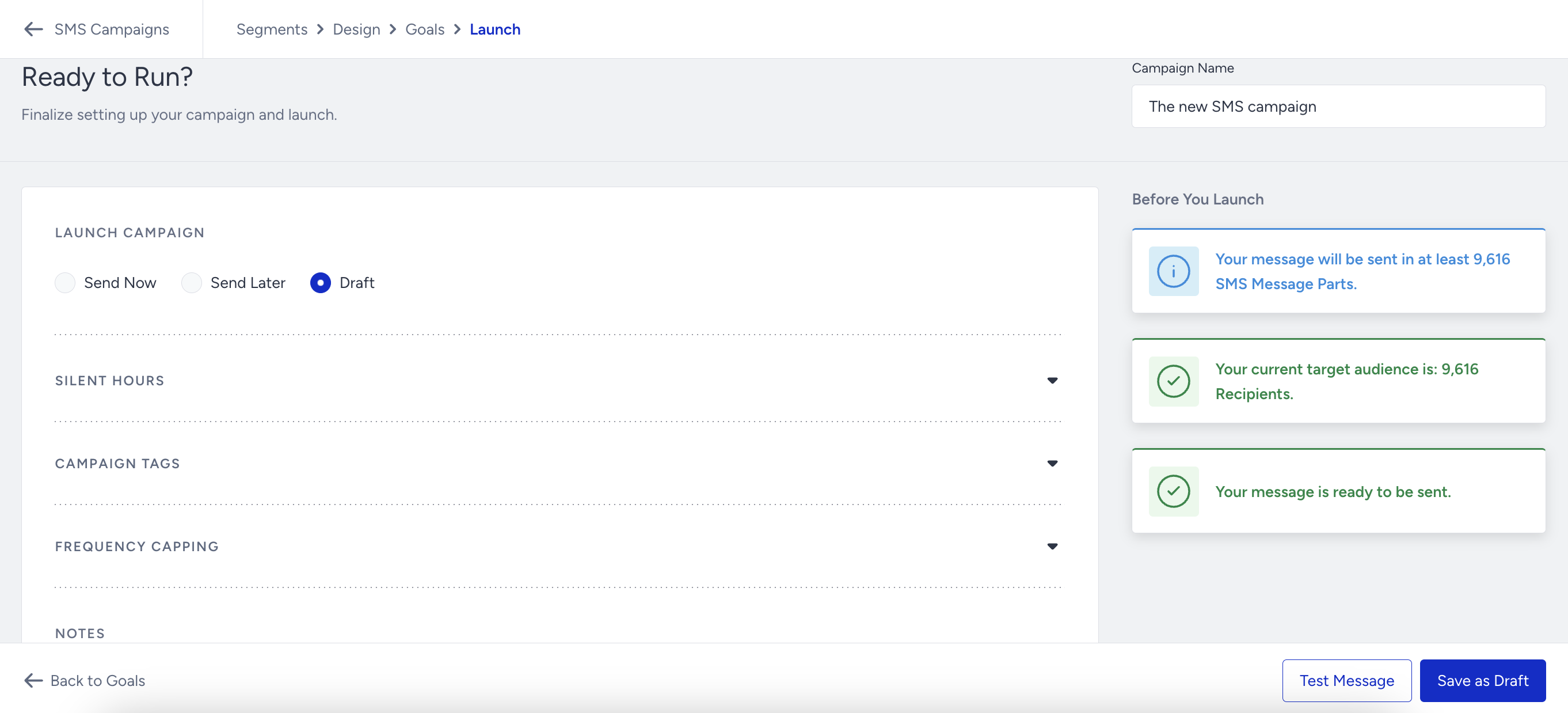
Before sending or scheduling your campaign, review SMS Silent Hours to understand how restricted delivery hours can affect your messages.
You can assign or create tags for your campaign to easily reach it later.
Once you enable the Bypass Frequency Capping option, you can override the limit on how many messages users can receive within a specified period, as set in the Channel Frequency Capping settings. 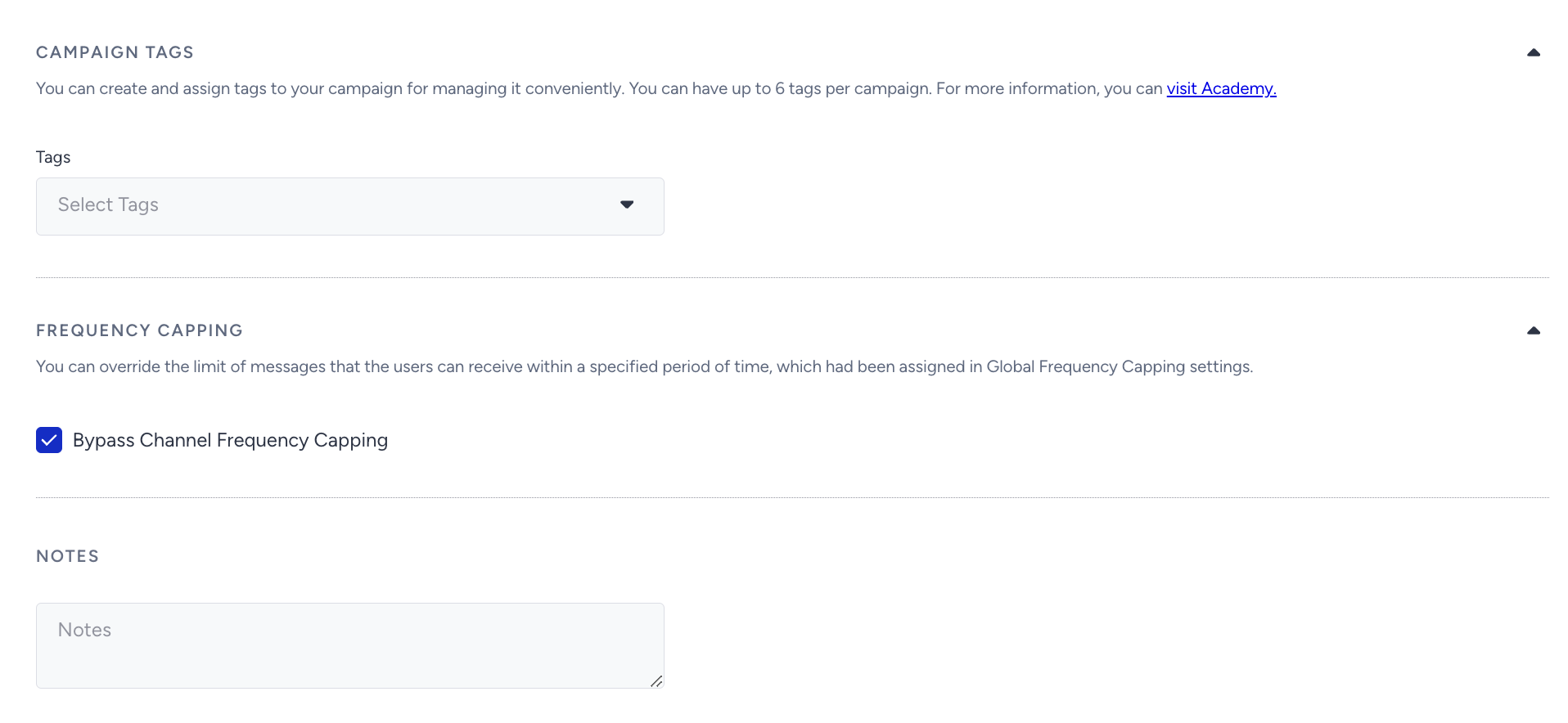 Once you finalize your configurations and your campaign is ready, Insider One strongly recommends testing it before launching. After confirming that the test message appears as expected, launch the campaign.