Insider One APIs, also known as your API key, secret key, or access credentials, use key-based authentication. Every request you send includes an API key, also called a request token, that identifies your integration and authorizes the call. You generate keys in the InOne panel and pass them in the request headers.
Only users with Administrator permission can generate tokens. If your account is not allowed to complete this operation, you can consult the Insider One team.
Before you begin
Confirm you have Administrator permission.
Decide which API you will call. Each API has its own reference page and host, and some use different header names.
Have the list of IP addresses you want to allow ready if you plan to restrict the key by IP.
How authentication works
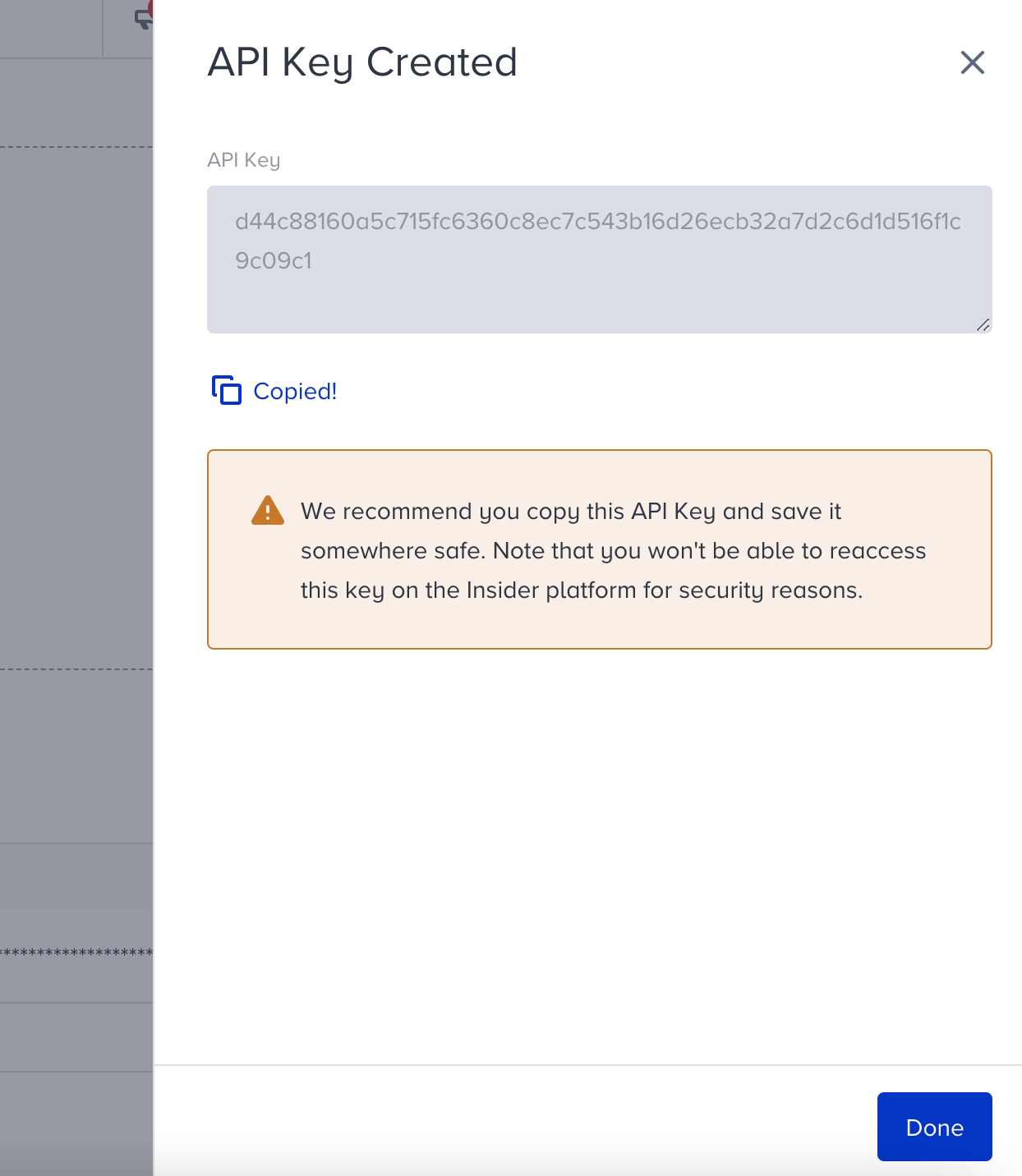
You generate a key once in the InOne panel and then send it with every request to the corresponding API. Insider One does not show the full key again after creation, so you store it yourself.
For the Unification and Unified Customer Database (UCD) APIs, each request includes two headers:
X-PARTNER-NAME: Your Insider One partner name. See Account Settings to find it.
X-REQUEST-TOKEN: The API key you generated.
Header names vary by API. The pattern below applies to the Unification and UCD APIs. For SMS, WhatsApp, Email, Web Push, Recommendation, and Eureka, check the header names on each API's own reference page.
Authenticate a request
The example below calls the user profile endpoint with the two authentication headers.
curl --location --request POST "https://unification.useinsider.com/api/user/v1/profile" \
  --header "X-PARTNER-NAME: yourpartnername" \
  --header "X-REQUEST-TOKEN: YOUR_REQUEST_TOKEN" \
  --header "Content-Type: application/json" \
  --data-raw '{
    "identifiers": { "email": "example@useinsider.com" },
    "attributes": ["email", "name"]
  }'
If the key is missing, invalid, or deleted, the request fails authentication and no data is returned.
For a full breakdown of how an endpoint is structured, see Anatomy of an API Request.
APIs you can generate keys for
You can generate keys for the APIs below. For the full catalog, see Insider One APIs.
Category | APIs |
|---|---|
Messaging | |
Analytics | Web Push, Email, SMS, WhatsApp, Mobile App, OnSite, Architect |
Data and consent | Unified Customer Database (UCD), Unsubscribe and Resubscribe |
Catalog and recommendations | |
Search |
Web Push API keys created in Web Push Settings will be automatically disabled on October 15, 2025. To generate new keys, apply the steps below.
You can have two active mobile API keys. To generate a third one, you need to delete one of the existing keys.
Generate a new API key
To generate an API key,
Navigate to your username > Settings > Inone Settings > Integration Settings.

Scroll to the API Keys section and click the Generate API Key button.

If you have previously created any API keys, they will be listed in this section.
Select the API type to create.
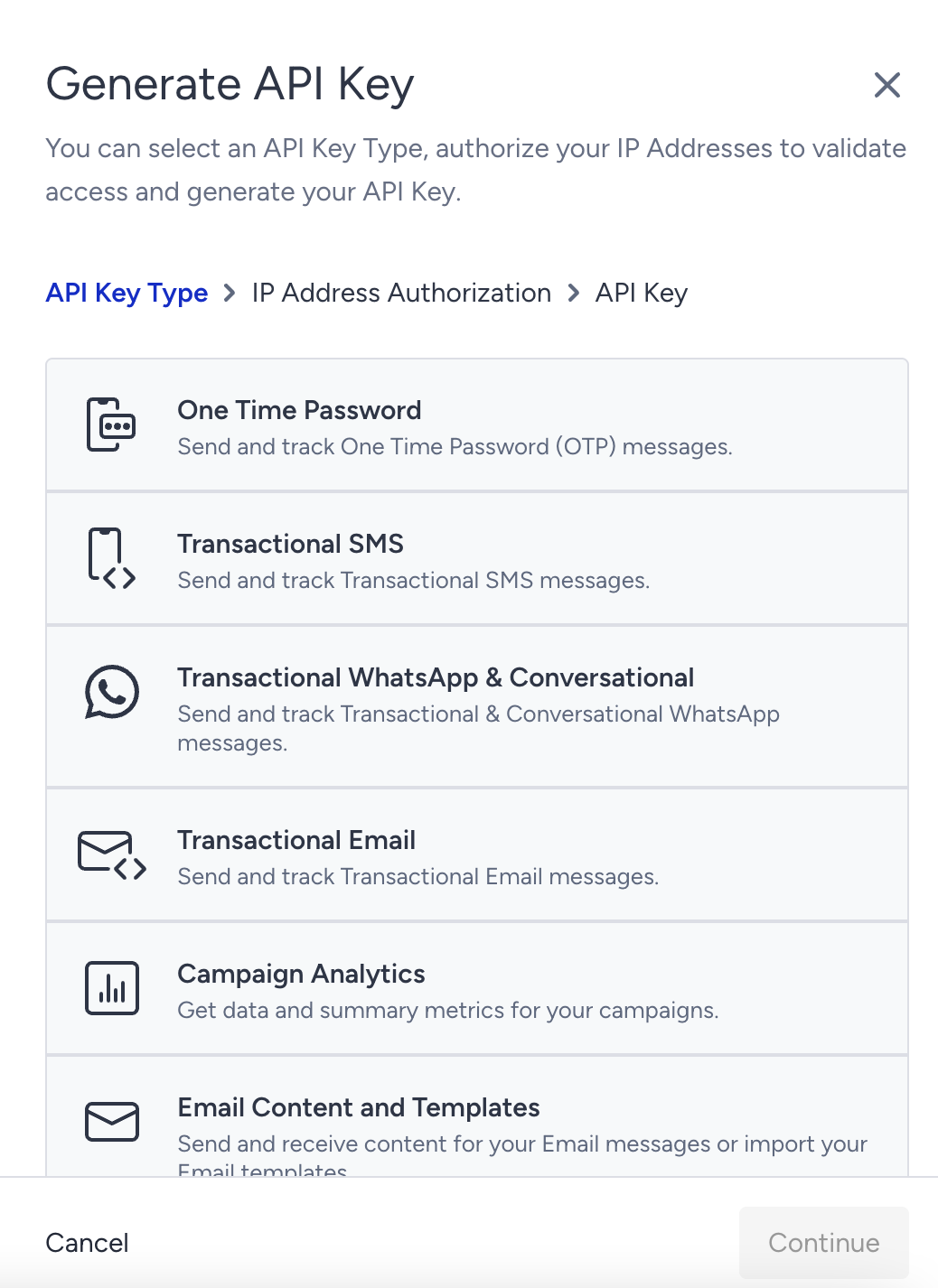
Click the Continue button to create the API key.
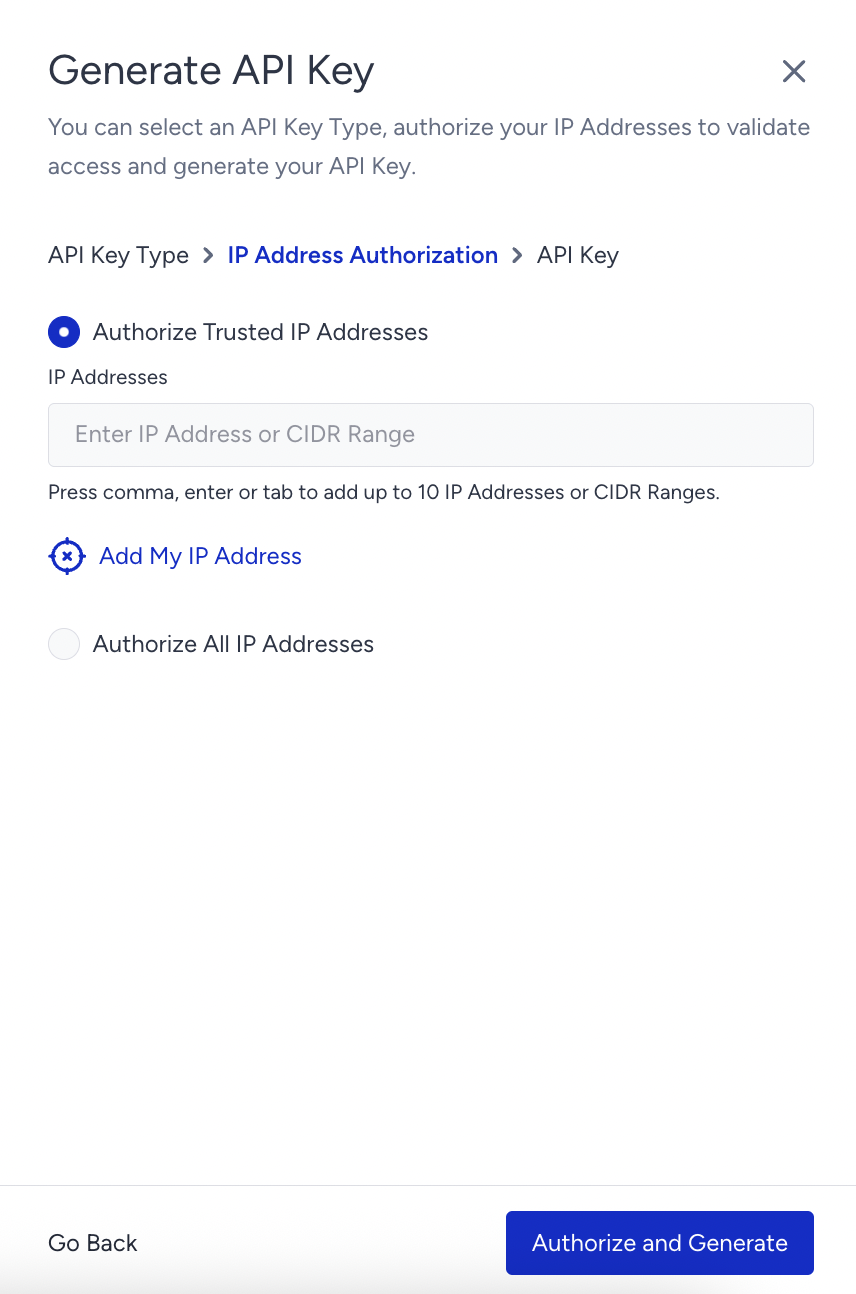
Authorize the trusted IP addresses to apply IP restrictions, and click the Authorize and Generate button.
6. Click the Copy button to copy the key before closing the prompt.
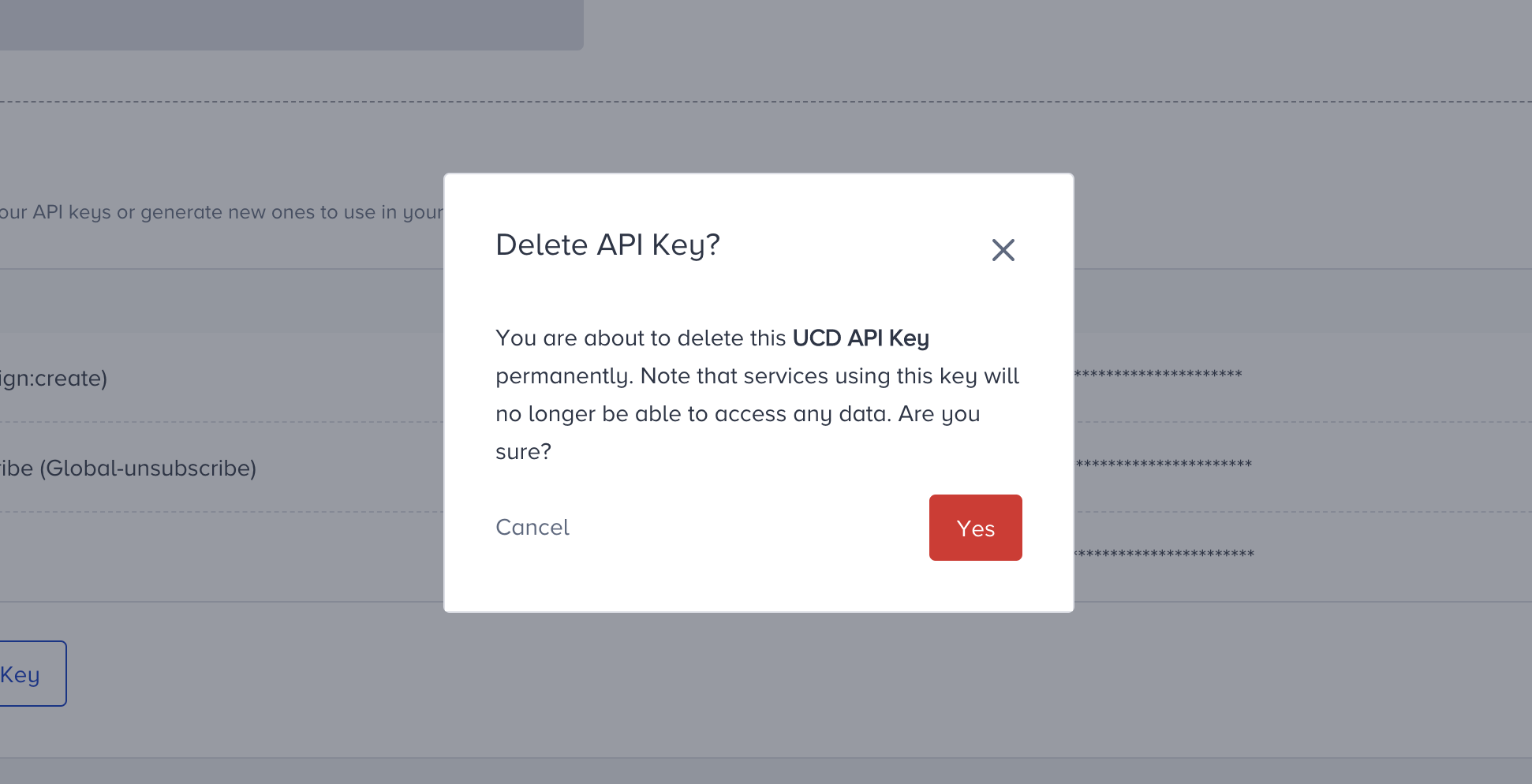
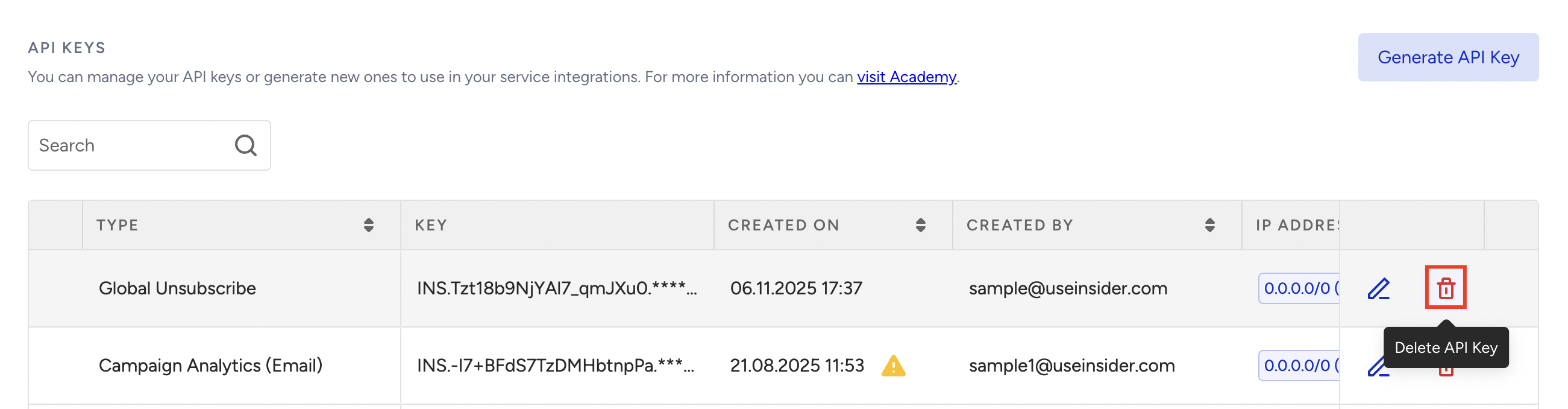
To delete a previously created API key, click the Delete button next to the key you want to delete.
Rotate an API key safely
API authentication keys cannot be automatically replaced in the external systems where they are used. To avoid disrupting an integration, migrate to a newly generated token before deleting the existing one.
Before rotating a key:
Identify its owner and the integrations that might use it.
Review applications, backend services, scheduled jobs, scripts, secret managers, and CI/CD configurations.
Confirm which API or product the token authorizes.
To rotate the token:
Generate a new API key for the required API or product, and authorize the same trusted IP addresses as the key you are replacing.
Save it in your approved secrets-management system.
Replace the existing token in each consuming system.
Test the relevant API requests using the new token.
Monitor the integrations for authentication failures.
Delete the old token after confirming that migration is complete.
Do not delete an existing key until every known consumer has been migrated and verified. If you have reached the limit for that key type, such as two active mobile API keys, first confirm a key is genuinely unused, delete it to free a slot, then generate the replacement.
Delete an API key
To delete an existing API key,
Click the Delete button next to the API key you want to delete.
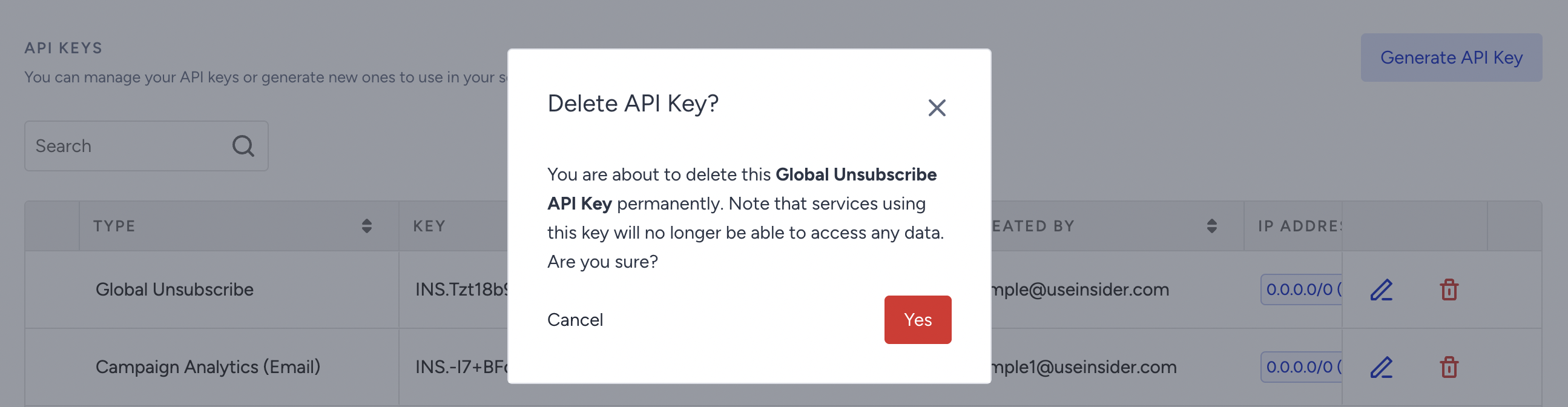
Confirm your deletion request. Note that services using this key will no longer be able to access any data.
After confirmation, the API key will be deleted.

Security best practices
Store keys in a secret manager or environment variable. Never commit a key to source control or expose it in client-side code.
Restrict each key to known IP addresses using the authorization step above.
Use a separate key for each integration and environment, so you can revoke one without affecting the others.
Rotate keys periodically using the overlap steps above.
Delete keys you no longer use.
Insider One may send proactive security reminder emails for API keys that have remained active for at least 180 days. This notification is a security best-practice reminder to review and rotate long-lived keys when appropriate. It does not by itself mean the key has been revoked.
Troubleshoot authentication errors
If a request fails authentication, check the following in order:
Permission: The key was created by an Administrator. Other roles cannot create keys.
IP restriction: The request comes from an IP address you authorized when generating the key.
Key status: The key still exists and was not deleted or rotated out.
Token type: The key matches the API you are calling. For the Recommendation API, the key must be generated with the Product Catalog option.
FAQs
Q: Can I use the same token for all UCD APIs?
A: Yes, you can use the same token in all UCD APIs. However, depending on your product package, you may not be able to use the Upsert User Data API.
Q: Can I have multiple tokens at the same time?
A: Yes, you can use multiple tokens at the same time. Only the UCD API token is limited to 5 tokens. If you want to generate new tokens, you need to delete at least 1 of the previously generated tokens.
Q: Can all users generate the UCD tokens?
A: No, only users with Administrator permission can generate tokens. Users with other permissions cannot complete this operation.
Q: Can all users delete the previously generated UCD tokens?
A: No, only users with Administrator permission can delete tokens. Users with other permissions are not allowed to complete this operation
Q: I have lost my token, and because of hashing on the listing page, I can’t access it fully. Can I get the same token again?
A: No, for security reasons, the generated tokens are visible only once after being generated. After that, you will no longer be able to see the token in full. We recommend writing down the generated token or generating a new one for your project.