Suggested readings: AMP for Emails, AMP Registration Form, AMP Accordion for Emails, AMP Form for Emails
You can build AMP carousels without opening the HTML code editor. Each carousel slide shows recipients your products from different angles or the newest items in your collection. Each slide, once clicked, takes recipients to the corresponding page on your website. This is a good way to enliven your emails, better interact with your audience, and make them more functional.
With the AMP-carousel:
- You do not need to add any AMP HTML code elements to email header.
- No coding skills required — you use an already prepared element.
- You can save time. Simply insert the links to your images into this content module!
- For every single image in your AMP-carousel, you can set links that will take readers to respective pages on your website.
This guide answers the following questions with detailed instructions:
- How can I build the AMP carousel?
- How can I build a fallback for the carousel block?
- How can I build the carousel with description and buttons?
- How can I preview the AMP carousel?
Build AMP carousel
To create an email with the AMP Carousel as above, follow these steps:
1. Drag the AMP-carousel block in the HTML email template you are working with.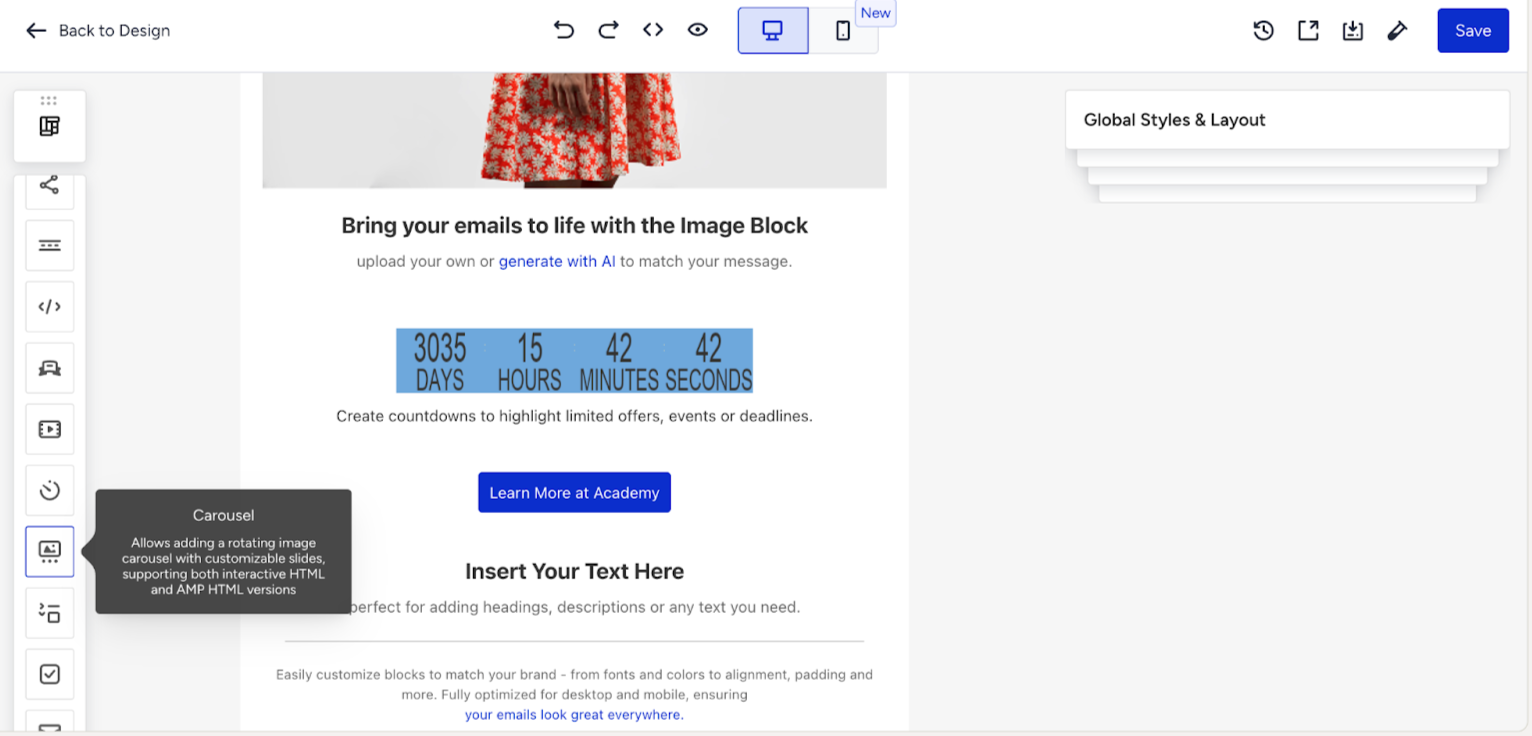
You will see that this element will have the “⚡HTML” sign near it. This means, this element will be shown in AMP emails only and will be hidden in email clients that do not support AMP.
2. Upload image 1 for your slide.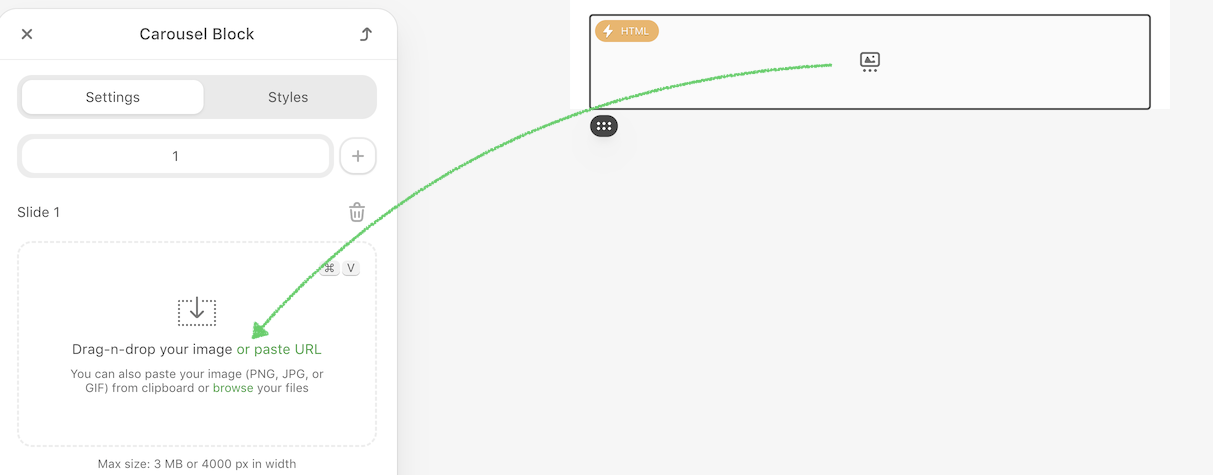
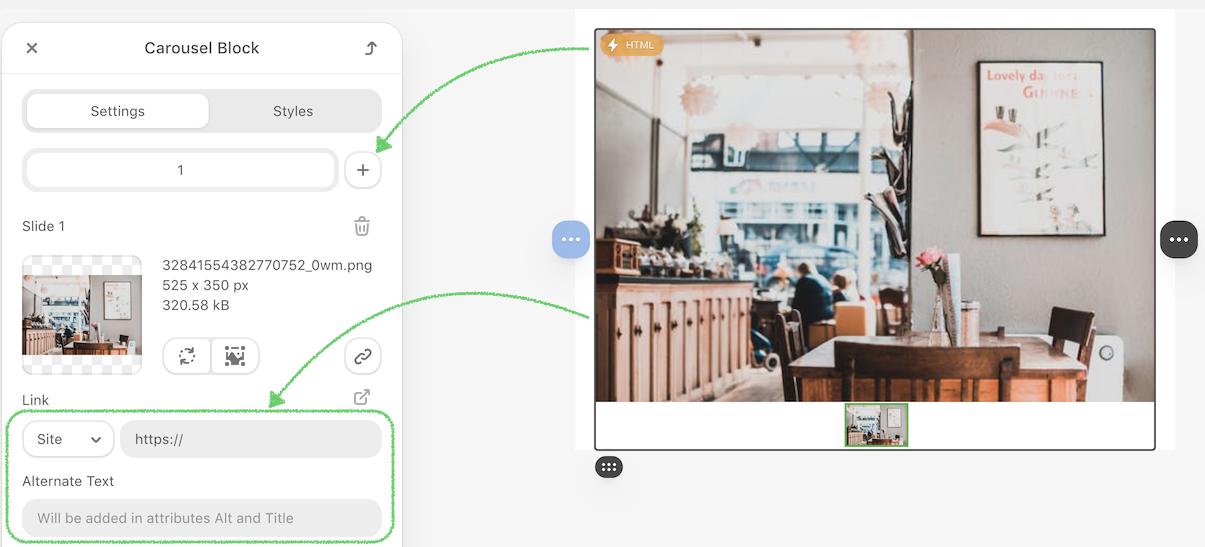
3. Click the Add slide button to add the desired number of slides. Enter an Alternate text and paste a link to the relevant slide if you need it.
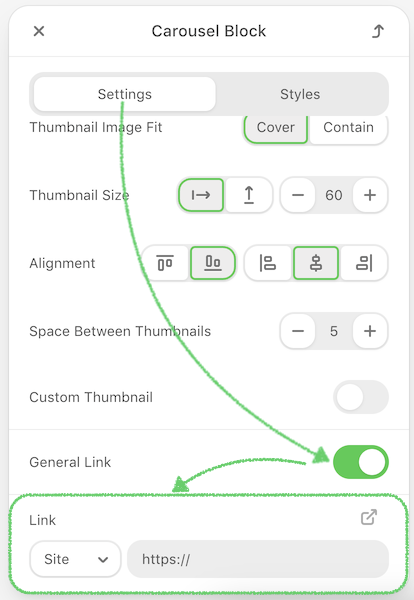
4. If you want only one common link for all slides, activate the General link control and add the corresponding link to all slides at once.
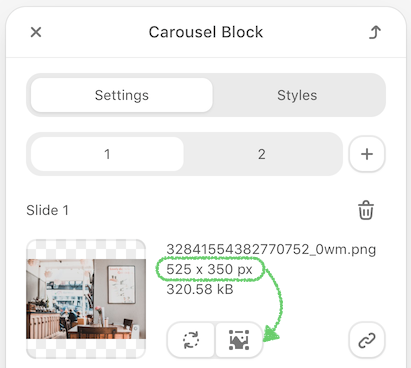
5. Check if the sizes of all images match. If they do not, crop them with the photo editor.
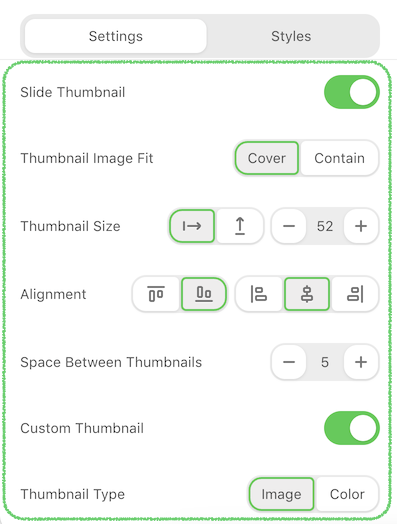
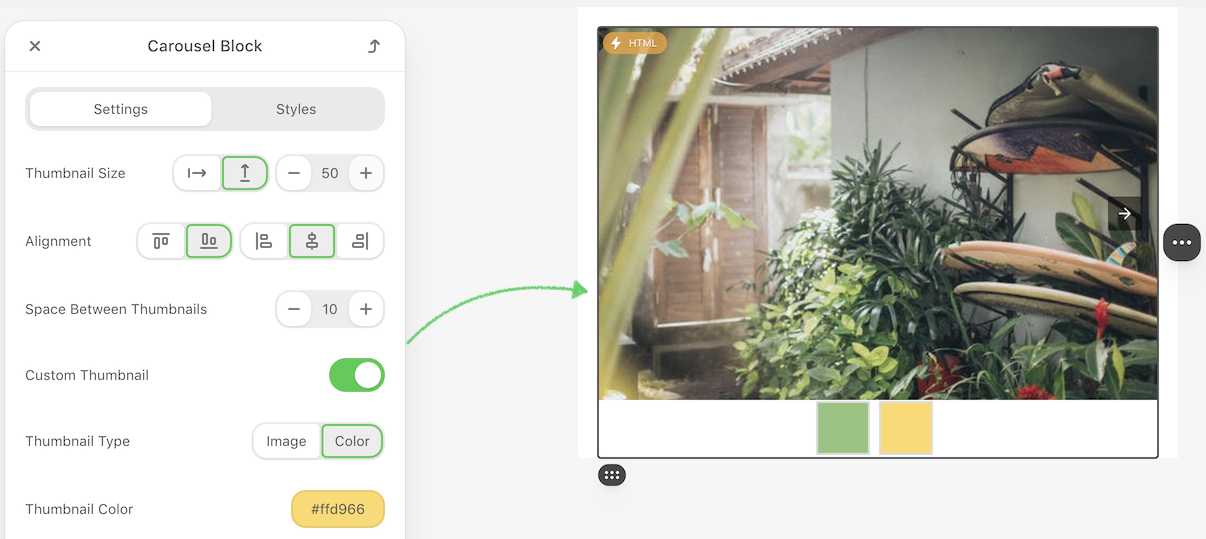
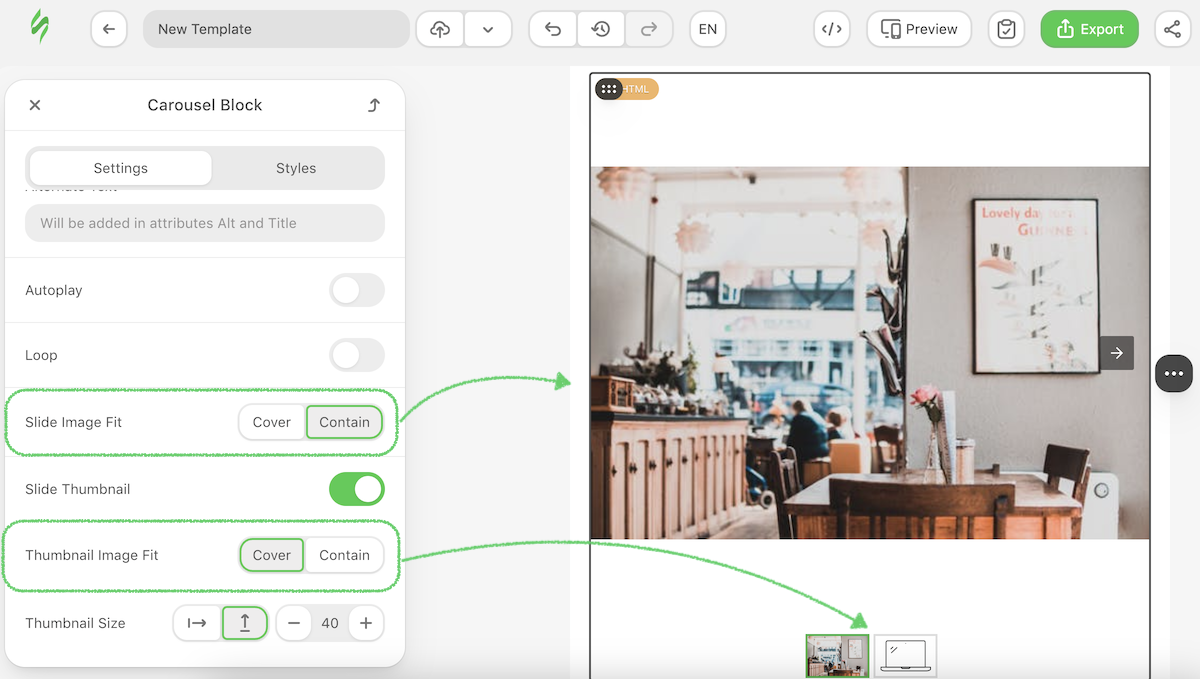
6. If you want to see small preview images, you need to toggle the Slide Thumbnail button. Here you can set up the thumbnail image fit, size, alignment, and space between them. Also it is possible to set up a custom thumbnail, image, or color.
The image below is an example.
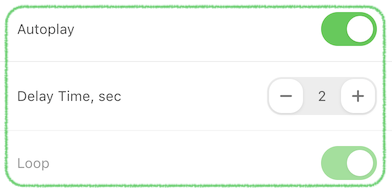
7. For the slides to change automatically, activate the Autoplay option and set a time delay. For example, slides will change automatically every 2 seconds, or you can choose a convenient interval up to 10 seconds. Also you can activate the Loop option for the slides to be switched in a circle.
8. You can set up the cover/contain slide image fit and thumbnail image fit. These settings will be especially visible if you have different image sizes.
Create a fallback for the Carousel block
When you add a Carousel block and upload your images, the system automatically generates both AMP and HTML fallback versions to ensure the carousel displays correctly in all email clients.
You can also manually choose this setting via the Include in option.
(8).png)
- Both: Includes both AMP and fallback versions. This option is set by default.
- HTML: Includes only the fallback version.
- AMP HTML: Includes only the AMP version.
If you manually switch to AMP HTML or HTML, the editor will highlight the block with a label to show which version is active.
(5).png)
(3).png)
Build AMP carousel with description and buttons
So, first of all, you need to build a regular AMP-carousel as described in the paragraph above. Now, let's proceed to the design of the slides:
Writing copy over images
1. Once you upload an image, open the photo editor.
2. In the settings panel of the photo editor, choose the TEXT option to place copy over your images. The editor offers about 1000 fonts;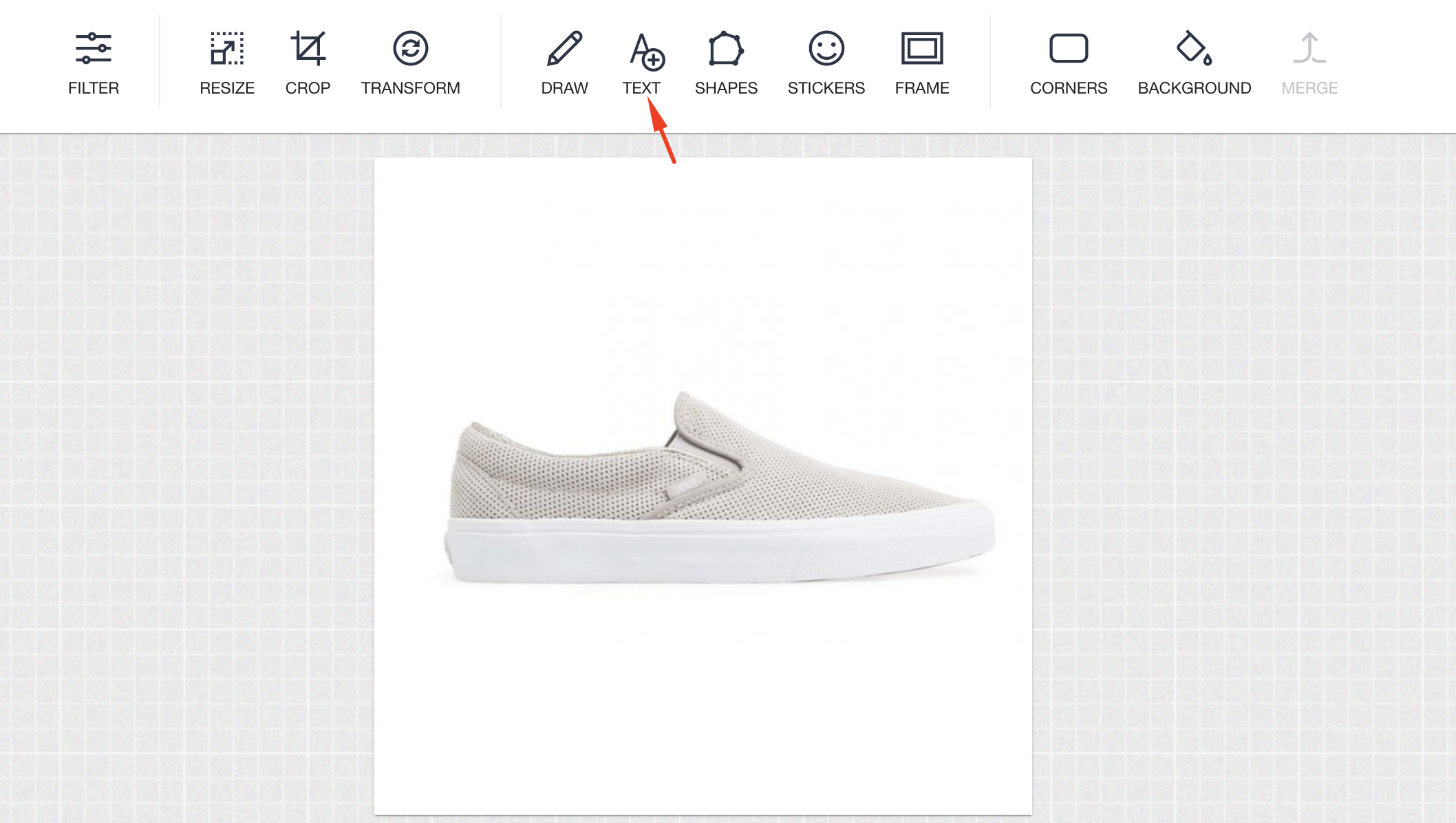
3. Choose the font type and color. In the right top corner of the editor, click the Apply button to save these parameters.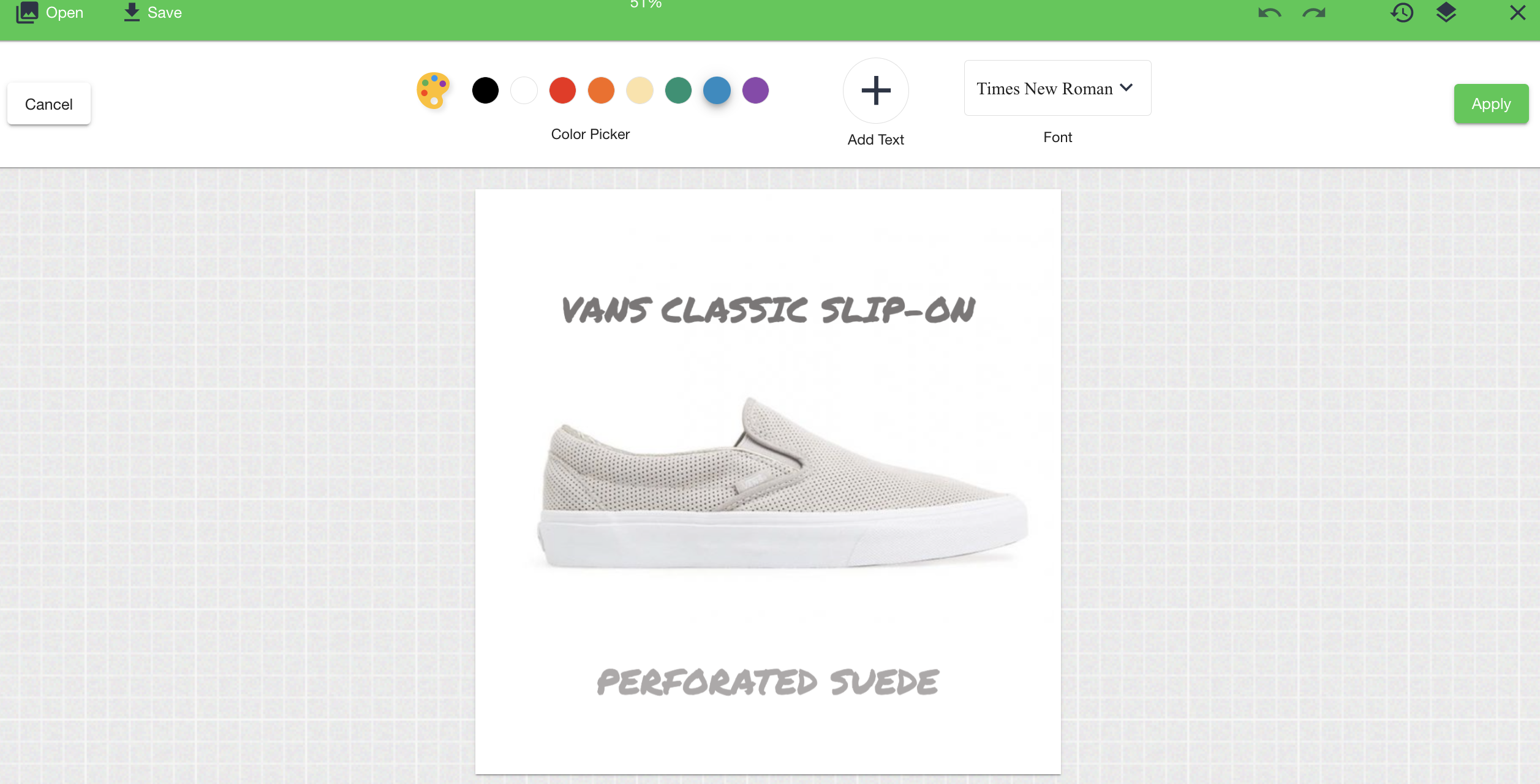
Placing a CTA button over your images
First of all, you need to prepare this button — the image format should be SVG or any other with a transparent background.
1. In the left top corner in the settings panel, click the Open button.
2. Select the Overlay Image option.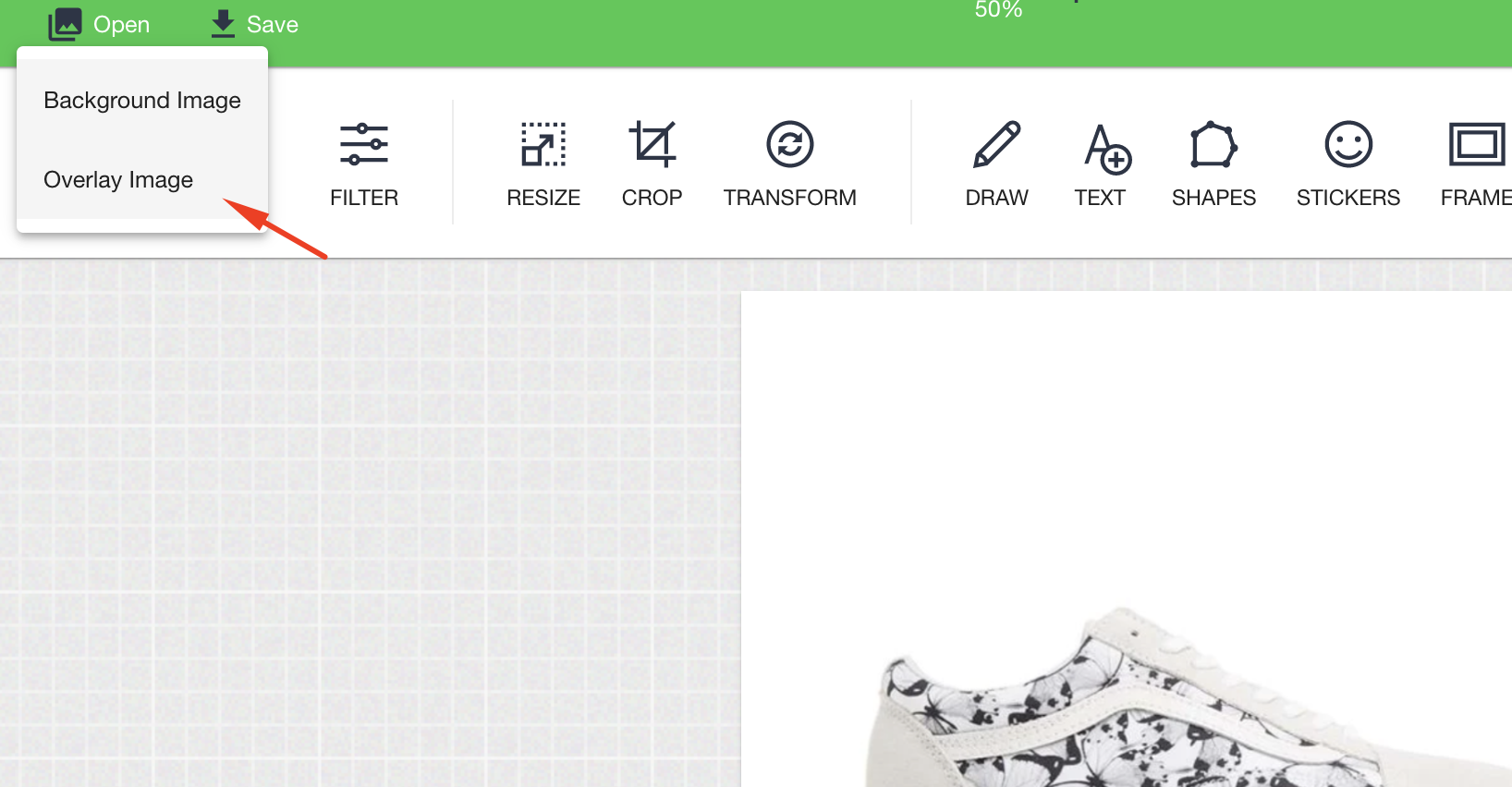
3. Upload your button image, and place it exactly where you want to see it in your slide.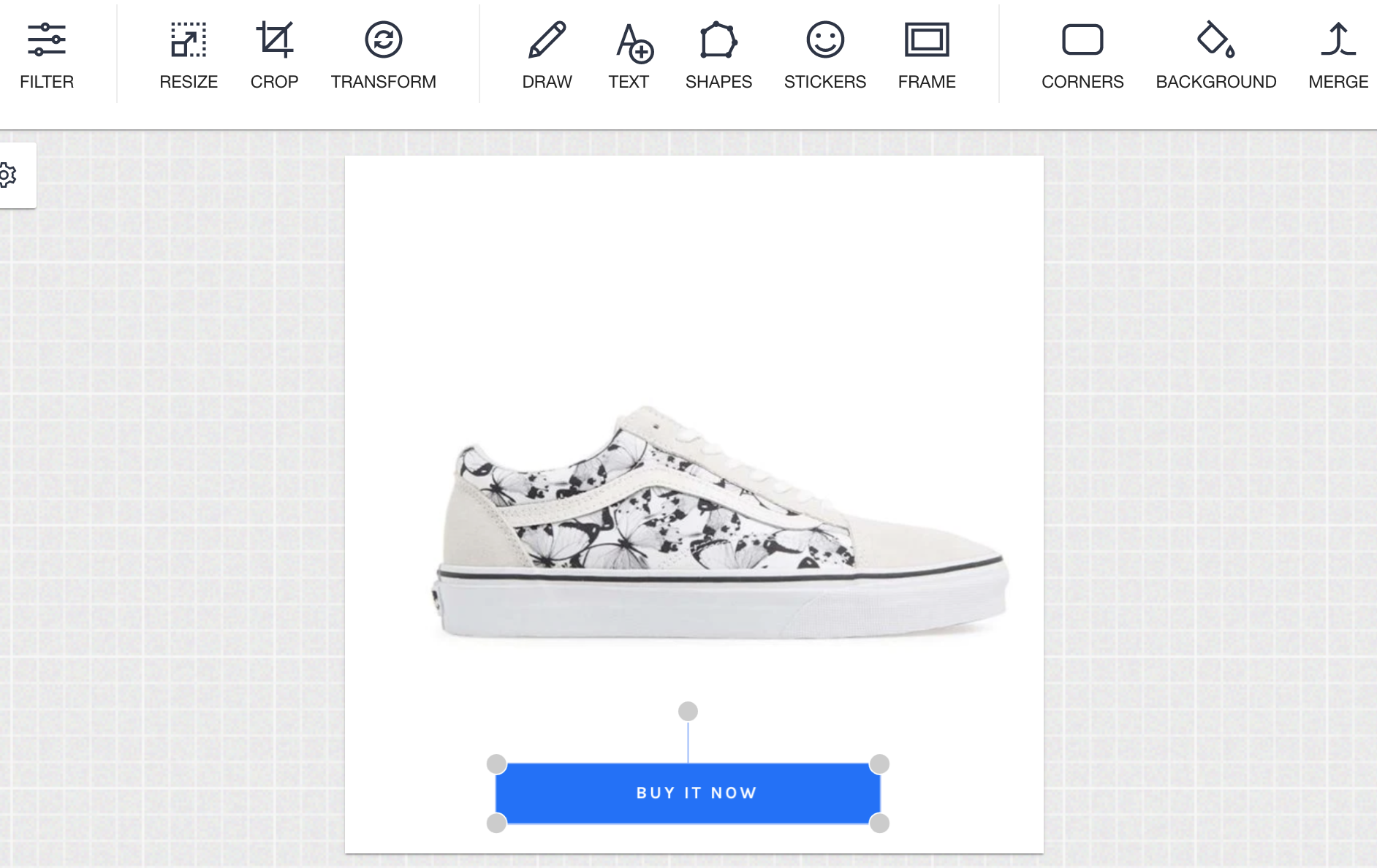 4. Set sizes, and click the Save button to save the changes you have done to the slide.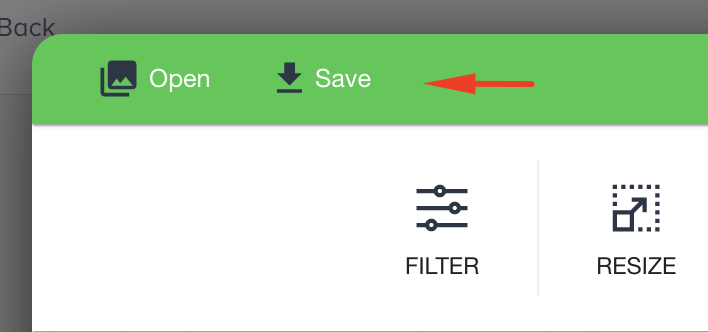
Preview AMP carousel
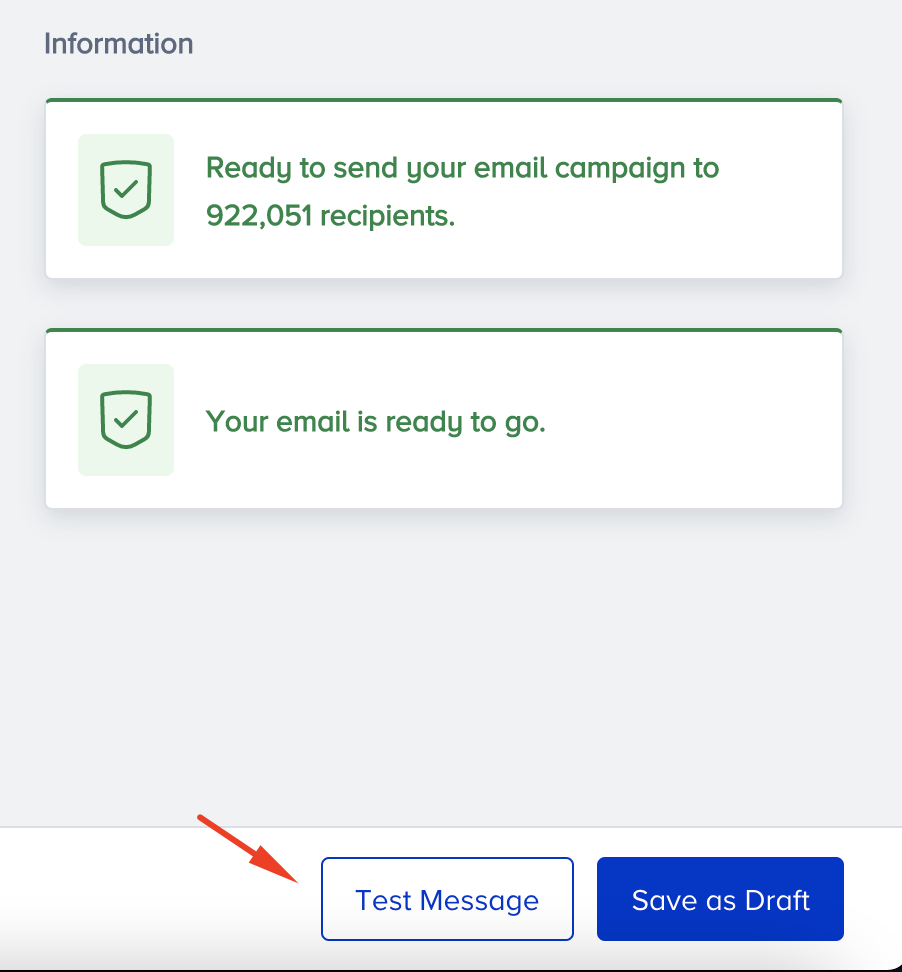
To preview your AMP email, you should get your sender whitelisted with Google. Once you complete designing your email, you can send a test message to your email address with the Test Message button at the top right on the Design or Launch step.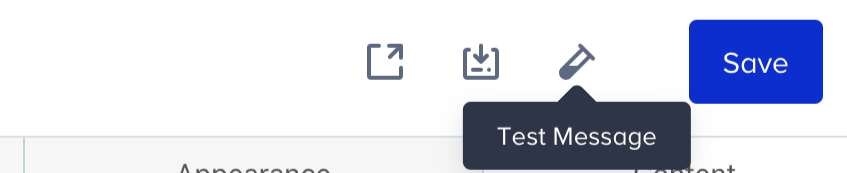
Keep in mind
To make sure that your recipients see your AMP emails, you need to:
- Get whitelisted with Google.
- Fix all the bugs if any occur. The editor shows if you have any in emails and even recommends how to fix them.
- You have fallbacks for those customers whose email clients do not support AMP for emails.
- Make sure your ESP/CRM can send AMP emails.
- Keep in mind that currently only Gmail (both the web and mobile apps on all OSs) and Mail.ru can render AMP emails. Yahoo will join the list soon.
- AMP emails lose their AMP components if you forward them.