Suggested readings: AMP Sender Registration Form, AMP Carousel, AMP Accordion, AMP Form, AMP FAQ
Accelerated Mobile Pages (AMP) is an open-source HTML framework created by Google to make pages load faster on mobile devices. With AMP for email, you can leverage AMP's speed and create more interactive, actionable, and engaging email experiences for your users. These rich user experiences let users interact with your email content directly in the message.
With Insider's Email product, you can build emails for AMP without building extra code blocks or elements. To send AMP emails, first get your production-ready AMP email design approved, then register your sender to get whitelisted with clients that support AMP emails.
You should start using AMP emails once you have a moderate level of email volume delivered per month. Registering your sender address with a high domain and IP reputation is essential. That's why the beginning of the warm-up plan is not the best time to start registering your account. If you want to learn more about domain and reputation, you can consult your Insider deliverability expert.
This guide consists of the following sections:
Which email clients support AMP?
Below are the email clients that support AMP.
Email Client | Supports? |
|---|---|
Yes | |
Yes | |
Mail.ru mobile app | Yes |
Yes | |
AOL Webmail | Yes |
Yahoo on Android | Yes |
Yahoo on iOS | Yes |
AOL mobile app | Will support soon |
Yes | |
Yes |
Build AMP emails
Before sending AMP emails, send a production-ready AMP email to clients that support AMP emails for approval to get whitelisted.
Suggested readings for further details: Register for sender distribution, Register with Google to send dynamic emails
You can build AMP emails with various methods as follows:
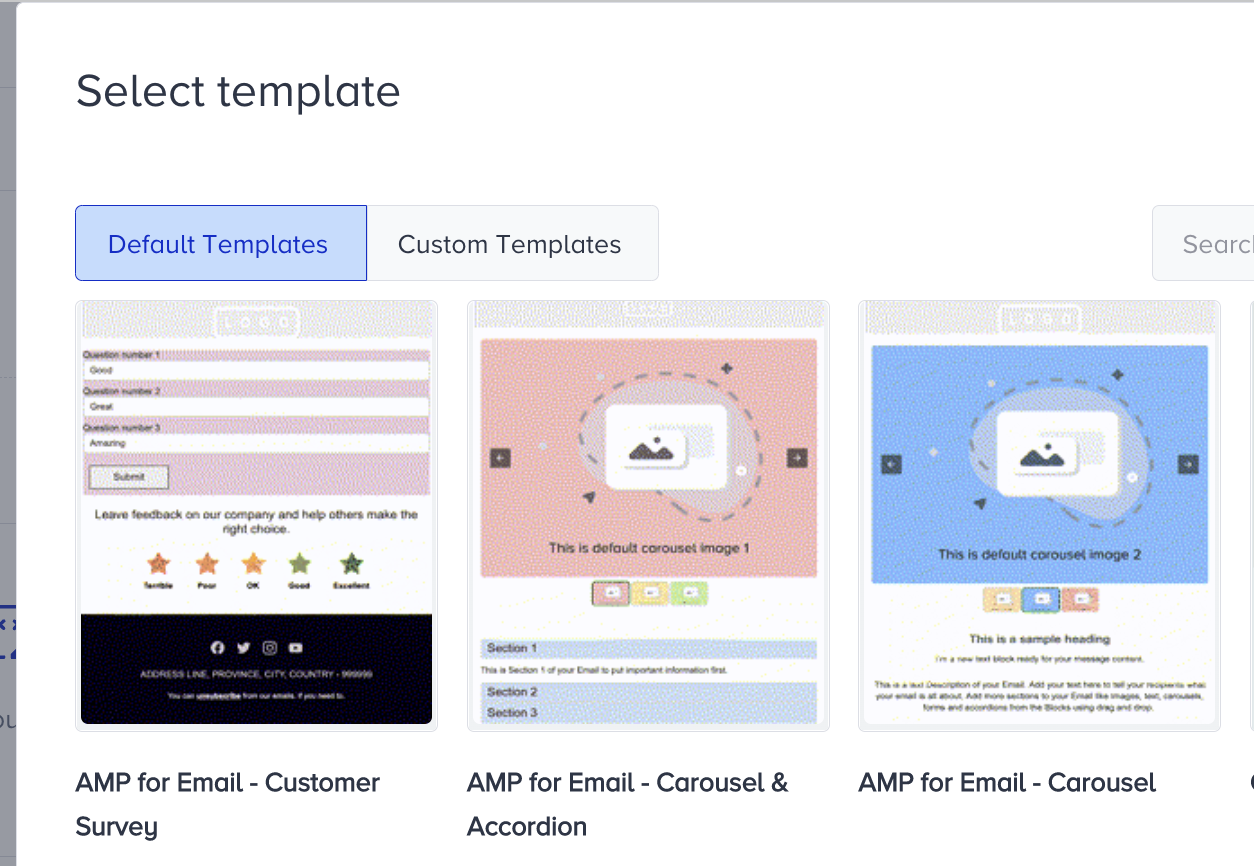
You can use the AMP templates in Insider One's default template library.
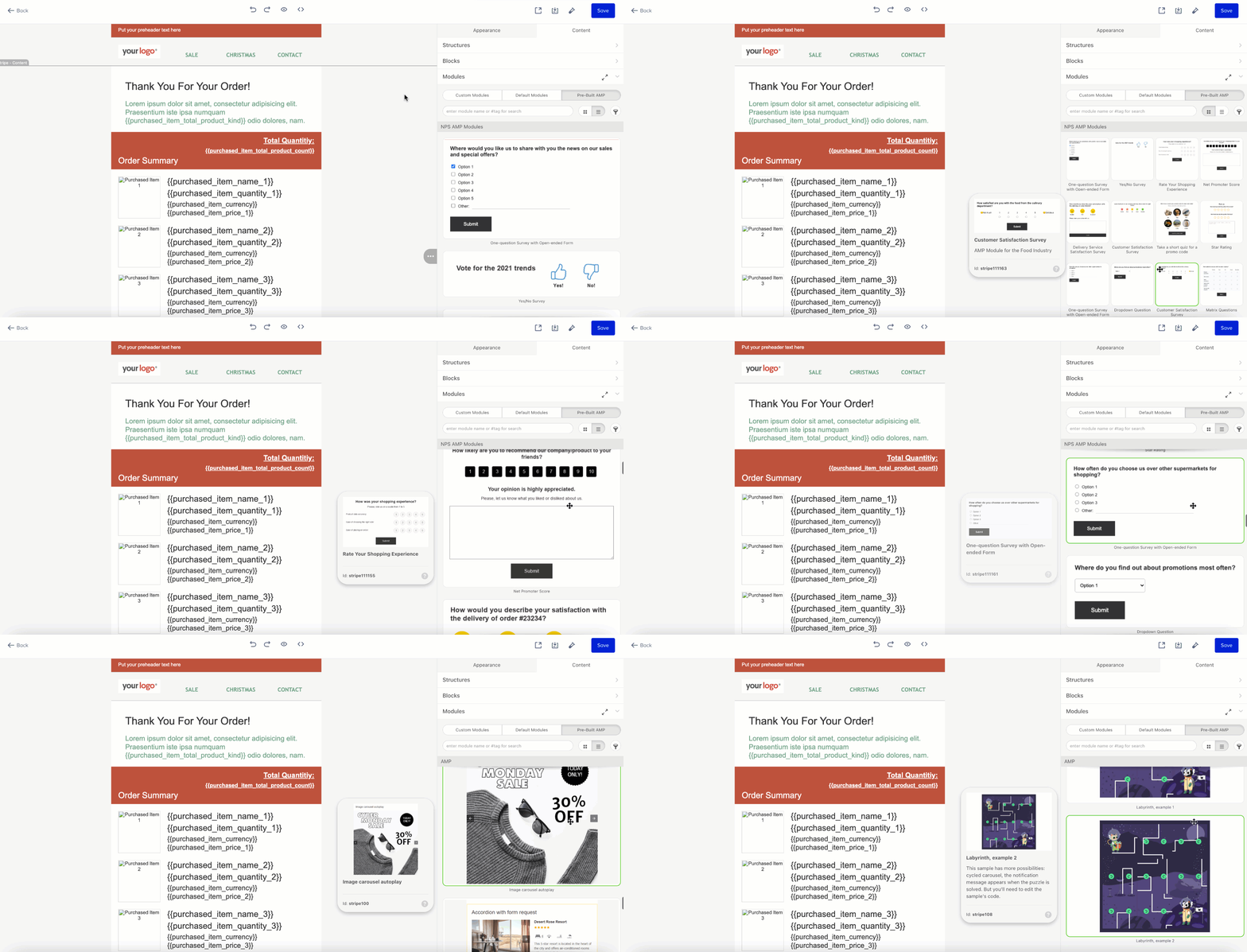
You can use the pre-built AMP modules.
You can use the AMP blocks in Insider One's Email editor: Carousel, Accordion, and Form.
You can use Google's prepared AMP elements from the Gmail playground.
You can connect your Google spreadsheets to your email content.
You can code your emails.
Below, you can see how to create a production-ready email with AMP blocks in Insider's Email editor to register your sender address with email clients that support AMP.
Go to Campaigns > Messaging > Email to create a new email campaign.
Click the Create button to create an email campaign of any type.

Create a recipients list with the emails of the clients with whom you want to get your sender domain whitelisted for AMP emails (e.g., ampverification@yahoo.com for Yahoo, ampforemail.whitelisting@gmail.com for Gmail, postmaster_amp@corp.mail.ru for Mail.ru), and send out the production-ready AMP campaign to them for verification and whitelisting of your domain.
Choose the sender you want to register on the Design step and add a subject.
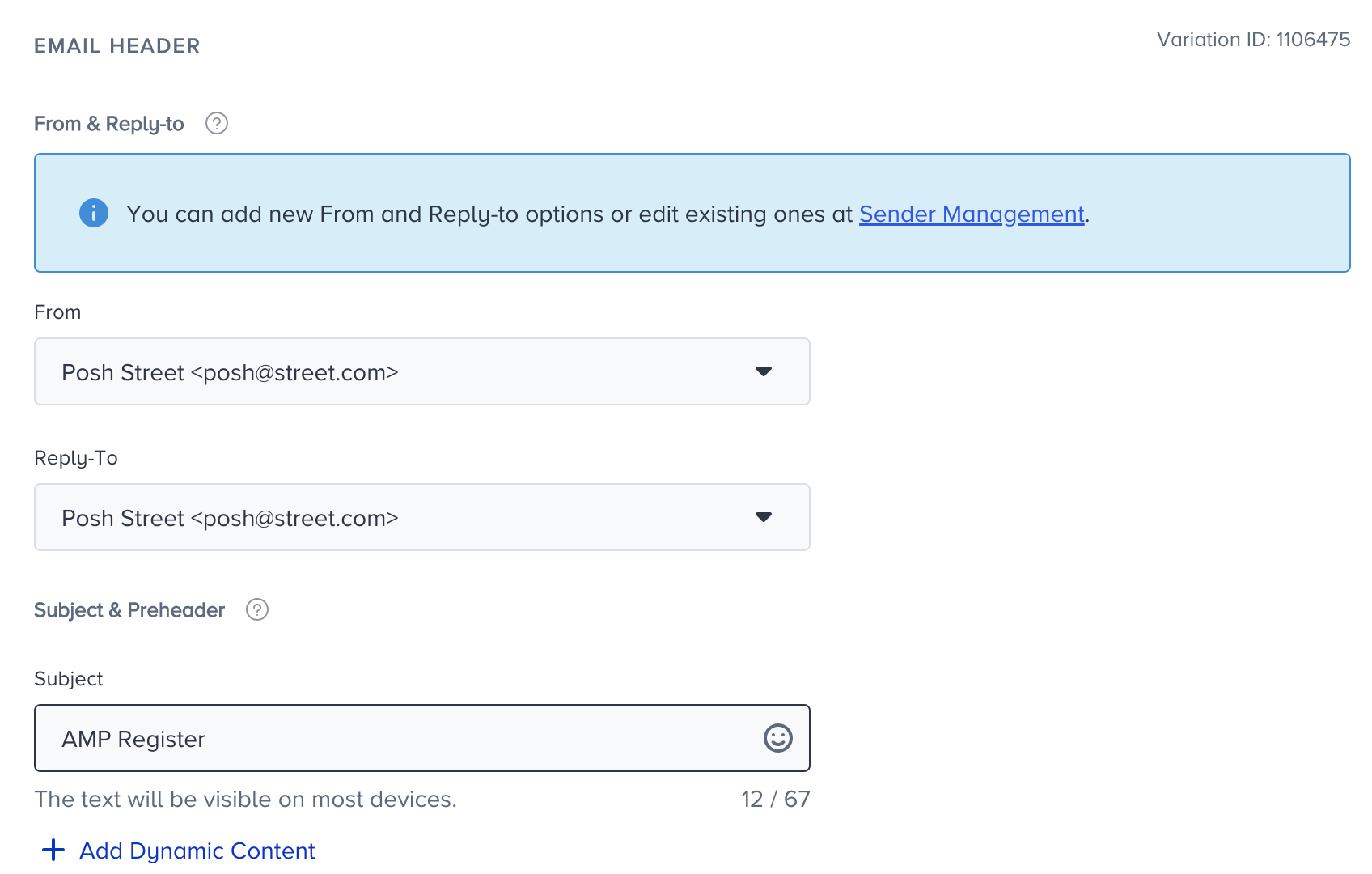
Sender registration works on a per-email basis. If you want to register more than one sender email, each sender must be registered separately. The registration covers only the specific sender email, but not the domain itself.
If you want to use one of the AMP templates in Insider's library, select Choose Template.
.png)
.png)
If you want to design your email, choose the Drag and Drop Editor.
If you are using the default template that comes with the Drag & Drop Editor, remove the buttons or add a functional link to each. Otherwise, it will trigger the invalid amp error.
.png)
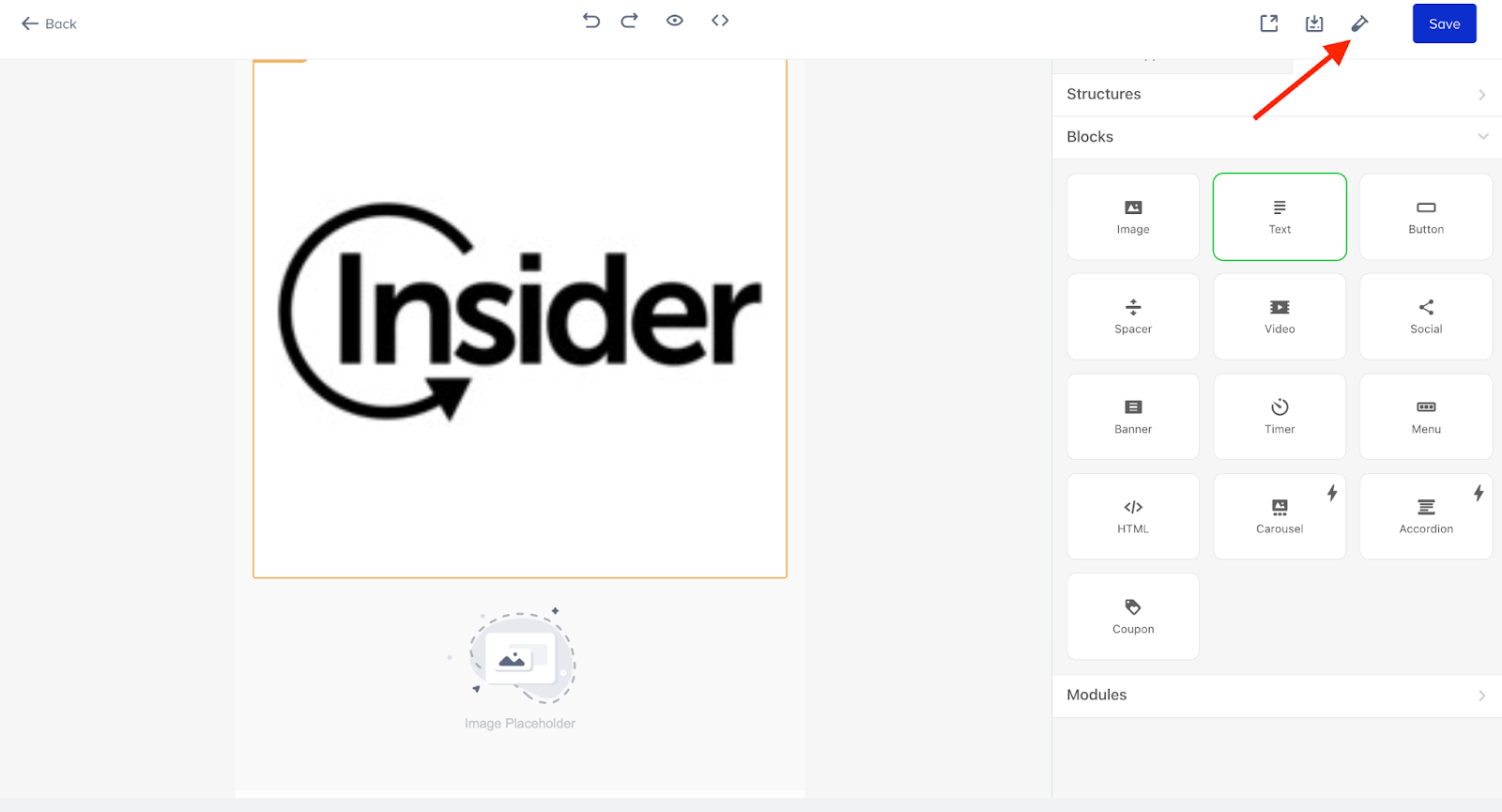
Add the Carousel block to your template, and add a slide.
.png)
This guide shows how to create a production-ready AMP email with the Carousel element. You can also use the other AMP elements.
Now send a test email to your email address to be sure that the AMP email you have built is a valid AMP email. Since your sender is not registered with Google yet, you need to configure some settings on your Gmail account.
Go to your Gmail account and navigate to Settings > General.
Check the "Enable dynamic email" box.
.png)
Click Developer settings to enter your sender email address.
.png)
The email address above is an example. You should replace it with your own sender email address.
12. Send a test email to your address.
View your test email with the AMP content in your inbox.
.png)
Register your sender to get whitelisted with clients that support AMP emails
Now that you have built your AMP email, you can register your sender with Google. To do this:
Send a production-ready email to the whitelisting accounts, such as ampverification@yahoo.com for Yahoo, ampforemail.whitelisting@gmail.com for Gmail, and postmaster_amp@corp.mail.ru for Mail.ru, following the same test email steps.
.png)
Fill in the Sender Registration Form. Refer to the AMP Sender Registration Form for further details.
Enter the sender email domain(s) you want to send the emails from, together with sendgrid.info as the default email domain. Make sure to add the sendgrid.info.
.png)
Enter Sendgrid as the name of the service provider.
.png)
Once you fill in all the fields, submit your form.
.png)
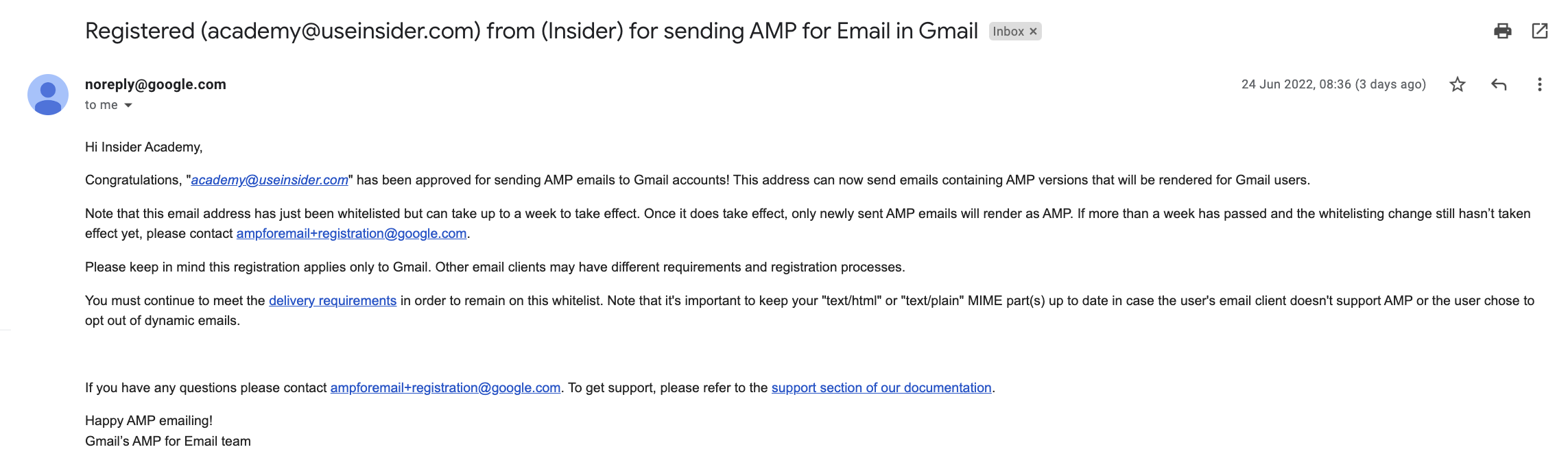
When Google successfully grants your AMP request, the email address you used to fill out the AMP for Email form will receive a confirmation email as follows:
Once you get your confirmation, you can start building highly rich user experiences with: