Suggested readings: AMP for Emails, AMP Sender Registration Form, AMP Carousel for Emails, AMP Form for Emails
Accordion lets your users get an idea of the content at a glance and expand any section to see the full content. This feature saves space in your emails by allowing your users, especially mobile users, to easily see your content without scrolling much.
You can build AMP accordions without opening the HTML editor. You do not need coding skills or to add scripts to the email code. You can build these emails with the Drag and Drop editor.
This guide answers the following questions with detailed instructions:
- How can I build the AMP accordion?
- How can I build a fallback for other recipients?
- How can I preview the accordion?
- What are the common ways of using the AMP accordion and fallback in emails?
Build AMP accordion
To create an email with the AMP accordion as above, follow these steps:
1. Drag the AMP accordion block into your email template.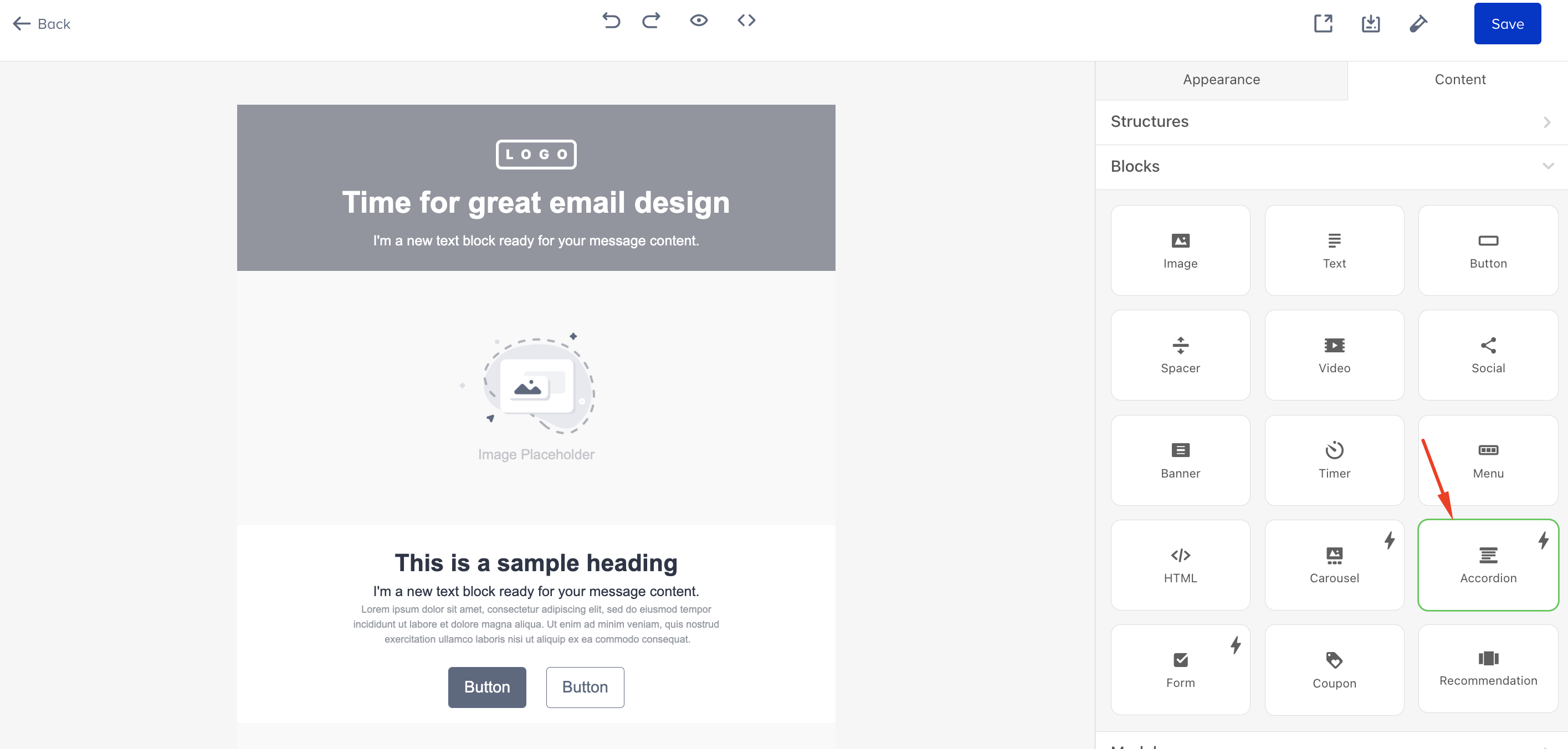 2. The Animated expansion option is ON by default. It activates the “transition” property, which allows your sections to open and close slowly. If it does not need it, you always can turn it OFF by toggling the button.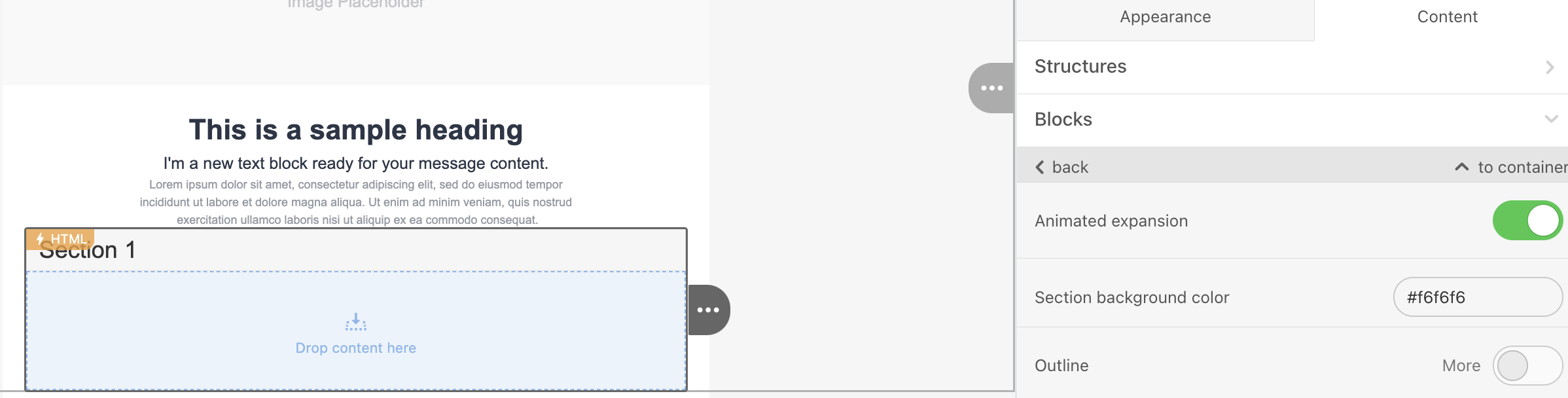
3. Now you need to work on the accordion design. Set background color, outline width and color, section text color, and the font size. Please remember that you are now working on the accordion’s section design. In other words, this is what customers see when the accordion is not expanded.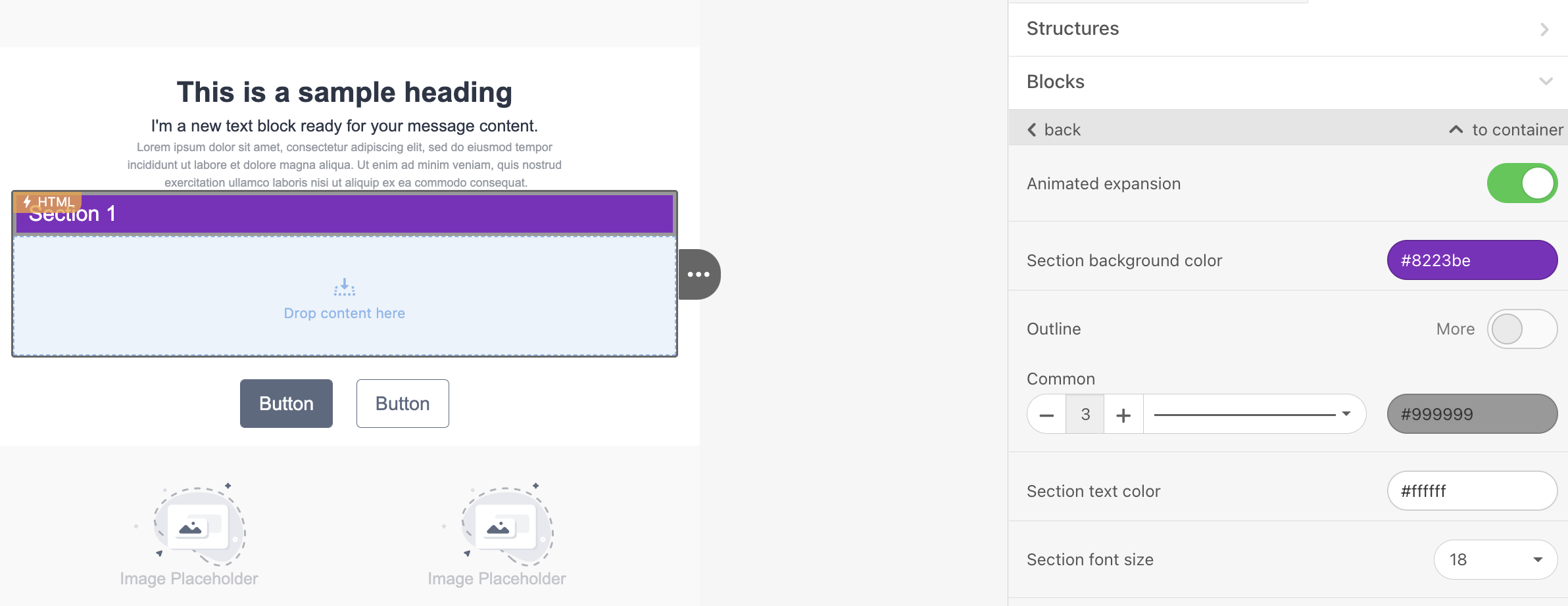 4. Add as many sections as you need.
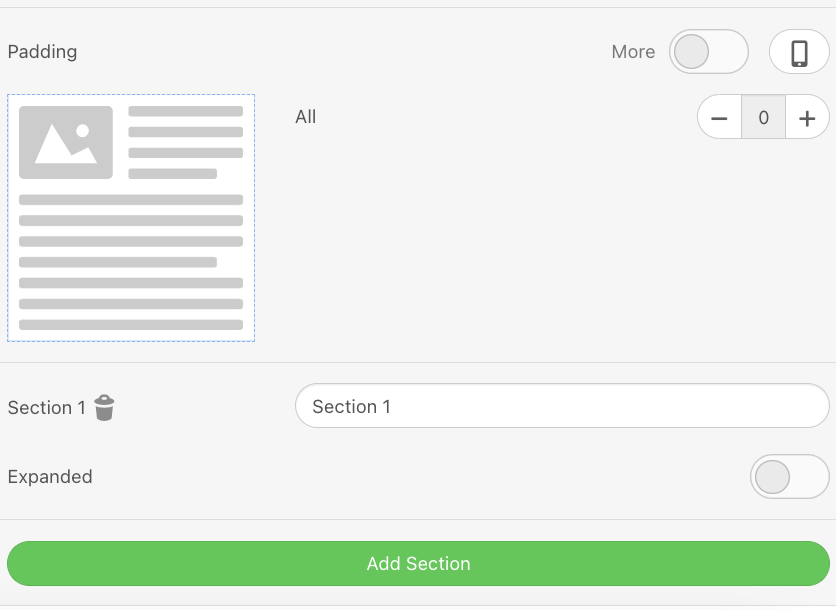 5. Give names to all these sections. You may enter up to 200 characters. If you add more, your email will widen. But even 200 characters is way too many, as it takes more than 4 lines.
6. Now toggle the “auto-collapsing accordion” button to activate this option. It allows showing one section at a time. When you open another section, the previously open one closes.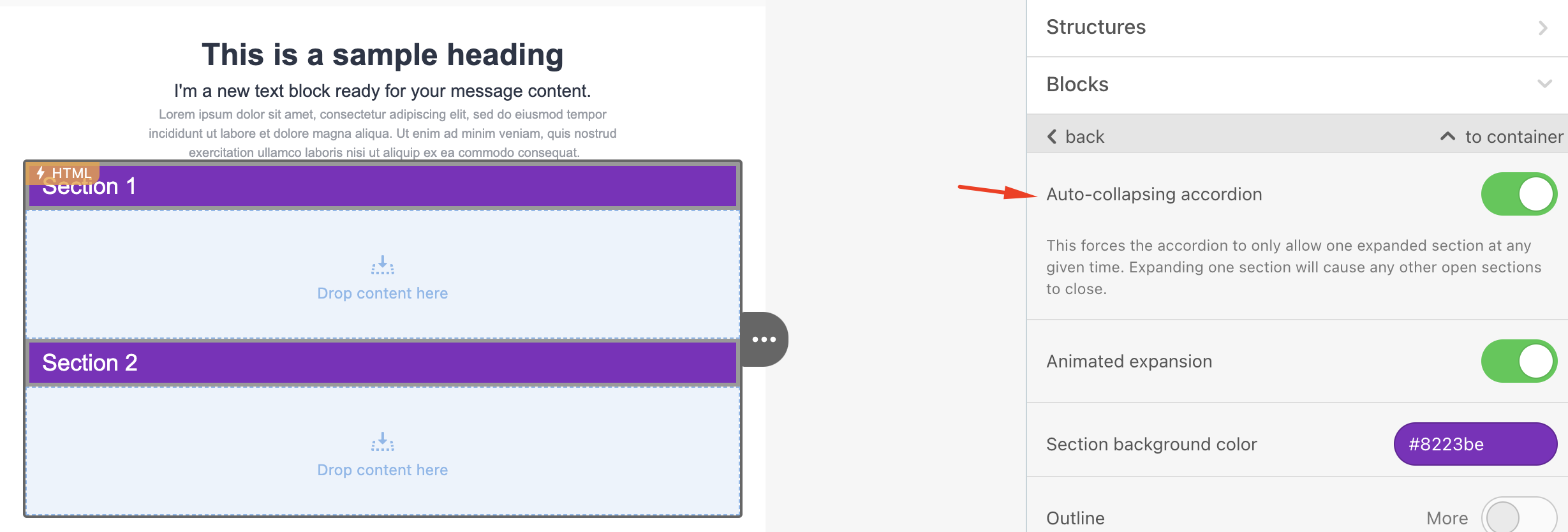
7. You may want one section to expand in your emails to let your customers know there’s some content hidden in these sections. To do so, toggle the “expanded section” button for the necessary section;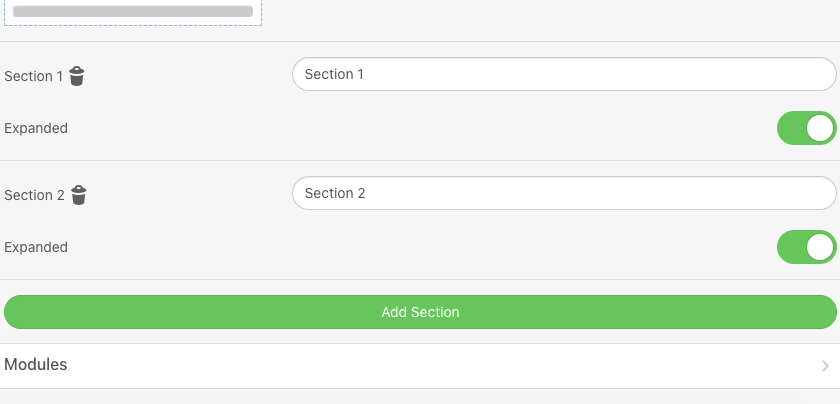
8. Now fill those sections in with your content. It can be anything, such as images, text, buttons, banners, social media icons, videos, etc. Edit this content.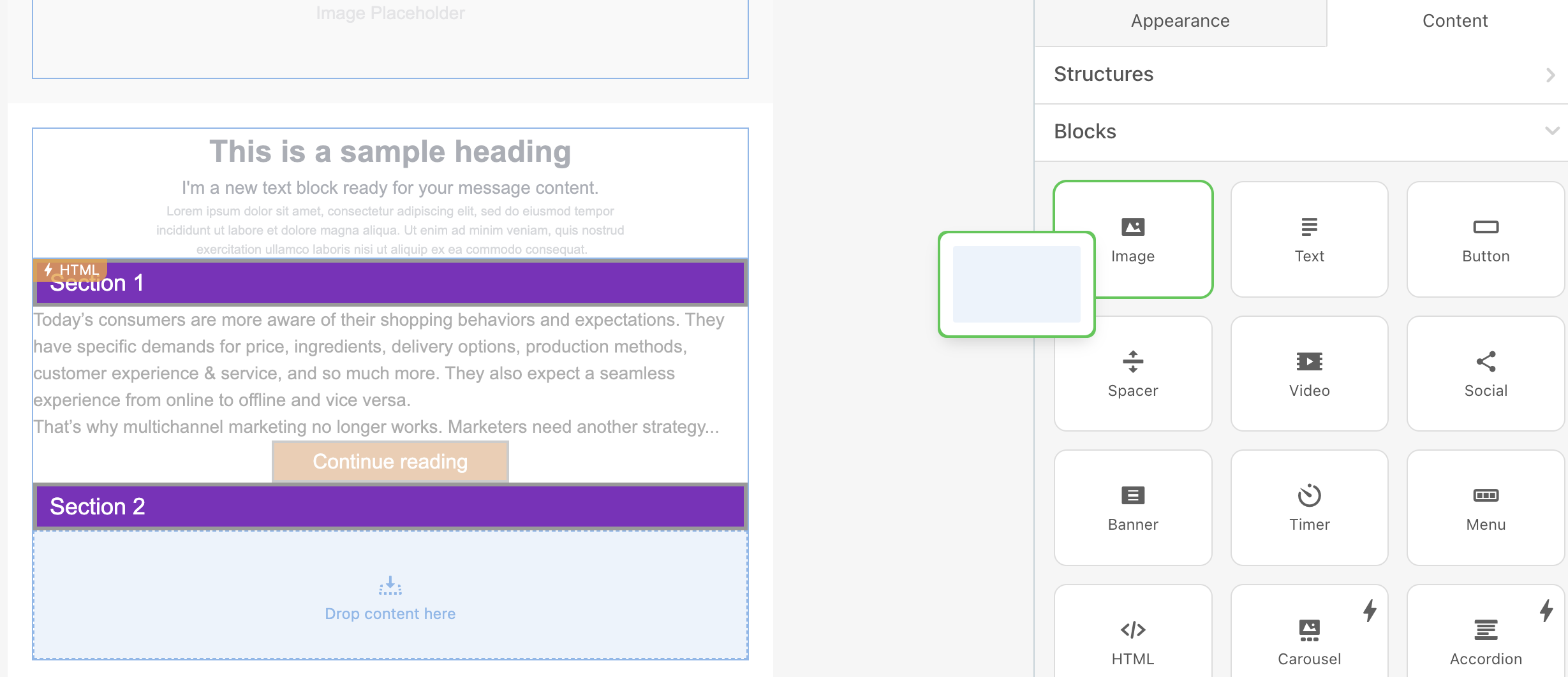
Build a fallback for other recipients
You build it the way you normally build your emails. Once you’re done, activate the entire Fallback structure, then in the settings panel, click the Include in HTML button.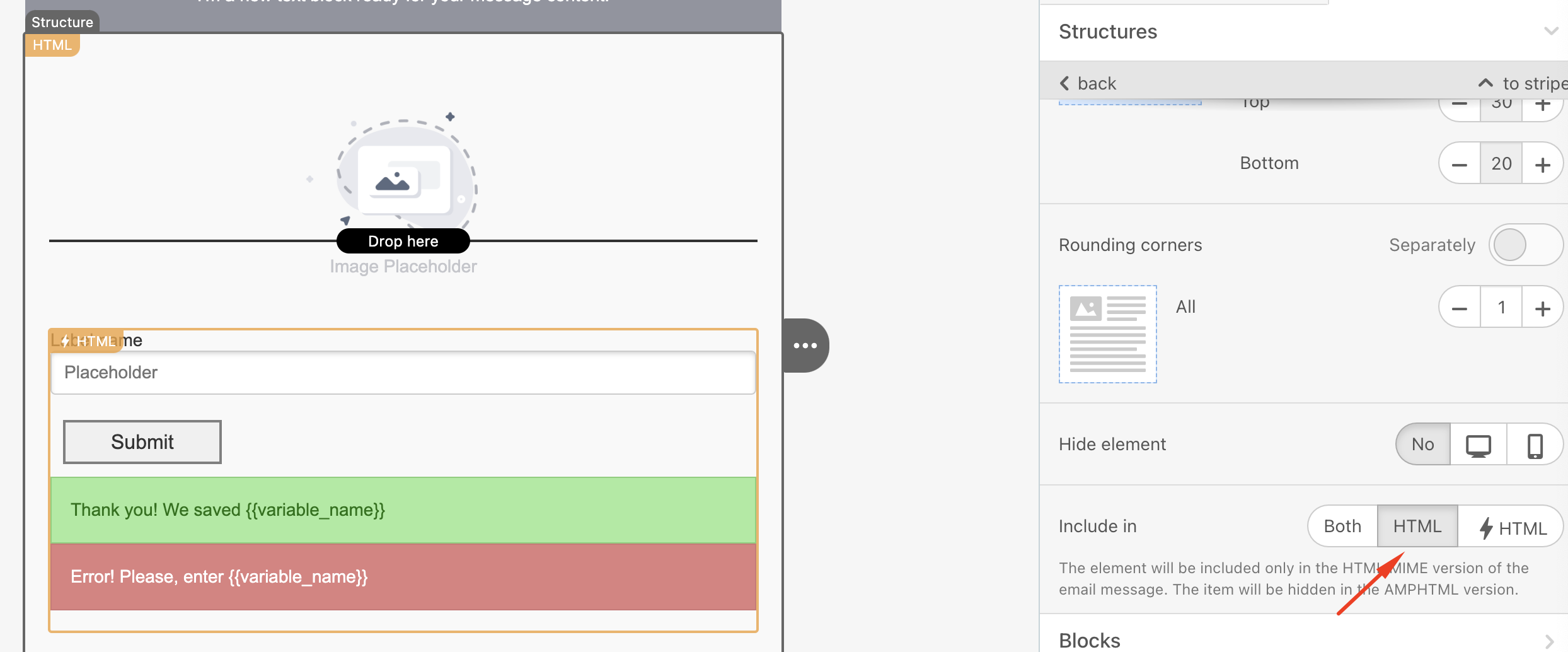 Then, this structure will be marked as "HTML," and the structure with AMP accordion will be marked as "⚡HTML".
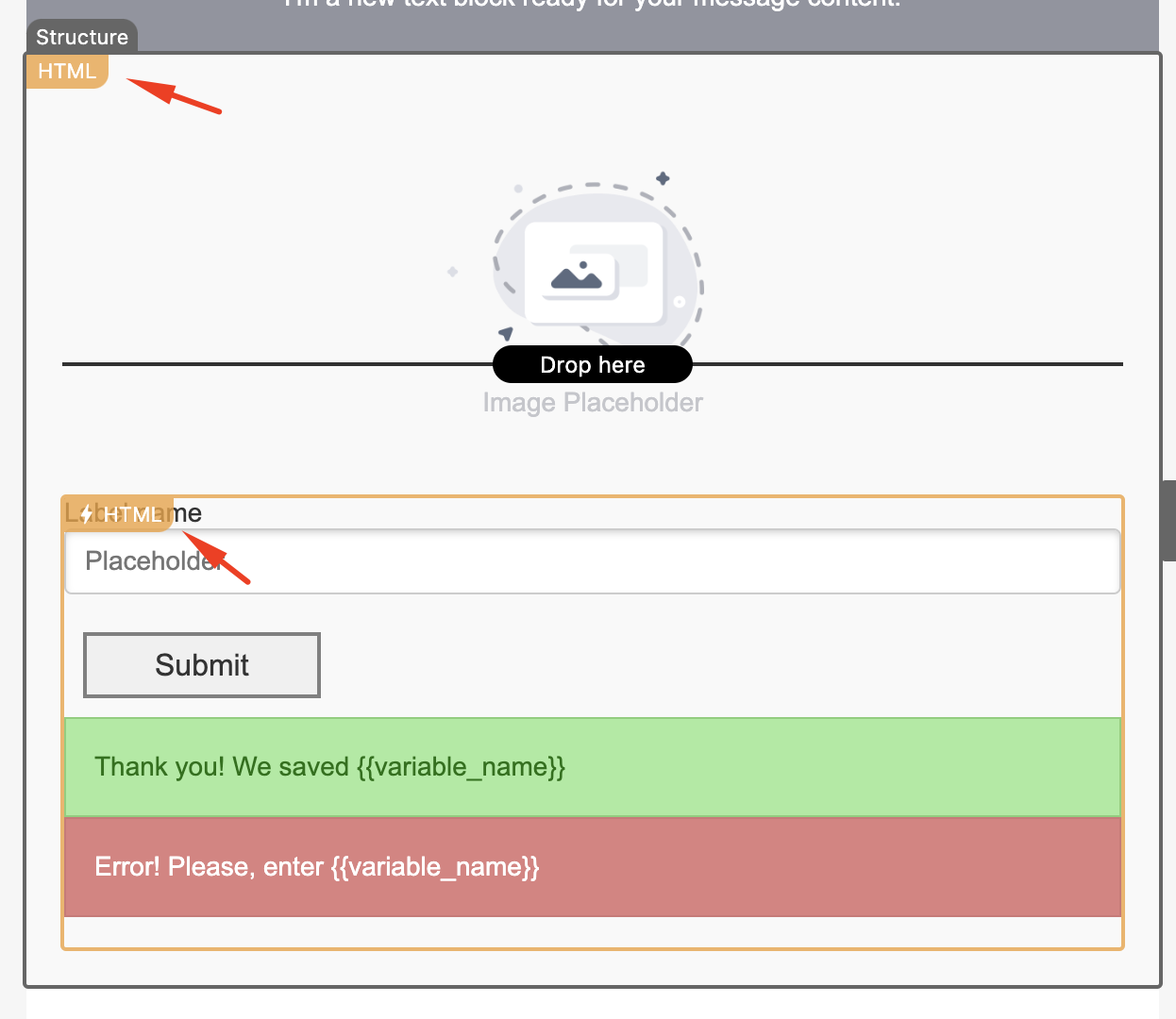 All other elements, to which you have not set the “Include in..." option, will be displayed in both versions of your emails.
Preview the accordion
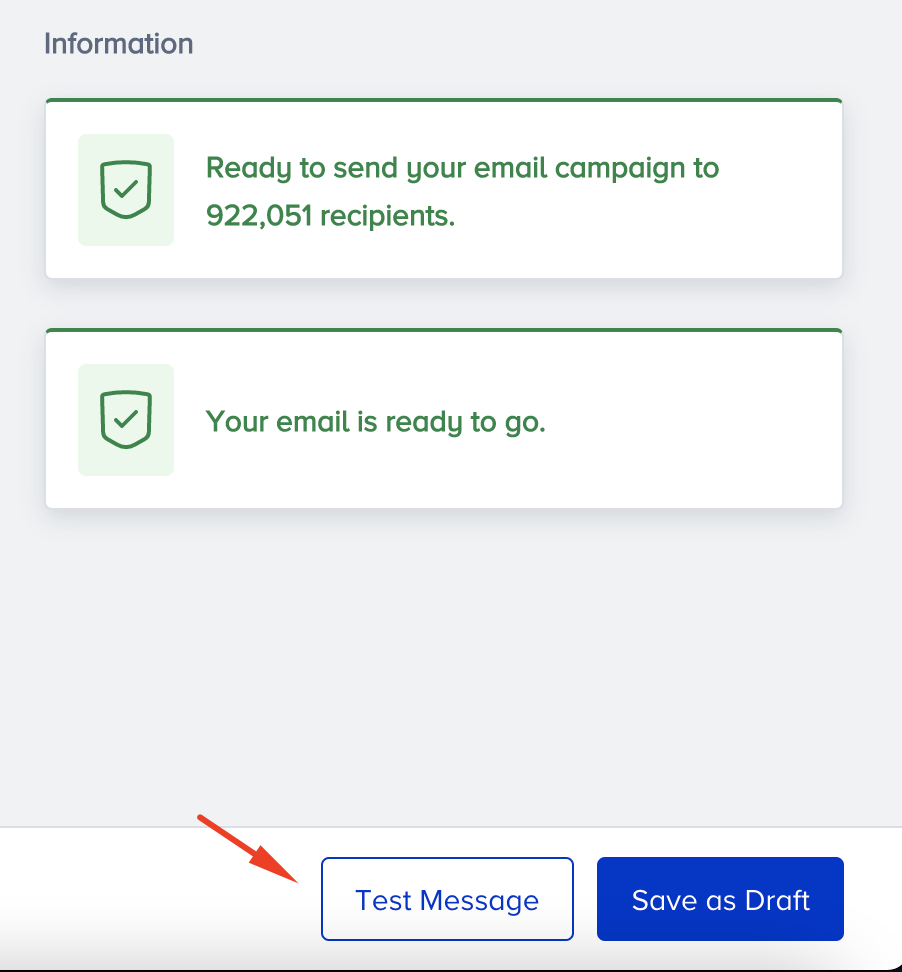
To preview your AMP email, you should get your sender whitelisted with Google. Once you complete designing your email, you can send a test message to your email address with the Test Message button on the Design or Launch step.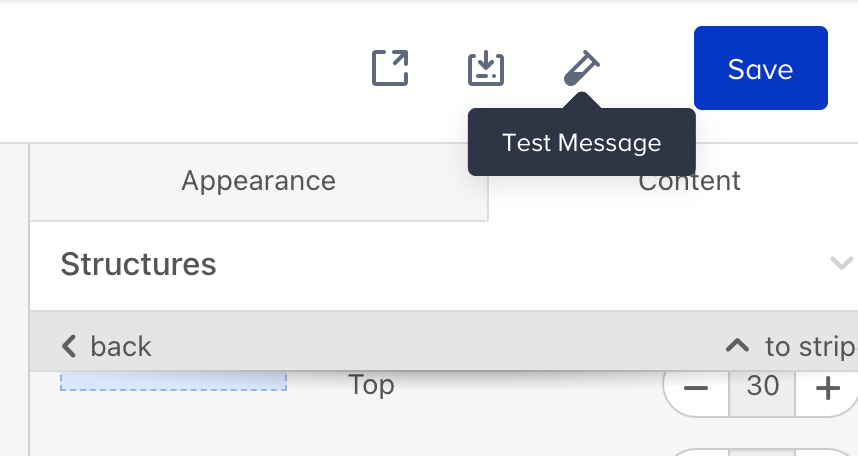
Common ways of using the AMP accordion and fallback in emails
Of course, there are a number of ways to use an accordion in emails, but we will enumerate only the most common ones here.
Manual
Sometimes you need to provide your customers with different ways to do something, or show them step-by-step how to work with our new tool. And the AMP accordion will be very useful here.
By adding it to HTML emails, you enable your recipients to skip the steps they are familiar with and more quickly find the ones they have had difficulty with.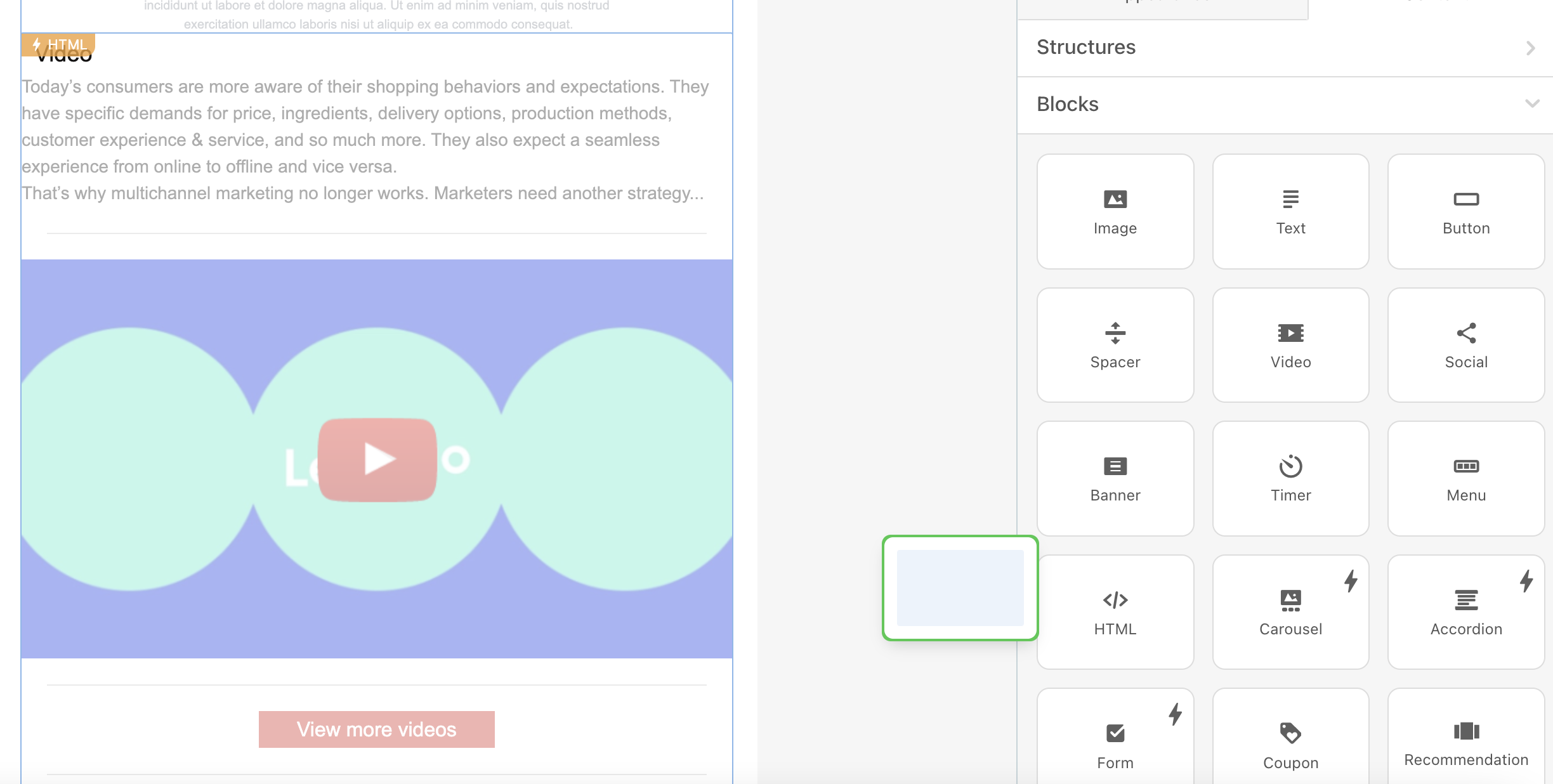
You can add images, buttons, video tutorials, and even buttons in every section of your accordion if you like.
Fallback
As a fallback, you can create a short step-by-step guide or an email that shows how to wear new apparel or how to pair it with other pieces.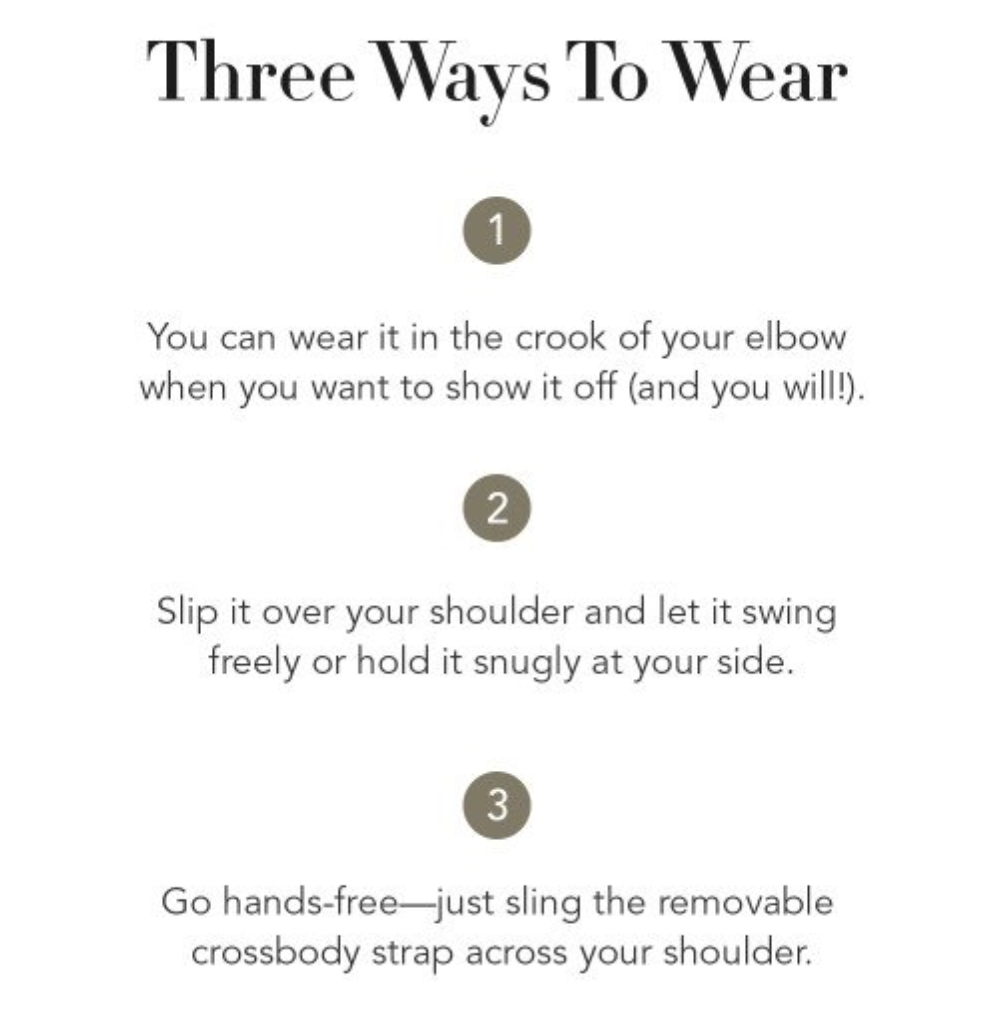
Email digests
Email digests normally contain a lot of information and are long reads. Subscribers need to scroll down to find any news they want to read more about.
If you share more than 5 blog posts in your digest emails, be sure to wrap them in an accordion. Also, it is applicable for investor updates, as it lets them get directly to the necessary part of your emails.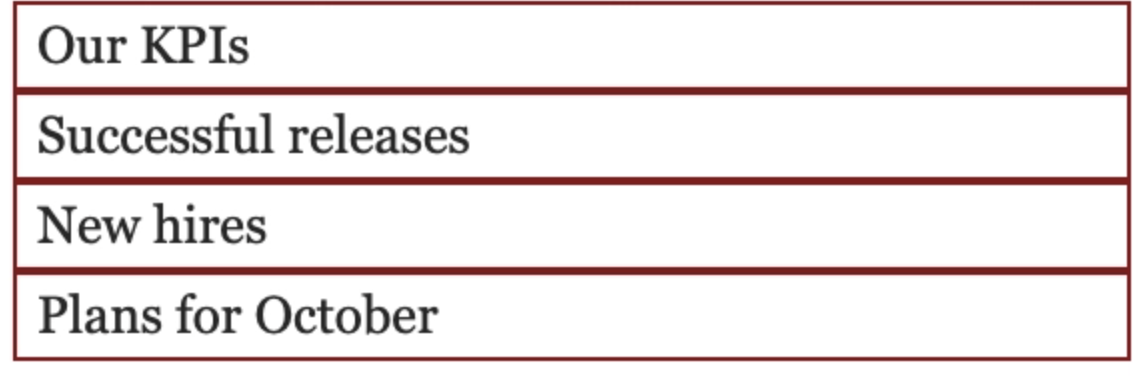
Fallback
You can build a regular digest email. Just make sure your blog post description is short.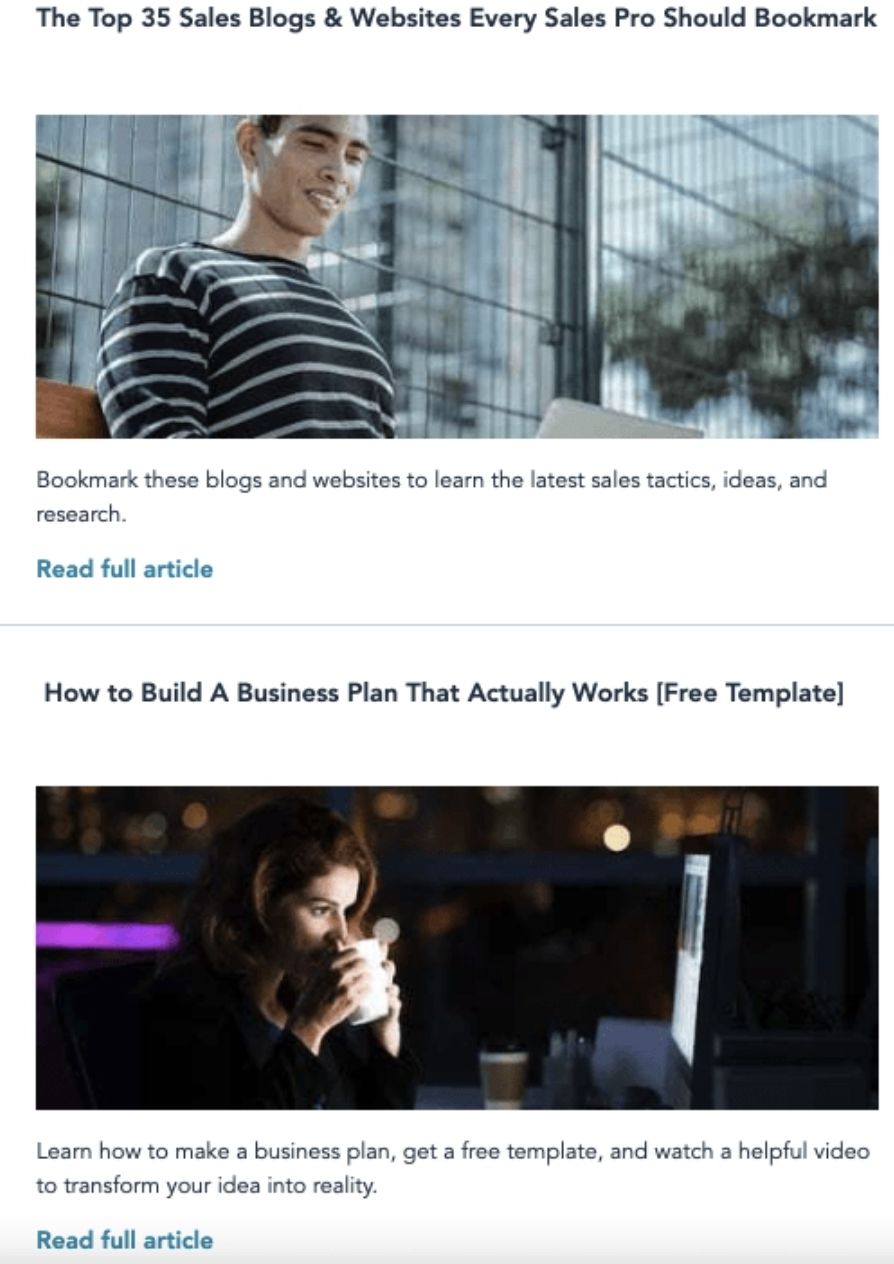 Or else, you can use anchor links in your digest emails. Please remember that you can add anchor links in emails with the editor.
Categories of products
Most online stores need to promote not one single product but a whole lot of them. Yet customers might not be interested in your entire assortment; they may want to browse specific categories.
Displaying categories is suitable when you need to promote more than 10 items at a time..png)
Fallback
Here, as a fallback, you may want to add several product cards. Be sure to place a few per row.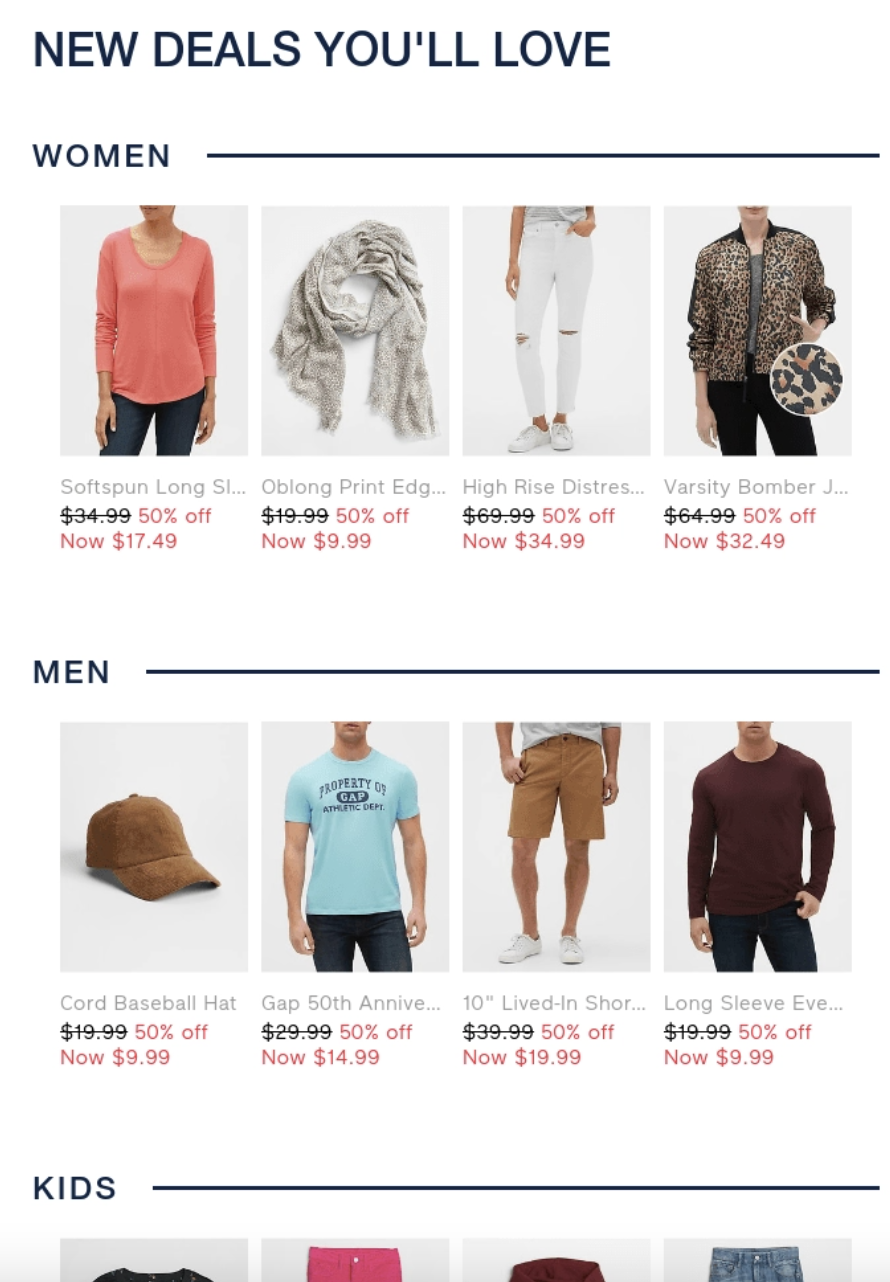
Or else it could be a regular menu with links that take recipients to your website.
Keep in mind
To make sure that your recipients see your AMP emails, you need to:
- Get whitelisted with Google.
- Fix any bugs that occur. The editor shows if you have any in emails and even recommends how to fix them.
- You have fallbacks for those customers whose email clients do not support AMP for emails.
- Make sure your ESP/CRM can send AMP emails.
- Keep in mind that only Gmail (both web and mobile apps across all OSs) and Mail.ru currently support rendering AMP emails. Yahoo will join the list soon.
- AMP emails lose their AMP components when forwarded.