Suggested readings: AMP for Emails, AMP Sender Registration Form, AMP Carousel for Emails, AMP Form for Emails
Accordion allows your users to get an idea of the content at a glance and expand any section to view the full content. This feature saves space in your emails by allowing your users, especially mobile users, to easily see your content without scrolling much.
You can build AMP-accordions without opening the HTML code editor. You do not need coding skills or to add scripts to the email code. You can build these emails with the Drag and Drop editor.
This guide answers the following questions with detailed instructions:
Build AMP accordion
To create an email with the AMP accordion as above, follow these steps:
1. Drag the AMP accordion block into your email template.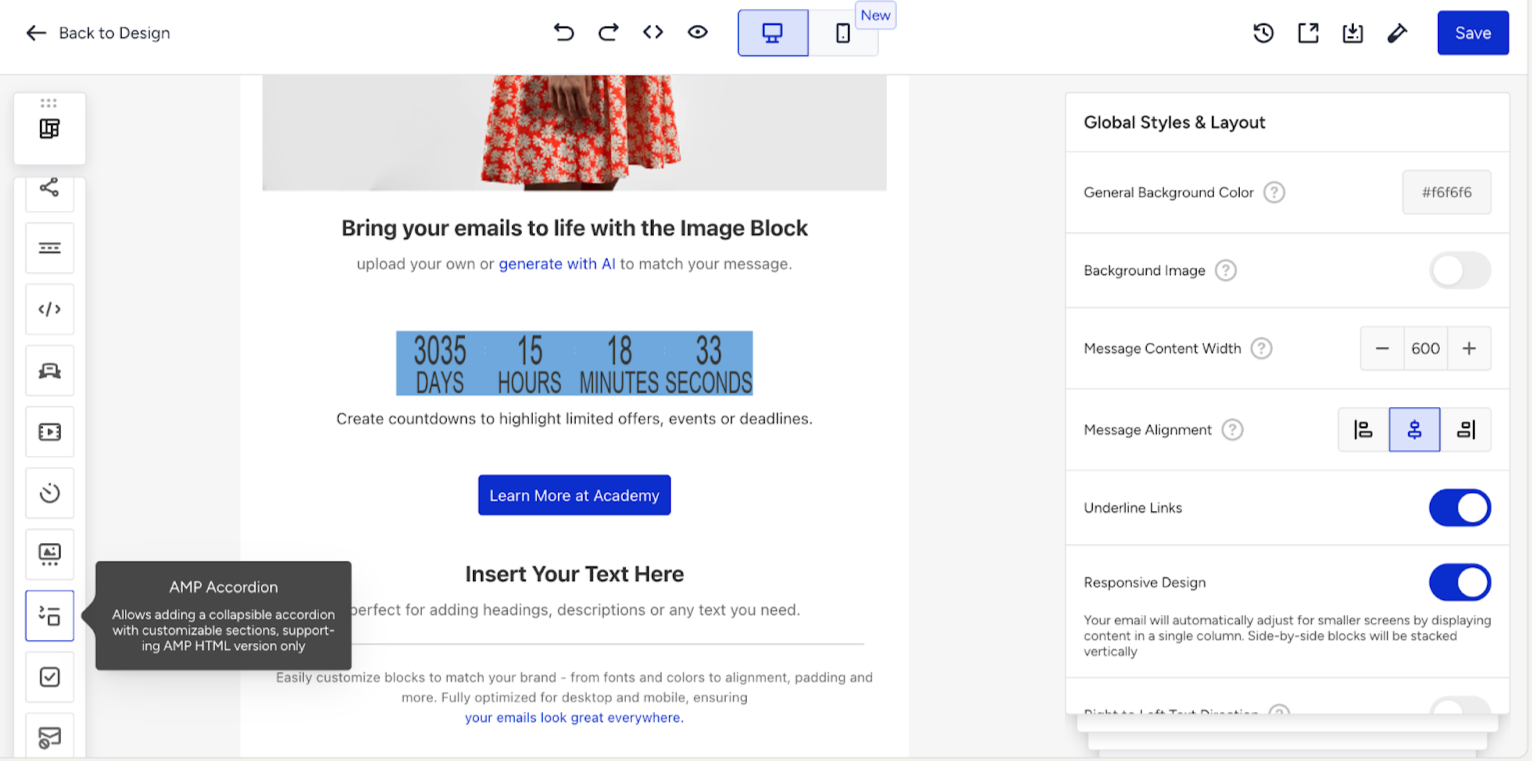
2. In the Settings tab, you can add the needed number of sections to the accordion.
.png)
3. Give all sections' names. You can enter up to 500 characters. Use the Gap Between Sections option to adjust the padding between sections for optimal spacing.
.png)
4. Enable the Auto-collapsing option to show one section at a time. When you open any other section, the previously opened one is closed.
.png)
5. If you want a specific section to be expanded by default, toggle the Expanded option so subscribers can see the content right away.
.png)
6. The Animated opening option is enabled to provide a smooth transition effect when opening and closing sections. Toggle it off if you prefer static opening and closing.
.png)
7. Switch to the Styles tab to customize the visual appearance of the accordion.
- Adjust the font of the section titles, including font size, color, and text style.
- Modify the alignment of the titles and apply a background color to them for added emphasis.
- You can also add an icon to the title of each section to enhance its appearance.
- Customize the border color and style for each section to align with your design.
.png)
Preview the accordion
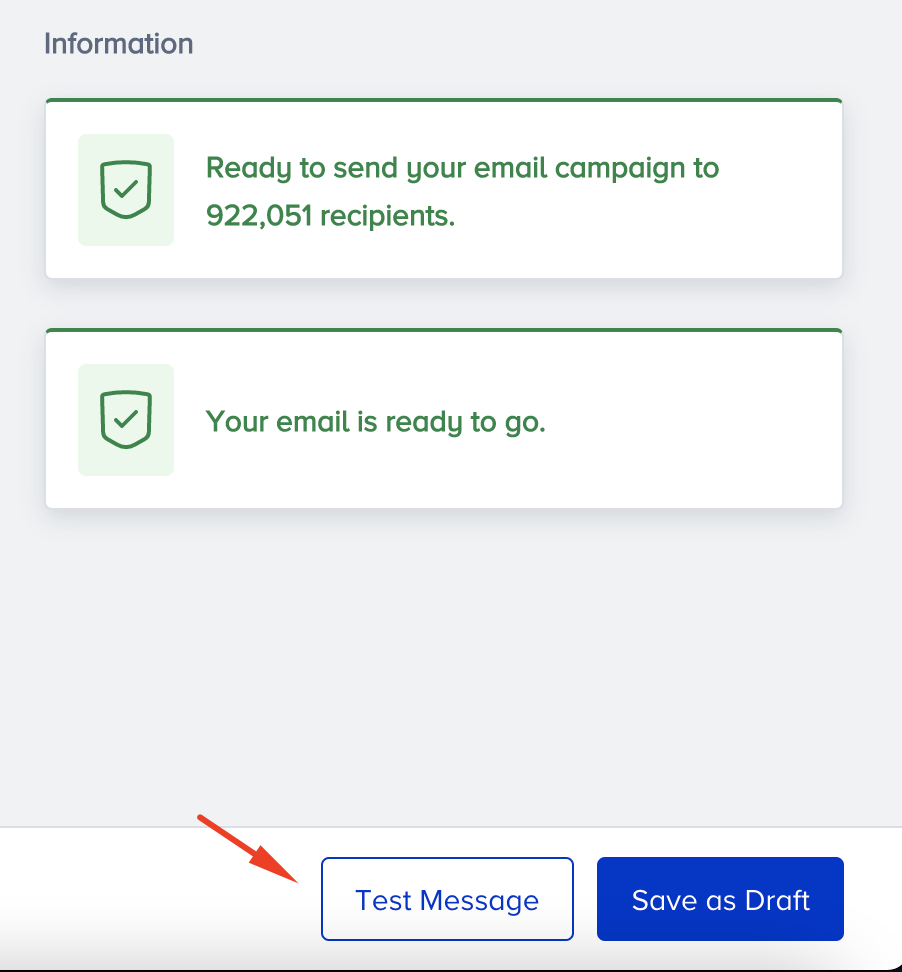
To preview your AMP email, you should get your sender whitelisted with Google. Once you complete designing your email, you can send a test message to your email address with the Test Message button on the Design or Launch step.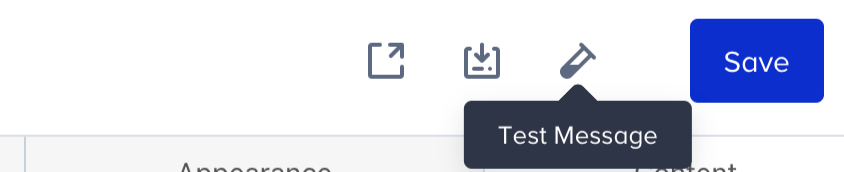
Keep in mind
To make sure that your recipients see your AMP emails, you need to:
- Get whitelisted with Google.
- Fix all the bugs if any occur. The editor shows if you have any in emails and even recommends how to fix them.
- You have fallbacks for those customers whose email clients do not support AMP for emails.
- Make sure your ESP/CRM can send AMP emails.
- Keep in mind that currently only Gmail (both the web and mobile apps on all OSs) and Mail.ru can render AMP emails. Yahoo will join the list soon.
- AMP emails lose their AMP components if you forward them.