You can see live statistics of a journey on the canvas when you launch it.
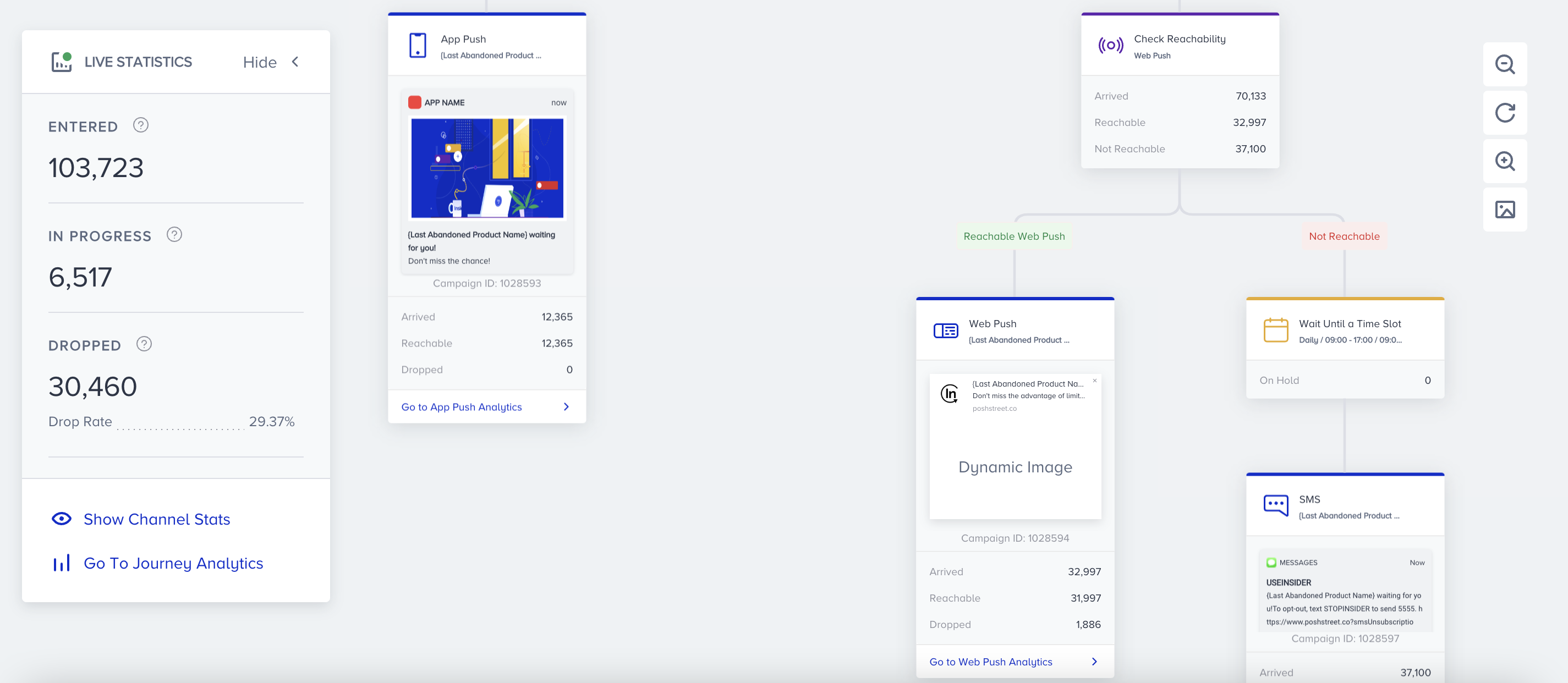
You can see the following general metrics of the journey on the left side of your screen.
- Entered: The number of users who became eligible and started the journey.
- In Progress: The number of users who are still in the journey.
- Dropped: The number of users who got dismissed from the journey due to channel reachability. If you change a journey to passive and users drop, they will be displayed under this metric as well.
- Drop rate: The total number of dropped divided by the total number of entered.
- Completed: The number of users who finished the journeys by reaching the last element or an empty path, excluding the not-reachable paths.
- Complete rate: The total number of completed divided by the total number of entered.
- Exited: The number of users who got dismissed from the journey by matching the exit criteria.
Click the Hide button to minimize the Live Statistics box to extend your canvas area.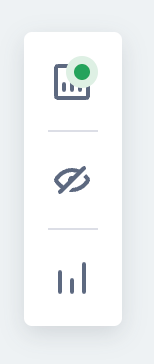
Click the Go to Journey Analytics button to see the overall journey analytics.
Click the Show Channel Stats button to see drop rate, exited, frequency capped, clicks, conversions, and revenue metrics on the channel elements. From the dropdown, you can select which default or custom goal you want to see the conversions and revenue for. You can also select whether you want to view the view-through or click-through conversions
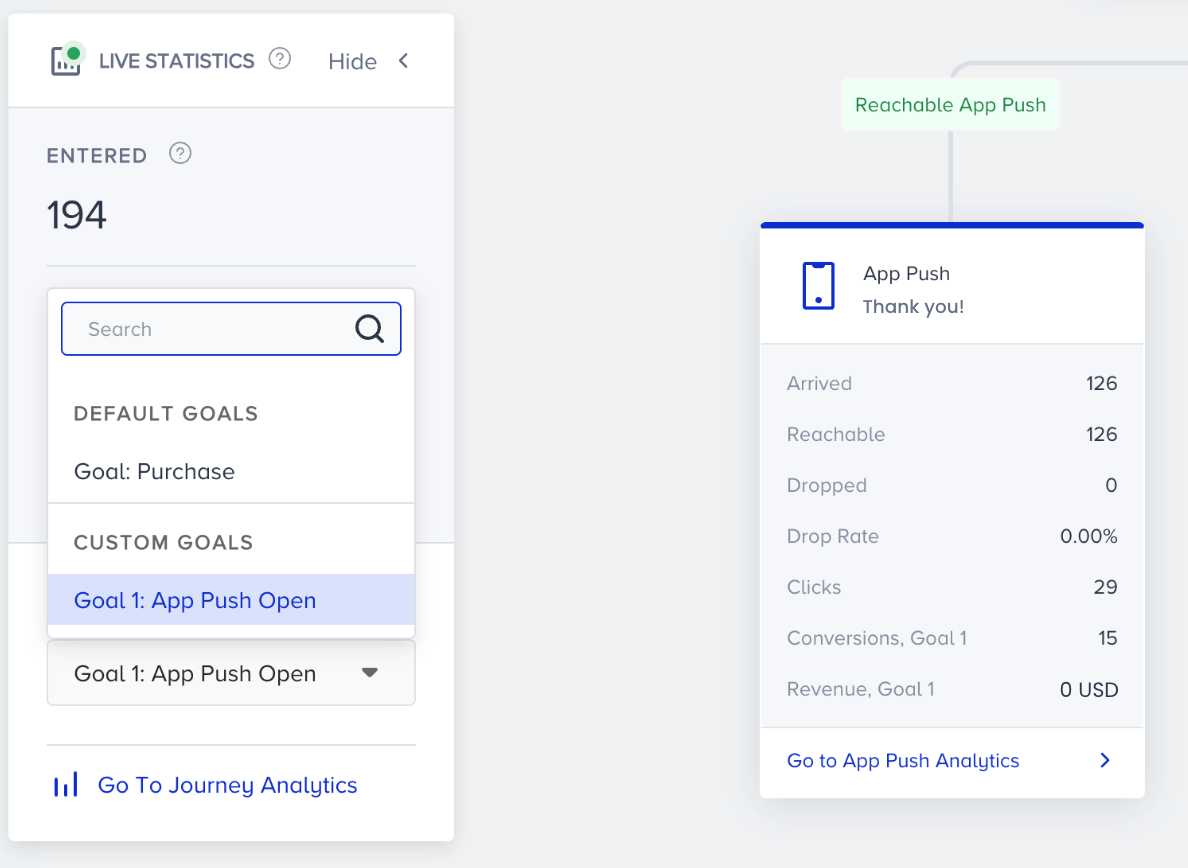
To close the channel performance metrics, click the Hide Channel Stats button.
Also, you can see other statistics on each element.
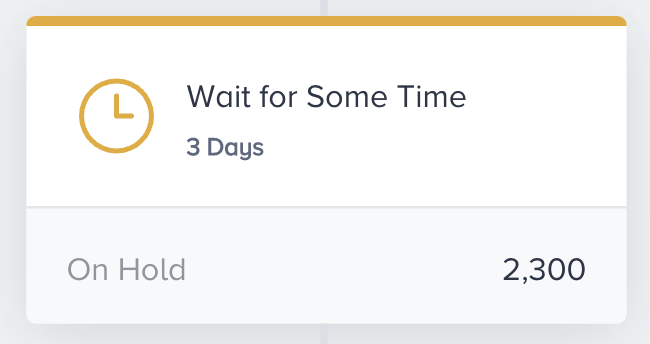
Wait element
- On Hold displays the number of users who are waiting at this element at that moment.
- Dropped shows the number of users who exited the journey when the Drop option was selected as the timeout or fallback behavior in a waiting condition. This applies to Wait for Event, Wait for Attribute, Wait until Dynamic Time, or Wait for Dynamic Duration options within the Wait for Some Time element.
Check element
It displays the number of users who have reached this element, and the breakdown for matching and not matching paths.
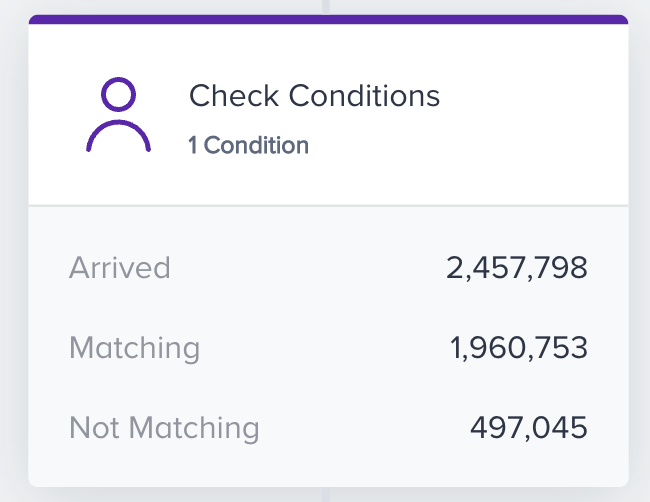
You can see the number of reachable users for each selected channel in the Check Reachability and "not reachable" path as well as the drop rate on the element.
The Drop Rate is displayed only if the "not reachable" path has no element.
.png)
Channel element
It displays metrics related to the user’s flow in the journey.
- Arrived displays the number of users who have reached this element.
- Reachable displays the number of users who are reachable via the channel.
- Dropped displays the number of users who are not reachable from the channels and, therefore, are dropped from the journey.
- Impressions displays the number of users who viewed the OnSite or InApp campaign. This metric is only applicable to and available for these two channels.
- On Hold is only visible when Send Time Optimization is enabled. Users who are kept waiting until the optimal time comes are displayed as On Hold.
- Skipped is only visible if coupons are added to the message content, and your preferred action when the coupon list is exhausted is chosen as “skip the element”. It displays the number of users who skip the element because the coupons in the coupon list are entirely used up.
- Frequency capped displays the number of users to whom the message was not sent due to the frequency capping settings. A user is frequency capped when they receive the maximum number of messages from that channel on that day, which is set in the respective frequency capping settings page.
- Proceeded (Live Actions) displays the number of users who have proceeded to the next step because they haven’t performed the required live action (On Open, On Click, On Reply, etc.) within 30 days.
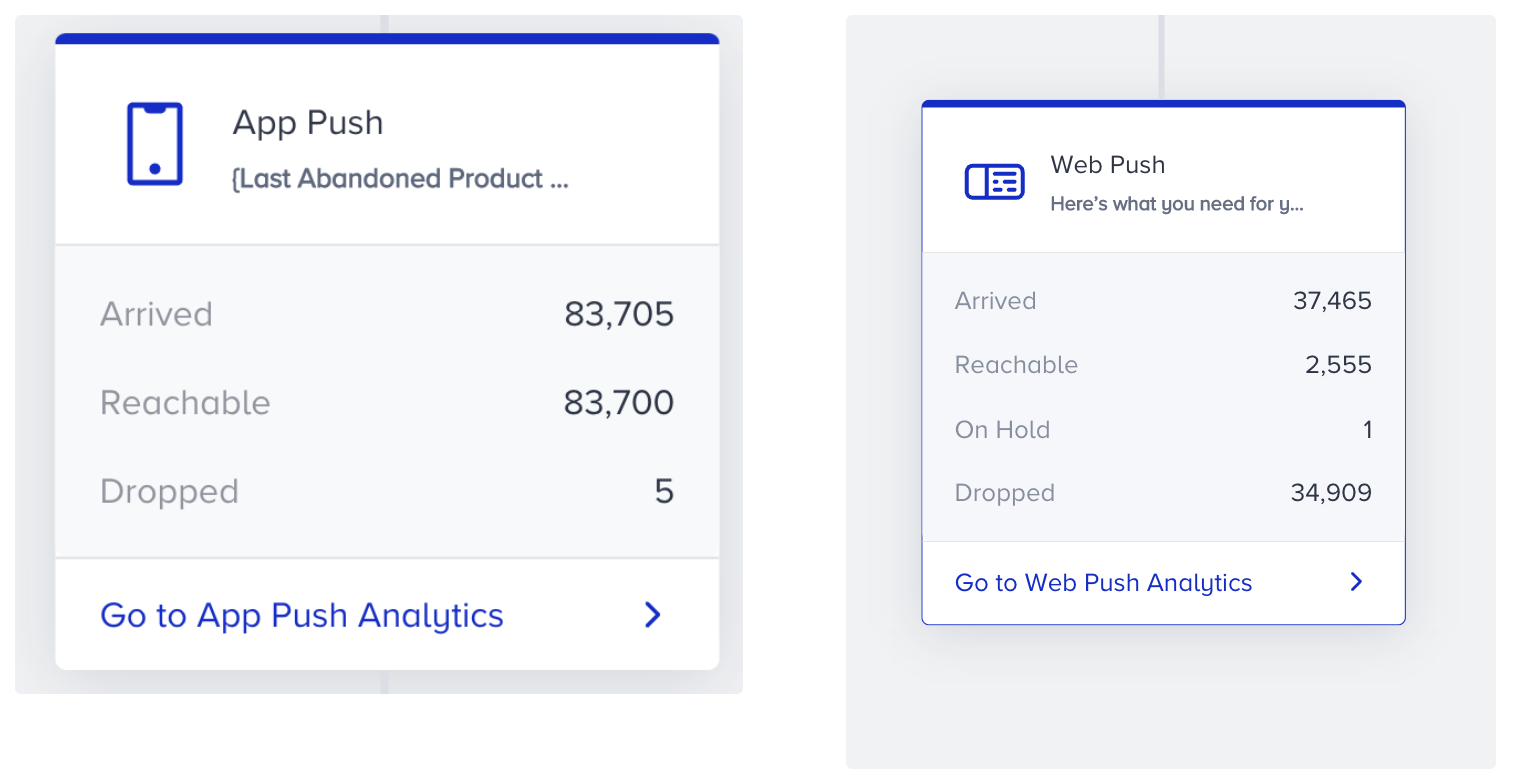
- For App Push and Email, you will see one more metric: Skipped (Duplicated), which appears when a user is prevented from receiving the same message twice. It shows the number of users who would have received a duplicate App Push or Email if this safeguard were not in place.
For example, this can happen when two different users are logged in on the same device (for app push) or have the same email (for email), and both reach the same message in a journey at similar times. To avoid duplicate sends, the system checks whether the same device (for app push) or the same email (for email) has received the same message within the last 30 minutes and skips the second delivery if so.
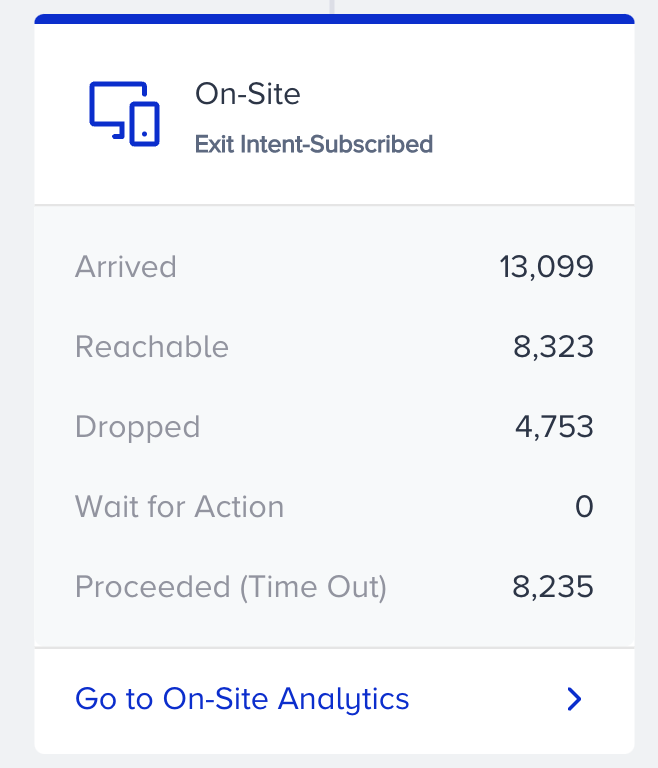
On-site, In-App, and WhatsApp channels have three more metrics:
- Wait for Action: Displays the number of users who are on hold to see the campaign in the specified duration.
- Proceeded (Time out): Displays the number of users who have proceeded to the next step without seeing the campaign within the specified duration.
- Dropped (Time out): Displays the number of users who are dropped from the journey without seeing the campaign within the specified duration.
Proceeded (Time out) and Dropped (Time out) cannot be shown simultaneously. It shows the metric you select inside the channel element.
If you have set throttling, you will see one more metric for the Call an API element: proceeded (throttled). It displays the number of users who have proceeded to the next element without their request being delivered to the endpoint due to throttling. For more details on throttling, refer to Call an API Throttling.
Action Element
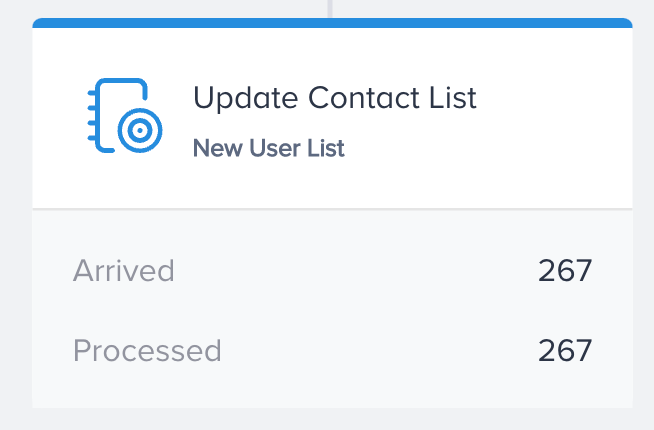
It displays how many users have reached this element and have been processed.
- Arrived displays the number of users who have arrived at the element.
- Processed indicates how many users are taken into the process to perform the desired action.
- Dropped indicates how many users were dropped due to being deleted, unification, or inactivity.