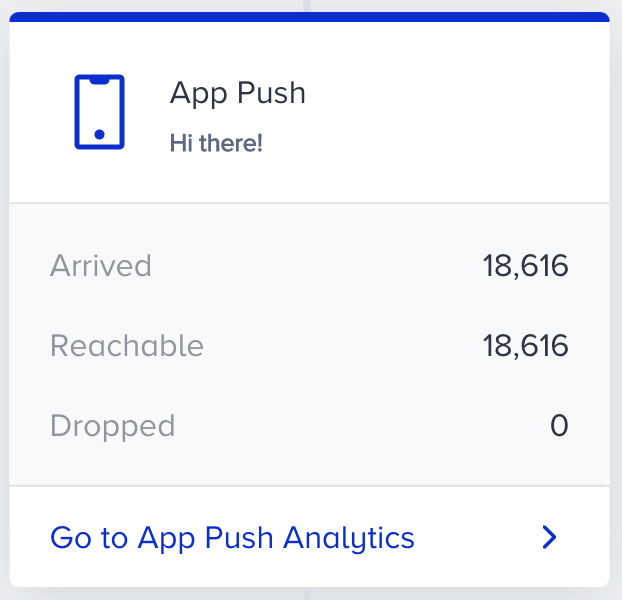
When you are at the App Push element on the canvas, you can click the Go to Analytics button on the element to see the statistics of this channel.
To filter the app push metrics, you can:
Select the Android or iOS platform to evaluate your app push metrics using the dropdown in the top left corner of the page.

Select a goal to evaluate your app push conversions and conversion rate metrics using the dropdown in the top left corner of the page.
Purchase is the default goal set on your account. You can set goals on the top bar of the canvas when creating your journey. Read more on Set Goals.
Select a time range using the date picker in the top right corner of the page.
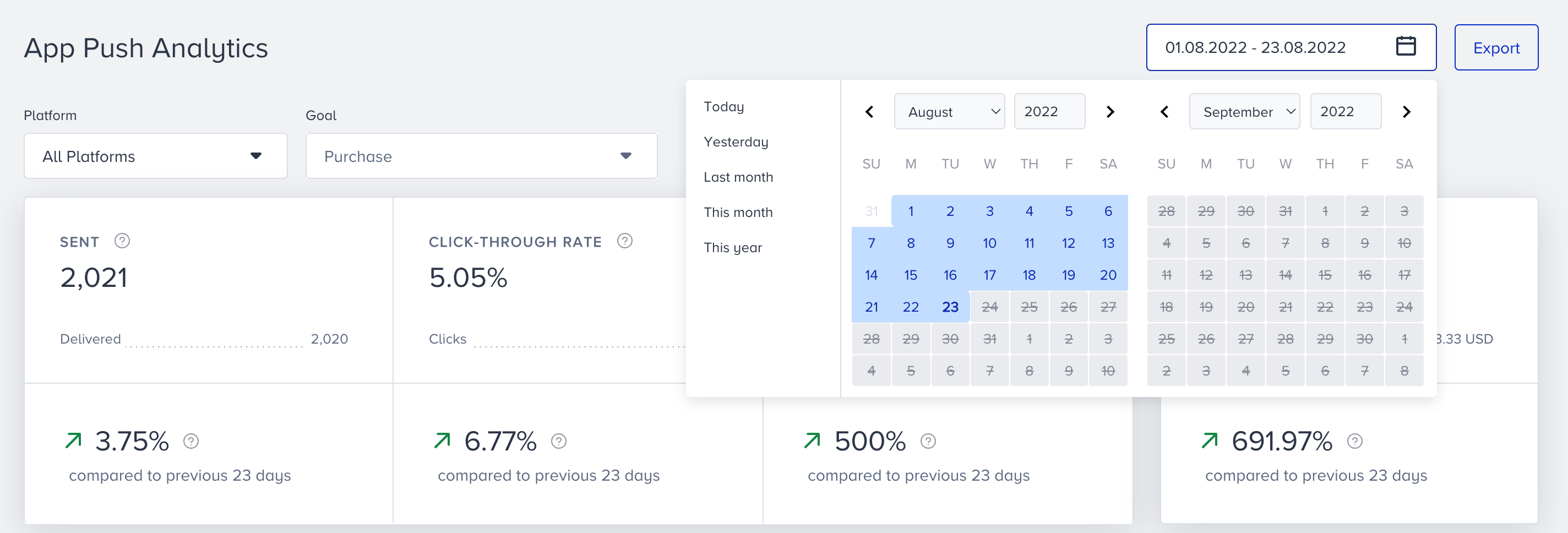
You can also click the Export button to export your report to Excel.
You can also use the Architect Channel Analytics API to export your results.
Narrowing down your results, you can see the following metrics:
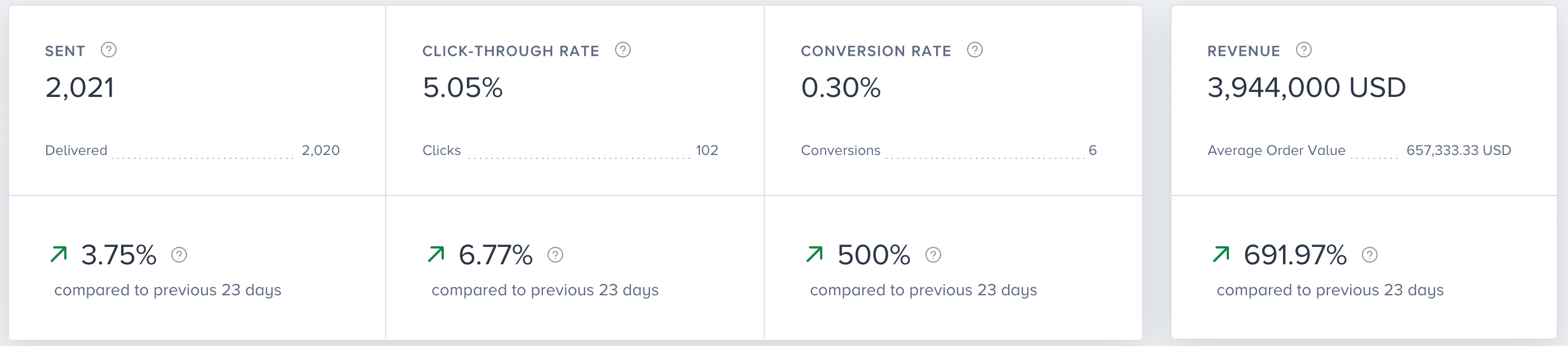
You can view incremental or decremental changes in sent, click-through, conversion, and revenue across the selected date range. For example, when you select last month, it compares the last month to the previous month. When you select 7 days in the date picker, it compares the selected 7 days with the previous 7 days.
Sent: The number of messages addressed to the users via App Push. The sent number cannot be filtered according to platform selection.
Delivered: The number of messages delivered to the users via App Push.
Architect counts each metric on the date its own event happens, not on the date you sent the message. On a narrow date range, a rate such as the delivery rate can exceed 100%, for example, when deliveries are confirmed after the send date. Widen the date range to cover both the send and the later events.
Click-through Rate: The percentage of times that the users clicked the messages to the delivered messages via App Push.
Clicks: The number of times that the users clicked the App Push.
Conversion Rate: The percentage of successful goal accomplishments to the delivered messages via App Push.
Conversions: The number of successful goal accomplishments via App Push. Conversions change according to the Conversion Goal selection in the dropdown.
Conversion goal duration settings affect your campaign's conversion and revenue metrics. For example, your campaign's conversion goal duration is 1 hour. You see this campaign, but do not purchase within the next hour. In this case, no conversion or revenue is displayed on the stats for this campaign.
Revenue: The total value of the purchases made via App Push.
Average Order Value: The division of revenue by the number of purchases made via App Push.
Performance by Metrics
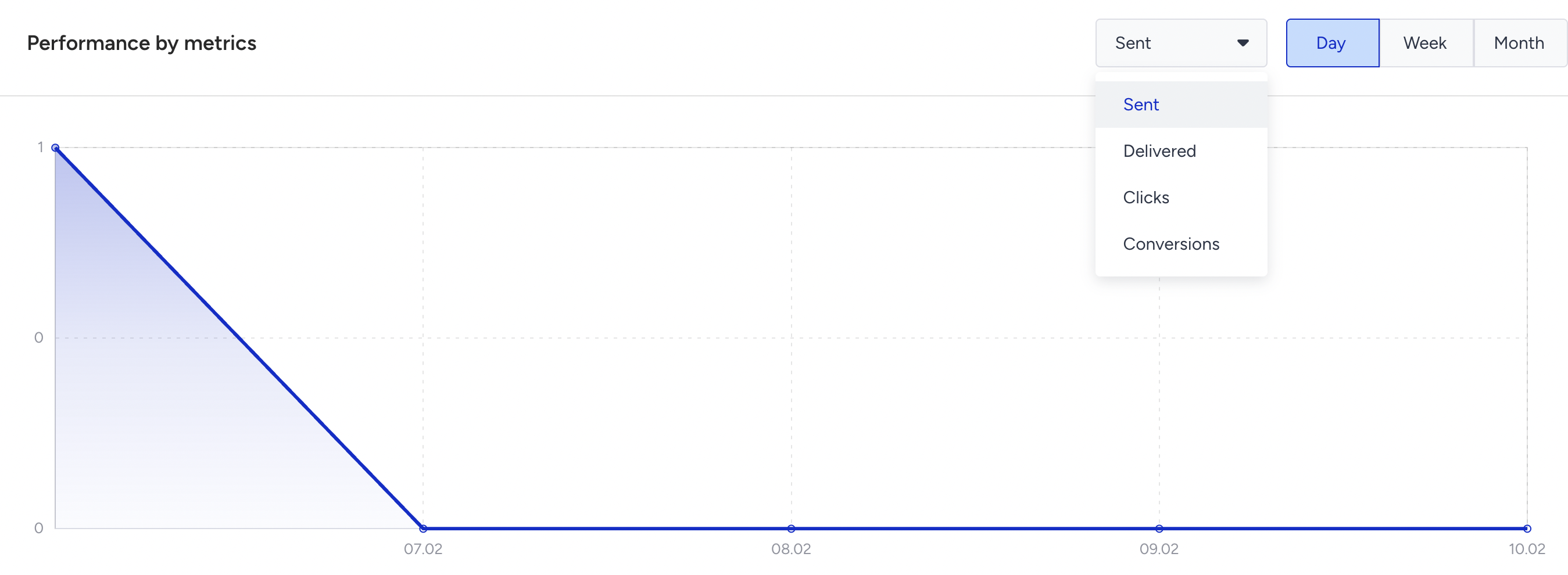
This section displays the daily, weekly, or monthly details on a line chart based on your time range selection, and the metric that you can select using the dropdown on the top left corner of this section. You can select Sent, Delivered, Clicks, or Conversions.
When two different users with the same Mobile Device Token enter a journey, they receive a push notification and do not receive the same push as duplicated. If a user does not receive the duplicated notification, they will appear on Skipped (Duplicated). Each App Push element checks the mobile device token before sending any push notification.
(1).png)