You can follow these steps to use Wait for Some Time:
1. Click the + (plus) button to select the Wait for Some Time in the Wait category.
2. Click on the field to specify the wait settings. The users in the journey can Wait for Some Time or Wait for Dynamic Duration.
Wait for Some Time

This option lets users proceed to the next element after waiting for some time.
Wait for Dynamic Duration
You can use this element in journeys starting with the On Event or On Dynamic Date elements.
In Transactional Journeys, the dynamic duration comes from a number parameter of the On API Call starter. See Transactional Journeys: Wait for Some Time.
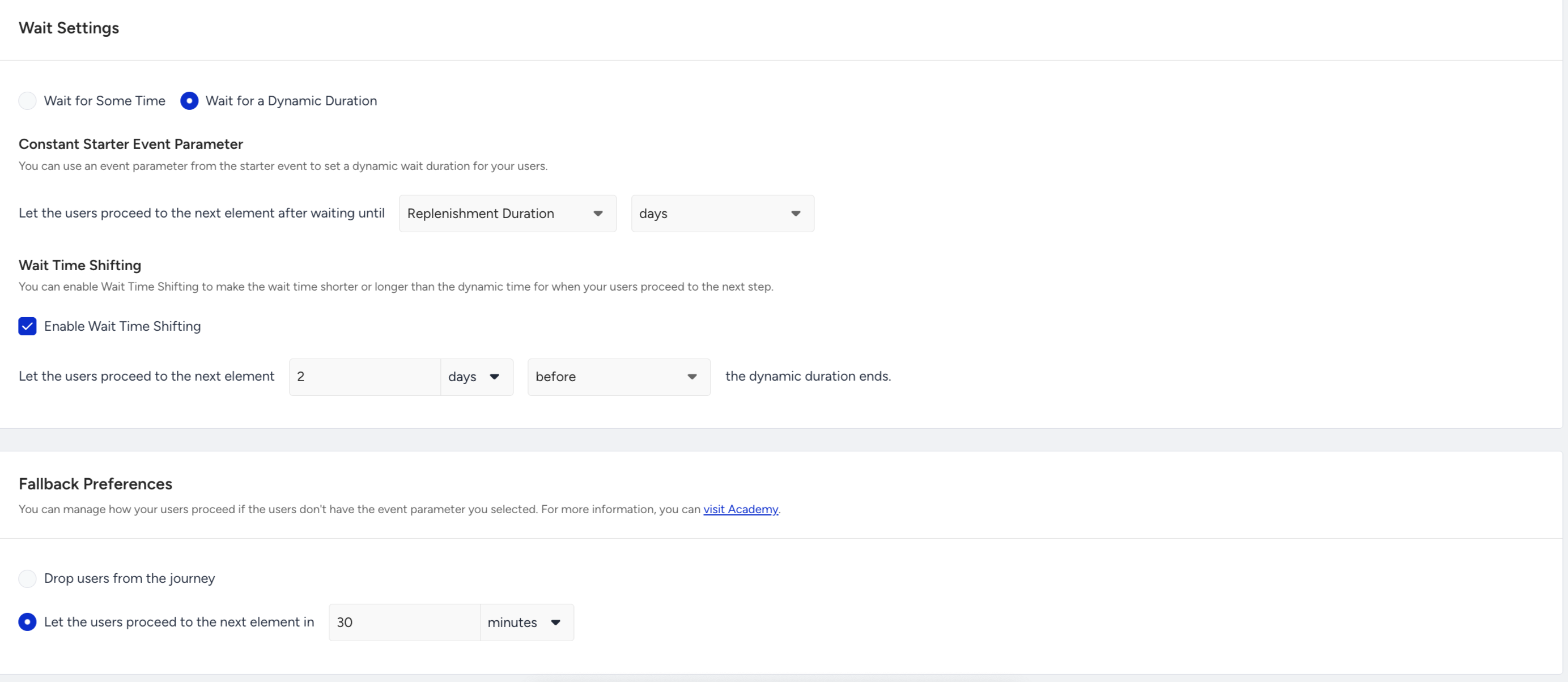
This option lets users proceed to the next element after waiting for a dynamic duration based on the event parameter from the starter event.
Only numeric event parameters are supported. Each element can use one parameter at a time.
You can Enable Wait Time Offset to make the wait time shorter or longer than the dynamic time.
Fallback Preferences
If the users do not have the selected event parameter, the event parameter is invalid, or if it is on an earlier date or a later date beyond 3 months, you can:
Drop users from the journey or,
Let users proceed to the next element in a specified duration.
3. Save and return to the canvas to continue designing your journey.
Wait elements become editable after you set your journey status to "Passive". If you change the status to Passive and change the wait duration, only new users will proceed in the flow according to the new wait duration once you re-launch your journey.