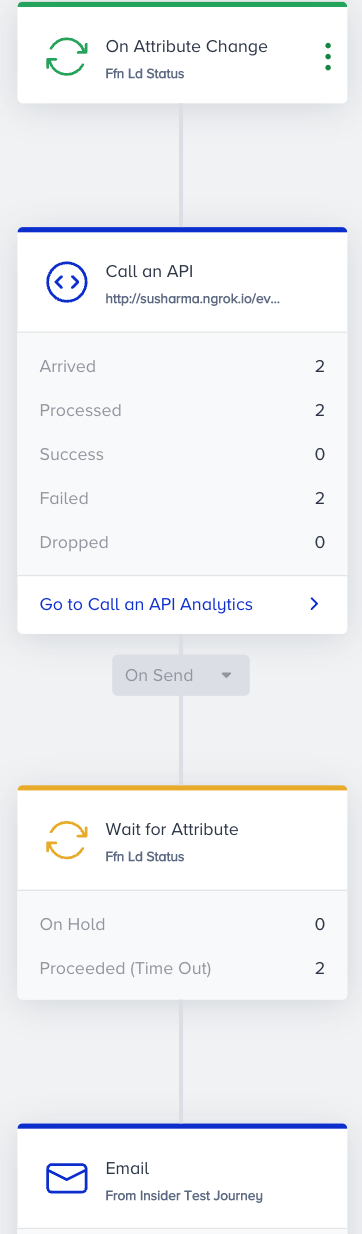
Wait for Attribute element allows you to proceed the users in the journey with an on-time option that works whenever an attribute is updated.
How does it work?
Wait for Attribute element functions based on real-time actions. When a user arrives at the element, they wait until their specified attribute value gets a new specified value or the old value is replaced with a new value.
Refer to Use an Array of Objects in Journey Elements for users to wait at this element until the selected key inside an object changes.

Users proceed from the wait element to the next element once the attribute for that user is created with 'X' value.
If the user is created with the 'X' attribute, they will proceed to the next element.
If the user is created without the 'X' attribute but later inserts it, they will proceed to the next element.
If the user is created with the 'X' attribute but later updates it, they will proceed to the next element.
If the X attribute is deleted, no change will be detected to move the user to the next element.
You can select different operators to set up the Wait for Attribute element:
The ‘changes’ operator enables users to proceed from the element when the user attribute gets a value for the first time, or the value changes.
The ‘changes to’ operator enables users to proceed from the element when the user attribute gets a new specific value.
The ‘changes from’ operator enables users to proceed from the element when the current specific user attribute value gets a new specific value.
You can set up a maximum of 3 attributes with the or operator in this element.
You can specify the maximum duration for which you want to keep users on this element and select one of the following actions that you want to take for these users if the attribute value does not change.
Proceed to the next step: If a user's attribute doesn’t change in the specified duration, they will proceed to the next element.
Drop from the journey: If a user's attribute doesn’t change in the specified duration, they will drop from the journey and be counted as dropped.
This duration can be at least 30 minutes and a maximum of 4 weeks/31 days.
Actions
Proceed to the next step: If users' attributes don’t change in the specified duration, they will proceed to the next element.
Drop from the journey: If users' attributes don’t change in the specified duration, they will drop from the journey and be counted as dropped.

It is not allowed to add the same type of wait element consecutively, or the Wait Until a Time Slot and Wait for Some Time elements consecutively.
Use Cases
You can use the Wait for Attribute element in many use cases. Some are as follows:
Send a coupon code or special offer when a user reaches a specific cart amount.
Wait for the opt-in change to send a message immediately.
Opt-in Encouragement
You are an ecommerce company that sends frequent app pushes, and your main goal this year is to decrease your opt-outs.
Select the starter as “On Attribute Change” and let users into the journey when their app push opt-in attribute changes from True to False. Send a message to your user through a reachable channel to encourage them to opt in again. Also, add in the message that if they opt in, they will receive fewer messages.
Then, wait for the users to opt in again within the given period (you can set the period as 14 days, for example). If they change their opt-in status to True within the given time, immediately send them a ‘thank you’ message and add them to a static segment for “users that want to get fewer messages”. If they don’t opt in after the wait period ends, let them drop from the journey.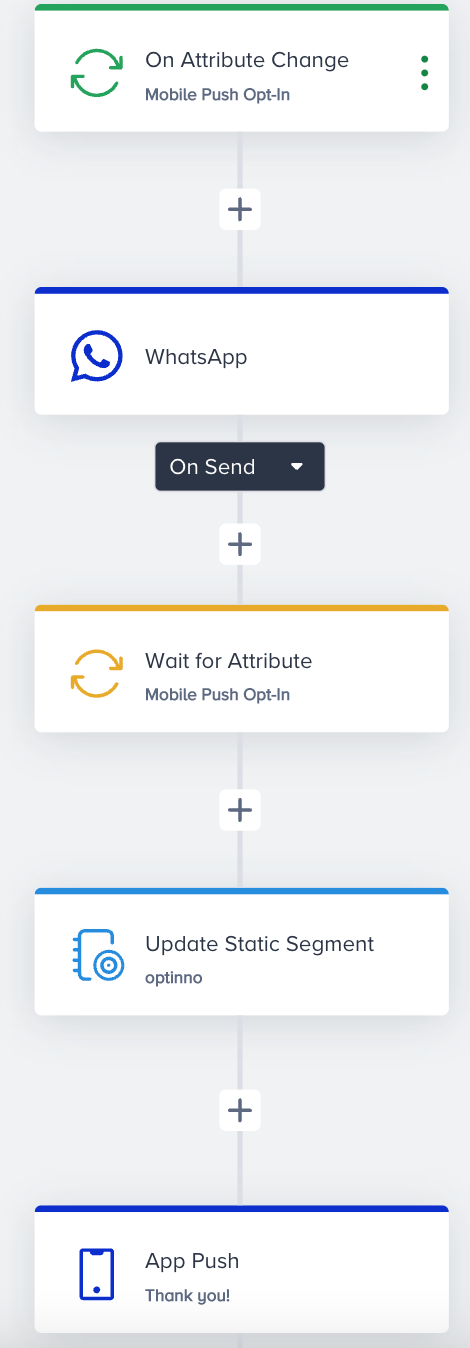
Survey upon Application Approval
You are a loan company, and you define users entering your funnel by their loan status.
Users enter the journey when their loan status becomes “Applied”. After that, using Call an API, send the user data to your servers along with user attributes.
Then, wait for the users' loan status to change to “Application Approved,” where you approve it. As soon as the application is approved, you want to send customers a survey so they can review your services.