Suggested reading: Activation Statuses
You can edit your journeys after the initial launch, even when they are in different statuses. Although you can edit all elements in every status, you can only edit certain elements in the flow to avoid affecting journey logic and performance.
This article explains the following concepts:
Edit non-launched journeys
Journeys that you have not launched yet are in draft status. You can edit all elements in these journeys. The autosaving function saves your edits automatically.
Edit active, test, dry run, and sunset journeys
After you launch your journey in active, test, or dry run status, or change it from active to sunset status, you can edit the content or any settings of all elements in this journey when it is running.
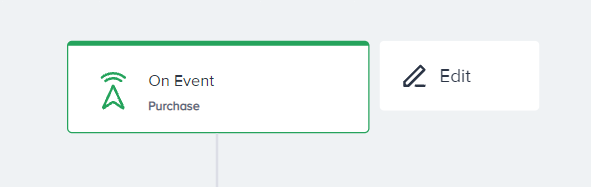
Once you click the Edit button placed next to the elements, the content and settings of all elements will be automatically editable.
When you change the starter or check elements, wait duration, and channel content, new users who arrive at the respective element will proceed through the flow according to these changes.
Any change in the element content will immediately affect the flow. These changes do not affect the journey performance metrics. Users can still resume where they are in the journey.
To avoid changing the flow of the journeys, editing elements that generate multiple paths is limited to adding or deleting new paths. Only the settings or content of the following elements are editable:
Element | What is editable? |
|---|---|
Conditions for each path | |
Conditions for each path | |
Reachability for each path | |
Allocation and A/B Winner Autoselection | |
Not editable |
See below for the editable elements and limitations for each activation status.
Status | Editable Elements | Limited Editing | Editable via Journey Versioning | Noneditable Elements |
|---|---|---|---|---|
Active, Sunset, Passive |
|
| - | |
Test, Dry Run |
| - |
| |
Draft | All elements and settings | - | - | - |
Only the content of multi-path elements is editable. It is not allowed to add new paths to the journey or delete any existing paths from the journey.
You cannot edit the journey flow when the journey is in Test or Dry Run status.
To edit the flow, add or delete a new element or path in Test or Dry Run journeys, change the journey status to Passive, and click the Edit Journey button on Canvas.
Once you change your journey status to Passive, users will drop from the journey, which is commonly called pausing or stopping the journey. Users who are in the current journey will not proceed in the journey.
Edit the flow in active, passive, and sunset journeys
You can edit your Active, Passive, and Sunset Journeys without losing analytics or users by using Journey Versioning, which is often called editing without restarting or relaunching the journey.
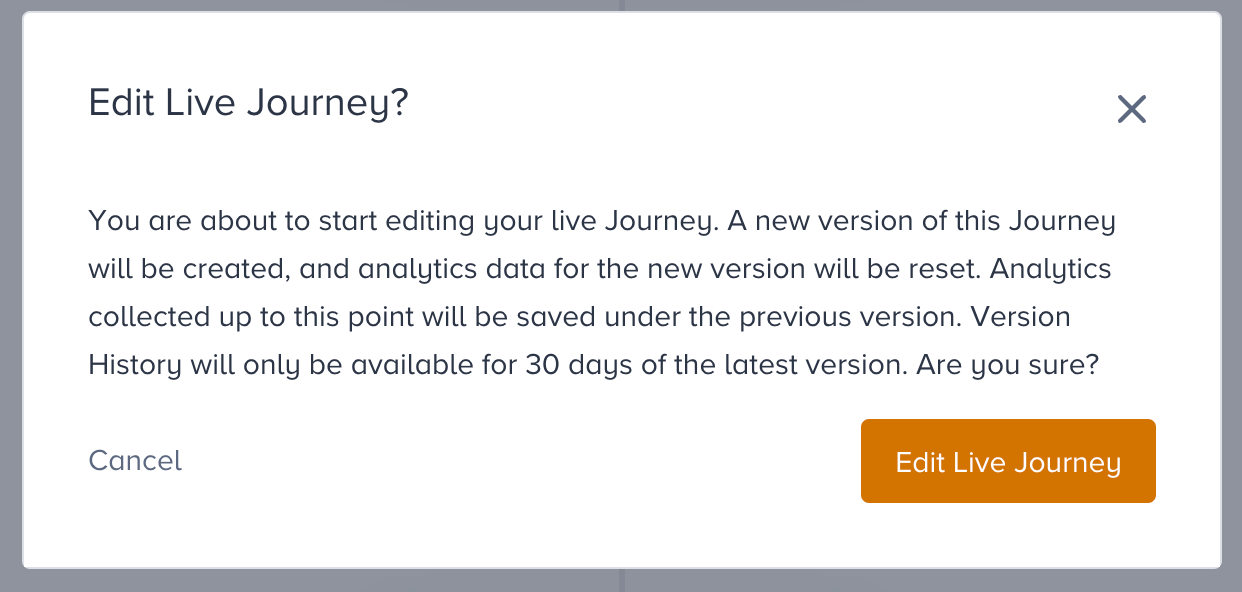
Once you click the Edit Journey option on Canvas, a new version of your journey will be created in Draft while the previous version is still Active. You can change the journey flow, edit element contents, and also add/remove Exit Criteria or Journey Goals. In other words, anything you can execute within a draft journey is replicable within your draft version.
After you finish your edits, you can launch your draft version, and your active version will automatically be taken to Sunset. New users eligible to enter the journey will continue in the new version, while existing users already in progress will continue in the previous version.

When the journey is launched after editing, analytics will be reset and populated afresh for the new version. However, analytics for previous versions will remain accessible under Journey Analytics.
Editing the content or settings of existing elements using the Edit button is consistently feasible, regardless of the journey status. Element and content edits will not create a new version of your journey.
You can see the previous 5 versions of your journey on the Listing Page. 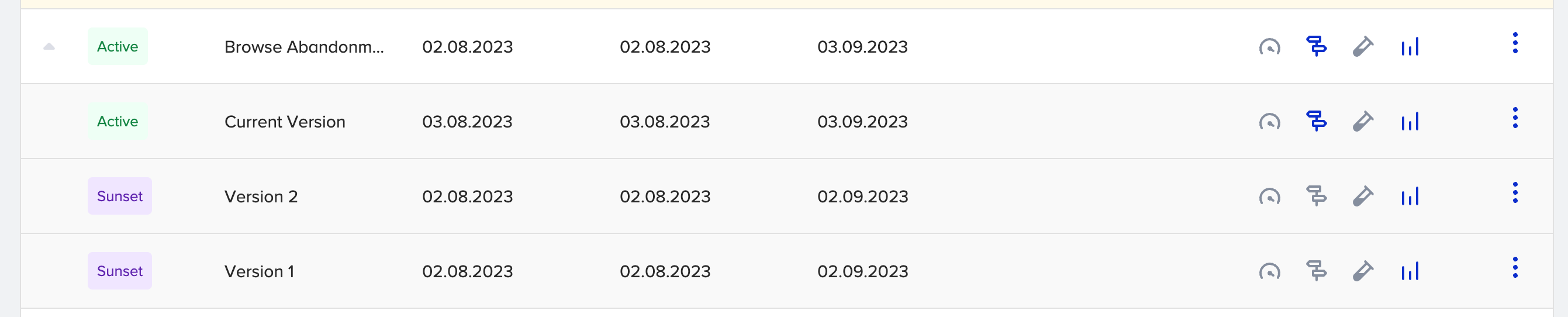
You can click the version to go directly to its Canvas. You can switch to Canvases of other Versions from there as well.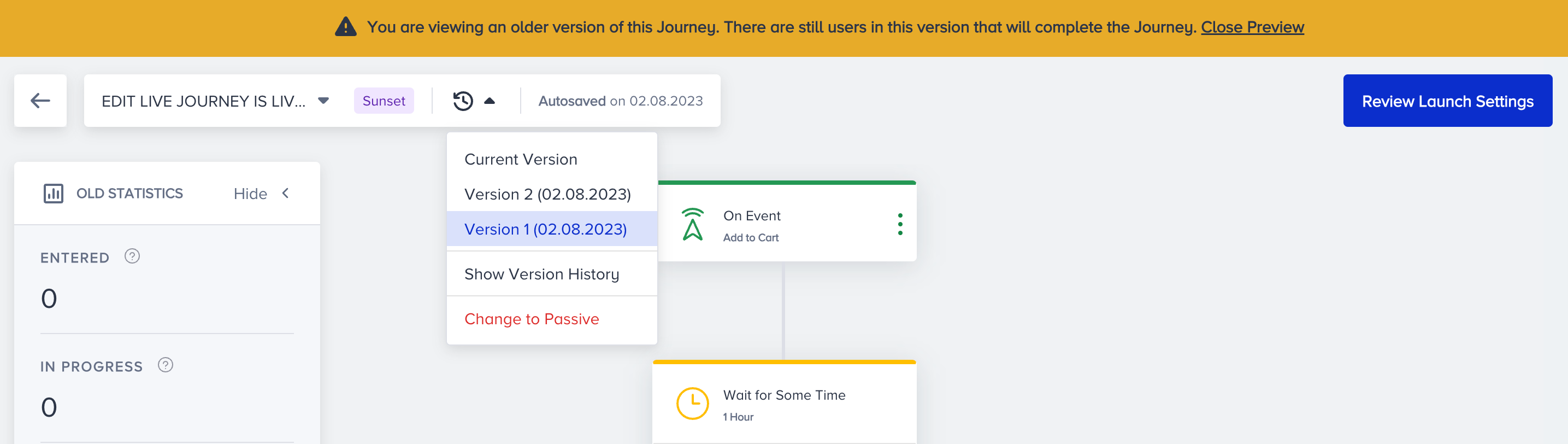
Versioning based on eligibility settings
One-Time Eligibility
Rule: If a journey is set to one-time eligibility, any user who enters it is permanently flagged as ineligible to enter the original and any versioned journeys.
Impact of a new version: Because a new version is considered a continuation, the user's "do not enter again" status persists. They cannot enter the new version.
Multi-Eligibility (Re-eligibility) - Timer Continuation
Rule: When a user with multi-eligibility (e.g., "can enter every 20 days") finishes a journey, a cooldown timer begins.
Impact of a new version: If a new version is activated during this cooldown period, the timer does not reset. It continues counting down from where it left off.
For example, a user enters a journey with a 20-day re-eligibility period. 12 days later, a new version is activated. The user must wait the remaining 8 days before accessing the new version.
Multi-Eligibility (Re-eligibility) - Changing the Duration
Rule: If a new version changes the re-eligibility duration, the new duration only applies to entries after the user's current cooldown period has ended and they have entered the new version.
Impact of a new version: The change is not retroactive and does not affect the current waiting period.
For example, the original journey had a 5-day re-eligibility period. A user enters and exits it, starting the 5-day cooldown. During these 5 days, a new version is activated with a 30-day re-eligibility period. The user only needs to wait for the original 5-day period to end. After waiting 5 days, they can enter the new version. Once they complete this new version, their next cooldown period will be 30 days.
Analytics of the previous versions
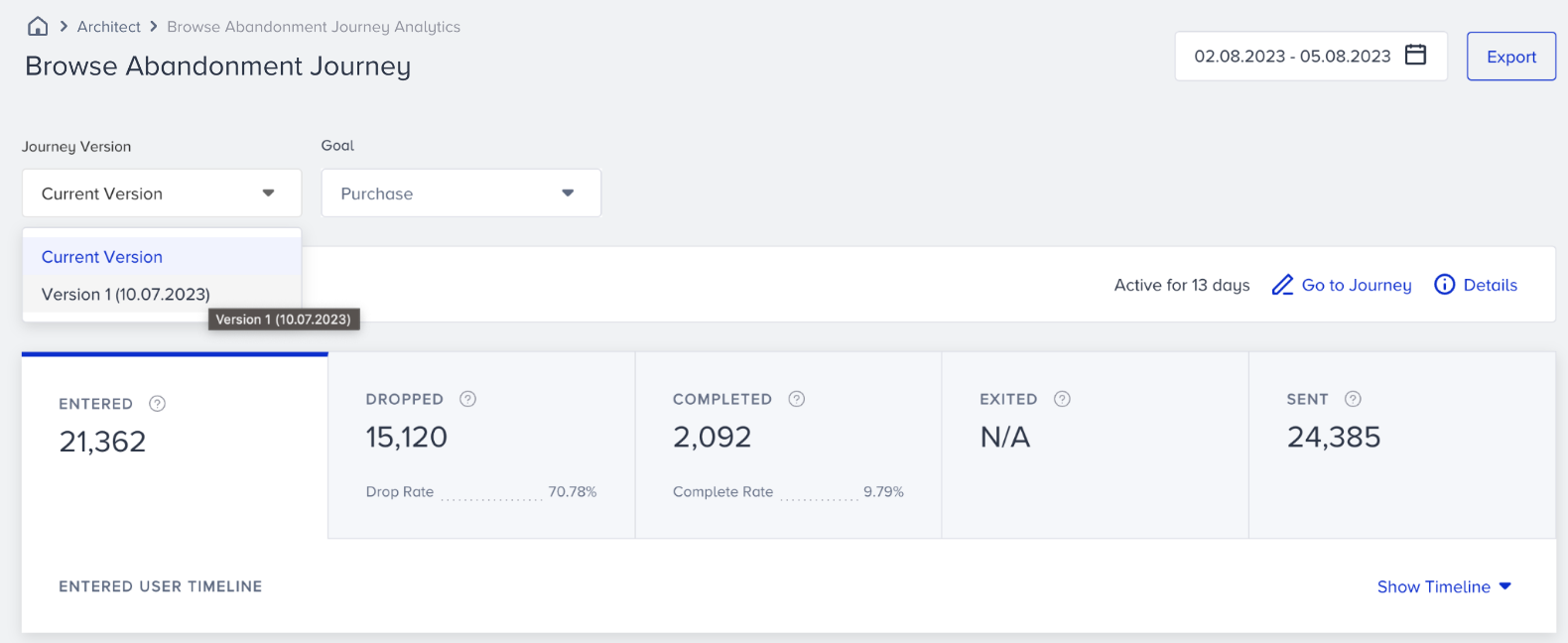
Under Journey Analytics, you can select it from the dropdown to view Analytics for previous Versions.