One of the most important issues in marketing automation is creating interactions with users through the right channels at the right time.
You can interact with users and boost their engagement by using messaging channels and responding to their behavior and actions throughout their journey. Architect enables you to determine whether users are reachable via a specific channel and to take another action or use another channel to not lose those users while a conversion opportunity exists.
The Check Reachability element is used before the channel elements.
This guide explains the following concepts:
Basically, Check Reachability is an indicator of users' preferences that helps you to find the most suitable channel to push the users towards achieving a specific goal in the journey.
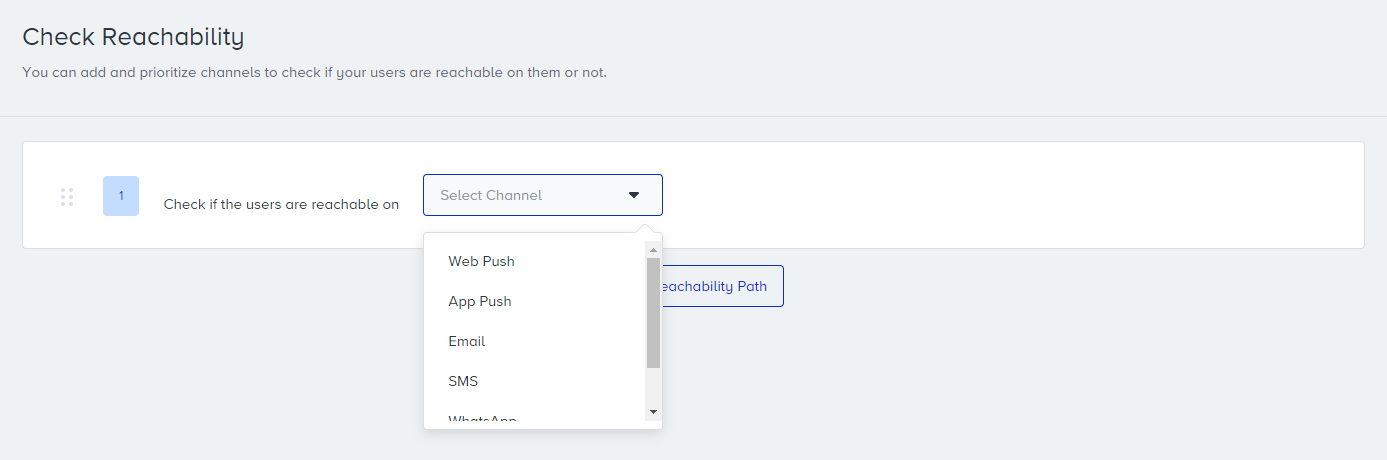
You can check the reachability of the following channels:
How does Check Reachability work?
Insider One constantly updates and processes users' data related to reachability as data comes in. That’s why users' reachability is always updated on time.
For example, if the user allows web push opt-in, then the user will automatically be reachable through Web Push. If the user blocks receiving web push notifications, the user will automatically be unreachable through Web Push.
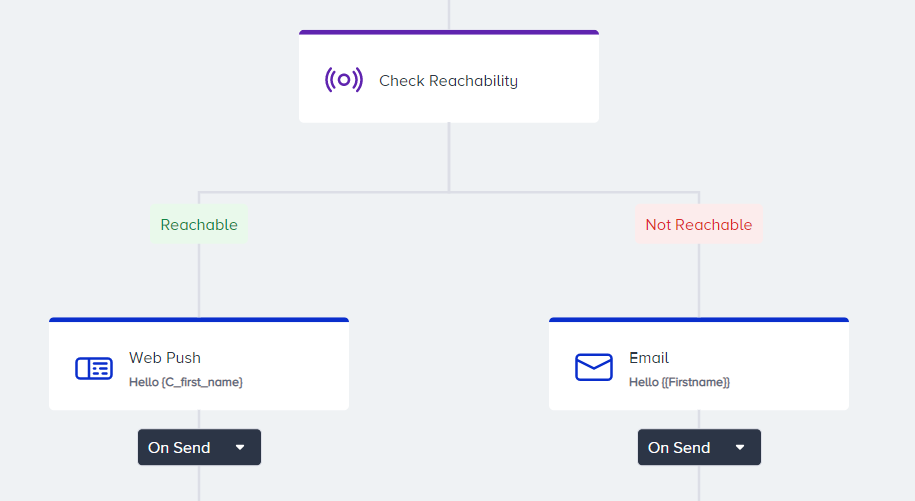
The Check Reachability element divides users into reachable and not reachable paths based on their reachability on a selected channel.
If no element follows one of the paths after the Check Reachability element, users can go down that path and exit the journey, and users are counted as Dropped.
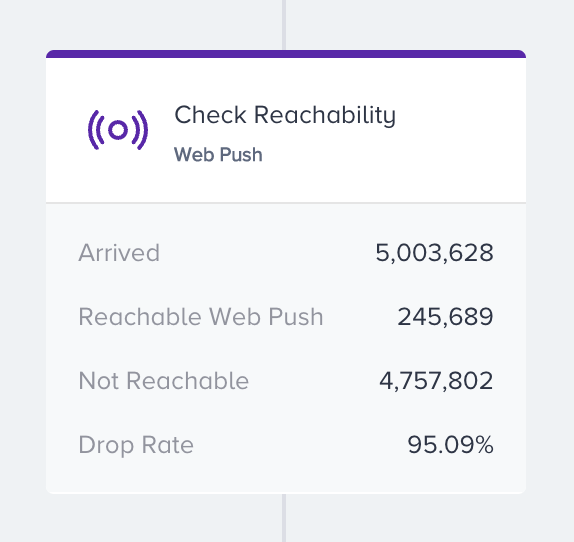
You can see the number of reachable users for each selected channel in the Check Reachability and "not reachable" path as well as the drop rate on the element.
The Drop Rate is displayed only if the "not reachable" path has no element.
Due to the large queue size, passing users to the next step can be delayed.
When you use Check Reachability before any channel, a user's reachability for that channel is determined based on different criteria. Refer to Reachability on Channels to see how reachability works for each channel.
Multi-branching
With a single Check Reachability element, you can simultaneously check a user’s reachability for more than one channel. This feature enables you to add more than two paths to your journeys, as each channel's reachability will be on a different path.
The multi-branch reachability check determines whether the user is reachable on the first path. If not, it checks whether the user is reachable on the following paths. The user proceeds on the path where the system detects their reachability first.
Select the Check Reachability element. Add your first channel.
Click Add Reachability Path to add more reachability elements for more channels.
There is always a not reachable path down which the user will go down if they do not meet any channel reachability criteria.
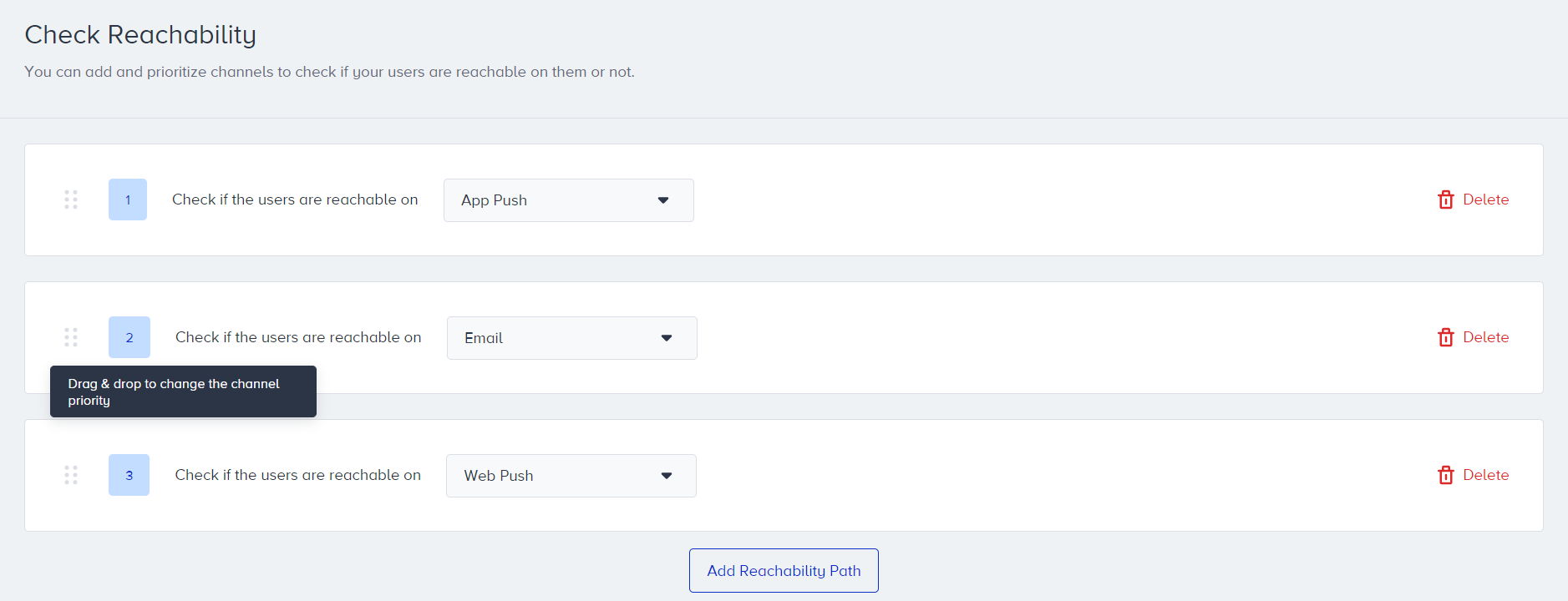
In the multi-branching case, the Check Reachability element considers each channel's reachability in the order you specify them. You can easily change this priority order by dragging and dropping the channels in your check reachability element.
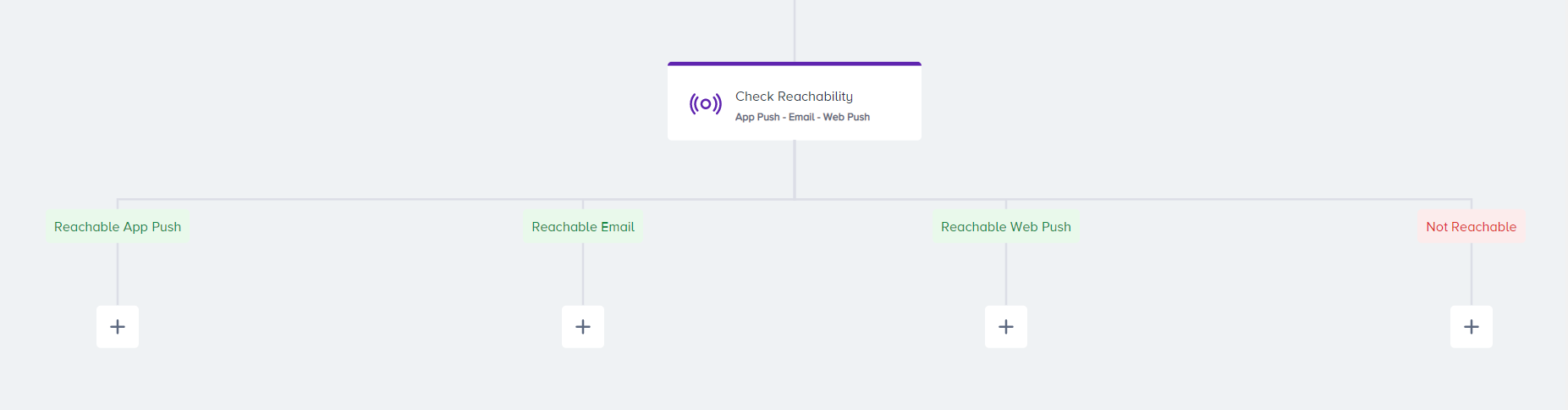
Each reachability path must have an element. Only the path that is not reachable can be kept empty.
The last element of each path must be a channel or action element.
A Delete button appears if you add more than one reachability in the element. You can click the Delete button to delete the channel reachability. When you delete the channel reachability, the related reachability path will be deleted completely.
When you save the Check Reachability element, the selected channels will be added to reachability paths on the canvas. Suppose reachability paths already have channel elements, and paths are changed on the Check Reachability inner page. In that case, the previous channel stays while the reachability path is changed to the new channel reachability path.
How does Check Reachability work with unification?
Let’s see an example to better understand it.
A new user visits your website and allows a web push opt-in, but has not signed up to the website or submitted a lead collection form. In this case, the user will be reachable via web push but not via email or SMS, since the user has not yet provided the required info.
You pass bulk data to Insider One, including users' email addresses, email opt-in, and GDPR opt-in via Upsert User Data API. In this case, the user will be reachable via email but not via web push since we don’t know the users' personas on the web. Even if the user interacts with your website, they will be considered as another user and will not be reachable via email.
If your company obtains your users' consent in compliance with the local regulations, make sure to pass the GDPR opt-in field to Insider One. If you want to stop collecting and processing the data of an identified user, GDPR opt-in field should have the false value. Insider One cannot be held liable if these obligations are not fulfilled and reserves the right to seek compensation from your company.
The same user signs up to the website and leaves their email address and opt-ins. This same email address is also passed by Upsert User Data API. In this case, the persona of the same website user and another user's persona, which comes from the CRM API, will be merged. The user will be reachable via web push and email, not app push.
The same user downloads your app and visits some pages, but does not sign up for it. They allow receiving app push notifications. In this case, the user will be reachable via app push but not via web push or email since the user has not shared the information needed for unification.
The app user decides to make a purchase. While purchasing, the user shares their email address, phone number, and opt-ins. In this case, the users' personas on the app and web will be merged. The user will be reachable on web push, app push, email, and SMS.
Tips and tricks
You can use multiple reachability steps in sequence if you have more than one channel to reach users. If the user is unreachable on channel X, the user will follow the not reachable path, and there will be one more reachability check on this path to determine whether the user is reachable on channel Y.
If you have already checked reachability on a particular channel on the journey flow when you want to continue sending a message from the same channel, you don’t need to add another "Check reachability" since the users who proceeded to the next element are already considered reachable via that channel.
You can set multiple channel reachability options to check a user's reachability in a single Check Reachability element. So that you can direct users to the different paths based on their availability.
Use cases
Identify users who may not be reachable via a specified channel and engage them through another channel using a similar message.
Requirements
Insider Tag integration should be completed.
SDK integration should be completed for mobile app data reading.
Required data, such as opt-in, email address, etc., should be passed to Insider One via the respective integrations.