Journey Listing page lists all your previously created journeys.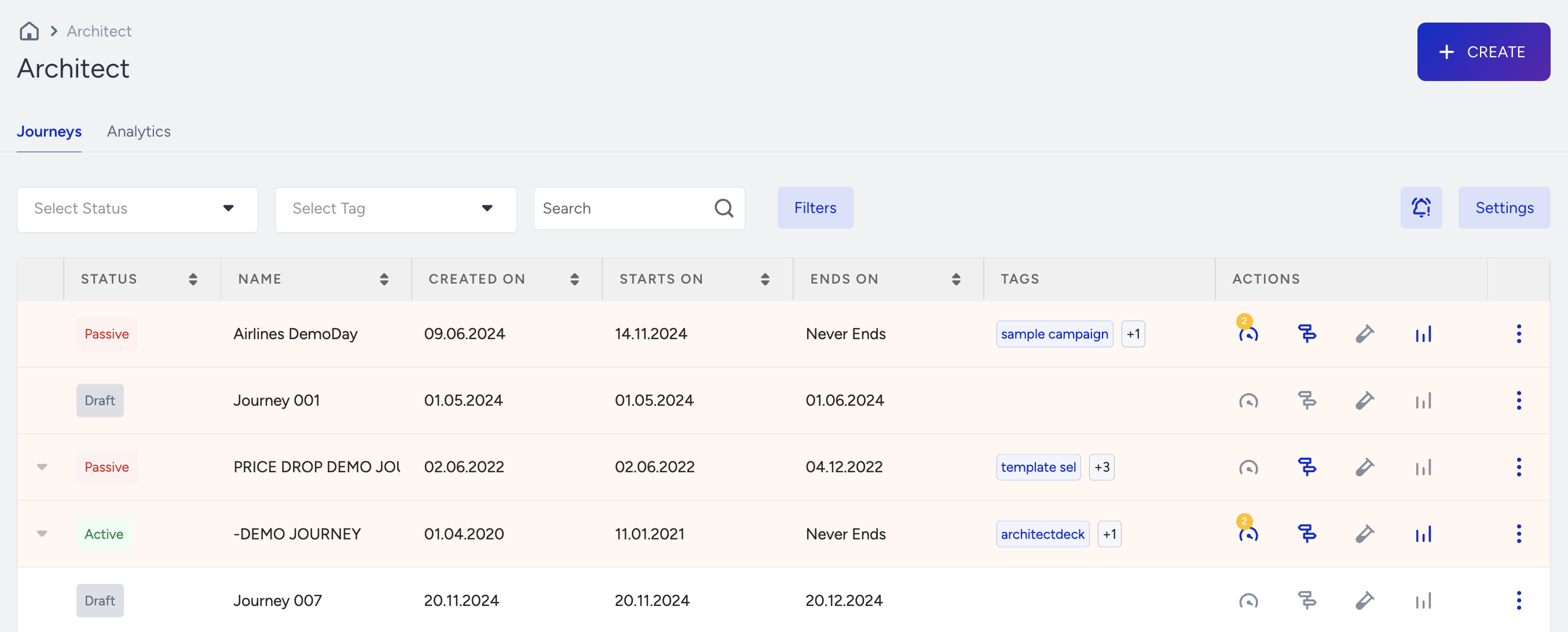
Using this page, you can also perform the following operations:
- Create journeys
- Filter & list journeys
- See Analytics Dashboard
- Configure journey settings
- Search journeys
- Sort journeys
- Check Performance Alerts
- See Optimization Points
- Track users
- Test journeys
- See analytics of each journey
- Duplicate journeys
- Duplicate journeys to another domain
- Pin/unpin journeys
- Edit tags
- Change activation statuses
- Delete journeys
Create journeys
Click the Create button to start creating a journey.

Filter & list journeys
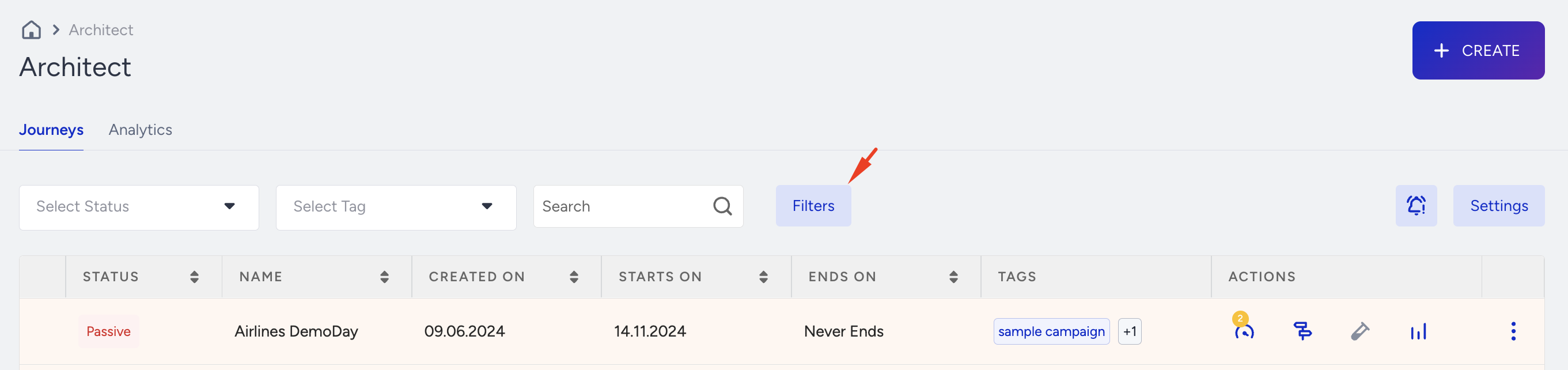
You can filter and list your journeys based on their statuses, channels, starters, creators, journey name, and tags.
You can reach the Status and Tags filter from the top of the listing page. You can also search through journey names using the search bar. To reach more advanced filters, you can use the Filters button next to the search bar.
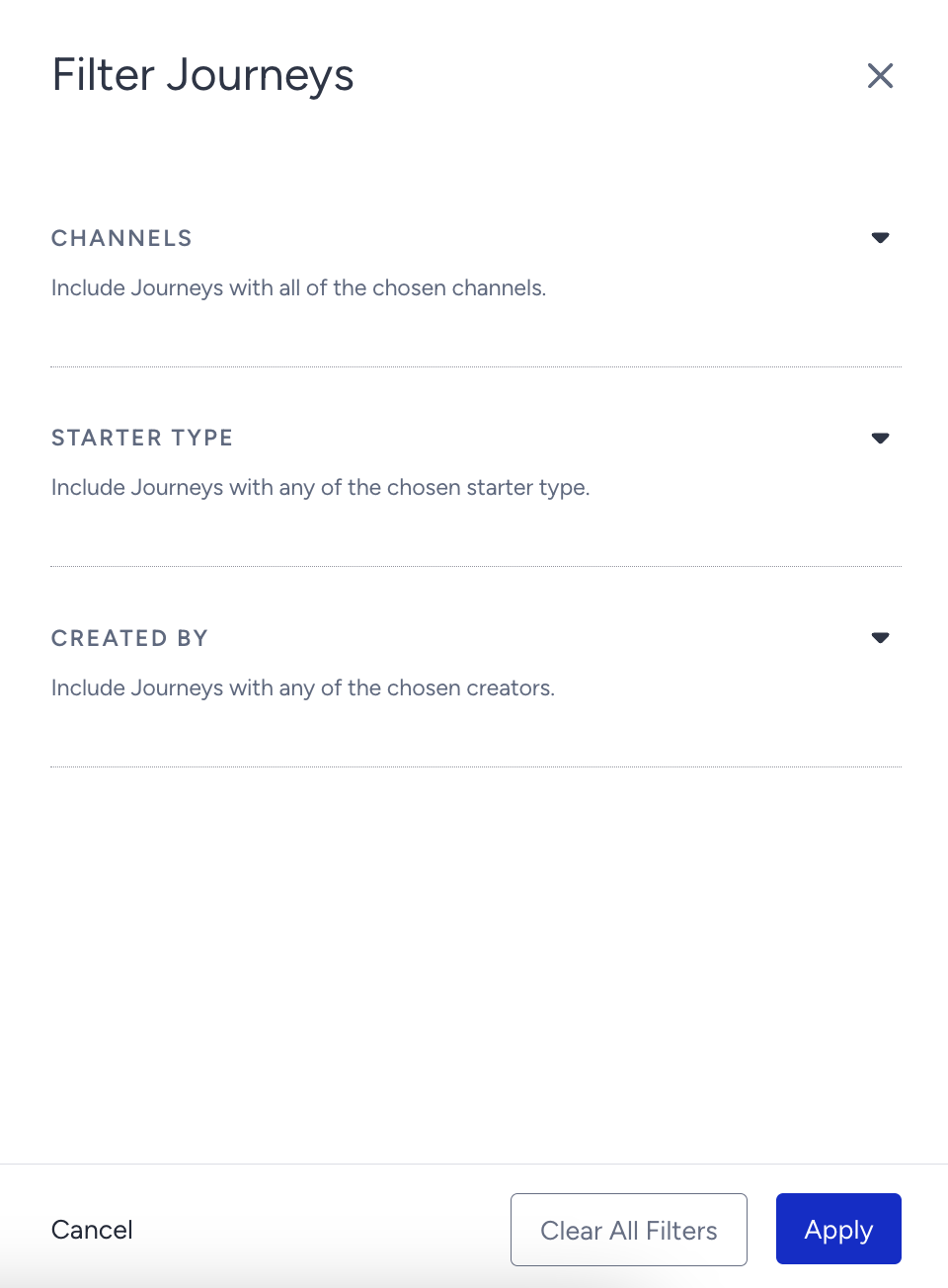
From the modal that opens, you can filter the journeys according to:
- Channels: Include journeys with all of the chosen channels. For example, if you choose WhatsApp and SMS, it will bring you journeys that contain both.
- Starter Type: Includes journeys with any of the chosen starter types.
- Created By: Includes journeys with any of the chosen creators. All Insider staff are gathered under the “Insider Staff” option.
All the filters you choose are also shown at the top of the modal. When you click the Apply button, the modal will close and all filters will be applied. To clear out all the filters you have selected from the modal, click the Clear All Filters button.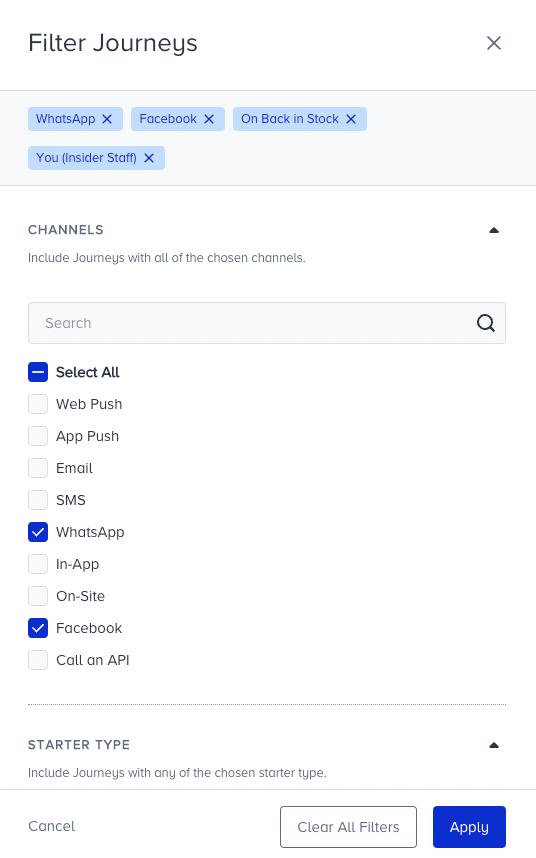
You can see the number of filters you have selected including the on-page filters (Status, Tags, and Search) on the Filter button. If you want to see all journeys without any filters, make sure that you clear all filters and there is no number on the Filters button.
See Analytics Dashboard
You can reach the analytics page through the Analytics tab next to the Journeys tab.

Configure journey settings
Settings option enables you to configure Facebook integration and journey entry capping.

You can switch between tabs to complete the configuration.
Search journeys
You can search your journeys by their names or their journey IDs. You can see your journey IDs in the bottom left corner when you hover on the journey name on this page, or in the URL of your journey once you click it.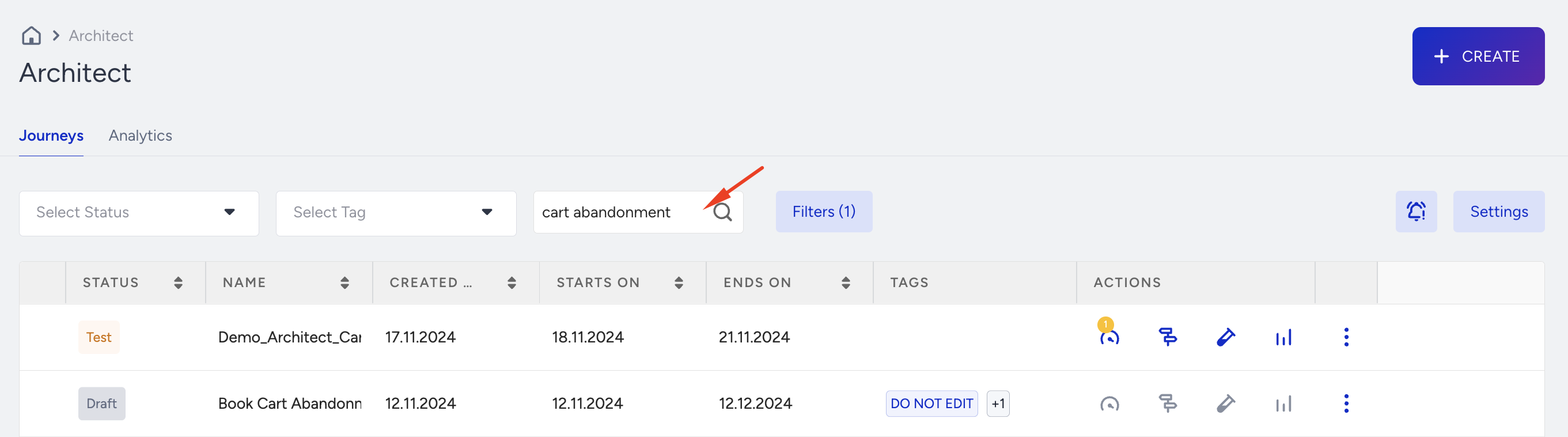
Sort journeys
You can sort your journeys based on their Starts On and Ends On dates. Note that pinned journeys are always listed at the top.
Check Performance Alerts
Thanks to Performance Alerts in Architect, you stay informed about your journey's performance. Performance Alerts keeps you in the loop, notifying you when something deviates from expectations. Whether it's your coupons running out or expiring, or no users have entered your journey, Performance Alerts ensure you're proactively informed, helping you maintain smooth operations and keep your strategies on track.
Performance Alerts are generated daily for your active, sunset, and test journeys to help you monitor and address key issues effectively. The following alerts are included:
- Coupon Codes Count: Alerts you when coupon codes on your lists are about to run out.
- Coupon List Expiration: Alerts you when coupon codes on your lists are about to expire.
- High Drop Rate: Triggered if the journey drop-off rate exceeds 40%.
- Low Entry Count: Notifies you if no users have entered the journey for two days.
- Call an API Failure: Alerts you when over 30% of Call an API requests fail.
- Low Sent or Impression: If fewer than 50 sends or impressions occur in a journey within 2 days.
- App Push Certification: Notifies you if app push certifications (iOS, Android) are expired or invalid.
- Expired Google Ads: Alerts you if your Google Ads account cannot be reached. Check your Google Ads integration to prevent user drops. If the token expires, the system will send an email.
- High Exit Rate: Triggered if more than 30% of users exit the journey after entry. Alerts you to check and optimize your segment and channels in the journey.
- Low Message Delivery Rate: Triggered if the delivery rate of one or more Email or SMS channels drops below 80%.
- Low Push Delivery Rate: Triggered if the delivery rate of any supported channel (Web Push, App Push) drops below 60%.
To access Performance Alerts,
- Navigate to Architect > Performance Alerts from the InOne panel.

- You can display the Performance Alerts generated for your journeys to monitor potential issues and take necessary actions.
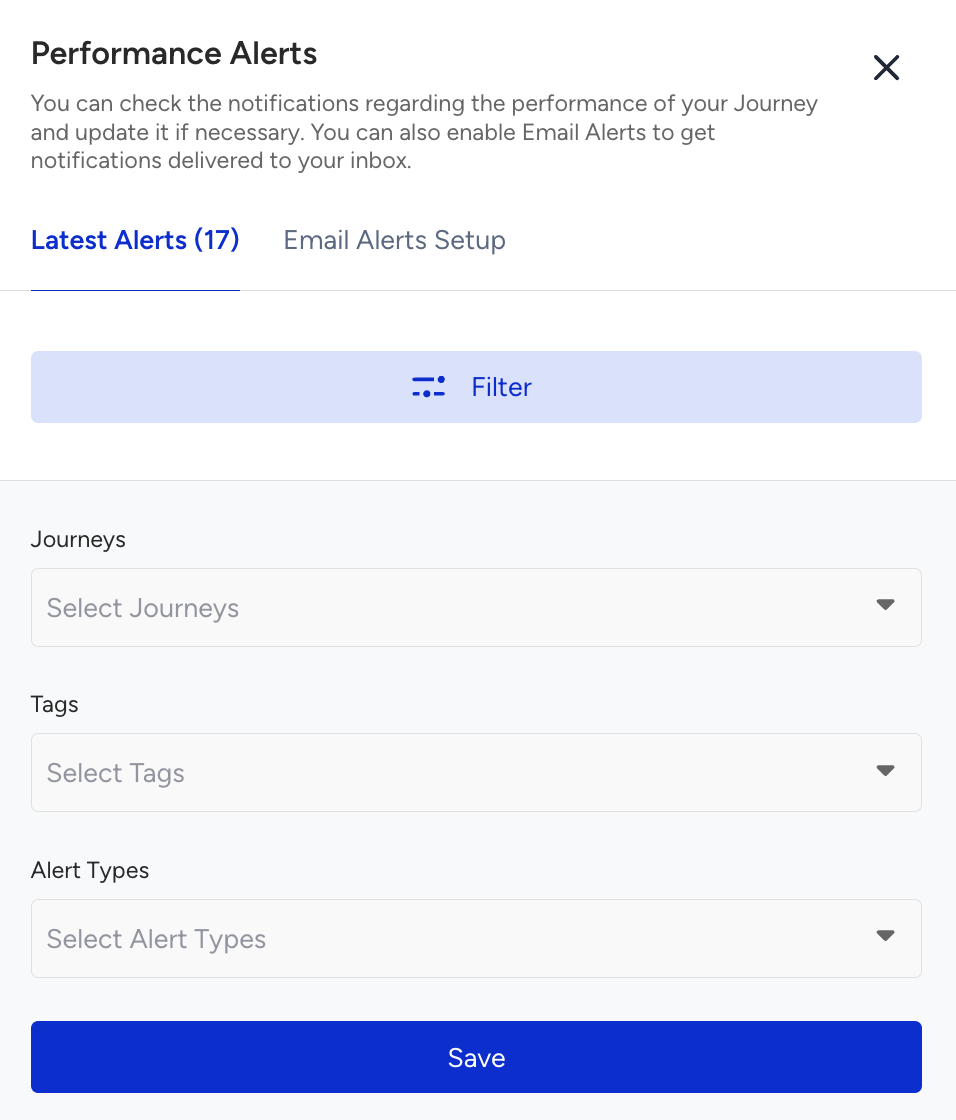
- Navigate to the Latest Alerts tab to view a summary of the alerts generated for your journeys.
- Use filters to refine your view:
- Journey Name and Tags: Search for specific journeys by their name or tags.
- Alert Types: Filter by the type of alert to focus on specific areas of concern.
- This step ensures you can quickly identify and prioritize the alerts that require your attention.
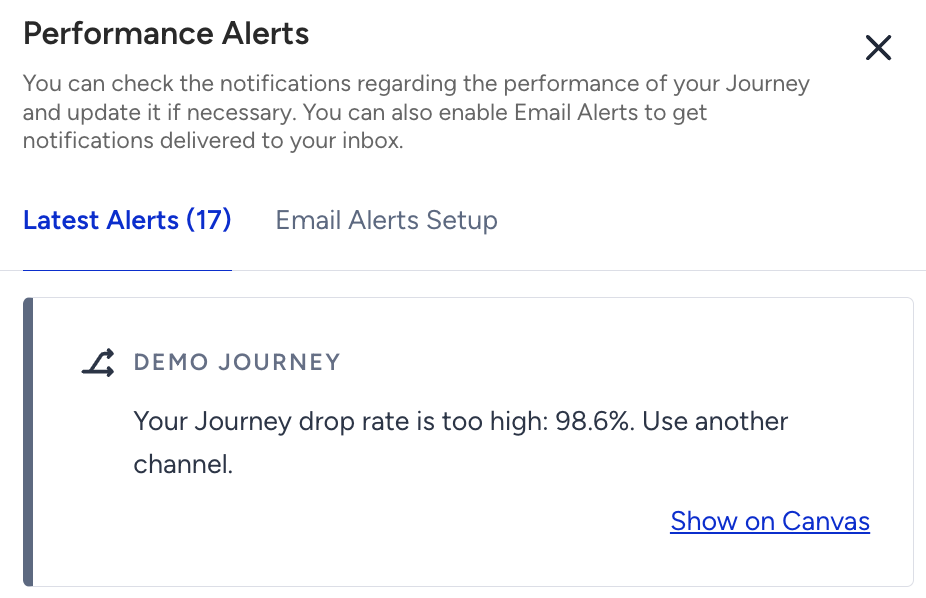
- To investigate the journey or specific element that triggered the alert, click Show on Canvas next to the alert. This will take you directly to the journey or element in Architect, allowing you to review its configuration and identify the issue.
- This step ensures you can quickly locate and address the source of the alert for efficient troubleshooting.
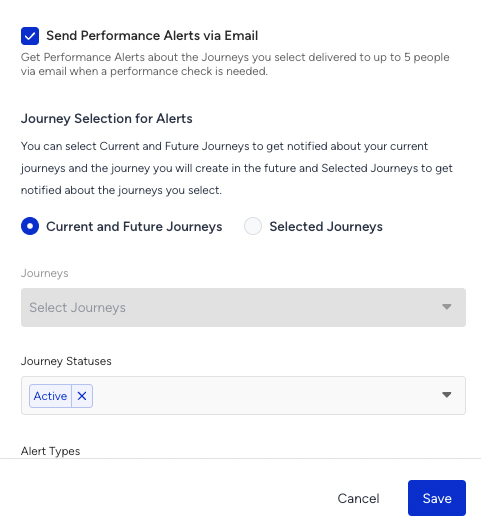
- You can set up Email notifications for Performance Alerts. While you can always view alerts by navigating to the Performance Alerts on the Architect listing page, setting up email notifications ensures you receive alerts directly in your inbox. To configure email notifications:
- Navigate to the Email Alerts Setup tab on Performance Alerts.
- Customize your alert notifications:
- Select Journeys: Choose the journeys for which you want to receive alert notifications.
- Add Recipients: Add up to 15 email addresses to receive the alerts.
- Set Frequency: Choose how often you want to receive notifications: daily, weekly, or monthly.
- After configuring your preferences, click Save to finalize the setup.
- Setting up Email notifications lets you stay informed about journey performance without regularly visiting the Performance Alerts module. Whether you prefer real-time monitoring or periodic updates via email, you can tailor the experience to fit your workflow. Navigate to the Email Alerts Setup tab on Performance Alerts to customize your alert notifications.
- Journey Selection for Alerts: Select Current and Future Journeys to get notified.
- Journey Statuses: Select the status of the journeys for which you want to receive alerts.
- Alert Types: Select the alert types for which you want to receive email alerts.
- Email Recipients: Add up to 15 email addresses to receive the alerts.
- Set Frequency: Choose how often you want to receive notifications: daily, weekly, or monthly.
Fix performance alerts
Below, you can see what each performance alert stands for.
Coupon codes count
When the Coupon Codes Count Alert is triggered, it notifies you that the available coupon codes on your lists are about to run out. This alert is essential for preventing potential revenue loss due to the unavailability of coupons. You can take the following actions based on the alert:
- On the channel pages, if you select the Skip the Element action, users will skip the channel element that was linked to the coupon list. The users will therefore not receive the intended promotional message, and reduce engagement and conversion. If you want to keep sending the message, navigate to Components > Coupon Lists page and find your coupon list to upload more coupons. You can also change the linked coupon list by uploading a new one.
- On the channel pages, if you select the Stop the Journey action, the journey will be moved to the Passive status when the coupons run out. No users will proceed through the journey or enter the journey, which will result in a potential drop in revenue. If you want to keep your journey live, navigate to Components > Coupon Lists page and find your coupon list to upload more coupons. You can also change the linked coupon list by uploading a new one.
- On the channel pages, if you select the Use Fallback Coupon action, users will receive the fallback coupon code in the messages. No further action is required.
Coupon list expiration
The Coupon List Expiration Alert notifies you when a coupon list is nearing its expiry date. This alert is crucial to ensure that the journey delivers messages effectively without interruption due to expired coupons. You can choose from the following actions based on the alert:
- Link to a New Coupon List: Update the channel element to connect it with a new valid coupon list with sufficient coupon codes. This allows the journey to proceed without interruption, ensuring users receive the intended promotional message.
- On the channel pages, if you select the Use Fallback Coupon action, users will receive the fallback coupon code in the messages. No further action is required.
High drop rate
The High Drop Rate Alert is triggered when the drop-off rate in a journey exceeds 40%. This alert indicates that a significant number of users are not proceeding through the journey, potentially impacting conversion rates and overall campaign effectiveness. You can choose from the following actions based on the alert:
- The alert will provide the channel that caused the high drop rate. You can check that channel element and update it with a channel that is more reachable for your users.
- Before leading your users to a specific channel, assess their reachability. Use the Check Reachability element to verify whether the users can receive the message. To maintain engagement, redirect users who are not reachable to alternative channels.
- Configure paths to prioritize the most reachable accounts, ensuring that more users continue through the journey. Navigate to Architect > Analytics > User Reachability to display user reachability data to monitor and optimize targeting strategies.
Low entry count
The Low Entry Count Alert is triggered when no users have entered the journey for two consecutive days. This alert is crucial for identifying potential issues that could prevent users from entering a journey, impacting the overall performance of the journey. You can choose from the following actions based on the alert:
- Check your integration: Verify if there have been any recent changes to the website or app that may affect data integration. Ensure that data points triggering the journey are being successfully sent and received.
- Contact the Insider One team: If you are unable to identify the source of the issue, contact the Insider One team for further investigation and support.
- Review the starter configuration: Confirm that the journey’s starter configuration is correctly set up to trigger user entries. Ensure that the criteria defined in the starter condition align with expected user behavior or event data.
- Check event analytics: If the journey is triggered by an event, navigate to Behavior Analytics > Event Analytics to monitor the occurrence of the relevant event. Verify if the event is still being tracked and received as expected.
- Check eligible users: If the journey is triggered by user attributes, check the number of currently eligible users to ensure they meet the entry criteria.
Call an API failure
The Call an API Failure Alert is triggered when more than 30% of Call an API requests fail. This alert is critical for identifying issues that may disrupt data flows and impact journey performance. You can choose from the following actions based on the alert:
- Investigate the failure code: The first step is identifying the failure code associated with the API request. Research the specific error code on the internet to gain a deeper understanding of the issue, as most failure codes follow standardized protocols and have well-documented explanations.
- Implement throttling for timeout errors: If the failure is due to timeout errors, consider setting a throttling limit to control the frequency of API requests.
- Increase endpoint capacity: If the failure is due to server capacity limitations, consider expanding the capacity of the endpoint to handle more requests effectively. Contact your development team or endpoint provider to adjust server configurations or allocate additional resources.
Low sent or impression
The Low Sent or Impression Alert is triggered when fewer than 50 sends or impressions occur in a journey within two days. This alert is essential for identifying potential disruptions in messaging delivery, which can affect user engagement and journey performance. You can choose from the following actions based on the alert:
- Review channel settings: Check your settings to confirm they are correctly set up to send messages.
- Contact the Insider One team: If you are unable to identify the issue, contact the Insider One team for further assistance.
App push certification
The App Push Certification Alert notifies you when app push certifications (iOS, Android, Huawei) have expired or are invalid. This alert is crucial to ensure the uninterrupted delivery of push notifications to mobile users. You can choose from the following actions based on the alert:
- Check your certification status: Check your certification and identify which platforms require certification updates.
- Contact the Insider One team: If you are unable to identify the issue, contact the Insider One team for further assistance.
High exit rate
The High Exit Rate Alert is triggered when more than 30% of users exit the journey after they enter the journey. This alert indicates that a significant number of users are exiting the journey according to the exit criteria you set for the journey. You can choose from the following actions based on the alert:
- Check your exit criteria to make sure that you haven’t misconfigured it. Update it if necessary.
- Check the analytics page of the journey and understand which exit criterion caused more users to exit. Analyze and update if necessary.
Low message delivery rate
The Low Message Delivery Rate Alert is triggered when the delivery rate of one or more Email or SMS channels drops below 80%. This alert is essential for identifying potential disruptions in messaging delivery for Email and SMS channels, which can affect user engagement and journey performance. You can choose from the following actions based on the alert:
- Review channel settings: Check your settings to confirm they are correctly set up to send messages.
- Contact the Insider One team: If you are unable to identify the issue, contact the Insider One team for further assistance.
Low push delivery rate
The Low Push Delivery Rate Alert is triggered when the delivery rate of any supported channel (Web Push, App Push) drops below 60%. This alert is essential for identifying potential disruptions in messaging delivery for Web Push and App Push channels, which can affect user engagement and journey performance. You can choose from the following actions based on the alert:
- Review channel settings: Check your settings to confirm they are correctly set up to send messages.
- Contact the Insider One team: If you are unable to identify the issue, contact the Insider One team for further assistance.
Expired Google Ads
The Expired Google Ads Alert notifies you when your Google Ads account cannot be reached. This alert is essential to prevent potential user drops due to the inability to connect with your Google Ads campaigns, which can impact targeted messaging and audience retargeting. You can choose from the following actions based on the alert:
- Check your Google Ads integration: Navigate to the Integration Settings page and verify your Google Ads account's connection status. Reauthenticate your Google Ads account to restore the connection.
- Contact the Insider One team: If you are unable to identify the issue, contact the Insider One team for further assistance.
Facebook token expiration
The Facebook Token Expiration Alert notifies you when your Facebook account cannot be reached. This alert is essential to prevent potential user drops due to the inability to connect with your Facebook Ads campaigns, which can impact targeted messaging and audience retargeting. You can choose from the following actions based on the alert:
- Check your Facebook Ads integration: Navigate to the Integration Settings page and verify your Facebook Ads account's connection status. Reauthenticate your Facebook Ads account to restore the connection.
- Contact the Insider One team: If you are unable to identify the issue, contact the Insider One team for further assistance.
See Optimization Points
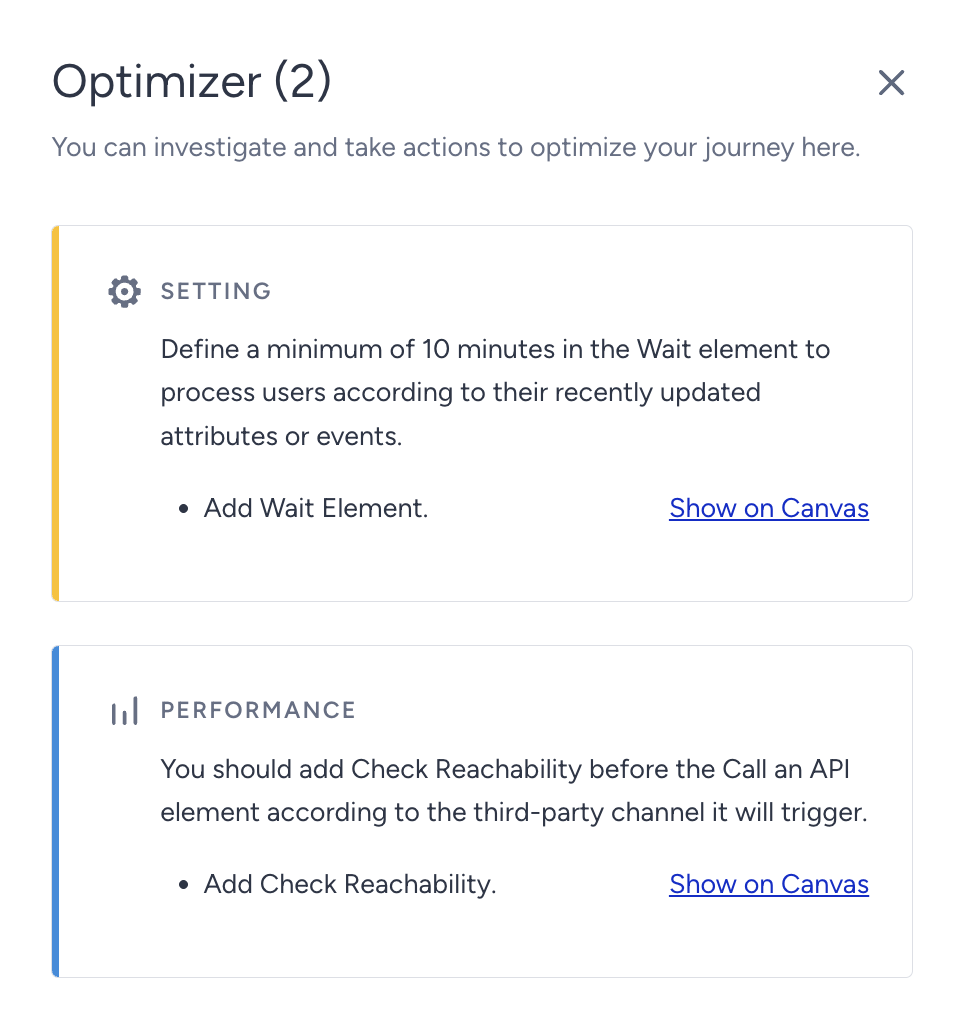
Journey Optimizer offers recommended practices for optimizing your journeys before launching them. This will make your journeys more efficient and improve their results.
You can also see important alerts about your journey. For example, if no one entered your journey in the last two days, an alert will be created.
You will see different numbers and colors on your listing page based on the number of optimization or alert points and their importance.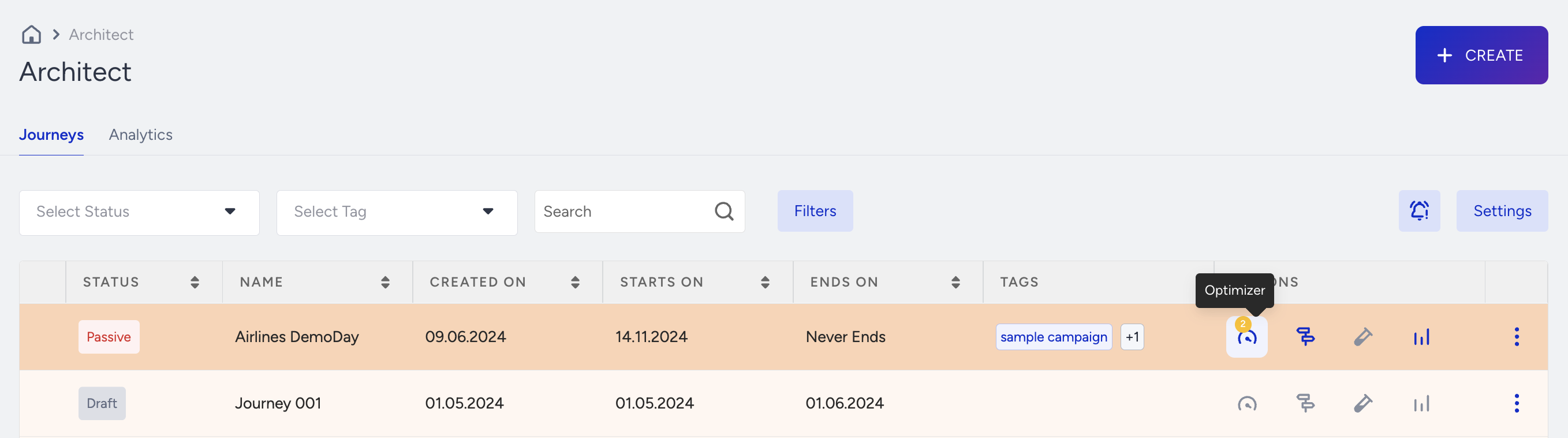
Track users
You can see how a user proceeds with the journey flow. Read Track User for further information.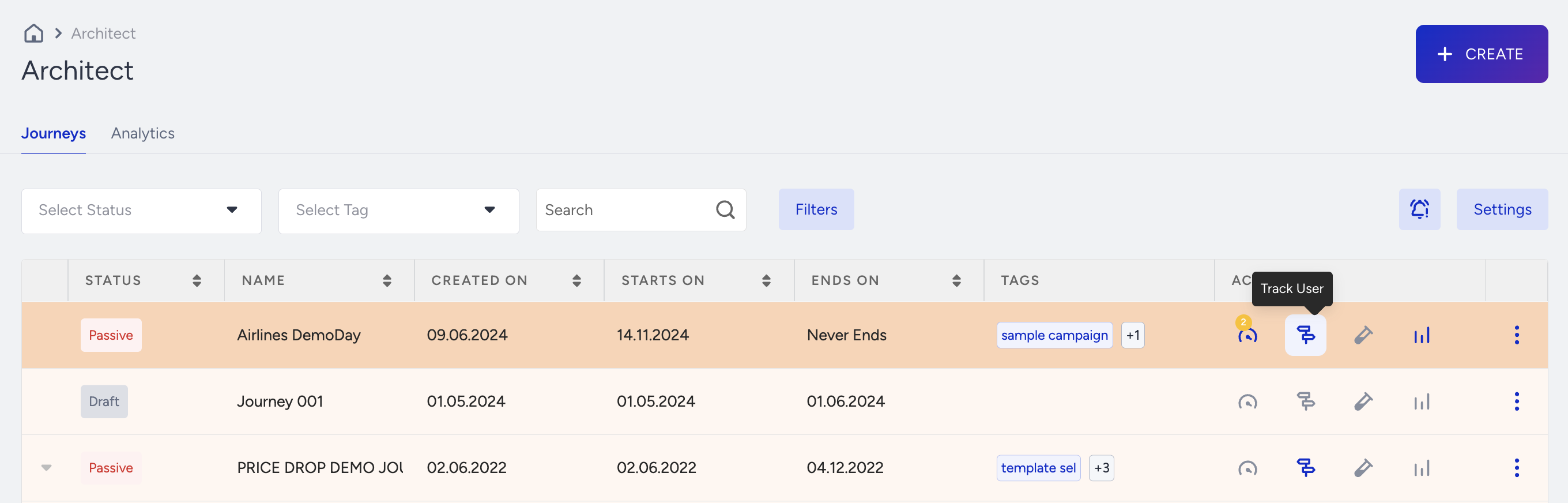
Test journeys
You can test your journeys to make sure they function as you build them.
See analytics of each journey
You can click the See Analytics button against each journey to see the Single Journey Analytics.
Duplicate journeys
You can duplicate your journeys and make a copy of them to edit them to create a similar journey.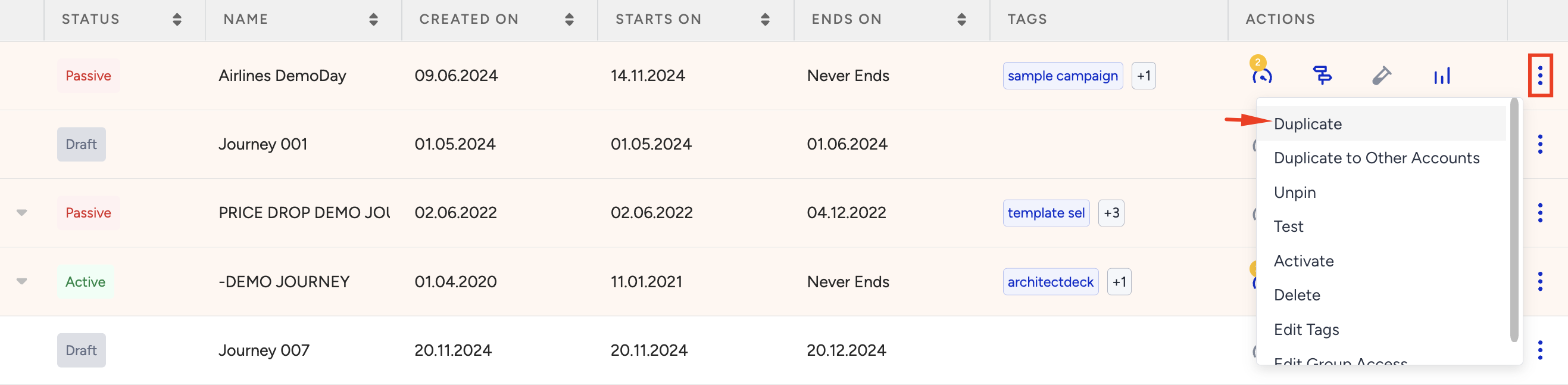
The default naming convention for journey channels is “[Journey Name] [Channel Type] 1, 2, 3, …”. If the channel is unchanged, the panel names the channel by default, like the naming convention.
When duplicating a journey, the system adds “Copy” to the new journey’s name in the user interface, so you can see and set the new journey’s name there. Therefore, if the channel name is unchanged and is the default channel name (“[Journey Name] [Channel Type] 1,23,4..) and you duplicate the journey, the system adds “Copy” to the name of the new journey, so it will be as in “Cart Abandonment Copy Email 1”. The name changes only because the journey’s name changes. If you change the channel name and it is no longer the default name, then when the journey is duplicated, the system does not change the channel’s name.
Duplicate Journey to Other Accounts
You can duplicate your journeys and make a copy of them to edit them to create a similar journey in another domain under the same account. You might have multiple business units in different countries, and these accounts can be DemoEN, DemoTR, or DemoDE. Basically, you can duplicate journeys between these domains.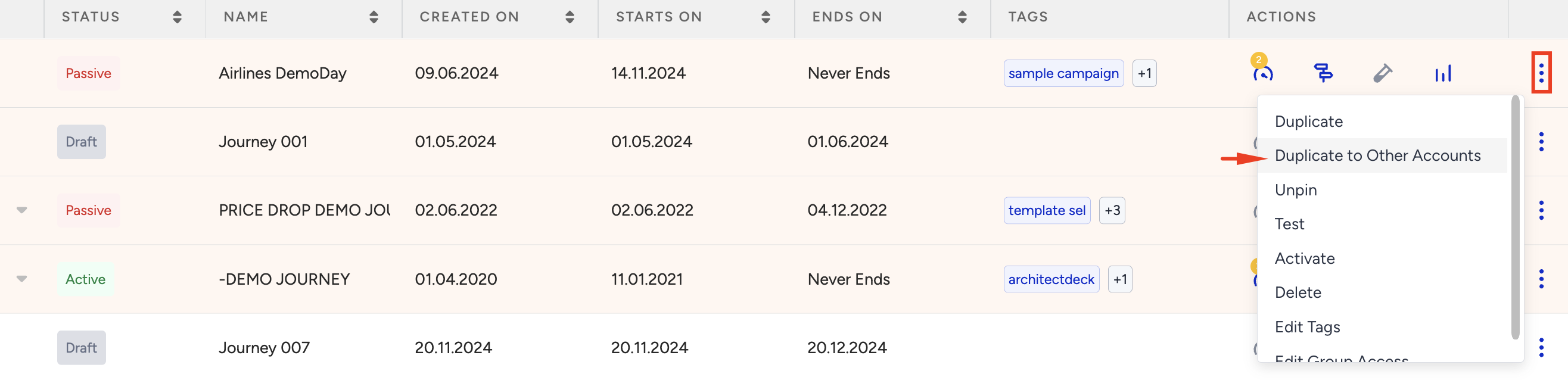
Step 1:
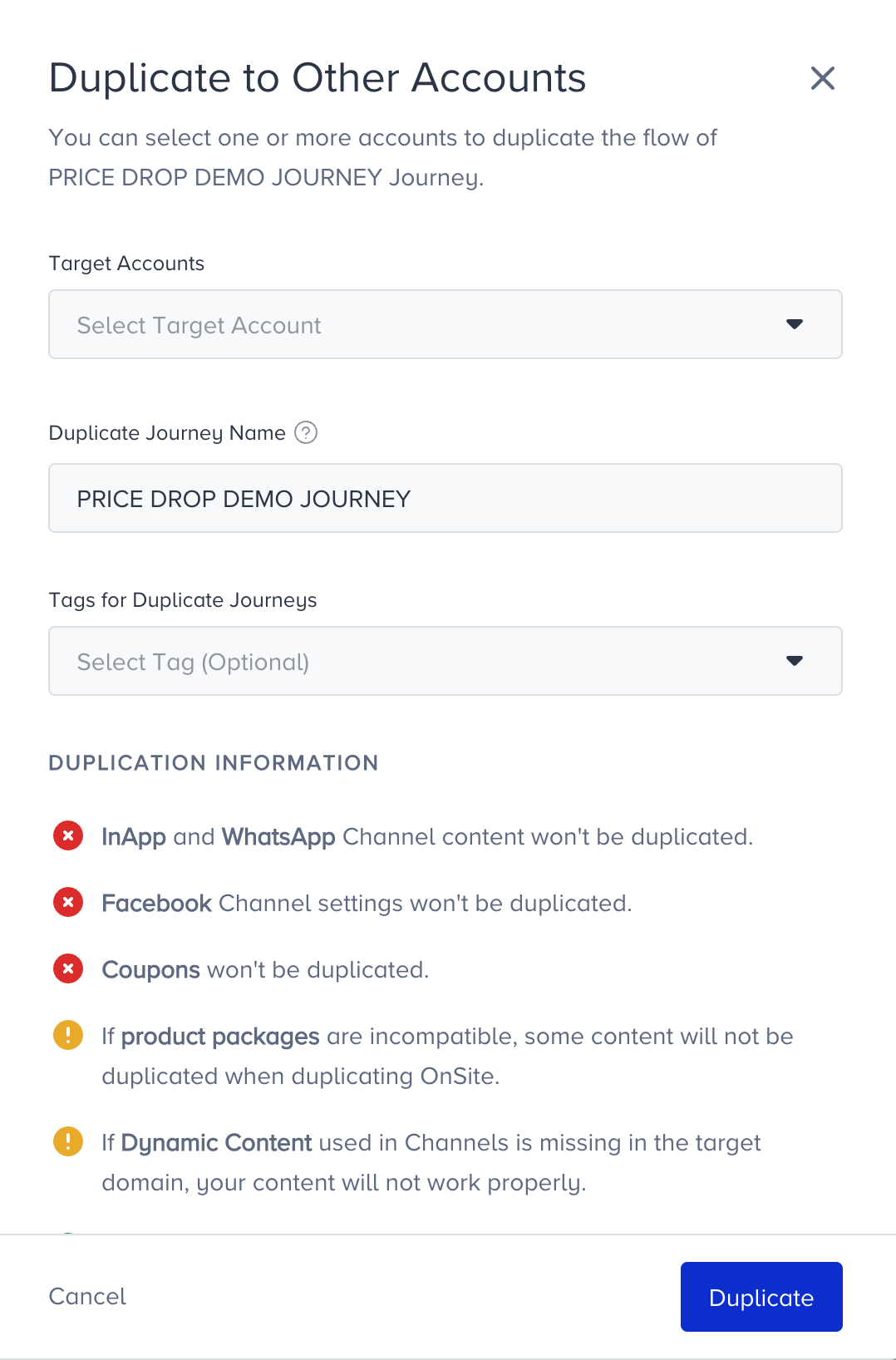
When you click “Duplicate to Other Accounts,” a modal will open. You can select multiple or a single account to duplicate your journey. Also, you can edit tags and the journey name in this modal before duplicating. Under duplication information, you can see what elements will be duplicated and what will be excluded:
- InApp and WhatsApp Channel content won't be duplicated.
- Email content will be duplicated.
- Facebook Channel settings won't be duplicated.
- Coupons won't be duplicated.
- If product packages are incompatible, some content will not be duplicated when duplicating OnSite.
- If Dynamic Content used in Channels is missing in the target domain, your content will not work properly.
- Channels (Email, OnSite, Web Push, App Push, SMS, and Call an API) will be duplicated.
- The journey flow will be duplicated.
- Exit Criteria and Journey Goals will be duplicated.
- Journey Tags will be duplicated.
- Goals and exit criteria will be duplicated if the target account has the respective events or attributes.
Step 2:
When you click on the Duplicate button, the process will start. This might take some time. After the process ends, you can check the other domain.
After the duplication is completed, Insider will email you about the duplication process and provide information on whether there are any problems while duplicating or if the process succeeded.
When you open the duplicated journey, you will see the Duplication Report, reminding you which settings are not duplicated. So, you can complete all settings before launching the journey.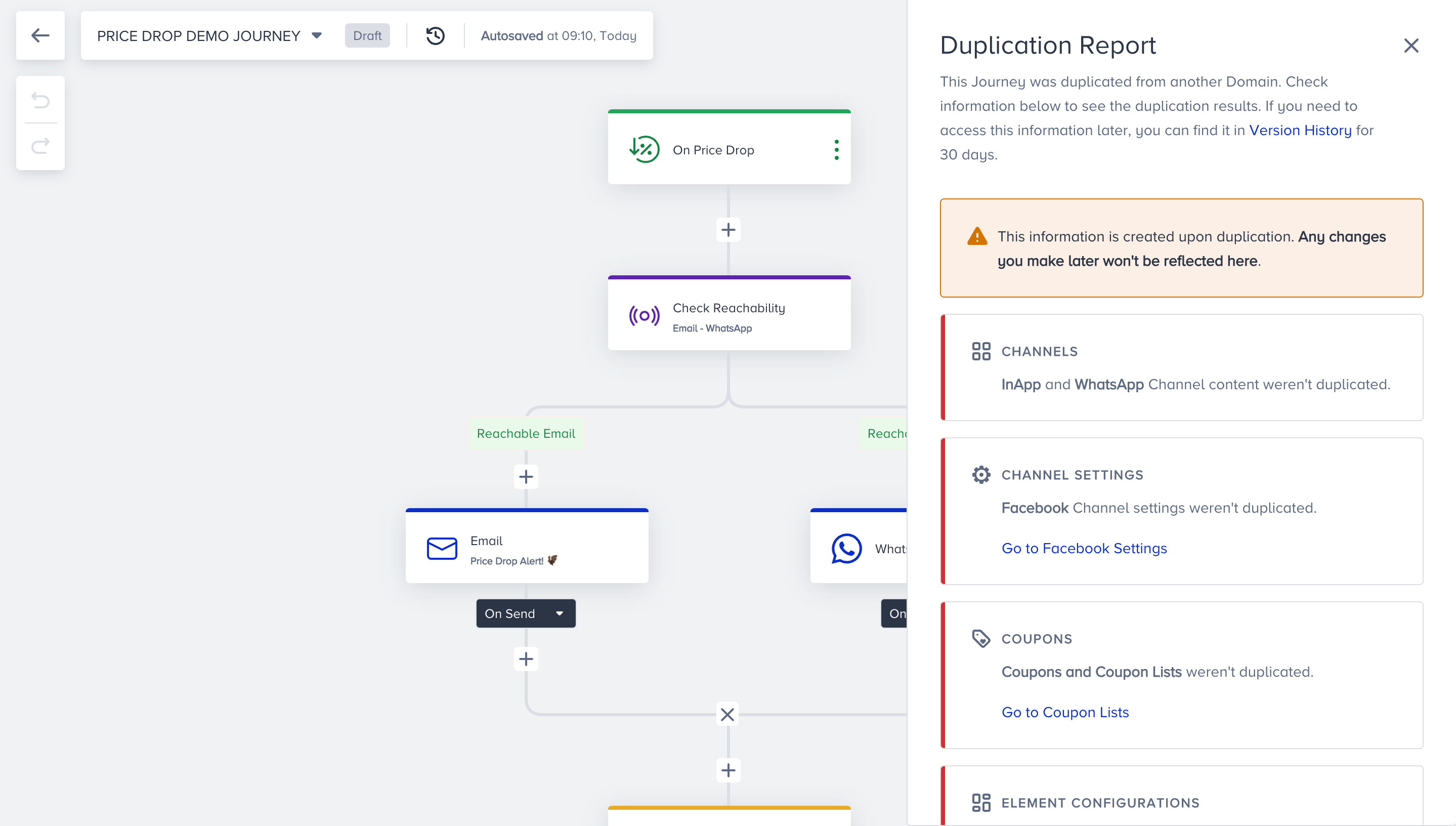
You can close this report, but if you need to check this report again while editing your journey, you can reach it for 30 days through Version History. Click on Show Duplication Report to open the report modal again and see what should be edited in this journey.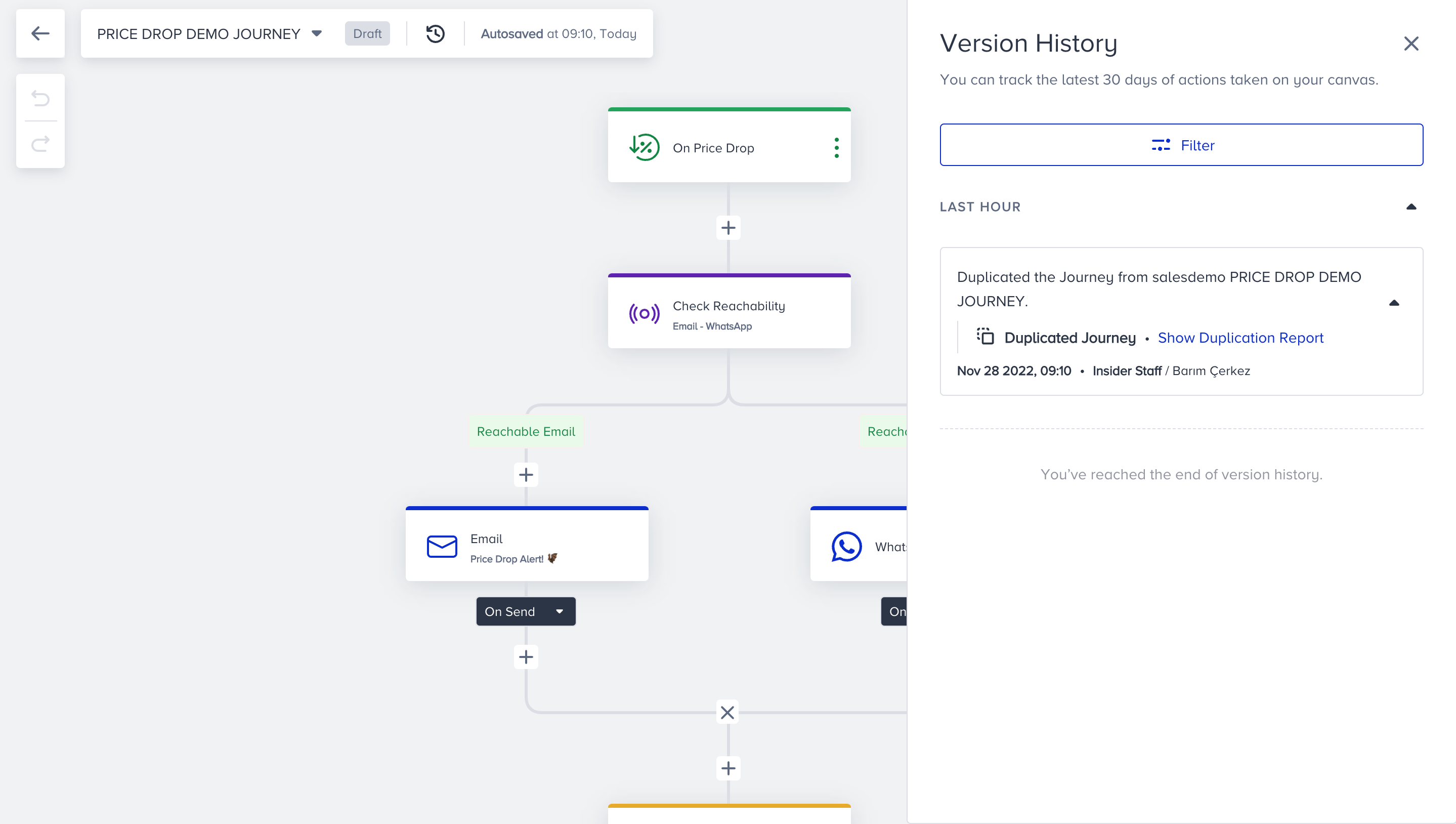
Pin/unpin journeys
You can pin the journeys that you want to reach easily to the top of the journey list. You can pin up to six journeys.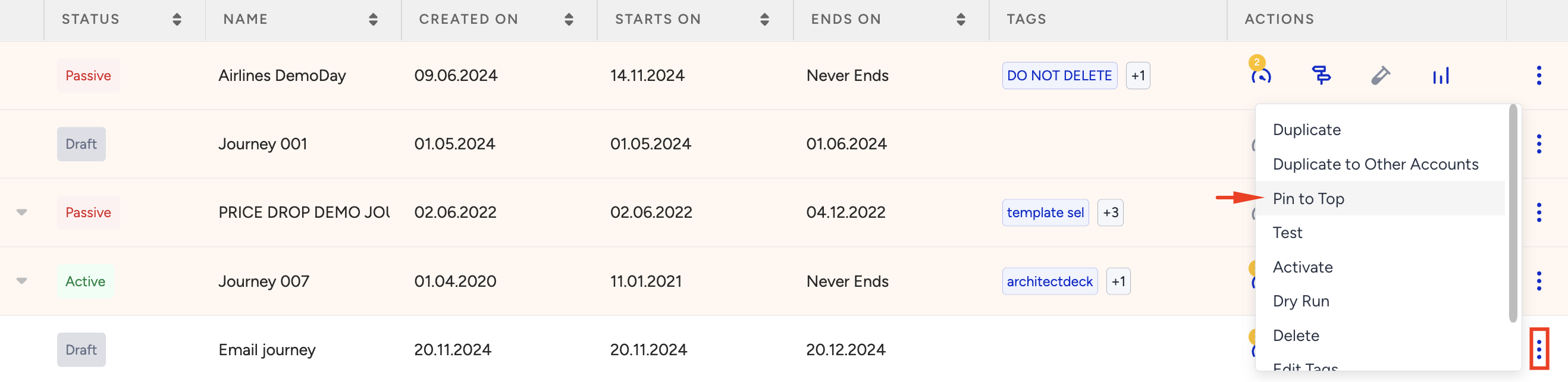
The pinned journeys will be highlighted in a different color.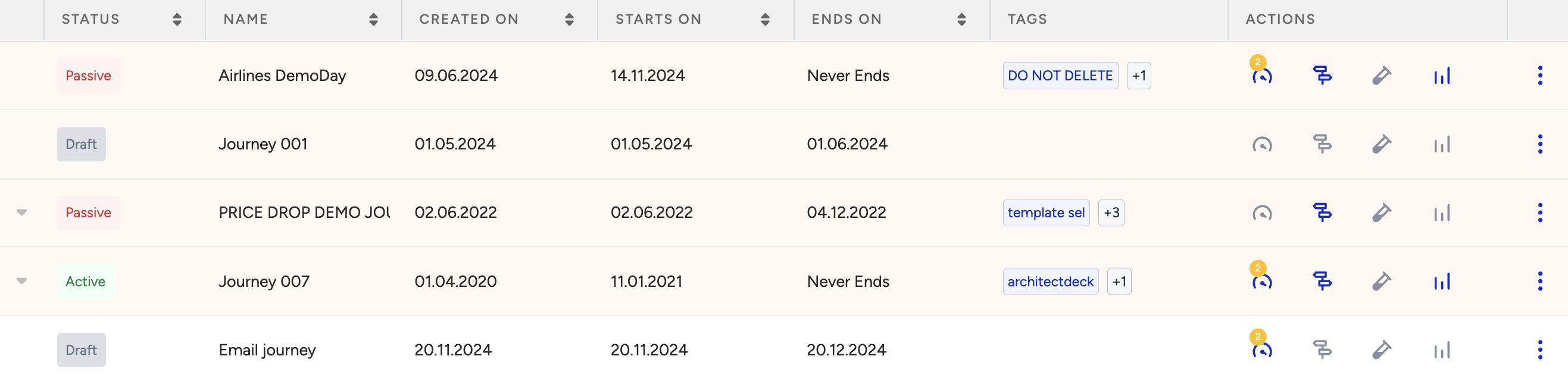
Edit tags
You can click the Edit Tags button against each journey and add tags to your journeys to categorize them.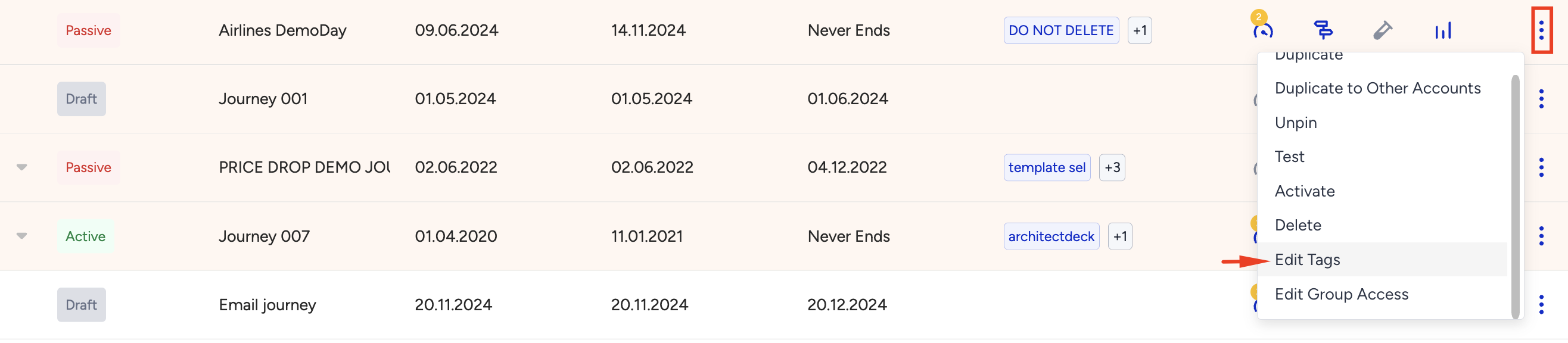
Change activation statuses
You can change the activation status of the journeys.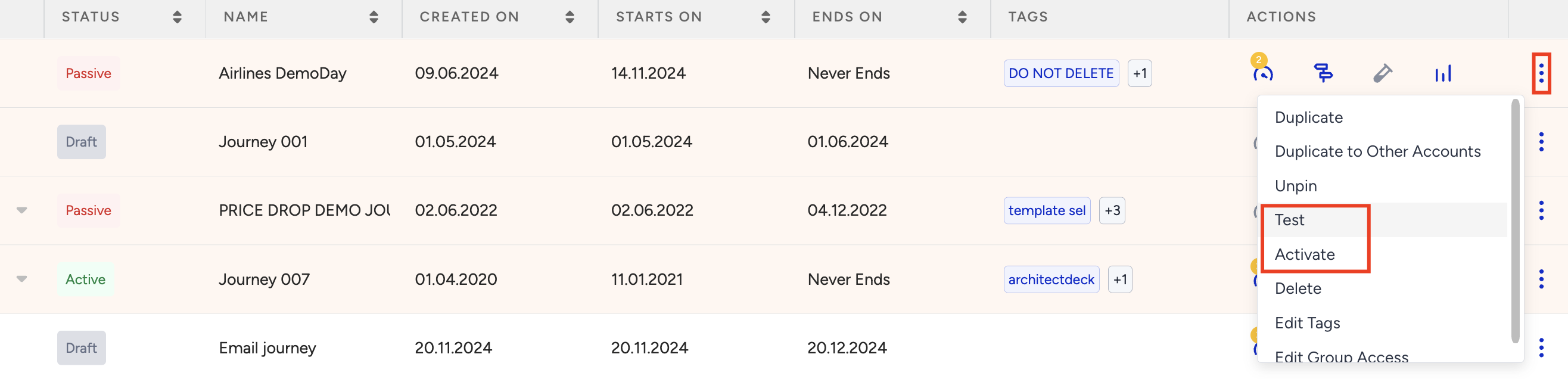
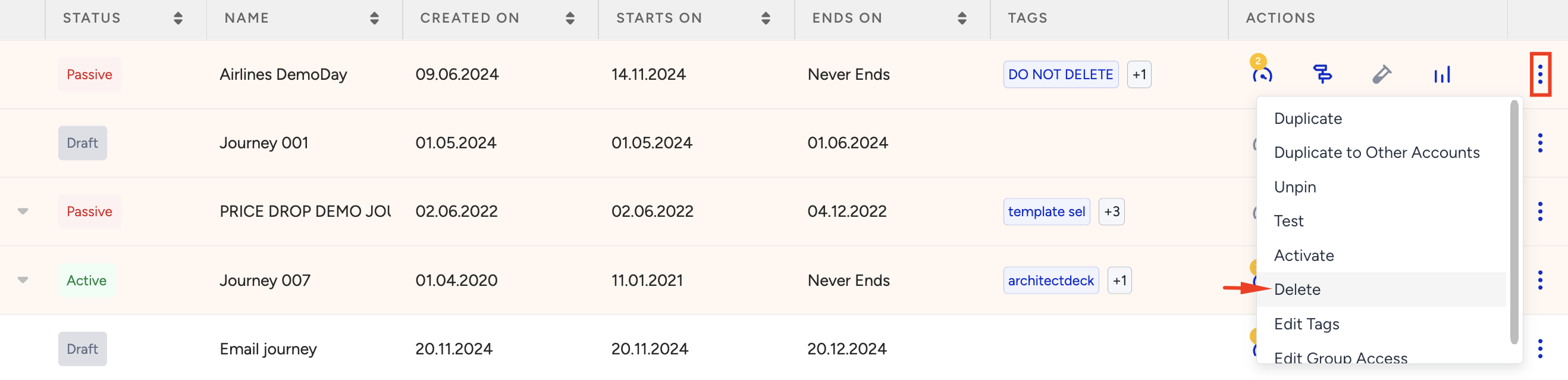
Delete journeys
You can delete your journeys with the Delete button against each journey.