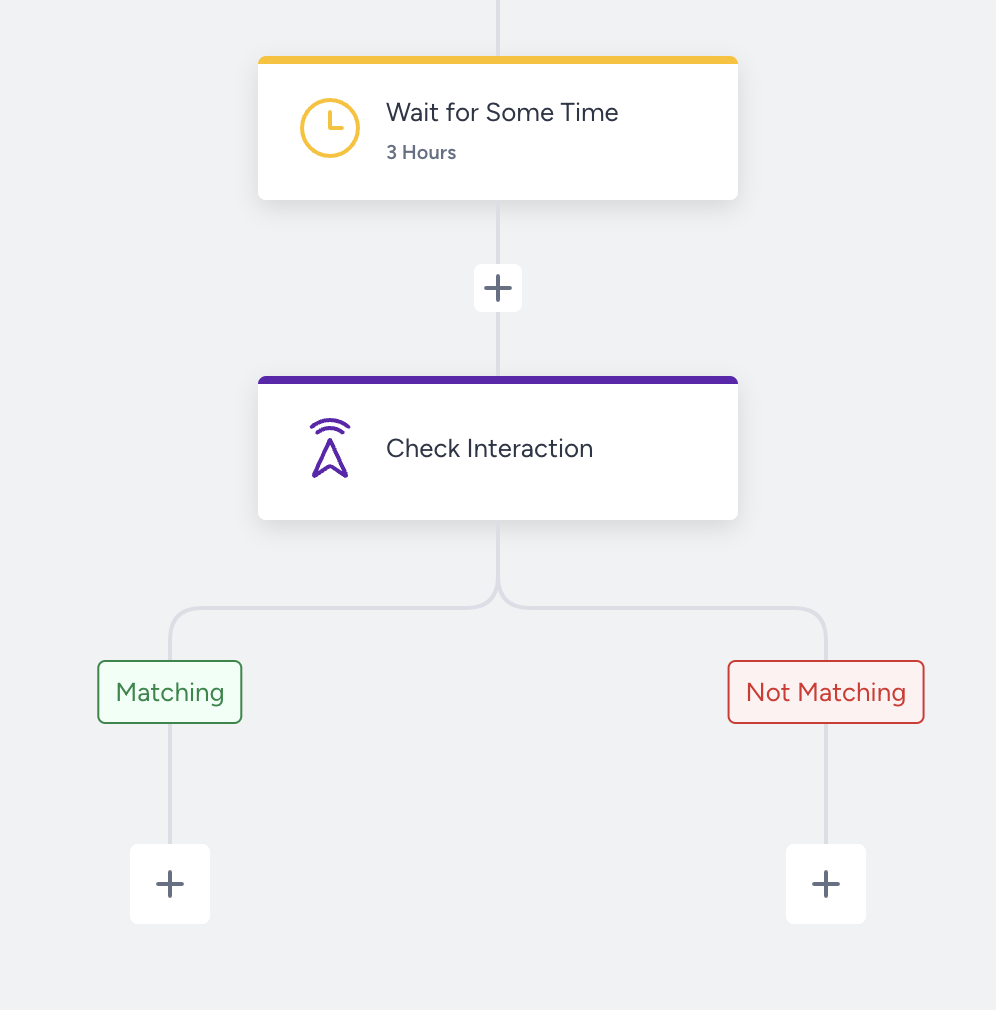
You can send many messages or emails or display a banner to end-users, but how can you track their actions on those messages? The Check Interaction functionality helps you track users' interactions in real time and enables you to take action on users accordingly.
You can check users' actions on the following channels that messages are sent from:
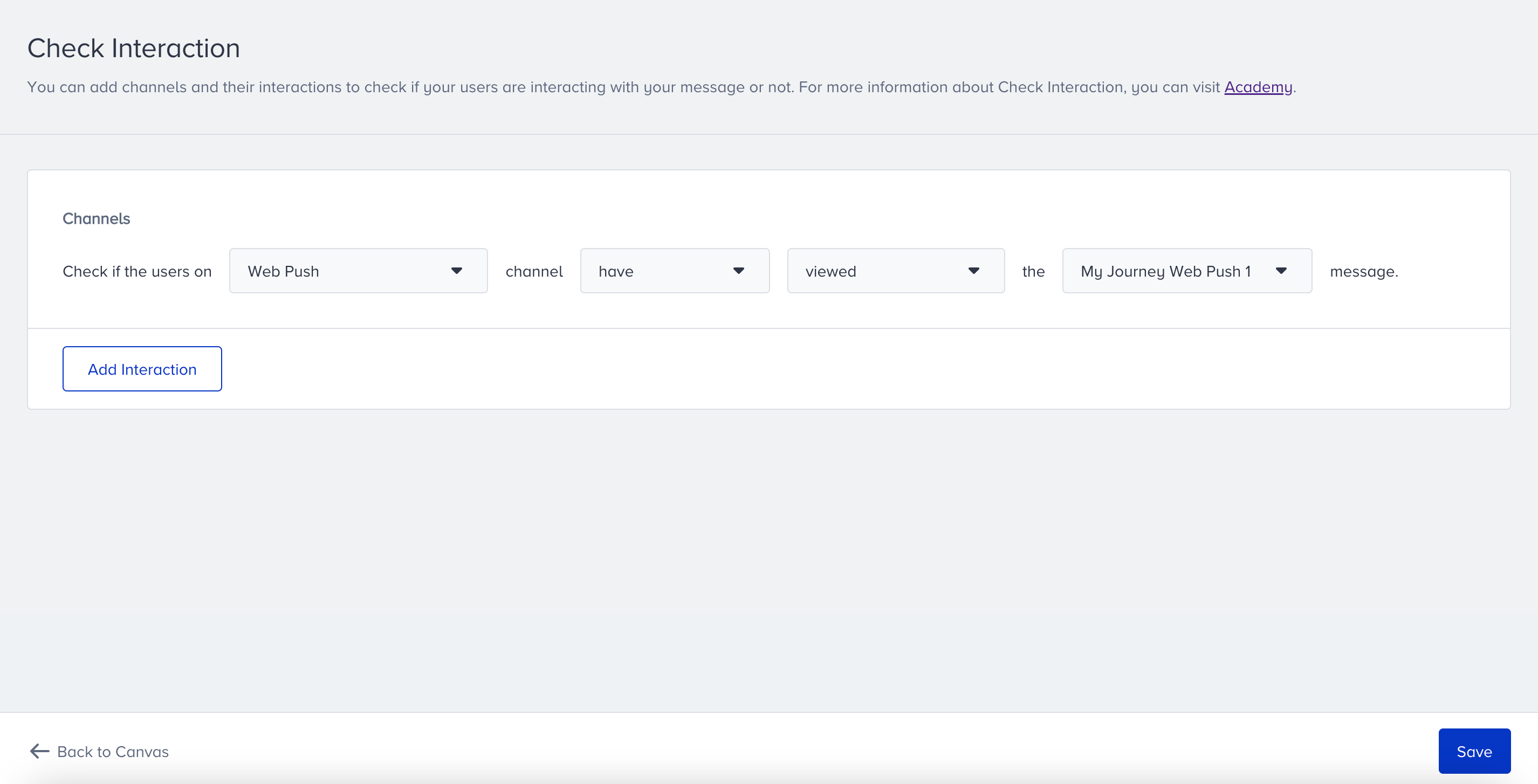
Insider tracks users' actions and collects them instantly. Interactions are linked to a particular channel and can include opens, clicks, views, and closes.
The Check Interaction element splits users into the Matching and Not Matching paths based on their interaction(s) in a selected channel. Check Interaction checks users' interactions in a channel included in the journey flow. In other words, it doesn’t check interactions for channels that are not included in the journey flow.
For example, you designed your journey, including an email campaign, and also added a Check Interaction element to verify users' clicks in the email included in the same journey. You set the action as “clicked” in the Check Interaction element. If the email campaign is sent to the user and then the user clicks on the URL, the user proceeds to the matching path.
Note that users don’t take action right away after receiving the message. You need to give them time to take action on channels by adding a Wait element before the Check Interaction element.
If no element follows one of the paths after the Check Interaction element, users can go down that path and exit the journey. In this case, the user will be counted as completed.
Please note that due to the queue size, passing the users to the next step can be delayed.
Here, you can see what interactions you can track for each channel:
Web Push
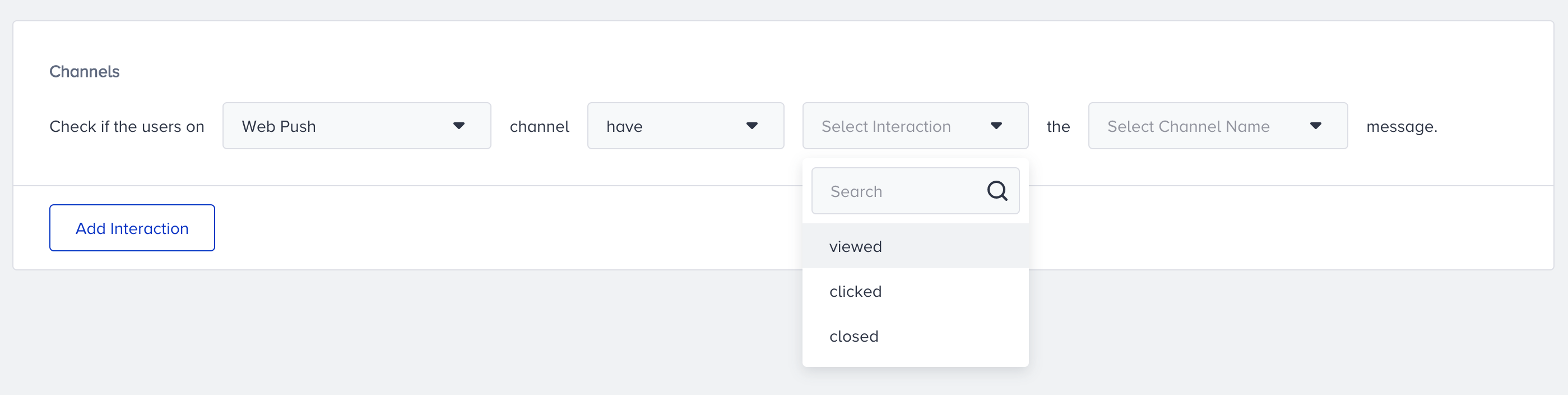
You can track your Web Push channel's viewed, clicked, and closed interactions.
Interaction | Details |
|---|---|
Seen | Tracks if the user has seen the web push |
Clicked | Tracks if the user has clicked the web push |
Closed | Tracks if the user has closed the web push |
App Push
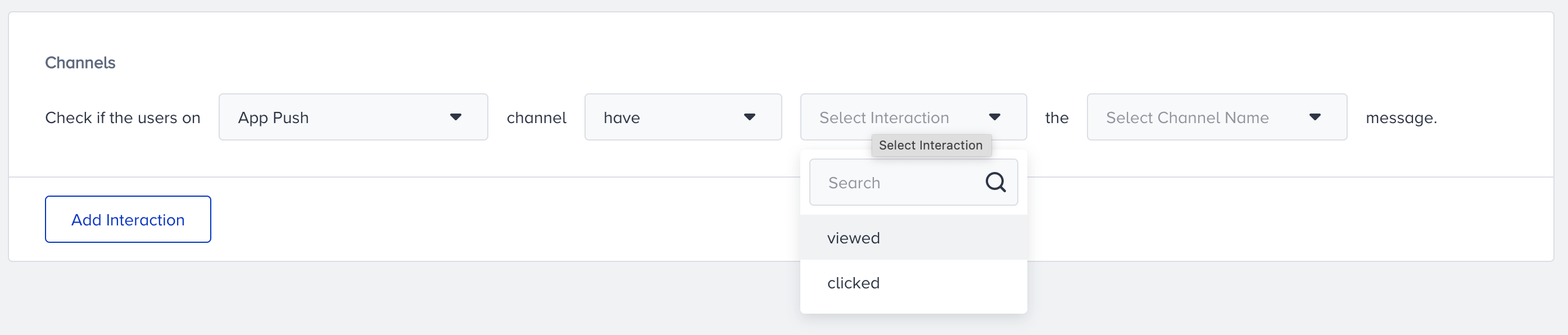
You can track the viewed and clicked interactions of your App Push channel.
Interaction | Details |
|---|---|
Seen | Tracks if the user has seen the app push |
Clicked | Tracks if the user has opened the app push |
You can track the opened and clicked interactions of your Email channel.

Interaction | Details |
|---|---|
Opened | Tracks if the user has opened the email |
Clicked | Tracks if the user has clicked any URL in the email |
SMS
You can track the clicked interaction of your SMS channel.

Interaction | Details |
|---|---|
Clicked | Tracks if the user has clicked any URL in the SMS |
You can track the viewed, opened, clicked, and replied interactions of your WhatsApp channel.

Interaction | Details |
|---|---|
Seen | Tracks if the user has seen the WhatsApp message |
Opened | Tracks if the user has opened the WhatsApp message |
Clicked | Tracks if the user has clicked any URL in the WhatsApp message |
Replied | Tracks if the user has replied to the first WhatsApp message |
In-App
You can track the viewed and clicked interactions of your In-App channel.

Interaction | Details |
|---|---|
Seen | Tracks if the user has seen the in-app campaign |
Clicked | Tracks if the user has clicked the in-app campaign |
On-Site
You can track the viewed and clicked interactions of your On-Site channel.

Interaction | Details |
|---|---|
Seen | Tracks if the user has seen the on-site campaign |
Clicked | Tracks if the user has clicked the on-site campaign |
Call an API
You can track the successful and failed interactions of your Call an API channel.

Interaction | Details |
|---|---|
Successful | Tracks if the API request for the user has been successfully sent on the Call an API channel |
Failed | Tracks if the API request for the user has failed on the Call an API channel |
What is the difference between the Check Interaction element and Channel Interactions that are in On Past Behavior and Check Conditions?
Channel Interactions is one of the predefined segments in the On Past Behavior and Check Conditions element. Check Interactions tracks the interactions to the messages within the respective journey while Channel Interactions tracks the actions taken in the channels no matter if the messages were sent in a different journey.
Check Interaction checks user’s interactions on channels that are added to the same journey flow.
Check Interaction is another check element type. Channel Interactions is a segment option.
Requirements
Before starting to use the Check Interaction element, make sure to have completed the following requirements.
Insider Tag integration should be completed (for the website).
SDK integration should be completed for mobile app data reading (for the app).
Use Cases
You can use this element for many use cases. Some are as follows:
Send a message to end-users – if they don’t respond or are not interested, you can use another channel and introduce a different experience.
End journey for users who have taken the specified interaction in the channel that meets the end goal.
Score users' interactions to create a segment for each user as an attribute value. Tracking users' interactions with the ‘check interaction’ element and assigning an attribute value with the ‘update user attribute’ element to score them.