Insider One offers various templates within Web and Mobile Lead Collection campaigns to help you trigger the Native Opt-In notification. These ready-to-use templates are designed to guide users smoothly through the subscription process for Web Push notifications, ultimately helping you grow your subscriber base more efficiently. By providing clear, user-friendly prompts at the right moments, these templates increase the likelihood of opt-ins and improve overall engagement:
Prerequisites
All three templates trigger the browser’s native permission prompt, which requires Native Opt-in and a working Service Worker integration. If the Service Worker isn’t available on a domain, the native prompt doesn’t appear there, even when the campaign is live.
Complete Native Opt-in Configuration and Service Worker Integration before launching these campaigns.
If your website uses multiple domains or subdomains, add the Service Worker at the same path on each one.
Host the Service Worker on the same origin as the page that registers it. The registering page, the Service Worker’s scope, and its main script must share one origin.
Recent browser updates may silently hide permission prompts. These Web Push Opt-in templates offer user-friendly interventions to:
Catch attention, e.g., by using the Bell Icon.
Provide context before showing the system prompt.
Serve reminder templates to re-engage users who blocked or ignored permission.
Web Push Opt-in Bell Icon
The Web Push Opt-in Bell Icon triggers the Native (HTTPS) Opt-in prompt when clicked. It is an interactive and assistive button that floats on your website, allowing users to manage their notification permissions. If your users block or allow the opt-in, it will disappear and won't be displayed. If they ignore or take no action on the Native Opt-in prompt, it will be displayed in line with the campaign eligibility rules. Upon clicking the bell icon, users can either trigger the opt-in screen or an instruction screen that guides and directs users on how to opt in.
.png)
You can customize the icon and bubble text in the Design step of your campaign.
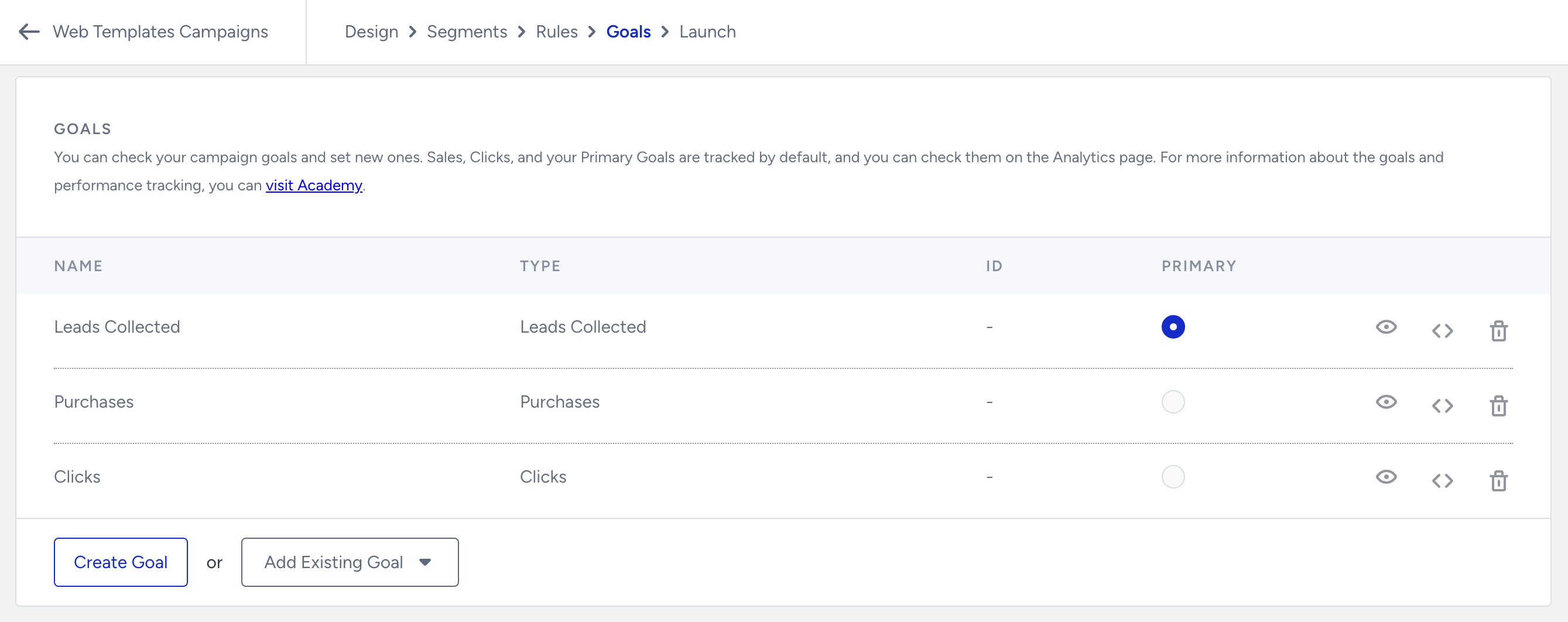
In the Goals step of your campaign, you can also choose the Leads Collected metric to track the leads generated from your campaign and measure the effectiveness of your campaign strategies.
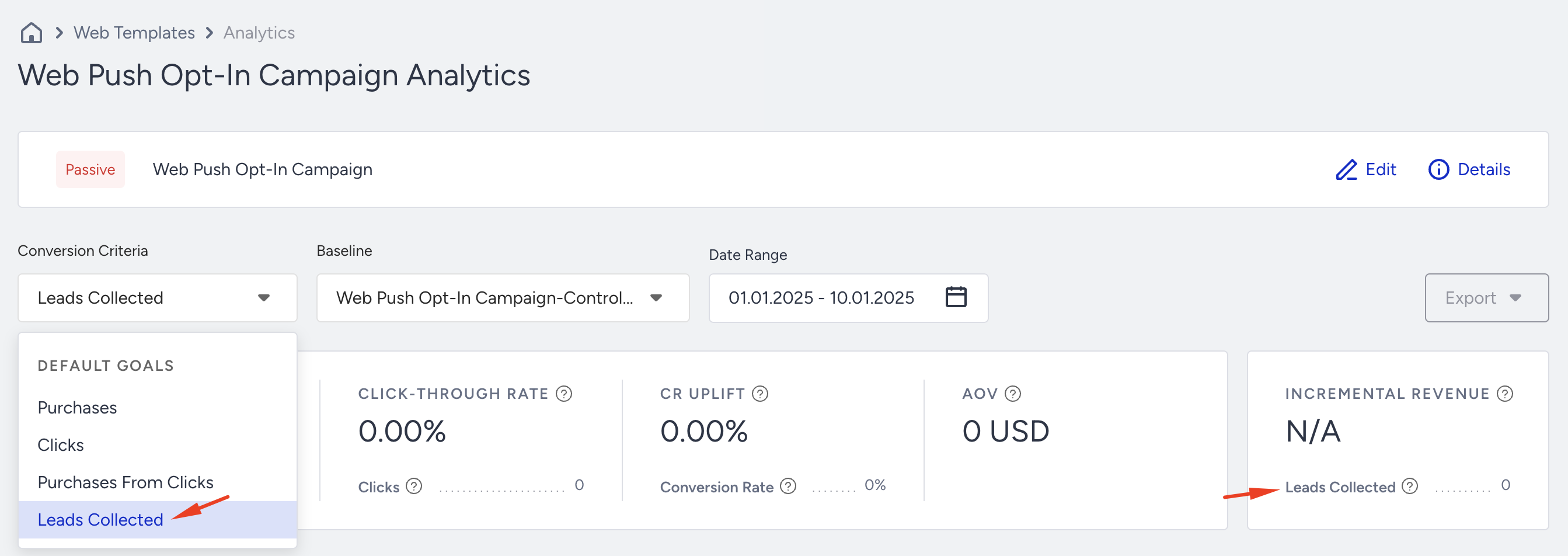
You can also view the metric's performance on the campaign-level analytics page. Users who see this campaign and subscribe to the Web Push will be reflected in the Leads Collected metric in the campaign analytics.
Web Push Opt-in Box
The Web Push Opt-in Box is similar to the Custom (HTTP) Opt-in, but triggers the Native Opt-in instead of displaying a pop-up window.
.png)
You can customize the buttons and images in the Design step of your campaign.
In the Goals step of your campaign, you can also choose the Leads Collected metric to track the leads generated from your campaign and measure the effectiveness of your campaign strategies.
You can also view the metric's performance on the campaign-level analytics page. Users who see this campaign and subscribe to the Web Push will be reflected in the Leads Collected metric in the campaign analytics.
Web Push Opt-in Reminder
You can use a Web Push Opt-in Reminder template to prompt a user and guide them through enabling permissions and opting to receive push notifications. You can also use this template to remind users who have already given consent to opt in again.
.png)
You can customize the text, image, and buttons in the Design step of your campaign.
In the Goals step of your campaign, you can also choose the Leads Collected metric to track the leads generated from your campaign and measure the effectiveness of your campaign strategies.
You can also view the metric's performance on the campaign-level analytics page. Users who see this campaign and subscribe to the Web Push will be reflected in the Leads Collected metric in the campaign analytics.
Using these templates, you can seamlessly integrate the Native Opt-in notification into your lead collection efforts, improving engagement and ensuring a smooth user experience.
Target users by notification permission
Browser notification permission can have these states:
Default: The user has not allowed or blocked notifications.
Granted: The user has allowed notifications.
Denied/Blocked: The user has blocked notifications.
The Web Push Opt-in Box is intended for users whose permission is default. It is no longer displayed after the user allows or blocks the browser’s native permission prompt.
Use the Web Push Opt-in Reminder to guide users who have blocked notifications through the steps required to enable them again.
You can run an Opt-in Box campaign and an Opt-in Reminder campaign in parallel when their rules target distinct permission states:
Opt-in Box: Default
Opt-in Reminder: Blocked opt-in
Review any automatically added custom rule before launching the Reminder campaign.
The native permission prompt doesn’t appear
If an Opt-in Box or Bell Icon campaign is live but the native prompt doesn’t appear:
Check the browser’s notification permission. The Opt-in Box and Bell Icon only trigger the prompt for users whose permission is Default. For users who blocked notifications, use the Opt-in Reminder to guide them through enabling permission again.
Check the Service Worker on the exact domain or subdomain you’re testing. Confirm the file is available at the configured path and meets the same-origin requirements.
Run the setup test. In Web Push > Settings, enable Activate Opt-in, then click Start Test in the Setup Test section. The test can take up to three minutes and shows a status for each domain. Fix any reported errors and run it again.
A missing prompt alone doesn’t tell you the cause, because browsers can also hide permission prompts. Check permission state and integration setup before changing the campaign.