Custom Opt-in is a pre-permission prompt shown before the browser’s native permission request. It is recommended for websites that do not support HTTPS, as the Native Opt-in method requires a secure connection.
You choose your opt-in type (Native or Custom) during onboarding, but you can configure or change its settings at any time from the Web Push Settings page.
To configure Custom Opt-in:
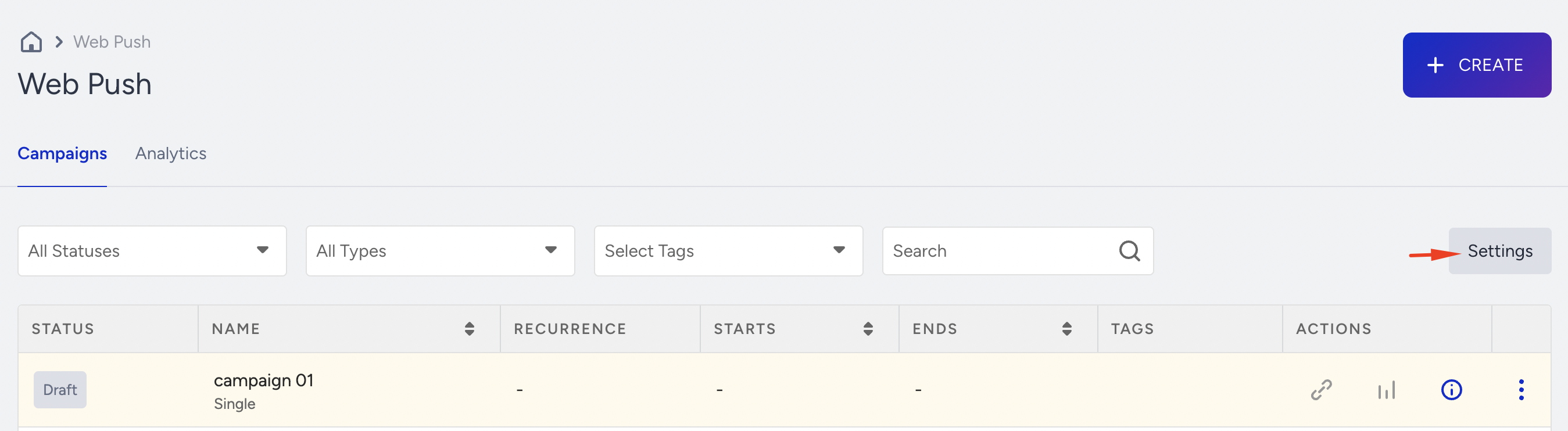
Navigate to Web Push > Settings.
Under the Setup Settings tab, enable the Activate Opt-in box and choose the Custom Opt-in type to configure its settings further.
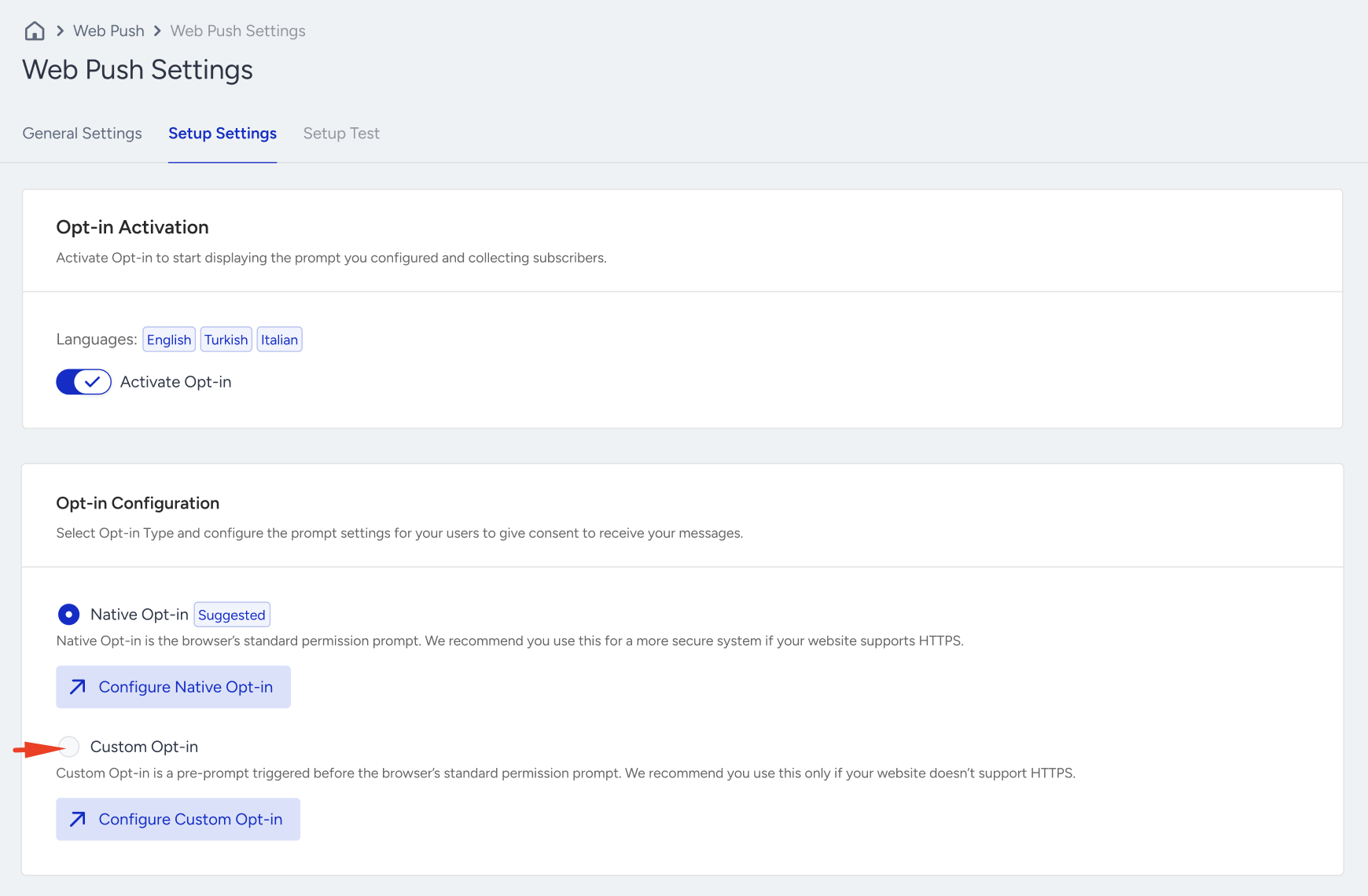
Click Configure Custom Opt-in to proceed.
You should have completed Web Push Channel Setup first to activate the opt-in.
General Settings
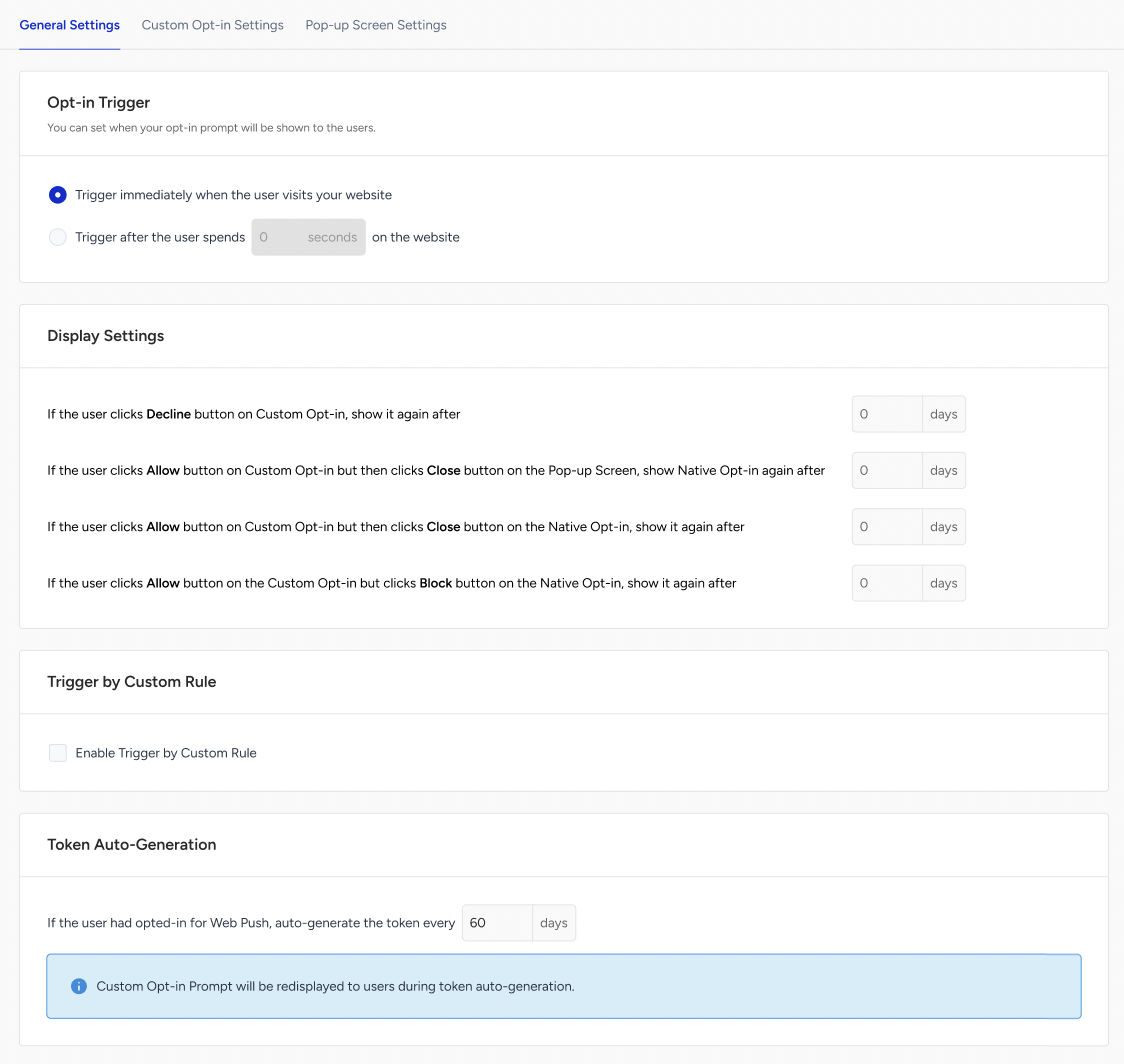
The General Settings tab includes the opt-in trigger, display settings, custom rule, and token auto-generation configurations for opt-in.
Opt-in Trigger
Opt-in Trigger allows you to set when your opt-in prompt will be shown to your users.
Display Settings
Display Settings allow you to configure the timing for displaying the Custom Opt-in prompt when a user clicks the buttons.
Trigger by Custom Rule
Trigger by Custom Rule enables setting a custom rule to show the custom opt-in to users. After checking the Enable Trigger by Custom Rule option and selecting a rule from the dropdown, you can set a custom rule for the custom opt-in. You can also select a custom rule for the opt-in and change the HTML of the Opt-in screen.
Token Auto-Generation
Token Auto-Generation helps generate tokens within a specified time.
Custom Opt-in Settings
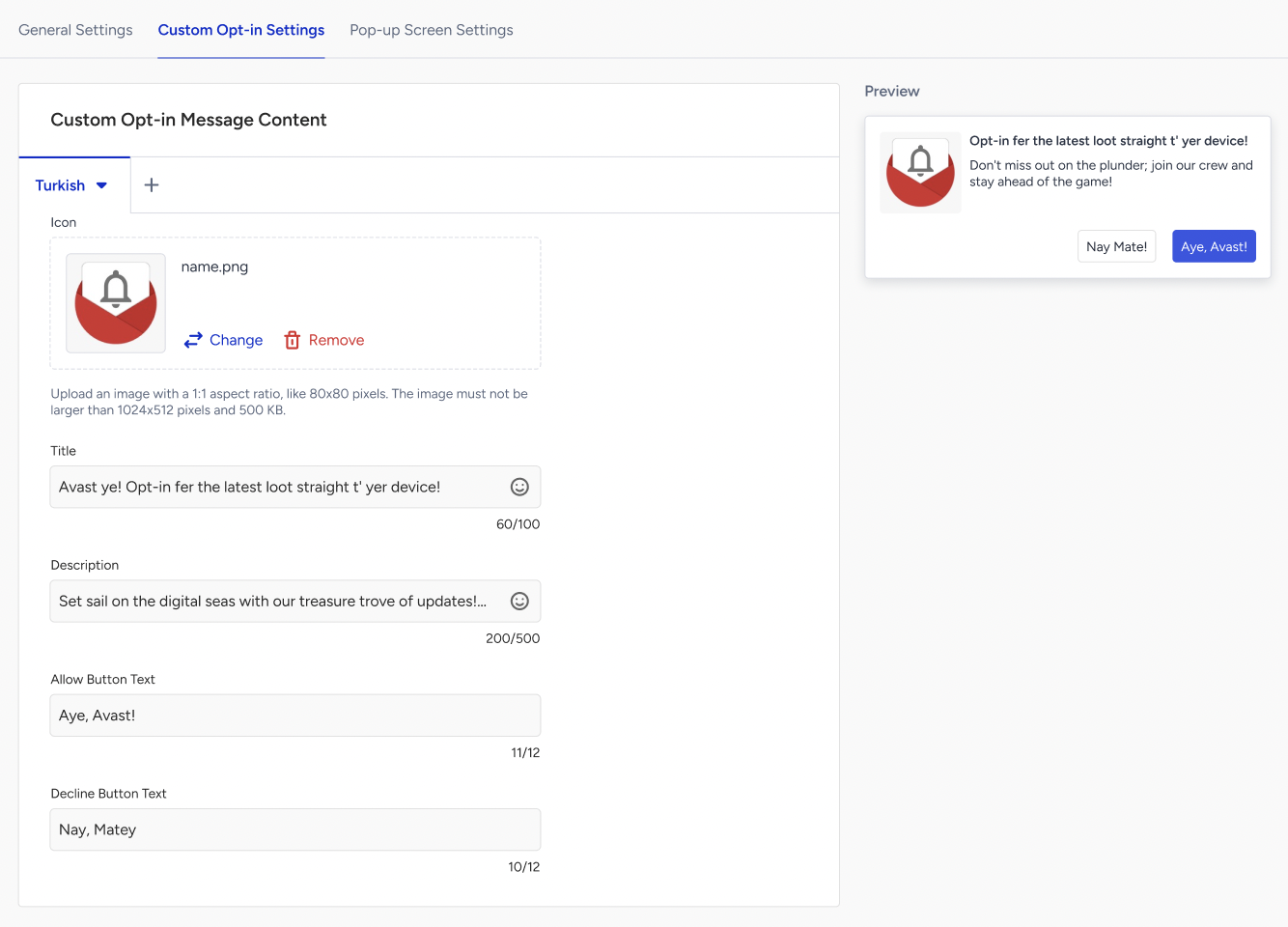
You can create and customize the custom opt-in message content.
Adding Languages
If your website has users visiting in different languages, you can customize your opt-in screens for each language defined on the System Rules separately. You will need to configure the text for each section individually and provide localized versions for each.
Push Icon
Upload the icon that will be displayed on the permission screen.
The maximum size of the Web Push icon is 500KB, and the recommended size is 80 x 80 px.
Title and Description
Provide a title (maximum of 100 characters) and description (maximum of 500 characters) for your permission screen.
Permission buttons
Enter the text for the Allow and Decline buttons.
Preview
You can view the live preview of all your changes and see how the opt-in screen will look to your users.
Pop-up Screen Settings
You can configure the push icon, title, description, and button on the Pop-up Screen Settings tab.
Native Opt-in can only be triggered by the user on the Firefox browser for desktop. We recommend you add a button to the Pop-up Screen.
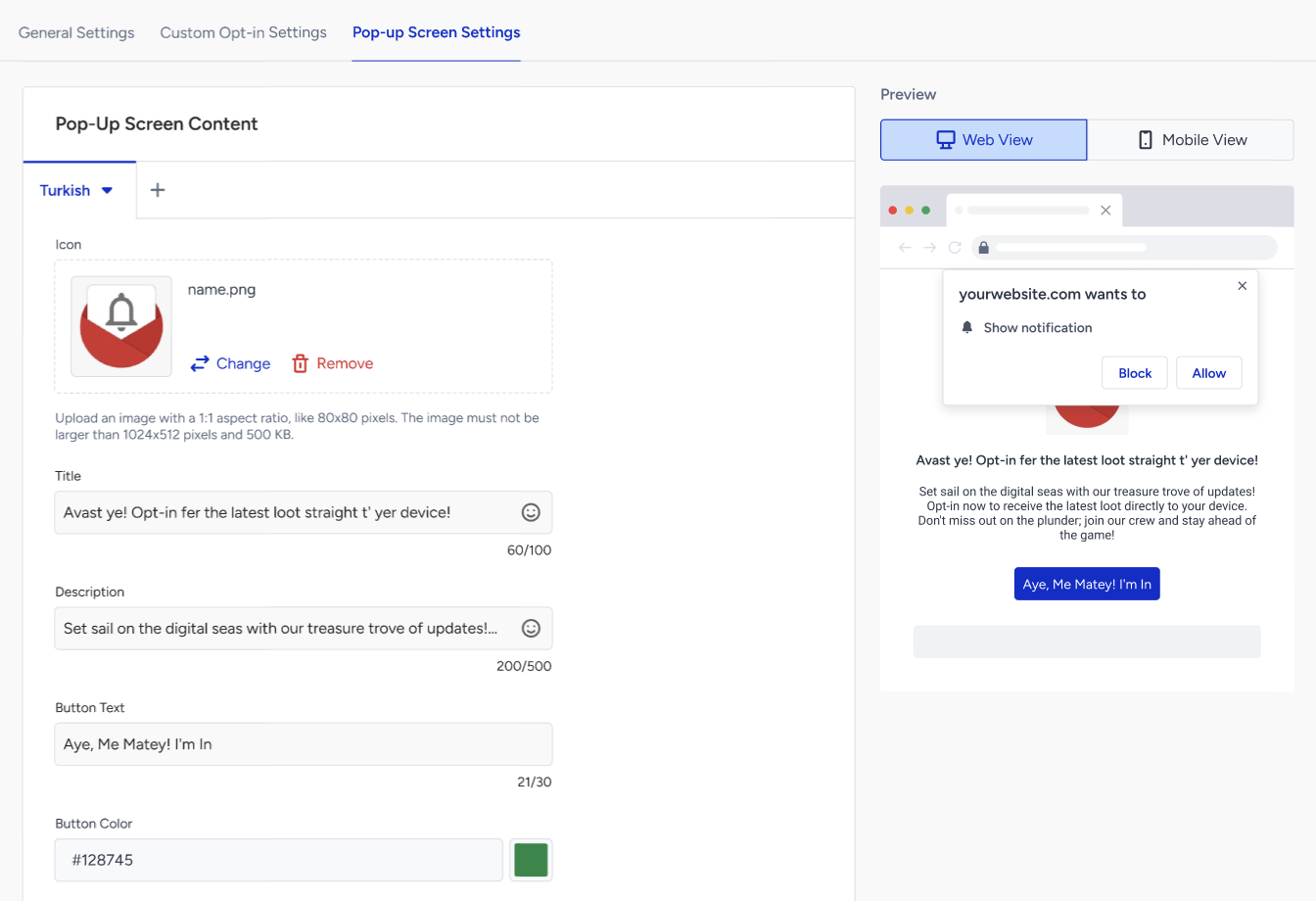
In the right panel of this screen, you can preview how it will appear to your users on both Web and Mobile.
If the user clicks Allow on the permission screen, they will automatically join the group of Web Push notification subscribers on your website. If they click the Block, the opt-in screen will disappear and never be shown again.