With the release of iOS 16.4, Apple introduced support for Web Push notifications on iPhones and iPads, enabling mobile websites to reach users via push, similar to desktop browsers. However, unlike Chrome or Firefox, Safari on iOS requires a different approach. Web push is only supported when your site is installed as a Progressive Web App (PWA) on the user's home screen.
You can see the the technical setup requirements and end-user flow to ensure the successful delivery of Web Push on iOS below:
What’s different on iOS?
Web Push on iOS adheres to the same core technologies — Push API, Notification API, and Service Workers — but the delivery context is restricted:
Push notifications are only available to PWAs installed from Safari.
The push permission prompt must be triggered in response to a user interaction (e.g., tapping a subscribe button).
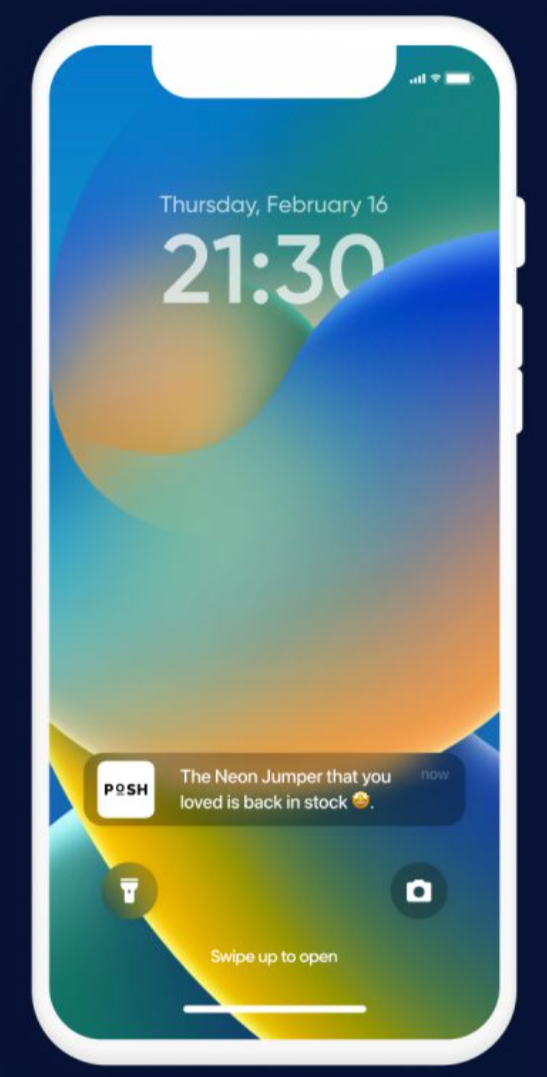
Once granted, push notifications behave like those from native apps, appearing on the lock screen, in Notification Center, and on Apple Watch.
Users can manage notification preferences per app under Settings > Notifications.
Requirements on your side
1. Serve a Valid Web App Manifest
Include a manifest.json file linked in your HTML:
<link rel="manifest" href="/manifest.json">At a minimum, your manifest must define:
{
  "name": "Your App Name",
  "short_name": "App",
  "start_url": "/",
  "display": "standalone"
}
iOS relies on the display: standalone or fullscreen setting to classify your site as a launchable web app.
2. Create a user-initiated opt-in flow
Safari only displays the native push permission prompt when triggered by a direct user action. This means:
Display a clear call-to-action (e.g., "Enable Notifications").
Upon click, initiate the push subscription request.
Configure an opt-in box template specifically for Mobile Safari under the correct platform selection.
3. Ensure HTTPS and PWA compliance
Your site must:
Be served over HTTPS.
Function as a PWA.
Open in standalone mode when launched from the home screen.
You can validate your PWA implementation using Chrome Lighthouse or similar auditing tools.
Requirements for your users
To receive Web Push notifications on iOS, your users must complete the following steps:
1. Add Your Site to the Home Screen
In Safari, tap the Share icon.
Scroll and select Add to Home Screen.
If not visible, tap Edit Actions, enable it, and try again.
2. Launch the Web App from the Home Screen
Tapping the app icon opens your site in standalone mode, which is required for push eligibility.
3. Subscribe to Notifications
Present your opt-in UI inside the PWA.
When users tap Subscribe, Safari will display its native permission prompt.
Users must explicitly allow push notifications.
4. Optional: Experimental Feature Toggle (Pre‑iOS 16.4)
On early iOS betas, users needed to manually enable the Push API via Settings > Safari > Advanced > Experimental Features > Push API. However, this step is no longer required on public releases of iOS 16.4 and above — the feature is enabled by default.
If you have questions regarding Web Push Support for Mobile Safari, refer to the FAQ about Web Push Support for Mobile Safari.