Safari on macOS Ventura and later now supports Web Push notifications using standardized browser APIs such as the Push API, Notifications API, and Service Workers. However, unlike other browsers, Safari does not display the native opt-in prompt automatically when a user lands on a website. Users must first perform a gesture, such as clicking a button, before the permission prompt appears.
To support this flow, we recommend using the Web Push Opt-in Box Template to actively prompt Safari users.
Enable the Web Push Opt-in Box for Safari
To enable the Web Push Opt-in Box template for Desktop Safari,
Navigate to Experience > Optimize > Web Templates.
Click the Create button on the Web Templates listing page.
You will land on the Template Library. You can search for the template or find it under Collect Leads.
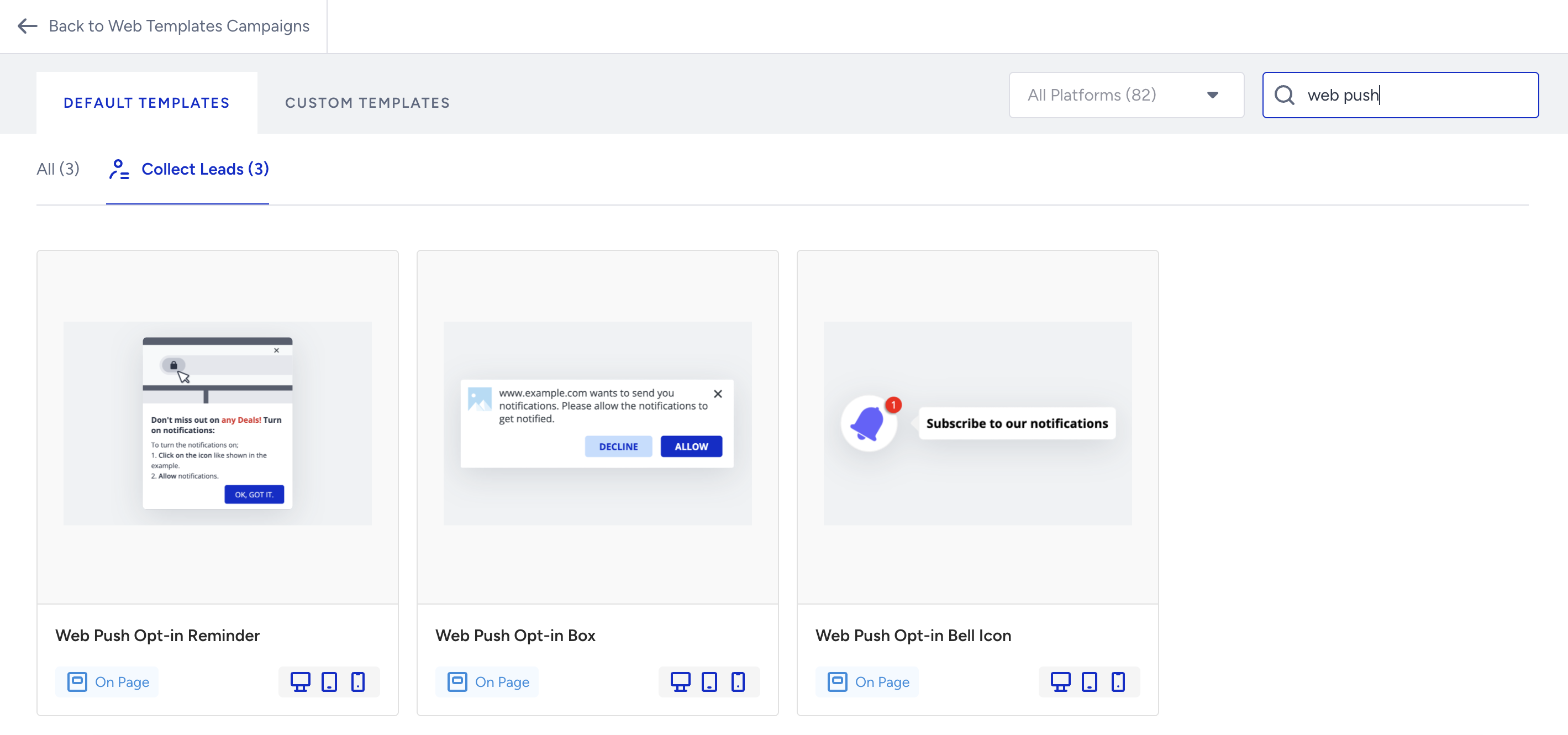
When you click the template, you will see the available platforms, their default previews, descriptions, and elements.
Choose Desktop and click Use For Desktop if you use it for Desktop Web Safari.
Choose Mobile, then click Use for Mobile if you use it with Mobile Safari.
.png)
Customize your template in Design mode and view its appearance in Preview mode. Save your design to proceed.

Configure the campaign
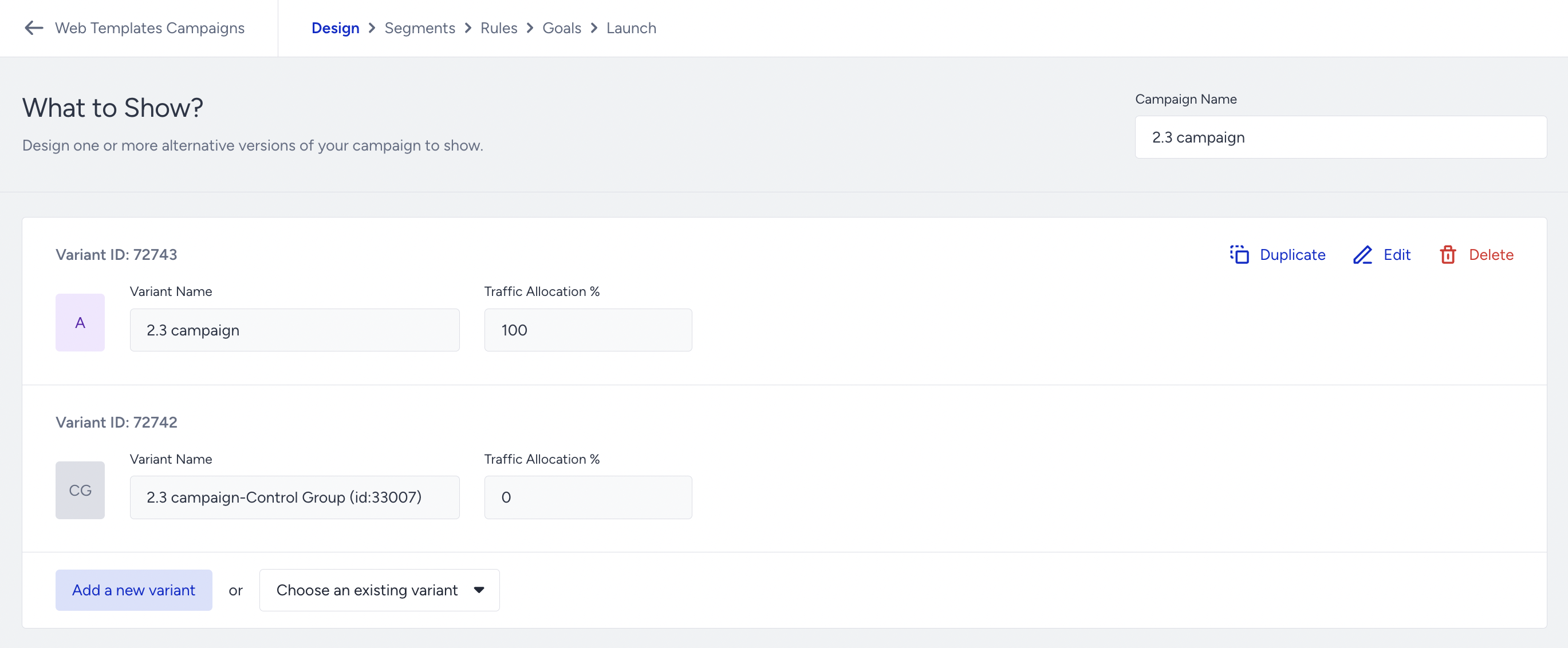
Set the traffic allocation of your new variant to 100% and your control group to 0%.
Target your audience in the Segments step.
In the Rules step of your campaign, choose the Traffic Source.
Set the browser to Safari. Click the Save and Continue button at the bottom right of the page.

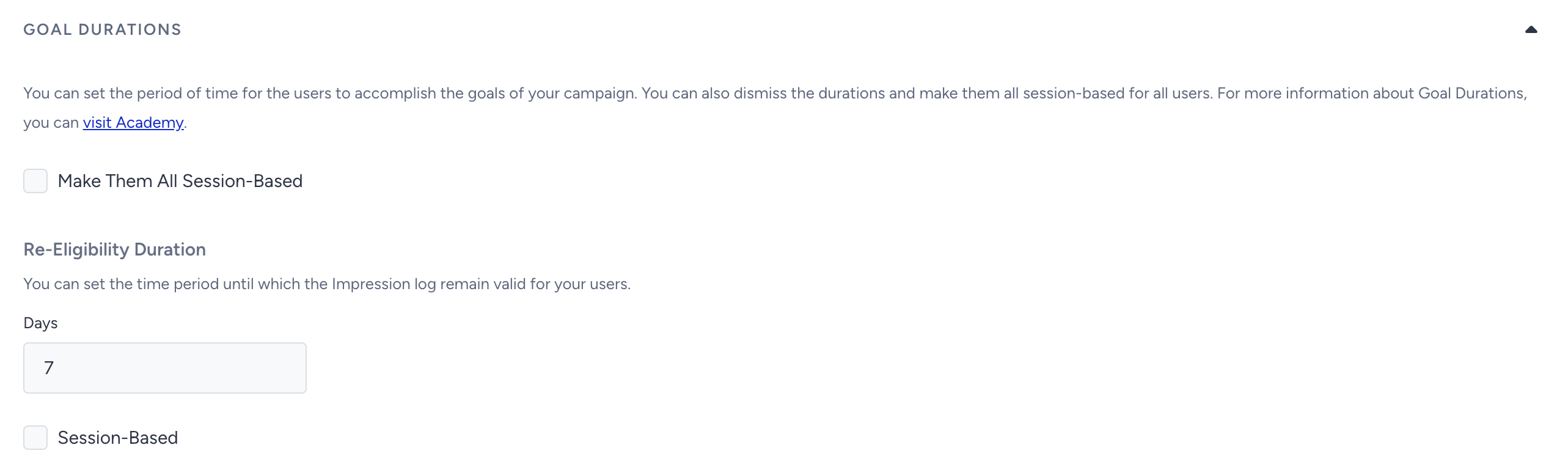
If you want to display the template in each session of your users, ensure that Goal Durations in the Goals step are set to Session-based.

If you want to specify a duration between two prompts in the template, remove the session-based checkbox and set the re-eligibility duration accordingly. For example, if you do not want to show the box template twice a week, you can set the duration to seven days.
Important behavior notes
The opt-in box is only shown to users who have not interacted (allowed or blocked) with the browser’s native prompt.
Once a user accepts or rejects the native prompt, the opt-in box will no longer be displayed.
Users who haven’t interacted will continue to see the opt-in box based on your defined goal durations and frequency rules.
Final launch steps
You can set the language for your Web Push campaign to match your target audience. Under the Activation Time, select the Never Ends option. Select the Activation Status and click Launch to run your campaign.
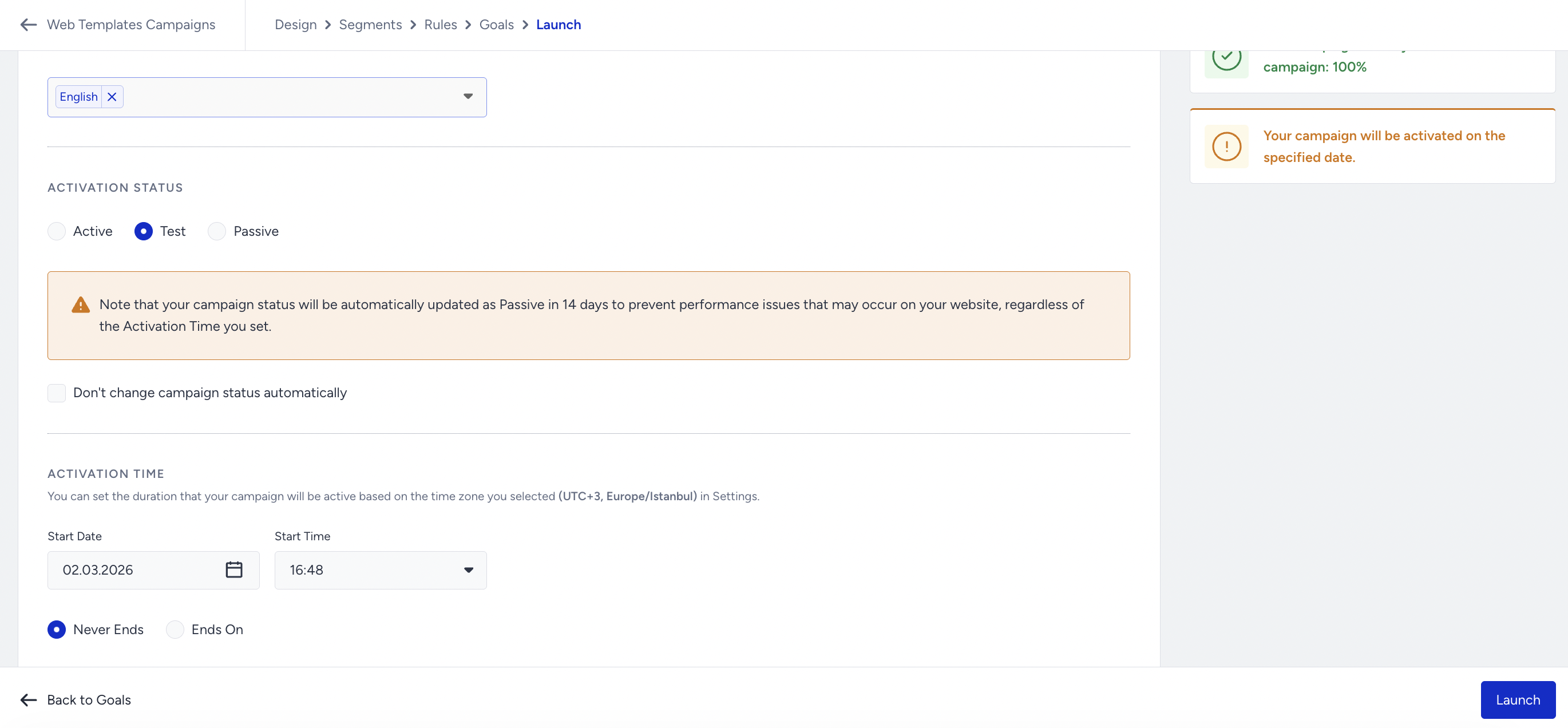
We highly recommend testing your campaign before it goes live.
Do not forget to generate the InOne panel to apply changes to your website.