Insider One's Web Templates offer templates that serve your brand's campaign needs. Templates are designed to help users navigate easily and move quickly through the marketing funnel.
Requirements
Complete the Initial Website Integration before starting to use Insider One's Web Templates.
To start designing a Web Template,
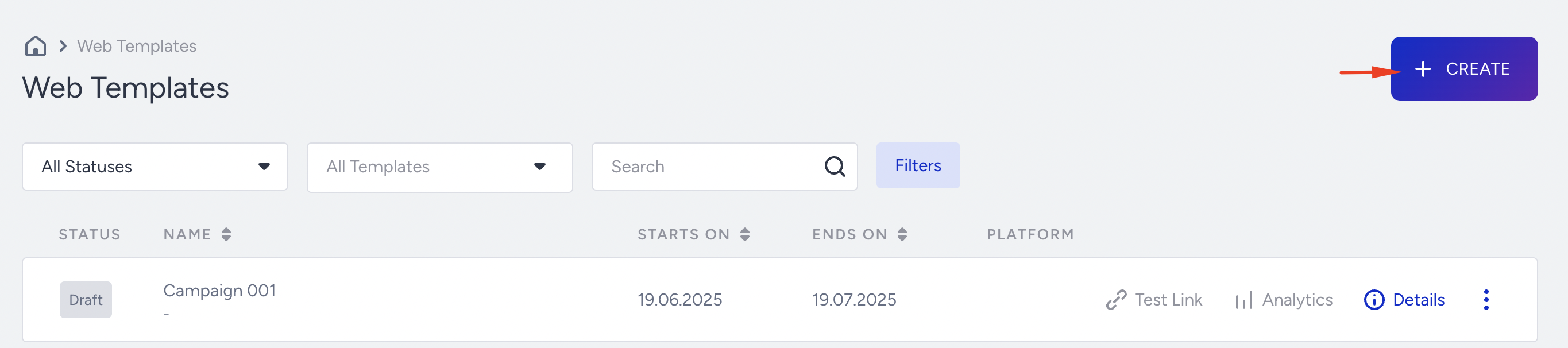
Navigate to Campaigns > Optimization > Web Templates.
Click the Create button in the top right corner.
Name your campaign, then click Create to start configuring its steps.
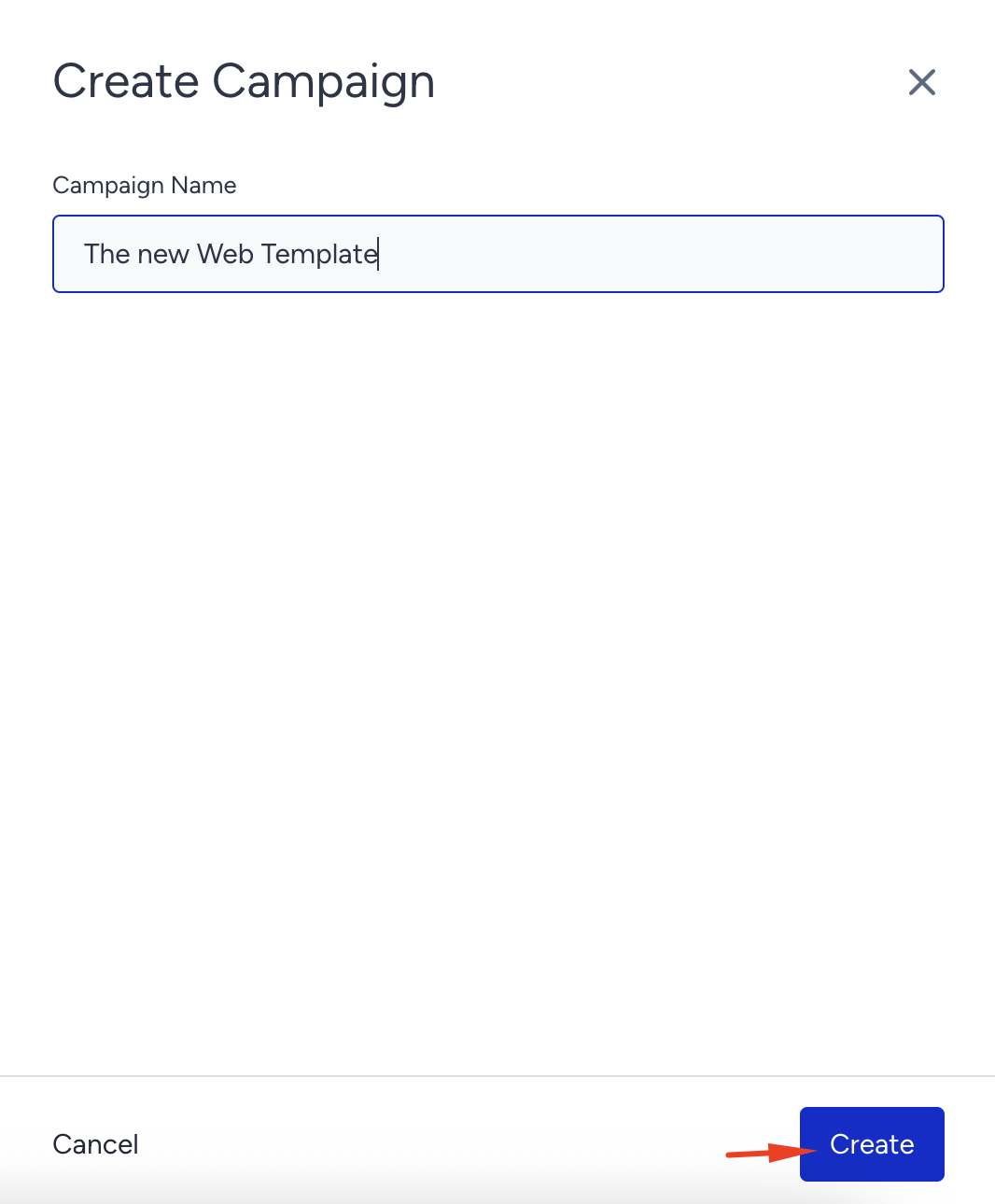
The name of your campaign can be up to 255 characters.
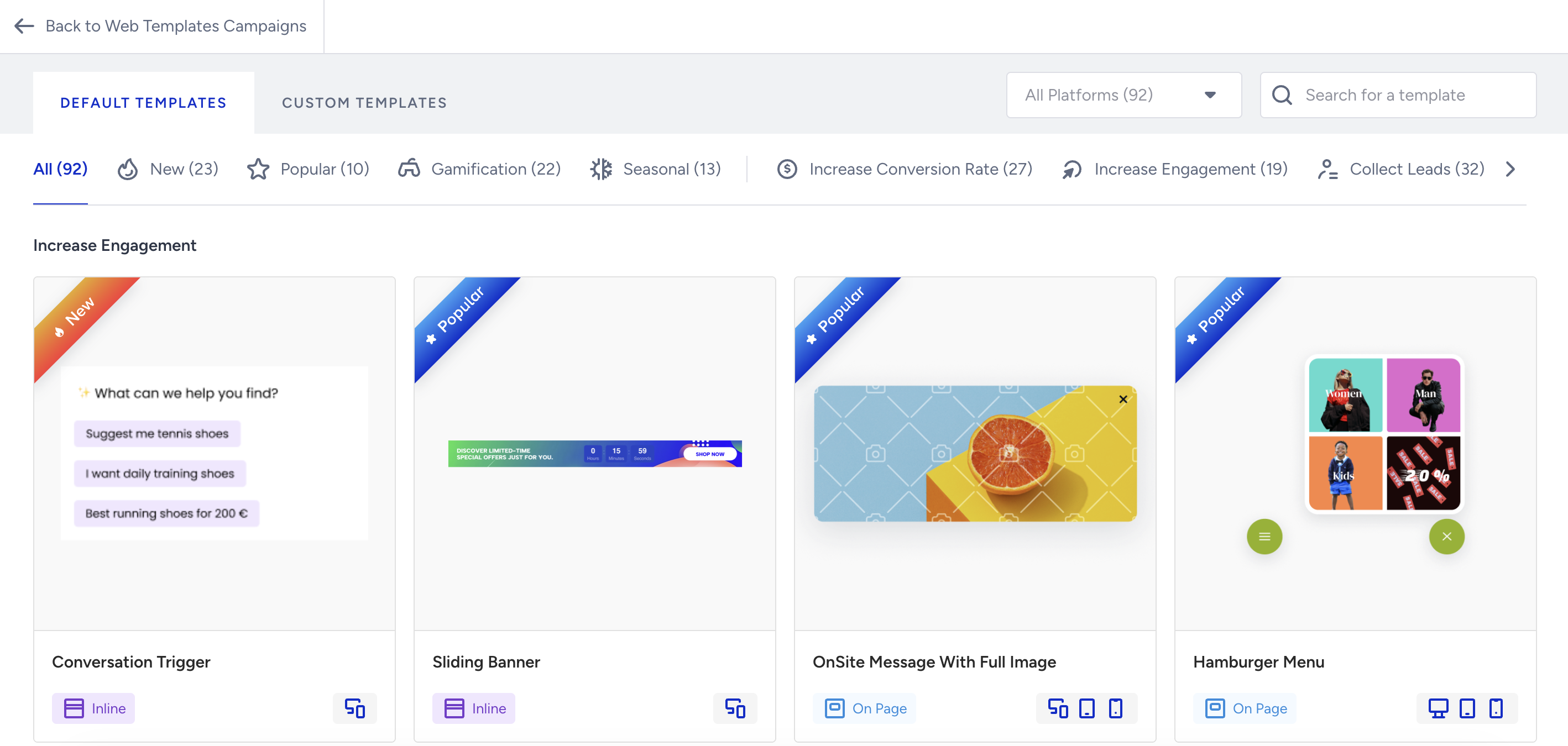
You land on the Default Templates page, where you can view all the templates in the first step in an organized way. Here, you can:
Select the platform on which you will create your campaign.
Search for the template.
View templates based on your objectives.
See whether the template is on-page or inline.
See the available elements for a template when you click it in the drawer menu.
View templates you saved before under Custom Templates.
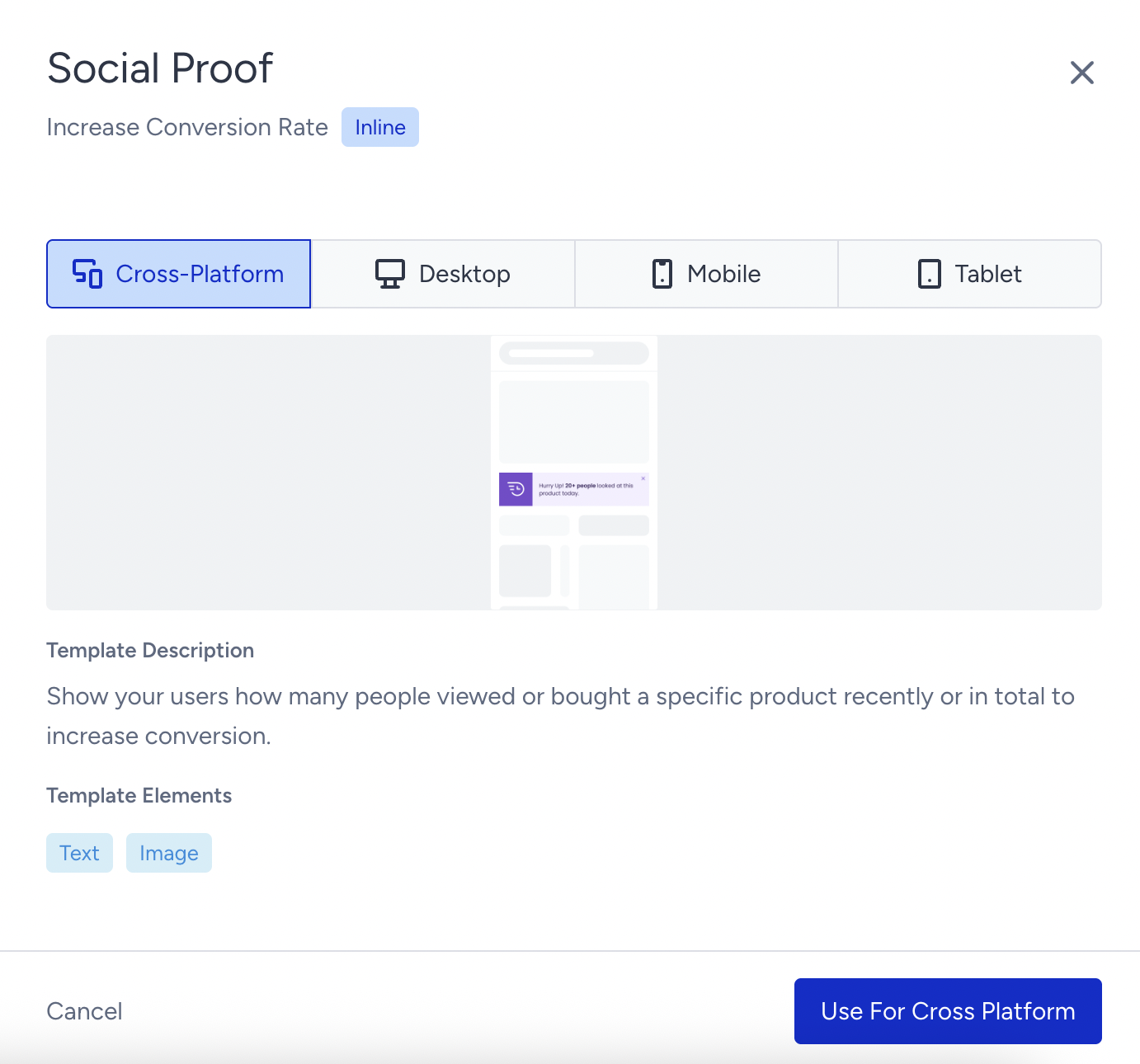
When you select a template, you can see its objective and description, as well as the elements available for it. Choose the template you want to use in your campaign, choose the platform, and proceed.
Preview tab
After you select your template, you will see it on your website in the Action Builder's Preview tab.
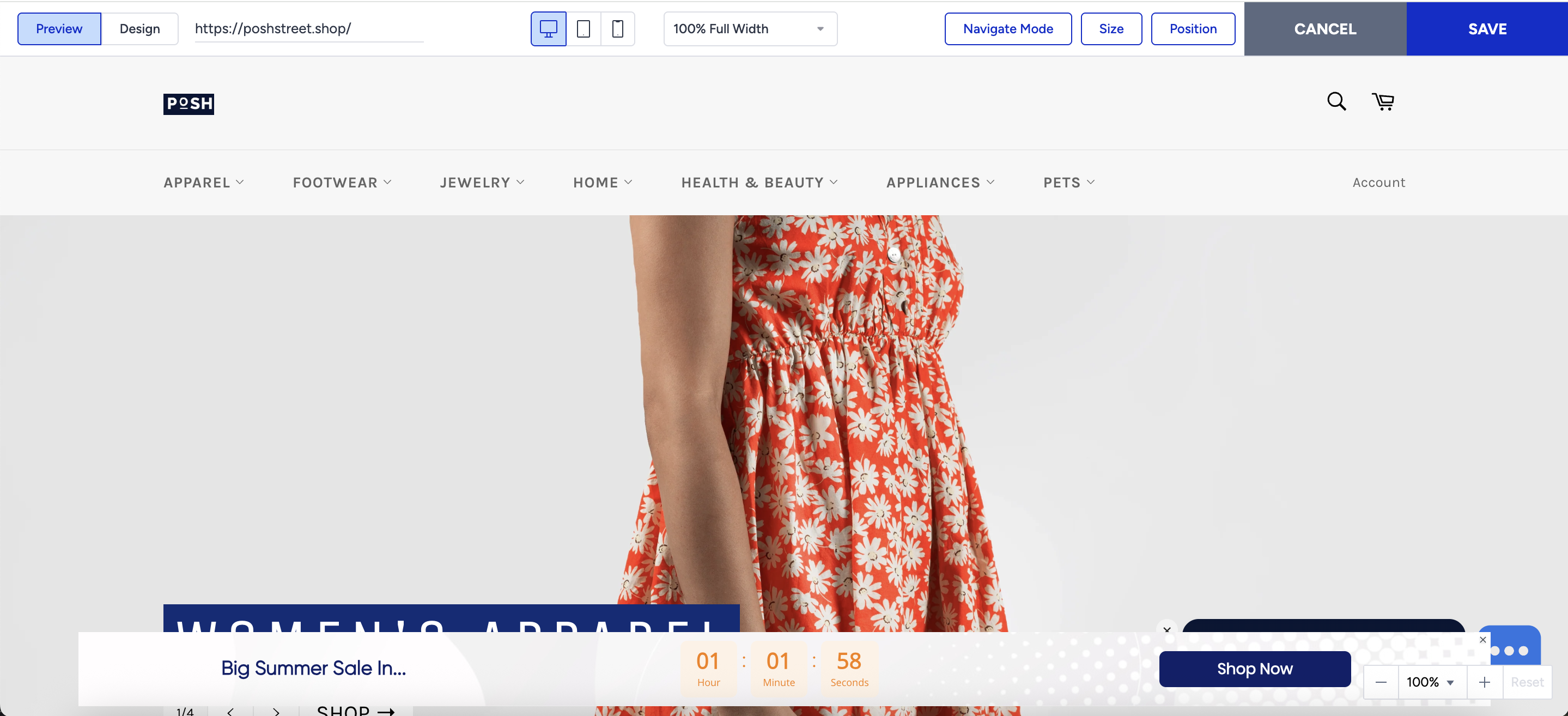
On the top banner of this page, you can see Size, Position, and Navigate Mode options, as well as platform icons if your template is for cross-platform; you can switch between them to see how your campaign looks on each platform.
Navigate Mode helps you navigate through your web pages to place your campaign.
Size menu helps you set the width and height of the template.
Position menu helps you place your on-page campaign anywhere on the website. You can select any other place via the default placement options or give margins.
For the Action Builder, you should whitelist "*useinsider.com" or services mentioned below within your Content Security Policy:
- skeleton-design-bundle.useinsider.com
- skeleton-template-generator.api.useinsider.com
- wss://skeleton-websocket.api.useinsider.com/v1
or, you should install the Insider Chrome Extension for your Chrome browser. Otherwise, you might be unable to load your website or design your templates smoothly.
Two types of templates are available:
Inline template: You can place your template anywhere on the page and select an element to append.
On-page template: By default, elements are positioned within the page layout. You can adjust their position using the Position button.
Design tab
After positioning your template, you can customize it in the Design tab.
If your template is for cross-platform use, you can use the Sync All Platforms option. When Sync All Platforms is enabled, all changes you make will instantly apply to Mobile, Tablet, and Desktop. Therefore, you can select the platform to which all platforms will be synchronized. By switching between platform icons right next to the Sync All Platforms toggle, you can see how your template looks on each. Only the layout selections won’t apply to all platforms, even when sync is on, as a rule.

You can turn off the sync toggle if you want to make separate changes on different platforms.
Advanced Settings on the top bar let you add custom CSS to change the site or run custom JavaScript on the website.

You can watch the video below to see what Top Bar offers in the Action Builder:
If this video does not load in your region, you can watch it on our YouTube Channel.
Then, configure your settings to customize your template's design. When you customize your campaign template, you can use components such as text, overlays, and animations. This lets you beautify it and tune it to your website.
You might find these categories helpful while creating your Web Template campaigns:
You can also benefit from the video below to see how Action Builder helps you tailor your template:
If this video does not load in your region, you can watch it on our YouTube Channel.
Each template offers different benefits to help your campaigns reach your goals. The use cases below help you get more out of them: