Suggested reading: Events and Attributes
Standard Segments enable you to segment your users based on their purchasing behavior, visiting behavior, attributes, events, email engagement, reachability on channel, annual occasions, device attributes, user attributes, custom attributes, geofence, location, and unsubscribe groups, and use them with an operator that fits your condition.
To use Standard Segments:
1. Navigate to Standard Segments in the element.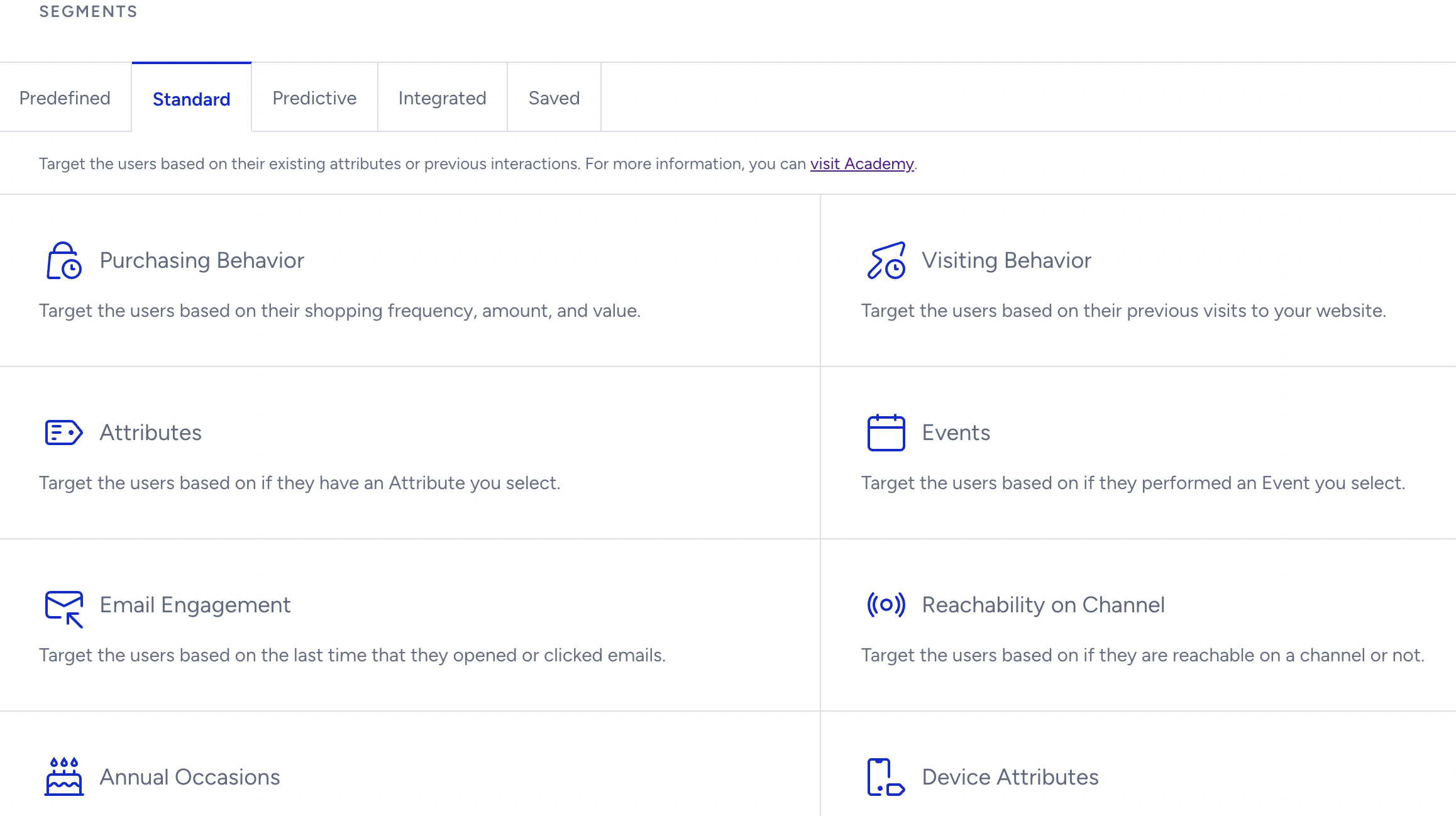
2. Select the segment you want to use.
For example, select Attributes to choose an attribute according to your use case. You will see operators such as “contains, is exactly, does not contain, is empty…” etc. Note that you do not have to include the entire word, URL, etc., when you select the contains operator. You can type important pieces of the whole word or URL.
Enter the attribute value you want to segment accordingly. Operators vary depending on the attribute's data type. It can be a number, string, date, or boolean. You can add multiple string values to the same value input. Once you add more than one value, it will work with the OR operator. E.g., Last Purchased Product Name is Angel Light or Bess Yoga Short.
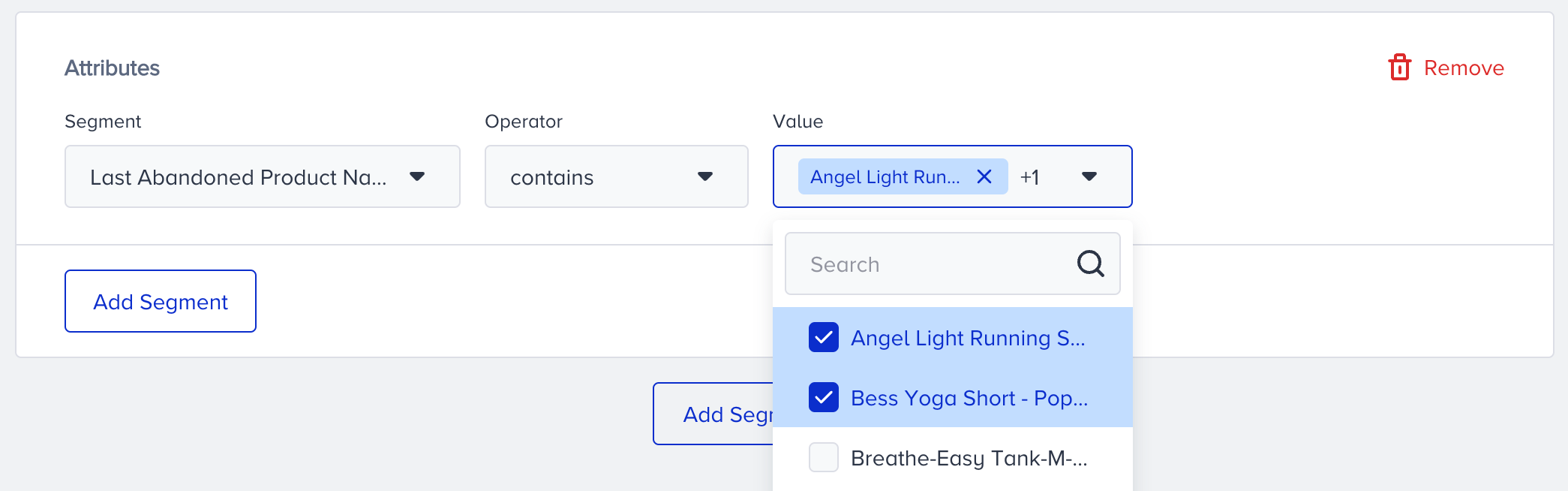
Operators vary depending on the attribute's data type: number, string, date, or boolean.
| Data Type | Example |
|---|---|
| Date | 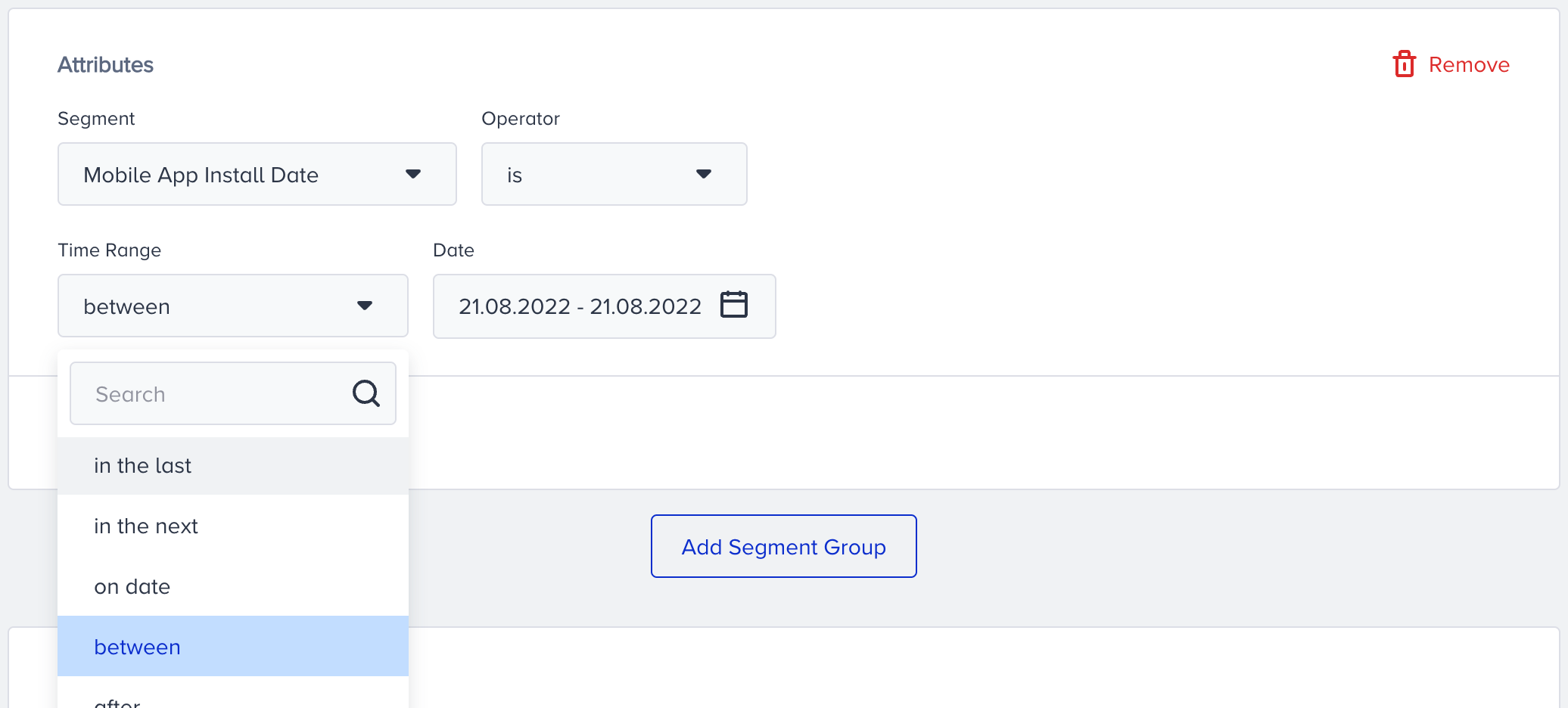 |
| Boolean | .png) |
| String | 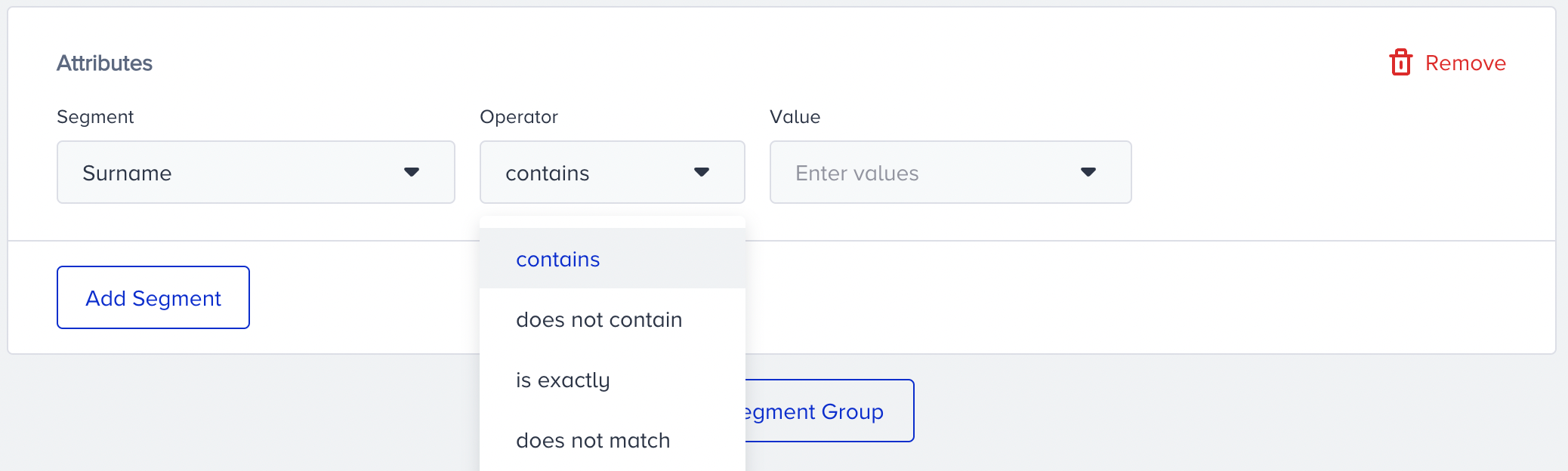 |
| Number | 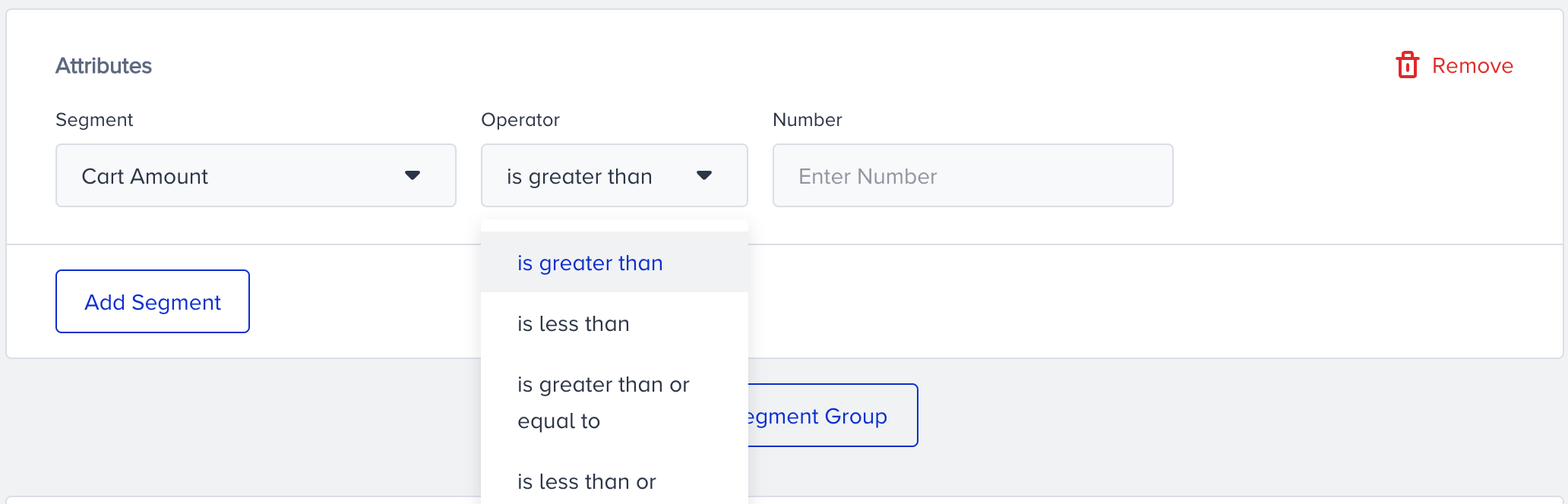 |
3. Click the Add Segment button to add a segment to the same segment group. You can add other types of segments to the same segment group, such as events in addition to attributes. Email Engagement and Predefined Segments cannot be combined with different segments in the same segment group. You can add another segment group.
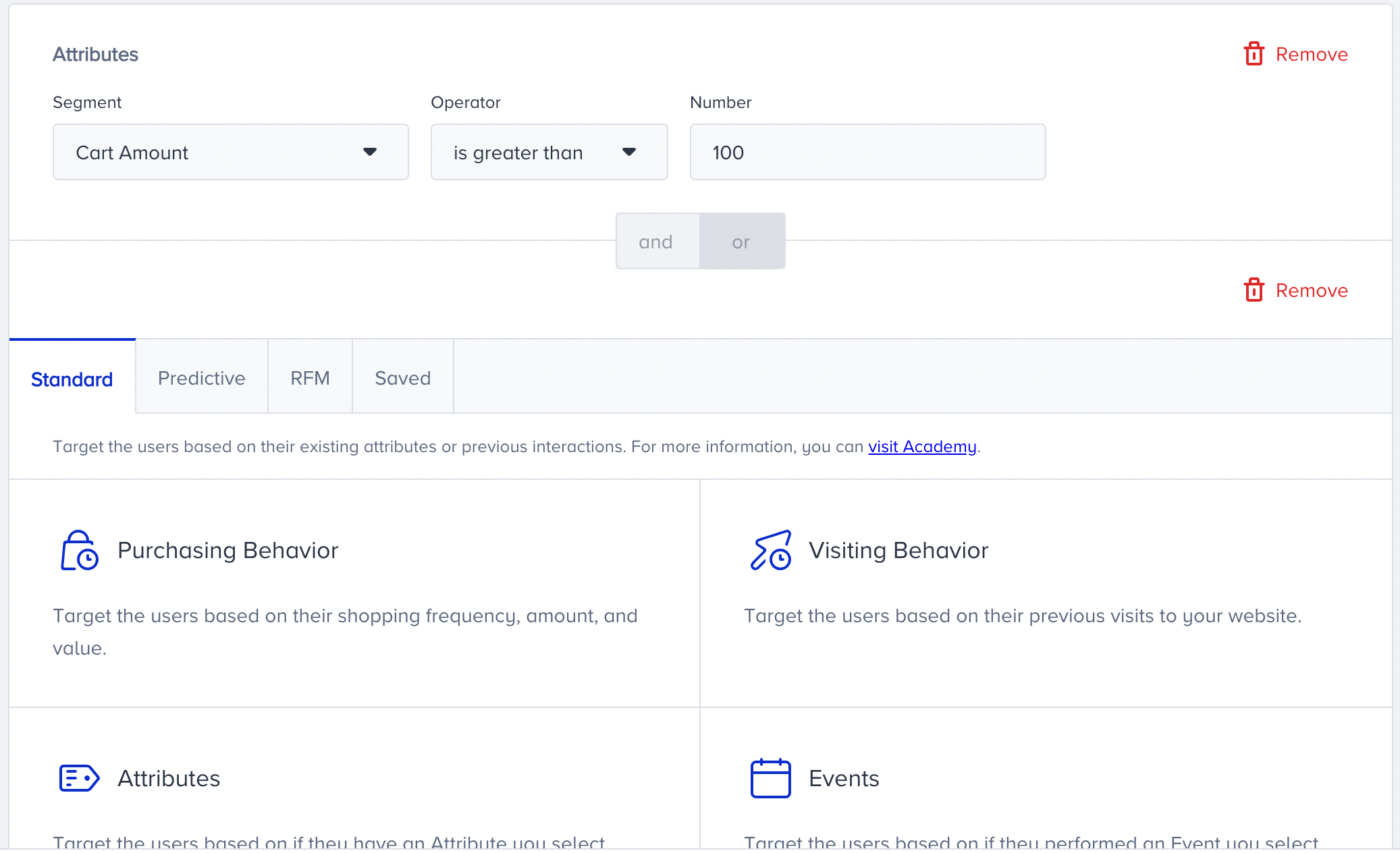
For example, you can select the Events option to choose an event based on your use case. You will see operators such as “is equal to, is not, is less than..” etc.
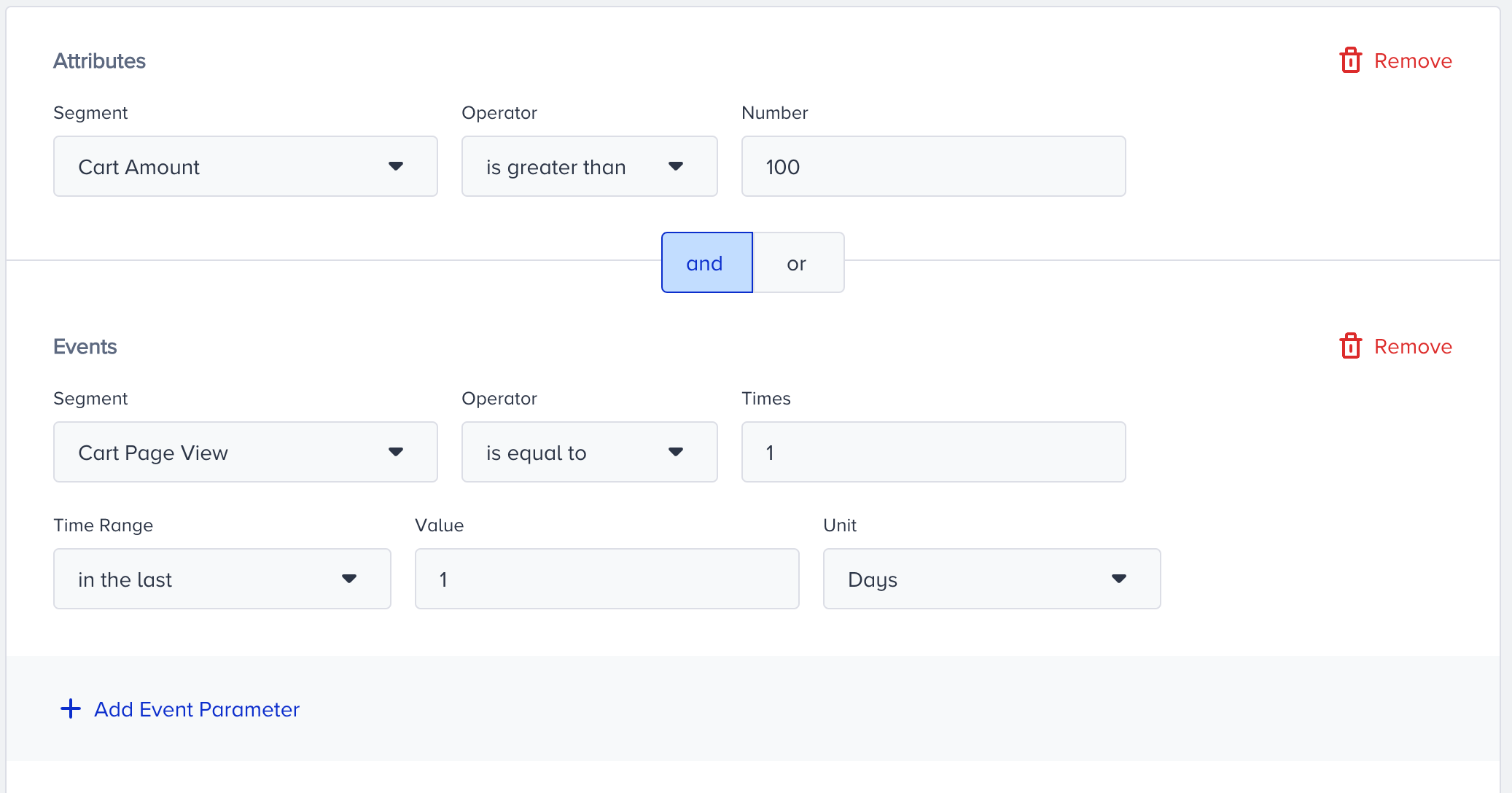
Fill out the Times input. Times stands for the number of times a user should perform the respective event. Set the time operator with one of the following options:
- In last means from today, how long you should wait before checking if users performed the selected event.
- On date means checking if users performed the selected event on the selected date.
- Between means checking if users performed the selected event within a specific time frame.
You can add an Event Parameter to narrow down your segmentation. Operators change according to the data type of the event parameter. It can be a number, string, date, or boolean.

You can add multiple string values to the same value input. Once you add more than one value, it will work with the OR operator. E.g., Product Name is Aeon Capri or Aether Gym Pant.
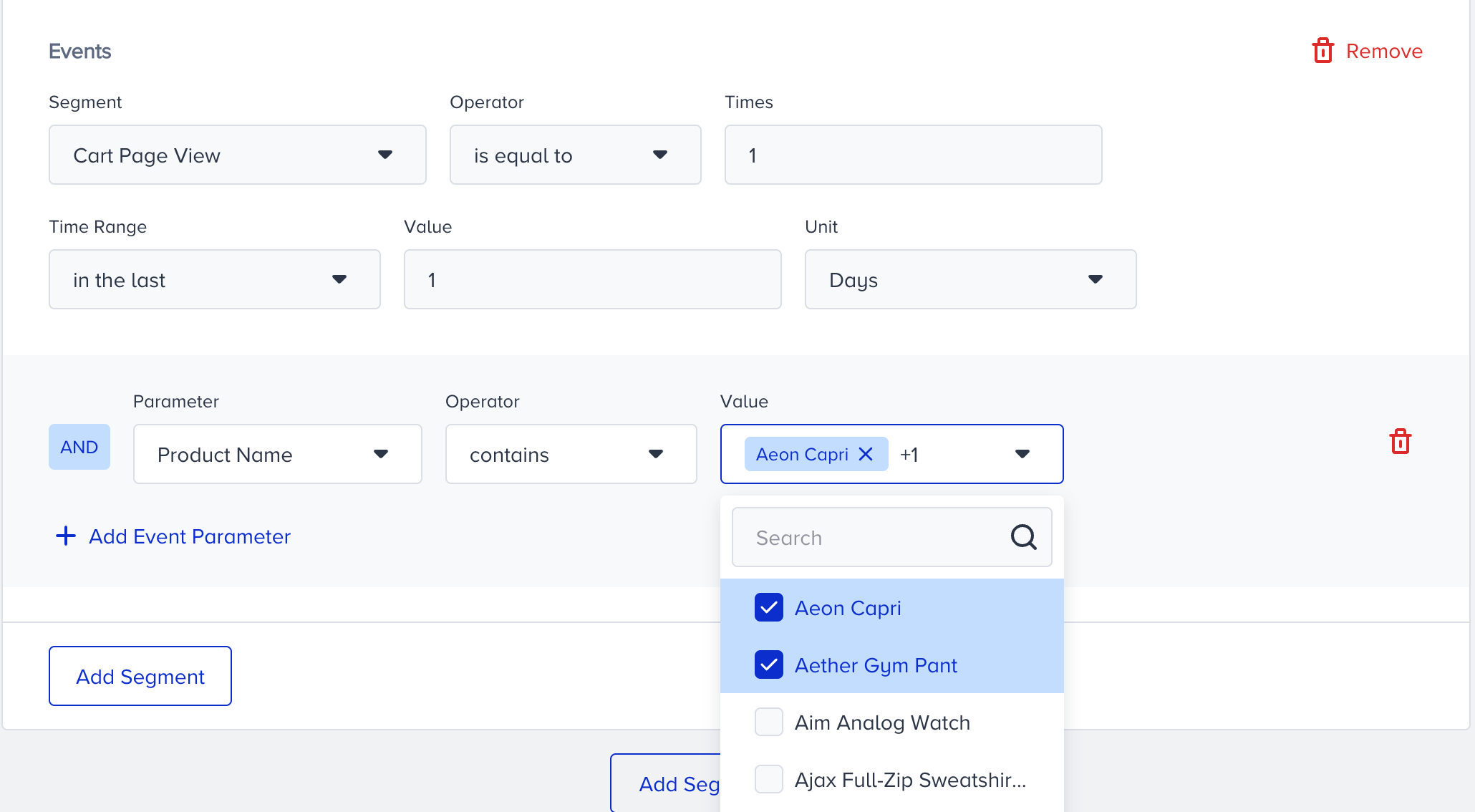
You can add more than one event parameter. Once you add more than one event parameter, it will work with the AND operator.
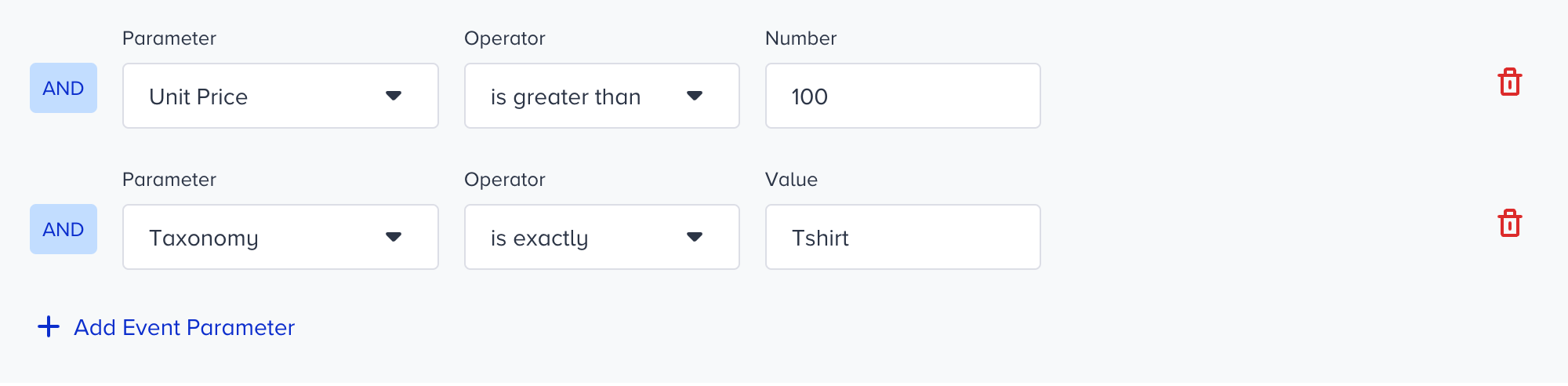
4. Select and or or logic in the same condition group according to your business case.
- And means users should satisfy both conditions.
- “Or” means users can satisfy either of the conditions.
.png)
You can click the Add Segment Group button to add another segment group.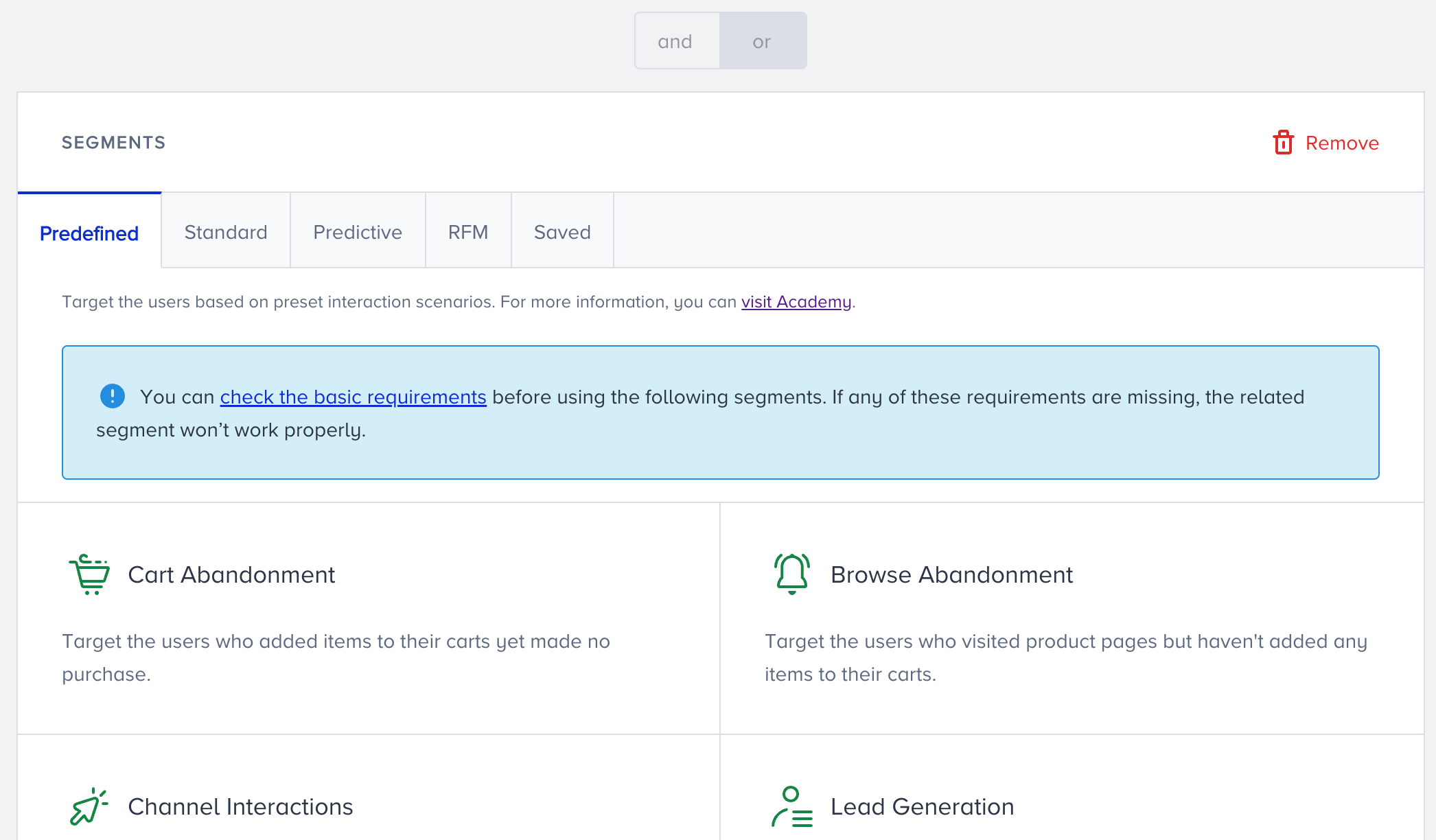
Select and or or logic for condition groups based on your business case.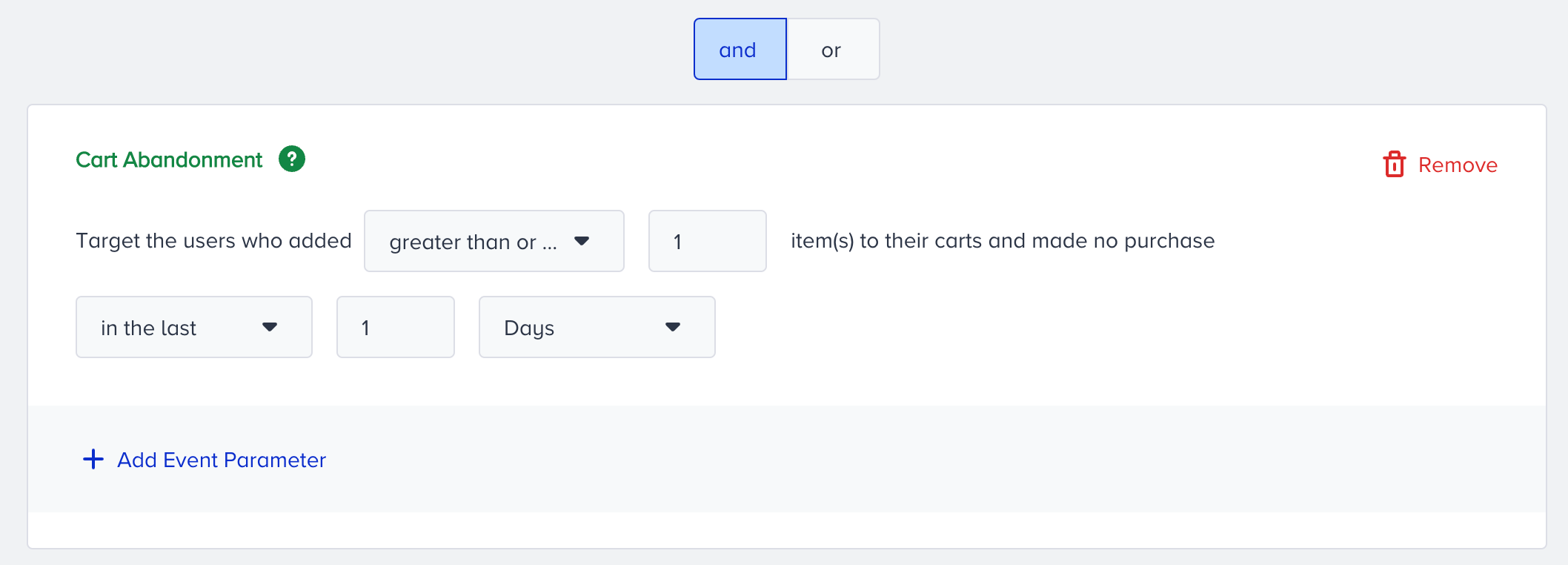
To delete a segment, click the Remove button. You can delete all segments to come back to the main segment selection screen. Alternatively, you can quit without saving the element.