Track User is a user-based flow visualization that shows each user's path and related user information. You can see how your user is proceeding on the journey flow, what date and time they proceed to a particular step, and how they take actions on channels.
User flow
1. On the listing page, click the Track User button on the journey you want to track users.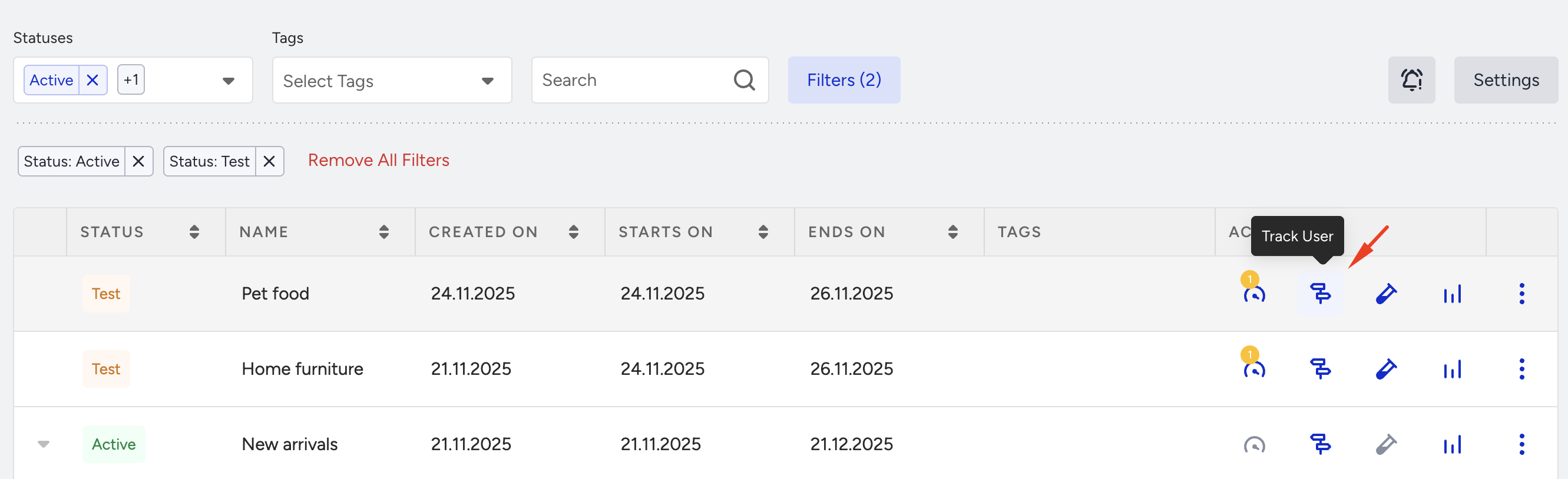
Track User is available for active, test, passive, and sunset statuses.
Track User is unavailable for journeys without any channel elements.
2. Select which identifier you want to use from the dropdown menu. You can choose a Profile ID, Email Address, or Phone Number as an identifier. You can use UUID for Profile ID as well.
When an ID is entered in the profile ID field, the system first checks if there are any users with that ID as the profile ID. If it can’t find one, it checks for a UUID, then a UDID. This means that in the profile ID section, you can also write UUID or UDID and the system will be able to understand.
The identifier you choose must also be selected in Identity Resolution Management. If it is not an identifier but a user attribute, it can’t be used for Track User.
After you select the identifier, enter your user ID, email address, or phone number in line with your selection of identifier on the pop-up to see your user on the flow.
The user’s email address and phone number may not be found unless they log in to your website or mobile app and meet the starter conditions before entering the journey.
The email address, phone number, or user ID you type must be owned by the user who enters the journey.
3. To take your user on the journey, enter your profile ID or email address on the popup. You will see information about your user on the left bar of the journey canvas until your user meets the starter conditions.
You can look up your profile ID by following these steps:
Go to your website.
Click right and select Inspect to open the developer console.
Go to Application > Local Storage.
Select api.useinsider.com under local storage.
Type spUID in the search bar. The value of this key is your user ID.
If you are trying to trigger a journey from the mobile app, you can use your UDID (Unique Device Identifier), which is also considered a Profile ID.
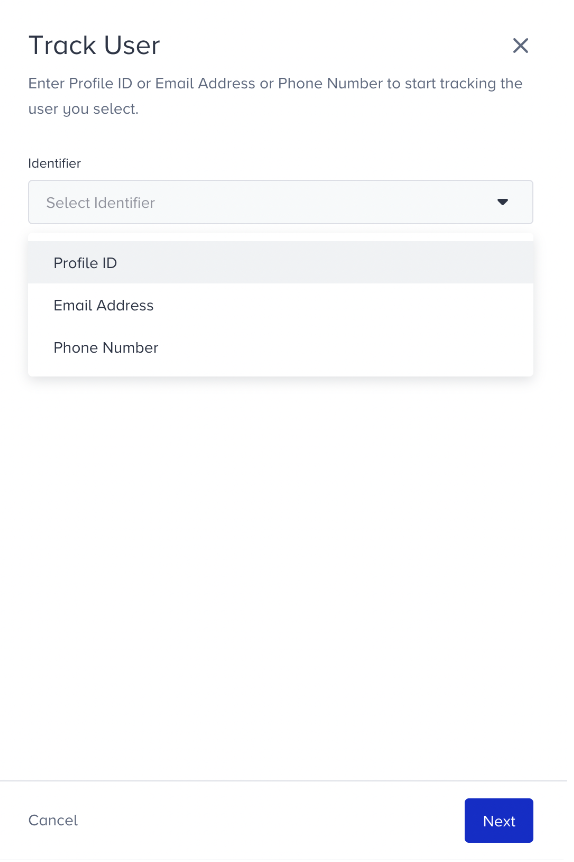
4. After entering the user ID, phone number, or email, click the Next button. You will land on the track user version of canvas.
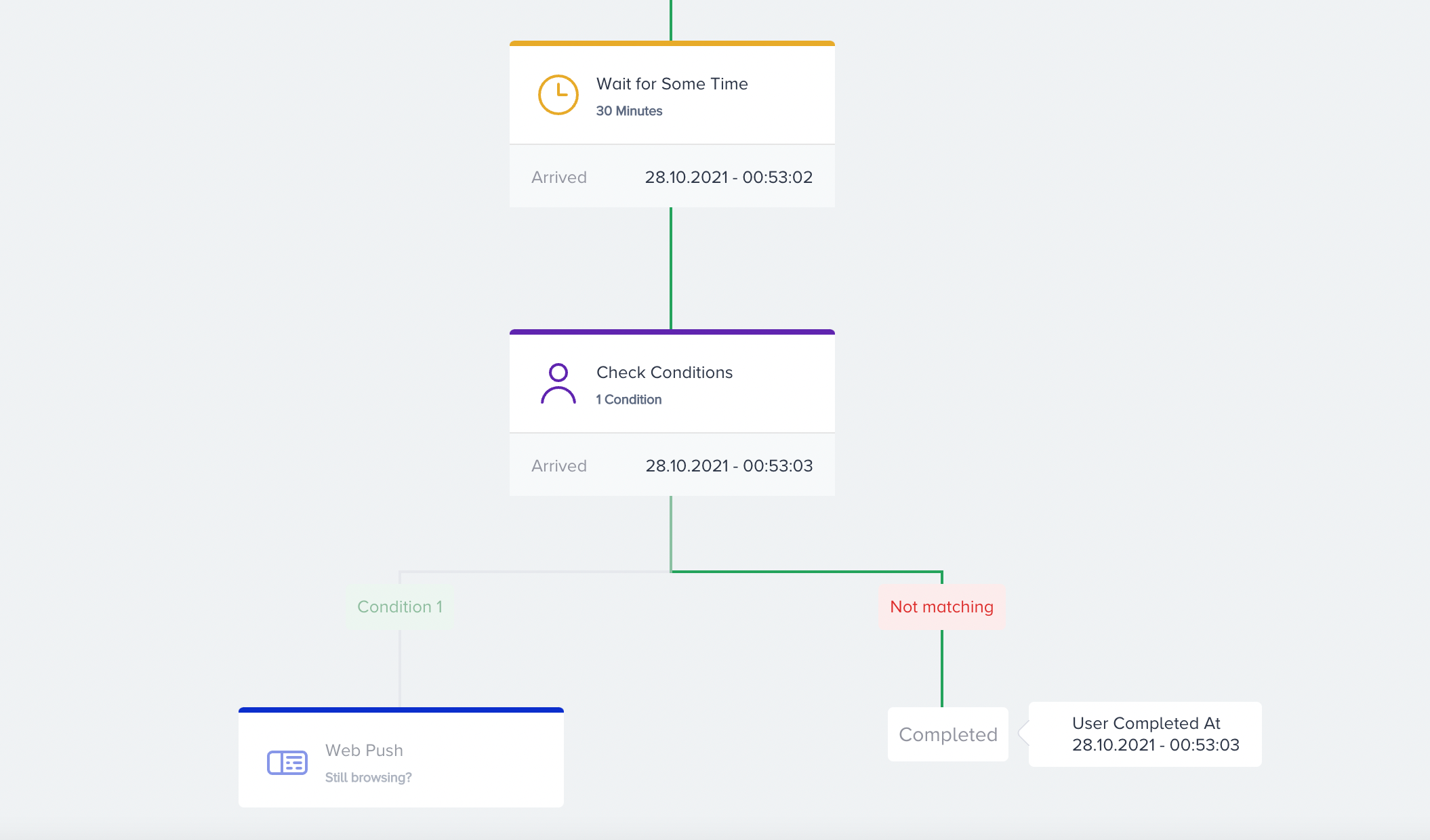
This version shows the date and time your user enters the journey on the canvas.
The green line represents the flow your user proceeds on. This visualization updates itself in real time as the user proceeds. The "User is here" label shows where the user is.
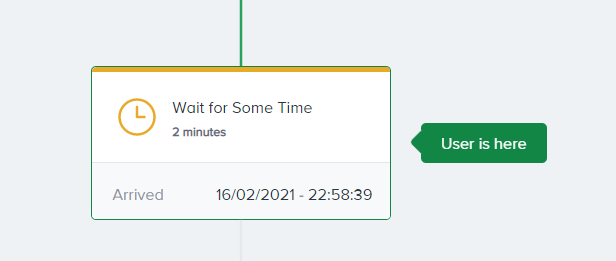
You can also see the date and time information on the elements displayed when the user arrives at a particular element. You can see if the user completes the journey by receiving the last message or going to the empty path after the check element.

You can see if the user drops from the channel element due to not being reachable on that channel.
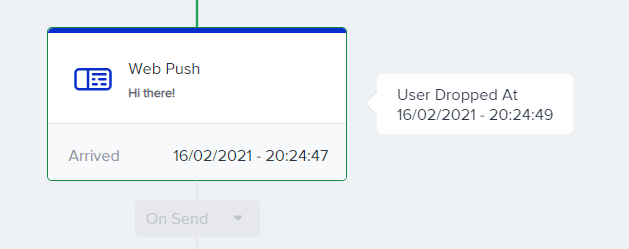 User actions are visible on channel messages. Once the user completes one of the actions, that action is shown in green.
.png)
If the user is frequency capped, you will see it as green on track users. Due to frequency capping, users cannot take any other action, as they didn't receive any message.

You can also change the user ID or email address to see another user’s flow by clicking the Change User option on the top bar of the canvas.
.webp)
User information
Track User enables you to see your users' information as well.
.webp)
Click the Email & User ID > View User Details button on the top bar of canvas to see the following information about your user:
Profile ID
Email
Phone Number
GDPR Opt-in
Reachable Channels
Last Viewed Product Information (name, URL, image URL)
Last Purchased Product Information (name, URL, image URL)
Last Abandoned Product Information (name, URL, image URL)
.webp)