The Email Agent builds an email campaign draft from a conversation. You describe who the campaign is for, what it promotes, and where the button links. The agent writes the campaign name, subject, preheader, and email design, then saves it as a draft you can open in the InOne panel. If your team designs emails in Figma, share the Figma link, and the agent builds the email design from that frame.
Figma import works in two places. The Email Campaign Agent builds a campaign draft from your Figma design. The Email Design Agent in the email editor's AI chat builds a template that you apply to the editor. See Generate an Email Template with AI.
The Email Agent creates drafts only. It never sends, schedules, or launches a campaign. Every draft lands in your email campaign list for you to review and launch yourself.
The Email Agent gives you a first draft, not a finished campaign. It removes the blank-page step and the trip through the panel for recipients, sender, subject, and design.
In this article:
Before you start
The following requirements determine whether the Email Agent can build a draft for you:
Your account has the email product enabled. Without it, the Email Agent isn't offered.
Your account has at least one sender address on a verified sending domain. Without one, the agent explains what is missing and creates nothing.
For personalization, your account has Liquid Tags enabled. Without it, the agent writes no personalization and tells you why, instead of producing personalization that can't render. See Liquid in Email.
To build from a Figma design, give Insider One view access to the Figma file in one of two ways:
Invite sde-figma@useinsider.com to the file with can view access.
Set the file's link sharing to Anyone with the link with can view access.
Insider One reads the file the same way a person you share it with would. Without one of these settings, the agent can't open the link.
For a ready-to-send footer, your account has default unsubscribe pages. Mark one page of each type as default on Components > Unsubscribe Pages. Without defaults, the agent still creates the draft, and you add the Unsubscribe block in the editor yourself. See Set a default unsubscribe page.
Open the Email Agent
Open Insider One AI from the chat entry point in the InOne panel. The chat panel opens alongside your work, so you can keep the panel open while you build.
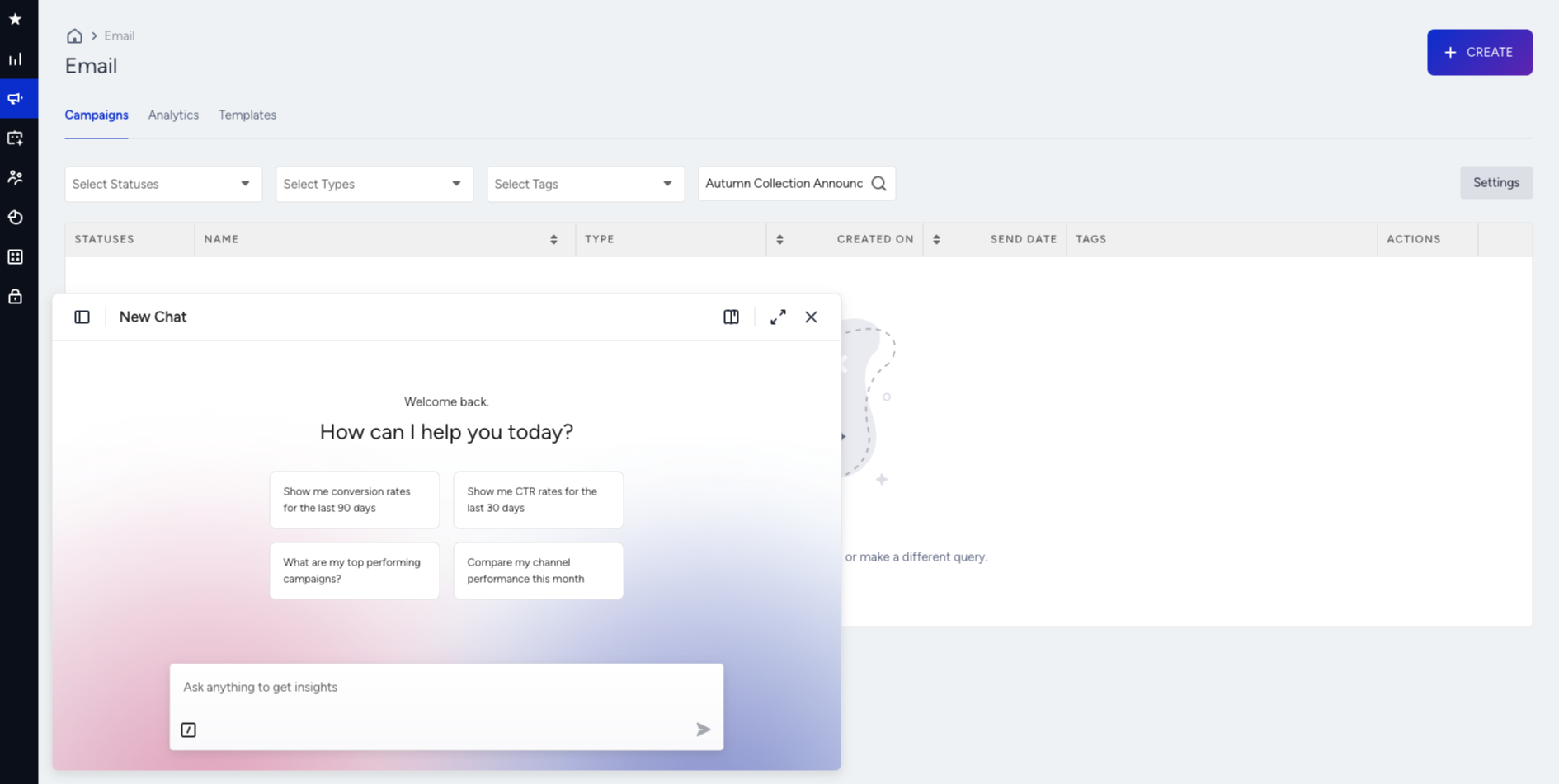
Describe the email campaign you want. Your request routes automatically to the agent that builds email campaigns, so you don't pick an agent from a list.
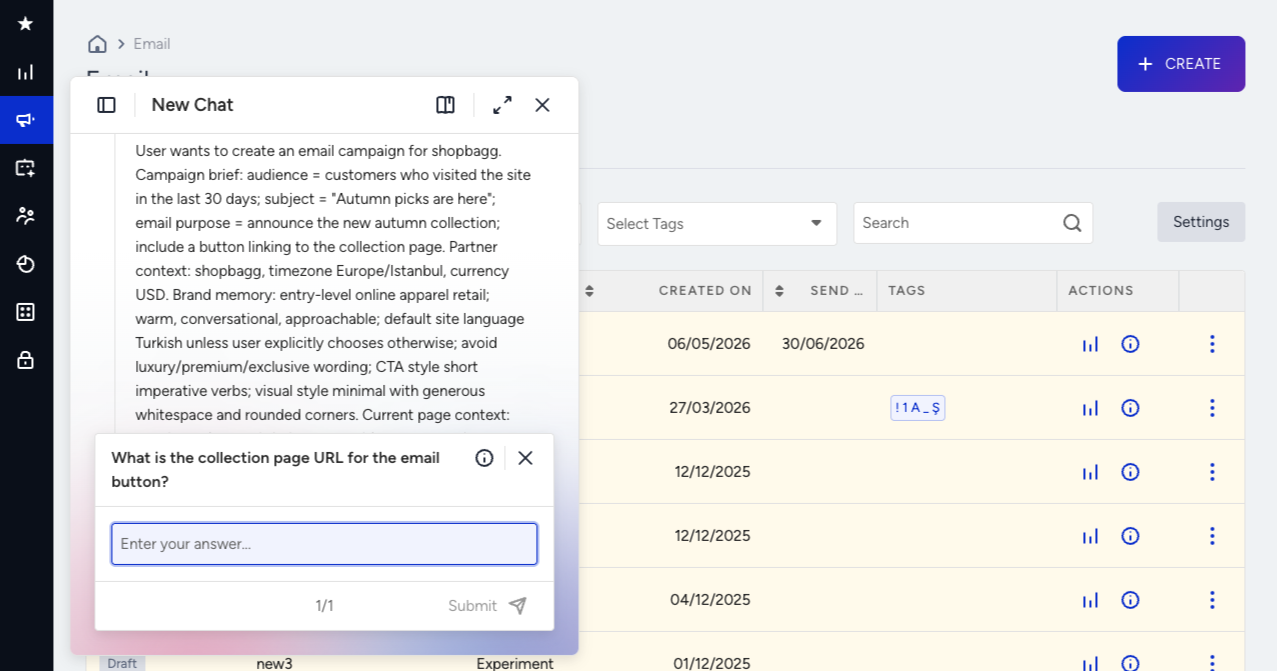
Create a campaign draft
What the agent asks you for
The agent asks for the three things only you can supply:
Who the campaign goes to (the audience).
What the email promotes.
The URL the call-to-action button links to.
The agent creates nothing until it has all three. Send them in one message, and it builds the draft on that turn. Leave one out, and it asks for the rest first.
It doesn't ask for a subject, a preheader, a template, or a campaign name. You can offer a subject, a design you already have, or a Figma link. The agent uses what you offer, but a run never waits for any of it. A Figma link counts as your design. The agent still asks for the audience, what the email promotes, and the call-to-action URL, and it creates nothing until it has them.
What the agent writes itself
Campaign name: A short, descriptive name the agent derives from the campaign's content, for example "Summer Picks Promotional Email".
Subject: A subject line for the email.
Preheader: If you supply one, the draft carries exactly that. If you say nothing, the agent writes a short preview line that complements the subject. If you ask for no preheader, the draft has an empty one.
Email design: See The email design.
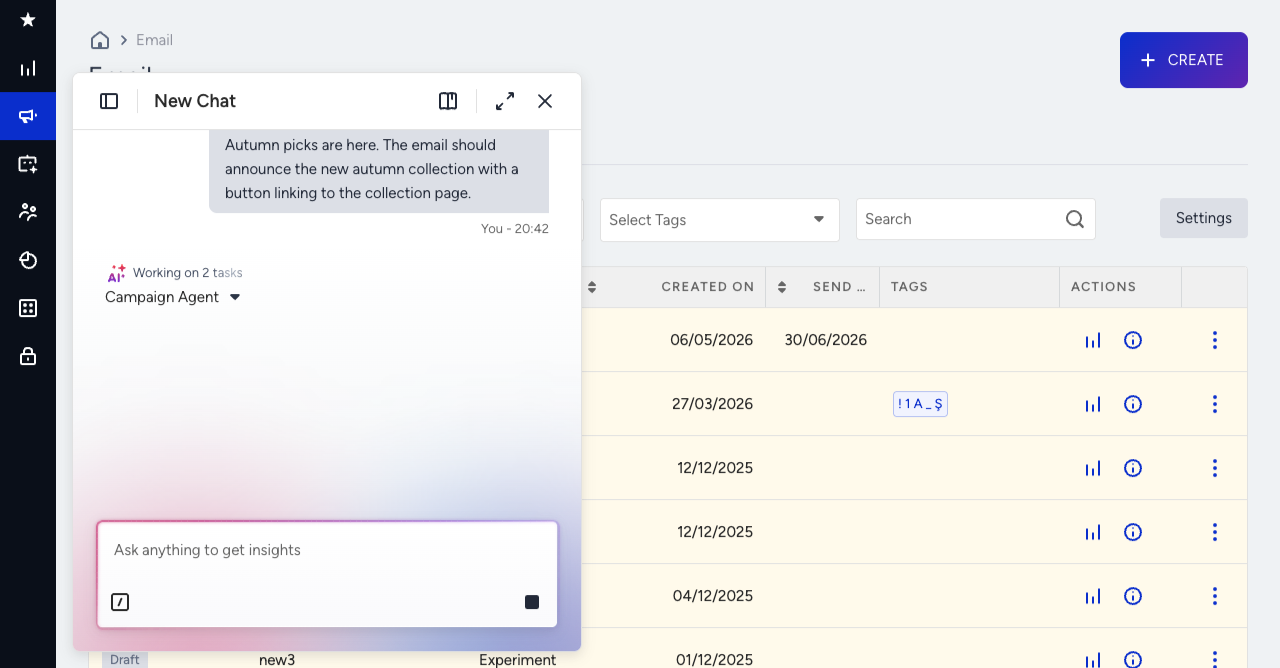
How your audience is built
Describe the audience in your own words, e.g., "people who abandoned a cart in the last 30 days". The agent builds a new audience from that description and sets it on the campaign.
The agent can't use existing segments. It can't target, include, or exclude a saved segment, static or dynamic. If you ask for one by name, the agent says so and offers to rebuild the audience from its criteria. To send to a saved segment, change the audience on the draft's Recipients step in the panel.
The agent answers questions about the audience in the same conversation, including what the audience means, which attributes it uses, and how many people it reaches. If your description matches more than one audience, the agent asks one question that names the candidates instead of picking silently.
If an audience reaches nobody, the agent reports it before it creates anything. It creates no draft unless you say to continue.
How your sender is chosen
The agent takes From and Reply-To only from sender addresses on a verified sending domain.
Being your account's default sender isn't enough on its own. If your default sender sits on an unverified domain while a verified one exists, the agent uses the verified one. If your account has no verified sender, the agent creates nothing and explains what is missing, instead of falling back to an arbitrary address.
Build the draft
Describe the campaign, including the audience, what to promote, and the call-to-action URL.
Answer anything the agent asks. It asks only for what it can't write itself, or when your description is ambiguous.
Wait for the draft to save. A complete brief counts as intent to save, so the agent saves the draft without asking permission and without waiting for the word "save". The reply carries the Campaign ID.
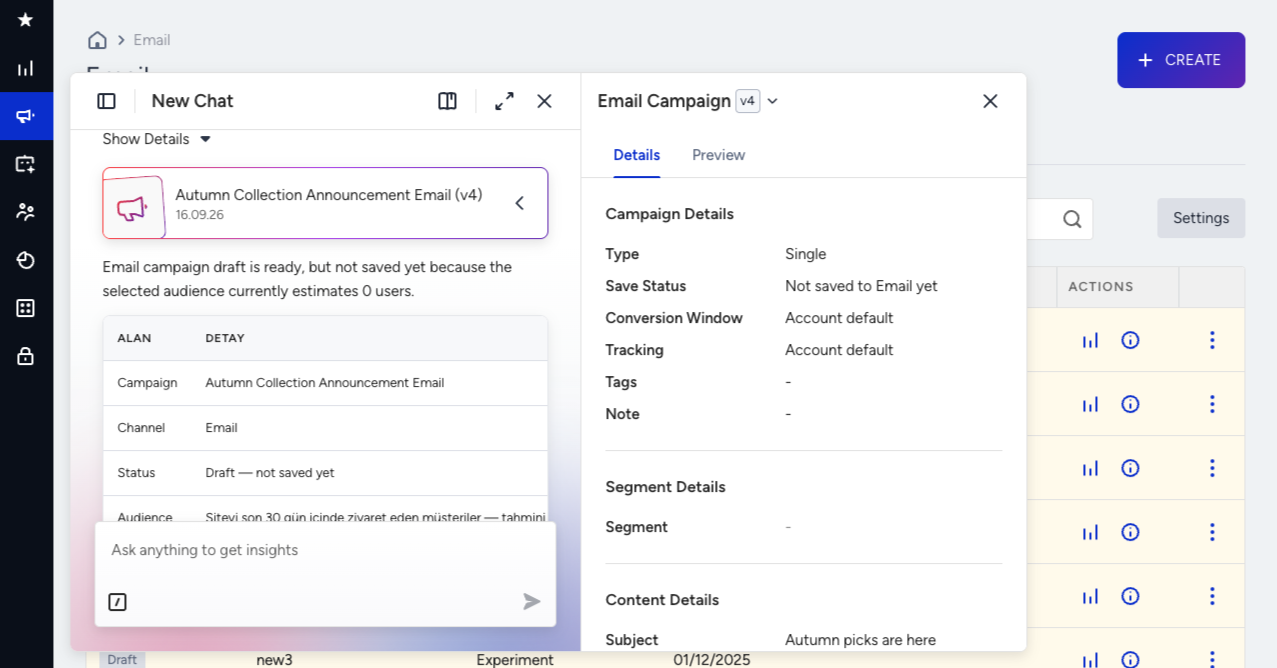
Open the blueprint card in the chat to review the draft. The Details tab shows the sender, reply-to, subject, and preheader. It also has an Unsubscribe row that lists the default unsubscribe pages the draft uses, per page type. The row reads No default Unsubscribe Page when your account has none. The Preview tab renders the email.
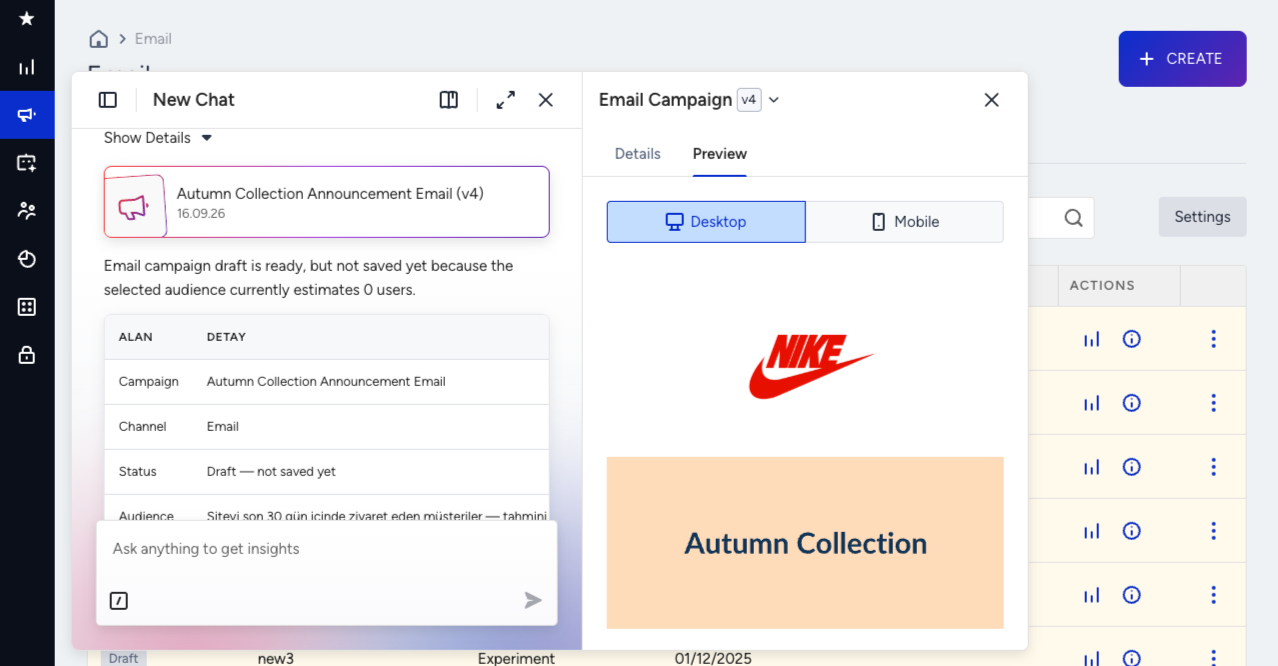
The summary table in the chat shows Campaign, Channel, Status, and Audience, plus the Campaign ID once the draft is saved. The sender, subject, preheader, and rendered email live on the campaign canvas, in the Details and Preview tabs. For how a blueprint works, see Insider One AI: Blueprint.
If you tell the agent not to save, it creates nothing and leaves no campaign behind.
The email design
What the design contains
An editable layout. It uses the email editor's own blocks: a header with your logo, a headline, body text, a call-to-action button linking to your URL, and a footer. Every text, button, and image is a separate block you can edit in the panel. The email is never one flattened image.
Image placeholders. The agent doesn't generate, search for, or attach images. Every image area, such as a hero banner or a product image, is a grey labeled box (e.g., "Hero Banner") that you replace with your own image in the editor. Your logo is the only real image, and only when your Business DNA has one. Otherwise, the logo is a placeholder too. When you build from a Figma link, the images come from your Figma design instead. See Build the design from Figma.
Timer and video placeholders. Countdown timers and videos appear as labeled placeholder images that you point at the real timer or video in the editor.
Liquid personalization, when your account supports it. See Personalization and language.
What the design does not contain
Real product or campaign imagery, stock photos, or AI-generated images, unless they come from your Figma design.
Product recommendation blocks. Add them in the email editor.
Open the draft in the editor and replace the placeholders with your own images before you launch.
Build the design from Figma
Share a link to a Figma frame, and the agent builds the email design from it.
Make sure the Figma file is shared with Insider One. See Before you start.
In Figma, select the frame that holds your email and choose Copy link to selection. A link to a page that holds several designs isn't enough. The agent asks you for the link to the one frame.
Paste the link into your message. You can send it alone or with instructions, e.g., "use this Figma design and change the headline to Mother's Day Sale."
The following points describe how the import works:
The agent builds the design from that frame. Texts become text blocks, buttons become buttons, and images become image blocks you can replace. The email is never one flattened image.
Instructions you send with the link change only the parts they name. Everything else follows the Figma design.
Images from your Figma design are copied into your account's image library, so they keep displaying after you send the email. Later changes to the Figma file don't change the email.
Elements the email editor can't reproduce become placeholders, e.g., a countdown timer, a coupon code, a product recommendation, a video, or a form. The agent names each one in its reply so you can replace it in the editor.
Unsubscribe and Privacy Policy texts in the Figma footer stay as plain text. See The compliance footer.
Before the draft is saved, you can ask for changes or send an updated or different Figma link, and the Preview tab updates. After the draft is saved, the agent changes nothing and creates no second campaign. To use a new Figma design, open the campaign's Design step and give the link to the AI chat in the email editor. See Generate an Email Template with AI.
If the agent can't open the link, e.g., the file isn't found or isn't shared with Insider One, it tells you why, creates no campaign, and asks for another link or a description. Check the sharing settings in Before you start and send the link again.
How Business DNA shapes the design
The agent uses your account's Business DNA for every choice you don't make yourself. Whatever you ask for explicitly always wins. When you build from a Figma link, the design follows Figma. Your Business DNA colors and fonts don't replace the ones in your Figma design unless you ask for it.
Business DNA section | What you see in the draft |
|---|---|
Logo | Your logo at the top of the email instead of a placeholder. |
Typography and colors | Headings, body text, and buttons use your brand fonts and palette. |
Brand Voice (tone, CTA style, emoji usage) | The subject, preheader, body, and button label are written in your brand's voice, e.g., playful with emoji, or formal without. |
Suggested and prohibited keywords | The copy the agent writes leaves out words your brand avoids. |
Language | The campaign's language, when you don't dictate copy yourself. |
Two examples show how this works:
"Create a campaign for customers who purchased in the last 90 days, promoting our autumn collection, with the button linking to https://example.com/autumn." The draft arrives with your logo, fonts, and colors, and the copy in your brand voice. You write no design brief at all.
"...and use a minimal black-and-white design." Your request overrides the brand colors. Your logo and voice stay.
If your Business DNA isn't set up yet, the draft uses neutral colors and fonts and a logo placeholder. To get on-brand drafts, complete your Business DNA under Settings > Inone Settings > Branding Settings.
Personalization and language
Liquid personalization
Liquid is the only personalization language the agent writes. No other templating or merge-tag syntax appears in the subject, the preheader, or the body.
Every attribute the agent uses exists in your account, so the personalization renders instead of being rejected.
The campaign's Liquid Tags setting follows the content. An email that contains Liquid is saved with the setting on. An email with no personalization is saved with the setting off.
The mandatory unsubscribe token doesn't count as personalization on its own, so an otherwise plain email is still saved with the setting off.
Campaign language
One campaign is written in one language, and the agent decides which in a fixed order:
If you dictate any copy, the whole campaign follows that language. Give the agent an English subject, and the preheader, body, button label, and footer all come back in English, regardless of the language you typed the rest of your request in.
If you dictate nothing, the campaign is written in your brand's default copy language.
The agent reproduces copy you dictate exactly, word for word, in the saved draft. Items with no language, such as a coupon code, a URL, or your brand's name, stay as they are.
Review and launch your draft in the panel
Saving the draft is the agent's last action. Opening it, changing it, and launching it are your actions.
Open the campaign from the Campaign ID in the chat reply, or find it in your email campaign list.
Check the draft on the Design step. Recipients, Sender Address, Subject, and Preheader are all populated, with no empty required fields. Click the Preview and Test Message button to see the email rendered for a specific user and to send yourself a test.
Launch the campaign from the panel when you are satisfied with it.
You make every change you decide on after the draft is saved in the panel. Because the agent saves as soon as your brief is complete, anything you settle afterward, such as a different subject, audience, or name, is a panel edit. The agent tells you so and names the campaign it created. A new Figma design is a panel edit too: open the campaign's Design step and give the link to the AI chat in the email editor.
If an account setting will stop you at launch, e.g., a required unsubscribe group, the agent's summary says so before you get there.
The compliance footer
The footer the agent writes carries the legal entries, Unsubscribe and Privacy Policy. If your account has default unsubscribe pages, the agent attaches them to the draft automatically. To set defaults, see Set a default unsubscribe page.
The Unsubscribe entry links to your default Global Unsubscribe pages: Global Unsubscribe, Global Unsubscribe Confirmation, and Resubscribe.
If you also have default preference pages, the footer adds a Manage Preferences link to your Subscription Preferences Center. Subscription Preferences Confirmation is its confirmation page.
The draft is saved with these pages attached, so the Unsubscribe block in the editor already shows them as selected. You can send a test or launch without opening the Design step first.
The agent uses the pages marked as default at the moment it creates the campaign. Changing a default later does not change drafts that already exist.
If your account has no complete default set, the footer entries stay plain text. The agent then tells you, "No default Unsubscribe Page is set, please add the Unsubscribe block in the editor."
If you point the agent at a template that already carries an unsubscribe block, the agent keeps that block and duplicates nothing.
What the Email Agent does not do
The agent creates the campaign draft and stops there. It doesn't change a campaign's status or turn on features in the campaign or email settings. After the draft is saved, launching, scheduling, and any setting beyond recipients, sender, subject, preheader, and design are yours to handle in the panel.
When you ask for one of these, the agent tells you it is outside what it can do and names where to do it. It never partly does a declined request: no recommendation block appears in the design, no schedule is set, and your delivery settings stay as your account has them.
You ask for | What happens | Where to do it |
|---|---|---|
An A/B test | Declined. The draft is still saved as a single campaign with one variation. | The email campaign settings in the panel |
A localized or translated variant | Declined. The agent creates no localization variants. | The panel |
A product recommendation block | Declined. The design contains no recommendation block. | The email editor in the panel |
A change to the campaign's status, such as scheduling or sending it | Declined. The agent sets no start date or hour, and the status stays Draft. | The Launch step in the panel |
An existing saved segment as the audience | Declined. The agent offers to build a new audience from criteria instead. | The Recipients step in the panel |
Frequency capping | Declined. The draft's frequency-cap setting stays untouched. | The panel |
Send rate throttling | Declined. ISP throttling on the draft stays untouched. | The panel |
A recurring or triggered campaign | Declined. | The panel, or Architect for journey-triggered email |
Setting or changing the default unsubscribe page | Declined. The agent only uses the defaults already set on your account. | The Components > Unsubscribe Pages page in the panel |
A second campaign in the same conversation | Refused. The agent names the campaign it already created in this conversation. | Start a new conversation for a separate campaign |
The agent treats anything else outside this list the same way: it names the request and declines it, and never guesses.
Good to know
One campaign per conversation. Ask for a second, and the agent names the one it already created and points you to a new conversation.
An audience is required, and it has to be resolved. The agent never saves a draft without a resolved audience. If your account's attributes can't express the audience you describe, the agent stops and tells you instead of saving a campaign with no recipients.
Existing segments can't be the audience. The agent always builds a new audience from your description. See Create a campaign draft.
Images are placeholders unless you build from a Figma link. Replace every placeholder with your own image in the editor before you launch.
One Figma frame builds one email design. If a frame is too large to import, the agent tells you and builds nothing. Use a smaller frame for a very long email and send that link.
Figma limits how often a file can be read. The limit is lower on Figma's Starter plan. If you import several designs in a short time, the agent tells you when it hits Figma's usage limit. No campaign is created. Wait and send the link again.
Every campaign is a single campaign with one variation. The agent declines requests for an A/B test or a localized variant instead of quietly turning them into a single campaign.
The name the agent picks can already be in use. Campaign names are shared across every channel, so a name can collide with a campaign created elsewhere in your account. When it does, the save doesn't go through, and the agent asks you for a different name.
Campaigns the agent creates carry the AI-generated tag, which the product applies itself.
Next steps
You now have what you need to go from a single sentence to a reviewable email campaign: an audience, a verified sender, a subject, a preheader, and a rendered design. Ready to see it in action? Open Insider One AI and describe your next email campaign, then review the draft in your email campaign list.