Suggested reading: Global Unsubscribe & Preference Center, Create Unsubscribe Pages
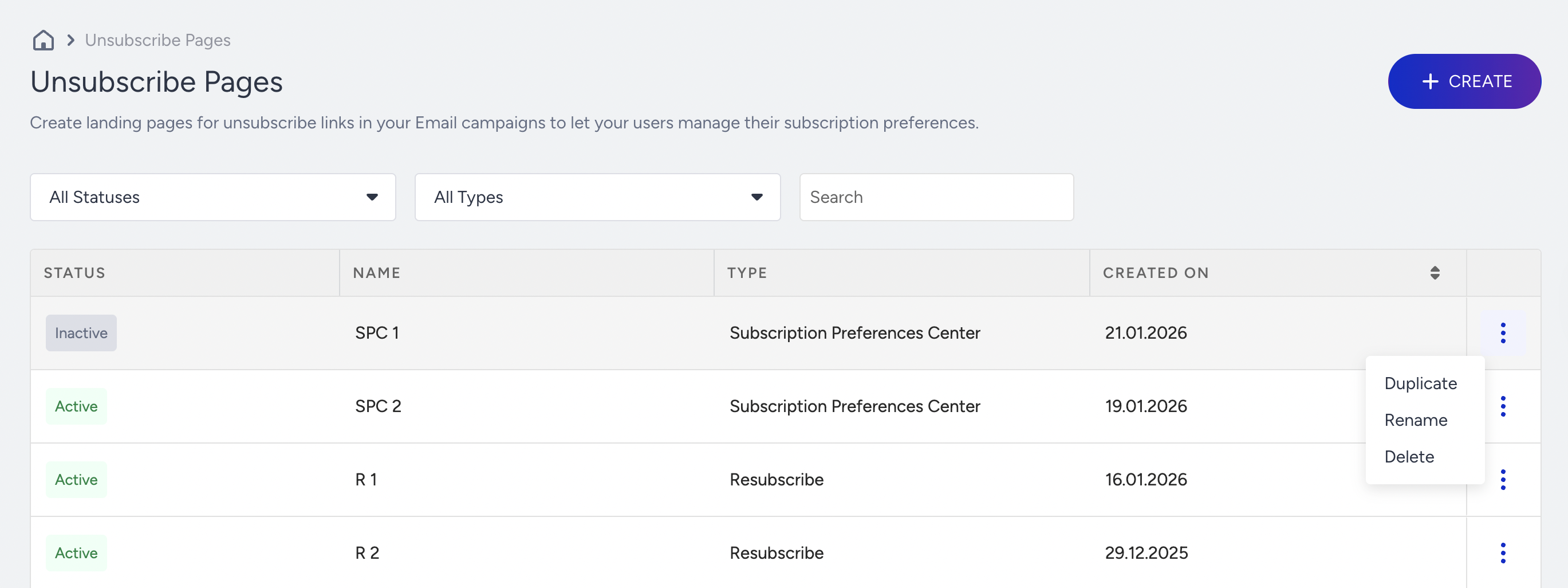
You can view your previously created pages of all types on the Components > Unsubscribe Pages page.
On this page, you can:
- Create unsubscribe pages
- Filter unsubscribe pages
- Understand the statuses of the unsubscribe pages
- Delete/duplicate/rename unsubscribe pages
Create unsubscribe pages
See how to create unsubscribe pages.
Filter unsubscribe pages
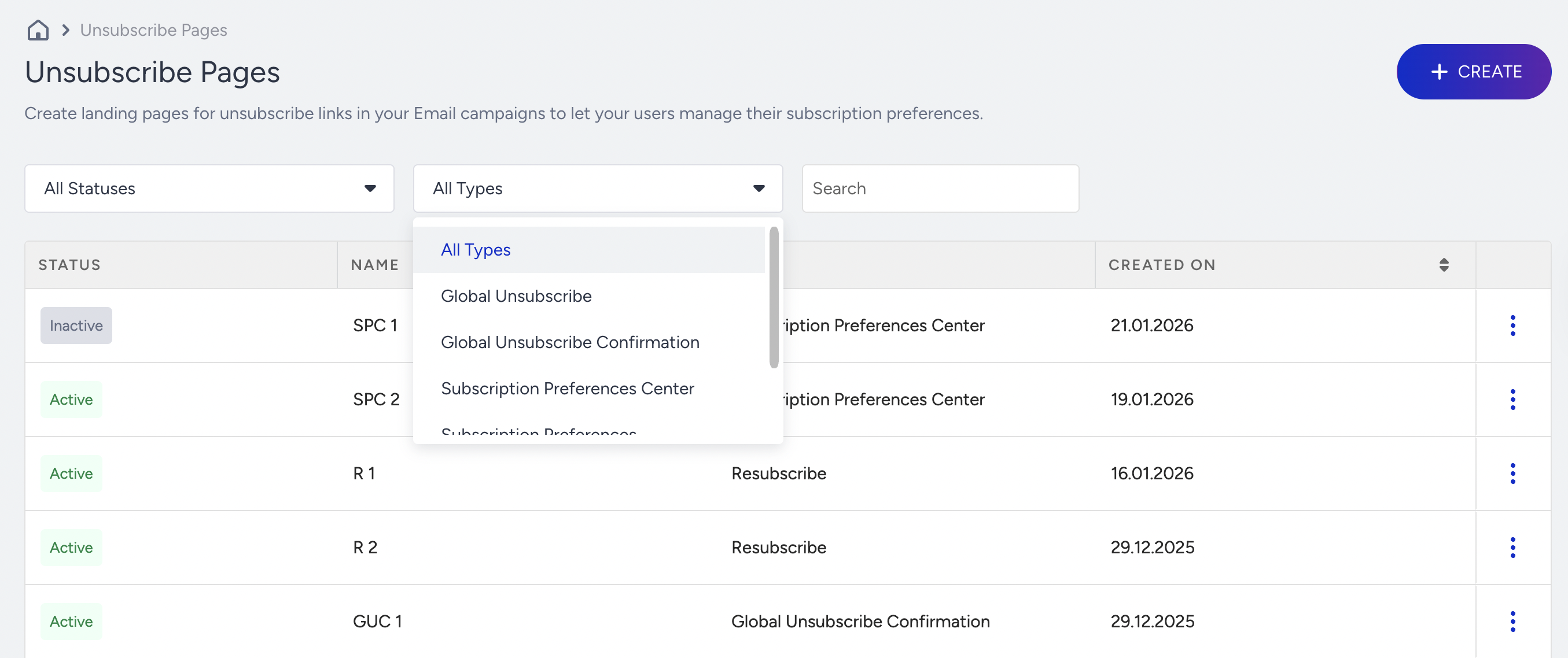
You can search your unsubscribe pages or apply a filter to list the specific ones. You can filter them by:
- Status: Active or Inactive
- Page type: Global Unsubscribe, Global Unsubscription Confirmation, Subscription Preferences Center, Subscription Preferences Confirmation
Statuses
You can see your unsubscribe pages in two statuses: Active or Inactive.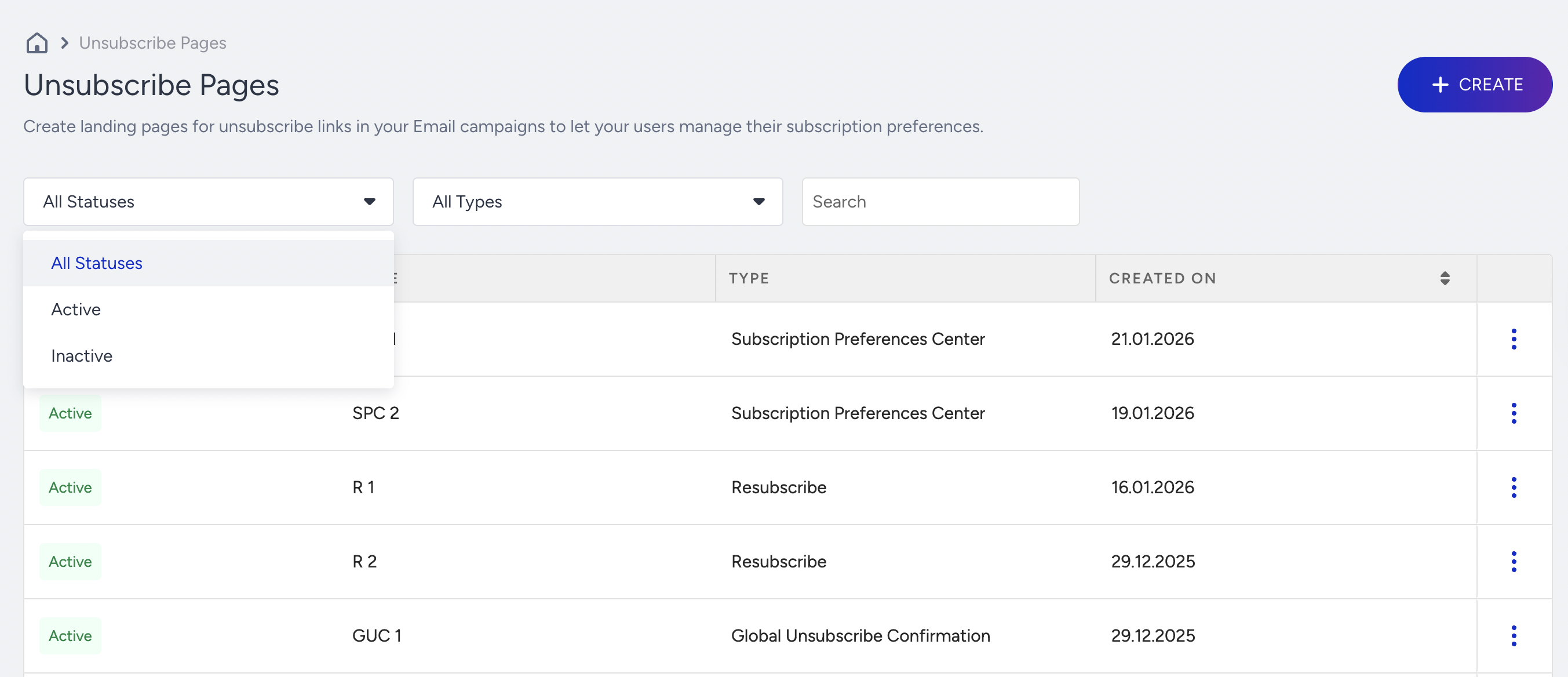
Active
Active status indicates that some of your email campaigns use the respective unsubscribe page. You can edit your active pages, and the changes will be reflected in all email campaigns that use the edited unsubscribe page. You cannot delete active unsubscribe pages.
Inactive
Inactive status indicates that the respective unsubscribe page is not used in any of your email campaigns. You can edit, duplicate, or delete your inactive unsubscribe pages.
Delete/Duplicate/Rename unsubscribe pages
You can delete or duplicate your inactive unsubscribe pages, while you can only duplicate your active pages. You can duplicate a page and edit it easily without having to create a page from scratch.
You can also rename your unsubscribe pages.