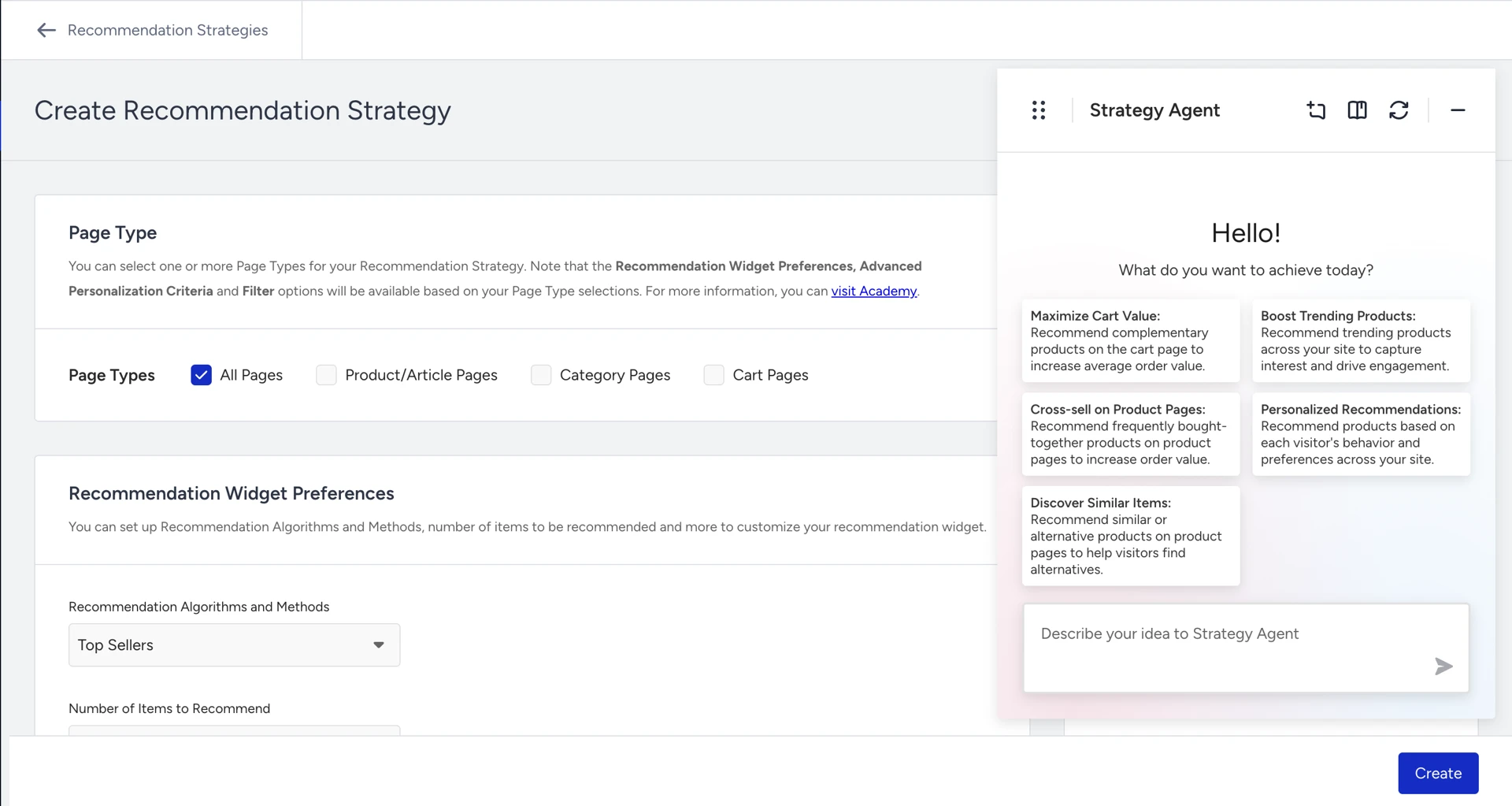
Strategy Agent builds your Smart Recommender Recommendation Strategies through conversation. Tell it what you want shoppers to see, such as "trending Nike products under 250 USD on the homepage," and it picks the algorithm, page type, and filters for you. No algorithm names, no manual setup, no product expertise needed.
Start from one of five ready-made goals, or describe your strategy in your own words. Then keep refining it in the same chat until it's exactly right.
On this page:
Why marketers love Strategy Agent
Say what you want, not which algorithm. "Products people usually buy together" is enough. Strategy Agent translates it into the right algorithm, page type, and filters.
Reasoning you can see. Every proposal comes with its reasons, so you know why an algorithm or page type was chosen before you apply it.
Grounded in your catalog. If you mention a brand, attribute, or category that isn't in your catalog, Strategy Agent asks before it builds, so misconfigured strategies never slip through.
Put it to work
Grow cart value in two clicks
You select the Maximize Cart Value goal. Strategy Agent proposes a strategy for the Cart page, and you click Apply. You add "only show items above $50," apply the price filter, and click Create. Your strategy is live.
Spotlight a brand on the homepage
You type "Show trending Nike products under 250 USD on the homepage." In a single turn, Strategy Agent proposes Trending Products on the Main Page, with a brand filter and a price filter. You review, apply, and create.
Build cross-sell step by step
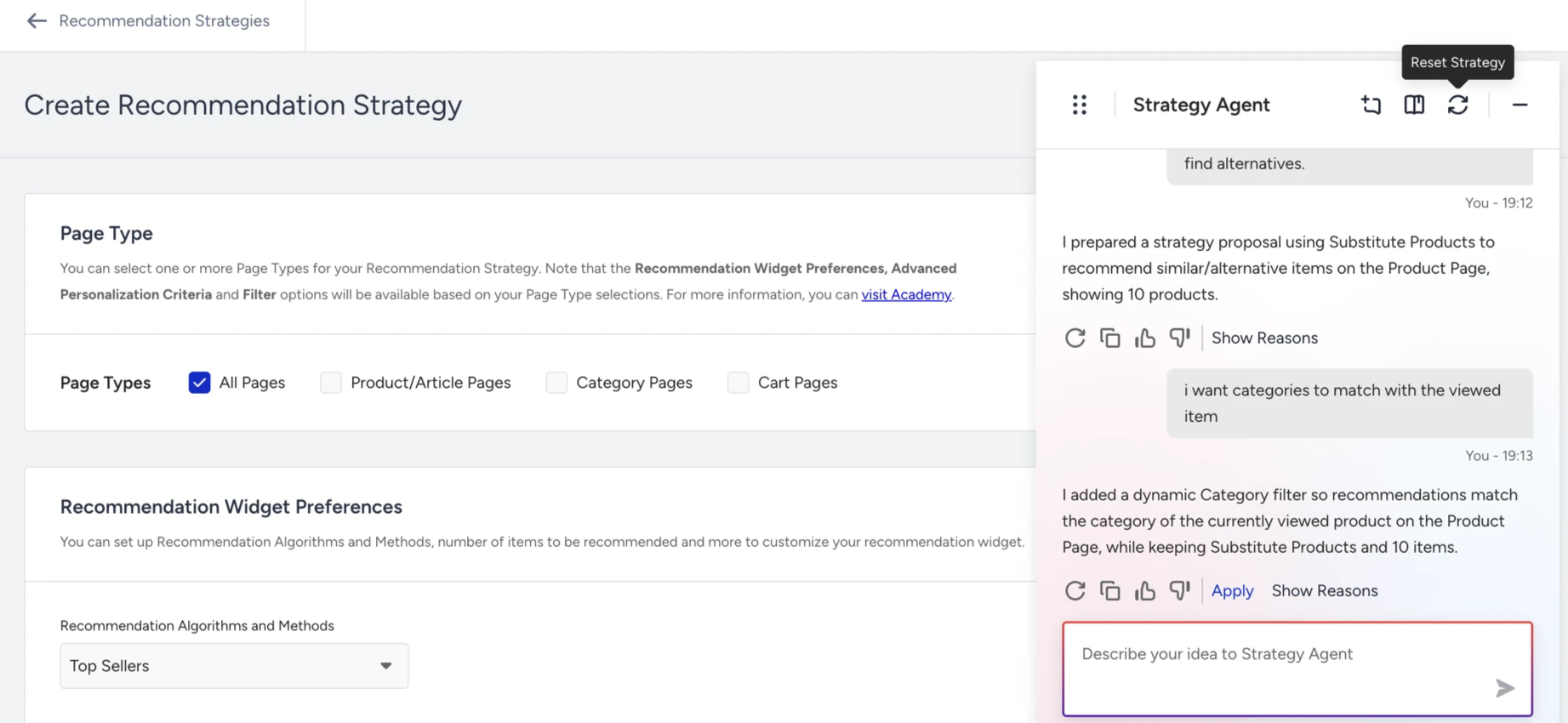
You type "Show products that go well with what people are viewing." Strategy Agent proposes the Complementary algorithm on Product Pages. You add "only items under $200," then "also match the category with the viewed item," applying each change as you go. Then you click Create.
How it works
You describe your intent, or pick a predefined goal.
Strategy Agent maps it to a configuration: the algorithm, page type, and filters that fit your request and your product catalog.
It asks when something is missing. If your request is unclear, or doesn't match your catalog, it asks a targeted question first. Until it has enough valid information, no Apply button appears.
You apply the changes you like. Nothing changes on your strategy until you click Apply.
You create the strategy. Name it and click Create to save and activate it.
Note: Clicking Create both saves and activates the strategy. Review the final configuration before you click it.
Open Strategy Agent
Strategy Agent lives inside Smart Recommender. You can open it when you create a new strategy or edit an existing one.
To create a new strategy:
Navigate to Recommendation > Recommendation Strategies in the InOne panel.
Click Create a Strategy.
Select Goal-Based to start from a predefined goal, or LLM Strategy Creator to describe your strategy in your own words.
Create a strategy from a goal
Choose this path to get started fast, especially if you're not sure which algorithm to use. Strategy Agent sets the algorithm, page type, and initial configuration for you.
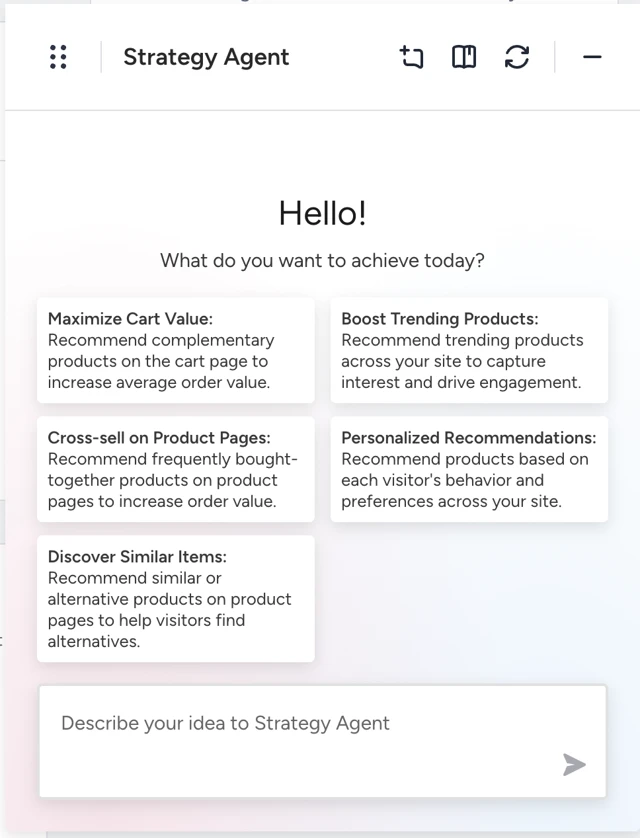
On the Recommendation Strategies page, click Create a Strategy and select Goal-Based.
Choose a goal:
Maximize Cart Value
Cross-Sell on Product Page
Discover Similar Items
Boost Trending
Personalized Recommendations
Review the strategy Strategy Agent generates, then click Apply.
Optionally, refine it with a follow-up message, such as "only show items above $50," and click Apply after each change.
Name your strategy and click Create to save and activate it.
Create a strategy in your own words
Choose this path when you know what you want and prefer to describe it directly.
On the Recommendation Strategies page, click Create a Strategy and select LLM Strategy Creator.
Type your intent, such as "Show trending Nike products under 250 USD on the homepage."
Answer any clarifying questions the Strategy Agent asks, such as which page type to use.
Review the proposed configuration. Click Apply to accept it, or type a follow-up to adjust it.
Keep refining until you're satisfied.
Name your strategy and click Create to save and activate it.
Edit an existing strategy
Navigate to Recommendation > Recommendation Strategies and open the strategy.
Click Edit.
Describe the changes you want in the chat. Strategy Agent reads your current configuration and builds on top of it, rather than starting from scratch.
Click Apply to accept each change.
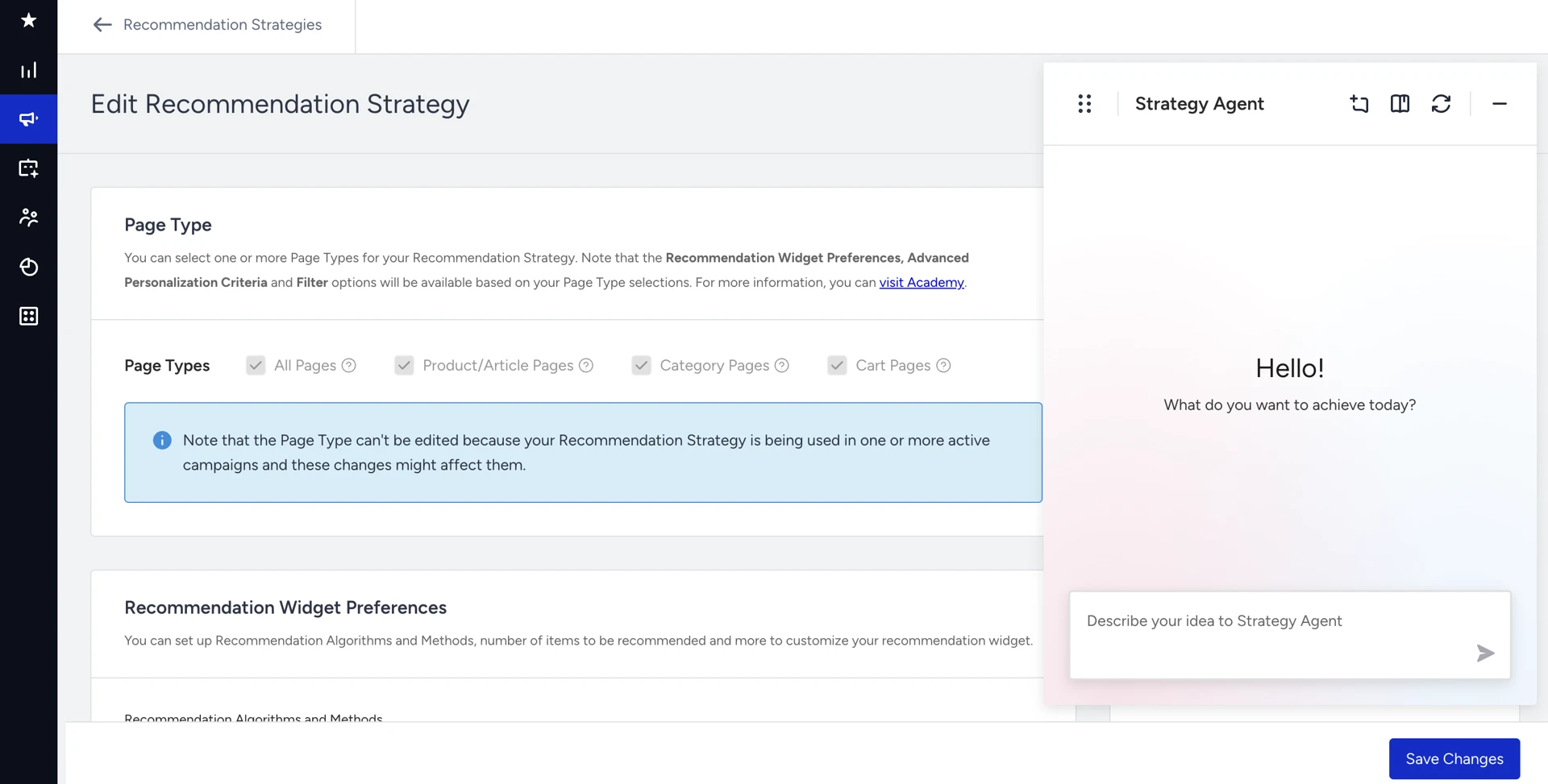
Actions you can take in the chat
Action | What it does |
|---|---|
Apply | Accepts the proposed change and adds it to your strategy draft. Changes don't appear on the strategy creation page until you click it. |
Show Reasons / Hide Reasons | Shows or hides why Strategy Agent made a proposal: which algorithm it chose, why it picked that page type, and what logic it applied. |
Like / Dislike | Rates a response. When you dislike one, add a comment explaining what you want instead, and Strategy Agent revises its proposal. |
Reset | Clears the current strategy and chat session after you confirm. Use it to start over in a completely different direction. |
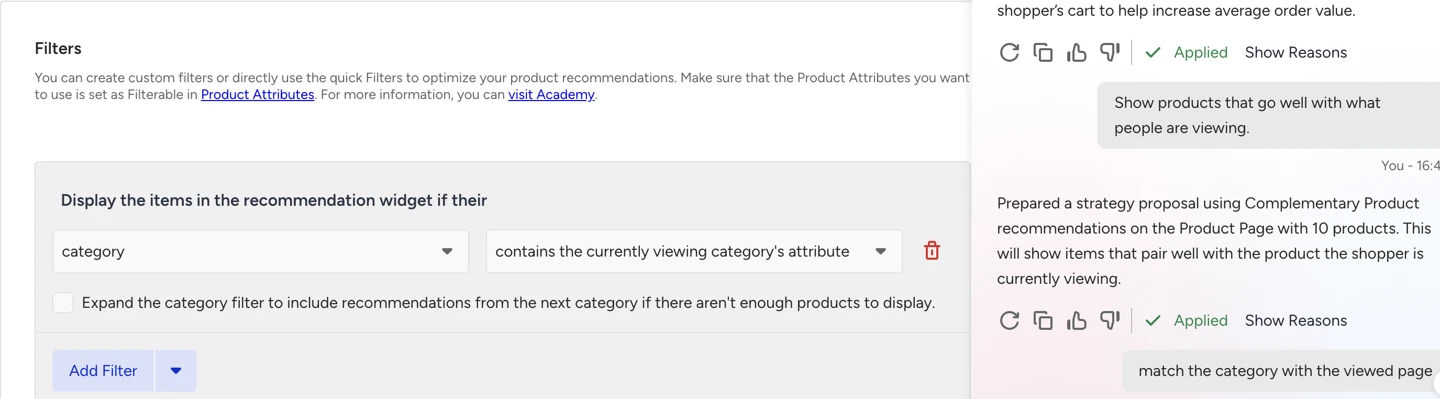
Example: Strategy Agent proposes Most Valuable Products on All Pages. You click Dislike and comment, "I don't want this on all pages, only product pages." Strategy Agent revises the proposal to Product Pages.
Example prompts and tips
Try these to get started:
Show trending Nike products under 250 USD on the homepage.
Show products that go well with what people are viewing.
Only show items above $50.
Also match the category with the viewed item.
For sharper strategies:
Be specific. Name the category or brand, the price range, and the page. "Show trending products in a category under $250 on the homepage" works better than "show some products."
Use natural language. You don't need algorithm names. "Products people usually buy together" is enough.
Iterate freely. Refine across as many messages as you need; each change applies only when you click Apply.
Dislike with a comment. When Strategy Agent misunderstands, a short comment gets a faster correction than starting over.
Good to know
One strategy per chat. Each chat session is tied to one strategy. You can't edit other strategies from it.
No chat history between sessions. Each new creation or editing session starts fresh. Strategy Agent doesn't remember previous conversations.
No performance data. Strategy Agent suggests strategies based on your intent and product catalog, not on how past campaigns performed.
Recommendation strategies only. If you ask about something else, Strategy Agent guides you back to the strategy.
Session message limit. Each session allows a maximum number of messages. When you reach it, Strategy Agent shows your current strategy and prompts you to save it or continue in a new session.
Next steps
Strategy Agent turns a sentence into a catalog-aware recommendation strategy, with every change in your hands. Ready to try it? Open Recommendation Strategies and start from the Maximize Cart Value goal. For manual configuration options, see Smart Recommender Strategy Settings.