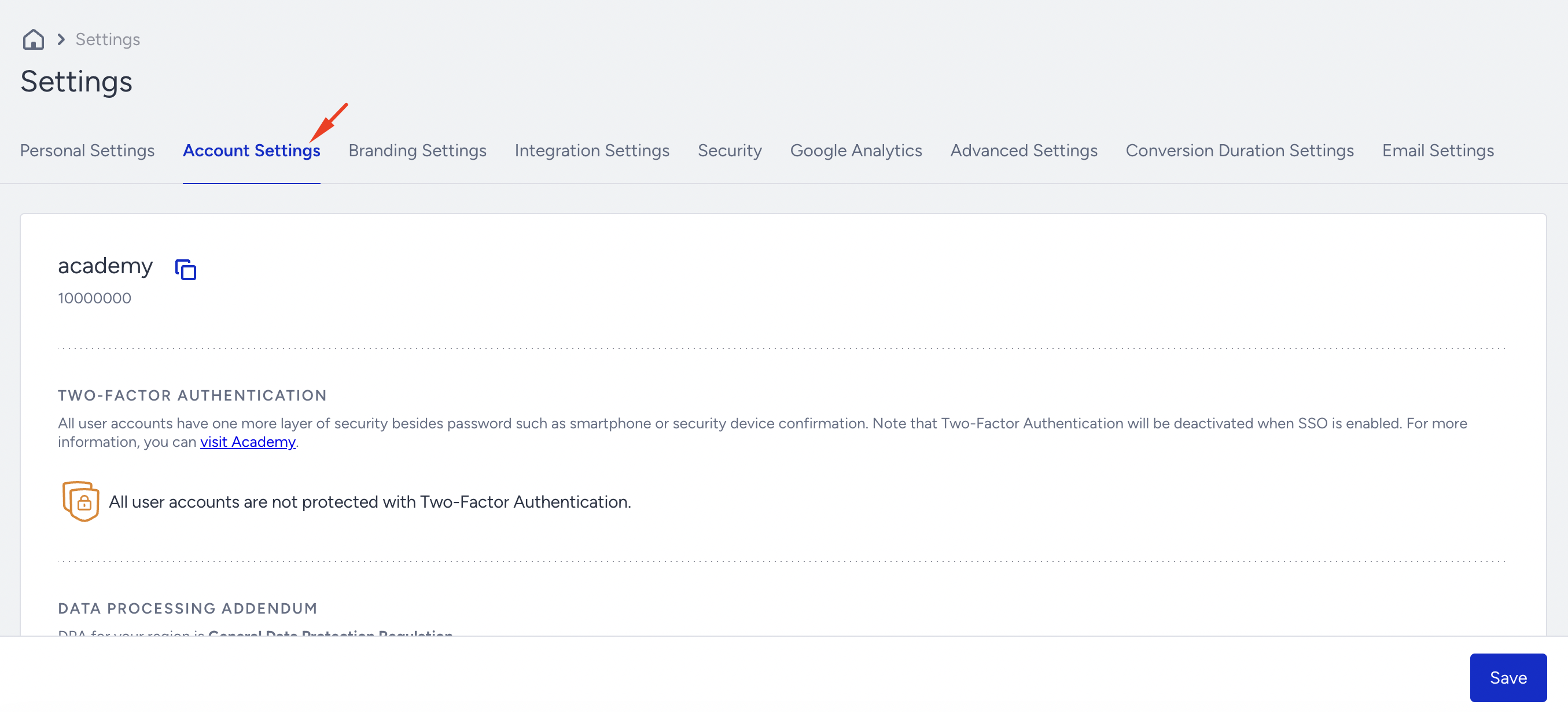
Account Settings allow you to manage your profile, including your brand, logo, and other panel settings.
Click your username > Settings > Inone Settings to navigate to this page.
Partner Name and ID
Landing on Account Settings, you can see your Partner Name and Partner ID. Insider One generates these two keys for your account when creating your panel. If you need these keys for any integration or API you are implementing with Insider One, such as the Web Push API or Recommendation API, you can always return to this page and copy these values.
Two-Factor Authentication
Two-factor authentication enables you to log into your account with one more layer of security. For more information, read Two-Factor Authentication (2FA).

Campaign Settings
Campaign Settings enable you to configure your globally applied account settings.
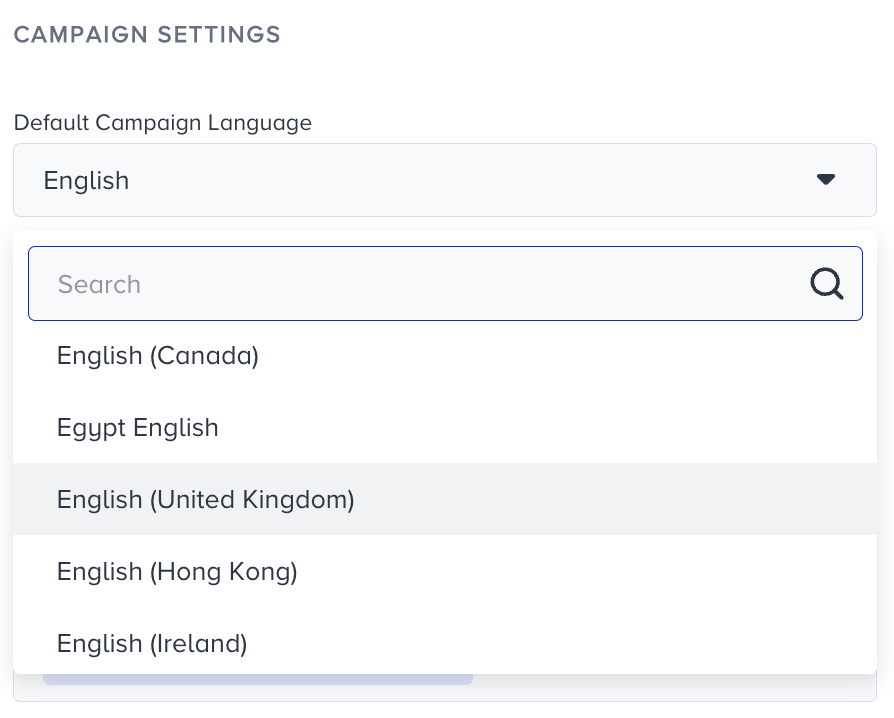
Default Campaign Language
| You can set a default personalization language that will be automatically selected at the Launch step of your campaigns. If you have a multi-language website and want to run campaigns in other languages, you can manually change the auto-selected language at the Launch step accordingly. |
Default Time Zone
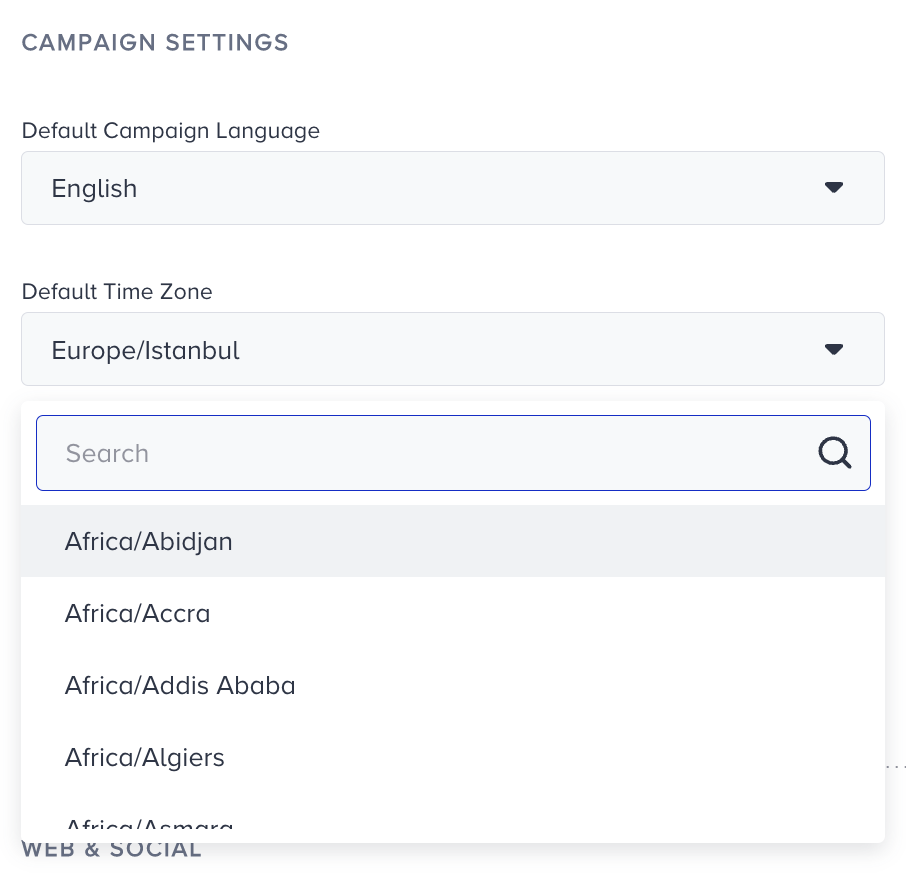
You can select your preferred time zone, which will be the basis for all time-related campaigns and settings in the Account Settings. For example, when creating a countdown campaign, the timer will be set to the selected time zone. Additionally, your campaigns' start and end dates and times will be based on this time zone. To update your time zone on InOne, select the desired option from the dropdown list.
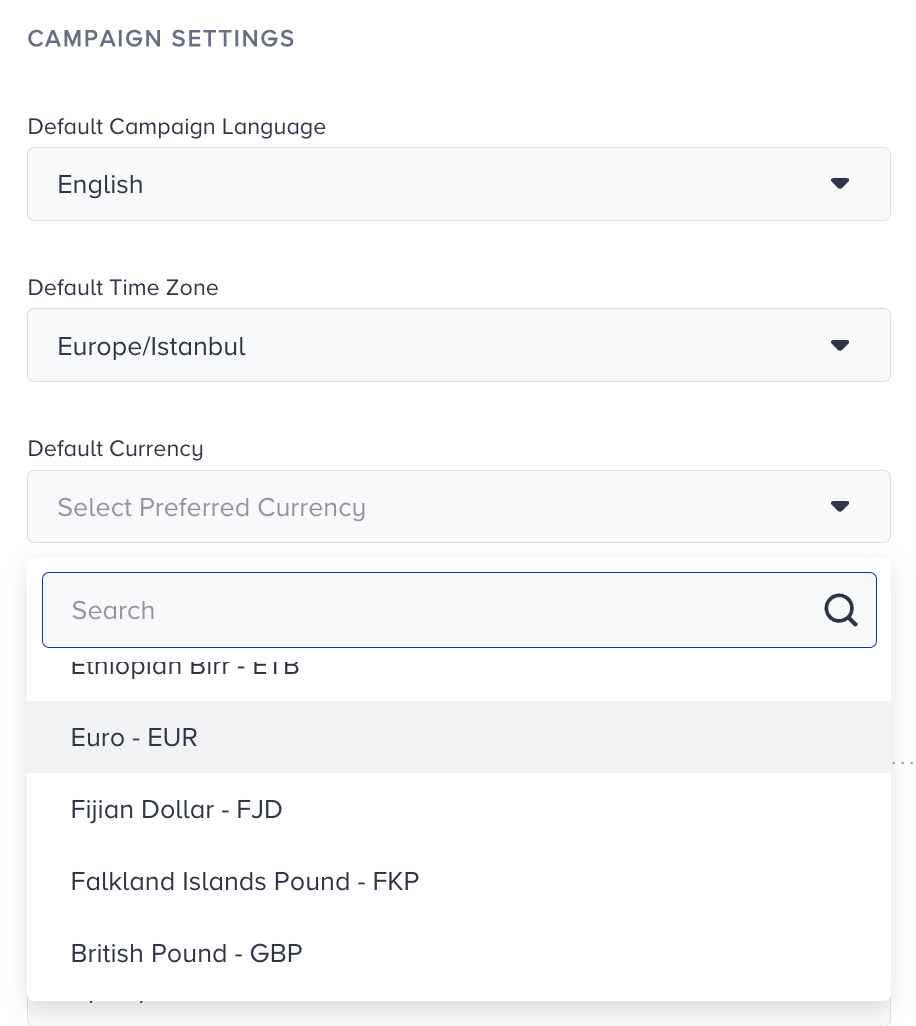
Default Currency
If you have a multi-currency website, you should select the currency you want to use as the default. You will see your campaign analytics and currency-related metrics in this currency, and other currencies will be converted to the preferred currency for the analytics.
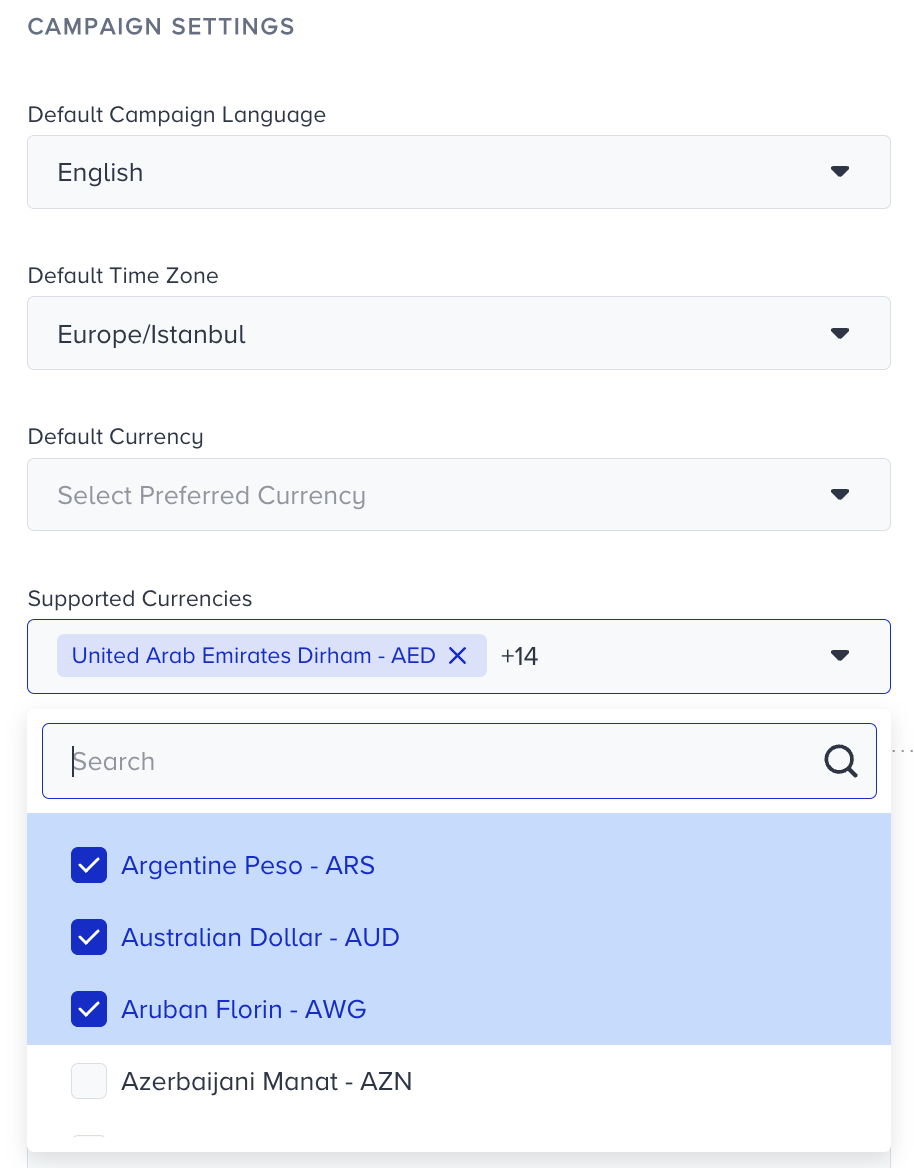
Supported Currencies
If you have a multi-currency website, select the currencies you want to support, in addition to the preferred currency. These currencies will be converted to the preferred analytics currency.
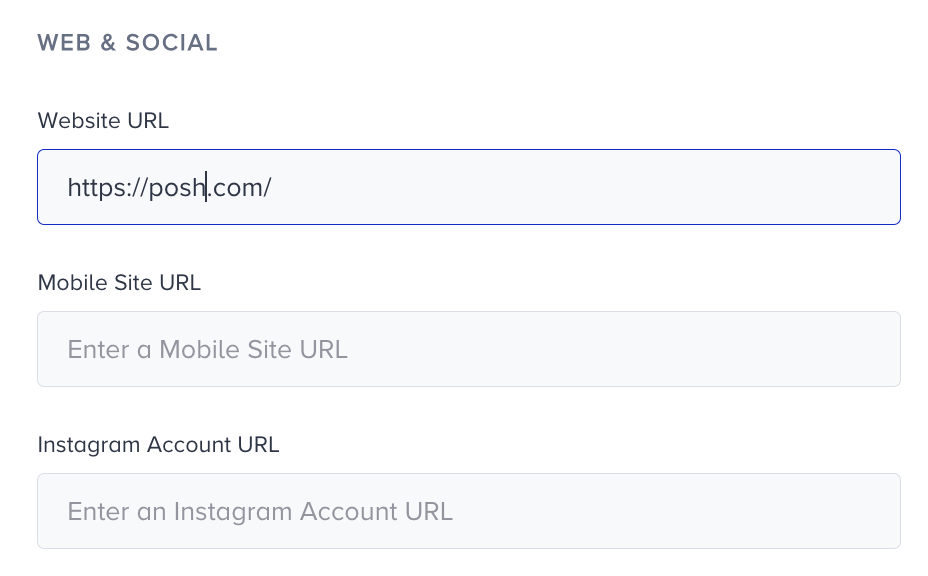
Web & Social
Add your website and mobile website URLs here for Insider Tag and your campaigns to function correctly. If your mobile website has the same URL as the website, you can leave this field blank.
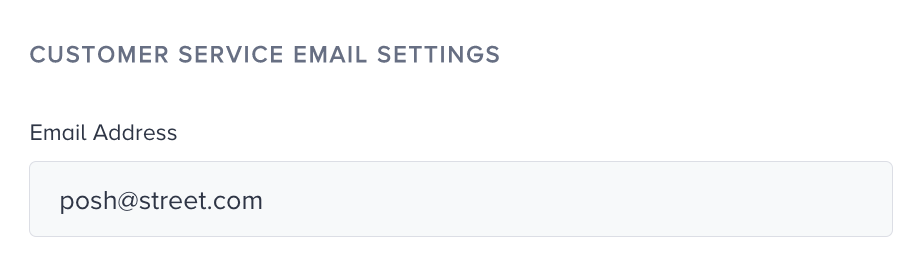
Customer Services Email Settings
You can add an email for Customer Services Email to receive emails about campaigns. For instance, you may receive an email warning you about a low number of coupon codes for a campaign.